> For the complete documentation index, see [llms.txt](https://docs.autommate.com/userguide/llms.txt). Markdown versions of documentation pages are available by appending `.md` to page URLs; this page is available as [Markdown](https://docs.autommate.com/userguide/autom-features/autom-version.md).
# Autom Version
Safely develop, test, and release automations using structured version control.
## What is Autom Versioning?
Autom Versioning allows you to manage changes to your automations without impacting production environments. It introduces clear separation between development, execution, and historical states. Each Autom can have multiple versions, making changes traceable and reversible. Versioning reduces release risk and improves governance. It is designed for both iterative development and enterprise-scale automation management. Understanding versioning is essential for safe and predictable Automs.
***
## Autom Version Lifecycle
Every Autom follows a strict lifecycle:
**Developer → Active → Old**
This lifecycle ensures that changes are developed, validated, and released in a controlled manner. Each stage has clearly defined rules and behaviors.
Version Type
Editable
Executable
Purpose
Developer
Yes
Optional
Development and testing
Active
No
Yes
Production execution
Old
No
No
History and audit
Lifecycle transitions are enforced by the system and cannot be bypassed.
***
## Version Types
### Developer Version
Developer versions are the only versions where changes are allowed. All configuration updates, action changes, file operations, and structural modifications must be performed here. Developer versions are intended for active development and testing. When Dev Mode is enabled, the related Developer version is visible even while viewing Active or Old versions. API and Webhook endpoints automatically include a `&dev` indicator to prevent accidental production usage. One or more Developer versions may exist depending on Autom needs.
***
### Active Version
The Active version represents the current production-ready state of an Autom. This is the version executed in live environments. Active versions are strictly read-only and cannot be edited. This guarantees production stability and prevents accidental changes. Any update requires switching to or creating a Developer version. Only one Active version can exist at a time per Autom.
***
### Old Version
Old versions are historical snapshots of previously active versions. They exist for reference, auditing, and comparison purposes. Old versions are read-only and cannot be modified or executed. They help users understand how an Autom evolved over time. Old versions can be compared with Developer or Active versions. This ensures traceability without operational risk.
***
## Working with Versions
### Creating and Updating a Developer Version
All changes must start in a Developer version. This includes editing actions, modifying logic, updating configurations, and managing files. Developer versions provide a safe environment to test and validate changes. No production behavior is affected during development. Users can freely iterate until the desired state is reached. Structural changes outside Developer versions are not allowed. When you enable dev mode, it is creating automatically.
***
### Releasing a Version
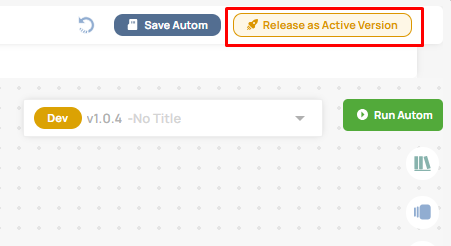
To promote changes to production, use the **Release as Active Version** autom. This action converts the Developer version into the new Active version. Version metadata and execution context are updated automatically. The previously Active version is moved to Old. Once released, the new Active version becomes read-only. Manual promotion is not supported.
***
## Version Compare
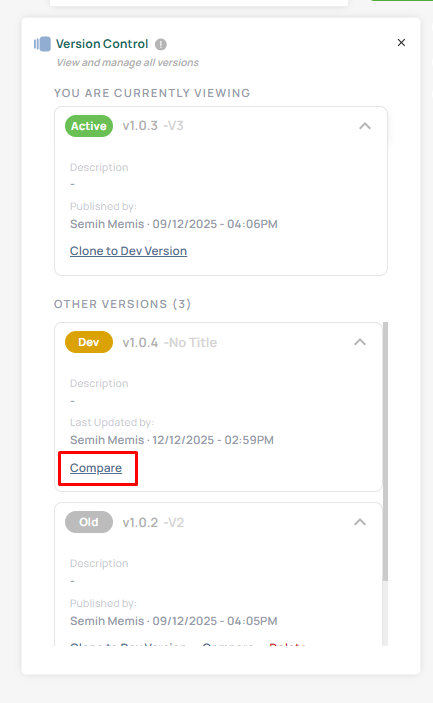
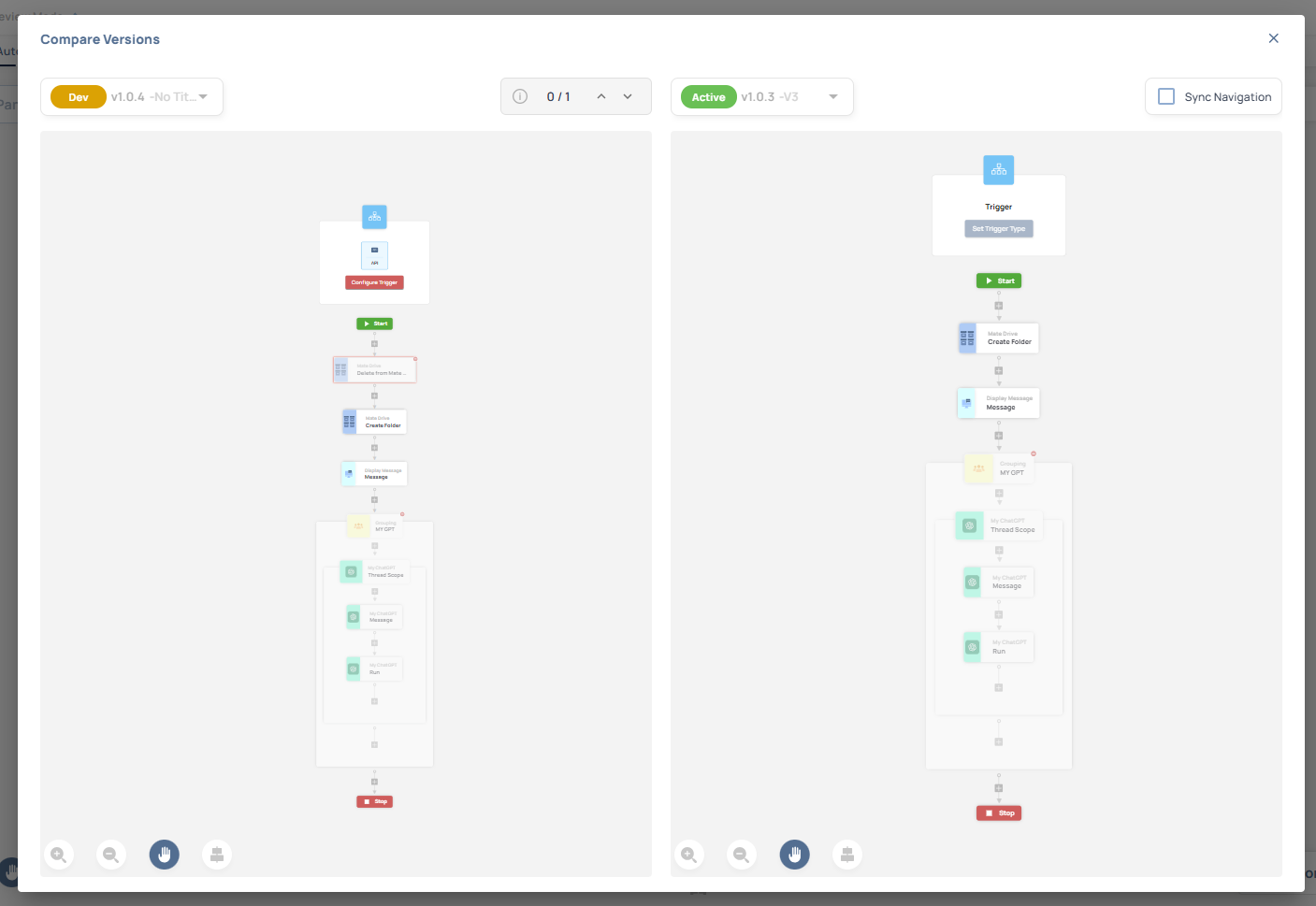
Version Compare allows users to review differences between Autom versions before releasing or auditing changes. It provides a structured, visual comparison across actions, configurations, and logic. The comparison view is strictly read-only. Users should always review Version Compare before releasing a Developer version. This reduces regression risk and increases confidence. Version Compare is a core safety mechanism.
***
### Supported Comparisons
Users can compare the following version combinations:
* Developer → Active
* Developer → Old
* Active → Old
These comparisons always reflect the exact saved state of each version. Unsupported combinations are intentionally blocked to avoid ambiguity.
***
### Color Coding and Visual Indicators
Version Compare uses consistent color indicators:
* Green: newly added items
* Red: removed items
* Yellow: modified items
* Grey: unchanged items (context only)
Colors apply to actions, fields, and configuration blocks. This visual language allows users to quickly scan changes without reading every detail. It significantly improves review speed and accuracy.
***
### Action-Level and Structural Comparison
Each action is compared individually and highlighted based on change type. Users can expand actions to view detailed parameter-level differences. Structural elements such as triggers, conditions, and control logic are also compared. Execution order changes are clearly surfaced. Configuration differences are grouped logically. Even complex automations remain readable and understandable.
***
### Safety Rules
Version Compare is read-only by design. No edits can be made from this screen. All changes must be performed in a Developer version. This separation prevents accidental modifications during review. Users can safely inspect changes without risk.
***
## Version-Aware Behavior
### Execution and Monitoring
Each Autom execution is tied to a specific version. Execution records include version information for traceability. Monitoring screens display version columns and support version-based filtering. This helps identify which version caused a specific behavior. Historical executions remain linked to their original versions. Troubleshooting becomes more precise and reliable.
***
### Triggers
Trigger behavior depends on version state. Developer and published versions follow different trigger rules. This prevents unintended execution in production during development. Trigger configurations automatically respect version boundaries. Users do not need to manage this manually. Operational safety is enforced by design.
***
### APIs and Webhooks
API and Webhook endpoints are version-aware. Developer versions automatically append a `&dev` parameter to endpoints. This clearly separates development traffic from production traffic. Active versions use clean production endpoints. Users must ensure external systems use the correct endpoint. This reduces integration risk significantly.
***
## Version Limits and Rules
A maximum of 100 versions is enforced per Autom. This prevents uncontrolled growth and ensures long-term performance. When the limit is reached, new versions cannot be created. Users should periodically retire unused versions. The limit applies across all version states. Enforcement is automatic and consistent.
***
## Clone to Developer Version
The **Clone to Developer Version** option allows you to create a new Developer version by copying an existing Active or Old version. This provides a clean starting point for further development without affecting production or historical versions. It is the safest and fastest way to continue development based on an existing version.
The clone option is available **only for Active and Old versions** in the version list panel. It does not appear for Developer versions. This ensures development always starts from a stable and validated baseline.
When the clone action is triggered, a **new Developer version is created automatically**. All relevant version data is copied exactly as it exists at the time of cloning. The original version remains unchanged.
The following elements are included in the clone:
* Autom flow and graph structure
* Variables, including arrays, objects, and nested definitions
* Trigger configuration
* Autom group tabs and categories
* ROI (Return on Investment) information
Once cloning is completed, you are **automatically redirected** to the newly created Developer version. The new version is immediately ready for editing and testing.
If a Developer version already exists, the system ensures predictable behavior and prevents unintended duplicate development states. The user interface displays loading feedback during the process, and redirection happens seamlessly. Backend APIs validate the operation to ensure data consistency and prevent data loss.
This feature is the **recommended way to start development** when extending or modifying an existing version.
***
{% hint style="success" %}
#### Best Practices
* Always perform changes in Developer versions
* Review Version Compare before releasing
* Treat Active versions as immutable production snapshots
* Use Old versions for reference and audits only
* Monitor execution versions during incidents
* Keep version counts manageable
* Follow the defined lifecycle strictly
{% endhint %}