> For the complete documentation index, see [llms.txt](https://docs.autommate.com/userguide/llms.txt). Markdown versions of documentation pages are available by appending `.md` to page URLs; this page is available as [Markdown](https://docs.autommate.com/userguide/service-automation/create-work-items-and-pin-released-versions.md).
# Create work items and pin released versions
A service uses work items for **Govern**, **Execute**, and **Prove**. Add a work item in the phase where its work belongs, and choose a released version for the service to use.
## Create a work item
1. Open **Build → Work Items** and choose the Govern, Execute, or Prove list.
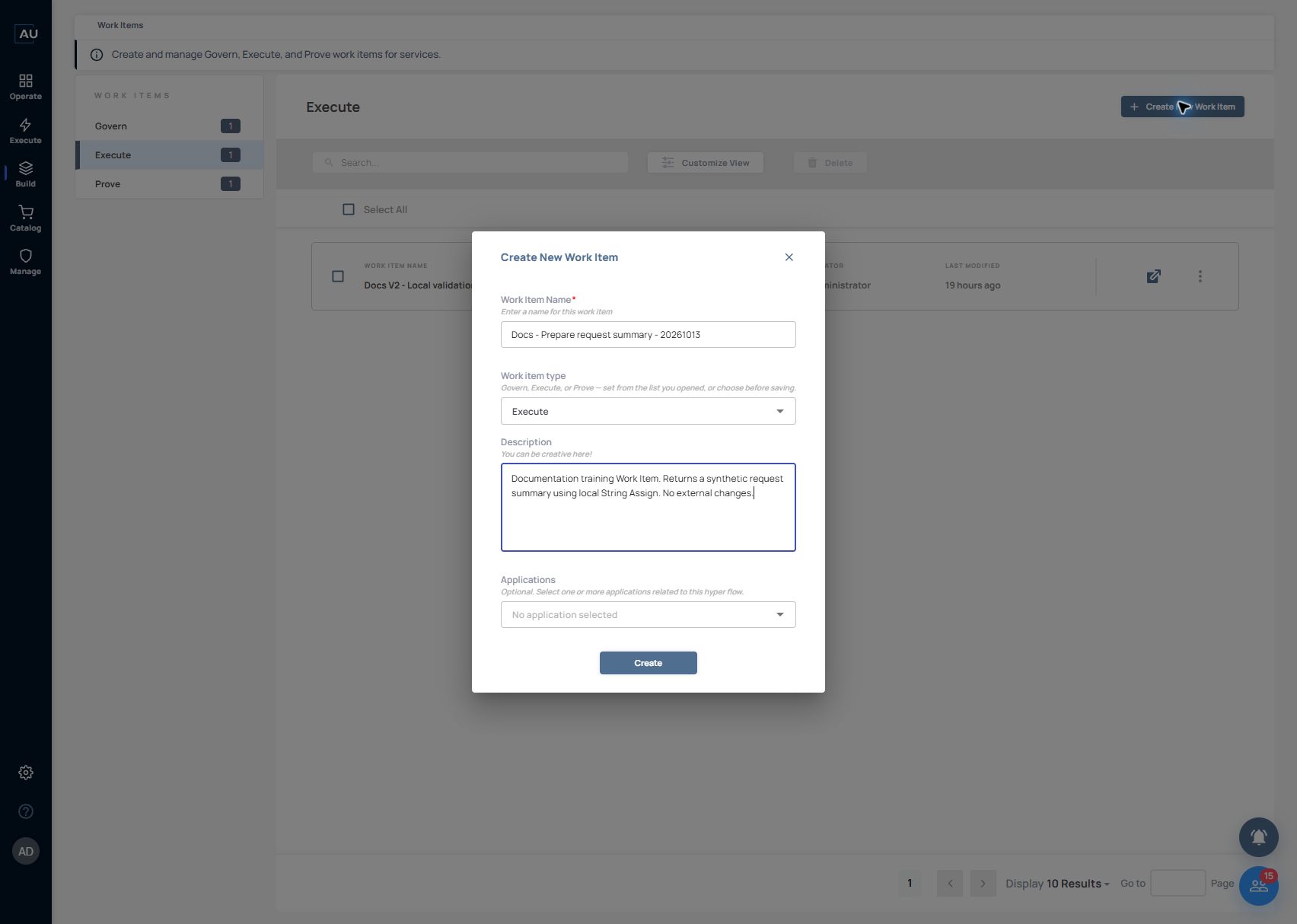
2. Select **Create New Work Item**.
3. Enter **Work Item Name**. Review **Work item type**: the list supplies the initial type, which can be changed before saving.
4. Add a **Description** and optional **Applications**.
5. Select **Create** when ready to build the item.
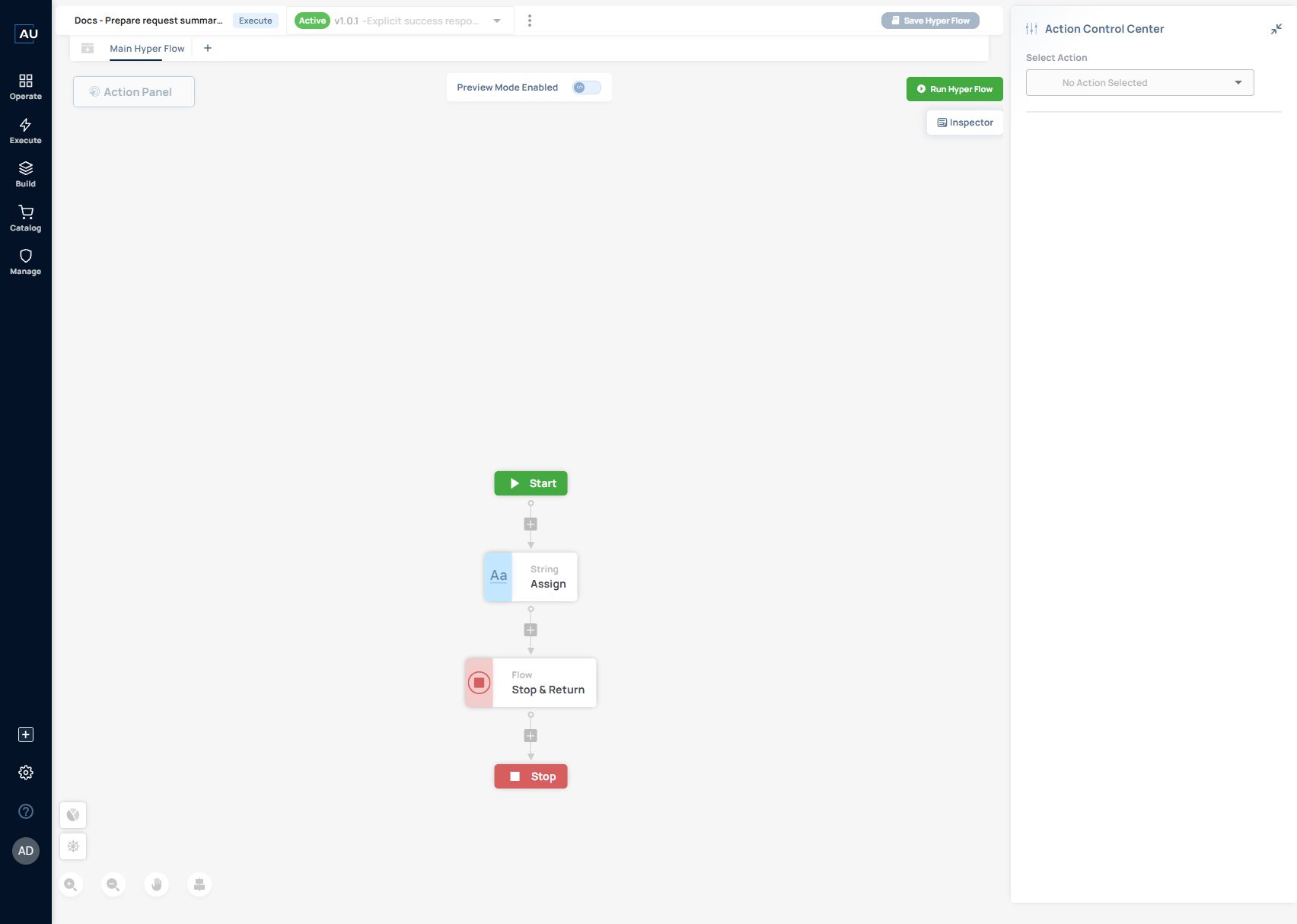
The editor uses the Hyperflow canvas. Its toolbar shows Save Hyper Flow, Release as Active Version and Run Hyper Flow. Save your changes, release the version the service will use, and run it to check the result.
## Example prepare a request summary
Build a small Execute Work Item that prepares the same fictional request used in [Build a Hyperflow](/userguide/build-automations/build-a-hyperflow.md):
{% code collapsedlinecount="10" %}
```
REQ-DEMO-001 | VPN access | Maya Chen
```
{% endcode %}
1. In the **Execute** Work Items list, select **Create New Work Item**.
2. Enter **Docs - Prepare request summary - 20261013** as the example name, or choose your own recognizable name. Describe it as local text preparation using fictional request data. No application is needed for this first action.
3. On the canvas, add **String → Assign** between Start and Stop.
4. Set **Value to Assign** to the text above. Set **Source to be Assigned** to the String variable that will hold the request summary.
5. Add **Flow → Stop & Return** after String Assign. Select **Yes** for this positive example's **Result**, enter `200` for **Response Status Code**, and select `text/plain` for **Body Response Type**. These are separate settings; inspect the actual run and Case after execution.
6. For the response body, use **+ Variable** to select `request_summary`. The editor inserts `##request_summary##`. Select the variable using the picker rather than typing a new variable name.
7. Select **Save Hyper Flow**. Review the connected path and return configuration, then select **Release as Active Version** when the item is ready for the service picker.
The positive example was released as **Active v1.0.1**. Saving, releasing and running are separate steps. Pin this version when building the service, then inspect the version actually recorded by its Service Case.
## Run the released Work Item and inspect its actual data
1. Open the example's **Active v1.0.1** release and select **Run Hyper Flow**.
2. Read the Manual Trigger completion message, then open **View All Logs**.
3. Select the **Stop & Return** action's information and choose **Fetch Input Output**.
4. Compare its actual `responseData` with the expected fictional summary. Check the Result input separately from the response code.
The direct run on **13 October 2026 at 08:56:14**, as displayed in the browser, completed successfully. The runtime action input showed `result: true`, `responseData: "REQ-DEMO-001 | VPN access | Maya Chen"`, response code `200` and `text/plain`.
After the direct Work Item test, run the service deployment and inspect its matching Service Case. The two tests cover the Work Item and its orchestration separately.
| Checkpoint | Expected evidence |
| ---------- | ------------------------------------------------------------------------------------------ |
| Canvas | Start → String Assign → Stop & Return → Stop |
| Assignment | The fictional request text is assigned to the intended String variable |
| Direct run | The matching Work Item run completes and the inspected value contains the expected summary |
| Release | A released version can be selected from a service's Add work item dialog |
A Work Item has a service input/output contract. Enable Use as Work Item Input for every variable the deployment must supply; the deployment then prompts for that input. To provide a value to following Work Items, assign the producing action’s variable to the Stop action body. In this example, select request\_summary for the Stop & Return body. Save and release that Work Item, pin it in the intended service version, then inspect the new deployment contract. The earlier v1.0.0 screenshot below reports noData for that older package.
Use the Stop body to return the variable needed by the next Work Item. During deployment, select that earlier Work Item output for the consuming input, then run the service and check the resolved value. The direct v1.0.1 run above verified its Stop responseData; a subsequent Work Item consuming that output has not yet been demonstrated here.
## Declare the inputs
In the editor's **Variables** area, **Add New Variable** provides **Variable Type**, **Variable Name**, **Display Name**, **Variable Description**, and **Use as Work Item Input**.
Enable **Use as Work Item Input** when the released Service Work Item must receive that variable as an input. Leave it disabled for an internal Hyperflow variable. Available types include application credential, array, boolean, data table, date, number, object, and string.
Use clear input names and descriptions: variables marked Use as Work Item Input are requested during deployment. Save and release the Work Item, pin that release in the service and publish the service version before configuring the deployment inputs.
## Find a work item
1. In a service's **Service Flow** step, select **+ Add work item** in the required phase.
2. Use **Search work items…** to narrow the list.
3. Select an **Origin**: **All**, **My Work Items**, or **Market catalog**.
4. Optionally use **Applications** to filter by app.
5. Select a work item and then choose a released version.
6. Select **Add work item**.
The application filter uses **AND** matching: an item must include **every selected app**. Selecting more applications can therefore reduce the result set.
## Understand the version requirement
In the picker, select a Work Item and then a released version. The message “Released versions are pinned when you add” means the service keeps that selection until you explicitly change it. If the editor still shows Dev, release the required revision before selecting it.
Choose the version intentionally and record it when reviewing a service. Do not assume a service has adopted a later work-item revision simply because that revision exists elsewhere.
## If no work items appear
The empty state is **“No work items match this filter.”** Work through these checks:
| Check | Next action |
| ------------------------------------------ | ------------------------------------------------------------------------------ |
| Search text is too specific | Shorten or clear the search. |
| Application combination is too restrictive | Remove filters; remember that every selected app must match. |
| Origin is restricted | Check **All**, or switch to the intended source. |
| No suitable released version exists | Prepare and release the appropriate work item before adding it to the service. |
| The list may be stale | Use **Refresh**. |
The dialog also provides **Create new work item**. Use the phase's actual requirement to guide the new work item rather than adding unrelated work just to complete the wizard.
## Review the service composition
Add each Work Item to its intended phase. Execute delivers the outcome; Prove checks the service's success criterion. Use + Parallel group for related work that should run in parallel. Test the completed path and any waiting path before connecting customer systems.
## Wait for approval or a human task
Use Pause for resume inside a Work Item when the service must wait for a decision or human work. The action contains two groups: Before Wait and After Resume.
1. Put the preparation actions inside Before Wait. Every child action in that group finishes before the resume token is generated.
2. Put all actions that must run after the decision inside After Resume. They must be children of that group.
3. Run the service and use the token generated for that waiting action. Send the resume request to the same service, using the three fields shown below.
4. Send one continuation for that pause. Then check the Service Case and the After Resume action logs.
{% code collapsedlinecount="10" %}
```
{
"serviceResumeToken": "",
"serviceResumeDecision": "approve",
"serviceResumeComment": "Approved by team lead"
}
```
{% endcode %}
Replace \ with the token for the waiting action. The example uses approve; use the decision supported by your configured action.
After a valid resume request, only After Resume runs. The normal workflow below or outside Pause for resume does not continue, even after the approval or human task finishes. Place the required follow-on actions inside After Resume.
Each token can be used once. An invalid token or a token already used returns an error to the caller. Check the Case before retrying a request whose result is uncertain.
### Example place the follow-on action inside After Resume
Use two local String variables: before\_wait\_trace and after\_resume\_trace. The values below make the boundary visible in the action logs; no application connection or external change is required.
1\. Inside Before Wait, add String → Assign. Set Value to Assign to REQ-DEMO-001 | prepared, and select before\_wait\_trace as Source to be Assigned.
2\. Inside After Resume, add a second String → Assign. Set Value to Assign to REQ-DEMO-001 | resumed, and select after\_resume\_trace.
3\. Save and release the Work Item, pin that release in a test service and deploy its development configuration. Record the selected versions before invoking the service.
4\. Open the resulting waiting Case and inspect the preparation action. Its expected input is REQ-DEMO-001 | prepared. Obtain the token through the waiting action’s supported integration path.
5\. Send the resume body above once to the same service. Refresh the Case and inspect the After Resume assignment; its expected input is REQ-DEMO-001 | resumed.
6\. If the second assignment is absent, check whether it is a child of After Resume. An action placed below Pause for resume on the normal path will not run after the continuation.
These are test expectations, not an already completed waiting run. Use the supported integration path to obtain the resume token. Automatic expiry is not implemented in this release; do not infer a timeout or cancellation policy from the pause action.
For caller errors and unexpected continuation behavior, see [Troubleshoot services](/userguide/operate-and-troubleshoot/troubleshoot-service-setup.md).
### Validate the Work Item separately
Use a direct Run Hyper Flow test to check the Work Item. Then test the deployment entry and inspect the Service Case. Check the input/output contract before selecting a value for a later Work Item's binding. See [local Work Item run](/userguide/service-automation/run-a-local-work-item-and-inspect-its-logs.md).
#### Current behavior — Dublin 6.0.0
A new Work Item release does not automatically replace the version pinned by a service. Save and release the Work Item, create a new service version, explicitly update the Work Item's selected version in its phase, then publish and deploy the new service version. Review the target package and bindings before running it.
When one input contains several selected variables, the result is a plain string. Select scalar values or nested keys. Combining a whole Object and a whole Data Table in one field is not a supported merge. For example: ##connected\_user\[user\_name]## has asked for an approval. approval id is ##approval\_id## and the external request id is ##ServiceNow\[request]\[id]##. Check the resolved input in a test run before using it to send an approval.
### Try a two-item parallel group with local data
1\. Prepare two released Execute Work Items. Let the first assign branch-A into its own local String variable; let the second assign branch-B into its own local String variable.
2\. In the test service’s Execute phase, select + Parallel group and include the two released items in that group. Keep their work independent and avoid cross-branch output bindings for this first check.
3\. Review Phase behavior. A Parallel Group counts as one Work Item for the Completion setting; select the completion requirement intentionally.
4\. Run the development deployment and open its Case. Expand each Work Item’s log, confirm branch-A and branch-B and compare their start/end times.
5\. Two completed records confirm that both branches ran. Use their timestamps to assess concurrency; the word Parallel in the designer alone is not a timing measurement.
Add waiting actions to a parallel group in a separate controlled test. Bind the required scalar output or nested key to each later input; several substitutions in a single input form a plain string. Concurrent-wait behavior and branch timing still require a runtime check.
### Automatic expiry is not available
Pause for resume has no automatic expiry in Dublin 6.0.0 as of 13 October 2026. Do not design a timeout or escalation around an assumed token expiry. Treat the single-use resume token and any separate cancellation or escalation process independently.