> For the complete documentation index, see [llms.txt](https://docs.autommate.com/userguide/llms.txt). Markdown versions of documentation pages are available by appending `.md` to page URLs; this page is available as [Markdown](https://docs.autommate.com/userguide/operate-and-troubleshoot/read-service-case-status-and-result.md).
# Read service-case status and result
Use **Execute → Service Cases** for operational case records. Use **Pulse → View cases** and the linked outcome counts to open a filtered case list for the condition you are investigating.
Read **Status** and **Result** together. They answer different questions: where the case ended or is waiting, and what result was recorded.
## Find a case
1. Choose the **All**, **Running**, **Waiting**, or **Finished** bucket.
2. Narrow **Status** and **Result** separately.
3. Search by **Case, person, tenant or service**.
4. Use **Refresh case list** to update the list. Use **Previous** and **Next** for additional result pages.
If the list is empty, clear restrictive filters and confirm the environment, tenant, and whether a service has actually run. An empty list alone does not show that deployment failed.
## Trace the request-intake Case from result to action log
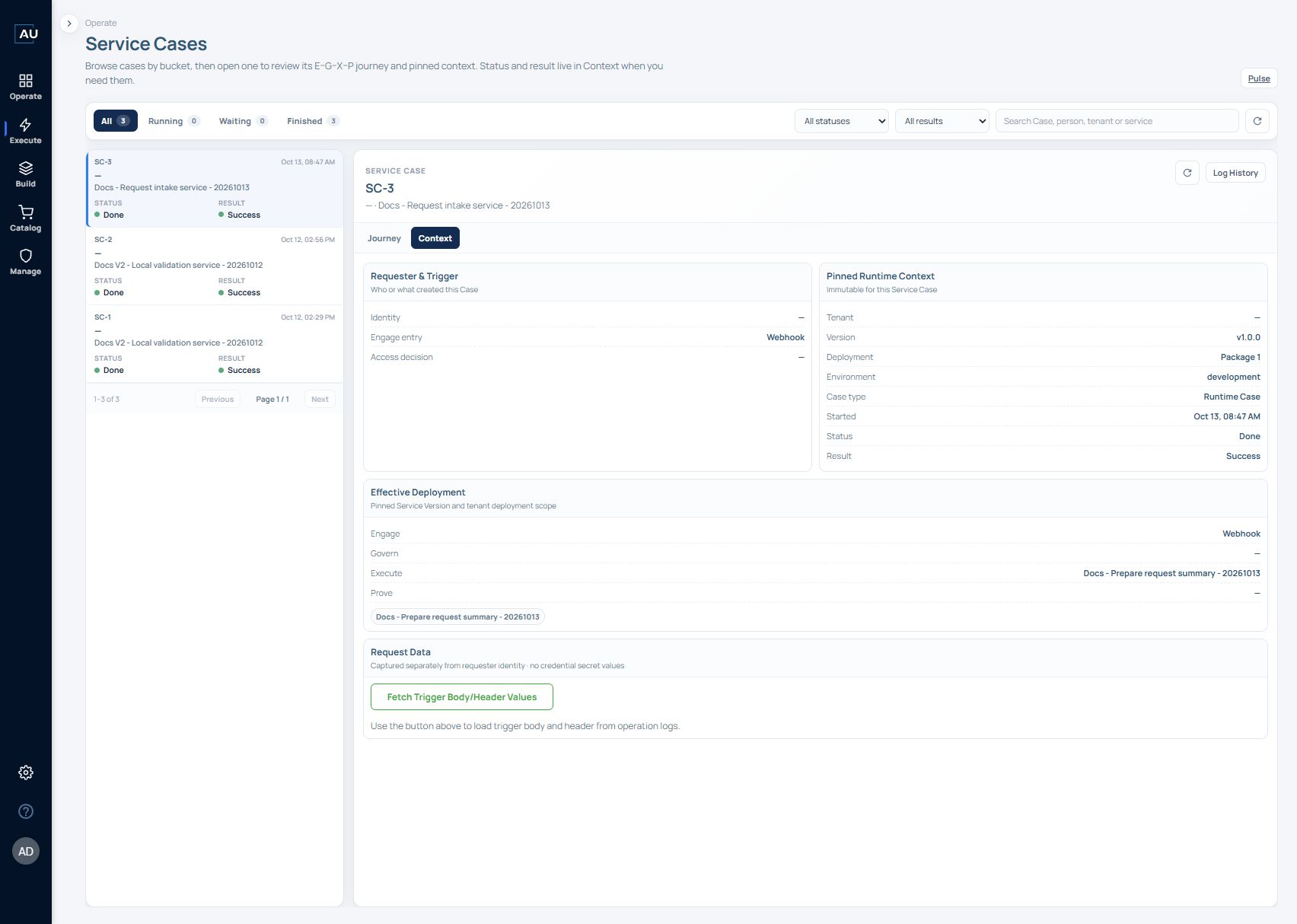
The request-intake exercise produced **SC-3** on 13 October 2026. Use it as a model for investigating one specific execution rather than comparing unrelated dashboard totals.
1. Locate **Docs - Request intake service - 20261013** and open the Case created at the request time.
2. In **Context**, check **v1.0.0**, **Package 1**, **development** and the selected service. These identify the deployed configuration that ran.
3. In **Journey**, inspect Engage and Execute. This run shows Engage **Done / Accepted**, Execute **Done / Delivered**, and Govern and Prove **Skipped**.
4. Select the Execute Work Item. This record shows **Done / Pass**, one attempt, with released Work Item **v1.0.0**.
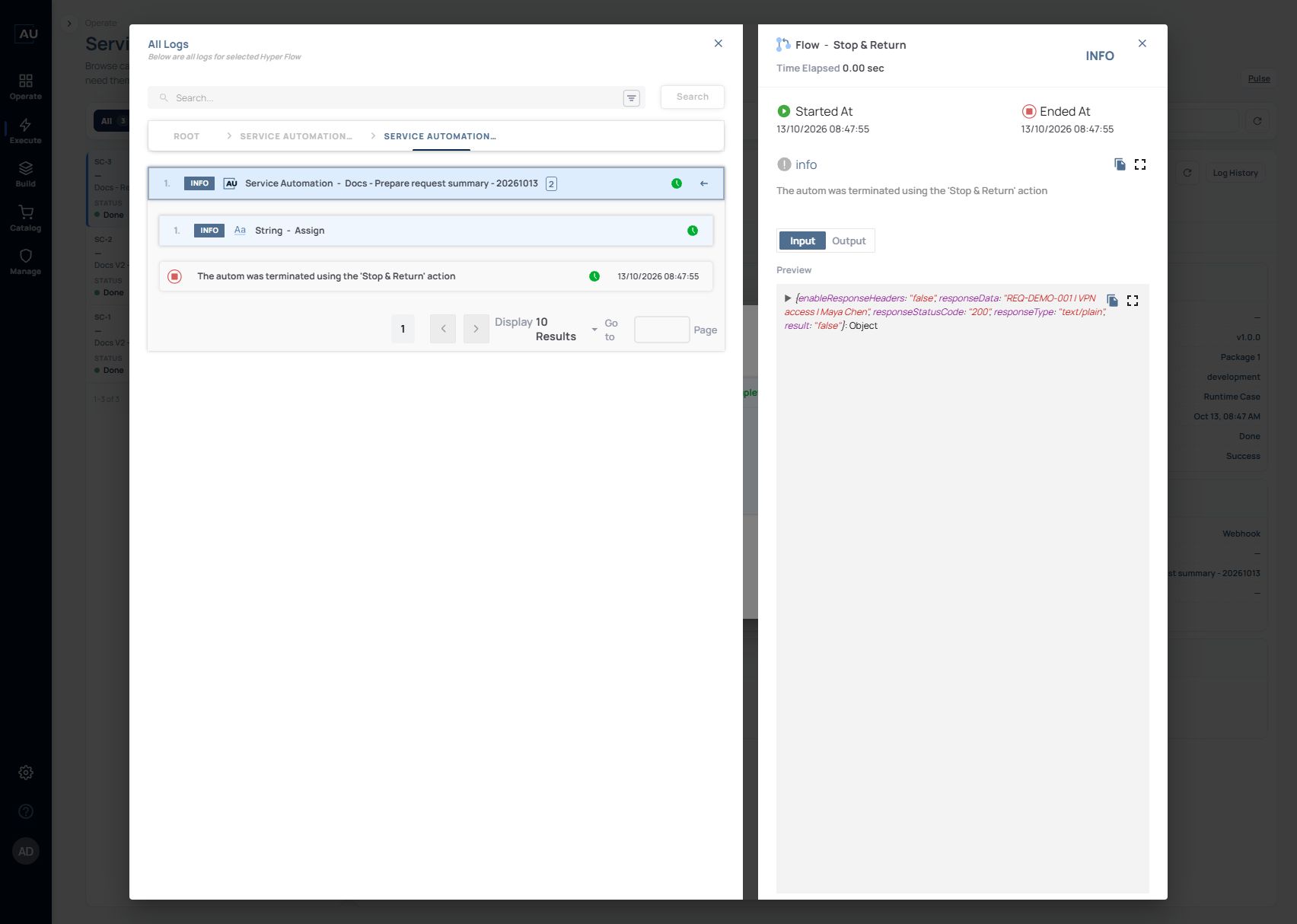
5. Open **Log History → View All Logs**, expand **Execute Phase**, then expand the Work Item.
6. Inspect the **String Assign** record for the sample value. Also open the **Stop & Return** information and choose **Fetch Input Output** to inspect the values that action received.
Journey: select Execute and read CONFIGURED → OBSERVED → DECISION. In SC-3 the first matching result rule selects Delivered, then the end-success transition skips Prove.
Work Item details: match the released version, result and attempt count to the Case you selected before opening its logs.
Context: the pinned version, package and environment identify what actually ran. A newer service in the editor does not change this recorded context.
In SC-3, Stop & Return received result: false, response code 200, response type text/plain and the sample response data REQ-DEMO-001 | VPN access | Maya Chen. The Case recorded Done / Success and the Work Item Done / Pass. Read the action input, Work Item result and Case outcome separately. If they do not match your expected behavior, review the configured phase rules and include the Case and action details in a support request; an HTTP response code alone does not explain the Case outcome.
Action data: Input here belongs to Stop & Return. Assigning a producing variable to the Stop body supplies the value that can be used by following Work Items after the correct release and deployment are selected. Inspect the consuming binding and actual run separately. The screenshot remains the older v1.0.0 noData package.
This deployment exposes noData and skips Prove. Use the action log to inspect the sample text. To verify a real business outcome, configure a Prove check of that outcome and inspect its result.
## Read a phase-rule example
Follow the same Case from its summary into its pinned context before investigating individual actions.
1. Select the Case in the left-hand list. Read **Status** and **Result** together.
2. Open **Context**. Confirm the **Version**, **Deployment**, **Environment** and service match the request you are investigating. An acknowledgement such as “Flow triggered” is not enough to choose a Case.
3. Return to **Journey**. Select the phase you want to understand.
4. Read **Why this result/state?** in order: configured rule, observed work and decision.
5. Open the relevant Work Item and its logs. Compare the actual result with the service's success criterion.
In the illustrated example, Context shows **v1.2.0**, **Package 1**, **development**, **Done** and **Success**. Its Journey shows:
| Phase | Status | Result | Interpretation |
| ------- | ------- | --------- | ------------------------------------------------ |
| Engage | Done | Accepted | The entry was accepted |
| Govern | Skipped | — | No Govern work was selected |
| Execute | Done | Delivered | Execute reached its configured successful result |
| Prove | Done | Verified | The configured Prove Work Item passed |
The Prove explanation records that **all-positive** at priority 1 matched before another matching rule, so its configured **end-success** transition was selected. This is why you should read the actual rule priority instead of inferring behavior from the name of the result.
For the request-intake exercise, open the linked Work Item log, select Stop & Return, then Fetch Input/Output and inspect responseData. The expected text is REQ-DEMO-001 | VPN access | Maya Chen. Check the Service Case result separately from this action input.
## Interpret completed cases
Pulse's **Case outcomes** table defines the following combinations:
| Status | Result | Meaning shown in the product |
| ------------- | ------------------- | ------------------------------------ |
| **Done** | **Success** | Delivered. |
| **Done** | **Partial success** | Partially delivered. |
| **Done** | **Failed** | Completed, outcome not achieved. |
| **Failed** | **Failed** | Failed. |
| **Failed** | **Pending** | Failed before a result was recorded. |
| **Cancelled** | **Pending** | Cancelled before a result. |
| **Cancelled** | **Failed** | Cancelled, not delivered. |
**Done is not synonymous with Success.** A service can complete and still record that its outcome was not achieved. Similarly, a Pending result does not by itself mean a case is still running: it can accompany a failed or cancelled case.
## Interpret active cases
| Status | Result | Meaning shown in the product |
| ----------- | ----------- | ------------------------------ |
| **Running** | **Pending** | Running. |
| **Waiting** | **Pending** | Waiting for input or approval. |
Pulse separates **Waiting for approval** from **Waiting for Human Task**. Its help text links these categories to **Pause for resume → Wait for: approval** and **Wait for: human**, respectively.
## Follow a waiting Case through resume
1. Open the waiting Case and identify its paused Work Item.
2. Check the preparation actions in Before Wait. All children in that group finish before the resume token is generated.
3. Send the token back to the same service with serviceResumeToken, serviceResumeDecision and serviceResumeComment. Use the payload shown in the Work Items guide.
4. Refresh the Case and inspect After Resume. Only that group continues; actions below or outside Pause for resume on the normal workflow path will not run.
5. If the caller reports an invalid or already-used token, check the Case and the previous caller response before attempting another continuation.
For the exact payload and a local example, see [Work Items](/userguide/service-automation/create-work-items-and-pin-released-versions.md).
## Start an investigation from Pulse
1. For current work, use the **Now** cards and their **View cases** links.
2. For outcomes finished during a period, use **Outcomes produced** or **Not produced**.
3. For cases that began during a period, use the **Case outcomes** table.
4. Read the selected case's status and result together before describing it as successful, failed, or still in progress.
The second and third paths use different date cohorts. Their counts do not have to match. See [Pulse metrics](/userguide/operate-and-troubleshoot/understand-pulse-metrics.md).
When escalating an issue, include the case identifier if available, service/deployment name, approximate run time, expected result, and the actual status/result pair. This gives the operator a concrete record to investigate.
### Build a useful incident summary from one Case
1\. Copy the Case identifier and service name from the selected record.
2\. From Context, record Version, Deployment and Environment. Include the displayed start time and its time zone when comparing it with another system.
3\. From Journey, record the affected phase, Status, Result and the relevant Why this result/state? decision.
4\. From the Work Item, record its released version and attempt count. From the first differing action, copy the exact error or a small non-secret input/output excerpt.
5\. State the expected business result in one sentence, then what actually happened. Include whether Prove ran and what it checked.
Example: “SC-3; request-intake service v1.0.0; Package 1 / development; Execute Done / Delivered; Work Item v1.0.0 Done / Pass, one attempt; Stop & Return received result=false and the configured HTTP 200; Prove Skipped. Which supported method should pass an unsuccessful business outcome into this Case?” HTTP 200 is not being reported as an error; the open question concerns the business-result contract.
## Filter values for documentation and agents
The current UI's linked filters use these values:
* `status`: `running`, `waiting`, `done`, `failed`, `cancelled`
* `result`: `pending`, `success`, `partial_success`, `failed`
These filter values come from the Service Cases interface. API and MCP response schemas may use different fields. When summarizing a Case, include both Status and Result; Done can include an unsuccessful outcome.
### Keep a direct Work Item test separate
A successful manual Work Item run is not itself a Service Case. The [Enterprise deployment example](/userguide/service-automation/create-an-enterprise-service-deployment-draft.md) shows the separate POST → Service Case path: open the matching Case and check its pinned version, package, environment, Status and Result. Read Why this result/state? alongside the configured [phase behavior](/userguide/service-automation/configure-phase-behavior.md) to understand how the outcome was selected. The example fixed-string Prove step tests the phase wiring; a production proof must check the service success criterion.
### Waiting does not imply an expiry timer
Pause for resume has no automatic expiry in Dublin 6.0.0 as of 13 October 2026. Do not design a timeout or escalation around an assumed token expiry. Treat the single-use resume token and any separate cancellation or escalation process independently.