> For the complete documentation index, see [llms.txt](https://docs.autommate.com/userguide/llms.txt). Markdown versions of documentation pages are available by appending `.md` to page URLs; this page is available as [Markdown](https://docs.autommate.com/userguide/operate-and-troubleshoot/monitor-executions-and-retain-useful-evidence.md).

# Monitor executions and retain useful evidence

Use execution records to identify the automation, version, inputs, actions and result. Compare the returned output with the intended destination record or service outcome.

### Find the execution

Monitoring separates queued, active, completed and scheduled work:

| View        | What to establish                     |
| ----------- | ------------------------------------- |
| Pending     | Which work is waiting to start        |
| In Progress | Which work is currently running       |
| History     | What completed and what its logs show |
| Schedule    | What is planned to run                |

Search for the automation and relevant time window, then open the operation details. Match the execution with the triggering request using the identifiers available in your implementation.

### Read the evidence

Collect the automation name and ID, version, start time and zone, execution status, and relevant action results. Inspect advanced logs when the summary does not explain the behavior.

Compare outputs with the target system. For a record update, confirm the intended record and changed fields. For a read, distinguish no matching record from an execution error. For an external caller, compare the caller's received response with the execution record.

When a run appears stuck, identify the last completed action and any wait, downstream call, or failure information. Before stopping it, assess what has already happened. Stopping work does not imply that earlier changes in another system have been undone.

### Handle time consistently

Browser displays, runtime configuration, and host logs can show different time zones. Record the zone with each timestamp and align the time window before concluding that an execution is missing or delayed.

### Set log retention deliberately

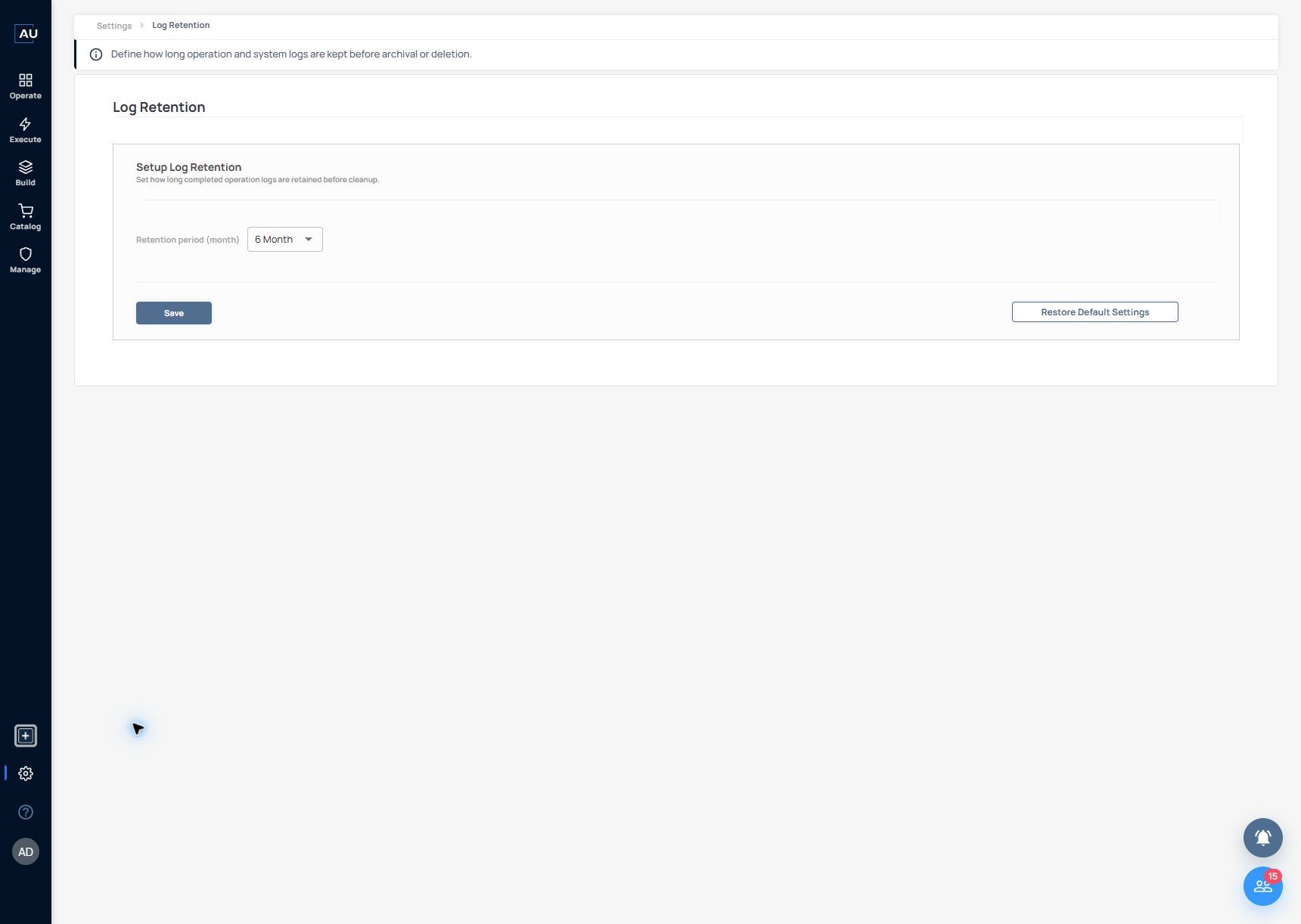
<figure><img src="https://3857940684-files.gitbook.io/~/files/v0/b/gitbook-x-prod.appspot.com/o/spaces%2FJcSHU5jP5GABQrGmWvW2%2Fuploads%2Fg3cTSbE6fVsZ6ZhZa0Vo%2Fsettings-log-retention.jpg?alt=media" alt="Review the monthly retention control before an approved change; this screen does not set an archive path."><figcaption><p>Review the monthly retention control before an approved change; this screen does not set an archive path.</p></figcaption></figure>

Open Settings → Log Retention. In the current Dublin screen, Retention period (month) controls how long completed operation logs are retained before cleanup. The inspected presales value was 6 Month.

The screen provides Save and Restore Default Settings; it does not expose the older archive-folder and notification-email fields. Check the deployment’s retention/archive process with its administrator before assuming where records are stored or when they are deleted.

Preserve the operation and action details needed for an investigation before shortening retention. Mask credentials and unnecessary personal information before sharing logs.

### Escalation checklist

Provide the product and component versions, environment, automation version, execution identifier, time and zone, expected result, observed result, and the first failing action. Include sanitized error text and whether a retry could repeat an external change.

This gives support or another engineer a reproducible starting point without requiring them to reconstruct the entire incident from screenshots.

### Follow an actual failed execution into its error branch

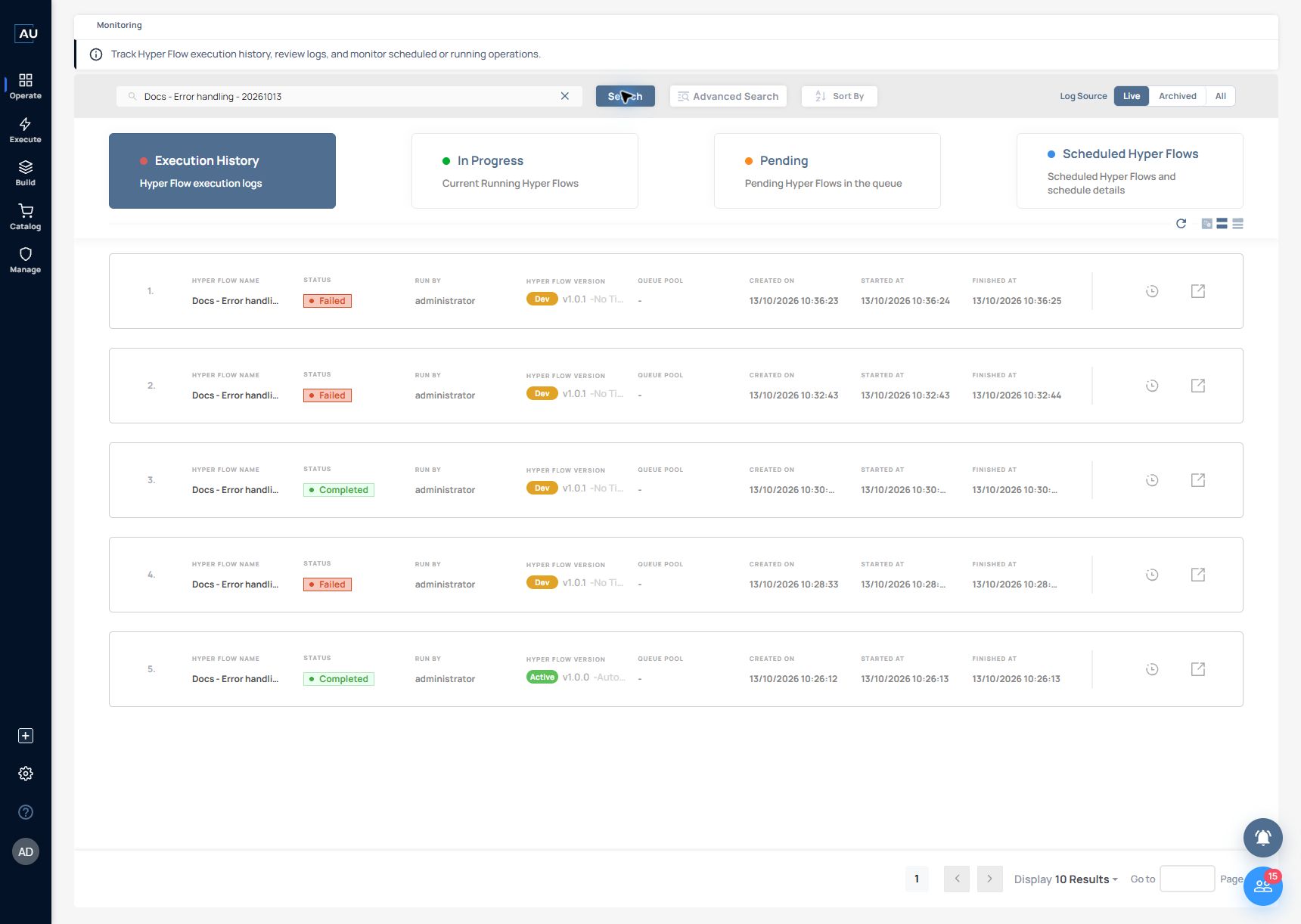
Use the controlled error example Docs - Error handling - 20261013 to follow a real failure from the current Execution History screen into its recovery branch. The run started at 10:36:24 Türkiye browser time on 13 October 2026 and finished at 10:36:25.

1\. Open Operate → Monitoring. Enter the exact Hyperflow name in Search and select Search. Use the Execution History section; the other current headings are In Progress, Pending and Scheduled Hyper Flows.

<figure><img src="https://3857940684-files.gitbook.io/~/files/v0/b/gitbook-x-prod.appspot.com/o/spaces%2FJcSHU5jP5GABQrGmWvW2%2Fuploads%2FTpVzNHprB3B69AOiL6hi%2Fmonitoring-error-history.jpg?alt=media" alt="Search the exact Hyperflow and match the version and start time before opening a log."><figcaption><p>Search the exact Hyperflow and match the version and start time before opening a log.</p></figcaption></figure>

2\. Match the row by Hyper Flow Name, Dev version v1.0.1 and Started At 13/10/2026 10:36:24. This controlled run is Failed; another run of the same name may use a different error strategy.

3\. Select the row’s log-detail icon and open View All Logs. The trace shows Object - Convert Xml To Object failing, one retry, the action failing again, and the run stopping.

4\. Select the E marker beside the failed action to open Error Handling Logs. In this run, the error-handling branch contains String - Assign at 10:36:25.

<figure><img src="https://3857940684-files.gitbook.io/~/files/v0/b/gitbook-x-prod.appspot.com/o/spaces%2FJcSHU5jP5GABQrGmWvW2%2Fuploads%2FP2dasi7Kn2pNsL3hIxP6%2Ferror-handler-output.jpg?alt=media" alt="The handler returned ERROR_BRANCH_EXECUTED while the original run remained Failed."><figcaption><p>The handler returned ERROR_BRANCH_EXECUTED while the original run remained Failed.</p></figcaption></figure>

5\. Open that action’s quick-info control, select Fetch Input/Output Values and inspect Output. The actual Preview is ERROR\_BRANCH\_EXECUTED and the output type is string.

6\. Report both facts: the main run failed after retry/Stop & Response, and the separate error branch executed. A handler’s local text output does not turn the original operation into a success or prove external notification delivery.