> For the complete documentation index, see [llms.txt](https://docs.autommate.com/userguide/llms.txt). Markdown versions of documentation pages are available by appending `.md` to page URLs; this page is available as [Markdown](https://docs.autommate.com/userguide/operate-and-troubleshoot/configure-operational-alerts.md).

# Configure operational alerts

Use Alert Management to notify the right people when a selected condition occurs. Configure the alert condition, Actioneer Settings and intended Hyperflow scope in the Create Alert Rule wizard.

### Before you start

* Use an account permitted to manage alert profiles.
* Choose a small test scope and approved test recipient.
* Obtain the mail server settings required by the delivery profile.
* Define the event or condition that should produce an alert.

### Create the delivery profile

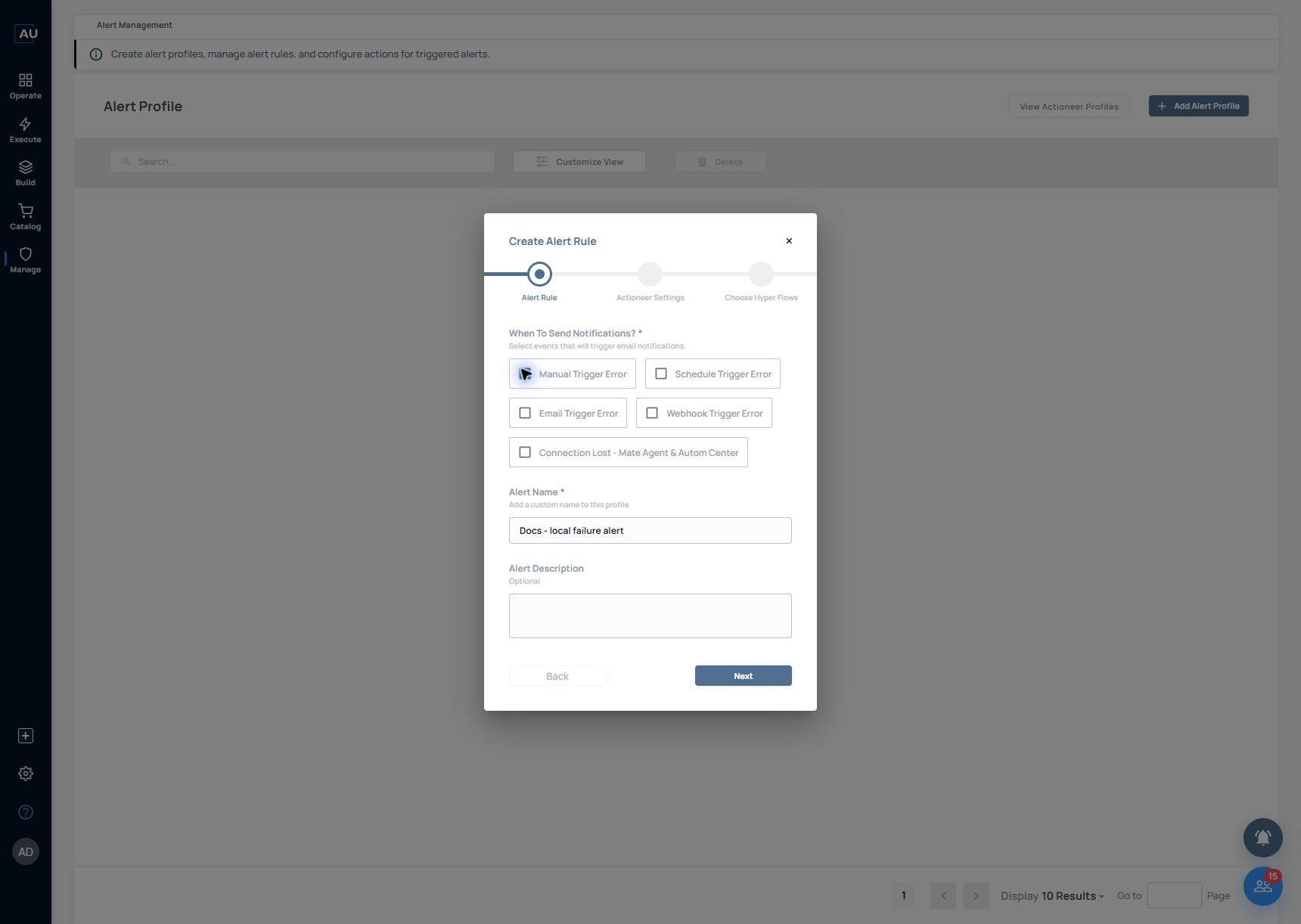
The current Alert Management screen provides Add Alert Profile and View Actioneer Profiles. Add Alert Profile opens Create Alert Rule with the steps Alert Rule → Actioneer Settings → Choose Hyper Flows.

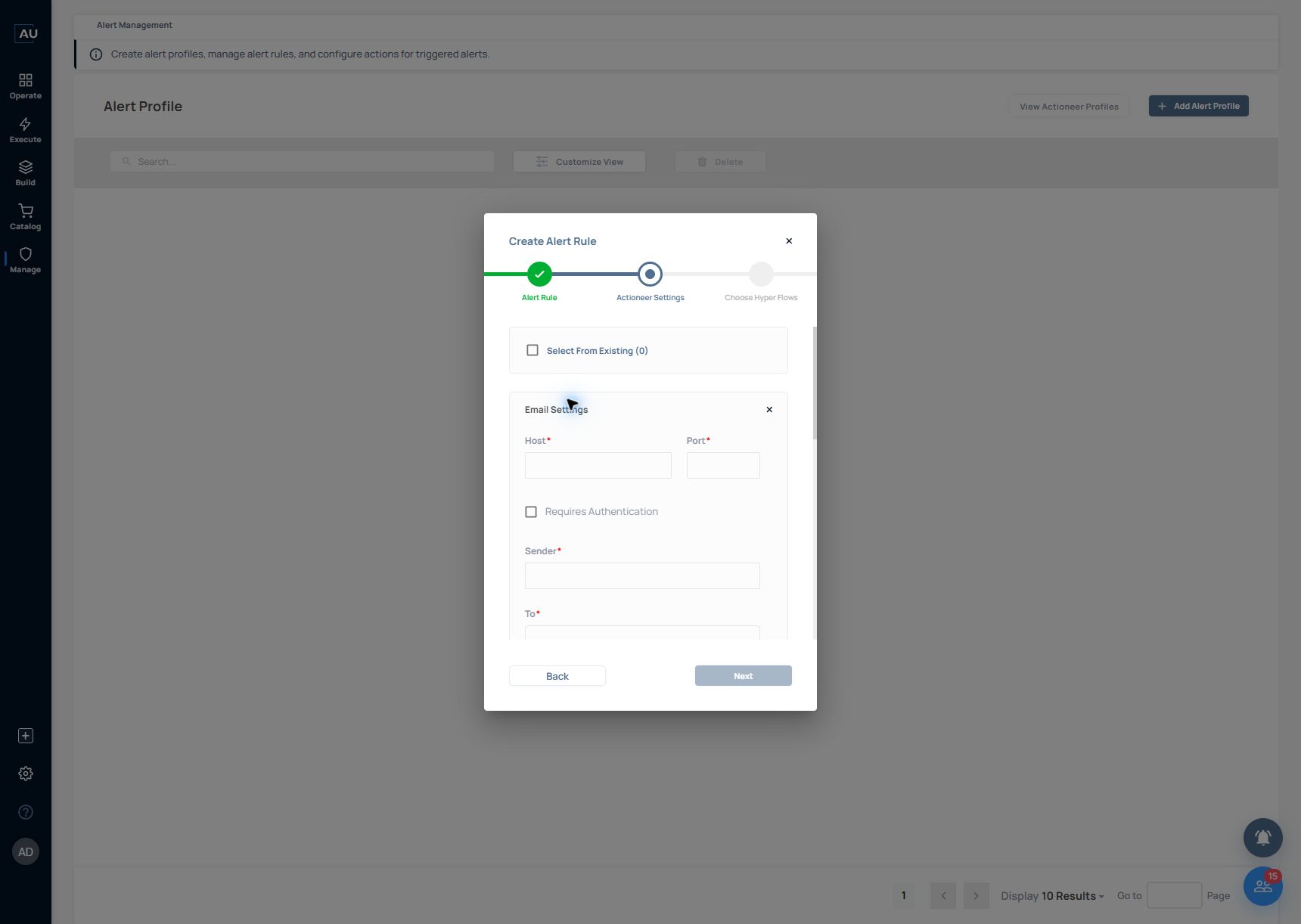
In Actioneer Settings, select an existing configuration only when one is available and appropriate, or complete Email Settings. The inspected setup showed Select From Existing (0), so no saved profile was selected.

<figure><img src="https://3857940684-files.gitbook.io/~/files/v0/b/gitbook-x-prod.appspot.com/o/spaces%2FJcSHU5jP5GABQrGmWvW2%2Fuploads%2Frit4Ek1LJY9zTQadJX4n%2Falert-actioneer-email.jpg?alt=media" alt="Review the actual Email Settings fields. This setup inspection did not save a profile or send a test mail."><figcaption><p>Review the actual Email Settings fields. This setup inspection did not save a profile or send a test mail.</p></figcaption></figure>

Email Settings requires Host, Port, Sender, To, Subject and Settings Name. Requires Authentication exposes the applicable authentication fields. CC, Body and Settings Description are also available.

Add To/CC addresses with commas or Enter. The Body helper lists $ERRORMESSAGE, $AUTOMNAME, $ERRORTIME, $ACTIONNAME and $ERRORRULE. Choose only the context your recipients need and keep sensitive inputs out.

Test E-Mail Address and Send a test mail are separate delivery-test controls. Use them only for an approved recipient; viewing this wizard does not require sending a message.

### Create the alert rule

1\. Select Add Alert Profile and define the intended condition in Alert Rule.

2\. Continue to Actioneer Settings and select or configure the intended notification settings.

<figure><img src="https://3857940684-files.gitbook.io/~/files/v0/b/gitbook-x-prod.appspot.com/o/spaces%2FJcSHU5jP5GABQrGmWvW2%2Fuploads%2FJIyor6cW0IlY0UGuiuya%2Falert-rule-events.jpg?alt=media" alt="Choose the intended event in Alert Rule before configuring Actioneer Settings and target flows."><figcaption><p>Choose the intended event in Alert Rule before configuring Actioneer Settings and target flows.</p></figcaption></figure>

3\. Continue to Choose Hyper Flows and limit the rule to the intended test or operational flows.

4\. Review the final condition, audience and flow scope before completing the wizard. The captured walkthrough did not save or activate a new rule.

### Test the complete path

1. Produce the selected condition using a controlled test flow.
2. Confirm the matching execution and alert.
3. Confirm that the intended recipient receives the notification.
4. Check the message content and verify that unrelated flows do not generate the same test alert.

A successful test email confirms delivery settings, not that the alert rule matches the intended runtime event.

### Expected result

The selected condition creates a notification for the configured scope and recipients.

### Troubleshoot

* Test email fails: check server connectivity, host/port, authentication, and the recipient address.
* Test email works but no runtime notification arrives: check the rule condition and selected flows.
* Too many alerts: narrow the rule and scope before adding more recipients.
* Sensitive data appears: revise the notification fields and test again.

Use **Edit** and **Save** to maintain a profile. Before deleting a delivery profile, identify the alert profiles that use it.

### Related reference

* [Monitor executions and retain useful evidence](/userguide/operate-and-troubleshoot/monitor-executions-and-retain-useful-evidence.md)

### Worked setup: alert on one isolated test Hyperflow

Use only Docs - Error handling - 20261013 when learning the rule wizard, after agreeing the notification recipient and event condition. The controlled error examples already provide failures; creating another failure is not required to photograph the form.

1\. In Alert Rule, choose the installed condition corresponding to the event you want to notify. Do not infer the condition solely from a label in a screenshot.

2\. In Actioneer Settings, configure the approved mail server/recipient and a clear Settings Name. Keep credentials out of screenshots and message body.

3\. In Choose Hyper Flows, include only the isolated test flow. Review the summary before saving.

4\. After an explicitly approved activation and test, verify the execution, matching alert and received message separately. A test email only verifies delivery settings; it does not prove the rule matched a runtime event.