> For the complete documentation index, see [llms.txt](https://docs.autommate.com/userguide/llms.txt). Markdown versions of documentation pages are available by appending `.md` to page URLs; this page is available as [Markdown](https://docs.autommate.com/userguide/operate-and-troubleshoot/configure-dashboard-widgets.md).

# Configure Dashboard widgets and compare results

Build a Dashboard view around the operational question you need to answer: execution volume, failures, resource use or estimated impact. Set a consistent period before comparing widgets or sharing the result.

## Choose a view and period

Open **Operate → Dashboard**. Select the appropriate dashboard view, set the time filter and refresh the data. Check each widget's own settings as well as the page-level period before comparing totals.

System dashboards are read-only. In Presales, Automation Operations disables Customize because a system dashboard cannot be modified. Use View → Create new dashboard to create an editable view before adding your own widgets.

## Add or customize a widget

1. Select an editable dashboard view. Use Add Widget to add a report; use Customize only when that view allows layout changes.
2. Choose an available report category. The current example below uses HyperFlow Reports → HyperFlow Health. Report categories determine which columns and visualizations you can choose.
3. Select the columns and grouping that answer your question, such as Hyperflow, group or user.
4. Set time and other filters. Choose the sorting order.
5. Choose an available chart or list presentation and apply the configuration.
6. Refresh the view and compare one visible record or count with the underlying execution data.

Available chart choices can include Column, Bar, Pie, List, Area and String. Report type determines the available fields and presentation choices; a String widget can show a single summary value.

## Check periods before comparing

A widget's **lock timeframe** setting can affect whether it follows the page-level filter. Inspect its resulting period explicitly, particularly when mixing all-time totals with daily or monthly views. Do not infer the scope from a lock icon alone.

For a period comparison, keep the widget filters and population consistent. If a count differs from Monitoring, align the period, time zone and execution scope before treating the difference as an error.

## Separate operations from estimated value

| Metric family                                | Interpretation                                       |
| -------------------------------------------- | ---------------------------------------------------- |
| Runs and failed/successful executions        | Operational records in the selected scope            |
| Estimated time, cost, revenue or risk impact | Calculations using the task's configured assumptions |
| Service Case outcomes and verified value     | Service-specific measures reviewed in Pulse          |

Use [Business Impact Estimator](/userguide/build-automations/business-impact-estimator.md) for assumption quality, [Monitoring](/userguide/operate-and-troubleshoot/monitoring-views-and-execution-states.md) for a specific execution and [Pulse](/userguide/operate-and-troubleshoot/understand-pulse-metrics.md) for Service Automation outcomes.

Expected result: the view has a clear question, period and population, and a reader can distinguish execution counts from estimated financial benefits. Before sharing a screenshot, include the active filters and remove unnecessary user or customer details.

### Worked example: reconcile a failures widget with execution history

This example uses Docs - Error handling - 20261013. Five controlled runs appear in Execution History on 13 October 2026: two Completed and three Failed. The Continue scenario completed despite the handled action error; count the overall execution status rather than assuming every error creates a failed run.

1\. Open Operate → Dashboard. In View, select Create new dashboard and create Docs - Execution checks - 20261013. Work in that editable view.

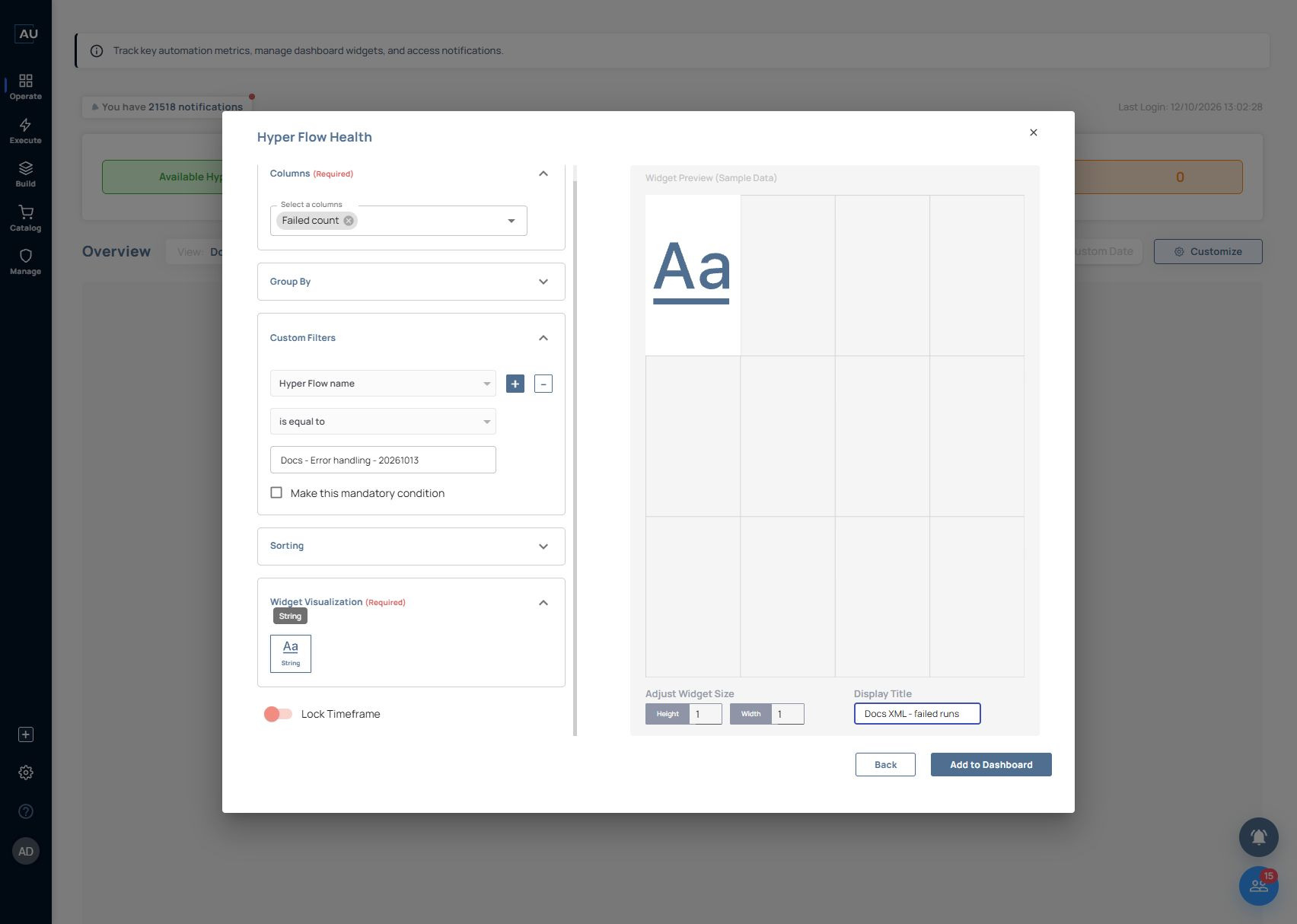
2\. Select Add Widget → HyperFlow Reports → HyperFlow Health, then Next. Under Columns, select Failed count.

3\. Under Custom Filters, choose Hyper Flow name → is equal to → Docs - Error handling - 20261013. Keep the filter on this one exercise so other flows do not affect the result.

4\. Choose String under Widget Visualization. Keep Lock Timeframe off for this exercise and set Display Title to Docs XML - failed runs. The configuration panel labels its preview Widget Preview (Sample Data); use the saved dashboard to read the actual count.

<figure><img src="https://3857940684-files.gitbook.io/~/files/v0/b/gitbook-x-prod.appspot.com/o/spaces%2FJcSHU5jP5GABQrGmWvW2%2Fuploads%2F0lH4a6t8OOylIa5XvmHa%2Fdashboard-widget-config.jpg?alt=media" alt="Configure Failed count for the exact Hyperflow and choose String. The editor preview uses sample data."><figcaption><p>Configure Failed count for the exact Hyperflow and choose String. The editor preview uses sample data.</p></figcaption></figure>

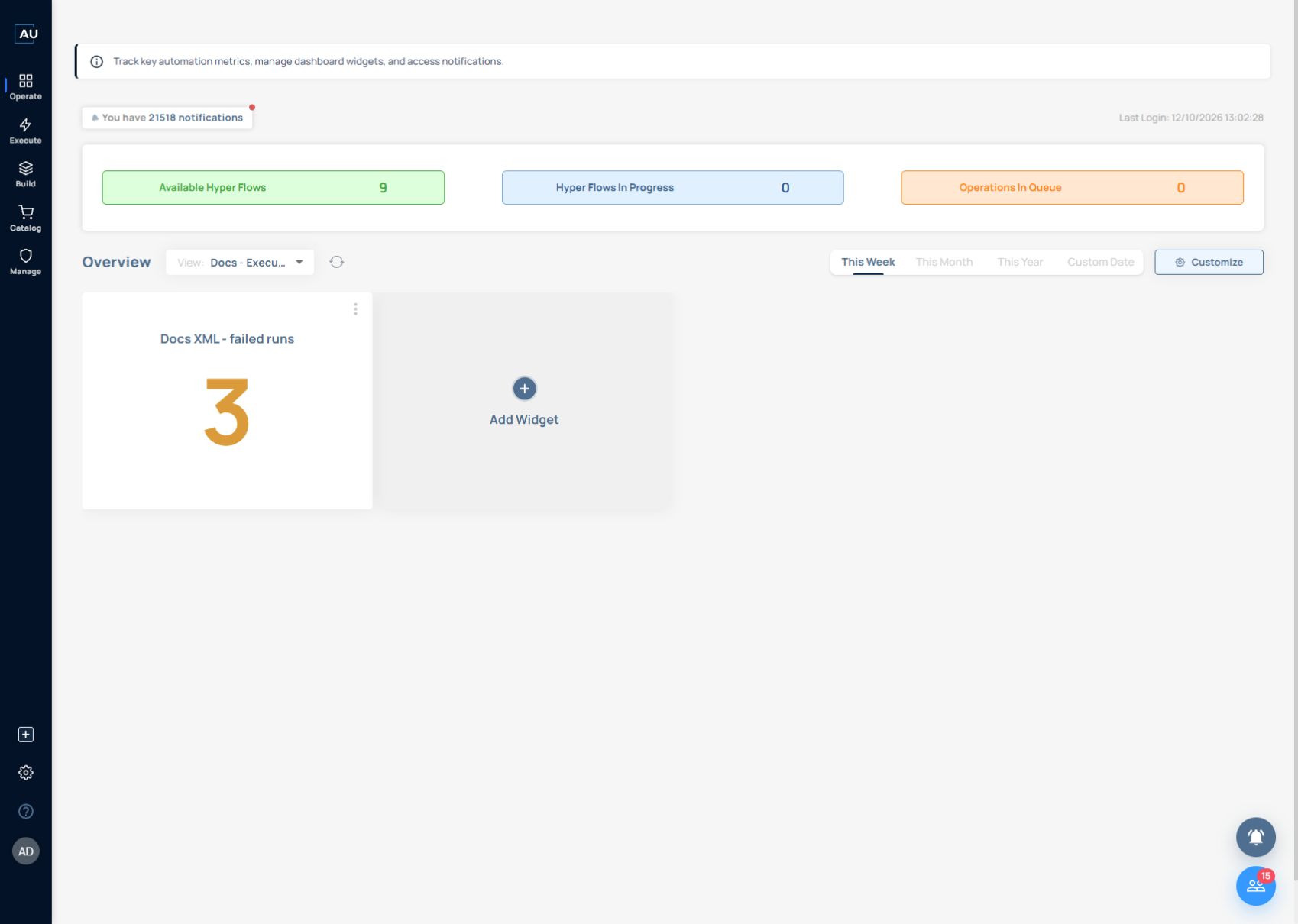
5\. Select Add to Dashboard, set the page period to This Week and read the saved widget. In the Presales exercise, Docs XML - failed runs displayed 3.

<figure><img src="https://3857940684-files.gitbook.io/~/files/v0/b/gitbook-x-prod.appspot.com/o/spaces%2FJcSHU5jP5GABQrGmWvW2%2Fuploads%2F14ZC1bsVyFtWommqAyg9%2Fdashboard-widget-result.jpg?alt=media" alt="The saved custom dashboard shows 3 failed runs for This Week, matching the three Failed records in the five-run exercise."><figcaption><p>The saved custom dashboard shows 3 failed runs for This Week, matching the three Failed records in the five-run exercise.</p></figcaption></figure>

6\. Open Monitoring → Execution History, search for the same Hyperflow and align the period. Its five controlled records contain three Failed statuses, matching the widget: the unhandled error at 10:28:34, Stop with Response at 10:32:43 and the Error Handler run at 10:36:24, Türkiye browser time. The baseline and Continue runs are Completed.

If your count differs, compare the effective period, time zone, selected Hyperflow and status filter first. New runs in the same week change the total. Keep a screenshot of the widget settings and the corresponding execution list when asking for help.

This widget answers an execution-status question. Keep estimated financial impact and completed service outcomes separate; a failed-run count is neither a revenue figure nor a count of affected customers.