> This is part 1 of 5 of the full documentation (pages 1–100 of 477).
> The content is paginated: fetch every part to see all of it.
> Next part: https://docs.autommate.com/userguide/llms-full.txt/1
> Page index: https://docs.autommate.com/userguide/llms.txt

# Welcome Aboard!

An introduction to Autom Mate, providing a comprehensive guide to its features and functionalities.

<table data-view="cards"><thead><tr><th data-card-target data-type="content-ref"></th><th data-hidden data-card-cover data-type="files"></th><th data-hidden></th><th data-hidden align="center"></th><th data-hidden></th></tr></thead><tbody><tr><td><a href="/userguide/userguide/information">Information</a></td><td></td><td></td><td align="center"><a href="/userguide/userguide/information">lnformation</a></td><td></td></tr><tr><td><a href="/userguide/userguide/learn-hyper-flow-basics">Learn Hyper Flow Basics</a></td><td></td><td></td><td align="center"><a href="/userguide/userguide/learn-hyper-flow-basics">Learn Autom Basics</a></td><td></td></tr><tr><td><a href="/userguide/userguide/libraries">Libraries</a></td><td></td><td></td><td align="center"><a href="/userguide/userguide/libraries">Libraries</a></td><td></td></tr><tr><td><a href="/userguide/userguide/autom-features">Autom Features</a></td><td></td><td></td><td align="center"><a href="/userguide/userguide/autom-features">Autom Features</a></td><td></td></tr><tr><td><a href="/userguide/userguide/product-features">Product Features</a></td><td></td><td></td><td align="center"><a href="/userguide/userguide/product-features">Product Features</a></td><td></td></tr><tr><td><a href="/userguide/userguide/installation-setup">Installation Setup</a></td><td></td><td></td><td align="center"><a href="/userguide/userguide/installation-setup">Installation Setup</a></td><td></td></tr><tr><td><a href="/userguide/userguide/release-notes">Release Notes</a></td><td></td><td></td><td align="center"><a href="/userguide/userguide/release-notes">Release Notes</a></td><td></td></tr><tr><td><a href="/userguide/userguide/academy">Academy</a></td><td></td><td></td><td align="center"><a href="/userguide/userguide/academy">Academy</a></td><td></td></tr><tr><td><a href="/userguide/userguide/use-cases">Use Cases</a></td><td></td><td></td><td align="center"><a href="/userguide/userguide/use-cases">Autom Store &#x26; Use Cases</a></td><td></td></tr><tr><td><a href="/userguide/userguide/faq">FAQ</a></td><td></td><td></td><td align="center"><a href="/userguide/userguide/faq">FAQ</a></td><td></td></tr></tbody></table>

{% embed url="<https://www.youtube.com/watch?v=5UGm4sy1hJ0>" %}

Welcome to the gateway of limitless automation possibilities! We are thrilled to have you explore Autom Mate, your all-in-one platform for seamless hyper-automation. This documentation hub is crafted to guide you through every aspect of Autom Mate, from foundational concepts to advanced configurations, helping you unlock the full potential of your automation journey.

Here, you’ll find a well-organized collection of resources to support you at every stage—whether you’re setting up your first workflow or optimizing complex, multi-system integrations. Each section provides in-depth tutorials, best practices, and hands-on examples designed to make automation with Autom Mate intuitive and efficient.

{% hint style="info" %}

### **Key Highlights:**

* **Step-by-Step Tutorials**: Get started quickly with guides that simplify complex processes into clear, actionable steps.
* **Advanced Configurations**: For experienced users, explore advanced options to enhance and customize your automation workflows.
* **Real-World Examples**: Learn through practical scenarios that demonstrate how Autom Mate can be applied across various use cases and industries.
* **Troubleshooting and FAQs**: Address common questions and get quick solutions to keep your workflows running smoothly.
  {% endhint %}

Thank you for choosing Autom Mate. We’re here to ensure your journey toward streamlined, efficient automation is both powerful and effortless. Should you have any questions or need further assistance, our support team is just a message away. Welcome to a world of automation excellence!


# Information


# What is Autom Mate?

An overview of Autom Mate as a web-based hyper-automation platform that simplifies the creation and management of automation processes for users of all technical levels.

## **Introduction**&#x20;

Autom Mate is a web-based hyper-automation platform designed to simplify the creation and management of automation processes for users of all technical levels. [**Whether working in the Cloud or On-Premises**,](/userguide/userguide/information/architecture-of-autom-mate#deployment-types-of-autom-mate) Autom Mate provides tools to streamline IT and business processes, making workflows more efficient.

{% embed url="<https://www.youtube.com/watch?v=yuXrkou2euw>" %}

***

## **Unlocking Automation Potential**&#x20;

Autom Mate offers a comprehensive [**library of ready-to-use actions**](/userguide/userguide/libraries), allowing users to quickly design automation processes with an intuitive drag-and-drop interface in Hyper Flow. This setup eliminates [**repetitive tasks**](/userguide/userguide/autom-features/triggers), allowing users to focus on more strategic work. Autom Mate supports both attended and unattended robots, meaning tasks can run with or without human intervention.

{% hint style="info" %}

### **Key Features and Capabilities**

1. **Service Engagement Experience**
   * **Unified Data Systems:** Autom Mate integrates existing data systems, ensuring seamless operations. For instance, **customer service workflows** can connect with CRM systems, providing consistent and accessible customer data.
   * **Intelligent Chatbots:** Autom Mate enhances communication across applications with integrated chatbots that handle routine inquiries and escalate complex issues efficiently.
2. **Service Operations & Delivery Experience**
   * **Streamlined Incident Management:** [**Autom Mate integrates**](/userguide/userguide/libraries/integration) with platforms like [**ServiceNow**](/userguide/userguide/libraries/integration/servicenow) and [**Jira**](/userguide/userguide/libraries/integration/jira-software) to automate incident management, from ticket creation to resolution, improving response times and reducing manual work.
   * **Enhanced Customer Support:** By unifying customer support tools, Autom Mate ensures efficient handling of customer queries. Automated processes track tickets and follow up on issues, providing consistent and high-quality support.
3. **Service Integration & Intelligence**
   * **Predictive Maintenance:** Autom Mate’s predictive maintenance features help anticipate and prevent asset failures by analyzing data and scheduling maintenance before issues arise, reducing downtime and maintenance costs.
   * **Root Cause Analysis:** AI-driven root cause analysis identifies underlying problems, helping improve service quality by addressing recurring issues.
     {% endhint %}

***

## **Ease of Use**

* **User-Friendly Interface:** Hyper Flow is designed for simplicity, allowing users to [**create automation workflows without needing extensive technical knowledge**.](/userguide/userguide/product-features/create-autom)
* **Web-Based Accessibility:** Autom Mate is 100% web-based, requiring no software installations. Users can log in from any device with a browser and start automating immediately.
* **No/Low Code Platform:** Autom Mate supports no-code and low-code development, making it accessible for users without coding skills. [**For advanced users, Python, JavaScript, and PowerShell actions are available**.](/userguide/userguide/libraries/integration)

***

## **Correct Information and Integrations:**

* [**Extensive Library Actions:**](/userguide/userguide/libraries) Autom Mate offers a wide range of pre-built actions to speed up automation projects.
* [**Current Integrations:**](/userguide/userguide/libraries/integration) Autom Mate seamlessly integrates with popular platforms like [**ServiceNow**](/userguide/userguide/libraries/integration/servicenow) and [**Jira**](/userguide/userguide/libraries/integration/jira-software).

Autom Mate is designed to help businesses enhance efficiency, reduce manual tasks, and foster innovation through automation. Whether the user is new to automation or an existing partner looking to expand capabilities, Autom Mate offers the tools and features to support their journey.


# What is Hyper Flow?

Details on Autom Mate's Hyper Flow Designer, which offers a user-friendly interface for designing, executing, and optimizing automated workflows.

## **Hyper Flow Components**

Autom Mate provides **a range of tools for creating comprehensive events** within a Hyper Flow. Users can refer to the ["**Libraries**" ](/userguide/userguide/libraries)page for detailed insights into tool usage. Hyper Flow components are building blocks used to automate tasks and workflows, such as [**data manipulation**](/userguide/userguide/libraries/transform/advanced-actions#data-transform), [**application integration**](/userguide/userguide/libraries/integration), and process automation.

***

## **Drag-and-Drop Functionality**

Users can drag and drop activities onto the workboard, making it **easy to manage and arrange** the components of a Hyper Flow. This functionality allows users to visually design workflows by simply dragging predefined actions from the [**library**](/userguide/userguide/libraries) and dropping them onto the workboard. Each action represents a step in the automation process, and users can arrange them in the desired sequence to create a logical flow.

<figure><img src="https://4222414448-files.gitbook.io/~/files/v0/b/gitbook-x-prod.appspot.com/o/spaces%2FMAf5diEa8kgXDA6h47Cu%2Fuploads%2F4MRMGCPPHhLBqklC7Ijo%2FDragDrop.gif?alt=media&amp;token=17d92d56-06a3-48c3-b8c8-811c5611bdc6" alt=""><figcaption></figcaption></figure>

***

## **Variables**

Hyper Flow diagrams allow the use of various [**variables**](/userguide/userguide/autom-features/variables) to **store** and **manipulate data during the automation process**. [**Variables** ](/userguide/userguide/autom-features/variables)can be created to hold data such as user inputs, system responses, and intermediate values needed for calculations. Users have the flexibility to create [new variables](/userguide/userguide/autom-features/variables) tailored to specific workflow requirements, ensuring that the automation process is dynamic and adaptable.

<figure><img src="https://4222414448-files.gitbook.io/~/files/v0/b/gitbook-x-prod.appspot.com/o/spaces%2FMAf5diEa8kgXDA6h47Cu%2Fuploads%2FZo03OWAYvVe5QWs6fyiQ%2Fvariables.gif?alt=media&amp;token=c6e733b3-7dd7-495d-9419-f47368bc0c26" alt=""><figcaption></figcaption></figure>

## Libraries

Autom Mate's Hyper Flow Designer offers three distinct [library ](/userguide/userguide/libraries)categories:

<figure><img src="https://4222414448-files.gitbook.io/~/files/v0/b/gitbook-x-prod.appspot.com/o/spaces%2FMAf5diEa8kgXDA6h47Cu%2Fuploads%2F95nSBo1hArzV47YMSZwr%2FLib.gif?alt=media&amp;token=5a484c57-b9e0-4686-9b7d-3e0d9707942e" alt=""><figcaption></figcaption></figure>

<table data-view="cards"><thead><tr><th></th><th></th><th></th><th data-hidden data-card-target data-type="content-ref"></th></tr></thead><tbody><tr><td><p><a href="#integration"><strong>Integration</strong></a></p><p></p><p>Actions that facilitate the <strong>connection</strong> and <strong>communication between different software applications and services</strong>. These actions enable <strong>data transfer,</strong> <a href="/userguide/userguide/autom-features/triggers#api-trigger"><strong>API calls</strong></a><strong>, and synchronization between systems.</strong></p></td><td></td><td></td><td><a href="/userguide/userguide/libraries/integration">Integration</a></td></tr><tr><td><p><a href="/userguide/userguide/libraries/transform"><strong>Transform</strong></a></p><p></p><p>Actions that process and <strong>manipulate data, such as filtering, sorting, and converting data formats</strong>. These actions help in preparing data for further use or analysis within the Hyper Flow.</p></td><td></td><td></td><td><a href="/userguide/userguide/libraries/transform">Transform</a></td></tr><tr><td><p><a href="/userguide/userguide/libraries/utility"><strong>Utility</strong></a></p><p></p><p>General-purpose actions that perform various utility functions, such as logging, error handling, and sending notifications. These actions support the overall automation process by providing essential functionalities.</p></td><td></td><td></td><td><a href="/userguide/userguide/libraries/utility">Utility</a></td></tr></tbody></table>

### **System Libraries vs. Custom Libraries**

* [**System Libraries:** ](/userguide/userguide/product-features/my-environment/libraries#system-libraries)These are developed and pre-installed by Autom Mate within the Hyper Flow Designer. They contain essential actions and functionalities that are integral to the platform's operation. [**System libraries**](/userguide/userguide/product-features/my-environment/libraries) cannot be deactivated, ensuring stability and reliability.
* [**Custom Libraries:** ](/userguide/userguide/product-features/my-environment/libraries#custom-libraries)Users can create or download custom libraries from the [**Library Store**](/userguide/userguide/product-features/store/library-store), providing enhanced flexibility and customization options. [**Custom libraries**](/userguide/userguide/product-features/my-environment/libraries) allow users to extend the capabilities of Autom Mate by adding new actions specific to their needs. Version transitions can be performed through the user interface, ensuring adaptability to evolving requirements.

<figure><img src="https://4222414448-files.gitbook.io/~/files/v0/b/gitbook-x-prod.appspot.com/o/spaces%2FMAf5diEa8kgXDA6h47Cu%2Fuploads%2FqFEC8c8T8EYQuHmWCsm7%2FLibrary.gif?alt=media&amp;token=ef026de1-8e16-4851-8b81-b68c0bbb0002" alt=""><figcaption></figcaption></figure>

***

## **Integration**

Users can explore a variety of [**integrations**](/userguide/userguide/libraries/integration) developed by Autom Mate within the ["**Integration**"](/userguide/userguide/libraries/integration) category, which are readily available for use in Hyper Flows. These integrations allow users to connect Autom Mate with various applications and services, enabling seamless data exchange and process automation across different platforms.

***

## **Advanced Actions**

Autom Mate offers collections of [**advanced processes**](#advanced-actions) for users who need to integrate with applications not directly accessible through standard actions.

***

## **UI Actions**

Users can perform actions that mimic keyboard and mouse operations via [**UI processes**](#ui-actions). These actions allow automation of tasks involving user interfaces of applications that do not have API access. Step-by-step instructions are available to help users set up and execute [**UI actions**](#ui-actions), making it easier to automate interactions with desktop or web applications.

***

## **Data Manager and Mate Drive**

<table data-card-size="large" data-view="cards"><thead><tr><th></th><th></th><th></th><th data-hidden data-card-target data-type="content-ref"></th></tr></thead><tbody><tr><td><p><a href="/userguide/userguide/autom-features/data-manager"><strong>Data Manager</strong></a></p><p></p><p>Acts as the central hub for organizing data exchange within variable or application integrations. It manages the flow of data between different components of a Hyper Flow, ensuring that data is correctly passed and utilized throughout the automation process.</p></td><td></td><td></td><td><a href="/userguide/userguide/autom-features/data-manager">Data Manager</a></td></tr><tr><td><p><a href="/userguide/userguide/libraries/utility/mate-drive"><strong>Mate Drive</strong></a></p><p></p><p>Provides storage for files necessary for smooth Hyper Flow operations. Users can upload and manage files that are required for automation tasks, such as configuration files, templates, and data files.</p></td><td></td><td></td><td><a href="/userguide/userguide/libraries/utility/mate-drive">Mate Drive</a></td></tr></tbody></table>

<figure><img src="https://4222414448-files.gitbook.io/~/files/v0/b/gitbook-x-prod.appspot.com/o/spaces%2FMAf5diEa8kgXDA6h47Cu%2Fuploads%2FKyqGk9gHBAzFXedZ12p7%2FDataManager.gif?alt=media&amp;token=35410756-ed0e-411a-8d59-2b0f68da1744" alt=""><figcaption><p>Data Manager</p></figcaption></figure>

<figure><img src="https://4222414448-files.gitbook.io/~/files/v0/b/gitbook-x-prod.appspot.com/o/spaces%2FMAf5diEa8kgXDA6h47Cu%2Fuploads%2Fe7INGlVRLgCq8dWcOr35%2FMAteDrive.gif?alt=media&amp;token=3a19986f-6bfe-4aa8-a99c-084c8334b9ec" alt=""><figcaption><p>Mate Drive</p></figcaption></figure>

***

## **Trigger**

[**Triggers**](/userguide/userguide/autom-features/triggers) are essential for initiating and executing an Autom automatically based on specified events. Triggers can be configured to start an Hyper Flow when certain conditions are met, such as receiving an [**email**](/userguide/userguide/autom-features/triggers#email-trigger), a [**scheduled time**](/userguide/userguide/autom-features/triggers#scheduled-trigger), or a [**specific system event**](/userguide/userguide/autom-features/triggers#api-trigger). This functionality ensures that automation processes run autonomously without manual intervention.

<figure><img src="https://4222414448-files.gitbook.io/~/files/v0/b/gitbook-x-prod.appspot.com/o/spaces%2FMAf5diEa8kgXDA6h47Cu%2Fuploads%2FkCGdUBkNUoHuGKh7bBmt%2FtriggerTypes.gif?alt=media&amp;token=4f5ee606-7983-410e-a531-92f9a22dfc0b" alt=""><figcaption></figcaption></figure>

***

## **Shortcuts**

The Quick Actions menu within Hyper Flow allows for executing simple actions individually or in groups, enhancing efficiency. Users can quickly access and run predefined actions or groups of actions from this menu, streamlining the execution of common tasks and processes.

***

## **Action Control Center**

This feature provides inputs for selected actions within the Hyper Flow diagram. Users can configure actions directly from the [**Action Control Center** ](#action-control-center)by specifying parameters, inputs, and conditions required for each action. This ensures precise customization and control over the automation workflow.

<figure><img src="https://4222414448-files.gitbook.io/~/files/v0/b/gitbook-x-prod.appspot.com/o/spaces%2FMAf5diEa8kgXDA6h47Cu%2Fuploads%2FHUNo9QMrLbQdTZVAaWe4%2FActionControl.gif?alt=media&amp;token=2cdfc538-7ea6-4cb9-a851-485d0defa0a8" alt=""><figcaption></figcaption></figure>

***

## **Debug Area**

The [**debug**](/userguide/userguide/autom-features/debug) menu offers access to error, warning, and info logs for actions, helping users identify and resolve issues efficiently. [**Users can view detailed logs**](broken://pages/NIR0UA388gqRI6EBOn1t) and diagnostic information to troubleshoot and optimize their Hyper Flow processes, ensuring smooth and error-free operation.

<figure><img src="https://4222414448-files.gitbook.io/~/files/v0/b/gitbook-x-prod.appspot.com/o/spaces%2FMAf5diEa8kgXDA6h47Cu%2Fuploads%2Fj6bw3T8TIindA2vHJIag%2FDebug.gif?alt=media&amp;token=0699a64b-3d84-4bda-b74a-98eb4d58ccd9" alt=""><figcaption></figcaption></figure>

***

## Creating a Hyper Flow

{% stepper %}
{% step %}

### [**Define Your Credentials**](/userguide/userguide/product-features/management/vault)

[**Access the Vault**](/userguide/userguide/product-features/management/vault) **:** Users should navigate to the Vault feature within Autom Mate to securely define credentials for establishing connections. The Vault ensures that sensitive information such as usernames, passwords, and API keys are stored securely and accessed safely during automation.
{% endstep %}

{% step %}

### [**App Credentials**](https://docs.autommate.com/userguide/product-features/management/vault#app-credential-management)

Create specific credentials for the applications involved. Details include:

* **Credential Name:** A unique identifier for the credential.
* **Application:** The associated application for which the credential is intended.
* **Authentication Type:** The type of authentication method (e.g., token, OAuth).
* **URL (if applicable):** Required for certain applications needing service connections.
  {% endstep %}

{% step %}

### [**Custom Credentials**](https://docs.autommate.com/userguide/product-features/management/vault#custom-credential-management)

Tailor credentials for specialized needs, such as bots or specific users. Details include:

* **Credential Name:** Name of the credential.
* **Request Status:** Indicates the approval status.
* **Access Type:** Specifies the type of access granted.
  {% endstep %}

{% step %}

### [**Creating Your H**](/userguide/userguide/product-features/create-autom)**yper Flow**

Users can access [libraries ](/userguide/userguide/libraries)on the left side of the Hyper Flow Designer interface and select the desired libraries for integration. Libraries contain predefined actions that users can incorporate into their Hyper Flow diagrams.

* **Drag-and-Drop Method:** Drag selected actions from [libraries ](/userguide/userguide/libraries)onto the workboard and arrange them sequentially to create a logical flow. This method allows users to visually design the automation process step by step.
* **Configuring Actions:** Provide necessary input fields for each action based on Hyper Flow requirements to ensure proper functionality. Configuration involves setting parameters, inputs, and conditions specific to each action.
* **Connecting Actions:** Connect actions sequentially to establish the Hyper Flow's logic using connectors to define the flow of automation. Connectors create pathways between actions, indicating the order in which they should be executed.
* **Testing and Validation:** Test the Hyper Flow thoroughly to ensure functionality and validate each action's output. Testing involves running the Hyper Flow and checking if each action performs as expected, making adjustments as necessary.
* **Optimization and Refinement:** Continuously optimize Hyper Flow's by refining configurations, adjusting data mappings, adding error handling, and enhancing overall efficiency. This step involves improving the performance and reliability of the automation process.
  {% endstep %}
  {% endstepper %}

Autom Mate's Hyper Flow Designer provides a user-friendly interface for designing, executing, and optimizing automated workflows. By leveraging the comprehensive tools, [**libraries**](/userguide/userguide/libraries), and features outlined, users can efficiently create event schemas, manage [**variables**](/userguide/userguide/autom-features/variables), and integrate diverse applications into their Hyper Flows. For detailed instructions and specific use cases, users should refer to the relevant sections within this documentation. Autom Mate enables seamless task automation, improving productivity and operational efficiency within the organization.


# Features of Autom Mate

Highlights the platform's key features, including a no/low-code environment, extensive library of pre-built actions, and integration capabilities.

Here, you'll find comprehensive guides on Autom Mate’s core features, from workflow automation and integration capabilities to real-time monitoring and advanced scheduling options. Designed as a user-friendly, no-code platform, Autom Mate empowers users to automate tasks, streamline processes, and optimize IT and business workflows. This documentation provides step-by-step instructions, best practices, and troubleshooting tips, enabling you to fully harness Autom Mate's automation potential for efficient, scalable solutions. Dive in and explore each feature in detail!

{% embed url="<https://www.youtube.com/watch?v=2fMgv74FZi4>" %}

<details>

<summary>Drag-and-Drop Hyper Flow Designer</summary>

Autom Mate provides an intuitive **drag-and-drop interface** for designing automation workflows. This feature allows users to easily **create**, **modify**, and **visualize** workflows by **dragging predefined actions** from the [**library** ](/userguide/userguide/libraries)and dropping them onto the Hyper Flow. Once on the Hyper Flow, users can connect these actions to define the sequence of automation. This visual approach simplifies complex automation processes, making it accessible to users with varying levels of technical expertise. For example, a user can drag actions like ["**Send Email**"](/userguide/userguide/libraries/integration/email#send) or ["**Update Database**"](/userguide/userguide/libraries/integration/database#insert-update-delete) to the Hyper Flow and connect them to create a cohesive workflow that performs these tasks automatically.

<img src="https://4222414448-files.gitbook.io/~/files/v0/b/gitbook-x-prod.appspot.com/o/spaces%2FMAf5diEa8kgXDA6h47Cu%2Fuploads%2F4MRMGCPPHhLBqklC7Ijo%2FDragDrop.gif?alt=media&amp;token=17d92d56-06a3-48c3-b8c8-811c5611bdc6" alt="" data-size="original">

</details>

<details>

<summary>Extensive Library of Pre-built Actions</summary>

Autom Mate offers a comprehensive [**library**](/userguide/userguide/libraries) **of pre-built actions** that cover a wide range of tasks and [**integrations**](/userguide/userguide/libraries/integration). These actions include operations like [**data manipulation**](/userguide/userguide/libraries/transform), [**system integration**](/userguide/userguide/libraries/integration), [**file management**](/userguide/userguide/libraries/utility), and [**more**](/userguide/userguide/libraries). Users can leverage these pre-built actions to automate processes without needing extensive coding knowledge, thus saving time and effort. This [**library**](/userguide/userguide/libraries) is continually updated to include new actions that meet evolving business needs.

<img src="https://4222414448-files.gitbook.io/~/files/v0/b/gitbook-x-prod.appspot.com/o/spaces%2FMAf5diEa8kgXDA6h47Cu%2Fuploads%2F95nSBo1hArzV47YMSZwr%2FLib.gif?alt=media&amp;token=5a484c57-b9e0-4686-9b7d-3e0d9707942e" alt="" data-size="original">

</details>

<details>

<summary>Web-Based Accessibility</summary>

[**As a web-based platform, Autom Mate can be accessed from any device with an internet connection and a web browser**.](broken://pages/Y2ghp66OjxORIVb0VhFG)This flexibility allows users to [**create**](/userguide/userguide/product-features/create-autom), [**manage**](/userguide/userguide/product-features/my-environment/automs), and [**monitor**](/userguide/userguide/product-features/dashboard/monitoring) automation workflows from anywhere, facilitating remote work and collaboration. The platform's web-based nature ensures that there is no need for local installations, making it easy to deploy and maintain.

<img src="https://4222414448-files.gitbook.io/~/files/v0/b/gitbook-x-prod.appspot.com/o/spaces%2FMAf5diEa8kgXDA6h47Cu%2Fuploads%2FkM7J2hIzik9h3P82h9bT%2Fweb.gif?alt=media&amp;token=3b064dc2-e375-452d-a3b2-00344e69c8e3" alt="" data-size="original">

</details>

<details>

<summary>No/Low-Code Environment</summary>

Autom Mate caters to users of all technical backgrounds by offering a **no/low-code environment**. This means that **users, whether they are seasoned developers or business professionals, can design and deploy automation workflows without needing extensive programming skills**. The platform provides a user-friendly interface with visual elements that simplify the creation of automation processes.

</details>

<details>

<summary>Customizable Automation Workflows</summary>

Users can customize their automation workflows to meet specific requirements by configuring parameters, [**conditions**](/userguide/userguide/libraries/transform/condition), and [**triggers**](/userguide/userguide/autom-features/triggers). Autom Mate allows for the creation of complex logic and [**conditional** ](/userguide/userguide/libraries/transform/condition)pathways within workflows, ensuring that automation processes can be tailored to unique business needs. This customization includes setting up **decision points**, **loops**, and **branches** within the workflow to handle various scenarios and outcomes.

</details>

<details>

<summary>Integration with Third-Party Applications</summary>

Autom Mate integrates seamlessly with [**a variety of third-party applications and services**](/userguide/userguide/libraries/transform), allowing users to automate tasks across multiple platforms. These integrations enable data exchange and process automation with popular CRM systems, project management tools, communication platforms, and more. By connecting with these external systems, users can create comprehensive automation workflows that span different applications and services.

</details>

<details>

<summary>Monitoring and Analytics Dashboard</summary>

Autom Mate features a comprehensive [**dashboard**](/userguide/userguide/product-features/dashboard) for [**monitoring**](/userguide/userguide/product-features/dashboard/monitoring) automation performance and analyzing workflow metrics. This [**dashboard** ](/userguide/userguide/libraries/integration/database)allows users to track execution logs, view real-time insights, and identify areas for optimization. Detailed analytics provide information on workflow performance, helping users understand trends, identify bottlenecks, and make data-driven decisions to improve their automation processes.

<img src="https://4222414448-files.gitbook.io/~/files/v0/b/gitbook-x-prod.appspot.com/o/spaces%2FMAf5diEa8kgXDA6h47Cu%2Fuploads%2FGSGPQMDkaZS95Ms0jkzn%2Fmonitoring.gif?alt=media&amp;token=ab563b89-b9ec-4def-b738-03201201daa8" alt="" data-size="original">

<img src="https://4222414448-files.gitbook.io/~/files/v0/b/gitbook-x-prod.appspot.com/o/spaces%2FMAf5diEa8kgXDA6h47Cu%2Fuploads%2FPKQjvNSx5mnX6SpKBmBi%2Fdash.gif?alt=media&amp;token=e1d69d4c-0e15-48b7-919a-344a3fa4613c" alt="" data-size="original">

</details>

<details>

<summary>Collaborative Development Environment</summary>

Autom Mate supports collaborative development, enabling multiple users to work together on designing, testing, and deploying automation workflows. Team members can share workflows, collaborate on projects, and manage permissions to enhance productivity. This collaborative environment fosters teamwork and ensures that automation initiatives benefit from diverse expertise and perspectives.

</details>

<details>

<summary>Scheduled and Event-Based Triggers</summary>

Users can trigger automation workflows based on predefined [**schedules or specific events, ensuring timely execution**](/userguide/userguide/autom-features/triggers) of tasks. Autom Mate supports various [**triggers**](/userguide/userguide/autom-features/triggers), [**including time-based schedules**](/userguide/userguide/autom-features/triggers#scheduled-trigger), [**file uploads**](/userguide/userguide/libraries/utility/mate-drive), [**email notifications**](/userguide/userguide/autom-features/triggers#email-trigger), and [**API calls**](/userguide/userguide/autom-features/triggers#api-trigger). These [**triggers** ](/userguide/userguide/autom-features/triggers)provide flexibility in how and when automation processes are initiated, aligning with business operations and requirements.

<img src="https://4222414448-files.gitbook.io/~/files/v0/b/gitbook-x-prod.appspot.com/o/spaces%2FMAf5diEa8kgXDA6h47Cu%2Fuploads%2FkCGdUBkNUoHuGKh7bBmt%2FtriggerTypes.gif?alt=media&amp;token=4f5ee606-7983-410e-a531-92f9a22dfc0b" alt="" data-size="original">

</details>

<details>

<summary>Error Handling and Exception Management</summary>

Autom Mate includes robust [**error handling and exception management** ](#error-handling-and-exception-management)features to ensure reliable automation. **Users can define error handling rules and workflows to gracefully manage exceptions and receive alerts for failed executions**. This functionality helps maintain the integrity of automation workflows, allowing users to quickly identify and resolve issues as they arise.

<img src="https://4222414448-files.gitbook.io/~/files/v0/b/gitbook-x-prod.appspot.com/o/spaces%2FMAf5diEa8kgXDA6h47Cu%2Fuploads%2FodhAO5QaDqQBr3rcM7s4%2Ferrorhand.gif?alt=media&amp;token=e63053a2-4e5c-4e31-9e5a-8581998da550" alt="" data-size="original">

</details>

<details>

<summary>Security and Compliance Controls</summary>

Autom Mate prioritizes security and compliance by implementing strong measures to protect sensitive data and ensure regulatory adherence. The platform offers features such as encryption, access controls, audit logs, and data retention policies. These security measures help organizations safeguard their data and comply with industry-specific regulations and standards.

</details>

<details>

<summary>Scalability and Performance Optimization</summary>

Autom Mate is designed to scale with growing business needs, supporting high volumes of automation workflows and users. **The platform offers performance optimization features to enhance speed, reliability, and efficiency.** Whether an organization is just starting with automation or managing complex, large-scale projects, Autom Mate provides the necessary infrastructure to meet their demands.

</details>


# Architecture of Autom Mate

Explains the structural design of Autom Mate, focusing on its components and how they interact to facilitate automation.

Autom Mate's architecture is built on an Automation and Integration platform, designed to automate and streamline business processes effectively. This robust architecture consists of two primary components:

1. **Autom Center**&#x20;
2. **Mate Agent**

## **Autom Center**

Autom Center is designed to be user-friendly and accessible to both technical users and citizen developers (non-technical users). **It includes the following key modules:**

{% tabs %}
{% tab title="Hyper Flow" %}
[**Hyper Flow:** ](/userguide/userguide/information/what-is-hyper-flow)This is **a visual tool that allows users to design automation workflows** using [**a drag-and-drop interface**](/userguide/userguide/information/features-of-autom-mate#drag-and-drop-autom-designer). Users can **create and visualize** workflows by arranging [**pre-defined actions**](/userguide/userguide/libraries) (such as sending an [**email**](/userguide/userguide/libraries/integration/email), updating a [**database**](/userguide/userguide/libraries/integration/database), or calling an [**API**](/userguide/userguide/libraries/integration/restful-web-service)) and connecting them to define the sequence of operations. This approach simplifies the creation of complex automation processes without requiring extensive coding knowledge.
{% endtab %}

{% tab title="Monitoring Modules" %}
[**Monitoring Modules:**](/userguide/userguide/product-features/dashboard/monitoring) These tools **enable users to track the execution of Hyper Flow in real-time**. Users **can view the status of each action**, [**monitor** ](/userguide/userguide/product-features/dashboard/monitoring)performance metrics, and identify any issues that may arise during execution. [Monitoring ](/userguide/userguide/product-features/dashboard/monitoring)**modules provide insights into the success or failure of Hyper Flow, allowing users to make necessary adjustments for optimization.**
{% endtab %}

{% tab title="User & Role Management" %}
[**User & Role Management:** ](/userguide/userguide/product-features/management/user-management)**This module manages user accounts**. It ensures that only authorized users have access to specific functionalities and data within the platform.&#x20;
{% endtab %}

{% tab title="Hyper Flow Store" %}
[**Market Place (Hyper Flow Store):** ](/userguide/userguide/product-features/store/autom-store)A [**marketplace** ](/userguide/userguide/product-features/store/autom-store)where **users can browse, purchase, and download additional automation templates, actions, and modules.** This expands **the capabilities of Autom Mate by providing ready-made solutions for common automation needs.** Users can leverage these templates to quickly implement automation without starting from scratch.
{% endtab %}

{% tab title="Management Module" %}
[**Management Modules:** ](/userguide/userguide/product-features/management)These tools **allow administrators to configure settings, manage system operations, and maintain the overall system.** This includes tasks such as **system monitoring, performance tuning, and security management.**
{% endtab %}
{% endtabs %}

***

## **Mate Agent**

[The Mate Agent ](/userguide/userguide/product-features/my-environment/mate-agent)is a critical component of Autom Mate, **operating on the server side**. It consists of a **microservice infrastructure that includes:**

<table data-card-size="large" data-view="cards"><thead><tr><th></th><th></th><th></th></tr></thead><tbody><tr><td><h3><strong>Gateway</strong></h3><p>The gateway <strong>acts as the central communication hub, routing data and requests between different microservices</strong>. It ensures that each request is directed to the appropriate microservice for processing, facilitating smooth and efficient operations.</p></td><td></td><td></td></tr><tr><td></td><td><h3><strong>Library Microservices</strong></h3><p>These are specialized services that handle <strong>specific automation tasks</strong>, <strong>such as data processing</strong>, <strong>system integration</strong>, and <strong>action execution</strong>. Each microservice is <strong>developed</strong>, <strong>deployed</strong>, and <strong>maintained independently</strong>, allowing for <strong>easier updates and scalability.</strong> The microservices architecture ensures that <strong>the system can handle a large number of tasks simultaneously without performance degradation.</strong></p></td><td></td></tr></tbody></table>

***

## Deployment Types of Autom Mate

Autom Mate provides flexibility in deployment by offering three deployment types: **Cloud**, **Hybrid**, and **On-Premises**. Each type is tailored to meet different infrastructure and operational requirements.

### Cloud Deployment

The **Cloud Deployment** leverages the robust infrastructure of **Amazon Web Services (AWS)**.

* In this model, both **Autom Center** and **Mate Agent** are fully hosted and managed in AWS.
* This option is ideal for users seeking a fully cloud-based solution that eliminates the need for maintaining local infrastructure.
* The architecture ensures high availability, scalability, and secure access via AWS services.

Architecture of the Cloud Deployment.

<figure><img src="https://4222414448-files.gitbook.io/~/files/v0/b/gitbook-x-prod.appspot.com/o/spaces%2FMAf5diEa8kgXDA6h47Cu%2Fuploads%2FuebGi2GoWf6TJ62WDm9I%2FOnCloud.jpg?alt=media&amp;token=b66e5925-ff30-40b1-b8ce-3008bc0df970" alt=""><figcaption><p>Cloud Architecture</p></figcaption></figure>

### Hybrid Deployment

The **Hybrid Deployment** combines the benefits of cloud and on-premises environments:

* **Autom Center** is hosted on **AWS**, ensuring centralized management, security, and cloud-based scalability.
* **Mate Agent**, however, is installed locally on the user's **Local Server** or in the user's own **cloud environment**.
* This approach is ideal for organizations that require local processing for specific tasks or need to comply with data sovereignty or privacy regulations while benefiting from cloud-based management.

Architecture of the Hybrid Deployment.

<figure><img src="https://4222414448-files.gitbook.io/~/files/v0/b/gitbook-x-prod.appspot.com/o/spaces%2FMAf5diEa8kgXDA6h47Cu%2Fuploads%2FbwBBE3vewU0I6o3gTorf%2FOnHybrid.jpg?alt=media&amp;token=30f0b50e-5b41-4a02-863b-d34c258c9024" alt=""><figcaption><p>Hybrid Architecture</p></figcaption></figure>

### On-premises Deployment

The **On-Premises Deployment** provides the highest level of control for end-users who prefer to manage everything within their own infrastructure:

* Both **Autom Center** and **Mate Agent** are installed on the end-user's **Local Server** or private **cloud environment**.
* To enable logging functionality, the end-user must also install **Elasticsearch** within their environment.
* This implementation is best suited for organizations with strict compliance, security, or operational requirements that demand full control over their data and systems.

Architecture of the on-premises deployment.

<figure><img src="https://4222414448-files.gitbook.io/~/files/v0/b/gitbook-x-prod.appspot.com/o/spaces%2FMAf5diEa8kgXDA6h47Cu%2Fuploads%2F8t7yHiogDNiFEbqNf0ns%2FOnPremise.jpg?alt=media&amp;token=81f2d6e4-65e5-4a32-b927-8cc6ef939a43" alt=""><figcaption><p>On-premises Architecture</p></figcaption></figure>

## **How It Works**

{% stepper %}
{% step %}
**User Interaction**

* A user [**triggers** ](/userguide/userguide/autom-features/triggers)an [Hyper Flow](/userguide/userguide/information/what-is-hyper-flow) from the Autom Center's user interface (UI). This can be done through a simple click or based on a predefined schedule or event.
* The Hyper Flow information, which **includes details about the actions to be performed** and **the sequence of operations**, is sent to the backend operation via a **REST API call**.
  {% endstep %}

{% step %}
**Backend Processing**

* Autom Center's **backend operation receives the request** **and completes the preprocessing phase.** This phase **involves preparing the data and ensuring it is in the correct format for further processing** by the [**Mate Agent**](/userguide/userguide/product-features/my-environment/mate-agent).
* The backend handles **initial validations**, **data transformations**, and **any necessary preliminary steps to set up the Hyper Flow** for execution.
  {% endstep %}

{% step %}
**Data Transfer**

The prepared data is transferred to the **gateway using gRPC (gRPC Remote Procedure Calls)**, **a high-performance**, **open-source framework for communication**. **gRPC** ensures **efficient** and **secure data transfer** between the **backend** and the [**Mate Agent.**](/userguide/userguide/product-features/my-environment/mate-agent)
{% endstep %}

{% step %}
**Hyper Flow Distribution**

* The gateway **distributes Hyper Flow actions** to the appropriate [library ](/userguide/userguide/libraries)**microservices** for execution. Each microservice processes its assigned task and returns the results to the gateway. This communication is also managed using **gRPC**, ensuring reliability and speed.
* The microservices handle tasks such as interacting with external systems, processing data, and performing specific automation actions as defined in the Hyper Flow.
  {% endstep %}

{% step %}
**Real-Time Monitoring**

* Users can [monitor ](/userguide/userguide/product-features/dashboard/monitoring)the progress of their Hyper Flow in real-time from the monitoring page in Autom Center. This feature provides **updates** and **insights into the status and performance of each task** within the Hyper Flow.
* **Real-time monitoring allows users to track the execution of Hyper Flow, view logs, and receive alerts for any errors or issues.** This ensures that users are always informed about the state of their automation processes and can take corrective actions if needed.
  {% endstep %}
  {% endstepper %}

{% hint style="danger" %}

### Warnings

* **REST API Call Limit**: Be mindful of API rate limits or restrictions, as frequent Autom triggers may impact backend processing speed.
* **Data Format Requirements**: Ensure data sent for backend processing meets the required format; incompatible formats can lead to errors or delays.
  {% endhint %}

{% hint style="info" %}

### Hints

* **Real-Time Monitoring**: Regularly check the monitoring page to track Autom progress and quickly identify any issues.
* **Automation Distribution**: Each library microservice handles specific tasks, so monitoring individual task statuses can help pinpoint performance bottlenecks.
* **Error Management**: Set alerts for key Autom's to catch potential errors early and ensure automation runs smoothly.
  {% endhint %}


# Security & Compliance

This page provides an overview of how Autom Mate addresses platform security, data protection, authentication controls, and infrastructure considerations.

## Data Encryption

Autom Mate includes encryption mechanisms to protect data depending on the deployment architecture.

The encryption algorithm used within the platform is:

**AES-256-GCM**

#### Cloud deployment

In cloud environments, data is stored within the AWS infrastructure in a client-specific environment. If required, data stored in the Hyper Flow Data Store can be encrypted at rest.

#### On-premises deployment

When Autom Mate is deployed on-premises, the Hyper Flow Data Store is located within the **Mate Agent** running inside the customer environment. Data stored locally inside the customer's firewall is currently not encrypted.

***

## Platform Communication

Autom Mate components communicate using different communication patterns depending on the interaction between services.

Communication between components may be:

* **Bi-directional communication**, where data flows in both directions between services
* **Unary communication**, where a single request is processed

Connections between platform components such as the gateway, microservices, and agents can operate using these communication models.

Two-way SSL can also be implemented to secure connections when required.

For more information, please view [Architecture of Autom Mate](https://docs.autommate.com/userguide/information/architecture-of-autom-mate)

***

## Workflow Trigger Protection

Autom Mate includes mechanisms that help prevent untrusted systems from triggering workflows.

These protections include:

* **Header validation**
* **API key validation**

By validating headers and API keys, the platform ensures that only trusted sources are able to initiate workflow execution.

***

## Logging and Audit Handling

Autom Mate records operational activity using log files.

The platform applies specific practices when storing user-related information:

* Passwords are **not recorded in audit trails**
* User activity is associated with a **user ID rather than a username**

This approach helps reduce exposure of sensitive information in logs while still allowing operational auditing.

***

## Penetration Testing

Autom Mate environments are monitored continuously, and security validation activities are periodically performed.

Penetration testing has previously been conducted by customers, and these tests did not report any critical or high-severity findings.

Security-related monitoring and penetration-test exercises are performed regularly as part of the platform’s operational practices.

***

## Identity and Access Features

Autom Mate currently provides authentication mechanisms through API-based integrations.

Some identity management capabilities are not currently supported, including:

* **SAML-based SSO**
* **SCIM**
* **SPML**

***

## Data Privacy Considerations

Autom Mate should be regarded as a **controller with limited processing of privacy information**.

A Data Processing Agreement (DPA) is planned to define responsibilities and data protection terms related to privacy information handling.

***

## Compliance and Certification

Information about Autom Mate’s certification status and compliance documentation is available in the Autom Mate Trust Center:

[Autom Mate Trust Center](https://app.eu.vanta.com/autommate/trust/83od73119lysd6jwzr60)

This page provides updated details on certification progress and security assurance documentation.


# Time Zone Management in Autom Mate

Explains how to manage time zone settings within the platform to ensure accurate scheduling and execution of workflows.

In Autom Mate, precise time zone management is crucial to ensuring accurate scheduling and seamless operations across different regions. [The Mate Agent](/userguide/userguide/product-features/my-environment/mate-agent), a core component of the platform, enables users to configure time zones for localized automation. This document outlines the steps for setting the time zone for the Mate Agent, along with the intricacies of time zone data handling within Autom Mate.

***

## Setting the Time Zone for Mate Agent

To configure the time zone for the [Mate Agent](/userguide/userguide/product-features/my-environment/mate-agent), users must navigate to the Mate Agent section under [My Environment](/userguide/userguide/product-features/my-environment). This section provides an overview of all connected agents and their current connection status.

To modify the time zone

{% stepper %}
{% step %}
Locate the time zone setting on the [Mate Agent](/userguide/userguide/product-features/my-environment/mate-agent) page.

{% endstep %}

{% step %}
Click on the current time zone value. A pop-up window will appear, allowing users to select the appropriate time zone from a list of options, all displayed in UTC format.

{% endstep %}

{% step %}
After selecting the desired time zone, confirm the change. The system will now synchronize the Mate Agent’s operations based on the selected UTC offset.
{% endstep %}
{% endstepper %}

<figure><img src="https://4222414448-files.gitbook.io/~/files/v0/b/gitbook-x-prod.appspot.com/o/spaces%2FMAf5diEa8kgXDA6h47Cu%2Fuploads%2FXSwLRRZPaQULJ4MlZ1Pl%2FtimeZone.gif?alt=media&amp;token=aec54ef6-c43d-463b-810e-1c2794493b7c" alt=""><figcaption></figcaption></figure>

***

## Handling Time Zone Data in Autom Mate

The Mate Agent communicates data using the set time zone, ensuring that all automated tasks are executed in accordance with the user’s local time zone. For instance, if the user is in a time zone with a **UTC offset of +5**, **they must set the Mate Agent to UTC +5**. This ensures that all automations and logs are correctly timestamped to reflect the user’s local time.

{% hint style="warning" %}
**For advanced log timestamps, Autom Mate records the logs using the local system time. For example, if the Mate Agent is configured to UTC +1 and the local computer is in the UTC +3 time zone, the advanced log timestamps will reflect the UTC +3 time zone.**
{% endhint %}

***

<details>

<summary>Frontend Time Display and Monitoring</summary>

On the frontend, Autom Mate handles timing data in UTC 0, regardless of the user’s location. However, when users access the [Monitoring](/userguide/userguide/product-features/dashboard/monitoring) section, they will see the time adjusted according to their computer’s local time zone. For example, if the user's computer is set to **UTC +4**, the monitoring interface will display times that have been adjusted by this offset.

This distinction ensures that users always view timestamps in a format that aligns with their local settings, even though backend processes are calculated using UTC 0.

</details>

<details>

<summary>Time Zone Differences in Autom Status and Scheduling</summary>

While Autom Mate predominantly uses UTC 0 for time calculations, there is a specific exception when it comes to schedule-based automations. In these cases, Autom Mate sends time data in both UTC 0 and in a more detailed format, such as Europe/Istanbul. This dual-format approach ensures that scheduled tasks are not only calculated in UTC 0 but also include the relevant time zone identifier for more accurate scheduling and reporting.

This distinction in how time data is handled between general Autom Statuses and scheduling processes highlights the platform’s flexibility in adapting to varying time zone requirements.

Effective time zone management is essential in ensuring that automation processes run smoothly across different regions. By allowing users to set time zones at the Mate Agent level, Autom Mate provides a robust system for localized automation while maintaining consistency in its internal time calculations. The nuanced handling of time data, particularly in schedule-based automations, reflects Autom Mate’s commitment to precision and adaptability in a global context.

</details>


# Learn Hyper Flow Basics

Provides foundational knowledge for new users, covering essential concepts and basic operations within Autom Mate.

## **Overview**&#x20;

Welcome to your journey of mastering Autom Mate, the cutting-edge hyper-automation platform revolutionizing business processes. In this guide, we'll walk you through **the fundamental concepts and functionalities of Autom Mate**, empowering you to harness its full potential.

***

## **Understanding Autom Mate**&#x20;

**Autom Mate is a web-based hyper-automation platform designed to simplify and streamline business processes across various industries.** With its intuitive interface and extensive[ **library of pre-built actions**](/userguide/userguide/libraries), Autom Mate enables users of all technical backgrounds to automate tasks efficiently.

<details>

<summary><strong>Key Features of Autom Mate</strong></summary>

#### **Drag-and-Drop Autom Designer**

Autom Mate provides an intuitive **drag-and-drop interface** for designing automation workflows, referred to as ["Hyper Flow" ](/userguide/userguide/information/what-is-hyper-flow)This feature allows users to easily **create**, **modify**, and **visualize** workflows by dragging [predefined actions from the library](/userguide/userguide/libraries) and **dropping** them onto the Hyper Flow. Once on the Hyper Flow, users can connect these actions to define the sequence of automation. This visual approach simplifies complex automation processes, making it accessible to users with varying levels of technical expertise. For instance, users can drag actions like **"**[**Send Email**](/userguide/userguide/libraries/integration/email#send)**"** or **"**[**Update Database**](/userguide/userguide/libraries/integration/database#insert-update-delete)**"** to the Hyper Flowand connect them to create a cohesive workflow that automates these tasks.

#### **Extensive Library of Pre-built Actions**

Autom Mate offers a comprehensive[ **library of pre-built actions**](/userguide/userguide/libraries) that cover a wide range of tasks and [**integrations**](/userguide/userguide/libraries/integration). These actions include operations like [**data manipulation, system integration, file management, and more**.](/userguide/userguide/libraries) Users can leverage these pre-built actions to automate processes without needing extensive coding knowledge, thus saving time and effort. This [**library** ](/userguide/userguide/libraries)is continually updated to include new actions that meet evolving business needs. For example, a user might find actions for common tasks like ["**Read Excel File**," ](/userguide/userguide/libraries/integration/excel#read-sheet-action)["**Send HTTP Request**," ](/userguide/userguide/libraries/integration/restful-web-service#post-method)or "**Write to Log**," enabling them to build workflows quickly and efficiently.

#### **Web-Based Accessibility**

As a web-based platform, **Autom Mate can be accessed from any device with an internet connection and a web browser.** This flexibility allows users to **create**, **manage**, and **monitor** automation workflows from anywhere, **facilitating remote work and collaboration**. The platform's web-based nature ensures that **there is no need for local installations,** making it easy to deploy and maintain. This also means that **updates and new features can be rolled out seamlessly, ensuring users always have access to the latest capabilities.**

#### **No/Low-Code Platform**

Autom Mate caters to users of all technical backgrounds by offering a **no/low-code environment**. This means that **users, whether they are seasoned developers or business professionals, can design and deploy automation workflows without needing extensive programming skills.** The platform provides a user-friendly interface with visual elements that simplify the creation of automation processes. For example, users can define complex logic and conditions using visual tools rather than writing code, making it easier to build robust automation solutions.

#### **Customizable Automation Workflows**

Users can customize their automation workflows, or Automs, to meet specific requirements by configuring [**parameters**](/userguide/userguide/autom-features/variables), [**conditions**](/userguide/userguide/libraries/transform/condition), and [**triggers**](/userguide/userguide/autom-features/triggers). Autom Mate **allows for the creation of complex logic** and [**conditional**](/userguide/userguide/libraries/transform/condition) pathways within workflows, ensuring that automation processes can be tailored to unique business needs. This customization includes setting up **decision points**, **loops**, and **branches** within the Autom to handle various scenarios and outcomes. For example, a user can set up a [**conditional**](/userguide/userguide/libraries/transform/condition) branch that sends different [**emails**](/userguide/userguide/libraries/integration/email) based on the value of a variable, or a [**loop**](/userguide/userguide/libraries/transform/repeatable) that processes all records in a database table.

#### **Integration with Third-Party Applications**

Autom Mate integrates seamlessly with **a variety of third-party applications and services, allowing users to automate tasks across multiple platforms.** These [**integrations**](/userguide/userguide/libraries/integration) enable data exchange and process automation with popular **CRM systems**, **project management tools**, **communication platforms**, and **more**. By connecting with these external systems, users can create comprehensive automation workflows that span different applications and services. For example, an Hyper Flow could pull customer data from a CRM, process it in a spreadsheet application, and then update a project management tool with the results.

#### [**Monitoring** ](/userguide/userguide/product-features/dashboard/monitoring)**and** [**Analytics Dashboard**](/userguide/userguide/product-features/dashboard/dashboard)

[**Autom Mate features** ](/userguide/userguide/product-features)a comprehensive [**dashboard** ](/userguide/userguide/product-features/dashboard/dashboard)for [**monitoring** ](/userguide/userguide/product-features/dashboard/monitoring)automation performance and analyzing workflow metrics. This dashboard allows users to track execution [**logs**](broken://pages/NIR0UA388gqRI6EBOn1t), **view real-time insights**, and **identify areas for optimization**. Detailed analytics provide information on workflow performance, **helping users understand trends, identify bottlenecks, and make data-driven decisions to improve their automation processes.** For example, users can see how long each action takes to execute, identify which actions are causing delays, and optimize their workflows for better performance.

#### **Collaborative Development Environment**

**Autom Mate supports collaborative development, enabling multiple users to work together on designing, testing, and deploying automation workflows.** Team members can share Hyper Flows, collaborate on projects, and manage permissions to enhance productivity. This collaborative environment fosters teamwork and ensures that automation initiatives benefit from diverse expertise and perspectives. For instance, one team member might focus on designing the workflow, while another handles testing and [**debugging**](/userguide/userguide/autom-features/debug), and a third manages deployment and [**monitoring**](/userguide/userguide/product-features/dashboard/monitoring).

#### **Scheduled and Event-Based Triggers**

Users can [**trigger**](/userguide/userguide/autom-features/triggers) automation workflows, or Hyper Flows, [**based on predefined schedules or specific events**](/userguide/userguide/autom-features/triggers), ensuring timely execution of tasks. Autom Mate supports various [**triggers**](/userguide/userguide/autom-features/triggers), including [**time-based schedules**](/userguide/userguide/autom-features/triggers#scheduled-trigger), [**file uploads**](/userguide/userguide/libraries/utility/mate-drive), [**email notifications**](/userguide/userguide/autom-features/triggers#email-trigger), and [**API calls**](/userguide/userguide/autom-features/triggers#api-trigger). These [**triggers** ](/userguide/userguide/autom-features/triggers)provide **flexibility** in how and when automation processes are initiated, aligning with business operations and requirements. For example, an Hyper Flow could be triggered to run every morning at 8 AM to generate and email a daily report, or it could be triggered by the arrival of a new file in a specific directory.

#### **Error Handling and Exception Management**

Autom Mate includes robust [**error handling and exception management**](/userguide/userguide/autom-features/error-handling-and-exception-management) features to ensure reliable automation. **Users can define error handling rules and workflows** to gracefully **manage exceptions and receive alerts** for failed executions. This functionality helps maintain the integrity of automation workflows, allowing users to quickly identify and resolve issues as they arise. For example, if an error occurs during the execution of an Hyper Flow, a predefined [**error handling**](/userguide/userguide/autom-features/error-handling-and-exception-management) action [**could log the error details**](broken://pages/NIR0UA388gqRI6EBOn1t), [**send an alert to the user**](/userguide/userguide/product-features/management/alert-management), and **attempt to retry the failed action.**

#### **Security and Compliance Controls**

**Autom Mate prioritizes security and compliance** by implementing strong measures to protect sensitive data and ensure regulatory adherence. The platform offers features such as **encryption**, **access controls**, **audit logs**, and **data retention policies**. These security measures help organizations safeguard their data and comply with industry-specific regulations and standards. For example, access controls ensure that only authorized users can modify critical workflows, while audit logs track all changes and actions performed within the platform for accountability and compliance purposes.

#### **Scalability and Performance Optimization**

**Autom Mate is designed to scale with growing business needs, supporting high volumes of automation workflows and users.** The platform offers performance optimization features **to enhance speed**, **reliability**, and **efficiency**. Whether an organization is just starting with automation or managing complex, large-scale projects, Autom Mate provides the necessary infrastructure to meet their demands. For example, the platform can handle a large number of concurrent workflows without performance degradation, ensuring that all automation tasks are executed efficiently.
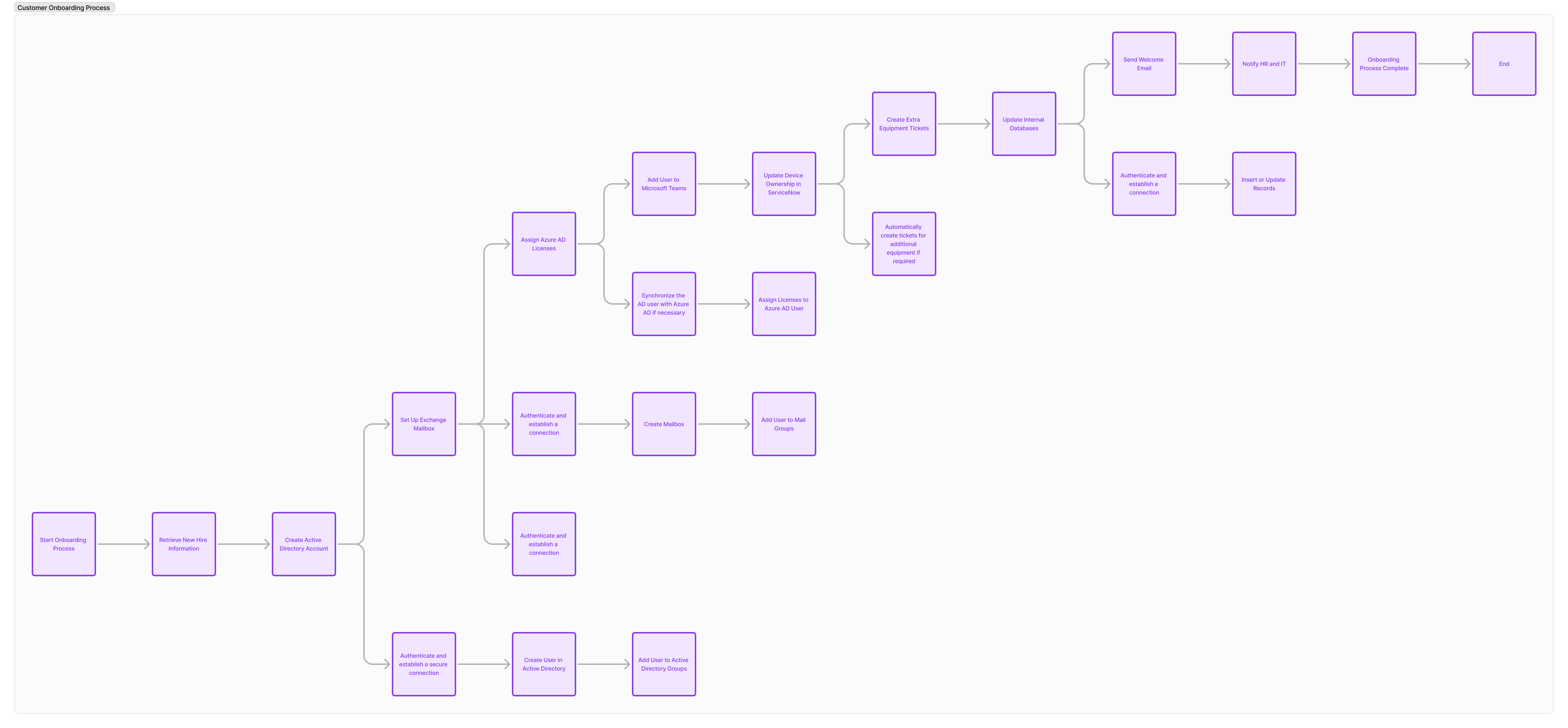
</details>

***

## Getting Started with Autom Mate

### [**Creating Your First Hyper Flow**](/userguide/userguide/product-features/create-autom)

* Start by navigating to the 'Hyper Flow' page within Autom Mate.
* Click on the '[**Create New Hyper Flow**](/userguide/userguide/product-features/create-autom)' button to initiate the creation process.
* Fill out the form with the **necessary details**, including the **name, type, description, and timeout of the** Hyper Flo&#x77;**.**
* Design your process using the **drag-and-drop interface**, adding actions and configuring their parameters as needed.

***

### **Exploring the Autom Mate Interface**

* Familiarize yourself with the various components of the Autom Mate interface, including the Hyper Flow Designer, [**Dashboard**](/userguide/userguide/product-features/dashboard/dashboard), and [**Library**](/userguide/userguide/libraries).

***

### **Utilizing Library Actions**

* Explore the extensive [**library of pre-built actions** ](/userguide/userguide/libraries)available in Autom Mate.

***

### **Monitoring and Managing Automations**

* Discover how to [**monitor**](/userguide/userguide/product-features/dashboard/monitoring) the performance of your automation workflows using the [Dashboard](/userguide/userguide/product-features/dashboard/dashboard).
* [**Learn how to troubleshoot issues**](/userguide/userguide/product-features/dashboard/monitoring), track execution [**logs**](/userguide/userguide/product-features/dashboard/monitoring), and manage permissions for collaborative automation development.

By mastering these basics, you'll be well-equipped to leverage the full potential of Autom Mate and embark on your automation journey with confidence. Stay tuned for more advanced topics and tips to further enhance your automation skills!

{% hint style="info" %}

#### **Essential Tips and Best Practices for Using Autom Mate's Hyper-Automation Platform**

* **Web-Based Platform**: Ensure **reliable internet access** for continuous usage. **No local installations are required**, but **browser compatibility is essential.**
* **Drag-and-Drop Hyper Flow** **Designer**: Users with no coding experience should note that more complex logic might still require some technical understanding, despite the ease of [drag-and-drop functionality](/userguide/userguide/information/features-of-autom-mate#drag-and-drop-autom-designer)**.**
* **Pre-built Actions**: **Regularly check** for updates in the **action library** to ensure you are using **the latest features for integrations**.
* **Integration**: Verify that third-party integrations (e.g., CRM systems) are correctly configured to avoid data exchange issues.
* **Error Handling**: Define proper **exception management** **to catch and resolve issues before they impact workflow continuity.**
* **Security Controls**: Regularly review **access controls** and **audit logs** to **maintain** **compliance** and **prevent unauthorized changes**.
  {% endhint %}


# Autom Mate MCP Server

Connect Claude, ChatGPT, and other MCP-compatible AI clients securely to your Autom Mate environment.

{% hint style="info" %}
**Legacy reference.** This page preserves the earlier Dublin 6.0.0 MCP guide. For current connection instructions, use [Connect an AI client with MCP](https://docs.autommate.com/userguide/mcp-and-ai-reference/connect-an-ai-client-with-mcp). For tool contracts, start at [MCP tool reference](https://docs.autommate.com/userguide/mcp-and-ai-reference/tools) and [capabilities and version scope](https://docs.autommate.com/userguide/mcp-and-ai-reference/capabilities-and-version-scope). The 14-tool description below is a historical reference baseline, not a complete inventory for every build. Check the tools exposed by your authenticated connection.
{% endhint %}

The Autom Mate MCP Server connects supported AI clients to your Autom Mate environment through the open Model Context Protocol (MCP). After connecting, you can ask your AI assistant to find Automs, inspect runs, review platform information, explore available library actions, and run supported Automs using natural language.

The server uses your own Autom Mate account and permissions. Connecting an AI client does not grant additional access to Autom Mate.

{% hint style="info" %}
The documented Dublin 6.0.0 baseline on this legacy page contains **14 tools**. Tool availability and returned data are always checked against the permissions of the authenticated Autom Mate user.
{% endhint %}

{% hint style="success" %}
The Autom Mate MCP Server is introduced with Dublin 6.0.0.
{% endhint %}

## Before you begin

You need:

* An active Autom Mate cloud environment using an \`autommate.app\` domain.
* An Autom Mate user account with access to the information or operations you want to use.
* Your Autom Mate workspace name—the short part before \`.autommate.app\`. For example, use \`acme\` for \`acme.autommate.app\`.
* An MCP-compatible AI client that supports remote MCP servers and OAuth, such as Claude or ChatGPT.

{% hint style="warning" %}
Only username and password authentication is currently supported during the MCP connection flow. Microsoft sign-in is not yet supported for MCP authentication.
{% endhint %}

## MCP server URL

Use the following remote MCP server URL in your AI client:

```
https://mcp.autommate.app/mcp
```

The Autom Mate MCP Server uses Streamable HTTP and OAuth. You do not need to create or copy an Autom Mate API key.

## Connect from Claude

The example below uses Claude's custom connector interface. Labels may change slightly as Claude updates its interface.

### 1. Add a custom connector

In Claude, open the custom connector setup and enter:

| Setting         | Value                                |
| --------------- | ------------------------------------ |
| Name            | Autom Mate                           |
| MCP server URL  | \`<https://mcp.autommate.app/mcp\\`> |
| Authentication  | Sign in now                          |
| OAuth client    | CIMD                                 |
| Request headers | None                                 |

For **OAuth client**, select **CIMD**. Autom Mate uses the CIMD OAuth option for this connection.

![Claude custom connector configuration](https://4222414448-files.gitbook.io/~/files/v0/b/gitbook-x-prod.appspot.com/o/spaces%2FMAf5diEa8kgXDA6h47Cu%2Fuploads%2FCes6TXlAFDb1QGB0DJyJ%2Fclaude-custom-connector.png?alt=media)

### 2. Continue to Autom Mate

Claude displays a confirmation screen before opening the Autom Mate authorization flow. Continue only if you started the connection from Claude.

![Claude connector redirect confirmation](https://4222414448-files.gitbook.io/~/files/v0/b/gitbook-x-prod.appspot.com/o/spaces%2FMAf5diEa8kgXDA6h47Cu%2Fuploads%2FuaGCQb3GbtTlvvfCDNJ7%2Fclaude-redirect-confirmation.png?alt=media)

### 3. Enter your Autom Mate workspace

Enter the short name of your Autom Mate workspace. Do not enter the complete domain.

For example:

* Workspace URL: \`<https://acme.autommate.app\\`>
* Workspace name to enter: \`acme\`

![Autom Mate workspace selection](https://4222414448-files.gitbook.io/~/files/v0/b/gitbook-x-prod.appspot.com/o/spaces%2FMAf5diEa8kgXDA6h47Cu%2Fuploads%2F5Lxlabs4i2BB7E4rP7uk%2Fworkspace-selection.png?alt=media)

### 4. Sign in to Autom Mate

Sign in with your Autom Mate username and password.

![Autom Mate sign-in screen](https://4222414448-files.gitbook.io/~/files/v0/b/gitbook-x-prod.appspot.com/o/spaces%2FMAf5diEa8kgXDA6h47Cu%2Fuploads%2FsqFb36Jjc2huoGAJscTP%2Fautom-mate-login.png?alt=media)

{% hint style="warning" %}
For the current version, select **Sign in Using Credentials**. Microsoft authentication is not supported for MCP sign-in yet.
{% endhint %}

### 5. Review and approve access

The approval screen shows:

* The Autom Mate environment being connected.
* The signed-in user.
* The type of access requested.
* The actions the connected client may perform.
* The connector disclosure and authorization statement.

Review the information, accept the authorization statement, and select **Allow access**.

![Autom Mate MCP approval screen](https://4222414448-files.gitbook.io/~/files/v0/b/gitbook-x-prod.appspot.com/o/spaces%2FMAf5diEa8kgXDA6h47Cu%2Fuploads%2FIePeGli8fg6NqtIRVkL6%2Fautom-mate-approval.png?alt=media)

After approval, Autom Mate redirects you to Claude and completes the connection.

## Connect from ChatGPT or another MCP client

The same Autom Mate URL and authorization flow can be used with ChatGPT or another compatible MCP client:

1. Add a new custom MCP server or connector in the client.
2. Enter \`<https://mcp.autommate.app/mcp\\`> as the server URL.
3. Select OAuth authentication if the client asks for an authentication method.
4. Start the connection.
5. Enter your Autom Mate workspace name.
6. Sign in with your Autom Mate username and password.
7. Review and approve the requested access.
8. Return to the AI client and verify that the Autom Mate tools are available.

No additional Autom Mate API key, client secret, or custom request header is required.

## Available tools

The Autom Mate MCP Server currently exposes the following 14 tools:

| Tool                         | What it does                                                                        |
| ---------------------------- | ----------------------------------------------------------------------------------- |
| \`platform\_get\_summary\`   | Returns a high-level summary of the Autom Mate environment and recent activity.     |
| \`agents\_get\_health\`      | Shows the connectivity and health information available for Autom Mate agents.      |
| \`automs\_search\`           | Searches Automs the authenticated user is permitted to view.                        |
| \`automs\_get\`              | Returns details and the declared input contract for a selected Autom.               |
| \`automs\_run\`              | Runs a supported API- or webhook-triggered Autom.                                   |
| \`runs\_search\`             | Searches Autom run history.                                                         |
| \`runs\_get\`                | Returns the details of a selected run.                                              |
| \`runs\_get\_latest\_error\` | Finds the latest failure for an Autom and returns the available failure context.    |
| \`schedules\_search\`        | Searches active Autom schedules.                                                    |
| \`credentials\_search\`      | Searches stored connection records without returning credential values.             |
| \`libraries\_search\`        | Searches the available integration libraries by application.                        |
| \`library\_search\_actions\` | Searches actions available in the licensed library catalogue.                       |
| \`library\_get\_action\`     | Returns the available input definition for a selected library action when recorded. |
| \`users\_search\`            | Searches the Autom Mate user accounts the authenticated user is permitted to view.  |

{% hint style="info" %}
The tool list may be visible even when the authenticated user does not have permission to complete a specific operation. Permissions are checked again when every tool is called.
{% endhint %}

## Permissions and authorization

The MCP Server acts on behalf of the authenticated Autom Mate user.

* Every tool call checks the user's current Autom Mate permissions.
* The server cannot use a tool to reach information or operations the user cannot access in Autom Mate.
* View-own permissions continue to limit results to the records available to that user.
* Running an Autom requires both MCP write access and the relevant Autom Mate permission.
* Permission changes in Autom Mate affect later MCP calls.

For example, if a user does not have permission to read Hyperflows, the MCP client may still discover and attempt to call the related tool, but Autom Mate rejects the operation with **401 Unauthorized**.

## Security and data handling

Autom Mate applies the following controls to MCP activity:

* OAuth authorization with PKCE is used for the connection.
* Access and refresh tokens are handled by the AI client and Autom Mate authorization flow; users do not paste tokens into prompts.
* Tool inputs and outputs are filtered to prevent known credential and secret fields from being returned to the model.
* Large responses and long free-text fields are limited to protect the AI client's context window.
* Tool calls are audit logged, including the user, environment, tool, outcome, and duration. Sensitive token values are not written to the audit record.
* Rate limits are applied to protect the Autom Mate environment from repeated or runaway calls.
* Tenant and permission boundaries are applied before data is returned.

{% hint style="danger" %}
Some tools can start Autom executions and make changes in your environment. Review the requested action in your AI client before approving a tool call.
{% endhint %}

## Example requests

After connecting, try requests such as:

* “Show me the active Automs I can access.”
* “Give me a summary of the Autom Mate platform activity for the last seven days.”
* “Why did the latest run of the Employee Onboarding Autom fail?”
* “Show the active schedules for this Autom.”
* “Which actions are available for SAP?”
* “Run the Customer Sync Autom with these inputs.”

The AI client selects and combines the appropriate Autom Mate tools. For operations involving an Autom or run, the server requires identifiers returned by its own search tools rather than accepting invented identifiers.

## Current limitations

* MCP sign-in supports Autom Mate username and password only. Microsoft sign-in is not currently supported.
* The server currently exposes 14 tools.
* \`automs\_run\` currently supports API- and webhook-triggered Automs. Other trigger types are not started through the MCP Server.
* \`credentials\_search\` returns connection metadata only. It never returns passwords, tokens, or other stored credential values, and it does not confirm whether a credential is healthy.
* An AI client may display a tool that the current user cannot execute. The call is rejected when the required Autom Mate permission is missing.
* Active MCP connections must currently be revoked or disconnected from the AI client.

## Troubleshooting

### The connection does not start

Confirm that the server URL is exactly:

```
https://mcp.autommate.app/mcp
```

Make sure the client supports remote MCP servers, Streamable HTTP, and OAuth.

### My workspace is not accepted

Enter only the short workspace name before \`.autommate.app\`. Do not enter \`https\://\`, the full domain, or another custom domain.

### Microsoft sign-in does not complete

Use **Sign in Using Credentials** with your Autom Mate username and password.

### A tool returns 401 Unauthorized

The connected user does not have the required Autom Mate permission for that operation. Ask your Autom Mate administrator to review the user's role and module permissions, then retry the tool.

### A tool is missing or still shows an older version

Refresh or reconnect the Autom Mate connector in the AI client so it retrieves the latest tool list.

### An Autom cannot be run

Confirm that:

* The user can access and run the Autom in Autom Mate.
* The Autom uses an API or webhook trigger.
* All required inputs were provided.
* The AI client approved the write operation.


# Use Cases

Showcases practical examples and use cases available in the Autom Store.

The **Use Cases** section showcases ready-made examples of how Autom Mate can be used to solve real business problems.

It includes both:

* [**AI Agent use cases**](/userguide/userguide/use-cases/ai-agent-use-cases) (prebuilt agents like ServiceNow, Xurrent)
* [**Automation use cases**](/userguide/userguide/use-cases/integration-use-cases) (workflow-based solutions across systems)

***

### What You’ll Find

* AI Agents for common platforms
* Real-world automation scenarios
* Integration examples across multiple systems
* Practical implementations you can reuse or adapt

***

### Purpose

This section helps you:

* Understand what is possible with Autom Mate
* Get started faster using proven solutions
* Apply AI and automation to real operational needs

***

### Summary

Use Cases provide **ready-to-use patterns** to help you move from idea to implementation faster.


# AI Agent Use Cases

Showcases practical examples and use cases available in the Autom Store.

The **AI Agent Use Cases** section provides AI Agents designed for common enterprise scenarios.

These agents come with:

* Knowledge
* Skills
* Integrations

allowing you to deploy and start using them quickly.

***

### What You’ll Find

* ServiceNow AI Agent
* Xurrent AI Agent
* Other agents

Each use case demonstrates how AI Agents can interact with systems and execute real operations.

***

### Summary

AI Agent Use Cases help you [**deploy proven AI solutions quickly**](/userguide/userguide/ai-agent-composer) without building from scratch.


# ServiceNow AI Agent

The **ServiceNow AI Agent** is a an AI Agent that connects Autom Mate with ServiceNow ITSM.

It enables users to interact with ServiceNow using natural language while allowing controlled execution of actions through Autom Mate.

***

### Overview

The agent allows users to:

* Retrieve and view incidents
* View resolved incidents
* Add notes to incidents
* Search knowledge base articles
* Discover service catalog items
* Create incidents

It works across conversational channels while keeping ServiceNow as the system of record.

***

### Prerequisites

Before deploying the agent, ensure:

#### Autom Mate

* Access to **AI Agent Composer**\
  👉 [AI Agent Composer](https://docs.autommate.com/userguide/ai-agent-composer)

***

#### ServiceNow

You must have:

* ServiceNow instance URL
  * Example: `https://your-instance.service-now.com`
* Credentials configured in Autom Mate Vault\
  👉 [Vault](https://docs.autommate.com/userguide/product-features/management/vault)

Supported authentication:

* Basic Authentication
* OAuth

***

#### Required Permissions

ServiceNow user must have:

* **Incident table (`incident`)** → Create, Read, Update
* **Knowledge Base (`kb_knowledge`)** → Read
* **Service Catalog (`sc_request` / related)** → Read

***

### Deploy the Agent

The ServiceNow AI Agent is pre-built and deployed through AI Agent Composer.

#### Step 1 — Open AI Agent Composer

👉 [AI Agent Composer](https://docs.autommate.com/userguide/ai-agent-composer)

***

#### Step 2 — Import / Create Agent

Use the ready-made ServiceNow AI Agent template.

***

#### Step 3 — Configure Credentials

* Connect your ServiceNow credential from Vault
* Ensure correct instance URL and authentication

***

#### Step 4 — Configure Knowledge

To enable knowledge retrieval:

* Go to **Knowledge → Applications**
* Select **ServiceNow**
* Connect your ServiceNow instance

This allows the agent to access:

* Knowledge articles
* Service-related data

***

#### Step 5 — Configure Channels

Enable one or more channels:

* WhatsApp
* Microsoft Teams
* Mate Chat

***

#### Step 6 — Test in Playground

Before going live:

* Test interactions in Playground
* Verify knowledge retrieval and actions

***

### Capabilities (Out-of-the-Box)

The ServiceNow AI Agent includes the following actions:

#### Incident Management

* Retrieve incident details
* View incident status
* View resolved incidents
* Add notes to incidents
* Create incidents

***

#### Knowledge Access

* Search knowledge articles
* Summarize results

***

#### Service Discovery

* Identify relevant service catalog items

***

### How It Works

1. User sends a message via a channel
2. AI model interprets the request
3. Autom Mate selects the appropriate skill
4. ServiceNow API is called
5. Response is returned to the user

***

### Execution Model

* AI handles **understanding and decision making**
* Autom Mate handles **execution and integrations**
* ServiceNow remains the **system of record**

***

### Safety and Permissions

By default:

* The agent supports **read operations**
* Write capabilities include:
  * Create incident
  * Add notes

All actions are executed using configured credentials and permissions.

***

### Extending the Agent

The agent can be extended using Autom Mate workflows.

Examples:

* Identity workflows (password reset, unlock account)
* Device diagnostics and remediation
* Application health checks
* Cross-system incident resolution

This allows the agent to evolve from:\
→ **assistant**\
to\
→ **automation execution layer**

***

### Channels

The ServiceNow AI Agent can be used through:

* WhatsApp
* Microsoft Teams
* Mate Chat

Each channel provides the same capabilities through different interfaces.

***

### Summary

The ServiceNow AI Agent provides a fast way to:

* Enable conversational access to ServiceNow
* Reduce dependency on the ServiceNow UI
* Automate service interactions
* Extend into cross-system workflows

All while maintaining control, permissions, and auditability.


# Xurrent AI Agent

The **Xurrent AI Agent** is a an AI Agent that integrates Autom Mate with Xurrent service management.

It uses an AI model (OpenAI or Azure OpenAI) for intent understanding and Autom Mate for controlled execution of Xurrent operations through APIs.

***

### Overview

The agent provides the following capabilities:

* Retrieve and view requests
* View resolved requests
* Add notes to requests
* Search knowledge base articles
* Create requests

All interactions are executed through Autom Mate while **Xurrent remains the system of record**.

***

### Prerequisites

#### Autom Mate

* Access to **AI Agent Composer**\
  👉 [AI Agent Composer](https://docs.autommate.com/userguide/ai-agent-composer)

***

#### AI Model

The agent requires one of the following providers:

* **OpenAI**
* **Azure OpenAI**

Credentials must be configured in Autom Mate Vault:

👉 [Vault](https://docs.autommate.com/userguide/product-features/management/vault)

Credential configuration includes:

* API Key
* Endpoint (for Azure OpenAI)
* Model / Deployment selection

***

#### Xurrent

You must provide:

* **Xurrent API access**
* **Authentication**

Supported methods:

* API Key
* OAuth

Credentials must be configured in Autom Mate Vault.

***

### Required Permissions

The configured Xurrent user must have access to:

| Resource  | Permissions          |
| --------- | -------------------- |
| requests  | Create, Read, Update |
| knowledge | Read                 |

All API operations are executed using these permissions.

***

### Knowledge Integration

Xurrent can be used as a knowledge source through Autom Mate.

* Connected via **Knowledge → Applications → Xurrent**
* Enables retrieval from:
  * Knowledge articles
  * Service-related data

This allows the agent to perform RAG-based responses using Xurrent content.

***

### Capabilities (Out-of-the-Box)

The agent includes predefined Xurrent actions:

#### Request Management

* Get request
* Get resolved requests
* Add note to request
* Create request

***

#### Knowledge Access

* Search knowledge articles

***

### Execution Flow

1. User sends a request via a channel
2. AI model (OpenAI / Azure OpenAI) interprets intent
3. Autom Mate maps the intent to a predefined action
4. Xurrent APIs are invoked
5. Response is returned

***

### Execution Model

* **AI Layer** → intent detection and response generation
* **Autom Mate Layer** → skill execution and orchestration
* **Xurrent Layer** → system of record

***

### Safety and Permissions

By default:

* Read operations are enabled
* Write operations include:
  * Create request
  * Add note to request

All actions are:

* Executed using configured credentials
* Restricted by Xurrent permissions
* Controlled through Autom Mate

***

### Extending the Agent

Additional functionality can be introduced by:

* Using available skills in Autom Mate
* Creating custom actions and workflows

👉 [AI Agent Composer](https://docs.autommate.com/userguide/ai-agent-composer)

***

### Channels

The Xurrent AI Agent supports:

* WhatsApp
* Microsoft Teams
* Mate Chat

***

### Summary

The Xurrent AI Agent provides:

* AI-driven interaction with Xurrent
* Predefined request and knowledge operations
* Secure API-based execution
* Extendable skill-based architecture


# ManageEngine ServiceDesk Plus AI Agent

The **ServiceDesk Plus AI Agent** enables end users to interact with their IT service desk through natural language, while executing real actions directly in **ManageEngine ServiceDesk Plus (SDP)** via Autom Mate.

***

### Overview

The agent is designed to handle the most common support interactions without human intervention:

* Create new requests
* View user’s open requests
* Add notes to existing requests
* Search knowledge base articles

All actions are executed through **Autom Mate workflows**, ensuring full auditability, control, and integration with existing SDP processes.

***

### Prerequisites

#### Autom Mate

* Access to **AI Agent Composer**\
  👉 [AI Agent Composer](https://docs.autommate.com/userguide/ai-agent-composer)

***

#### AI Model

The agent requires one of the following providers:

* **OpenAI**
* **Azure OpenAI**

Credentials must be configured in Autom Mate Vault:

👉 [Vault](https://docs.autommate.com/userguide/product-features/management/vault)

Credential configuration includes:

* API Key
* Endpoint (for Azure OpenAI)
* Model / Deployment selection

***

#### ManageEngine ServiceDesk Plus

You must provide:

* **SDP API access**
* **Authentication**

Supported methods:

* API Key

Credentials must be configured in Autom Mate Vault.

***

### Required Permissions

At minimum, the integration user should be able to:

* Create requests
* Read requests
* Add notes to requests
* Read knowledge base articles

If the design requires the agent to return only the logged-in user’s own requests, identity mapping between the channel user and the corresponding ServiceDesk Plus user must also be available.

***

### Knowledge Integration

Knowledge article support can be implemented in two ways depending on the environment design.

#### Option 1: API-based knowledge lookup

The agent queries ServiceDesk Plus knowledge records directly during execution.

#### Option 2: RAG-based knowledge retrieval

Knowledge articles are ingested into the agent’s knowledge layer through Autom Mate, allowing the agent to retrieve and rank relevant content before responding.

For this use case, the knowledge capability is limited to:

* Searching for relevant articles
* Returning the most relevant matches
* Suggesting existing guidance before creating a new request

This allows the agent to reduce unnecessary ticket creation for known issues or common how-to questions.

***

### Capabilities (Out-of-the-Box)

This agent supports the following actions out of the box.

#### Create Request

The agent can create a new request in ServiceDesk Plus based on the user’s description.

**Example**

> My laptop is not connecting to Wi-Fi.

**What happens**

* The agent extracts the issue details
* Autom Mate maps the input to the request payload
* A request is created in ServiceDesk Plus
* The agent returns the created request number or confirmation

#### View User’s Open Requests

The agent can return the current user’s open requests.

**Example**

> Show my open tickets.

**What happens**

* The user is identified
* Requests are fetched from ServiceDesk Plus
* Open or active requests belonging to that user are returned
* The result is formatted into a simple list

#### Add Note to Request

The agent can append a note to an existing request.

**Example**

> Add a note to ticket 143 saying the issue only happens on VPN.

**What happens**

* The request ID is validated
* The note is passed to ServiceDesk Plus
* The note is added to the selected request
* The agent confirms the update

#### Search Knowledge Articles

The agent can search for relevant knowledge articles based on the user’s question.

**Example**

> How do I reset my VPN password?

**What happens**

* The agent searches the configured knowledge source
* Relevant articles are retrieved
* The response is returned as suggested guidance
* The user may resolve the issue without creating a ticket

***

### Execution Flow

The agent follows a simple request-response pattern, with Autom Mate handling all execution logic.

#### Example: Create Request

```
User Message → Intent Detection → Extract Request Details → Create Request in ServiceDesk Plus → Return Confirmation
```

#### Example: View Open Requests

```
User Message → Identify User → Fetch Requests → Filter User's Open Requests → Return Result
```

#### Example: Add Note

```
User Message → Extract Request ID and Note Content → Validate Request → Add Note → Return Confirmation
```

#### Example: Knowledge Search

```
User Message → Search Knowledge Source → Rank Relevant Articles → Return Suggested Articles
```

***

### Execution Model

* The agent follows the standard Autom Mate execution model:

  ```
  User → AI Agent → Autom Workflow → ServiceDesk Plus
  ```

  ####
* #### AI Agent

  The AI Agent handles conversation, intent understanding, and response orchestration.

  ####
* #### Autom Workflow

  The Autom workflow acts as the execution layer. It performs validation, mapping, filtering, and API interaction.

  ####
* #### ServiceDesk Plus

  ServiceDesk Plus remains the system of record for requests, notes, users, and knowledge content.

  This model keeps the agent lightweight while ensuring all business actions remain visible and controlled through Autom Mate.

***

### Safety and Permissions

The agent should operate with clearly scoped capabilities.

Recommended controls include:

* Restricting the integration account to only the required actions
* Returning only the user’s own requests
* Validating request IDs before note updates
* Logging all executions through Autom Mate
* Limiting the agent to read and write actions that are explicitly supported

For this use case, the agent is intentionally narrow in scope. It does not perform administrative actions or broader system-level operations.

***

### Extending the Agent

This agent can be extended later with additional ServiceDesk Plus capabilities depending on project scope.

Possible extensions include:

* Request detail retrieval
* Request status updates
* Approval interactions
* Technician-specific actions
* User lookup and enrichment
* Additional knowledge actions
* Multi-step request guidance

The current version is intentionally focused on a small set of stable, high-frequency use cases that are easy to deploy and validate.

👉 [AI Agent Composer](https://docs.autommate.com/userguide/ai-agent-composer)

***

### Channels

The agent can be exposed through any supported Autom Mate channel, including:

* Web chat
* Microsoft Teams
* WhatsApp
* Other supported conversational channels

The execution logic remains the same across channels. Only the interaction layer changes.

***

### Summary

The **ManageEngine ServiceDesk Plus AI Agent** provides a practical self-service layer for common support interactions.

It allows users to:

* Create requests
* View their own open requests
* Add notes to existing requests
* Search knowledge articles

All actions are executed through **Autom Mate workflows**, giving the organization a controlled and auditable way to deliver AI-powered support on top of ServiceDesk Plus.


# ServiceDesk Plus AI Agent

TBA


# Integration Use Cases

Presents detailed scenarios demonstrating how Autom Mate can be applied to solve real-world problems.

The **Use Cases** section showcases practical examples of how Autom Mate can be utilized to automate various business processes. This section provides real-world scenarios and detailed guides on implementing Autom's across different industries and functions, such as:

* **IT Operations:** Automating routine IT tasks, such as user provisioning, system monitoring, and incident management.
* **Customer Support:** Streamlining customer service processes, including ticketing, response automation, and CRM integrations.
* **Human Resources:** Managing HR processes like employee onboarding, offboarding, and data management.
* **Finance:** Automating financial operations, such as invoice processing, expense tracking, and report generation.

These use cases demonstrate the versatility of Autom Mate and offer step-by-step instructions to help users implement similar Autom's in their own environments, driving efficiency and productivity.


# How to Create Bidirectional Connection Between JIRA and Xurrent to Open Requests or Tickets

## Overview

This use case scenario outlines the process of creating a bidirectional connection between JIRA and Xurrent platforms using Autom Mate platform's webhook feature. The integration allows for the seamless flow of incident and issue data between the two systems, enhancing communication and workflow efficiency.

## Actors

* **Autom Mate Platform**: Acts as the central hub for webhook connections.
* Xurrent: Provides incident management and tracking capabilities.
* **JIRA**: Offers issue tracking and project management features.

## Goals

* **Main Goal**: Establish a bidirectional connection between JIRA and Xurrent for seamless data exchange.
* **Sub Goals**:
  * Configure webhook connection between Xurrent and Autom Mate.
  * Set up webhook connection between JIRA and Autom Mate.
  * Develop conditional rules in Autom Mate to handle incoming payload data.

## Use Case Scenario

### **Creating Bidirectional Connection between JIRA and** Xurrent

**Description**

The scenario details the steps to connect JIRA and Xurrent platforms bidirectionally via Autom Mate platform's webhook functionality. This integration enables the automatic transfer of incident and issue data between the two systems.

{% stepper %}
{% step %}
**Establishing Connection with Xurrent**

* Autom Mate Platform generates a unique webhook URL for connection.
* Navigate to Xurrent settings and locate the webhook section.
* Click on the '+' button to create a new webhook connection.
* Choose the desired operation to trigger in Xurrent.
* Paste the webhook trigger URL from Autom Mate into the designated field.
  {% endstep %}

{% step %}
**Receiving Payload Data from Xurrent**

* Create an incident in Xurrent to initiate data transmission.
* Autom Mate Platform receives the payload data from Xurrent.
* Monitor the Autom Mate monitoring page to view the incoming data.
  {% endstep %}

{% step %}
**Configuring Connection with JIRA**

* Utilize the same webhook trigger URL from Autom Mate for JIRA integration.
* Refer to JIRA documentation for webhook connection setup.
* Prepare a JSON code to send to JIRA's webhook URL using Autom Mate's Restful Web Service integration.
  {% endstep %}

{% step %}
**Handling Payload Data in Autom Mate**

* Analyze the received payload data from both Xurrent and JIRA.
* Identify distinguishing parameters to differentiate the sources.
* Create conditional rules in Autom Mate based on payload parameters.
  * If JIRA webhookEvent parameter exists, proceed with JIRA actions.
  * Else if Xurrent payload's source parameter indicates, perform Xurrent operations.
  * **Example Parameters Used**:
    * **JIRA Payload**:
      * `webhookEvent`: Identifies the type of event triggering the webhook.
    * **Xurrent** **Payload**:
      * `source`: Indicates the origin of the payload, such as "Xurrent".
        {% endstep %}

{% step %}
**Avoiding Duplicate Ticket Creation**

Implement additional conditions in Autom Mate to prevent duplicate ticket creation.

* Check for unique identifiers or tags in the payload data.
* Create 'if-else if' condition blocks to handle JIRA and Xurrent data separately.
* **Solution** for Xurrent Ticket Creation in JIRA:
  * When a ticket is created on Xurrent, append the "Created from Xurrent" sentence to the JIRA ticket's summary field.
  * Upon receipt of this summary containing "Created from Xurrent," Autom Mate recognizes it.
  * The conditional rule within Autom Mate ensures that if the data contains this sentence, it will not open a duplicate ticket in Xurrent.
    {% endstep %}
    {% endstepper %}

{% hint style="info" %}

### Alternative Paths

**Exception Case - Duplicate Ticket Creation**:

* If duplicate tickets are detected due to loop conditions:
  * Autom Mate Platform can intelligently recognize and handle this situation.
  * **Solution**:
    * Autom Mate adds the "Created from Xurrent" sentence to the summary of a JIRA ticket created from a Xurrent incident.
    * When Autom Mate processes this ticket in the future, it recognizes the sentence.
    * The system avoids creating duplicate Xurrent incidents by identifying the "Created from Xurrent" indicator.
    * Administrators or stakeholders are notified of the detected issue and its resolution.
      {% endhint %}

{% hint style="success" %}

### Benefits

* Streamlined data flow between JIRA and Xurrent platforms.
* Automated incident and issue creation without manual intervention.
* Enhanced workflow efficiency and reduced error rates.
  {% endhint %}

The bidirectional connection between JIRA and Xurrent, facilitated by Autom Mate platform's webhook feature, ensures seamless data exchange and automated workflow processes. By configuring webhook connections, handling payload data intelligently, and preventing duplicate ticket creation, organizations can optimize their incident and issue management workflows effectively.

{% hint style="warning" %}

## Related Document

For detailed instructions on webhook connection setup:

* Refer to Xurrent documentation: [Xurrent Webhook Connection Guide](https://developer.4me.com/v1/webhooks/)
* Consult JIRA documentation: [JIRA Webhook Integration Guide](https://developer.atlassian.com/server/jira/platform/webhooks/)
* Autom Mate Webhook documentation: [Autom Mate Webhook Integration Guide](/userguide/userguide/product-features/management/webhook-and-api)
  {% endhint %}


# Employee Onboarding Process Automation Using Autom Mate

### Introduction

The employee onboarding process is a pivotal HR function that sets the stage for new hires’ experiences and productivity. Autom Mate offers a robust automation platform to streamline and optimize onboarding activities such as account creation, device assignment, and team integrations. This document details the implementation of an automated onboarding workflow using Autom Mate, focusing on consistency, efficiency, and scalability.

{% hint style="info" %}

### **Objectives**

* **Streamline Processes:** Automate repetitive onboarding tasks.
* **Ensure Compliance:** Standardize processes to meet organizational and legal requirements.
* **Enhance Experience:** Provide a seamless and professional onboarding experience for new hires.
* **Increase Efficiency:** Reduce manual intervention, saving HR and IT team resources.
  {% endhint %}

***

### **Autom Overview**

This flow represents a comprehensive and systematic **onboarding process** for new hires. It ensures that all necessary steps are completed efficiently and accurately, from retrieving employee details to setting up accounts, assigning resources, and notifying relevant teams.

<figure><img src="https://4222414448-files.gitbook.io/~/files/v0/b/gitbook-x-prod.appspot.com/o/spaces%2FMAf5diEa8kgXDA6h47Cu%2Fuploads%2Fq5L3sgGeS1h95L0yZlu6%2Fimage.png?alt=media&amp;token=9716a06a-492d-45de-b5b6-d63f14a10266" alt=""><figcaption></figcaption></figure>

{% hint style="success" %}

#### **Benefits of This Flow**

* **Automation**: Reduces manual effort and ensures consistency in onboarding.
* **Efficiency**: Handles all technical and administrative setups promptly.
* **Accuracy**: Eliminates errors by automating repetitive tasks and fetching details directly from the HR system.
* **Scalability**: Easily adaptable to onboard multiple employees simultaneously.
* **Transparency**: Provides notifications to HR and IT, ensuring all stakeholders are informed of progress and completion.
  {% endhint %}

***

### **Key Steps in the Process**

{% stepper %}
{% step %}
**Start Onboarding**

The process begins when a new hire record is created in the HR system, triggering the workflow automatically.
{% endstep %}

{% step %}
**Retrieve Employee Details**

Employee information such as name, department, and role is fetched from the HR system to ensure accuracy in subsequent steps.
{% endstep %}

{% step %}
**Create Active Directory (AD) Account**

* A user account is established in the Active Directory system to provide centralized authentication and access control.
* The user is added to the appropriate AD groups based on their role or department.
  {% endstep %}

{% step %}
**Set Up Exchange Mailbox**

* An email account is created for the new hire, allowing them to send and receive communications.
* The new employee is also added to any relevant mail groups for team or departmental correspondence.
  {% endstep %}

{% step %}
**Assign Azure AD Licenses**

Licenses for Microsoft services (e.g., Office 365, Teams, OneDrive) are assigned to the new user to enable access to essential tools.
{% endstep %}

{% step %}
**Add to Microsoft Teams**

The employee is added to relevant Teams channels to facilitate collaboration and communication within their team or department.
{% endstep %}

{% step %}
**Update Device Ownership in ServiceNow**

The system updates record to reflect any company-owned devices assigned to the new hire, ensuring accurate inventory management.
{% endstep %}

{% step %}
**Create Equipment Tickets**

ServiceNow tickets are generated for any additional equipment requested by or required for the new employee.
{% endstep %}

{% step %}
**Update Internal Databases**

Internal systems, such as payroll and reporting databases, are updated with the new hire’s details to ensure proper integration with organizational workflows.
{% endstep %}

{% step %}
**Send Welcome Email**

A welcome email is sent to the employee, providing login credentials, training resources, and instructions for the first day.
{% endstep %}

{% step %}
**Notify HR and IT**

HR and IT departments are informed about the completion of the onboarding process and any pending actions via email or Teams notifications.
{% endstep %}
{% endstepper %}

***


# AI Agent Composer

A**I Agent Composer** is where you build and configure AI Agents in Autom Mate.

It allows you to define how your agent:

* Thinks (Model & Instructions)
* Knows (Knowledge)
* Acts (Skills)
* Interacts (Channels)

***

### How It Works

An AI Agent in Autom Mate:

* Understands user input
* Retrieves information from knowledge sources
* Executes actions using connected systems
* Responds through selected channels

***

### Core Sections

* [**Agent Details**](/userguide/userguide/ai-agent-composer/agent-details) → Model and behavior
* [**Knowledge**](/userguide/userguide/ai-agent-composer/knowledge) → Data sources (RAG)
* [**Skills**](/userguide/userguide/ai-agent-composer/skills) → Actions and integrations
* [**Channels**](/userguide/userguide/ai-agent-composer/channels) → Where the agent is used
* [**Playground**](/userguide/userguide/ai-agent-composer/playground) → Testing environment
* [**Logs**](/userguide/userguide/ai-agent-composer/logs) → Monitoring and analysis

***

### Typical Flow

1. Configure **Agent Details**
2. Add **Knowledge**
3. Add **Skills**
4. Test in **Playground**
5. Deploy via **Channels**

***

### Summary

AI Agent Composer is the central place to create AI Agents that can **understand, decide, and act** across your systems.


# Agent Details

The **Agent Details** section is where you define the core configuration of your AI Agent.

This is the first step in creating an agent and determines:

* Which AI model powers the agent
* How the agent behaves
* What its purpose and identity are

Without completing this step, the agent cannot function.

***

### Overview

Agent Details consists of two main parts:

1. **Model Configuration** — defines the AI provider and model
2. **Agent Configuration** — defines the agent’s identity and behavior

***

### Model Configuration

This section defines which AI model your agent will use.

#### Provider

Select the AI provider:

* Azure OpenAI
* OpenAI

***

#### Credential

Choose a credential to authenticate with the selected provider.

Credentials store:

* API keys
* Endpoint configurations
* Access settings

> The agent will use this credential to communicate with the AI provider.

***

#### Model

Select the model to power your agent.

Examples:

* GPT-based models
* Provider-specific deployments (for Azure OpenAI)

> The selected model directly impacts response quality, speed, and cost.

***

### Agent Configuration

This section defines how your AI Agent behaves.

***

#### Agent Name

Provide a unique name for your agent.

This name is used to identify the agent across the platform.

***

#### Instructions (Role Prompt)

Define the behavior and role of the AI Agent.

You have two options:

**Use Ready-Made Instructions**

Select from predefined templates to quickly configure common agent types.

***

**Create Custom Instructions**

Write your own instructions to fully control:

* Agent personality
* Scope of knowledge
* Allowed actions
* Response style

***

> Instructions are the **brain of the agent**.\
> They determine how the agent interprets and responds to user input.

***

### Save Configuration

After completing both sections, click **Save** at the top of the page.

This finalizes the initial setup of your AI Agent.

***

### What’s Next

Once the Agent Details are configured, you can continue building your agent by:

* Adding [**Knowledge**](/userguide/userguide/ai-agent-composer/knowledge) (for context and RAG)
* Defining [**Skills**](/userguide/userguide/ai-agent-composer/skills) (for actions and integrations)
* Connecting [**Channels**](/userguide/userguide/ai-agent-composer/channels) (WhatsApp, Teams, Webhook, Mate Chat.)

***

### Summary

Agent Details is the **foundation layer** of your AI Agent.

* Model → defines intelligence
* Instructions → define behavior

Everything else (skills, channels, knowledge) builds on top of this.


# Knowledge

The **Knowledge** section allows you to provide data to your AI Agent.

This data is used by the agent to understand, retrieve, and respond to user queries using **Retrieval-Augmented Generation (RAG)**.

Without knowledge, the agent relies only on its general model.\
With knowledge, it becomes **context-aware and domain-specific**.

***

### How Knowledge Works

When a user asks a question:

1. The AI Agent searches the available knowledge sources
2. Relevant information is retrieved
3. The AI uses this data to generate a response
4. The response is grounded in your provided content

This ensures responses are:

* Accurate
* Contextual
* Based on your organization’s data

***

### Add Knowledge

You can add knowledge to your AI Agent in four different ways:

***

#### 1. Upload Files

Upload documents directly to the agent.

**Supported formats:**

* PDF (.pdf)
* Word (.doc, .docx)
* Text (.txt)
* CSV (.csv)
* PowerPoint (.pptx)
* JSON (.json)
* Markdown (.md)

**Limits:**

* Maximum **10 files per upload**
* Maximum **5 MB per file**

Use this for:

* Internal documentation
* Guides
* Policies
* Product documentation

***

#### 2. Public Websites

Add website URLs to be crawled and indexed.

The system will:

* Crawl the provided pages
* Extract content
* Make it available to the agent

Use this for:

* Documentation sites
* Help centers
* Public knowledge bases

***

#### 3. Applications

Connect external systems as knowledge sources.

Examples:

* ServiceNow Knowledge Base
* Xurrent Knowledge Articles

This allows the agent to:

* Access live data
* Use up-to-date knowledge
* Integrate directly with operational systems

***

#### 4. Text Input

Manually enter text as knowledge.

Use this for:

* Small pieces of information
* Instructions or notes
* Quick additions without uploading files

***

### Managing Knowledge

All added knowledge sources are listed in the **Knowledge** section.

Each item shows its status:

* **Ready** → Available for use
* **Processing** → Being indexed

You can also:

* Remove knowledge sources
* Update content (by re-uploading or editing)

***

### Best Practices

* Keep content **clean and structured**
* Avoid duplicate or conflicting information
* Use clear and descriptive language
* Regularly update knowledge sources
* Prioritize high-quality, relevant content

***

### When to Use Each Option

| Method          | Best For                          |
| --------------- | --------------------------------- |
| Upload Files    | Internal docs, structured content |
| Public Websites | External documentation            |
| Applications    | Live system data (ITSM, KBs)      |
| Text Input      | Quick or small additions          |

***

### What’s Next

After adding knowledge, your AI Agent can:

* Answer questions using your data
* Provide accurate and contextual responses
* Support users based on real documentation

You can further enhance your agent by:

* Adding [**Skills**](/userguide/userguide/ai-agent-composer/skills) (to take actions)
* Connecting [**Channels**](/userguide/userguide/ai-agent-composer/channels) (WhatsApp, Teams, Webhook, Mate Chat)

***

### Summary

Knowledge is the **context layer** of your AI Agent.

* It defines what the agent *knows*
* It improves response accuracy
* It enables domain-specific intelligence


# Skills

Here is your **updated Skills page** with Agentic Hyperflow added naturally (no fluff, clean insertion):

***

## Skills

**Skills** define what your AI Agent can do.

They connect your AI Agent to external systems and enable it to perform real actions such as creating incidents, updating records, retrieving data, or triggering workflows.

Without skills, an AI Agent can only respond conversationally.\
With skills, it becomes an execution layer.

***

### How Skills Work

When a user interacts with an AI Agent:

* The AI understands the request
* It determines whether a Skill is required
* It selects the appropriate Skill based on its configuration
* The Skill executes an action in a connected system
* The result is returned to the AI Agent
* The AI responds to the user

This allows AI Agents to move from **answering to acting**.

***

### Add a Skill

#### Step 1 — Open Skills

Navigate to your AI Agent and go to the **Skills** tab.\
Click **Add Skill**.

***

#### Step 2 — Select a Library

Choose an [**Autom Mate Library**](/userguide/userguide/libraries).

Libraries represent integrations or systems such as:

* ServiceNow
* Xurrent
* Salesforce
* Stripe
* Custom integrations

Each library contains a set of available actions.

***

#### Step 3 — Select an Action

After selecting a library, choose an **Action**.

Actions represent specific operations, for example:

* Create Incident
* Add Note
* Create Request
* Get Records

***

#### Step 4 — [Configure Credential](/userguide/userguide/product-features/management/vault)

Select or create a **Credential** to connect the action.

Credentials store authentication details required to interact with the selected system.

The AI Agent will use this credential when executing the action.

***

#### Step 5 — Configure the Skill

Define how the AI Agent should use this action.

**Skill Name**

A clear name for the skill.

***

**When to Use**

This acts as instruction to the AI Agent.

Describe:

* What the action does
* When it should be triggered
* Example user intents

👉 This is one of the most critical fields — it directly impacts agent behavior.

***

**Inputs**

Define the input parameters required for the action.

Examples:

* incident title
* description
* user ID
* priority

These inputs will be dynamically filled by the AI Agent based on user requests.

***

**Run Settings**

Define how the action should be executed.

**Supervised (Approval Required)**

* The action will require approval before execution
* Used for sensitive or high-impact operations

**Unsupervised**

* The action runs automatically
* Used for safe, repeatable operations

***

#### Step 6 — Save

Save the configuration to add the skill to your AI Agent.

***

### How the AI Agent Uses Skills

The AI Agent does not randomly trigger actions.

It uses:

* The **“When to Use” description**
* The **user’s request**
* The **available inputs**

to decide:

* Whether to call a skill
* Which skill to use
* What data to send

👉 Well-defined skills = accurate automation.

***

### Extending Skills with Agentic Hyperflow

If you cannot find the required skill in the available libraries, you can extend your agent using [**Agentic Hyperflow**.](/userguide/userguide/ai-agent-composer/agentic-hyperflow)

* Open the agent’s **Agentic Hyperflow**
* Create or modify workflow steps
* Define custom actions
* Map those actions to your AI Agent

This allows you to:

* Build custom integrations
* Create multi-step logic
* Connect to any external system
* Go beyond out-of-the-box capabilities

***

### Best Practices

* Keep **Skill Names clear and specific**
* Write precise **When to Use** instructions
* Avoid overlapping skills with similar purposes
* Use **Supervised mode** for risky operations
* Test skills in real scenarios

***

### Typical Use Cases

Skills enable AI Agents to:

* Create and manage incidents
* Update tickets and records
* Retrieve system data
* Trigger workflows
* Integrate across multiple systems

***

### Next Steps

Once skills are configured, you can expose your AI Agent through [channels](/userguide/userguide/ai-agent-composer/channels) such as:

* WhatsApp
* Microsoft Teams
* Webhook
* Mate Chat


# Channels

AI Agents in **Autom Mate** can interact with users through multiple communication channels. These channels act as the **entry point** where users communicate with AI Agents to request information, automate tasks, or interact with enterprise systems.

Channels enable organizations to bring AI-powered automation directly into the tools that users already use every day — whether that is a messaging platform, a collaboration tool, or a website chat interface.

Each channel connects incoming user messages to the **Autom Mate AI Agent**, which processes the request, communicates with the configured enterprise systems (such as ServiceNow, Xurrent, or ServiceDesk Plus), and returns a response to the user.

***

### How Channels Work

When a user sends a message through a supported channel, the following process occurs:

1. The message is received through the channel (e.g., WhatsApp, Microsoft Teams, or MateChat).
2. The message is forwarded to the **Autom Mate AI Agent**.
3. The AI Agent analyzes the request using natural language processing.
4. If required, the AI Agent interacts with integrated systems (such as ITSM platforms).
5. The response is sent back to the user through the same channel.

This architecture allows AI Agents to **operate consistently across multiple communication platforms** without requiring separate automation logic for each channel.

***

### Supported Channels

Autom Mate currently supports the following communication channels for AI Agents:

#### MateChat

MateChat is Autom Mate’s **embedded website chat solution** that allows organizations to integrate AI Agents directly into their websites or internal portals.

It enables customers, employees, or visitors to interact with AI Agents through a simple web-based chat interface.

Typical use cases include:

* Customer support automation
* IT service requests
* Knowledge base search
* Self-service automation

***

#### Microsoft Teams

Microsoft Teams allows organizations to bring AI Agents directly into their **internal collaboration environment**.

Employees can communicate with AI Agents within Teams to:

* Create service tickets
* Request IT support
* Retrieve knowledge base articles
* Trigger automated workflows

This enables AI-powered automation without leaving the collaboration platform.

***

#### WhatsApp

WhatsApp enables organizations to expose AI Agents to **external users, customers, or field employees** using a widely adopted messaging platform.

Through WhatsApp integration, users can:

* Report incidents
* Request services
* Ask questions
* Interact with automated workflows

This channel is especially useful for **customer support and field operations scenarios**.

***

### Multi-Channel AI Agents

Autom Mate AI Agents are designed to be **channel-independent**.\
The same AI Agent can operate across multiple channels simultaneously.

For example, a **ServiceNow AI Agent** can be accessed from:

* Microsoft Teams
* WhatsApp
* MateChat

This allows organizations to maintain a **single automation logic** while providing access through multiple user interfaces.

***

### Next Steps

To start using AI Agents through a specific channel, continue with the setup guide for the desired channel:

* MateChat
* Microsoft Teams
* WhatsApp


# Whatsapp

WhatsApp integration allows organizations to connect Autom Mate AI Agents with users through **WhatsApp messaging**.

By enabling the WhatsApp channel, users can communicate with AI Agents directly through WhatsApp, allowing organizations to provide **AI-powered support, service automation, and workflow interactions through one of the most widely used messaging platforms.**

This channel is particularly useful for **customer support, field operations, and external user interactions.**

***

## How WhatsApp Integration Works

When a user sends a message via WhatsApp:

1. The message is received through the **WhatsApp Business API**.
2. WhatsApp forwards the message to the configured **webhook endpoint**.
3. The webhook sends the request to **Autom Mate**.
4. The request is processed by the configured **AI Agent**.
5. The AI Agent may interact with connected systems (ServiceNow, Xurrent, ServiceDesk Plus, etc.).
6. The response is sent back to the user through WhatsApp.

This enables organizations to deliver **automated service interactions through WhatsApp conversations.**

***

## Prerequisites

Before enabling the WhatsApp channel, ensure the following requirements are met:

* An **Autom Mate account**
* A configured **AI Agent in AI Agent Composer**
* A **WhatsApp Business Account**
* Access to **Meta Developer Portal**
* A configured **WhatsApp Cloud API application**

***

## Install the WhatsApp Integration

To connect WhatsApp with Autom Mate, you must first configure the WhatsApp Business API.

This process includes:

* Creating a Meta Developer application
* Enabling WhatsApp Cloud API
* Generating API credentials
* Configuring the webhook endpoint

For the complete installation steps, follow the official installation guide:

👉\
**WhatsApp ChatBot Installation Guide**

<https://docs.autommate.com/userguide/installation-setup/app-installations/whatsapp-chatbot-installation>

***

## Connect WhatsApp to an AI Agent

Once the WhatsApp API integration is configured, you can connect it to an AI Agent inside Autom Mate.

***

### Step 1 — Open AI Agent Composer

Navigate to:

```
AI Agent Composer
```

Select the AI Agent that you want to enable for WhatsApp.

***

### Step 2 — Open Channels

Go to the **Channels** section of the AI Agent configuration.

Select **WhatsApp**.

***

### Step 3 — Copy the Webhook URL

The setup panel will display a **Webhook URL**.

This URL must be configured in your **WhatsApp Cloud API webhook configuration**.

Example:

```
https://aut.autommate.app/api/v1/automs/run/XXXXXXXX
```

This webhook allows incoming WhatsApp messages to be forwarded to the AI Agent.

***

### Step 4 — Select a WhatsApp Credential

In the next step, choose a WhatsApp credential to authorize the connection.

Options include:

* **Select from Existing Credential**
* **Create New Credential**

Credentials store the authentication details required for communicating with the WhatsApp API.

Once selected, complete the configuration.

***

## Testing the Integration

After completing the setup:

1. Open WhatsApp on your mobile device.
2. Send a message to the configured WhatsApp number.
3. The message will be received by Autom Mate.
4. The AI Agent will process the request and return a response.

Users can now interact with the AI Agent through WhatsApp.

***

## Typical Use Cases

WhatsApp AI Agents are commonly used for:

* Customer support automation
* Service request creation
* Incident reporting
* Order status inquiries
* Knowledge base assistance

***

## Next Steps

After configuring Whatsapp, you can connect it with an AI Agent such as:

* ServiceNow AI Agent
* Xurrent AI Agent
* ServiceDesk Plus AI Agent


# Microsoft Teams

Microsoft Teams integration allows users to interact with Autom Mate AI Agents directly within their organization's collaboration environment.

By connecting an AI Agent to Microsoft Teams, employees can communicate with automation workflows using natural language without leaving the Teams interface.

This enables organizations to provide **AI-powered assistance, service automation, and knowledge access directly inside Teams conversations.**

***

## How Microsoft Teams Integration Works

When a user sends a message to the bot in Microsoft Teams:

1. The message is received by the **Microsoft Teams Bot**.
2. The bot forwards the request to **Autom Mate** through a webhook endpoint.
3. The request is processed by the configured **AI Agent**.
4. The AI Agent may interact with integrated systems (ServiceNow, Xurrent, ServiceDesk Plus, etc.).
5. The response is returned to Microsoft Teams and displayed to the user.

This architecture allows organizations to bring **automation and AI-driven support directly into their internal communication platform.**

***

## Prerequisites

Before configuring the Microsoft Teams channel, ensure the following requirements are met:

* An **Autom Mate account**
* An **AI Agent created in AI Agent Composer**
* Access to **Microsoft Azure Portal**
* Permissions to create an **Azure Bot**
* A configured **Microsoft Teams tenant**

***

## Install the Microsoft Teams Bot

To connect Microsoft Teams with Autom Mate, you must first create and configure a Microsoft Teams bot in Azure.

This process includes:

* Creating an Azure Bot resource
* Configuring the bot messaging endpoint
* Enabling the Microsoft Teams channel
* Generating authentication credentials

For the complete installation steps, follow the official installation guide:

👉\
[**Microsoft Teams ChatBot Installation Guide**](https://docs.autommate.com/userguide/installation-setup/app-installations/ms-teams-chatbot-installation)

***

## Connect Microsoft Teams to an AI Agent

Once the Teams bot is configured, you can connect it to an AI Agent inside Autom Mate.

#### Step 1 — Open the AI Agent Composer

Navigate to:

```
AI Agent Composer
```

Select the AI Agent you want to enable for Microsoft Teams.

***

#### Step 2 — Open Channels

Go to the **Channels** section of the AI Agent configuration.

Select **Microsoft Teams**.

***

#### Step 3 — Copy the Webhook URL

The setup panel will display a **Webhook URL**.

This URL must be configured as the **Messaging Endpoint** in your Azure Bot configuration.

Example:

```
https://aut.autommate.app/api/v1/automs/run/XXXXXXXX
```

This endpoint allows Microsoft Teams messages to be forwarded to the Autom Mate AI Agent.

***

#### Step 4 — Select the Microsoft Teams Credential

In the next step, select an existing Microsoft Teams credential or create a new one.

Credentials store the authentication details required to communicate with Microsoft Teams.

Options include:

* Select from existing credential
* Create new credential

Once selected, complete the configuration.

***

## Testing the Integration

After completing the setup:

1. Open Microsoft Teams.
2. Start a conversation with the configured bot.
3. Send a message to the bot.
4. The message will be processed by the AI Agent and a response will be returned.

You can now interact with the AI Agent directly inside Microsoft Teams.

***

## Typical Use Cases

Microsoft Teams AI Agents are commonly used for:

* IT support automation
* Incident creation
* Service request handling
* Knowledge base search
* Internal workflow automation

***

## Next Steps

After configuring Microsoft Teams, you can connect it with an AI Agent such as:

* ServiceNow AI Agent
* Xurrent AI Agent
* ServiceDesk Plus AI Agent


# Mate Chat

MateChat is Autom Mate’s **embedded web chat solution** that allows organizations to integrate AI Agents directly into their websites, portals, or internal applications.

With MateChat, users can interact with AI Agents through a simple chat interface embedded into any webpage. This enables organizations to provide **AI-powered automation, self-service capabilities, and intelligent support** without requiring users to access external systems.

MateChat acts as a communication channel between website visitors and Autom Mate AI Agents.

***

## How MateChat Works

When a visitor interacts with the MateChat widget, the following process occurs:

1. A user opens the chat widget embedded on the website.
2. The user sends a message through the chat interface.
3. The message is sent to the **Autom Mate AI Agent**.
4. The AI Agent processes the request using natural language understanding.
5. If necessary, the AI Agent communicates with connected enterprise systems (such as ServiceNow, Xurrent, or ServiceDesk Plus).
6. The response is returned to the user through the chat interface.

This allows organizations to provide **automated support and service interactions directly on their website**.

***

## Prerequisites

Before embedding MateChat on your website, ensure the following requirements are met:

* An **Autom Mate account**
* An **AI Agent configured in AI Agent Composer**
* MateChat **enabled for the AI Agent**
* Access to the website where the widget will be embedded

***

## Installing the MateChat Widget

MateChat can be added to any website by embedding a small JavaScript snippet.

#### Embed Script

Copy the following script and paste it into your website's HTML just before the closing `</body>` tag.

```
<!-- Mate Chat Widget -->
<script>
(function() {
  var script = document.createElement('script');
  script.src = 'https://'YOUR_INSTANCE_ID'
  .autommate.app/ai/widget.js';
  script.setAttribute('data-agent-key', 'YOUR_AGENT_KEY');
  script.async = true;
  document.head.appendChild(script);
})();
</script>
```

#### Installation Steps

1. Copy the embed script from the MateChat setup panel.
2. Open your website’s HTML file.
3. Paste the script just before the closing `</body>` tag.
4. Save and publish your website.
5. The MateChat widget will automatically appear on your website.

Once embedded, users will see a **chat bubble on the page**, allowing them to start a conversation with the configured AI Agent.

***

## MateChat Configuration

MateChat provides several configuration options that allow you to customize the appearance and behavior of the chat widget.

Configuration is managed through the **MateChat Setup panel** inside Autom Mate.

***

## Appearance Settings

These settings control how the chat widget appears on your website.

Available options include:

* **Theme**\
  Choose between light or dark theme styles.
* **Position**\
  Select where the chat widget appears on the page (for example, bottom right).
* **Primary Color**\
  Customize the main color of the chat widget to match your brand.

These settings help ensure the widget integrates seamlessly with your website design.

***

## Logo Settings

You can configure a custom logo to appear inside the chat interface.

Configuration option:

* **Logo URL**\
  Provide the URL of the logo image.

Recommended size:

```
36 × 36 pixels
```

This allows organizations to display their own branding within the chat experience.

***

## Content Settings

These settings control the text displayed to users in the chat interface.

Available fields include:

**Agent Name**

The name displayed for the AI Agent in the chat interface.

**Welcome Message**

The first message shown when a user opens the chat.

Example:

```
Hi! How can I help you today?
```

**Start Conversation Text**

Additional message displayed below the welcome message to encourage users to begin interacting with the AI Agent.

Example:

```
Start a conversation below
```

Formatting options such as **bold, italic, and links** are supported.

***

## Rate Limits

MateChat allows you to define limits to control usage and protect system resources.

Available limits include:

**Max Concurrent Sessions**

Defines how many chat sessions can run simultaneously.

Example:

```
15
```

**Max Requests Per Minute**

Defines the maximum number of requests that can be processed per minute.

Example:

```
1000
```

These limits help ensure stable performance under high usage.

***

## Widget Behavior

Once installed:

* A **chat bubble** appears on the website.
* Users can click the bubble to open the chat interface.
* Conversations are handled by the configured **Autom Mate AI Agent**.
* Responses are returned instantly within the chat window.

***

## Typical Use Cases

MateChat is commonly used for:

* Customer support automation
* IT service request creation
* Knowledge base search
* Website self-service assistants
* Internal portal automation

***

## Next Steps

After configuring MateChat, you can connect it with an AI Agent such as:

* ServiceNow AI Agent
* Xurrent AI Agent


# Webhook

The **Webhook channel** allows you to trigger an Autom Mate AI Agent programmatically via an HTTP request.

This channel is designed for system-to-system communication, enabling external applications, services, or workflows to interact with AI Agents without a user interface.

It is ideal for backend integrations, custom applications, and automation scenarios where direct API access is required.

***

### How Webhook Integration Works

When a request is sent to the webhook endpoint:

1. An external system sends an HTTP request to the webhook URL
2. The request is received by Autom Mate
3. The configured AI Agent processes the input
4. The AI Agent may interact with connected systems (ServiceNow, Xurrent, ServiceDesk Plus, etc.)
5. A response is returned to the calling system

This enables AI Agents to be embedded into any system that supports HTTP communication.

***

### Enable Webhook for an AI Agent

#### Step 1 — Open AI Agent Composer

Navigate to:\
**AI Agent Composer**

Select the AI Agent you want to expose via API.

***

#### Step 2 — Open Channels

Go to the **Channels** section.

Select **Webhook**.

***

#### Step 3 — Copy the Webhook URL

The system will generate a unique Webhook URL:

```
https://aut.autommate.app/api/v1/automs/run/{autom_id}?apiKey={api_key}
```

This endpoint is used to send requests to the AI Agent.

> The API key is embedded in the URL and is required for authentication.

***

### Making a Request

#### Endpoint

```
POST {webhook_url}
```

#### Headers

```
Content-Type: application/json
```

#### Payload Example

```json
{
  "message": "Hello",
  "userId": "user123",
  "sessionId": "session123"
}
```

***

### Request Parameters

| Field     | Type   | Description                                  |
| --------- | ------ | -------------------------------------------- |
| message   | string | The user input or query sent to the AI Agent |
| userId    | string | Unique identifier for the user               |
| sessionId | string | Identifier to maintain conversation context  |

***

### Response Behavior

* The AI Agent processes the input
* Executes any required tools or integrations
* Returns a response to the caller

The response format depends on the AI Agent configuration and connected systems.

***

### Testing the Webhook

You can test the endpoint using:

* Postman
* cURL
* Any HTTP client

#### Example cURL Request

```bash
curl -X POST "{webhook_url}" \
  -H "Content-Type: application/json" \
  -d '{
    "message": "Hello",
    "userId": "test-user",
    "sessionId": "test-session"
  }'
```

***

### Typical Use Cases

Webhook-based AI Agents are commonly used for:

* Backend system integrations
* Triggering AI workflows from external applications
* Embedding AI into custom UIs
* Automation pipelines
* Event-driven processing

***

### Security Considerations

* Treat the Webhook URL as a **secure endpoint**
* Do not expose the API key publicly
* Restrict usage to trusted systems
* Rotate credentials if compromised

***

### When to Use Webhook

Use the Webhook channel when:

* You need direct API access to the AI Agent
* You are building custom integrations or applications
* You want full control over request/response handling


# Playground

The **Playground** allows you to test your AI Agent before making it available in production.

It provides a safe environment to validate how the agent responds, whether it uses the correct knowledge and skills, and whether its behavior matches your intended configuration.

This is the recommended place to test your agent after configuring:

* Agent Details
* Knowledge
* Skills
* Channels

***

### What You Can Do in Playground

In the Playground, you can interact with your AI Agent directly and review how it behaves in real conversations.

Use it to:

* Test responses to user questions
* Verify whether the agent uses the correct knowledge
* Check if the correct skills are triggered
* Review the agent’s reasoning for each response
* Identify changes needed before production use

***

### How It Works

1. Enter a message in the chat input
2. Send the message to the AI Agent
3. Review the response
4. Expand or inspect the reasoning shown for that answer
5. Adjust the agent configuration if needed

This helps you understand not only **what** the agent answered, but also **why** it answered that way.

***

### Reasoning Visibility

For each answer, the Playground displays the agent’s reasoning.

This helps you review:

* How the agent interpreted the user input
* Whether it used knowledge, skills, or only instructions
* Why a specific response was generated
* Whether the behavior aligns with your expectations

This is especially useful when troubleshooting:

* Incorrect answers
* Missing knowledge usage
* Unexpected skill behavior
* Instruction issues

***

### When to Use Playground

Use the Playground whenever you:

* Create a new AI Agent
* Update instructions
* Add or change knowledge
* Add or change skills
* Want to validate behavior before enabling a channel
* Need to troubleshoot responses

***

### Best Practices

* Test both simple and realistic user prompts
* Try expected use cases and edge cases
* Verify that the agent stays within its intended scope
* Review reasoning to confirm correct decision-making
* Make changes and retest before going live

***

### What’s Next

Once your testing is complete and the agent behaves as expected, you can continue by enabling production channels such as:

* WhatsApp
* Microsoft Teams
* Webhook
* Mate Chat

***

### Summary

The Playground is your **testing and validation environment**.

It helps you:

* Check agent quality
* Review reasoning
* Catch issues early
* Improve the agent before production use


# Logs

The **Logs** section allows you to monitor and review how your AI Agent interacts with users.

It provides full visibility into conversations, including:

* User messages
* Agent responses
* Agent reasoning
* Confidence scores

This helps you understand agent behavior, troubleshoot issues, and improve performance.

***

### What You Can See

In the Logs section, each interaction session includes:

#### Conversation History

* Full message exchange between the user and the AI Agent
* Organized per session

***

#### Agent Reasoning

* The internal reasoning behind each response
* Shows how the agent interpreted the request
* Indicates whether knowledge, skills, or instructions were used

***

#### Confidence Score

* A score indicating how confident the agent is in its response
* Helps identify:
  * Reliable answers
  * Uncertain or risky responses

***

### How It Works

1. Select a session from the left panel
2. View the conversation details
3. Expand reasoning for each message
4. Analyze confidence scores
5. Identify issues or improvement areas

***

### Supported Channels

Logs in this section are available for:

* Playground
* Mate Chat

***

### External Channel Logs

For the following channels:

* WhatsApp
* Microsoft Teams
* Webhook

Logs are not displayed in this section.

Instead, you can monitor these interactions through:

👉 [Monitoring](https://docs.autommate.com/userguide/product-features/dashboard/monitoring)

***

### When to Use Logs

Use the Logs section when you:

* Want to understand how the agent responds in real scenarios
* Need to debug incorrect or unexpected answers
* Want to verify knowledge or skill usage
* Analyze user interactions
* Improve agent instructions and behavior

***

### Best Practices

* Review sessions regularly
* Check reasoning for incorrect responses
* Monitor low-confidence answers
* Use insights to refine:
  * Instructions
  * Knowledge
  * Skills

***

### What’s Next

After reviewing logs, you can improve your agent by:

* Updating **Agent Instructions**
* Enhancing **Knowledge sources**
* Refining **Skills configuration**

***

### Summary

Logs provide **visibility and control** over your AI Agent.

* Understand what happened
* See why it happened
* Improve future responses


# Agentic Hyperflow

**Agentic Hyperflow** is the execution layer behind every AI Agent in Autom Mate.

Each AI Agent is built on top of a **Hyperflow**, which means every interaction, decision, and action taken by the agent is fully traceable, controllable, and auditable.

***

### What is Agentic Hyperflow?

In Autom Mate:

> Every AI Agent = a Hyperflow

This means:

* AI reasoning is connected to real workflows
* Every action is executed through Autom Mate’s automation engine
* Nothing happens as a black box

***

### How to Access

You can access the Hyperflow of an AI Agent directly from the agent page.

Click the **Hyperflow icon** next to the agent name.

This opens the underlying Hyperflow in Autom Builder.

***

### What You Can See

Inside the Hyperflow, you can monitor:

* Every user interaction
* Every step executed by the agent
* Tool and skill executions
* Data passed between steps
* External system calls
* Success and failure states

***

### Why It Matters

Traditional AI agents operate as **black boxes**:

* No visibility into decisions
* No control over execution
* No audit trail

Agentic Hyperflow solves this by providing:

#### Full Visibility

See exactly what the agent is doing at every step

***

#### Control

Define, modify, and govern how actions are executed

***

#### Auditability

Track all operations for compliance and debugging

***

#### Reliability

Every action runs through deterministic workflows

***

### How It Works

1. User sends a request
2. AI interprets intent
3. Hyperflow is triggered
4. Steps are executed in sequence
5. Systems are called through defined actions
6. Results are returned to the user

***

### Monitoring & Debugging

Using Hyperflow, you can:

* Inspect each execution step
* Identify failures or incorrect logic
* Optimize workflows
* Ensure correct system interactions

***

### Key Concept

Agentic Hyperflow bridges:

* **AI reasoning** (what to do)
* **Workflow execution** (how it gets done)

This ensures AI Agents are not just conversational, but **operationally reliable systems**.

***

### Summary

Agentic Hyperflow is what makes Autom Mate AI Agents:

* Transparent
* Controllable
* Auditable
* Production-ready

It transforms AI from a black box into a fully governed execution layer.


# Libraries

Autom Mate libraries offer reusable components and modules for rapid development, enhancing consistency, easy maintenance, and scalability across workflows.

<table data-view="cards"><thead><tr><th></th><th align="center"></th><th></th><th data-hidden data-card-target data-type="content-ref"></th></tr></thead><tbody><tr><td></td><td align="center"><a href="/userguide/userguide/libraries/integration">Integration</a></td><td></td><td><a href="/userguide/userguide/libraries/integration">Integration</a></td></tr><tr><td></td><td align="center"><a href="/userguide/userguide/libraries/transform">Transforms</a></td><td></td><td><a href="/userguide/userguide/libraries/transform">Transform</a></td></tr><tr><td></td><td align="center"><a href="/userguide/userguide/libraries/utility">Utility</a></td><td></td><td><a href="/userguide/userguide/libraries/utility">Utility</a></td></tr></tbody></table>

**Libraries** in Autom Mate consist of various functional components and modules that provide reusable code snippets for performing specific tasks. These libraries enable developers to build applications more quickly and efficiently. By ensuring consistency across different parts of the application, libraries also facilitate easier maintenance and scalability of the codebase.

{% embed url="<https://www.youtube.com/watch?v=iLIquQnjHBs>" %}


# Integration

Describes actions that facilitate connections between different software applications and services, enabling data transfer and synchronization.

**Integrations** libraries provide modules for connecting Autom Mate with external systems and services. They include:

* **Service Management and Communication:** Integrations with service management tools like Xurrent, Freshdesk, ServiceNow, and communication platforms like Microsoft Teams, Slack, and Twilio.
* **Email and Calendar Services:** Modules for handling email operations and managing calendars with services like Exchange Web Server and Microsoft Outlook Calendar.
* **Cloud and File Management:** Tools for managing files in cloud services such as Google Drive and Microsoft SharePoint, and handling document automation with platforms like Word and PDF.
* **Database and CRM:** Advanced database management and CRM integrations with platforms like Salesforce, HubSpot, and database connectors.
* **Project Management and Collaboration:** Integrations with project management tools like Jira Software, and collaboration tools such as Microsoft Teams and Slack.
* **Scripting and Automation:** Modules for advanced scripting with PowerShell and Python, and integration with continuous integration tools like Jenkins.

Integrations libraries facilitate seamless connections to a wide range of external services, ensuring interoperability and expanding application functionality.


# Active Directory

Autom Mate's Active Directory integration enables automated user and group management, policy updates, and LDAP queries, streamlining identity and access tasks.

## Introduction

This document provides detailed instructions on integrating Active Directory (AD) with Automate, a powerful workflow automation platform. It outlines the actions available within Automate for seamless interaction with various functionalities offered by Active Directory. It explains how Automate utilizes this integration to automate tasks, streamline processes, and enhance operational efficiency.

***

## What is Active Directory?

Active Directory (AD) is Microsoft's directory service that provides a centralized location for network administration, authentication, and authorization. It serves as a repository for information about users, computers, and other resources within a network.

{% hint style="info" %}

### Key Features of Active Directory

* **User Management:** Allows administrators to create, manage, and authenticate user accounts.
* **Group Policy:** Enables the centralized management of security policies, software deployment, and system configurations.
* **LDAP Integration:** Provides support for Lightweight Directory Access Protocol (LDAP) for accessing and managing directory services.
  {% endhint %}

***

## Autom Mate Integration with Active Directory

Automate offers a set of pre-built actions that empower users to automate tasks within their workflows by leveraging Active Directory's capabilities. These actions enable users to perform various operations, such as user management, group management, and LDAP queries.

Automate integrates seamlessly with Active Directory, enabling users to automate various administrative tasks and user management operations. This integration enhances efficiency and reduces manual efforts in managing Active Directory resources.

{% hint style="warning" %}

#### Examples of Automated Tasks

* Creating new user accounts based on predefined templates.
* Modifying group memberships for users based on role changes.
* Updating user attributes such as email addresses or phone numbers.
  {% endhint %}

***

## Credentials

To use Active Directory actions within Autom Mate, you need to create a credential that connects securely to your Active Directory instance. This credential serves as a secure link, allowing Autom Mate to interact seamlessly with your Active Directory data. You can add your credentials on the [Vault](/userguide/userguide/product-features/management/vault) page.

**Adding New Custom Credential**

{% stepper %}
{% step %}
**Navigate to the** [**Vault** ](/userguide/userguide/product-features/management/vault)**section under Management in the Left Menu.**
{% endstep %}

{% step %}
**Select the** [**Custom Credentials**](/userguide/userguide/product-features/management/vault#adding-new-custom-credential) **tab.**
{% endstep %}

{% step %}
**Click on the "Add New Credential" button.**
{% endstep %}

{% step %}
**Define Credentials details.**

Provide the required information as follows:

* **Credential Name**: A unique name representing this credential.
* **Credential Description**: (Optional) A short explanation of its purpose.

Add one or more variables to the credential:

* **Variable Name**: The identifier of the secure value (e.g., `Username`, `Password`).
* **Variable Description**: A brief description of the variable’s role.
* **Variable Value**: The actual value (e.g., a domain account username or password).
* **Is Masked?**: Enable masking for sensitive values (like passwords).
* Click **"+"** to add multiple variables under a single credential (e.g., both username and password).
* Click **"Save"** to securely store the credential.
  {% endstep %}

{% step %}
**Use Credentials in AD Actions.**

When configuring an **Active Directory (AD)** action:

* In the **Connection** field, select **“Credential”** as the method.
* Choose the **Credential Name** you created in the Vault.
* Then, in the **Attribute** or input field (e.g., for username or password), select the appropriate **Variable Name** defined under that credential.

🔸 *This ensures that AD actions dynamically and securely fetch the required values from the Vault.*

> **Important:** If you select **“Custom String”** instead of “Credential” in the connection method, you must **manually enter the username and password**, which is not recommended for secure or scalable implementations.
> {% endstep %}

{% step %}
**Alternative: Using “Custom String”**

If you choose **“Custom String”** instead of **“Credential”** in the Connection field:

* You will be required to manually enter both the **username** and **password** directly in the AD action.
* ⚠️ This method is **not recommended** for production use, as it increases the risk of security exposure and decreases maintainability.
  {% endstep %}
  {% endstepper %}

***

## How to Use Actions

Here are the available actions for integrating Automate with Active Directory, along with explanations:

### **Add Group**&#x20;

#### **Description and Purpose**

The *Add Group* action in Autom Mate allows users to create new security or distribution groups within Active Directory. This feature enables organized management of users and resources by categorizing them into groups for streamlined access control and permissions management.

**Usage Instructions**

{% stepper %}
{% step %}
**Enter the Group Name**

Specify the name for the group you wish to create. This name will be used as a primary identifier for the group within Active Directory.
{% endstep %}

{% step %}
**Provide the Distinguished Name (DN)**

Input a unique Distinguished Name (DN) for the group. This serves as a unique identifier within the Active Directory structure.
{% endstep %}

{% step %}
**Add a Group Description**

Enter a brief description of the group, which can help in identifying the group’s purpose or function.
{% endstep %}

{% step %}
**Select Group Scope**

Choose one of the following scopes for the group:

* *Domain Local*: Grants access within a single domain.
* *Global*: Provides access to resources across multiple domains.
* *Universal*: Extends access across multiple domains within a forest.
  {% endstep %}

{% step %}
**Specify the Group Type**

Choose the type of group:

* *Security*: Used for assigning security-related permissions.
* *Distribution*: Used for email distribution lists.
  {% endstep %}
  {% endstepper %}

{% hint style="success" %}

#### **Inputs**

* **Group Name**: The name to assign to the group being added to Active Directory.
* **Distinguished Name (DN)**: A unique identifier for the group within the directory.
* **Description**: A short description explaining the purpose of the group.
* **Group Scope**: Defines the group’s access scope. Options:&#x20;
  * Domain Local,&#x20;
  * Global,&#x20;
  * Universal.
* **Group Type**: Defines the type of group. Options:&#x20;
  * Security,&#x20;
  * Distribution.
    {% endhint %}

{% hint style="danger" %}

#### **Outputs**

No outputs. This action simply performs the addition of a new group to Active Directory based on the specified parameters.
{% endhint %}

### **Add Object To Group**

#### **Description and Purpose**

The **Add Object to Group** action allows users to add an object, such as a user or another group, to a specified group within Active Directory. This action facilitates organized user and resource management by enabling seamless associations within existing Active Directory groups.

#### **Usage Instructions**

{% stepper %}
{% step %}
**Enter LDAP Path**

**LDAP Path**: Provide the LDAP path of the object you wish to add to a group. This path uniquely identifies the object in Active Directory.
{% endstep %}

{% step %}
**Specify Group Name**

**Group Name**: Enter the name of the group within Active Directory to which you want to add the specified object.
{% endstep %}

{% step %}
**Execute the Action**

Run the action to add the specified object to the chosen group. This will update Active Directory with the new group membership.
{% endstep %}
{% endstepper %}

{% hint style="success" %}

#### **Inputs**

* **LDAP Path**: The LDAP path that uniquely identifies the object to be added to the group.
* **Group Name**: The name of the group within Active Directory where the object will be added.
  {% endhint %}

{% hint style="info" %}

#### **Outputs**

* **None**
  {% endhint %}

***

### **Add User To Group**

#### **Description and Purpose**

The **Add User to Group** action allows users to add one or more users to a specified group within Active Directory. This action streamlines user management by ensuring that users are assigned to groups with appropriate access controls and permissions.

#### **Usage Instructions**

{% stepper %}
{% step %}
**Provide Usernames**

**Users**: Enter the username(s) of the user(s) you wish to add to the group. This can include multiple usernames if adding multiple users.
{% endstep %}

{% step %}
**Specify Group Name**

**Group Name**: Enter the name of the group within Active Directory to which the user(s) will be added.
{% endstep %}

{% step %}
**Execute the Action**

Run the action to add the specified user(s) to the chosen group. This action will update the group's membership to reflect the new additions.
{% endstep %}
{% endstepper %}

{% hint style="success" %}

#### **Inputs**

* **Users**: The username(s) of the user(s) to be added to the group.
* **Group Name**: The name of the group within Active Directory where the user(s) will be added.
  {% endhint %}

{% hint style="danger" %}

#### **Outputs**

* **None**
  {% endhint %}

***

### **Connect**

#### **Description and Purpose**

The **Connect to Active Directory** action establishes a secure connection with the Active Directory environment. This initial connection is essential to allow Autom Mate to perform subsequent actions, enabling interactions with the directory for tasks like user and group management.

#### **Usage Instructions**

{% stepper %}
{% step %}
**Select Connection Type**

**Connection Type**: Choose the type of connection you wish to establish, such as secure LDAP.
{% endstep %}

{% step %}
**Enter LDAP Address**

**Address**: Specify the LDAP address for the Active Directory connection, typically in the format `ldap.example.com:389`.
{% endstep %}

{% step %}
**Provide Username and Password**

* **User**: Enter the username required to authenticate the LDAP connection.
* **Password**: Input the associated password for the specified username.
  {% endstep %}

{% step %}
**Specify Base Path**

**Base Path**: Enter the base path for the Active Directory structure. This is often structured as `dc=automate,dc=com`.
{% endstep %}

{% step %}
**Execute the Action**

Run the action to initiate the connection. Once established, the connection enables all subsequent Active Directory actions in the workflow.
{% endstep %}
{% endstepper %}

{% hint style="success" %}

#### **Inputs**

* **Connection Type**: The type of connection to Active Directory (e.g., secure LDAP).
* **Address**: The address for the LDAP connection to the Active Directory server.
* **User**: The username used for authentication.
* **Password**: The password for the user account.
* **Base Path**: The base path of the Active Directory environment.
  {% endhint %}

{% hint style="danger" %}

#### **Outputs**

* **None**
  {% endhint %}

***

### **Create Contact**

#### **Description and Purpose**

The **Create Contact** action enables users to add new contact information for individuals or entities within Active Directory. This action is designed to streamline the process of creating contact records, ensuring that essential information such as names, email addresses, and department details are captured accurately.

#### **Usage Instructions**

{% stepper %}
{% step %}
**Enter Contact's Basic Information**

* **First Name**: Input the first name of the contact.
* **Last Name**: Provide the last name of the contact.
* **Display Name**: Specify the display name, which represents how the contact will appear in Active Directory.
  {% endstep %}

{% step %}
**Enter Unique Identifier and Email**

* **Distinguished Name (DN)**: Enter a unique Distinguished Name for the contact, which serves as an identifier within Active Directory.
* **Email**: Provide the contact’s email address.
  {% endstep %}

{% step %}
**Add Additional Details**

* **Description**: Add a brief description for the contact, if desired.
* **Department**: Specify the department where the contact works.
* **Title**: Enter the job title or position of the contact.
  {% endstep %}

{% step %}
**Execute the Action**

Run the action to create the contact in Active Directory. Upon successful execution, the contact will be listed in the specified directory.
{% endstep %}
{% endstepper %}

{% hint style="success" %}

#### **Inputs**

* **First Name**: The contact’s first name.
* **Last Name**: The contact’s last name.
* **Display Name**: The contact’s display name as it will appear in Active Directory.
* **Distinguished Name (DN)**: The unique identifier for the contact.
* **Email**: The contact’s email address.
* **Description**: A brief description of the contact’s role or details.
* **Department**: The department where the contact works.
* **Title**: The job title of the contact.
  {% endhint %}

{% hint style="danger" %}

#### **Outputs**

* **None**
  {% endhint %}

***

### **Create Object**

#### **Description and Purpose**

The **Create Object** action allows users to add new objects, such as users or groups, to the Active Directory environment. This action is designed to help administrators easily expand their directory structure by adding entities with specific attributes, improving organization and management within Active Directory.

#### **Usage Instructions**

{% stepper %}
{% step %}
**Define the Object Type**

**Object Type**: Select the type of object to create within Active Directory (e.g., User, Group).
{% endstep %}

{% step %}
**Specify the LDAP Path**

**LDAP Path**: Enter the LDAP path where the new object will reside in the Active Directory structure.
{% endstep %}

{% step %}
**Add Custom Attributes (Optional)**

**Custom Attributes**: Provide any additional attributes or specifications required for the new object. This field allows for the customization of each object based on organizational needs.
{% endstep %}

{% step %}
**Execute the Action**

Run the action to create the object in Active Directory. Upon successful execution, the object will be added at the specified LDAP path with the selected attributes.
{% endstep %}
{% endstepper %}

{% hint style="success" %}

#### **Inputs**

* **Object Type**: Specifies the type of object to create (e.g., User, Group).
* **LDAP Path**: The designated LDAP path within Active Directory where the new object will be stored.
* **Custom Attributes**: Optional additional attributes to customize the new object’s details.
  {% endhint %}

{% hint style="danger" %}

#### **Outputs**

* **None**
  {% endhint %}

***

### **Create User**

#### **Description and Purpose**

The **Create User** action allows administrators to quickly add new user accounts to Active Directory. This action streamlines the user creation process by gathering essential user details and adding them to the directory with appropriate attributes. It ensures consistency in user data entry and speeds up the provisioning of new accounts.

#### **Usage Instructions**

{% stepper %}
{% step %}
**Enter Basic User Details**

* **Username**: Specify the username for the new user.
* **Logon Name**: Provide the logon name that the user will use to access Active Directory.
* **First Name**: Enter the user’s first name.
* **Last Name**: Specify the user’s last name.
  {% endstep %}

{% step %}
**Define Unique Identifiers**

**Distinguished Name (DN)**: Provide a unique identifier (Distinguished Name) for the new user in Active Directory.
{% endstep %}

{% step %}
**Contact Information**

**Email**: Input the email address associated with the new user.
{% endstep %}

{% step %}
**Security and Access**

* **Password**: Set an initial password for the new user.
* **Is Disabled**: Check this box if the user account should be disabled upon creation.
  {% endstep %}

{% step %}
**Organizational Details**

* **Description**: Add a brief description for the user account.
* **Department**: Specify the department to which the user belongs.
* **Title**: Enter the user’s job title.
  {% endstep %}

{% step %}
**Execute the Action**

Run the action to create the new user in Active Directory with all specified details.
{% endstep %}
{% endstepper %}

{% hint style="success" %}

#### **Inputs**

* **Username**: The chosen username for the new user.
* **Logon Name**: The logon name the user will use to access their account.
* **First Name**: The user’s first name.
* **Last Name**: The user’s last name.
* **Distinguished Name (DN)**: A unique identifier for the new user.
* **Email**: The email address associated with the user.
* **Password**: Initial password for the user account.
* **Description**: A brief summary or description for the account.
* **Department**: The department to which the user belongs.
* **Title**: The user’s job title.
* **Is Disabled**: Whether the user account should initially be disabled.
  {% endhint %}

{% hint style="danger" %}

#### **Outputs**

* **None**
  {% endhint %}

***

### **Delete Computer**

#### **Description and Purpose**

The **Delete Computer** action removes a specified computer object from the Active Directory environment. This action is used when decommissioning or retiring a computer, ensuring that outdated or unused computer entries are cleared from Active Directory.

#### **Usage Instructions**

{% stepper %}
{% step %}
**Enter Computer Details**

**Computer CN**: Provide the Common Name (CN) of the computer object you want to delete from Active Directory. This unique identifier specifies the computer that will be removed.
{% endstep %}

{% step %}
**Execute the Action**

Run the action to delete the specified computer from Active Directory. The computer entry will be permanently removed from the directory.
{% endstep %}
{% endstepper %}

{% hint style="success" %}

#### **Inputs**

**Computer CN**: The Common Name (CN) of the computer to be deleted from Active Directory.
{% endhint %}

{% hint style="danger" %}

#### **Outputs**

* **None**
  {% endhint %}

***

### **Delete Object**

#### **Description and Purpose**

The **Delete Object** action removes a specified object from the Active Directory structure. This action is valuable for managing directory hygiene, ensuring that obsolete or unnecessary objects, such as users, computers, or groups, are efficiently removed.

#### **Usage Instructions**

{% stepper %}
{% step %}
**Specify Object Details**

**Distinguished Name (DN)**: Enter the unique Distinguished Name (DN) of the object you wish to delete from Active Directory. The DN serves as a unique identifier, pinpointing the exact object to be removed.
{% endstep %}

{% step %}
**Execute the Action**

Run the action to delete the specified object from Active Directory. Upon execution, the selected object will be permanently removed from the directory structure.
{% endstep %}
{% endstepper %}

{% hint style="success" %}

#### **Inputs**

* **Distinguished Name (DN)**: The unique identifier of the object targeted for deletion.
  {% endhint %}

{% hint style="danger" %}

#### **Outputs**

* **None**
  {% endhint %}

***

### **Delete User**

#### **Description and Purpose**

The **Delete User** action removes a specified user account from the Active Directory environment. This action is essential for maintaining directory accuracy by removing accounts that are no longer needed, ensuring security and compliance within the network.

#### **Usage Instructions**

{% stepper %}
{% step %}
**Specify User Details**

**Username or Logon Name**: Enter the unique username or logon name of the user account you wish to delete from Active Directory. This serves as the identifier for the account to be removed.
{% endstep %}

{% step %}
**Execute the Action**

Run the action to delete the specified user account. Once executed, the selected user account will be permanently removed from Active Directory.
{% endstep %}
{% endstepper %}

{% hint style="success" %}

#### **Inputs**

* **Username or Logon Name**: The unique username or logon name of the user targeted for deletion.
  {% endhint %}

{% hint style="danger" %}

#### **Outputs**

* **None**
  {% endhint %}

***

### **Disable User**

#### **Description and Purpose**

The **Disable User** action deactivates a specified user account within Active Directory. Disabling a user account is a secure way to temporarily restrict access without permanently deleting the account, often used for offboarding or security compliance measures.

#### **Usage Instructions**

{% stepper %}
{% step %}
**Specify User Details**

**Username or Logon Name**: Input the username or logon name of the user account that needs to be disabled. This identifier allows Active Directory to locate and disable the correct account.
{% endstep %}

{% step %}
**Execute the Action**

Run the action to disable the specified user account. The account will no longer have access until re-enabled.
{% endstep %}
{% endstepper %}

{% hint style="success" %}

#### **Inputs**

* **Username or Logon Name**: The unique username or logon name of the user account to be disabled.
  {% endhint %}

{% hint style="danger" %}

#### **Outputs**

* **None**
  {% endhint %}

***

### **Disconnect**

#### **Description and Purpose**

The **Disconnect** action terminates the active session with the Active Directory environment, effectively closing the connection to the Active Directory server. This is essential for secure session management, ensuring that connections are closed when not in use.

#### **Usage Instructions**

{% stepper %}
{% step %}
**Execute the Action**

Simply run the action. No additional inputs are required. This action will disconnect the current Active Directory session securely.
{% endstep %}
{% endstepper %}

{% hint style="success" %}

#### **Inputs**

* **None**
  {% endhint %}

{% hint style="danger" %}

#### **Outputs**

* **None**
  {% endhint %}

***

### **Enable User**

#### **Description and Purpose**

The **Enable User** action allows administrators to reactivate a previously disabled user account within Active Directory, restoring the user's access and permissions. This action is essential for reinstating user accounts after a temporary deactivation or for troubleshooting access issues.

#### **Usage Instructions**

{% stepper %}
{% step %}
**Enter User Details**

**Username or Logon Name**: Input the username or logon name of the user account to enable.
{% endstep %}

{% step %}
**Execute the Action**

Run the action to enable the specified user account.
{% endstep %}
{% endstepper %}

{% hint style="success" %}

#### **Inputs**

* **Username or Logon Name**: The username or logon name of the user to enable.
  {% endhint %}

{% hint style="danger" %}

#### **Outputs**

* **None**
  {% endhint %}

***

### **LDAP Query**

#### **Description and Purpose**

The **LDAP Query** action enables users to perform custom LDAP (Lightweight Directory Access Protocol) queries within Active Directory. This action is ideal for retrieving specific information from the directory based on defined search criteria, allowing for customized data extraction and reporting.

#### **Usage Instructions**

{% stepper %}
{% step %}
**Enter LDAP Query Details**

* **LDAP Query**: Input the custom LDAP query to execute within Active Directory.
* **Attribute**: Specify the attribute you want to retrieve from the query results.
* **Output Variable**: Assign an output variable to store the query results for easy access and use in subsequent actions.
  {% endstep %}

{% step %}
**Execute the Action**

Run the action to perform the LDAP query and retrieve the specified information.
{% endstep %}
{% endstepper %}

{% hint style="success" %}

#### **Inputs**

* **LDAP Query**: The custom LDAP query to execute in Active Directory.
* **Attribute**: The specific attribute to retrieve from the query results.
* **Output Variable**: A designated variable to store the query results.
  {% endhint %}

{% hint style="danger" %}

#### **Outputs**

* **Query Results**: The output variable will store the results of the LDAP query, accessible for further processing or reporting within workflows.
  {% endhint %}

***

### **Move Object**

#### **Description and Purpose**&#x20;

The **Move Object** action in Autom Mate's Active Directory integration is designed to facilitate the relocation of an existing object within the Active Directory (AD) structure. This action is beneficial for users managing AD environments where objects—such as users, groups, or computers—need to be reorganized or transferred between different organizational units (OUs) or other containers. By specifying the current location and the desired destination, this action enables efficient management of AD resources.

#### **Usage Instructions**

{% stepper %}
{% step %}
**Specify the Object's Current Location**

* In the **LDAP Path** input field, enter the LDAP path of the object you wish to move.
* The LDAP path uniquely identifies the current location of the object within the Active Directory hierarchy.
* Example LDAP Path format: `CN=John Doe,OU=Users,DC=company,DC=com`
  {% endstep %}

{% step %}
**Define the Destination Location**

* In the **Move to** input field, specify the destination path within Active Directory where you would like to relocate the object.
* The destination path should be structured according to AD’s hierarchy to ensure the object is moved to the correct OU or container.
* Example Destination format: `OU=Managers,DC=company,DC=com`
  {% endstep %}

{% step %}
**Execute the Action**

* Run the action to move the object from its current location to the specified destination.
* Ensure that the required permissions are in place to move the object within the AD structure.
  {% endstep %}
  {% endstepper %}

{% hint style="success" %}

#### **Inputs**

* **LDAP Path**: The LDAP path representing the current location of the object in Active Directory.
* **Move to**: The destination LDAP path within Active Directory where the object should be relocated.
  {% endhint %}

{% hint style="danger" %}

#### **Outputs**

* **None**: This action does not produce any direct output. After execution, you can verify the successful relocation by checking the new location of the object in Active Directory.
  {% endhint %}

***

### **Password Reset**

#### **Description and Purpose**

The **Password Reset** action in Autom Mate’s Active Directory integration enables administrators to reset the password for a user account within Active Directory. This action is essential for situations requiring a password update or recovery, providing a straightforward way to manage user access and account security.

#### **Usage Instructions**

{% stepper %}
{% step %}
**Specify the Username or Logon Name**

* In the **Account's Username or Logon Name** input field, enter the username or logon name of the user whose password you want to reset.
* Ensure that the username or logon name correctly matches the target user in Active Directory.
* Example Username format: `jdoe` or `John.Doe`
  {% endstep %}

{% step %}
**Set the Password Change Requirement** (Optional)

* In the **Require Password Change** input field, set this flag to indicate whether the user should be prompted to change their password upon their next login.
* This option is beneficial for enforcing security policies, ensuring the user updates their password immediately after a reset.
* Example values: `True` or `False`
  {% endstep %}

{% step %}
**Execute the Action**

* Run the action to reset the user’s password.
* After execution, the specified user will have their password reset and will follow any additional requirements set, such as being prompted to change their password at next login.
  {% endstep %}
  {% endstepper %}

{% hint style="success" %}

#### **Inputs**

* **Account's Username or Logon Name**: The unique username or logon name identifying the user in Active Directory whose password is to be reset.
* **Require Password Change**: Optional flag to specify whether the user should be required to change their password upon next login (`True` or `False`).
  {% endhint %}

{% hint style="danger" %}

#### **Outputs**

**None**: This action does not produce any direct output. To confirm, check the user’s login status or require verification from the user following the password reset.
{% endhint %}

***

### **Remove Object From Group**

#### **Description and Purpose**

The **Remove Object From Group** action in Autom Mate’s Active Directory integration enables administrators to remove a specific object, such as a user or another group, from an existing group within Active Directory. This action is vital for managing group memberships, ensuring that objects are only associated with relevant groups to maintain organized and secure access controls.

#### **Usage Instructions**

{% stepper %}
{% step %}
**Enter the Object's LDAP Path**

* In the **LDAP Path** input field, specify the LDAP path for the object you want to remove from the group.
* This LDAP path uniquely identifies the object in Active Directory and directs the action to the correct entity.
* Example format: `CN=John Doe,OU=Users,DC=example,DC=com`
  {% endstep %}

{% step %}
**Specify the Group Name**

* In the **Group Name** input field, enter the name of the group from which you want to remove the object.
* Ensure the group name accurately corresponds to the target group in Active Directory.
* Example group name: `Marketing Team`
  {% endstep %}

{% step %}
**Execute the Action**

* Run the action to remove the specified object from the designated group.
* After execution, the object will no longer be associated with the specified group in Active Directory.
  {% endstep %}
  {% endstepper %}

{% hint style="success" %}

#### **Inputs**

* **LDAP Path**: The unique LDAP path of the object you intend to remove from the group.
* **Group Name**: The name of the group from which the object will be removed.
  {% endhint %}

{% hint style="danger" %}

#### **Outputs**

* **None**: This action does not produce any direct output. Verify the removal by checking the object's membership status in the specified group within Active Directory.
  {% endhint %}

***

### **Remove User From Group**

#### **Description and Purpose**

The **Remove User From Group** action in Autom Mate’s Active Directory integration enables administrators to remove specific user(s) from a designated group within Active Directory. This action is essential for maintaining accurate group memberships, ensuring that only relevant users have access to group-specific resources.

#### **Usage Instructions**

{% stepper %}
{% step %}
**Enter the Username(s)**

* In the **Username** input field, specify the username(s) of the user(s) you wish to remove from the group.
* This field accepts one or multiple usernames, depending on how many users need to be removed from the group.
* Example format: `jdoe` or a list like `jdoe, asmith`
  {% endstep %}

{% step %}
**Specify the Group Name**

* In the **Group Name** input field, enter the name of the group from which you want to remove the user(s).
* Ensure the group name matches the target group in Active Directory accurately.
* Example group name: `Sales Team`
  {% endstep %}

{% step %}
**Execute the Action**

* Run the action to remove the specified user(s) from the designated group.
* Once completed, the specified user(s) will no longer be associated with the group in Active Directory.
  {% endstep %}
  {% endstepper %}

{% hint style="success" %}

#### **Inputs**

* **Username**: The username(s) of the user(s) to be removed from the group.
* **Group Name**: The name of the group from which the user(s) will be removed.
  {% endhint %}

{% hint style="danger" %}

#### **Outputs**

**None**: This action does not produce a direct output. You can verify the removal by checking the group membership of the user(s) within the specified group in Active Directory.
{% endhint %}

***

### **Unlock User**

#### **Description and Purpose**

The **Unlock User** action within Autom Mate’s Active Directory integration allows administrators to unlock a locked user account, restoring access to the user in Active Directory. This action is useful when a user has been locked out due to multiple failed logins attempts or other security settings.

#### **Usage Instructions**

{% stepper %}
{% step %}
**Enter the Username or Logon Name**

* In the **Username or Logon Name** input field, provide the exact username or logon name of the user account that needs to be unlocked.
* Example: `jdoe` or `john.doe`
  {% endstep %}

{% step %}
**Execute the Action**

* Run the action to initiate the unlocking process.
* Once executed, the specified user’s account will be unlocked, and the user will regain access according to their assigned permissions.
  {% endstep %}
  {% endstepper %}

{% hint style="success" %}

#### **Inputs**

* **Username or Logon Name**: The username or logon name of the user account to be unlocked.
  {% endhint %}

{% hint style="danger" %}

#### **Outputs**

* **None**: This action does not produce a direct output. The success of the action can be verified by attempting to log in with the user account or by viewing the account status in Active Directory.
  {% endhint %}

***

### **Update Contact**

#### **Description and Purpose**

The **Update Contact** action allows administrators to modify contact details within Active Directory. This action is essential for maintaining up-to-date information for individuals or entities in the directory, ensuring accuracy in the organizational directory.

#### **Usage Instructions**

{% stepper %}
{% step %}
**Enter the Distinguished Name (DN)**

* In the **Distinguished Name (DN)** input field, provide the unique identifier for the contact that you wish to update.
* Example: `CN=John Doe,OU=Contacts,DC=example,DC=com`
  {% endstep %}

{% step %}
**Provide Updated Contact Information**

Fill in any fields you need to update:

* **First Name**: Input the updated first name of the contact.
* **Last Name**: Input the updated last name of the contact.
* **Display Name**: Provide the updated display name that will appear in Active Directory.
* **Email**: Enter the updated email address for the contact.
* **Description**: Provide an updated description or additional information about the contact.
* **Department**: Specify the updated department to which the contact belongs.
* **Title**: Enter the updated job title of the contact.
* **Custom Attributes**: If there are specific custom attributes relevant to this contact, enter those details here.
  {% endstep %}

{% step %}
**Execute the Action**

* Run the action to apply the updates to the specified contact in Active Directory.
* The changes will be saved, and the contact’s details will reflect the new information.
  {% endstep %}
  {% endstepper %}

{% hint style="success" %}

#### **Inputs**

* **Distinguished Name (DN)**: The unique identifier for the contact to update.
* **First Name**: The updated first name of the contact.
* **Last Name**: The updated last name of the contact.
* **Display Name**: The updated display name of the contact.
* **Email**: The updated email address of the contact.
* **Description**: The updated description for the contact.
* **Department**: The updated department for the contact.
* **Title**: The updated job title of the contact.
* **Custom Attributes**: Any additional custom attributes to modify for the contact.
  {% endhint %}

{% hint style="danger" %}

#### **Outputs**

* **None**: This action does not produce a direct output. To verify the update, you can review the contact details in Active Directory.
  {% endhint %}

***

### **Update Object**

#### **Description and Purpose**

The **Update Object** action allows administrators to modify attributes and properties of an existing object within Active Directory. This action is essential for keeping the directory data accurate and up-to-date, enabling efficient management of various Active Directory entities, such as users, computers, or groups.

#### **Usage Instructions**

{% stepper %}
{% step %}
**Enter the LDAP Path of the Object**

* In the **LDAP Path** input field, specify the LDAP path of the object you wish to update.
* Example: `CN=John Doe,OU=Users,DC=example,DC=com`
  {% endstep %}

{% step %}
**Specify Attributes to Update**

* Provide the specific **Attributes** that need modification. List each attribute with its updated value, ensuring accuracy to reflect the desired changes in Active Directory.
* Example:
  * `email: johndoe@example.com`
  * `department: Sales`
    {% endstep %}

{% step %}
**Execute the Action**

* Run the action to apply the attribute updates to the specified object in Active Directory.
* The changes will be saved in Active Directory and can be reviewed in the object's profile.
  {% endstep %}
  {% endstepper %}

{% hint style="success" %}
**Inputs**

* **LDAP Path**: The unique LDAP path of the object to update in Active Directory.
* **Attributes**: The list of attributes to modify for the object, along with their new values.
  {% endhint %}

{% hint style="danger" %}

#### **Outputs**

* **None**: This action does not return a direct output. To confirm the update, review the object’s details in Active Directory.
  {% endhint %}

***

### **Update User**

#### **Description and Purpose**

The **Update User** action enables administrators to update a user account's information within Active Directory. This action is essential for maintaining accurate user details, managing account permissions, and ensuring up-to-date contact information for each user.

#### **Usage Instructions**

{% stepper %}
{% step %}
**Specify the Username or Logon Name**

* In the **Username or Logon Name** input field, provide the unique username or logon name associated with the user account to be updated.
* Example: `jdoe`
  {% endstep %}

{% step %}
**Provide Updated User Information**

Enter updated details for the following fields as necessary:

* **First Name**: The updated first name of the user.
* **Last Name**: The updated last name of the user.
* **Display Name**: The name displayed for the user in Active Directory.
* **Email**: The updated email address of the user.
* **Description**: A brief description or additional information about the user.
* **Department**: The department within the organization associated with the user.
* **Title**: The user’s job title within the organization.
* **Custom Attributes**: Any additional custom attributes for the user, as needed.
  {% endstep %}

{% step %}
**Execute the Action**

Run the action to apply the changes. The updates will be saved in Active Directory, and the user’s profile will reflect the updated information.
{% endstep %}
{% endstepper %}

{% hint style="success" %}

#### **Inputs**

* **Username or Logon Name**: The unique username or logon name of the user to be updated.
* **First Name**: The updated first name of the user.
* **Last Name**: The updated last name of the user.
* **Display Name**: The name displayed in Active Directory.
* **Email**: The updated email address of the user.
* **Description**: A brief description of the user.
* **Department**: The updated department name.
* **Title**: The job title for the user.
* **Custom Attributes**: Any additional custom attributes for the user.
  {% endhint %}

{% hint style="danger" %}

#### **Outputs**

* **None**: This action does not provide a direct output. To confirm the updates, review the user’s profile in Active Directory.
  {% endhint %}

***

## Additional Tips

### [**Use Cases**](/userguide/userguide/use-cases)

### [FAQ](/userguide/userguide/faq)


# AFAS

Autom Mate's AFAS integration enables seamless automation of ERP tasks, enhancing efficiency in finance, HR, and administrative workflows through streamlined data management and automated processes.

## **Introduction**

This guide provides a comprehensive overview of the integration between Autom Mate and AFAS, equipping users with the knowledge to automate tasks and enhance business processes through seamless workflows.

***

## **What is AFAS?**

AFAS Software delivers a robust suite of ERP solutions that cover finance, administration, payroll processing, and HR management. Their cloud-based platform empowers organizations to streamline operations, leverage data for informed decision-making, and support collaborative work environments.

{% hint style="info" %}

### **Key Features of AFAS**

* **Comprehensive ERP Modules:** Includes financial administration, HR management, payroll processing, project management, and more.
* **Intuitive and Customizable Interface:** Designed for user-friendliness with options to scale and tailor functionalities to specific business needs.
* **Cloud-Based Accessibility:** Provides a centralized platform accessible from anywhere, fostering collaboration and productivity.
* **Sustainability Focus:** AFAS emphasizes corporate social responsibility and sustainable business practices.
  {% endhint %}

***

## **Autom Mate Integration with AFAS**

Autom Mate’s integration with AFAS allows users to streamline data management and automate repetitive tasks across finance, HR, and administrative workflows. This integration enables businesses to improve accuracy, efficiency, and overall operational performance by utilizing AFAS actions within Autom Mate workflows.

{% hint style="warning" %}
**Examples of Automated Tasks**

1. **Creating Records in AFAS:** Easily create records by using pre-defined templates, helping maintain data consistency and efficiency.
2. **Retrieving Records:** Automate data retrieval based on specific criteria to keep data analysis up-to-date.
3. **Updating Existing Records:** Ensure data accuracy by seamlessly updating records with the latest information.
   {% endhint %}

***

## **Credentials**

Establish a secure connection between Autom Mate and AFAS using credentials stored in the[ Autom Mate Vault.](/userguide/userguide/product-features/management/vault)

{% stepper %}
{% step %}

#### **Enter Connector Name**

* Provide a user-friendly name for your connector. This name should be descriptive, allowing easy identification across your workspace.
* *Example*: "AFAS Integration Connector"
  {% endstep %}

{% step %}

#### **Select Authentication Type**

* Choose `access_token` as the authentication method to connect securely with the AFAS platform.
* This selection enables the use of an API token for secure authorization.
  {% endstep %}

{% step %}

#### **Specify Server URL**

* Input the AFAS Server URL. This URL typically includes your unique AFAS domain.
* *Example*: `https://12345.rest.afas.online`
  {% endstep %}

{% step %}

#### **Enter API Token**

* Insert your API Token with the required XML structure. The token format must include versioning and data tags.
* *Example Format*: `<token><version>1</version><data>AAABBBCCCDDD111222333444555</data></token>`
  {% endstep %}

{% step %}

#### **Save Credentials**

After filling in all required fields, save your credential settings in Vault to make them accessible for actions that require AFAS integration.
{% endstep %}
{% endstepper %}

***

## **How To Use Actions**

### **Create Record**

#### **Description and Purpose**

The "Create Record" action allows users to create new records in AFAS directly through Autom Mate. This action automates data entry, enabling efficient and accurate record creation in AFAS to streamline administrative tasks.

#### **Usage Instructions**

{% stepper %}
{% step %}
**Specify Connector Name**

Select or enter the name of the connector established for AFAS (e.g., *KnUser*). The connector must already be configured in the Vault with the necessary credentials for AFAS integration.
{% endstep %}

{% step %}
**Provide Payload Data**

Enter the Payload in JSON format, containing all required fields for creating the record in AFAS. The payload should include attributes as per AFAS record requirements.
{% endstep %}

{% step %}
**Execute Action**

Run the action to create the record. Upon successful execution, the record will be created in AFAS based on the provided payload data.
{% endstep %}
{% endstepper %}

{% hint style="success" %}

#### **Inputs**

* **Connector Name** (Required): The predefined connector name used for AFAS integration.
* **Payload** (Required): The request body in JSON format containing the record data.
  {% endhint %}

<details>

<summary>Sample Input</summary>

```json
{
  "KnSubject": {
    "Element": {
      "Fields": {
        "FirstName": "John",
        "LastName": "Doe",
        "Email": "john.doe@example.com",
        "PhoneNumber": "1234567890"
      }
    }
  }
}
```

</details>

{% hint style="danger" %}

#### **Outputs**

**Confirmation Message**: Displays a confirmation message indicating successful creation of the record in AFAS. This output serves as a success acknowledgment for the completed action. To do that you need to copy output of the action and paste it to the display message.
{% endhint %}

***

### **Get Record**

#### **Description and Purpose**

The "Get Record" action enables users to retrieve records from AFAS through Autom Mate. This action allows users to access specific records based on defined criteria, facilitating data retrieval for analysis or processing within workflows.

#### **Usage Instructions**

{% stepper %}
{% step %}
**Specify Connector Name**

Enter the name of the AFAS connector configured in the Vault, which should contain valid credentials (e.g., *KnUser*).
{% endstep %}

{% step %}
**Define Retrieval Parameters**

* **Take**: Specify the number of records to retrieve in a single call. The default value is `100`.
* **Skip**: Specify the number of records to skip from the start, useful for paginated data retrieval. The default value is `0`.
  {% endstep %}

{% step %}
**Optional: Define Filter Query**

* Enter a filter query to narrow down the results, following this format:

  ```bash
  filterfieldids=fieldid,fieldid&filtervalues=value,value&operatortypes=type,type
  ```
* Use `,` to separate multiple conditions (AND) and `;` for alternative conditions (OR) within the filter.
* For additional query formatting information, refer to the [AFAS API Filter Guide](https://help.afas.nl/help/NL/SE/App_Cnr_Rest_Api.htm).
  {% endstep %}

{% step %}
**Execute Action**

Run the action to retrieve records. The specified parameters will filter and retrieve records as defined.
{% endstep %}
{% endstepper %}

{% hint style="success" %}

#### **Inputs**

* **Connector Name** (Required): Specify the connector name (e.g., *KnUser*) used to authenticate the AFAS connection.
* **Take** (Required): Define the number of records to retrieve. Default is `100`.
* **Skip** (Required): Enter the number of records to skip from the start. Default is `0`.
* **Filter Query** (Optional): A query string for filtering records, formatted as :

<pre><code><strong>filterfieldids=fieldid,fieldid&#x26;filtervalues=value,value&#x26;operatortypes=type,type
</strong></code></pre>

{% endhint %}

{% hint style="danger" %}

#### **Outputs**

**Retrieved Records**: This output contains a list of records that match the defined criteria, ready for further analysis or processing within Autom Mate workflows.
{% endhint %}

***

### **Update Record**

#### **Description and Purpose**

The "Update Record" action allows users to modify existing records in AFAS via Autom Mate. This action streamlines the updating of records, enabling automated management of data updates within AFAS.

#### **Usage Instructions**

{% stepper %}
{% step %}
**Specify Connector Name**

Enter the connector name configured in the Vault, which contains the credentials for AFAS access (e.g., *KnUser*).
{% endstep %}

{% step %}
**Input Payload Data**

Provide the **Payload** in JSON format, containing the necessary fields and updated information for the record. The structure should match AFAS requirements for updating specific records.
{% endstep %}

{% step %}
**Execute Action**

Run the action to apply the updates. The provided payload will overwrite the existing record details in AFAS.
{% endstep %}
{% endstepper %}

{% hint style="success" %}

#### **Inputs**

* **Connector Name** (Required): Specify the AFAS connector name (e.g., *KnUser*) that provides authentication for the update action.
* **Payload** (Required): A JSON object containing the fields and updated data for the record.
  {% endhint %}

{% hint style="danger" %}

#### **Outputs**

**Update Confirmation**: A message confirming that the record has been successfully updated, reflecting the new data provided in the payload.
{% endhint %}


# Autom Mate

## **Introduction**

The Autom Mate integration feature provides users with the ability to seamlessly invoke and incorporate external flows within their automation processes. This powerful capability enhances workflow orchestration by allowing for modular design and the reusability of automation components. By calling additional flows, users can extend and enrich their existing workflows, adding new functionality without sacrificing efficiency or reliability. This document offers a comprehensive guide on leveraging this integration feature to create more adaptable, scalable, and streamlined automation solutions within Autom Mate.

***

## **How To Use**

#### Description and Purpose

The "Invoke Another Flow" action in Autom Mate enables users to call and run an external flow within the context of an existing automation. This action supports modular design and reusability, allowing workflows to incorporate additional functionality from other flows without duplicating processes, thus enhancing automation flexibility and efficiency.

#### Step-by-Step Procedure

{% stepper %}
{% step %}
**Access the Flow**

Navigate to the flow within Autom Mate where you intend to integrate another flow.
{% endstep %}

{% step %}
**Introduce the Call Action**

Insert a dedicated action or step specifically for calling an external flow, allowing you to add a new layer of functionality to your existing workflow.
{% endstep %}

{% step %}
**Select the Target Flow (Autom)**

From the list of available flows, choose the target flow (Autom) you want to invoke. This selection establishes the connection needed to run the additional flow within your automation.
{% endstep %}

{% step %}
**Configure Input Parameters**

Define and map the input parameters as required by the invoked flow to ensure accurate data transfer and compatibility. Proper parameter configuration is essential for successful communication between flows.
{% endstep %}
{% endstepper %}

{% hint style="success" %}

#### Inputs

* **Target Flow (Required):** Select the Autom (external flow) you want to invoke from the list.
* **Input Parameters:** Define parameters according to the invoked flow’s requirements for accurate data mapping.
  {% endhint %}

{% hint style="danger" %}

#### Outputs

No specific outputs are generated by this action directly. However, results from the invoked flow can be used in subsequent steps within the calling flow.
{% endhint %}

***


# Azure Active Directory

## **Introduction**

This document provides comprehensive instructions for integrating Azure Active Directory (Azure AD) with Automate, a powerful workflow automation platform. Azure AD assists in centrally managing authentication, authorization, and access control for users and devices. Integrating Azure AD with Automate enhances security and simplifies management, especially for organizations utilizing Microsoft Azure cloud services.

***

## **What is Azure Active Directory?**

Azure Active Directory (Azure AD) is a robust identity management tool designed to centralize authentication and access control for users and devices. It plays a critical role in managing security and access across various applications and services within the Microsoft Azure ecosystem.

***

## **Automate Integration with Azure AD**

Automate offers a set of pre-built actions that empower users to perform essential operations within Azure AD directly from their workflows. These actions streamline user management tasks and facilitate efficient access control within Azure AD. To use your credentials in Autom, you need to go to [Vault ](/userguide/userguide/product-features/management/vault)page and add your credentials.

***

## Credentials

To use Azure Active Directory actions within Autom Mate, you must first establish secure credentials. Follow the steps below to configure your credentials:

{% stepper %}
{% step %}
**Navigate to** [**Vault**](/userguide/userguide/product-features/management/vault)

[Go to the Vault](/userguide/userguide/product-features/management/vault) page in Autom Mate and select the option to add a new credential.
{% endstep %}

{% step %}
**Define Connector Name**

Enter a friendly, unique name for your connector (e.g., `AzureADConnector`). This name helps in easily identifying the credential for workflows.
{% endstep %}

{% step %}
**Authentication Type Selection**

Set the **Authentication Type** to `oauth20` to allow secure OAuth 2.0 authentication with Azure Active Directory.
{% endstep %}

{% step %}
**Retrieve and Enter Client ID**

* Go to the Application page on the Azure Portal to find your **Client ID**. This value is essential for the authorization process.
* For assistance in locating or generating the Client ID, refer to the [Azure Registration Quickstart Guide](https://learn.microsoft.com/en-us/azure/active-directory/develop/quickstart-register-app).
  {% endstep %}

{% step %}
**Provide Client Secret Value**

* In the Azure Portal, generate a **Client Secret** from the Application page, which Autom Mate will use for secure access to Azure Active Directory.
* Additional information on creating and retrieving the Client Secret is available in the [Azure Client Secret Documentation](https://learn.microsoft.com/en-us/azure/active-directory/develop/quickstart-register-app).
  {% endstep %}

{% step %}
**Enter Tenant ID**

Input the **Tenant ID**, which can be specified in either GUID or friendly name format. This is the directory tenant from which permissions are requested.
{% endstep %}

{% step %}
**Save the Credential**

After entering all required fields, save the credential. Your Azure Active Directory credential is now set up and ready for use within Autom Mate actions.
{% endstep %}
{% endstepper %}

***

## How To Use Actions

### Create User

#### **Description and Purpose**

The **Create User** action enables administrators to create a new user account within the Azure Active Directory environment. This action is designed to streamline the onboarding process by automating user account creation with required details in Azure AD.

#### **Usage Instructions**

{% stepper %}
{% step %}
**Enter User Information**

Provide the following fields to configure the user account:

* **Display Name**: Input the full display name for the user (required).
* **Password**: Set an initial password for the user’s login (required).
* **Account Enabled**: Choose if the user account should be enabled or disabled upon creation. Options:
  * Yes
  * No
* **User Principal Name**: Enter the unique principal name for the user, typically in the format `username@domain.com` (required).
* **Force Change Password Next Sign In**: Indicate if the user should change their password at the next login (required). Options:
  * Yes
  * No
* **Mail Nickname**: Enter a nickname for the user’s mail, typically used as an email alias (required).
  {% endstep %}

{% step %}
**Execute the Action**

Run the action to create the new user in Azure AD with the specified configurations. The system will confirm the creation or return any errors encountered.
{% endstep %}
{% endstepper %}

{% hint style="success" %}

#### **Input**

* **displayName** (Required): The full name displayed in Azure AD for the new user.
* **password** (Required): Initial password set for the user’s account.
* **accountEnabled** (Required): Specifies whether the account is enabled upon creation. Options:
  * Yes
  * No
* **userPrincipalName** (Required): Unique identifier for the user, typically following the format `username@domain.com`.
* **forceChangePasswordNextSignIn** (Required): Specifies if the user should be prompted to change their password at next sign-in. Options:
  * Yes
  * No
* **mailNickname** (Required): A nickname or alias for the user’s email address.
  {% endhint %}

{% hint style="danger" %}

#### **Output**

**Azure Response**: The system's response confirming successful user creation or detailing any issues encountered during the creation process.
{% endhint %}

***

### Get All Users in Organization

<figure><img src="https://4222414448-files.gitbook.io/~/files/v0/b/gitbook-x-prod.appspot.com/o/spaces%2FMAf5diEa8kgXDA6h47Cu%2Fuploads%2FN6nKZVzpzE0ekJ6QC8tg%2Fimage.png?alt=media&amp;token=8dff3d60-5f69-4850-a865-66b7e9d9d54a" alt="" width="94"><figcaption></figcaption></figure>

#### **Description and Purpose**

The **Retrieve All Users** action enables administrators to obtain a comprehensive list of all user accounts registered within the Azure Active Directory (Azure AD) organization. This action is essential for gaining insights into active user accounts, auditing, and maintaining up-to-date records.

#### **Usage Instructions**

{% stepper %}
{% step %}
**Execute the Action**

Simply run the action to retrieve a complete list of users within the Azure AD organization. No additional configuration or input fields are required.
{% endstep %}
{% endstepper %}

{% hint style="success" %}

#### **Input Fields**

**None Required**: This action does not require any input parameters.
{% endhint %}

{% hint style="danger" %}

#### **Output Fields**

**Azure Response**: The system’s response containing the list of all users registered in the Azure AD environment.
{% endhint %}

***

### Get User by Mail

<figure><img src="https://4222414448-files.gitbook.io/~/files/v0/b/gitbook-x-prod.appspot.com/o/spaces%2FMAf5diEa8kgXDA6h47Cu%2Fuploads%2F6JamjxvrMSA7YrPTqtG1%2Fimage.png?alt=media&amp;token=81c82f21-f886-4127-a1cb-d7d26c7e52cb" alt="" width="94"><figcaption></figcaption></figure>

#### **Description and Purpose**

The **Get User by Mail** action retrieves specific details of a user in Azure Active Directory based on their email address. This action is useful for quickly accessing user-related information through their registered email.

#### **Usage Instructions**

{% stepper %}
{% step %}
**Enter the Email Address**

In the input field labeled **Email**, provide the user’s email address for which you wish to retrieve details. This must be a valid email address associated with a user in Azure Active Directory.
{% endstep %}

{% step %}
**Execute the Action**

Run the action to send a request to Azure Active Directory. The system will retrieve and display the user details based on the provided email.
{% endstep %}
{% endstepper %}

{% hint style="success" %}

#### **Input Fields**

**Email** (Required): The email address of the user in Azure Active Directory.
{% endhint %}

{% hint style="danger" %}

#### **Output Fields**

**Azure Response**: Contains the detailed information returned by Azure, such as user profile details and other associated data. This output can be used for further processing within the workflow.
{% endhint %}

***

### Update User

<figure><img src="https://4222414448-files.gitbook.io/~/files/v0/b/gitbook-x-prod.appspot.com/o/spaces%2FMAf5diEa8kgXDA6h47Cu%2Fuploads%2FR0ftIHct5JrmDtpcMISF%2Fimage.png?alt=media&amp;token=aa7dbfd6-a78a-4282-92e8-d916275cf693" alt="" width="94"><figcaption></figcaption></figure>

#### **Description and Purpose**

The **Update User** action allows users to modify specific attributes and details of an existing user in Azure Active Directory. This action is essential for maintaining up-to-date user information and managing user attributes effectively within the directory.

#### **Usage Instructions**

{% stepper %}
{% step %}
**Enter the User ID**

In the input field labeled **User ID**, provide the unique identifier of the user whose information needs to be updated. This ID should correspond to an existing user in Azure Active Directory.
{% endstep %}

{% step %}
**Execute the Action**

Run the action to apply the updates. Azure Active Directory will process the request and update the user information based on the provided User ID.<br>
{% endstep %}
{% endstepper %}

{% hint style="success" %}

#### **Input Fields**

**User ID** (Required): The unique identifier of the user whose details need to be updated.
{% endhint %}

{% hint style="danger" %}

#### **Output Fields**

**Azure Response**: Contains the confirmation and details returned by Azure after successfully updating the user’s information. This response can be used to verify that the update was processed correctly.
{% endhint %}

***


# Azure DevOps

Azure DevOps Integration with Autom Mate

## **Introduction**

This document provides a comprehensive guide for integrating Azure DevOps with Autom Mate. It covers credential setup, details about available actions, and step-by-step instructions for leveraging Autom Mate to streamline work item management and project operations.

***

## **What is Azure DevOps?**

Azure DevOps is a cloud-based DevOps service offered by Microsoft that provides a set of tools for planning, developing, testing, and delivering software. It supports agile project management, CI/CD pipelines, and collaboration for development teams, helping them ship high-quality software efficiently.

***

## **Autom Mate Integration with Azure DevOps**

The integration between Autom Mate and Azure DevOps enables users to automate project and work item management tasks. Autom Mate provides predefined actions that interact seamlessly with Azure DevOps APIs, allowing users to create, retrieve, and manage work items and projects.

***

## **Credentials**

To connect Autom Mate to Azure DevOps, credentials must be added to the Autom Mate Vault. The integration uses OAuth 2.0 authentication.

### **OAuth 2.0 Authentication**

* **Purpose**: OAuth 2.0 is a secure authentication method that allows access to Azure DevOps resources on behalf of the user.
* **Steps to Add Credential**:
  1. Navigate to the Vault and click **Add New Credential**.
  2. Fill in the required fields:
     * **Connector Name**: Enter a friendly and globally recognizable name for the connector.
     * **Authentication Type**: Select `oauth20`.
     * **Client ID**: Retrieve your Client ID from the Azure Portal's application registration page. [Learn More](https://learn.microsoft.com/en-us/azure/active-directory/develop/quickstart-register-app).
     * **Client Secret**: Retrieve your Client Secret from the Azure Portal's application registration page. [Learn More](https://learn.microsoft.com/en-us/azure/active-directory/develop/quickstart-register-app).
     * **Tenant ID**: Specify the directory tenant in GUID or friendly name format. This determines the Azure Active Directory tenant that permissions are requested from.
  3. Save the credential to complete the setup.

***

## **How to Use Actions**

### **Create Work Item**

#### **Description and Purpose**

The **Create Work Item** action allows users to create a new work item within a specified project. Additional fields can be configured through the data manager but may not be compatible with all work item types.

#### **Usage Stepper**

{% stepper %}
{% step %}
Add Azure DevOps credentials to Autom Mate’s Vault.
{% endstep %}

{% step %}
Select the **Create Work Item** action.
{% endstep %}

{% step %}
Provide the required fields: `Project ID`, `Work Item Type`, and `Title`.
{% endstep %}

{% step %}
Configure optional fields using the data manager if necessary.
{% endstep %}

{% step %}
Execute the action to create the work item.
{% endstep %}
{% endstepper %}

{% hint style="success" %}

#### **Inputs**

* **Project ID (Required)**: Specify the ID of the project where the work item will be created.
* **Work Item Type (Required)**: Specify the type of the work item (e.g., Bug, Task).
* **Title (Required)**: Enter the title of the work item.
* **Optional Fields**: Configure additional fields in the data manager as needed.
  {% endhint %}

***

### **Get Project Details**

#### **Description and Purpose**

The **Get Project Details** action retrieves detailed information about a specific project in Azure DevOps. Users can specify or select a Project ID from a dropdown menu, which lists up to 100 projects.

#### **Usage Stepper**

{% stepper %}
{% step %}
Add Azure DevOps credentials to Autom Mate’s Vault.
{% endstep %}

{% step %}
Select the **Get Project Details** action.
{% endstep %}

{% step %}
Provide the required field: `Project ID` (specify or select from the dropdown menu).
{% endstep %}

{% step %}
Configure optional fields using the data manager if necessary.
{% endstep %}

{% step %}
Execute the action to retrieve the project details.
{% endstep %}
{% endstepper %}

{% hint style="success" %}

#### **Inputs**

* **Project ID (Required)**: Specify or select a Project ID. A maximum of 100 projects will be listed in the dropdown menu.
* **Optional Fields**: Configure additional fields in the data manager as needed.
  {% endhint %}

***

### **List Projects**

#### **Description and Purpose**

The **List Projects** action retrieves a list of all projects in the organization. Users can configure optional fields using the data manager for additional customization.

#### **Usage Stepper**

{% stepper %}
{% step %}
Add Azure DevOps credentials to Autom Mate’s Vault.
{% endstep %}

{% step %}
Select the **List Projects** action.
{% endstep %}

{% step %}
Configure optional fields using the data manager if necessary.
{% endstep %}

{% step %}
Execute the action to retrieve the list of projects
{% endstep %}
{% endstepper %}

{% hint style="success" %}

#### **Inputs**

* **Optional Fields**: Configure additional fields in the data manager as needed.
  {% endhint %}

***

### **Get Work Item**

**Description and Purpose**

The **Get Work Item** action retrieves the details of a specific work item by ID. Users can configure optional fields using the data manager for additional customization.

#### **Usage Stepper**

{% stepper %}
{% step %}
Add Azure DevOps credentials to Autom Mate’s Vault.
{% endstep %}

{% step %}
Select the **Get Work Item** action.
{% endstep %}

{% step %}
Provide the required fields: `Project ID` and `Work Item ID`.
{% endstep %}

{% step %}
Configure optional fields using the data manager if necessary.
{% endstep %}

{% step %}
Execute the action to retrieve the work item details.
{% endstep %}
{% endstepper %}

{% hint style="success" %}

#### **Inputs**

* **Project ID (Required)**: Specify the ID of the project that contains the work item.
* **Work Item ID (Required)**: Specify the ID of the work item.
* **Optional Fields**: Configure additional fields in the data manager as needed.
  {% endhint %}

***

### **List Work Items**

#### **Description and Purpose**

The **List Work Items** action retrieves details of multiple work items based on their IDs. Users can configure optional fields using the data manager for additional customization.

#### **Usage Stepper**

{% stepper %}
{% step %}
Add Azure DevOps credentials to Autom Mate’s Vault.
{% endstep %}

{% step %}
Select the **List Work Items** action.
{% endstep %}

{% step %}
Provide the required fields: `Project ID` and `Work Item ID(s)`.
{% endstep %}

{% step %}
Configure optional fields using the data manager if necessary.
{% endstep %}

{% step %}
Execute the action to retrieve details of the specified work items.
{% endstep %}
{% endstepper %}

{% hint style="success" %}

#### **Inputs**

* **Project ID (Required)**: Specify the ID of the project that contains the work items.
* **Work Item ID(s) (Required)**: Specify the ID(s) of the work items.
* **Optional Fields**: Configure additional fields in the data manager as needed.
  {% endhint %}


# BambooHR

## **Introduction**

This document provides detailed instructions for integrating BambooHR, a leading Human Resources (HR) management platform, with Automate, a robust workflow automation tool. BambooHR enables companies to streamline HR processes such as personnel management, recruitment, time tracking, performance evaluation, and training management. Integrating BambooHR with Automate enhances HR efficiency and simplifies administrative tasks for organizations of all sizes.

## **What is BambooHR?**

BambooHR is a comprehensive HR management software platform designed to assist companies in managing various aspects of their HR processes. It offers features for employee onboarding, offboarding, time off tracking, performance management, and more. BambooHR is widely used by businesses to improve HR operations and employee management.

## **Automate Integration with BambooHR**

Automate provides a set of pre-built actions to interact with BambooHR directly from your workflows. These actions empower users to automate essential HR tasks and access employee information seamlessly within BambooHR. But first you need to create your credentials into Autom Mate at [Vault ](/userguide/userguide/product-features/management/vault)page.

## **Credentials**

{% stepper %}
{% step %}
**Open Credential Settings**

Navigate to the Vault page in Autom Mate where you can securely store your application credentials.
{% endstep %}

{% step %}
**Add New Credential**

Click on **Add New Credential** to start setting up your BambooHR integration.
{% endstep %}

{% step %}
**Specify Connector Name**

Enter a friendly **Connector Name** for easy identification, which will be globally accessible within Autom Mate.
{% endstep %}

{% step %}
**Set Authentication Type**

Choose **basic** as the **Authentication Type** to authorize your BambooHR account.
{% endstep %}

{% step %}
**Enter Company Domain**

Provide your **Company Domain** for BambooHR.

* Example: For `autommate.bamboohr.com`, enter `autommate`.
  {% endstep %}

{% step %}
**Input API Key**

Enter your **BambooHR API Key** associated with your BambooHR account for secure access.
{% endstep %}

{% step %}
**Enter Password**

Specify your **BambooHR Account Password** to complete the authentication setup.
{% endstep %}

{% step %}
**Save Credentials**

Click **Save** to securely store your BambooHR credentials, enabling seamless integration with BambooHR services in Autom Mate.
{% endstep %}
{% endstepper %}

## How To Use Actions

### Add Employee

#### **Description and Purpose**

The **Add Employee** action enables users to create a new employee record within the BambooHR system. This functionality streamlines the onboarding process by directly adding essential employee information to BambooHR.

#### **Usage Instructions**

{% stepper %}
{% step %}
**Enter First Name**

Provide the first name of the new employee in the **First Name** field.
{% endstep %}

{% step %}
**Enter Last Name**

Specify the last name of the new employee in the **Last Name** field.
{% endstep %}

{% step %}
**Provide Email Address**

Enter the email address associated with the new employee in the **Email** field.
{% endstep %}

{% step %}
**Specify Hire Date**

Input the date when the employee was hired in the **Hire Date** field.
{% endstep %}
{% endstepper %}

{% hint style="success" %}

#### **Input**&#x20;

* **First Name**: The first name of the employee.
* **Last Name**: The last name of the employee.
* **Email**: The email address of the employee.
* **Hire Date**: The employee's official hire date.
  {% endhint %}

{% hint style="danger" %}

#### **Output**&#x20;

**BambooHR Response**: The response from BambooHR, confirming the successful addition of the employee record. This response may include details like employee ID or status.
{% endhint %}

***

### Get Employee with ID

#### **Description and Purpose**

The *Get Employee with ID* action retrieves details of a specific employee from BambooHR using their unique employee ID. This is helpful for obtaining targeted employee information within workflows where specific employee data is needed.

<figure><img src="https://4222414448-files.gitbook.io/~/files/v0/b/gitbook-x-prod.appspot.com/o/spaces%2FMAf5diEa8kgXDA6h47Cu%2Fuploads%2FsjO12sy1YD73ktfQ2dWP%2FbambooHRGet.gif?alt=media&amp;token=ac645b2c-d535-4285-9a70-d16f7f2d1ad2" alt=""><figcaption></figcaption></figure>

#### **Usage Instructions**

{% stepper %}
{% step %}
**Enter Employee ID**

In the input field labeled *Employee ID*, provide the unique identifier of the employee whose information you want to retrieve.
{% endstep %}

{% step %}
**Execute the Action**

Run the action to fetch employee details from BambooHR. The system will return a response containing the specified employee's information.
{% endstep %}
{% endstepper %}

{% hint style="success" %}

#### **Input Fields**

**Employee ID**: The unique identifier of the employee in BambooHR whose details are to be retrieved.
{% endhint %}

{% hint style="danger" %}

#### **Output Fields**

**BambooHR Response**: Contains the response from BambooHR with the requested employee’s details, including all relevant information available in their record.
{% endhint %}

<details>

<summary>Sample Output</summary>

```json
{
  "address1": "8 Cotton Tree Drive",
  "address2": null,
  "bonusAmount": " USD",
  "bonusComment": null,
  "bonusDate": null,
  "city": "Provo",
  "commissionComment": null,
  "commissionDate": null,
  "country": "United States",
  "customSecondaryLanguage1": "German",
  "customShirtSize": "3. Large",
  "dateOfBirth": "1971-05-13",
  "department": "Operations",
  "division": "North America",
  "eeo": "Executive/Senior Level Officials and Managers",
  "employeeNumber": "13",
  "employmentHistoryStatus": "Full-Time",
  "ethnicity": "White",
  "exempt": "Exempt",
  "firstName": "Jake",
  "gender": "Male",
  "hireDate": "2021-09-28",
  "homeEmail": null,
  "homePhone": "801-724-6600",
  "id": "16",
  "jobTitle": "VP Learning and Development",
  "lastName": "Bryan",
  "location": "Lindon, Utah",
  "maritalStatus": "Married",
  "middleName": null,
  "mobilePhone": "801-724-6600",
  "nickname": null,
  "paidPer": "Year",
  "payChangeReason": "Promotion",
  "payRate": "90000.00 HKD",
  "payRateEffectiveDate": "2023-09-29",
  "paySchedule": "Twice a month",
  "payType": "Salary",
  "ssn": "555-75-7636",
  "state": "UT",
  "status": "Active",
  "terminationDate": "0000-00-00",
  "workEmail": "jbryan@efficientoffice.com",
  "workPhone": "801-724-6600",
  "workPhoneExtension": "1281",
  "zipcode": "84604"
}
```

</details>

***

### List Employees

#### **Description and Purpose**

The *List Employees* action retrieves a comprehensive list of all employees from BambooHR. This is useful for accessing full employee records for organizational overview, reporting, or further processing within workflows.

#### **Usage Instructions**

{% stepper %}
{% step %}
**Execute the Action**

Run the action without providing any additional input. The action will automatically connect to BambooHR and retrieve the complete list of employees.
{% endstep %}
{% endstepper %}

{% hint style="success" %}

#### **Input**&#x20;

**None required**: No specific input is needed to retrieve the employee list.
{% endhint %}

{% hint style="danger" %}

#### **Output**&#x20;

**BambooHR Response**: Contains the response from BambooHR, including a detailed list of all employees registered within the system.
{% endhint %}

{% hint style="info" %}

#### Hint

This action is optimal for workflows requiring bulk access to employee data from BambooHR without filtering for specific criteria.
{% endhint %}

***

### Update Employee

**Description and Purpose**

#### The *Update Employee* action allows users to modify existing employee details in BambooHR. This action is beneficial for keeping employee records current by updating information such as names, email addresses, and hire dates.

#### **Usage Instructions**

{% stepper %}
{% step %}
**Enter Employee ID**

Provide the unique identifier of the employee whose details need updating.
{% endstep %}

{% step %}
**Provide Updated Information**

* **First Name**: Enter the updated first name of the employee.
* **Last Name**: Specify the updated last name of the employee.
* **Email**: Provide the updated email address for the employee.
* **Hire Date**: Enter the revised hire date for the employee.
  {% endstep %}

{% step %}
**Execute the Action**

Run the action to apply the updates to the employee's profile in BambooHR.
{% endstep %}
{% endstepper %}

{% hint style="success" %}

#### **Input**&#x20;

* **Employee ID** (Required): The unique identifier for the employee to be updated.
* **First Name**: The updated first name of the employee.
* **Last Name**: The updated last name of the employee.
* **Email**: The updated email address of the employee.
* **Hire Date**: The updated hire date of the employee.
  {% endhint %}

{% hint style="danger" %}

#### **Output**&#x20;

**BambooHR Response**: Contains the response from BambooHR, confirming the successful update of the employee’s information.
{% endhint %}

***


# ChatGPT

The ChatGPT Integration in Autom Mate lets users send prompts and questions to OpenAI, enabling smart, context-aware responses in workflows.

## **Introduction**

This document provides comprehensive and up-to-date instructions for integrating **ChatGPT**, OpenAI's advanced language model, into **Autom Mate** under the **Integration Library**. ChatGPT is designed to understand natural language, generate human-like text, and assist in a wide range of intelligent automation use cases.

Through this integration, Autom Mate users can dynamically interact with ChatGPT during workflows, enabling capabilities such as contextual responses, smart content generation, and decision support — all without writing code.

## **What is ChatGPT?**

ChatGPT is a state-of-the-art **Large Language Model (LLM)** developed by OpenAI, capable of processing and generating natural language across various contexts. It supports use cases including:

* Conversational Q\&A
* Summarization and paraphrasing
* Intelligent recommendation
* Role-based persona simulation
* Multilingual responses

Latest models such as **GPT-4o** and **GPT-3.5-turbo** offer structured reasoning, fast inference, and flexible prompt design, making them ideal for enterprise-grade automation needs.

## **Automate Integration with ChatGPT**

Under the **Integration Library**, Autom Mate provides a built-in action called **New Question**, which enables direct interaction with ChatGPT via OpenAI’s API.

#### 🔐 Prerequisite

Before using this action, you must store your **OpenAI API Key** securely:

1. Navigate to the [**Vault** ](/userguide/userguide/product-features/management/vault)page in Autom Mate.
2. Create a new Vault item containing your OpenAI key.
3. Use this credential in the **App Credential** field within the action configuration.

This ensures secure communication and credential isolation across your automation environment.

## **Using the Integration**

To use the ChatGPT integration in Autom Mate:

1. Add the `New Question` action from the **Integration Library** to your Autom.
2. Fill in required inputs like **Model**, **Prompt Role**, **Prompt**, and **Question**.
3. Assign variables to **Text Output**.
4. Use these variables in subsequent Autom actions (conditions, updates, messages, etc.).

## How To Use Actions

### **New Question**

<figure><img src="https://4222414448-files.gitbook.io/~/files/v0/b/gitbook-x-prod.appspot.com/o/spaces%2FMAf5diEa8kgXDA6h47Cu%2Fuploads%2FhNfDd3pv9rNz0ksKfQOB%2FNVIDIA_Overlay_oOErlwSIKw.gif?alt=media&amp;token=ab30273f-5607-481c-94d7-e0ad0a27a3d2" alt=""><figcaption><p>Basic usage of New Question Action</p></figcaption></figure>

#### **Description and Purpose**

The **New Question** action allows Autom Mate users to send structured prompts and questions to **OpenAI’s ChatGPT** via the Integration Library. This action enables the automation of intelligent responses directly within workflows — ideal for use cases like summarization, contextual explanation, decision support, or dynamic text generation.

By defining the model, prompt behavior, and question content, users can receive both a plain text answer and full metadata from ChatGPT. This helps embed natural language understanding and generation into Autom Mate Autom's.

***

#### **Usage Instructions**

{% stepper %}
{% step %}
**Select a ChatGPT Model**

**Model**: Choose the language model to process your request. The default and most advanced option is currently `GPT 4o`.

This setting determines the accuracy, speed, and cost of the response.
{% endstep %}

{% step %}
**Define Prompt Role Context**

**Prompt Role**: Choose the role under which your prompt should be interpreted. Common options include:

* `system`: General instruction for behavior
* `user`: Standard input
* `developer`: Technical tone and deeper insights

This field influences the response tone and detail level.
{% endstep %}

{% step %}
**Provide Prompt Instruction**

**Prompt**: Define how ChatGPT should behave during this session.\
Example: `"You are an expert legal assistant."`

This sets the assistant’s persona and behavioral context for the session.
{% endstep %}

{% step %}
**Enter the Question**

**Question**: Enter the actual user question to be answered by ChatGPT.\
Example: `"Summarize the key requirements of GDPR compliance."`

This will be the primary input evaluated by the model.
{% endstep %}

{% step %}
**Execute and Review**

Run the Autom. After execution, review the assigned variables to verify the response.\
The `Text Output` can be displayed or used in conditions, while the `Output` and `Output Header` can be stored, logged, or used for traceability.
{% endstep %}
{% endstepper %}

***

#### **Inputs**

| Field              | Description                                                                                 |
| ------------------ | ------------------------------------------------------------------------------------------- |
| **Model**          | The ChatGPT model to be used (e.g., `GPT 4o`). Determines capability and latency.           |
| **Prompt Role**    | Specifies the role context (`system`, `user`, `developer`) used in the message setup.       |
| **Prompt**         | Instructional context for ChatGPT’s behavior (e.g., `"You are a cybersecurity expert."`).   |
| **Question**       | The user’s actual question (e.g., `"How do I securely store API keys?"`).                   |
| **App Credential** | A reference to the Vault credential storing the OpenAI API key. Required for authorization. |

***

#### **Outputs**

| Field                        | Description                                                                                                           |
| ---------------------------- | --------------------------------------------------------------------------------------------------------------------- |
| **Text Output** (`string`)   | Contains only the text content from `choices[0].message.content`. Usable in notifications, UI, or further processing. |
| **Output** (`object`)        | The full raw JSON response from the OpenAI API, including message, token usage, and response metadata.                |
| **Output Header** (`object`) | Summary metadata including `model`, `usage`, and response `id`. Useful for logging and diagnostics.                   |

***

#### **Example Output**

<details>

<summary>Text Output</summary>

Formatting a Windows PC involves erasing all data on the drive and reinstalling the operating system. Please make sure to back up all important data before proceeding, as this process will erase everything on the drive. Here's a step-by-step guide for formatting your Windows PC:

#### Preparing for Format

1. **Backup Your Data**: Save important files, documents, photos, and any other data you don’t want to lose to an external hard drive or cloud storage.
2. **Create Windows Installation Media**:
   * Go to the [Microsoft Windows Download page](https://www.microsoft.com/en-us/software-download/windows).
   * Download the **Media Creation Tool**.
   * Run the tool and select "Create installation media (USB flash drive, DVD, or ISO file)".
   * Follow the prompts to create a bootable USB drive or burn a DVD with the Windows installation files.

#### Formatting and Reinstalling Windows

1. **Boot from Installation Media**:
   * Insert the bootable USB drive or DVD into your PC.
   * Restart your computer. You might need to change the boot order in the BIOS/UEFI to boot from the USB or DVD. (Accessing BIOS/UEFI usually involves pressing a key like F2, DEL, or ESC immediately after turning on the computer.)
2. **Start the Installation**:
   * When prompted, select your language, time, and keyboard settings, and click "Next".
   * Click on "Install now".
3. **Choose Installation Type**:
   * When prompted, select "Custom: Install Windows only (advanced)" to perform a clean installation.
4. **Partition the Drive**:
   * You will see a list of partitions on your hard drive. You can delete all existing partitions (this will erase everything, so make sure backups are complete).
   * Select the unallocated space and click "Next". Windows will automatically create a new partition and proceed with the installation.
5. **Follow the Prompts**:
   * Just follow the on-screen instructions to continue with the installation. You'll need to set up your region, keyboard layout, and other preferences.
6. **Complete the Setup**:
   * After installation is complete, you will be guided through the initial setup process. You can connect to Wi-Fi, log in with a Microsoft account, and customize settings.

#### Post-Installation

* **Install Drivers**: After Windows is installed, ensure that you install the necessary drivers for your hardware (graphics card, sound card, network adapter, etc.).
* **Install Windows Updates**: Go to Settings > Update & Security > Windows Update and check for updates to install the latest patches and security fixes.
* **Restore Data**: Once everything is set up, you can restore the data you backed up.

#### Important Notes

* Make sure your PC is plugged into a power source throughout the process.
* If your PC came with a recovery partition or if you have a recovery disk, you might be able to restore it to factory settings without external media.
* This process may vary slightly depending on the version of Windows you are using (Windows 10 or 11).

If you encounter any issues during the process, feel free to ask for more specific assistance!

</details>

<details>

<summary>Output</summary>

```json
{
  "choices": [
    {
      "finish_reason": "stop",
      "index": 0,
      "logprobs": null,
      "message": {
        "annotations": [],
        "content": "Formatting a Windows PC involves erasing all data on the drive and reinstalling the operating system. Please make sure to back up all important data before proceeding, as this process will erase everything on the drive. Here's a step-by-step guide for formatting your Windows PC:\n\n### Preparing for Format\n\n1. **Backup Your Data**: Save important files, documents, photos, and any other data you don’t want to lose to an external hard drive or cloud storage.\n\n2. **Create Windows Installation Media**:\n   - Go to the [Microsoft Windows Download page](https://www.microsoft.com/en-us/software-download/windows).\n   - Download the **Media Creation Tool**.\n   - Run the tool and select \"Create installation media (USB flash drive, DVD, or ISO file)\".\n   - Follow the prompts to create a bootable USB drive or burn a DVD with the Windows installation files.\n\n### Formatting and Reinstalling Windows\n\n1. **Boot from Installation Media**:\n   - Insert the bootable USB drive or DVD into your PC.\n   - Restart your computer. You might need to change the boot order in the BIOS/UEFI to boot from the USB or DVD. (Accessing BIOS/UEFI usually involves pressing a key like F2, DEL, or ESC immediately after turning on the computer.)\n\n2. **Start the Installation**:\n   - When prompted, select your language, time, and keyboard settings, and click \"Next\".\n   - Click on \"Install now\".\n\n3. **Choose Installation Type**:\n   - When prompted, select \"Custom: Install Windows only (advanced)\" to perform a clean installation.\n\n4. **Partition the Drive**:\n   - You will see a list of partitions on your hard drive. You can delete all existing partitions (this will erase everything, so make sure backups are complete).\n   - Select the unallocated space and click \"Next\". Windows will automatically create a new partition and proceed with the installation.\n\n5. **Follow the Prompts**:\n   - Just follow the on-screen instructions to continue with the installation. You'll need to set up your region, keyboard layout, and other preferences.\n\n6. **Complete the Setup**:\n   - After installation is complete, you will be guided through the initial setup process. You can connect to Wi-Fi, log in with a Microsoft account, and customize settings.\n\n### Post-Installation\n\n- **Install Drivers**: After Windows is installed, ensure that you install the necessary drivers for your hardware (graphics card, sound card, network adapter, etc.).\n- **Install Windows Updates**: Go to Settings > Update & Security > Windows Update and check for updates to install the latest patches and security fixes.\n- **Restore Data**: Once everything is set up, you can restore the data you backed up.\n\n### Important Notes\n\n- Make sure your PC is plugged into a power source throughout the process.\n- If your PC came with a recovery partition or if you have a recovery disk, you might be able to restore it to factory settings without external media.\n- This process may vary slightly depending on the version of Windows you are using (Windows 10 or 11).\n\nIf you encounter any issues during the process, feel free to ask for more specific assistance!",
        "refusal": null,
        "role": "assistant"
      }
    }
  ],
  "created": 1748871971,
  "id": "chatcmpl-BdzmNzPBRtkht00qvbVvQT2RX3ear",
  "model": "gpt-4o-mini-2024-07-18",
  "object": "chat.completion",
  "service_tier": "default",
  "system_fingerprint": "fp_34a54ae93c",
  "usage": {
    "completion_tokens": 657,
    "completion_tokens_details": {
      "accepted_prediction_tokens": 0,
      "audio_tokens": 0,
      "reasoning_tokens": 0,
      "rejected_prediction_tokens": 0
    },
    "prompt_tokens": 33,
    "prompt_tokens_details": {
      "audio_tokens": 0,
      "cached_tokens": 0
    },
    "total_tokens": 690
  }
}
```

</details>

<details>

<summary>Output Header</summary>

```json
{
  "Access-Control-Expose-Headers": [
    "X-Request-ID"
  ],
  "Alt-Svc": [
    "h3=\":443\"; ma=86400"
  ],
  "Cf-Cache-Status": [
    "DYNAMIC"
  ],
  "Cf-Ray": [
    "9497653db9cd11ed-AMS"
  ],
  "Connection": [
    "keep-alive"
  ],
  "Content-Type": [
    "application/json"
  ],
  "Date": [
    "Mon, 02 Jun 2025 13:46:22 GMT"
  ],
  "Openai-Organization": [
    "autom-mate"
  ],
  "Openai-Processing-Ms": [
    "11102"
  ],
  "Openai-Version": [
    "2020-10-01"
  ],
  "Server": [
    "cloudflare"
  ],
  "Set-Cookie": [
    "__cf_bm=v1iDcv2dyoJZTGvBi3txXJ0npV9uvFPLoW_3UWHlAQU-1748871982-1.0.1.1-IcIoOaW59EfPReq6v3aJgrf84lvMvfV4TV425OwJG.rEHHxpDbiIyIigTowrfYQgg_qHeTy1dqLpZi0ex7imZRrAx_1ZSmHJirAtMQ.8ZaM; path=/; expires=Mon, 02-Jun-25 14:16:22 GMT; domain=.api.openai.com; HttpOnly; Secure; SameSite=None",
    "_cfuvid=HmA5zTMAx7SbQMZR8jHHohtsZriwSGWcb3taCCEcbnY-1748871982958-0.0.1.1-604800000; path=/; domain=.api.openai.com; HttpOnly; Secure; SameSite=None"
  ],
  "Status-Code": 200,
  "Strict-Transport-Security": [
    "max-age=31536000; includeSubDomains; preload"
  ],
  "X-Content-Type-Options": [
    "nosniff"
  ],
  "X-Envoy-Upstream-Service-Time": [
    "11104"
  ],
  "X-Ratelimit-Limit-Requests": [
    "30000"
  ],
  "X-Ratelimit-Limit-Tokens": [
    "150000000"
  ],
  "X-Ratelimit-Remaining-Requests": [
    "29999"
  ],
  "X-Ratelimit-Remaining-Tokens": [
    "149999973"
  ],
  "X-Ratelimit-Reset-Requests": [
    "2ms"
  ],
  "X-Ratelimit-Reset-Tokens": [
    "0s"
  ],
  "X-Request-Id": [
    "req_d442a66f93d5d07b9cda1d8815dbc1fb"
  ]
}
```

</details>

***

## Additional Tips

### [**Use Cases**](/userguide/userguide/use-cases)

### [FAQ](/userguide/userguide/faq)


# ConnectWise

## Introduction

Explore the integration between Autom Mate and ConnectWise, detailing the available actions in Autom Mate for interacting with ConnectWise functionalities.

This document delves into the seamless integration between Autom Mate, a powerful workflow automation platform, and ConnectWise, a software company that provides IT service management (ITSM) and enterprise service management (ESM) solutions designed to streamline and automate IT processes and improve service delivery within organizations. It provides insights into the actions within Autom Mate that empower users to interact with the diverse functionalities offered by ConnectWise.

## What is ConnectWise?

ConnectWise is a comprehensive software platform designed to support managed service providers (MSPs) and IT solution providers in managing and automating their operations. It offers a suite of integrated tools that cover various aspects of IT management, including service desk, project management, billing, procurement, and more. Here are soem key features of the product:

* **Service Desk:** Provides ticketing and incident management systems to track and resolve customer issues efficiently.
* **Business Management:** Provides tools for managing customer relationships (CRM), sales, marketing, and financials.
* **Reporting and Analytics:** Provides detailed reports and dashboards for monitoring the health of the business and the performance of services.tly.

## Autom Mate Integration with ConnectWise <a href="#autom-mate-integration-with-jenkins" id="autom-mate-integration-with-jenkins"></a>

With the help of Autom Mate, you can integrate your ITSM or ESM softwares with other tools that you are using and Automate the whole processes.

## Using the Integration

### Credentials

To use ConnectWise actions in Autom Mate, you need to create credentials. Follow these steps:

1. **Access Vault Page:**
   * Navigate to the Vault page under the Management section in the left side menu.
2. **Application Credentials:**

   * Ensure you are on the Application Credentials tab on the left side.
   * Search for ConnectWise using the filter or manually.
   * Alternatively, click on the "New App Credentials" button at the top left side of the window to create new credentials.

   <figure><img src="https://4222414448-files.gitbook.io/~/files/v0/b/gitbook-x-prod.appspot.com/o/spaces%2FMAf5diEa8kgXDA6h47Cu%2Fuploads%2FME0aRMzqHPCXxcqYK8Xq%2Fimage.png?alt=media&amp;token=7bef6f26-b322-4e58-b5fb-679f5d4a4ade" alt=""><figcaption></figcaption></figure>
3. **Provide Credentials:**
   * **Connector Name:** Unique name for the connector.
   * **Authentication Type:** Choose the method you want to connect.
   * **ConnectWise Instance URL:** Provide the URL of your ConnectWise instance.
   * **ConnectWise Client ID:** Provide the Client id of the ConnectWise instance.
   * **Username**: Provide the Company ID and Publick key or Integrator login. For example: **'autommate+Ufdgv345gAVxkiC'.**
   * **Password: P**rovide the Private key or Integrator password.
4. **Connect Credentials**:
   1. After filling the fields, press on **"Test Connect"**. This option will try to send a API call to **"{connectwise\_url}/v4\_6\_release/apis/3.0/service/tickets?pageSize=1"** to see if the credentials are working. If you get a success response you can press to the **"Connect & Create"** button to save the credential.

## How To Use Actions

### View All Tickets

<figure><img src="https://4222414448-files.gitbook.io/~/files/v0/b/gitbook-x-prod.appspot.com/o/spaces%2FMAf5diEa8kgXDA6h47Cu%2Fuploads%2Fk1DKLg3zXZyv41b8bsaI%2Fimage.png?alt=media&amp;token=ba820884-c406-403b-8d42-25c821be042b" alt=""><figcaption></figcaption></figure>

**Description**: This action will fetch all the tickets from the environment. If the user provides a specific ticket from the input fields, the action will fetch only the provided ticket.

**Usage**:

* **Ticket (Optional):** Ticket that user wants to fetch.

**Action Result:** Ticket fields will be fetched.

***

## Additional Tips

### [**Use Cases**](/userguide/userguide/use-cases)

### [FAQ](/userguide/userguide/faq)


# Database

## **Introduction**

This document provides detailed instructions for integrating the Database Library with Automate, a powerful workflow automation platform. The Database Library action enables users to connect to various databases such as SQL Server, Oracle, MySQL, and PostgreSQL, and perform a range of actions within them. These actions include executing transactions, queries, inserts, updates, deletes, and selections. Integrating the Database Library with Automate allows users to efficiently manage database operations directly from their workflows.

## **What is the Database Library?**

The Database Library in Automate offers a set of actions to interact with databases seamlessly. Users can connect to databases like SQL Server, Oracle, MySQL, and PostgreSQL, and execute transactions and queries with ease. This integration empowers users to perform database operations within their Automate workflows, enhancing efficiency and productivity.

## **Automate Integration with Database Library**

Automate provides a set of pre-built actions within the Database Library to facilitate seamless integration with various databases. These actions include "Connect," "Disconnect," "Insert/Update/Delete," and "Select," enabling users to perform essential database operations directly within their automation workflows.

## **Using the Integration**

To utilize the integration with the Database Library in Automate, follow the steps outlined below:

## How To Use Actions

{% hint style="info" %}
**Oracle Database Query Syntax**

When executing queries on an Oracle database, users should ensure that the query is written without a semicolon at the end of the line.
{% endhint %}

### Connect

<figure><img src="https://4222414448-files.gitbook.io/~/files/v0/b/gitbook-x-prod.appspot.com/o/spaces%2FMAf5diEa8kgXDA6h47Cu%2Fuploads%2FG6thr30zm0upZHzyGzRX%2Fimage.png?alt=media&amp;token=a49982be-2d11-487e-be59-58474b773322" alt=""><figcaption><p>Connect Autom View</p></figcaption></figure>

**Description:** Establishes a connection to the selected database.

**Purpose:** This action enables the system to connect to various types of databases for data retrieval and manipulation.

**Usage:**

* Select the Database Type: Choose from Microsoft SQL Server, MySQL, PostgreSQL, or Oracle.
* **For Microsoft SQL Server:**
  * Server Name: <mark style="color:green;">The name of the SQL Server.</mark>
  * Database Name: <mark style="color:green;">The name of the database.</mark>
  * Username: <mark style="color:green;">The username for the database connection.</mark>
  * Password: <mark style="color:green;">The password for the database connection.</mark>
  * Port: <mark style="color:green;">The port number for the SQL Server.</mark>
  * Instance: <mark style="color:green;">The instance name of the SQL Server (if applicable).</mark>

<figure><img src="https://4222414448-files.gitbook.io/~/files/v0/b/gitbook-x-prod.appspot.com/o/spaces%2FMAf5diEa8kgXDA6h47Cu%2Fuploads%2F88cgCCH8FxEoNlZ2d6nI%2Fimage.png?alt=media&amp;token=c6777e5f-66ea-48b6-8dba-b866f0e1d96a" alt=""><figcaption><p>Microsoft SQL</p></figcaption></figure>

* **For MySQL Server:**
  * Server Name: <mark style="color:green;">The name of the SQL Server.</mark>
  * Database Name: <mark style="color:green;">The name of the database.</mark>
  * Username: <mark style="color:green;">The username for the database connection.</mark>
  * Password: <mark style="color:green;">The password for the database connection.</mark>
  * Port: <mark style="color:green;">The port number for the SQL Server.</mark>

<figure><img src="https://4222414448-files.gitbook.io/~/files/v0/b/gitbook-x-prod.appspot.com/o/spaces%2FMAf5diEa8kgXDA6h47Cu%2Fuploads%2Ftfrg7FrOqAw5y5GsO8ux%2Fimage.png?alt=media&amp;token=473a2e90-c2df-4836-a05d-ed572159638e" alt=""><figcaption><p>My SQL</p></figcaption></figure>

* **For PostgreSQL Server:**
  * Server Name: <mark style="color:green;">The name of the SQL Server.</mark>
  * Database Name: <mark style="color:green;">The name of the database.</mark>
  * Username: <mark style="color:green;">The username for the database connection.</mark>
  * Password: <mark style="color:green;">The password for the database connection.</mark>
  * Port Number: <mark style="color:green;">Port number of the database.</mark>

<figure><img src="https://4222414448-files.gitbook.io/~/files/v0/b/gitbook-x-prod.appspot.com/o/spaces%2FMAf5diEa8kgXDA6h47Cu%2Fuploads%2FLCLrGUKTWoLHELuoiF4N%2Fimage.png?alt=media&amp;token=cc42c36f-ba28-4c2c-b1ab-f20cea6f9591" alt=""><figcaption><p>PostgreSQL</p></figcaption></figure>

* **For Oracle Server:**
  * Server Name: <mark style="color:green;">The name of the SQL Server.</mark>
  * Username: <mark style="color:green;">The username for the database connection.</mark>
  * Password: <mark style="color:green;">The password for the database connection.</mark>
  * Port: <mark style="color:green;">The port number for the SQL Server.</mark>
  * Instance: <mark style="color:green;">The instance name of the SQL Server (if applicable).</mark>

<figure><img src="https://4222414448-files.gitbook.io/~/files/v0/b/gitbook-x-prod.appspot.com/o/spaces%2FMAf5diEa8kgXDA6h47Cu%2Fuploads%2FOD4emHyD5SthdLUGMG9w%2Fimage.png?alt=media&amp;token=2fcd0c17-b017-41a9-98a9-d949cc2acc37" alt=""><figcaption><p>Oracle</p></figcaption></figure>

**Input Fields:**

* Database Type: <mark style="color:green;">Select the type of database.</mark>
* Database Connection Details:
  * Server Name: <mark style="color:green;">The name of the database server.</mark>
  * Database Name: <mark style="color:green;">The name of the database.</mark>
  * Username: <mark style="color:green;">The username for the database connection.</mark>
  * Password: <mark style="color:green;">The password for the database connection.</mark>
  * Port: <mark style="color:green;">The port number for the database server.</mark>
  * (Optional) Instance: <mark style="color:green;">The instance name for SQL Server or Oracle.</mark>

**Output Fields:**

* None

{% hint style="danger" %}
**Time Zone Synchronization**

When using the database library to connect to an Oracle database, users must be aware of any time zone differences between the Mate Agent and the Oracle Client instance. If a discrepancy exists, users should specify the Oracle Client's time zone in the Connect Action to ensure proper synchronization between the Mate Agent and the Oracle Client instance.

<img src="https://4222414448-files.gitbook.io/~/files/v0/b/gitbook-x-prod.appspot.com/o/spaces%2FMAf5diEa8kgXDA6h47Cu%2Fuploads%2FJti9WknROPCCLs94APh2%2Fmsedge_F5kY3yt55M.gif?alt=media&amp;token=e3e8a828-33f6-41c4-98fb-8c2851dd6bec" alt="" data-size="original">
{% endhint %}

### Disconnect

<figure><img src="https://4222414448-files.gitbook.io/~/files/v0/b/gitbook-x-prod.appspot.com/o/spaces%2FMAf5diEa8kgXDA6h47Cu%2Fuploads%2FVNHMKQNljghT17EAlk9j%2Fimage.png?alt=media&amp;token=b63a17e7-62b8-4e4e-b40b-00b95324d5c2" alt=""><figcaption><p>Disconnect Autom View</p></figcaption></figure>

**Description:** Closes the connection to the database.

**Purpose:** This action terminates the active connection to the database, freeing up resources.

**Usage:**

* No additional input required.

**Input Fields:**

* <mark style="color:green;">None required.</mark>

**Output Fields:**

* None

### Insert/Update/Delete

<figure><img src="https://4222414448-files.gitbook.io/~/files/v0/b/gitbook-x-prod.appspot.com/o/spaces%2FMAf5diEa8kgXDA6h47Cu%2Fuploads%2FppSc6EzVPuoYfyMblyGA%2Fimage.png?alt=media&amp;token=93ec3441-2c65-4460-9b27-cd6f7ee4f0ce" alt=""><figcaption><p>Insert/Update/Delete Autom View</p></figcaption></figure>

**Description:** Executes an insert, update, or delete query in the database.

**Purpose:** This action allows for the modification of data within the connected database.

**Usage:**

* Enter the SQL Query: The SQL query to be executed.
* Specify the Timeout: Duration to stop the query if it exceeds the specified time.

**Input Fields:**

* SQL Query: <mark style="color:green;">The SQL query to be executed.</mark>
* Timeout: <mark style="color:green;">Timeout duration to stop the query if it exceeds the specified time.</mark>

**Output Fields:**

* None

### Select

<figure><img src="https://4222414448-files.gitbook.io/~/files/v0/b/gitbook-x-prod.appspot.com/o/spaces%2FMAf5diEa8kgXDA6h47Cu%2Fuploads%2FBuXTrm4OZCQsE8wJN43d%2Fimage.png?alt=media&amp;token=56cb249a-f465-4138-a92b-7551ec6c5920" alt=""><figcaption><p>Select Autom View</p></figcaption></figure>

**Description:** Executes a select query in the database.

**Purpose:** This action retrieves data from the connected database based on the provided query.

**Usage:**

* Enter the SQL Query: The SQL query to be executed.
* Specify the Timeout: Duration to stop the query if it exceeds the specified time.
* Assign to Variable: Variable to assign the output of the select query.

**Input Fields:**

* SQL Query: <mark style="color:green;">The SQL query to be executed.</mark>
* Timeout: <mark style="color:green;">Timeout duration to stop the query if it exceeds the specified time.</mark>
* Assign to Variable: <mark style="color:green;">Variable to store the output of the select query.</mark>

**Output Fields:**

* None

These actions facilitate the interaction with databases by establishing connections, executing queries, and managing data retrieval and manipulation tasks within the specified database environment.

## Additional Tips

### Connecting to Oracle Database using Autom Mate's Mate Agent

In this scenario, the Mate Agent is installed within the same firewall as the Oracle Database, allowing secure communication between the agent and the database. This document provides detailed steps to configure the connection between the Mate Agent and the Oracle Database. The agent itself is not installed on the Oracle server but can still access it through the network.

**Step 1:** [**Ensure the Mate Agent is Installed and Configured on the On-Premises Server**](/userguide/userguide/installation-setup/mate-agent-installation)

* The Mate Agent must be installed on a server that resides within the same firewall as the Oracle database. This allows the agent to communicate securely with Oracle over the internal network.

  Make sure the server where the Mate Agent is installed meets all hardware and software requirements. Follow the standard installation process, including configuring the network and system services, and setting up dependencies.

**Step 2: Download the Correct Version of Oracle Instant Client**

* The Oracle Instant Client must be installed on the same server as the Mate Agent to enable the communication between the agent and Oracle. This client allows database interactions like running SQL queries.

  **Steps:**

  1. Visit [Oracle's Instant Client download page](https://www.oracle.com/database/technologies/instant-client/downloads.html).
  2. Download the version compatible with your Oracle Database and server operating system (Linux, Windows, etc.).

  **Note:** Ensure you choose the correct version (32-bit or 64-bit) for your server's architecture.

**Step 3: Install the Oracle Instant Client**

* Once downloaded, install the Oracle Instant Client on the same server where the Mate Agent is running.

  **On Linux:**

  1. Unzip the client package.
  2. Move the files to a directory like `/opt/oracle/instantclient`.
  3. Ensure the required files (`sqlplus`, `tnsping`, etc.) are executable.

  **On Windows:**

  1. Extract the Instant Client files to a location such as `C:\Oracle\InstantClient`.
  2. Verify that `sqlplus.exe` and `tnsping.exe` are available.

**Step 4: Configure the `tnsnames.ora` File for Oracle Connection**

* The `tnsnames.ora` file defines how the Oracle Instant Client connects to the database. It specifies the database host and connection details.

  **Steps:**

  1. Locate or create the `tnsnames.ora` file:
     * On Linux: `/etc/oracle/tnsnames.ora` or `/opt/oracle/instantclient/network/admin/tnsnames.ora`
     * On Windows: `C:\Oracle\InstantClient\network\admin\tnsnames.ora`
  2. Add the following configuration:

     ```
     textCopy codeORCL =
       (DESCRIPTION =
         (ADDRESS = (PROTOCOL = TCP)(HOST = [your_database_host])(PORT = 1521))
         (CONNECT_DATA =
           (SERVER = DEDICATED)
           (SERVICE_NAME = [your_service_name])
         )
       )
     ```

  Replace `[your_database_host]` and `[your_service_name]` with the actual details of your Oracle Database.

**Step 5: Set Environment Variables for Oracle Connectivity**

* To ensure the Mate Agent can interact with the Oracle Instant Client, environment variables need to be set on the server.

  **On Linux:**

  * Add the following lines to `.bashrc` or `.bash_profile`:

    ```bash
    bashCopy codeexport ORACLE_HOME=/opt/oracle/instantclient
    export LD_LIBRARY_PATH=$ORACLE_HOME:$LD_LIBRARY_PATH
    export PATH=$ORACLE_HOME:$PATH
    ```

  **On Windows:**

  * Add the Oracle Instant Client directory to the `Path` environment variable:
    1. Open `Control Panel > System > Advanced system settings > Environment Variables`.
    2. Edit `Path` and add the Oracle Instant Client path (`C:\Oracle\InstantClient`).
    3. Add a new environment variable `ORACLE_HOME` with the value pointing to the Instant Client location.

  These variables allow the server to locate and use the Instant Client tools.

**Step 6: Test the Oracle Connection**

* After configuring the `tnsnames.ora` and environment variables, test the connection from the server where the Mate Agent is running.

  **Steps:**

  1. Create an Autom and add [Database - Connect](#connect) action inside of it.
  2. Configure the Connect action for Oracle Database.
  3. Run the Autom to see if the connectivity is working.

  If successful, a "Success" message will appear. If there are errors, verify your `tnsnames.ora` configuration and environment variables.

**Step 7: Configure Mate Agent to Use Oracle**

* With the Oracle connection established, configure the Mate Agent to interact with the Oracle database. This can be done through the Autom Mate platform by adding the Oracle connection details, credentials, and any necessary permissions.

  Follow the instructions in the Autom Mate user guide for connecting databases to the Mate Agent. The database credentials and connection information must match what is set in the `tnsnames.ora` file.

**Conclusion**

By following these steps, you can successfully establish a connection between the Mate Agent and Oracle Database within the same firewall. This setup allows Autom Mate to perform automated workflows that involve Oracle database operations, such as querying data, executing SQL commands.

### [**Use Cases**](/userguide/userguide/use-cases)

### [FAQ](/userguide/userguide/faq)


# Desktop Actions

## Introduction

This document provides an overview of how Autom Mate's Desktop Actions interact with user interfaces to automate tasks and enhance workflow processes. By leveraging these actions, users can streamline repetitive tasks performed on their desktop, such as navigating websites, clicking buttons, entering data, and more. This integration ensures that users can automate and simplify their workflows, allowing them to focus on more critical activities without worrying about manual interactions.

{% hint style="danger" %}

### **Warning**

To enable desktop actions, the **Mate Agent** must be installed in the on-premises environment. If **Autom Mate** is installed in a fully cloud-based setup, desktop actions will not be activated, and users will not see the corresponding library in the system library.

**Desktop Actions Availability:**

* **Hybrid Environment:** Supported (Mate Agent - On-Premises / Autom Center - Cloud).
* **Fully On-Premises Environment:** Supported.
* **Fully Cloud-Based Environment:** **Not Supported.**

This limitation is architectural and requires users to ensure the appropriate environment setup to access desktop actions functionality.
{% endhint %}

## **What are Desktop Actions?**

Autom Mate Desktop Actions are a set of predefined actions that simulate user interactions on a computer. These actions can mimic various tasks, such as clicking on a specific area, entering text into fields, scrolling through pages, and more. These tools are crucial for automating repetitive processes, improving efficiency, and reducing manual workload.

Autom Mate integrates seamlessly with desktop environments to automate various user interface-related tasks. By using Desktop Actions within Autom Mate, users can create workflows that interact directly with the computer's user interface, ensuring consistency and saving valuable time. This integration is designed to interact with desktop elements to automate processes such as data entry, navigation, and more.

## How To Use

To create a flow for the record capture process, you can access the list of actions from three different locations:

1. **Autom Workspace**
   * Click the "<mark style="color:blue;">**+ or drop here**</mark>" button to reveal library categories.
   * Select the "<mark style="color:blue;">**UI ACTION**</mark>" category.
   * Click on the "<mark style="color:blue;">**DESKTOP ACTIONS**</mark>" button to access the list of available actions.
   * Add desired actions to the flow by clicking on them.
2. **Desktop Screen Preview**
   * Click on the "<mark style="color:blue;">**FULL SCREEN**</mark>" button.
   * The list of actions will appear on the right side of the screen.
   * Add actions to the flow by clicking on them.
3. **Desktop Recorder**
   * Click on the "<mark style="color:blue;">**DESKTOP ACTIONS**</mark>" button to access the list of available actions.
   * Add actions to the flow by clicking on them.

{% embed url="<https://files.gitbook.com/v0/b/gitbook-x-prod.appspot.com/o/spaces%2FZ1OFEZyLnYe7GBMqba5u%2Fuploads%2FUHRz88xYuJdqFzyRnkjq%2F%C4%B0simsiz%20video%20%E2%80%90%20Clipchamp%20ile%20yap%C4%B1ld%C4%B1%20(6)%20(1).mp4?alt=media&token=99ce0bba-7fb8-4c64-9fe1-0378d3669494>" %}
Usage of Example for Desktop Actions
{% endembed %}

### Scope

<figure><img src="https://4222414448-files.gitbook.io/~/files/v0/b/gitbook-x-prod.appspot.com/o/spaces%2FMAf5diEa8kgXDA6h47Cu%2Fuploads%2FtluMyTau2xN1VGKuKjst%2Fimage.png?alt=media&amp;token=57163404-c71b-4fb7-acff-643d597151ee" alt=""><figcaption></figcaption></figure>

<figure><img src="https://4222414448-files.gitbook.io/~/files/v0/b/gitbook-x-prod.appspot.com/o/spaces%2FMAf5diEa8kgXDA6h47Cu%2Fuploads%2F790jOs4eHeGJ4B8rtXre%2Fimage.png?alt=media&amp;token=af7d726c-5faa-47a2-8d67-eba2e6c445ad" alt=""><figcaption></figcaption></figure>

**Description and Purpose:** The "<mark style="color:orange;">**Scope**</mark>" action in Autom Mate is the foundational step for performing UI automation tasks. This action is essential as it defines the boundaries within which all other UI actions will operate. The "<mark style="color:orange;">**Scope**</mark>" action ensures that each interaction within the automation process is accurately captured and executed by setting the appropriate context and environment.

**Usage:** To use the "<mark style="color:orange;">**Scope**</mark>" action, follow these steps:

1. **Drag and Drop:** Begin by dragging and dropping the "Scope" action onto the Autom screen. This action must be the first step in your UI automation process.
2. **Configure Waiting Time:** In the Action Control Center section, you can configure the waiting time in milliseconds, which controls how long the automation should wait before proceeding to the next action within the scope.
3. **Start Recording:** Click on the "<mark style="color:orange;">**SET RECORDING**</mark>" button to initiate the recording process. The relevant screenshots are captured directly from the server where the agent is installed, ensuring accurate representation of the environment.
4. **Automatic Addition:** For each record captured, a separate "Scope" action is automatically added to the Autom screen, ensuring that every interaction is properly encapsulated.

**Action Output:** The successful execution of the "<mark style="color:orange;">**Scope**</mark>" action results in a defined environment where all subsequent UI actions can be performed accurately. It sets the stage for capturing and processing screenshots and interactions, ensuring that the automation flow operates within the correct context.

### **Crop Image**

<figure><img src="https://4222414448-files.gitbook.io/~/files/v0/b/gitbook-x-prod.appspot.com/o/spaces%2FMAf5diEa8kgXDA6h47Cu%2Fuploads%2FP8rbCmtuYX2BznXcKiEq%2Fimage.png?alt=media&amp;token=863ff7cc-e1a7-4297-8f6a-8eac303cce9c" alt=""><figcaption></figcaption></figure>

**Description and Purpose:** The "<mark style="color:orange;">**Crop Image**</mark>" action in Autom Mate allows users to select and capture a specific portion of an image. This action is particularly useful when there is a need to extract or manipulate a certain region of an image, such as a screenshot, to isolate specific content or elements.

**Usage:** To use the "<mark style="color:orange;">**Crop Image**</mark>" action, users must specify the region of the image to be cropped. The following inputs are required:

* **Region Selection:** Define the coordinates and dimensions of the area to be cropped from the image. Users can either manually input these parameters or use an interactive tool to select the area directly.

**Action Output:** The successful execution of the "<mark style="color:orange;">**Crop Image**</mark>" action will result in the creation of a cropped image file containing only the specified region. This output can then be used for further processing or analysis within Autom Mate.

***

### **Find & Click**

<figure><img src="https://4222414448-files.gitbook.io/~/files/v0/b/gitbook-x-prod.appspot.com/o/spaces%2FMAf5diEa8kgXDA6h47Cu%2Fuploads%2FwpmFg6aDxv9SKPxrJIKO%2Fimage.png?alt=media&amp;token=ec9d90ce-610b-48af-ade2-b31c1443fd52" alt=""><figcaption></figcaption></figure>

**Description and Purpose:** The "<mark style="color:orange;">**Find & Click**</mark>" action in Autom Mate is used to locate and interact with a specific UI element by clicking on it. This action is essential for automating tasks that involve triggering actions like opening a menu, submitting a form, or navigating to a different page by simulating a mouse click.

**Usage:** To use the "<mark style="color:orange;">**Find & Click**</mark>" action, users need to provide the following input:

* **Element Selector:** Define the criteria or selector to locate the UI element that needs to be clicked. This could be based on attributes like ID, class name, or other identifying properties.

**Action Output:** The successful execution of the "<mark style="color:orange;">**Find & Click**</mark>" action will result in the targeted UI element being clicked. This interaction will trigger the associated action within the user interface, such as opening a link or submitting a form.

***

### **Find & Input**

<figure><img src="https://4222414448-files.gitbook.io/~/files/v0/b/gitbook-x-prod.appspot.com/o/spaces%2FMAf5diEa8kgXDA6h47Cu%2Fuploads%2FXFzhngejVDeQ1ZPrtS1G%2Fimage.png?alt=media&amp;token=1379939e-3b86-4825-9a5c-e3959d98a2da" alt=""><figcaption></figcaption></figure>

**Description and Purpose:** The "<mark style="color:orange;">**Find & Input**</mark>" action in Autom Mate is designed to locate a text input field and enter the specified text into it. This action is crucial for automating data entry tasks, such as filling out login forms, search fields, or other text-based inputs.

**Usage:** To use the "<mark style="color:orange;">**Find & Input**</mark>" action, the user must provide the following inputs:

* **Input Field Selector:** Specify the selector to identify the input field where the text will be entered.
* **Text to Enter:** Provide the text string that should be input into the selected field.

**Action Output:** The successful execution of the "<mark style="color:orange;">**Find & Input**</mark>" action will result in the provided text being entered into the specified input field. This allows for automated data entry in forms or other text-based elements within the user interface.

***

### **Get Text**

<figure><img src="https://4222414448-files.gitbook.io/~/files/v0/b/gitbook-x-prod.appspot.com/o/spaces%2FMAf5diEa8kgXDA6h47Cu%2Fuploads%2FsWsNDMHSOO8supNgTZPt%2Fimage.png?alt=media&amp;token=ef799f58-50bf-4ba3-9c3c-736618878a43" alt=""><figcaption></figcaption></figure>

<figure><img src="https://4222414448-files.gitbook.io/~/files/v0/b/gitbook-x-prod.appspot.com/o/spaces%2FMAf5diEa8kgXDA6h47Cu%2Fuploads%2FJWuxteeQkOW0bUeOC2xD%2Fimage.png?alt=media&amp;token=a8b0054c-77f1-4a79-974f-84ab57de6f48" alt=""><figcaption></figcaption></figure>

**Description and Purpose:** The "<mark style="color:orange;">**Get Text**</mark>" action in Autom Mate allows users to extract text content from a specific element within the user interface. This action is commonly used to retrieve and validate information from web pages, application windows, or dialog boxes.

**Usage:** To use the "<mark style="color:orange;">**Get Text**</mark>" action, the following input is required:

* **Element Selector:** Define the criteria or selector to locate the UI element from which the text will be extracted.

**Action Output:** The successful execution of the "<mark style="color:orange;">**Get Text**</mark>" action will result in the retrieval of the text content from the specified UI element. This text can then be used for further processing or validation in the automation workflow.

***

### **Hover**

<figure><img src="https://4222414448-files.gitbook.io/~/files/v0/b/gitbook-x-prod.appspot.com/o/spaces%2FMAf5diEa8kgXDA6h47Cu%2Fuploads%2FtkU3yWAehJ8ZxBsibqtp%2Fimage.png?alt=media&amp;token=63e36743-d389-4de8-9116-294dbf55619a" alt=""><figcaption></figcaption></figure>

**Description and Purpose:** The "<mark style="color:orange;">**Hover**</mark>" action in Autom Mate simulates moving the mouse cursor over a specific UI element without clicking. This action is useful for triggering dropdown menus, tooltips, or revealing additional information that appears upon hovering.

**Usage:** To use the "<mark style="color:orange;">**Hover**</mark>" action, users need to provide the following input:

* **Element Selector:** Specify the selector to identify the UI element that the cursor will hover over.

**Action Output:** The successful execution of the "<mark style="color:orange;">**Hover**</mark>" action will result in the simulated hovering over the specified element, which can trigger associated UI behaviors like displaying a tooltip or revealing hidden content.

***

### **Key Combination**

<figure><img src="https://4222414448-files.gitbook.io/~/files/v0/b/gitbook-x-prod.appspot.com/o/spaces%2FMAf5diEa8kgXDA6h47Cu%2Fuploads%2FSZQQIQ5Cyl8oKalrCJeY%2Fimage.png?alt=media&amp;token=c9724a78-18ce-4f7e-a3ad-4927875198ec" alt=""><figcaption></figcaption></figure>

**Description and Purpose:** The "<mark style="color:orange;">**Key Combination**</mark>" action in Autom Mate allows users to simulate pressing a combination of keys, such as <mark style="color:blue;">**Ctrl+C (copy)**</mark> or <mark style="color:blue;">**Ctrl+V (paste)**</mark>. This action is vital for automating tasks that rely on keyboard shortcuts.

**Usage:** To use the "<mark style="color:orange;">**Key Combination**</mark>" action, users must specify the following input:

* **Key Combination:** Define the combination of keys to be pressed (e.g., Ctrl+C).

**Action Output:** The successful execution of the "<mark style="color:orange;">**Key Combination**</mark>" action will result in the simulation of the specified keyboard shortcut, performing the corresponding action within the application.

***

### **Key Press**

<figure><img src="https://4222414448-files.gitbook.io/~/files/v0/b/gitbook-x-prod.appspot.com/o/spaces%2FMAf5diEa8kgXDA6h47Cu%2Fuploads%2FRBZlki5SXRFi2PbXXqXT%2Fimage.png?alt=media&amp;token=9651f826-09e6-4728-8150-11925cbf25f2" alt=""><figcaption></figcaption></figure>

**Description and Purpose:** The "<mark style="color:orange;">**Key Press**</mark>" action in Autom Mate is used to simulate pressing a single key on the keyboard. This action is useful for automating typing individual keys, such as letters, numbers, or function keys, in various user interfaces.

**Usage:** To use the "<mark style="color:orange;">**Key Press**</mark>" action, the following input is required:

* **Key to Press:** Specify the key that should be pressed **(e.g., "A" or "Enter")**.

**Action Output:** The successful execution of the "<mark style="color:orange;">**Key Press**</mark>" action will result in the specified key being pressed, simulating a key press event within the application.

***

### **Key Tab**

<figure><img src="https://4222414448-files.gitbook.io/~/files/v0/b/gitbook-x-prod.appspot.com/o/spaces%2FMAf5diEa8kgXDA6h47Cu%2Fuploads%2FNGvS9cHaJkr1eYbHdpvA%2Fimage.png?alt=media&amp;token=8a4d80fe-382b-435e-9a17-8a9395d36fe1" alt=""><figcaption></figcaption></figure>

**Description and Purpose:** The "<mark style="color:orange;">**Key Tab**</mark>" action in Autom Mate simulates pressing the "<mark style="color:orange;">**Tab**</mark>" key on the keyboard. This action is often used for keyboard-based navigation within forms or fields, moving the focus from one element to another.

**Usage:** The "<mark style="color:orange;">**Key Tab**</mark>" action requires no additional input beyond initiating the action.

**Action Output:** The successful execution of the "<mark style="color:orange;">**Key Tab**</mark>" action will move the focus to the next interactive element in the user interface, such as the next input field in a form.

***

### **Pagination**

<figure><img src="https://4222414448-files.gitbook.io/~/files/v0/b/gitbook-x-prod.appspot.com/o/spaces%2FMAf5diEa8kgXDA6h47Cu%2Fuploads%2FQ66jtjnwLDq0bvEHKTK8%2Fimage.png?alt=media&amp;token=9f7c4c1d-5775-4708-be24-3dd8439777e3" alt=""><figcaption></figcaption></figure>

<figure><img src="https://4222414448-files.gitbook.io/~/files/v0/b/gitbook-x-prod.appspot.com/o/spaces%2FMAf5diEa8kgXDA6h47Cu%2Fuploads%2F4Pl9xBZYpmrMiuiHx37f%2Fimage.png?alt=media&amp;token=a993fc2e-e32c-484c-9440-d3a3da685b69" alt=""><figcaption></figcaption></figure>

<figure><img src="https://4222414448-files.gitbook.io/~/files/v0/b/gitbook-x-prod.appspot.com/o/spaces%2FMAf5diEa8kgXDA6h47Cu%2Fuploads%2F6jSZptnuFQGyhZV68EzK%2Fimage.png?alt=media&amp;token=f3b16494-43b7-47fc-999d-3604c936a6b3" alt=""><figcaption></figcaption></figure>

**Description and Purpose:** The "<mark style="color:orange;">**Pagination**</mark>" action in Autom Mate is used to navigate between multiple pages or sections of content within an application. This action is essential for automating tasks that involve interacting with content spread across different pages, like search results or lists.

**Usage:** To use the "<mark style="color:orange;">**Pagination**</mark>" action, the following input is needed:

* **Pagination Controls:** Specify the UI elements that control pagination, such as "<mark style="color:orange;">**Next**</mark>" and "<mark style="color:orange;">**Previous**</mark>" buttons.

**Action Output:** The successful execution of the "<mark style="color:orange;">**Pagination**</mark>" action will result in navigating to the next or previous page, allowing the automation to continue interacting with paginated content.

***

### **Pagination Item**

<figure><img src="https://4222414448-files.gitbook.io/~/files/v0/b/gitbook-x-prod.appspot.com/o/spaces%2FMAf5diEa8kgXDA6h47Cu%2Fuploads%2FAEXCx1pf4xJfiEFtYY02%2Fimage.png?alt=media&amp;token=a6d3911d-e9d9-4cac-ae2f-0bac6cf5d132" alt=""><figcaption></figcaption></figure>

<figure><img src="https://4222414448-files.gitbook.io/~/files/v0/b/gitbook-x-prod.appspot.com/o/spaces%2FMAf5diEa8kgXDA6h47Cu%2Fuploads%2Fp2F6yg5ZRi6tOw30dRcv%2Fimage.png?alt=media&amp;token=4a72333f-bceb-4303-8bab-f08d054485b6" alt=""><figcaption></figcaption></figure>

**Description and Purpose:** The "<mark style="color:orange;">**Pagination Item**</mark>" action in Autom Mate works in conjunction with the "Pagination" action and is used to interact with specific items or links within a paginated list.

**Usage:** To use the "<mark style="color:orange;">**Pagination Item**</mark>" action, the following input is required:

* **Item Selector:** Specify the selector that identifies the item within the paginated list to interact with.

**Action Output:** The successful execution of the "<mark style="color:orange;">**Pagination Item**</mark>" action will result in selecting or clicking the specified item within the paginated content, such as choosing a particular search result.

***

### **Post Pagination**

**Description and Purpose:** The "<mark style="color:orange;">**Post Pagination**</mark>" action in Autom Mate is used to perform actions immediately after pagination, such as scrolling to the top of the next page or resetting a counter. This action ensures that the automation flow continues smoothly after navigating to a new page.

**Usage:** The "<mark style="color:orange;">**Post Pagination**</mark>" action does not require any additional input beyond initiating the action.

**Action Output:** The successful execution of the "<mark style="color:orange;">**Post Pagination**</mark>" action will perform the specified tasks after pagination, ensuring the automation can continue without interruption.

***

### **Scroll Down**

<figure><img src="https://4222414448-files.gitbook.io/~/files/v0/b/gitbook-x-prod.appspot.com/o/spaces%2FMAf5diEa8kgXDA6h47Cu%2Fuploads%2FOcjLNhZGYTL86WayuciN%2Fimage.png?alt=media&amp;token=d1278b66-df13-4363-8748-7d2fda909348" alt=""><figcaption></figcaption></figure>

**Description and Purpose:** The "<mark style="color:orange;">**Scroll Down**</mark>" action in Autom Mate simulates scrolling the content of a page or window downwards. This action is used to view additional content that is not initially visible on the screen.

**Usage:** The "<mark style="color:orange;">**Scroll Down**</mark>" action requires no additional input beyond initiating the action.

**Action Output:** The successful execution of the "<mark style="color:orange;">**Scroll Down**</mark>" action will scroll the page or window downwards, revealing content that was previously out of view.

***

### **Scroll Up**

<figure><img src="https://4222414448-files.gitbook.io/~/files/v0/b/gitbook-x-prod.appspot.com/o/spaces%2FMAf5diEa8kgXDA6h47Cu%2Fuploads%2FHPqn17g75gbtsOYgbb2E%2Fimage.png?alt=media&amp;token=7b611764-cbb4-4fce-9e64-50efb7b2c289" alt=""><figcaption></figcaption></figure>

**Description and Purpose:** The "<mark style="color:orange;">**Scroll Up**</mark>" action in Autom Mate simulates scrolling the content of a page or window upwards. This action is used to view content that is located higher up on the page or to return to previously viewed content.

**Usage:** The "<mark style="color:orange;">**Scroll Up**</mark>" action requires no additional input beyond initiating the action.

**Action Output:** The successful execution of the "<mark style="color:orange;">**Scroll Up**</mark>" action will scroll the page or window upwards, allowing the user to access content at the top of the page.

***

### **Smooth Scroll**

<figure><img src="https://4222414448-files.gitbook.io/~/files/v0/b/gitbook-x-prod.appspot.com/o/spaces%2FMAf5diEa8kgXDA6h47Cu%2Fuploads%2FawBQSE96HK2rn6Kj8aOD%2Fimage.png?alt=media&amp;token=480348a9-c53f-4971-9429-999367db8589" alt=""><figcaption></figcaption></figure>

<figure><img src="https://4222414448-files.gitbook.io/~/files/v0/b/gitbook-x-prod.appspot.com/o/spaces%2FMAf5diEa8kgXDA6h47Cu%2Fuploads%2FK85muI3v7VXeW1LHoHfq%2Fimage.png?alt=media&amp;token=9e2c2226-8006-4cec-8e54-6ae320e0ef8c" alt=""><figcaption></figcaption></figure>

**Description and Purpose:** The "<mark style="color:orange;">**Smooth Scroll**</mark>" action in Autom Mate provides a smoother and more gradual scrolling motion compared to regular scrolling. This action is used to create a more user-friendly or visually appealing scroll effect.

**Usage:** The "<mark style="color:orange;">**Smooth Scroll**</mark>" action requires no additional input beyond initiating the action.

**Action Output:** The successful execution of the "<mark style="color:orange;">**Smooth Scroll**</mark>" action will scroll the content smoothly, providing a better user experience during the scrolling process.

***

### **Wait**

<figure><img src="https://4222414448-files.gitbook.io/~/files/v0/b/gitbook-x-prod.appspot.com/o/spaces%2FMAf5diEa8kgXDA6h47Cu%2Fuploads%2FwqlP3LYP9Sd4FhxN0m8U%2Fimage.png?alt=media&amp;token=4d164f9c-9497-46fc-8a38-d297b9c7fb73" alt=""><figcaption></figcaption></figure>

**Description and Purpose:** The "<mark style="color:orange;">**Wait**</mark>" action in Autom Mate introduces a pause or delay in the automation flow. This action is crucial for controlling the timing of the automation, allowing you to wait for elements to load, animations to finish, or other processes to complete before proceeding to the next action.

**Usage:** To use the "<mark style="color:orange;">**Wait**</mark>" action, the following input is required:

* **Duration:** Specify the amount of time (in milliseconds) that the automation should wait before proceeding.

**Action Output:** The successful execution of the "<mark style="color:orange;">**Wait**</mark>" action will introduce the specified delay, ensuring that the automation flow proceeds only after the necessary conditions have been met.

***

## Additional Tips

### [**Use Cases**](/userguide/userguide/use-cases)

### [FAQ](/userguide/userguide/faq)


# EasyVista

Autom Mate and EasyVista Guide

## Introduction

Explore the integration between Autom Mate and EasyVista, detailing the available actions in Autom Mate for interacting with EasyVista functionalities.

This document delves into the seamless integration between Autom Mate, a powerful workflow automation platform, and EasyVista, a software company that provides IT service management (ITSM) and enterprise service management (ESM) solutions designed to streamline and automate IT processes and improve service delivery within organizations. It provides insights into the actions within Autom Mate that empower users to interact with the diverse functionalities offered by EasyVista.

## What is EasyVista?

EasyVista is a software company that provides IT service management (ITSM) and enterprise service management (ESM) solutions designed to streamline and automate IT processes and improve service delivery within organizations. Here is the key features:

* **Service Management**: EasyVista offers comprehensive IT service management tools to streamline and automate IT processes, improving service delivery and efficiency.
* **Process Automation**: EasyVista features robust automation capabilities to reduce manual tasks, enhance productivity, and ensure consistent service delivery.
* **Knowledge Management**: EasyVista supports knowledge management, enabling organizations to create, share, and access valuable information and solutions efficiently.

## Autom Mate Integration with EasyVista <a href="#autom-mate-integration-with-jenkins" id="autom-mate-integration-with-jenkins"></a>

With the help of Autom Mate, you can integrate your ITSM or ESM softwares with other tools that you are using and Automate the whole processes.

## Using the Integration

### Credentials

To use EasyVista actions in Autom Mate, you need to create credentials. Follow these steps:

1. **Access Vault Page:**
   * Navigate to the Vault page under the Management section in the left side menu.
2. **Application Credentials:**
   * Ensure you are on the Application Credentials tab on the left side.
   * Search for EasyVista using the filter or manually.
   * Alternatively, click on the "New App Credentials" button at the top left side of the window to create new credentials.

<figure><img src="https://4222414448-files.gitbook.io/~/files/v0/b/gitbook-x-prod.appspot.com/o/spaces%2FMAf5diEa8kgXDA6h47Cu%2Fuploads%2FBnNf2ETXUMlwhxRGfJse%2Fimage.png?alt=media&amp;token=d1ab0543-fb39-4b78-9c5a-feb48981c260" alt=""><figcaption></figcaption></figure>

3. **Provide Credentials:**
   * **Connector Name:** Unique name for the connector.
   * **Authentication Type:** Choose the method you want to connect.
   * **EasyVista URL:** Provide the URL of your EasyVista instance.
   * **API Token**: Provide the API Token.
   * **EasyVista Account**: Provide the account id. For example: 50010.
4. **Connect Credentials**:
   1. After filling the fields, press on "Test Connect". This option will try to send a API call to "{easyvista\_url}/api/v1/{account}/requests" to see if the credentials are working. If you get a success response you can press to the "Connect & Create" button to save the credential.

## How To Use Actions

### Close Ticket

<figure><img src="https://4222414448-files.gitbook.io/~/files/v0/b/gitbook-x-prod.appspot.com/o/spaces%2FMAf5diEa8kgXDA6h47Cu%2Fuploads%2F3PpXCj4BqBycpsK8FA9R%2Fimage.png?alt=media&amp;token=34c7f447-61b9-460a-9be0-dcee330b8ee1" alt=""><figcaption></figcaption></figure>

**Description**: This action will make the status closed for the ticket provided.

**Purpose**: Closing a ticket.

**Usage**:

* **Request** **ID (Required):** Request id of the ticket.
* **Comment**: The solution for ticket.

**Action Result:** The ticket provided will be closed.

***

### Create Ticket

<figure><img src="https://4222414448-files.gitbook.io/~/files/v0/b/gitbook-x-prod.appspot.com/o/spaces%2FMAf5diEa8kgXDA6h47Cu%2Fuploads%2FMD4N4dQndjklxwsqFO8B%2Fimage.png?alt=media&amp;token=5f72fd8c-67c9-4dbb-ba83-ec4591dd58eb" alt=""><figcaption></figcaption></figure>

**Description:** This action will create a ticket in EasyVista instance.

**Purpose:** Creates a ticket on EasyVista.

**Usage:**

* Start from **Data Manager**
  * **Account ID:** Provide the account id of EasyVista instance.
  * **Catalog Code:** Catalog Code of the ticket
  * Press **Connect** to bring fields.
* **Catalog Code** will be automatically filled when you connect.
* **Title:** Provide the title of ticket.
* **Description:** Provide the description of ticket.
* **Choose** the fields from **Data Manager** that you want to use.

**Action Result:** The ticket will be created.

***

### View Tickets

<figure><img src="https://4222414448-files.gitbook.io/~/files/v0/b/gitbook-x-prod.appspot.com/o/spaces%2FMAf5diEa8kgXDA6h47Cu%2Fuploads%2FDfBw50F2zCoK7L8s7ezQ%2Fimage.png?alt=media&amp;token=c86aa48d-46bb-483a-8256-c8d0637f9196" alt=""><figcaption></figcaption></figure>

**Description**: This action will fetch 1000 tickets from the instance

**Purpose**: Viewing tickets.

**Usage**:

* **Filter: In need, with custom filters user can define what to fetch or how many tickets going to be fetched.**

**Action Result:** The tickets will be fetched in a json body.

***

## Additional Tips

### [**Use Cases**](/userguide/userguide/use-cases)

### [FAQ](/userguide/userguide/faq)


# Email

## Introduction

The Email library in Automate provides actions to automate email processes within workflows. This library consists of 4 main actions designed to interact with email servers and manage email-related tasks.

The purpose of the Email library is to streamline email automation tasks, such as receiving, moving, saving attachments, and sending emails, by providing easy-to-use actions.

## What is Email?

The Email component within Automate allows users to seamlessly integrate email functionalities into their automation workflows. It provides a set of actions to interact with email servers, retrieve, process, and send emails efficiently.

#### Key Features

* <mark style="color:orange;">**Get Mail**</mark><mark style="color:orange;">:</mark>
  * <mark style="color:orange;">Retrieve emails from specific mailboxes based on defined filters.</mark>
* <mark style="color:orange;">**Move Mail**</mark><mark style="color:orange;">:</mark>
  * <mark style="color:orange;">Move emails to designated folders within the mailbox.</mark>
* <mark style="color:orange;">**Save Attachments**</mark><mark style="color:orange;">:</mark>
  * <mark style="color:orange;">Save email attachments to specified locations.</mark>
* <mark style="color:orange;">**Send**</mark><mark style="color:orange;">:</mark>
  * <mark style="color:orange;">Compose and send emails to specified recipients.</mark>

## How To Use Action

### Get Mail

<figure><img src="https://4222414448-files.gitbook.io/~/files/v0/b/gitbook-x-prod.appspot.com/o/spaces%2FMAf5diEa8kgXDA6h47Cu%2Fuploads%2FmeC1I9u8s0iYR1Y2nfqj%2Fimage.png?alt=media&amp;token=15b9ba5b-3c0f-446d-86b0-fb5720f9fbf0" alt=""><figcaption></figcaption></figure>

**Description:** The **Get Mail** action retrieves emails from a specific mailbox based on defined filters.

**Usage:**

1. **Connection Method:**
   * <mark style="color:green;">Select either POP or IMAP.</mark>
2. **Secure Connection (SSL/TLS):**
   * <mark style="color:green;">Check this option if the connection is secure.</mark>
3. **Host Address and Port:**
   * <mark style="color:green;">Enter or select the host address and connection port.</mark>
4. **Mailbox Credentials:**
   * <mark style="color:green;">Enter or select the mail address and password.</mark>
5. **Filters (Optional):**
   * <mark style="color:green;">Define filters such as "From Address," "CC," "Email Subject," and "Email Description" if needed.</mark>
6. **Action After Retrieval:**
   * <mark style="color:green;">Choose the action after retrieving mail (e.g., delete, mark as read).</mark>
7. **Assign Output:**
   * <mark style="color:green;">Select an array variable to store the retrieved mails.</mark>

### Move Mail

<figure><img src="https://4222414448-files.gitbook.io/~/files/v0/b/gitbook-x-prod.appspot.com/o/spaces%2FMAf5diEa8kgXDA6h47Cu%2Fuploads%2FxzLaDEqbjYtKlIC5oZxy%2Fimage.png?alt=media&amp;token=8253fa3f-7143-4c6b-9a73-67ed9f178386" alt=""><figcaption></figcaption></figure>

**Description:** The **Move Mail** action moves emails to a specified destination folder.

**Usage:**

1. **Destination Folder:**
   * <mark style="color:green;">Enter or select the folder where the mail will be moved.</mark>
2. **Mail to Move:**
   * <mark style="color:green;">Specify the mail to be moved using its ID.</mark>

### Save Attachments

<figure><img src="https://4222414448-files.gitbook.io/~/files/v0/b/gitbook-x-prod.appspot.com/o/spaces%2FMAf5diEa8kgXDA6h47Cu%2Fuploads%2F6Um6dxu759IhpEpX8KXh%2Fimage.png?alt=media&amp;token=c76de904-9829-4bf8-923a-a2bc9676853e" alt=""><figcaption></figcaption></figure>

**Description:** The **Save Attachments** action saves mail attachments to a specified location.

**Usage:**

1. **Attachment Source:**
   * <mark style="color:green;">Enter or select the source of the attachment.</mark>
2. **Destination Folder:**
   * <mark style="color:green;">Enter or select the folder where the attachments will be saved.</mark>

### Send Mail

{% embed url="<https://drive.google.com/file/d/1LhSNmCCD3CJdnaJvhx9hpCR_4TEoGfcP/view?usp=sharing>" %}

**Description:** The **Send** action sends an email to specific recipients.

**Usage:**

1. **Connection Details:**
   * <mark style="color:green;">Enter or select the host address and connection port.</mark>
2. **Mailbox Credentials:**
   * <mark style="color:green;">Enter or select the mail address and password.</mark>
3. **Sender and Recipient Information:**
   * <mark style="color:green;">Enter the sender's mail address (From) and recipient's mail address (To).</mark>
4. **Email Details:**
   * **Subject:** <mark style="color:green;">Enter the email subject.</mark>
   * **Attachments:** <mark style="color:green;">Browse or select attachments.</mark>
   * **Body:** <mark style="color:green;">Enter the email body content.</mark>

{% hint style="info" %}
To add more than one email addresses, user needs to press enter after fill the to field on the Action Control Center.
{% endhint %}

***

## Additional Tips

### [**Use Cases**](/userguide/userguide/use-cases)

### [FAQ](/userguide/userguide/faq)


# Exchange Web Server

## Introduction

This document provides an overview of the integration between Autom Mate and the Exchange Web Server. The Exchange Web Server is an enterprise-level email server and group communication solution by Microsoft, offering features such as email communication, calendar management, contact management, and collaboration tools. This integration allows users to perform various operations within the Exchange Web Server directly through Autom Mate.

## What is Exchange Web Server?

The Exchange Web Server is an essential tool for organizations, providing robust email management, calendar scheduling, contact organization, and collaborative features. It streamlines internal and external communication processes, enhancing productivity and efficiency within organizations.

## How To Use Actions

### Add Mailbox Account

<figure><img src="https://4222414448-files.gitbook.io/~/files/v0/b/gitbook-x-prod.appspot.com/o/spaces%2FMAf5diEa8kgXDA6h47Cu%2Fuploads%2FDnHJq1osmaiHlw3EKkAq%2Fimage.png?alt=media&amp;token=ef1ca68d-aabf-4c98-abf4-3d3f7850502c" alt=""><figcaption></figcaption></figure>

**Description:** Adds a new mailbox account to the Exchange Web Server.

**Purpose:** This action creates a new mailbox account with specified details.

**Usage:**

* Enter the Logon Name or Username for the mailbox account (e.g., <test@autommate.com>).
* Provide the Name, Password, Database, First Name, Last Name, Display Name, and Organizational Unit.
* Click to add a new mailbox account.

**Input Fields:**

* Logon Name / Username: <mark style="color:green;">The username or logon name for the mailbox account.</mark>
* Name: <mark style="color:green;">Name of the mailbox account.</mark>
* Password\*: <mark style="color:green;">Password for the mailbox account.</mark>
* Database: <mark style="color:green;">Database associated with the mailbox.</mark>
* First Name: <mark style="color:green;">First name of the user.</mark>
* Last Name: <mark style="color:green;">Last name of the user.</mark>
* Display name: <mark style="color:green;">Display name for the mailbox account.</mark>
* Organizational unit: <mark style="color:green;">Example: autommate.com/Users.</mark>

**Output Fields:**

* None

***

### Add User To Mail Group

<figure><img src="https://4222414448-files.gitbook.io/~/files/v0/b/gitbook-x-prod.appspot.com/o/spaces%2FMAf5diEa8kgXDA6h47Cu%2Fuploads%2FgC5S188Vawi9YfiXwtF9%2Fimage.png?alt=media&amp;token=e8a0b131-8318-4003-b6cd-6a2ec2692f6e" alt=""><figcaption></figcaption></figure>

**Description:** Adds a user to a specified mail group within the Exchange Web Server.

**Purpose:** This action assigns a user to a designated mail group.

**Usage:**

* Specify the Group Name and Username of the user to be added.
* Click to add the user to the mail group.

**Input Fields:**

* Group Name: <mark style="color:green;">Name of the mail group.</mark>
* Username: <mark style="color:green;">Username of the user to be added to the mail group.</mark>

**Output Fields:**

* None

***

### Change Mailbox Size

<figure><img src="https://4222414448-files.gitbook.io/~/files/v0/b/gitbook-x-prod.appspot.com/o/spaces%2FMAf5diEa8kgXDA6h47Cu%2Fuploads%2FrpqnjG9rUdUuc5KakPiJ%2Fimage.png?alt=media&amp;token=c0ad1d47-9e28-4869-abe0-ab1b8947fd8d" alt=""><figcaption></figcaption></figure>

**Description:** Changes the size limits for a specified mailbox.

**Purpose:** Adjusts the mailbox size quotas for sending and receiving emails.

**Usage:**

* Enter the Username of the mailbox.
* Set the Warning quota, Send quota, and Receive quota for the mailbox.
* Save the changes to update the mailbox size limits.

**Input Fields:**

* Username: <mark style="color:green;">Username of the mailbox.</mark>
* Warning quota: <mark style="color:green;">Example: 100MB, 1GB.</mark>
* Send Quota: <mark style="color:green;">Send quota for the mailbox.</mark>
* Receive quota: <mark style="color:green;">Receive quota for the mailbox.</mark>

**Output Fields:**

* None

***

### Connect

<figure><img src="https://4222414448-files.gitbook.io/~/files/v0/b/gitbook-x-prod.appspot.com/o/spaces%2FMAf5diEa8kgXDA6h47Cu%2Fuploads%2FGCF6YeYPmo2Nk8m4Xc5d%2Fimage.png?alt=media&amp;token=8ae26835-d3df-4816-8479-f97a433d0137" alt=""><figcaption></figcaption></figure>

**Description:** Establishes a connection to the Exchange Web Server.

**Purpose:** This action initiates a connection to interact with Exchange services.

**Usage:**

* Provide the Path, Username, and Password for the connection.
* Click to establish a connection to the Exchange server.

**Input Fields:**

* Path: <mark style="color:green;">Example: http\://\<exchange server full fqdn>/PowerShell/.</mark>
* Username: <mark style="color:green;">Username for the connection.</mark>
* Password: <mark style="color:green;">Password for the connection.</mark>

**Output Fields:**

* None

***

### Delete Mailbox

<figure><img src="https://4222414448-files.gitbook.io/~/files/v0/b/gitbook-x-prod.appspot.com/o/spaces%2FMAf5diEa8kgXDA6h47Cu%2Fuploads%2Fm3tH1F0ASFnC7ePg83rr%2Fimage.png?alt=media&amp;token=3091a6e7-8aac-4915-bc6d-490ccf2a1bf8" alt=""><figcaption></figcaption></figure>

**Description:** Deletes a specified mailbox from the Exchange Web Server.

**Purpose:** This action permanently removes a mailbox from the Exchange server.

**Usage:**

* Enter the Username of the mailbox.
* Select the option for Permanent deletion.
* Confirm to delete the specified mailbox.

**Input Fields:**

* Username: <mark style="color:green;">Username of the mailbox.</mark>
* Permanent: <mark style="color:green;">Selectable option for permanent deletion.</mark>

**Output Fields:**

* None

***

### Disable Mailbox

<figure><img src="https://4222414448-files.gitbook.io/~/files/v0/b/gitbook-x-prod.appspot.com/o/spaces%2FMAf5diEa8kgXDA6h47Cu%2Fuploads%2FldyZ4CceibBX7kowRSei%2Fimage.png?alt=media&amp;token=4ea30bf6-7b6c-49a8-a255-02faac7cb295" alt=""><figcaption></figcaption></figure>

**Description:** Disables the specified mailbox within the Exchange Web Server.

**Purpose:** This action deactivates a mailbox without permanently removing it.

**Usage:**

* Enter the Username of the mailbox.
* Click to disable the specified mailbox.

**Input Fields:**

* Username: <mark style="color:green;">Username of the mailbox.</mark>

**Output Fields:**

* None

***

### Remove User From Mail Group

<figure><img src="https://4222414448-files.gitbook.io/~/files/v0/b/gitbook-x-prod.appspot.com/o/spaces%2FMAf5diEa8kgXDA6h47Cu%2Fuploads%2FgVvb2oSm21hi5OFYLjT5%2Fimage.png?alt=media&amp;token=0d7b0540-81b4-48f1-88fa-87f9b32b0d87" alt=""><figcaption></figcaption></figure>

**Description:** Removes a user from a specified mail group in the Exchange Web Server.

**Purpose:** This action removes a user from the assigned mail group.

**Usage:**

* Specify the Group Name and Username of the user to be removed.
* Click to remove the user from the mail group.

**Input Fields:**

* Group name: <mark style="color:green;">Name of the mail group.</mark>
* Username: <mark style="color:green;">Username of the user to be removed from the mail group.</mark>

**Output Fields:**

* None

***

### Run Script

<figure><img src="https://4222414448-files.gitbook.io/~/files/v0/b/gitbook-x-prod.appspot.com/o/spaces%2FMAf5diEa8kgXDA6h47Cu%2Fuploads%2FbVgelyoCh8NYkh3Q0Tmi%2Fimage.png?alt=media&amp;token=61f6a73b-3865-48d2-a527-c17884dc9ebf" alt=""><figcaption></figcaption></figure>

**Description:** Runs a custom script on the Exchange Web Server.

**Purpose:** Executes a custom script for specialized actions or configurations.

**Usage:**

* Enter the Script to be executed.
* Select a variable of type string for the script output.
* Execute the script to perform the desired action.

**Input Fields:**

* Script: <mark style="color:green;">Script to be executed.</mark>
* Output: <mark style="color:green;">Select a variable of type string for the script output.</mark>

**Output Fields:**

* None

These actions facilitate various operations within the Exchange Web Server, allowing for management of mailbox accounts, mail groups, size adjustments, connections, and script executions.

***

## Additional Tips

### [**Use Cases**](/userguide/userguide/use-cases)

### [FAQ](/userguide/userguide/faq)


# Exact Online

## Introduction

Explore the integration between Autom Mate and Exact Online, detailing the available actions in Autom Mate for interacting with Exact Online functionalities.

This document delves into the seamless integration between Autom Mate, a powerful workflow automation platform, and Exact Online, a cloud-based software solution primarily used for accounting and enterprise resource planning (ERP) designed for small to medium-sized businesses. It provides insights into the actions within Autom Mate that empower users to interact with the diverse functionalities offered by Exact Online.

## What is Exact Online?

Exact Online is a cloud-based software solution primarily used for accounting and enterprise resource planning (ERP) designed for small to medium-sized businesses. It provides a comprehensive platform for managing financials, CRM, HRM, and project management. It integrates with various business processes, allowing users to handle everything from invoicing and payroll to inventory management and tax compliance. Here are soem key features of the product:

* **CRM:** Customer relationship management tools to track interactions, sales opportunities, and customer data.
* **Project Management:** Tools to plan, track, and manage projects, including budgeting and resource allocation.
* **Inventory Management:** Manage stock levels, track orders, and optimize supply chain processes.
* **Financial Management:** Invoicing, bank reconciliation, financial reporting, and tax compliance.
* **HRM:** Human resource management for payroll, employee records, and time tracking.

## Using the Integration

### Credentials

To use Exact Online actions in Autom Mate, you need to create credentials. Follow these steps:

1. **Access Vault Page:**
   * Navigate to the Vault page under the Management section in the left side menu.
2. **Application Credentials:**

   * Ensure you are on the Application Credentials tab on the left side.
   * Search for Exact Online using the filter or manually.
   * Alternatively, click on the "New App Credentials" button at the top left side of the window to create new credentials.

   <figure><img src="https://4222414448-files.gitbook.io/~/files/v0/b/gitbook-x-prod.appspot.com/o/spaces%2FMAf5diEa8kgXDA6h47Cu%2Fuploads%2FnOmwkBaKfbmWmDPv0Jmd%2FScreenshot_149.png?alt=media&amp;token=0e888335-72c7-4064-95a4-4962fade59d4" alt=""><figcaption></figcaption></figure>
3. **Provide Credentials:**
   * **Connector Name:** Unique name for the connector.
   * **Authentication Type:** Choose the method you want to connect.
   * **Server URL:** Provide the URL of your Exact Online instance.
   * **Client ID:** Provide the Client ID of the Exact Online instance.
   * **Client Secret:** Provide the Client Secret of the Exact Online instance.
4. **Connect Credentials**:
   1. After filling the fields, press on **"Test Connect"**. If you get a success response you can press to the **"Connect & Create"** button to save the credential.

## How To Use Actions

### Create Project Time Transaction

<figure><img src="https://4222414448-files.gitbook.io/~/files/v0/b/gitbook-x-prod.appspot.com/o/spaces%2FMAf5diEa8kgXDA6h47Cu%2Fuploads%2FpX4CbmlSoJbHJjvipPQp%2Fimage.png?alt=media&amp;token=d3c9dc3e-da80-4096-9026-c60f61ba8ba1" alt=""><figcaption></figcaption></figure>

**Description**: This action will create a time transaction for project.

**Usage**:

* **Division:** The division that user need to create a time transaction on.
* [**Data Manager:** ](/userguide/userguide/autom-features/data-manager)Users can choose the fields that needs to added to the time transaction from Data Manager

***

### Delete Endpoint with ID

<figure><img src="https://4222414448-files.gitbook.io/~/files/v0/b/gitbook-x-prod.appspot.com/o/spaces%2FMAf5diEa8kgXDA6h47Cu%2Fuploads%2FN5TRjNoJWs6d2NklgmKr%2Fimage.png?alt=media&amp;token=722c87eb-c1a1-4d4d-8416-98875d011d6d" alt=""><figcaption></figcaption></figure>

**Description**: This action will delete the endpoint provided.

**Usage**:

* **Division:** The division that user need to create a time transaction on.
* **Service And Endpoint:** Choose the service and endpoint either from dropdown or manually from the text field.
* **Endpoint ID:** Provide the Endpoint ID.

***

### List or Get Endpoint

<figure><img src="https://4222414448-files.gitbook.io/~/files/v0/b/gitbook-x-prod.appspot.com/o/spaces%2FMAf5diEa8kgXDA6h47Cu%2Fuploads%2F7ZzymqyRgYXZ4xPm0H9k%2Fimage.png?alt=media&amp;token=3357ce5e-a0c8-46f4-b526-148fc5b2d8f2" alt=""><figcaption></figcaption></figure>

**Description**: This action will either list all the endpoints or a single one of them.

**Usage**:

* **Division:** The division that user need to create a time transaction on.
* **Service And Endpoint:** Choose the service and endpoint either from dropdown or manually from the text field.
* **Primary key (Optional):** PIf the user want to lsit an endpoint, provide the primary key of it.

***

### Update Project Time Transaction

<figure><img src="https://4222414448-files.gitbook.io/~/files/v0/b/gitbook-x-prod.appspot.com/o/spaces%2FMAf5diEa8kgXDA6h47Cu%2Fuploads%2FmV1149hbuejfF93X9S8a%2Fimage.png?alt=media&amp;token=82d067ab-ffd3-41fb-82c8-7056302c14ac" alt=""><figcaption></figcaption></figure>

**Description**: This action will update a time transaction for project.

**Usage**:

* **Division:** The division that user need to create a time transaction on.
* **Time Transaction ID:** Provide the Id of the Time Transaction that is going to be updated.
* [**Data Manager:** ](/userguide/userguide/autom-features/data-manager)Users can choose the fields that needs to added to the time transaction from Data Manager

***

## Additional Tips

### [**Use Cases**](/userguide/userguide/use-cases)

### [FAQ](/userguide/userguide/faq)


# Excel

## **Introduction**&#x20;

Autom Mate's Excel library offers a powerful set of actions designed to automate and simplify various tasks within Excel workbooks. This comprehensive guide provides detailed instructions on each available action, empowering users to enhance productivity and efficiency in Excel-based workflows.

## **What is Autom Mate's Excel Library?**&#x20;

The Autom Mate Excel Library is a feature-rich toolkit designed to streamline Excel processes, enabling users to automate repetitive tasks, generate reports, and manipulate data seamlessly. By integrating these actions into workflows, users can achieve significant time savings and operational efficiency.

## Autom Mate Integration with Excel

Autom Mate's Excel library is designed to empower users with a robust set of tools for automating, manipulating, and optimizing Excel workbooks. Whether it's automating repetitive tasks, generating insightful reports, or managing data efficiently, this library offers a comprehensive suite of actions to streamline Excel-based workflows.

## **Using the Integration**

Before using the Autom Mate Excel Library actions, ensure you have integrated the library into your existing flow.

## **How to Use Actions**

<figure><img src="https://4222414448-files.gitbook.io/~/files/v0/b/gitbook-x-prod.appspot.com/o/spaces%2FMAf5diEa8kgXDA6h47Cu%2Fuploads%2FIij3Ep2XLV5W5YZUbnFS%2Fimage.png?alt=media&amp;token=0b72583d-2a82-4858-99ff-f7fdb365bf58" alt=""><figcaption><p>General View of Excel Actions into the Autom.</p></figcaption></figure>

{% embed url="<https://files.gitbook.com/v0/b/gitbook-x-prod.appspot.com/o/spaces%2FZ1OFEZyLnYe7GBMqba5u%2Fuploads%2FgBwb5rWeoK4VVYjEMjZ3%2Fexcel%20autom%20mate%20(1).mp4?alt=media&token=dfe52b82-50e2-4a7a-ad1b-cbb8f11256f4>" %}
Example Usage of Excel
{% endembed %}

### **Copy**

<figure><img src="https://4222414448-files.gitbook.io/~/files/v0/b/gitbook-x-prod.appspot.com/o/spaces%2FMAf5diEa8kgXDA6h47Cu%2Fuploads%2F0sZxt6O5dVGfQDDmqIbd%2Fimage.png?alt=media&amp;token=819cc798-7cf3-436a-9184-81d2cd6ecfa3" alt=""><figcaption></figcaption></figure>

**Description:** The Copy Action allows users to duplicate rows, columns, or ranges from an Excel sheet.

**Purpose:** This action is useful for creating backups of data, manipulating data structures, or preparing data for further analysis.

**Usage:**

1. Select the data table variable of the Excel Sheet containing the data to be copied.
2. Choose the desired option:
   * "Row" or "Column": Specify the row or column data to copy, entering the corresponding value.
   * "Cell": Define the range to copy by entering the column and row values.
3. Assign a variable to store the copied data:
   * For "Row" or "Column" option: Select an array variable.
   * For "Cell" option: Select a string variable.

**Inputs:**

* Excel Source: <mark style="color:green;">The data table variable of the Excel Sheet.</mark>
* Range Type: <mark style="color:green;">Set Custom Range or Add to last row.</mark>
* Range: <mark style="color:green;">The specific range or cell to copy.</mark>
* Row contains index: <mark style="color:green;">A selectable box to include row index.</mark>
* Value: <mark style="color:green;">The value to be copied.</mark>

### **Create Pivot**

<figure><img src="https://4222414448-files.gitbook.io/~/files/v0/b/gitbook-x-prod.appspot.com/o/spaces%2FMAf5diEa8kgXDA6h47Cu%2Fuploads%2FbB5vn7bZN89QpQVPUAZq%2Fimage.png?alt=media&amp;token=5609d663-c7e2-4be0-b910-22ba838899ea" alt=""><figcaption></figcaption></figure>

**Description:** The Create Pivot Action is used to generate Pivot Table reports from Excel data.

**Purpose:** This action is helpful for summarizing and analyzing data, creating visual representations, and gaining insights from large datasets.

**Usage:**

1. Select the data table variable of the Excel Sheet.
2. Enter or Select the Pivot Table Range with the corresponding Sheet Name (e.g., Sheet1!$B$1:$F$8).
3. Specify the column names for Filter, Row Tags, Column Tags, and Values, pressing Enter after each name.

**Inputs:**

* Excel Source: <mark style="color:green;">The data table variable of the Excel Sheet.</mark>
* Enter Table Range: <mark style="color:green;">The range for the Pivot Table.</mark>
* Fields to add to the report: <mark style="color:green;">Tags for Filter, Row Tags, Column Tags, and Values.</mark>

### **Delete Cell**

<figure><img src="https://4222414448-files.gitbook.io/~/files/v0/b/gitbook-x-prod.appspot.com/o/spaces%2FMAf5diEa8kgXDA6h47Cu%2Fuploads%2FULL1wUy6TY5eQ60HJjmD%2Fimage.png?alt=media&amp;token=f0b16948-36ca-41db-9f26-7b861c75535c" alt=""><figcaption></figcaption></figure>

**Description:** The Delete Cell Action removes specific cells within an Excel sheet.

**Purpose:** This action is useful for data cleanup, removing unwanted information, or preparing sheets for further processing.

**Usage:**

1. Ensure the Excel source variable type is "data table."
2. Define the location of the cell(s) to delete in the "range" section.
   * For example: A-1 for a single range, or A-10:B-20 for multiple ranges.

**Inputs:**

* Excel Source: <mark style="color:green;">The data table variable of the Excel Sheet.</mark>
* Range: <mark style="color:green;">The specific cell or range to delete.</mark>

### **Export to CSV**

<figure><img src="https://4222414448-files.gitbook.io/~/files/v0/b/gitbook-x-prod.appspot.com/o/spaces%2FMAf5diEa8kgXDA6h47Cu%2Fuploads%2FLFtBAuzxge30P0kkCt0N%2Fimage.png?alt=media&amp;token=7c626e53-583e-4e62-9a8a-173477e53d82" alt=""><figcaption></figcaption></figure>

**Description:** The Export to CSV Action saves an Excel sheet as a CSV file.

**Purpose:** This action is helpful for sharing data with systems that require CSV format, archiving data, or preparing data for external use.

**Usage:**

1. Select the data table variable of the Excel Sheet to be exported.
2. Choose the Separator character for rows and columns.
3. Enter the Folder Path to save the CSV file (e.g., C:\Autommate\test).
4. Assign a string variable to store the CSV file path.

**Inputs:**

* Excel Source: <mark style="color:green;">The data table variable of the Excel Sheet.</mark>
* Separator: <mark style="color:green;">Comma or Semicolon.</mark>
* Folder Path: <mark style="color:green;">The location to save the CSV file.</mark>
* Assign file path to variable: <mark style="color:green;">A string variable to store the CSV file path.</mark>

### **Filter**

<figure><img src="https://4222414448-files.gitbook.io/~/files/v0/b/gitbook-x-prod.appspot.com/o/spaces%2FMAf5diEa8kgXDA6h47Cu%2Fuploads%2Fr0xsEj385TWvahXVar4I%2Fimage.png?alt=media&amp;token=3ed8a74a-6da9-4fb9-b23e-2309369cdb93" alt=""><figcaption></figcaption></figure>

**Description:** The Filter Action allows users to filter data within an Excel sheet based on specified criteria.

**Purpose:** This action is essential for extracting specific subsets of data, performing data cleansing, or preparing data for analysis.

**Usage:**

1. Select the data table variable of the Excel Sheet.
2. Define the value to assign for filtering, using an array variable.

**Inputs:**

* Excel Source: <mark style="color:green;">The data table variable of the Excel Sheet.</mark>
* Value to assign: <mark style="color:green;">An array variable with filtering criteria.</mark>

### **Find**

<figure><img src="https://4222414448-files.gitbook.io/~/files/v0/b/gitbook-x-prod.appspot.com/o/spaces%2FMAf5diEa8kgXDA6h47Cu%2Fuploads%2FB4eRZ8kU80tXFPCG7uUP%2Fimage.png?alt=media&amp;token=098c07b4-1976-4c8f-8900-ddfac0260e40" alt=""><figcaption></figcaption></figure>

**Description:** The Find Action helps users search for specific values within an Excel sheet.

**Purpose:** This action is useful for locating specific data points, validating data presence, or identifying trends.

**Usage:**

1. Select the data table variable of the Excel Sheet.
2. Specify the value to search for, using an object variable.

**Inputs:**

* Excel Source: <mark style="color:green;">The datatable variable of the Excel Sheet.</mark>
* Value to assign: <mark style="color:green;">An object variable with the search criteria.</mark>

### **Insert / Delete Column**

<figure><img src="https://4222414448-files.gitbook.io/~/files/v0/b/gitbook-x-prod.appspot.com/o/spaces%2FMAf5diEa8kgXDA6h47Cu%2Fuploads%2FuAvFt6sJBJPqVwBkTBFW%2Fimage.png?alt=media&amp;token=3e190512-3778-4b55-b68b-a0ecffe565f7" alt=""><figcaption></figcaption></figure>

**Description:** This action facilitates the addition or removal of columns within an Excel sheet.

**Purpose:** Users can adjust the structure of their data, prepare data for analysis, or customize data views.

**Usage:**

1. Select the datatable variable of the Excel Sheet.
2. Choose "Insert Column At" to add new columns or "Delete Column(s) At" to remove columns.
3. Enter the column value(s) accordingly.

**Inputs:**

* Excel Source: <mark style="color:green;">The datatable variable of the Excel Sheet.</mark>
* Insert Column at: <mark style="color:green;">The column(s) to insert.</mark>
* Delete Column at: <mark style="color:green;">The column(s) to delete.</mark>

### **Insert / Delete Row**

<figure><img src="https://4222414448-files.gitbook.io/~/files/v0/b/gitbook-x-prod.appspot.com/o/spaces%2FMAf5diEa8kgXDA6h47Cu%2Fuploads%2FBtA1BylpP94K7PYoEPXo%2Fimage.png?alt=media&amp;token=063c6dcf-dedb-4398-9155-8c659f2a41b1" alt=""><figcaption></figcaption></figure>

**Description:** The Insert / Delete Row Action allows users to add or remove rows within an Excel sheet.

**Purpose:** Users can adjust the length of their datasets, clean up data, or prepare for analysis.

**Usage:**

1. Select the datatable variable of the Excel Sheet.
2. Choose "Insert Row At" to add new rows or "Delete Row(s) At" to remove rows.
3. Enter the row value(s) accordingly.

**Inputs:**

* Excel Source: <mark style="color:green;">The datatable variable of the Excel Sheet.</mark>
* Insert Row at: <mark style="color:green;">The row(s) to insert.</mark>
* Delete Row at: <mark style="color:green;">The row(s) to delete.</mark>

### **New File**

<figure><img src="https://4222414448-files.gitbook.io/~/files/v0/b/gitbook-x-prod.appspot.com/o/spaces%2FMAf5diEa8kgXDA6h47Cu%2Fuploads%2FAcGdE8dm3fshPazTNvgH%2Fimage.png?alt=media&amp;token=9afb15d8-4244-4e5f-928e-14b66aaee1d7" alt=""><figcaption></figcaption></figure>

**Description:** The New File Action is used to create a new Excel sheet.

**Purpose:** Users can generate new workbooks, set up templates, or initialize new data structures.

**Usage:**

1. Define the File Name, Folder Path, and Sheet Name for the new Excel sheet.
2. Assign the file path to a specific string variable.

**Inputs:**

* File Name: <mark style="color:green;">The name of the new Excel file.</mark>
* Folder Path: <mark style="color:green;">The location to save the new Excel file.</mark>
* Sheet Name: <mark style="color:green;">The name of the new sheet.</mark>
* Assign file path to variable: <mark style="color:green;">A string variable to store the file path.</mark>

### **Paste**

<figure><img src="https://4222414448-files.gitbook.io/~/files/v0/b/gitbook-x-prod.appspot.com/o/spaces%2FMAf5diEa8kgXDA6h47Cu%2Fuploads%2FiDQVylz6s2MX2ZHdZxGy%2Fimage.png?alt=media&amp;token=c1b3a1f9-63db-4020-af0c-e791a774b3e9" alt=""><figcaption></figcaption></figure>

**Description:** The Paste Action is used to insert copied data into an Excel sheet.

**Purpose:** This action helps in transferring data from one location to another within the same sheet or between sheets.

**Usage:**

1. Select the data table variable of the Excel Sheet to paste the data into.
2. Choose the appropriate option:
   * For "Row" or "Column": Select an array variable for the data.
   * For "Cell": Select a string variable for the data.
3. Specify the location to paste the data.

**Inputs:**

* Excel Source: <mark style="color:green;">The data table variable of the Excel Sheet.</mark>
* Value to Assign: <mark style="color:green;">For "Row" or "Column", select an array variable; for "Cell", select a string variable.</mark>
* For Row:
  * Add to last row: <mark style="color:green;">Selectable box (e.g., 1)</mark>
  * Row Number: <mark style="color:green;">Example - 1</mark>
* For Column:
  * Column Letter: <mark style="color:green;">Example - B</mark>
  * Column Name: <mark style="color:green;">Example - Hitchhiker</mark>

### **Read File**

<figure><img src="https://4222414448-files.gitbook.io/~/files/v0/b/gitbook-x-prod.appspot.com/o/spaces%2FMAf5diEa8kgXDA6h47Cu%2Fuploads%2FYiJG3NrWWRUkGORO9U7F%2Fimage.png?alt=media&amp;token=c360794c-3c01-4475-a319-63dd47eed707" alt=""><figcaption></figcaption></figure>

**Description:** The Read Sheet Action allows users to retrieve data from an Excel sheet.

**Purpose:** Users can extract data for analysis, reporting, or further processing within their flows.

**Usage:**

1. Specify the File Path of the Excel sheet to read.
2. Choose the desired Open as option (Read only or Read Write).
3. Select the Data Format and the Sheet to read.

**Inputs:**

* File Path: <mark style="color:green;">The path to the Excel sheet to be read.</mark>
* Open as: <mark style="color:green;">Read only or Read Write.</mark>
* Date Format: <mark style="color:green;">Format of the date values in the sheet.</mark>
* Sheets: <mark style="color:green;">Specify the sheet name(s) to read.</mark>

{% hint style="info" %}

### **Hint**

For workflows involving files larger than **250 MB**, split the data into smaller, manageable segments before using the `readFile` action. This approach ensures compatibility and smooth processing.
{% endhint %}

{% hint style="danger" %}

### **Warning**

**File Size Limitation**

Files larger than **250 MB** cannot be processed with the `readFile` action. Ensure your files meet this size requirement to prevent errors or workflow disruptions.
{% endhint %}

***

### **Run Macro**

<figure><img src="https://4222414448-files.gitbook.io/~/files/v0/b/gitbook-x-prod.appspot.com/o/spaces%2FMAf5diEa8kgXDA6h47Cu%2Fuploads%2FCIc7k13DtPZ9IlhSMYca%2Fimage.png?alt=media&amp;token=53c5e22b-d454-4568-be73-605b3af09584" alt=""><figcaption></figcaption></figure>

**Description:** The Run Macro Action executes a Macro script within an Excel sheet.

**Purpose:** Users can automate complex tasks, apply advanced calculations, or interact with external systems through macros.

**Usage:**

1. Select the Excel Source containing the Macro.
2. Check the "New Query" option if creating a new query.
3. Specify the Macro Name or select an existing macro.
4. Enter the File Path of the macro file or input the macro manually.

**Inputs:**

* Excel Source: <mark style="color:green;">The data table variable of the Excel Sheet.</mark>
* New Query: <mark style="color:green;">Selectable box for new query creation.</mark>
* Macro Name: <mark style="color:green;">The name of the macro to execute.</mark>

### **Save**

<figure><img src="https://4222414448-files.gitbook.io/~/files/v0/b/gitbook-x-prod.appspot.com/o/spaces%2FMAf5diEa8kgXDA6h47Cu%2Fuploads%2Fjs5fZ6LdE9Q8Mt1TlEZo%2Fimage.png?alt=media&amp;token=63be9e6c-3097-452b-b394-e7c11b3ac641" alt=""><figcaption></figcaption></figure>

**Description:** The Save Action is used to save changes made to the Excel sheet.

**Purpose:** Users can persist changes, save results of operations, or finalize data manipulation tasks.

**Usage:**

1. Select the data table variable(s) of the Excel Sheet(s) to be saved.
2. Enter the Folder Path to save the Excel Sheet(s).
3. Assign a string variable to store the path for future use.

**Inputs:**

* Sheets To Saved: <mark style="color:green;">The data table variable(s) of the Excel Sheet(s) to be saved.</mark>
* Folder Path: <mark style="color:green;">The location to save the Excel Sheet(s).</mark>
* Assign file path to variable: <mark style="color:green;">A string variable to store the file path.</mark>

### **Search**

<figure><img src="https://4222414448-files.gitbook.io/~/files/v0/b/gitbook-x-prod.appspot.com/o/spaces%2FMAf5diEa8kgXDA6h47Cu%2Fuploads%2Fq7UTtbOwS7uCZWfjIx1J%2Fimage.png?alt=media&amp;token=d9a31444-81ff-4eb7-b79c-87786f519a19" alt=""><figcaption></figcaption></figure>

**Description:** The Search Action helps users find specific values within an Excel sheet.

**Purpose:** Users can locate data points, verify data integrity, or filter for specific information.

**Usage:**

1. Specify the Excel Source containing the data to search.
2. Choose the Operator for the search criteria (e.g., =, is empty, contains).
3. Enter the Value to search for within the data.

**Inputs:**

* Excel Source: <mark style="color:green;">The data table variable of the Excel Sheet.</mark>
* Operator: <mark style="color:green;">The operator for the search criteria.</mark>
* Value To Search: <mark style="color:green;">The value to search for.</mark>
* Search all data or Search in column:
  * If searching in a column:
    * Column To Search: <mark style="color:green;">The column to search within.</mark>
    * Value to Assign: <mark style="color:green;">An array variable for results.</mark>

### **Set Cell Formula**

<figure><img src="https://4222414448-files.gitbook.io/~/files/v0/b/gitbook-x-prod.appspot.com/o/spaces%2FMAf5diEa8kgXDA6h47Cu%2Fuploads%2F1U1GO9X2KODIJvoUIvJ1%2Fimage.png?alt=media&amp;token=801d14c9-2565-4e07-be6a-ef289e50c6af" alt=""><figcaption></figcaption></figure>

**Description:** The Set Cell Formula Action adds formulas to cells within an Excel Sheet.

**Purpose:** Users can perform calculations, apply formulas, or automate data manipulation tasks.

**Usage:**

1. Select the data table variable of the Excel Sheet.
2. Specify the Cell Range where the formula will be added.
3. Enter the desired formula.

**Inputs:**

* Excel Source: <mark style="color:green;">The data table variable of the Excel Sheet.</mark>
* Range: <mark style="color:green;">The cell range where the formula will be added.</mark>
* Formula: <mark style="color:green;">The formula to apply to the cell range.</mark>

### **VLookUp**

<figure><img src="https://4222414448-files.gitbook.io/~/files/v0/b/gitbook-x-prod.appspot.com/o/spaces%2FMAf5diEa8kgXDA6h47Cu%2Fuploads%2Fub9z5D1bvdRcK35jQu1V%2Fimage.png?alt=media&amp;token=79823333-72d4-4175-8e37-bedc8e85ceea" alt=""><figcaption></figcaption></figure>

**Description:** The VLookUp Action performs a VLookUp operation within an Excel sheet.

**Purpose:** Users can search for and retrieve data from a specific table based on a lookup value.

**Usage:**

1. Select the data table variable of the Excel Sheet to perform the lookup.
2. Define the Searchable Column, Search Text, LookUp Data, and Find Column.
3. Check the Approximate Value option if required.

**Inputs:**

* Excel Source: <mark style="color:green;">The data table variable of the Excel Sheet.</mark>
* Searchable Column: <mark style="color:green;">The column to search within.</mark>
* Searchable Text: <mark style="color:green;">The text to search for.</mark>
* LookUp Data: <mark style="color:green;">The data range to search.</mark>
* Find Column: <mark style="color:green;">The column to return the value from.</mark>
* Approximate Value: <mark style="color:green;">Selectable box for approximate match.</mark>
* Source to be Assigned: <mark style="color:green;">A string variable for the VLookUp value.</mark>

### **Write Cell**

<figure><img src="https://4222414448-files.gitbook.io/~/files/v0/b/gitbook-x-prod.appspot.com/o/spaces%2FMAf5diEa8kgXDA6h47Cu%2Fuploads%2FivWTj4mfWYWKo9KqrBRd%2Fimage.png?alt=media&amp;token=43dd5e50-6d47-4ec1-b1d6-6ce8eb951ad1" alt=""><figcaption></figcaption></figure>

**Description:** The Write Cell Action sets a value within a specific cell or range in an Excel Sheet.

**Purpose:** Users can update data, insert new information, or automate cell value assignments.

**Usage:**

1. Select the data table variable of the Excel Sheet.
2. Choose the appropriate option:
   * "Set Custom Range": Specify the range for the value to be written.
   * "Add to Last Row": Write the value in the last row of the specified column.
3. Enter or choose the Value to be written to the cell(s).

**Inputs:**

* Excel source: <mark style="color:green;">The data table variable of the Excel Sheet.</mark>
* Range type:
  * Set custom range: <mark style="color:green;">The range for the value to be written.</mark>
  * Add to last row: <mark style="color:green;">The column to write the value in the last row.</mark>
* Row Contains Index: <mark style="color:green;">Selectable box for row index.</mark>
* Value: <mark style="color:green;">The value to write to the cell(s).</mark>

***

## Additional Tips

### [**Use Cases**](/userguide/userguide/use-cases)

### [FAQ](/userguide/userguide/faq)


# Freshdesk

## Introduction

This document serves as a guide to integrating the Freshdesk customer support platform with Autom Mate. Freshdesk, developed by Freshworks, is a cloud-based solution designed to streamline customer support processes, manage tickets, and enhance overall customer satisfaction. This integration with Autom Mate enables users to perform various actions within Freshdesk directly from the Autom Mate platform, providing a seamless workflow for customer support tasks.

## What is Freshdesk?

Freshdesk is a versatile customer support platform that offers features such as ticket management, multi-channel support, knowledge base management, and automation tools. It aims to simplify customer interactions, improve ticket resolution times, and optimize support workflows for businesses of all sizes.

## Autom Mate Integration with Freshdesk

The integration between Autom Mate and Freshdesk brings together the power of streamlined automation and robust customer support management. By seamlessly connecting these platforms, users gain the ability to effortlessly perform a variety of tasks within Freshdesk directly from the Autom Mate platform. Whether it's updating ticket information, creating new support requests, retrieving user details, accessing attachment contents, or fetching the latest ticket conversations, this integration simplifies and accelerates critical customer support processes. With Autom Mate's intuitive interface and Freshdesk's comprehensive features, businesses can enhance their support workflows, improve efficiency, and ultimately deliver exceptional customer experiences.

## Using the Integration

To begin using the Freshdesk App integration with Autom Mate, follow these steps:

### Credentials

1. Sign in to your Autom Mate account.
2. Go to the [Vault ](/userguide/userguide/product-features/management/vault)page under Management.
3. Navigate to the Freshdesk App integration section.
4. Enter your Freshdesk credentials, including the API Key and Domain, to establish a connection.
5. Save the credentials to enable the integration.

## How To Use Actions

{% embed url="<https://files.gitbook.com/v0/b/gitbook-x-prod.appspot.com/o/spaces%2FZ1OFEZyLnYe7GBMqba5u%2Fuploads%2FMICy389Zfpc0uJLfw0Qa%2Ffreshdesk%20(2).mp4?alt=media&token=2d7e9d77-9567-4bbb-ab14-509aec728ee4>" %}
Sample Implementation of Freshdesk into the Autom Mate
{% endembed %}

### Add Note

<figure><img src="https://4222414448-files.gitbook.io/~/files/v0/b/gitbook-x-prod.appspot.com/o/spaces%2FMAf5diEa8kgXDA6h47Cu%2Fuploads%2FztFotEPutqfbbPqM8Ftf%2Fimage.png?alt=media&amp;token=ba06ead0-a757-4f45-a7eb-9a7292f54efc" alt=""><figcaption></figcaption></figure>

To add a note to an existing ticket in Freshdesk, follow these steps:

**Description:** Adds a new note to an existing ticket in Freshdesk.

**Purpose:** To update ticket information with additional notes or comments.

**Usage:**

1. Click on the "Add Note" action.
2. Enter the Ticket ID of the ticket you wish to update.
3. Choose whether the note should be Private or Public.
4. Provide the User ID of the person adding the note.
5. Input the Note Content and attach files if needed.
6. Execute the action to update the ticket with the note.

**Inputs:**

* **Ticket ID:** <mark style="color:green;">The ID of the ticket to update.</mark>
* **Note Type:** <mark style="color:green;">Private or Public.</mark>
* **User ID:** <mark style="color:green;">The ID of the user adding the note.</mark>
* **Note Content:** <mark style="color:green;">The text content of the note.</mark>
* **Attachments:** <mark style="color:green;">Any files to attach to the note.</mark>

**Output:** The result of the action will indicate if the note was successfully added.

### Create Ticket

<figure><img src="https://4222414448-files.gitbook.io/~/files/v0/b/gitbook-x-prod.appspot.com/o/spaces%2FMAf5diEa8kgXDA6h47Cu%2Fuploads%2FxavaZnl23TZmJMvDCF1g%2Fimage.png?alt=media&amp;token=ab713bd5-4036-4407-b081-f34e97357afe" alt=""><figcaption></figcaption></figure>

To create a new support ticket in Freshdesk, follow these steps:

**Description:** Creates a new support ticket in Freshdesk.

**Purpose:** To raise new support requests or issues.

**Usage:**

1. Select the "Create Ticket" action.
2. Fill in the required fields:
   * **Subject:** The subject line of the new ticket.
   * **Description:** Detailed information about the ticket.
   * **Requester Email:** Email address of the person raising the ticket.
   * **Status:** Current status of the ticket (e.g., Open, Pending).
   * **Priority:** Priority level of the ticket.
   * **Ticket Type:** Type of ticket being created.
   * **Source:** Channel from which the ticket originated.
   * **Due By:** Deadline for ticket resolution.
   * **Group ID:** ID of the support group handling the ticket.
   * **Product ID:** ID of the associated product.
3. Execute the action to create the new ticket in Freshdesk.

**Inputs:**

* **Subject:** <mark style="color:green;">The subject line of the new ticket.</mark>
* **Description:** <mark style="color:green;">Detailed information about the ticket.</mark>
* **Requester Email:** <mark style="color:green;">Email address of the person raising the ticket.</mark>
* **Status:** <mark style="color:green;">Current status of the ticket.</mark>
* **Priority:** <mark style="color:green;">Priority level of the ticket.</mark>
* **Ticket Type:** <mark style="color:green;">Type of ticket being created.</mark>
* **Source:** <mark style="color:green;">Channel from which the ticket originated.</mark>
* **Due By:** <mark style="color:green;">Deadline for ticket resolution.</mark>
* **Group ID:** <mark style="color:green;">ID of the support group.</mark>
* **Product ID:** <mark style="color:green;">ID of the associated product.</mark>

**Output:** The result of the action will indicate if the ticket was successfully created.

### Find User via E-mail

<figure><img src="https://4222414448-files.gitbook.io/~/files/v0/b/gitbook-x-prod.appspot.com/o/spaces%2FMAf5diEa8kgXDA6h47Cu%2Fuploads%2FOXWw9jmsasTHG2P9xGkJ%2Fimage.png?alt=media&amp;token=63dd2889-6bda-489e-957b-25c2fda37d69" alt=""><figcaption></figcaption></figure>

To locate a user within Freshdesk using their email address, follow these steps:

**Description:** Locates a user within Freshdesk using their email address.

**Purpose:** To search for and retrieve user details for ticket assignment or information.

**Usage:**

1. Choose the "Find User via E-mail" action.
2. Enter the Email Address of the user you want to locate.
3. Execute the action to search for and retrieve the user's details.

**Inputs:**

* **Email Address:** <mark style="color:green;">The email address of the user to locate.</mark>

**Output:** The result of the action will display the user's details if found.

### Get Attachment Contents

<figure><img src="https://4222414448-files.gitbook.io/~/files/v0/b/gitbook-x-prod.appspot.com/o/spaces%2FMAf5diEa8kgXDA6h47Cu%2Fuploads%2Fz8E8djZQ3c4NVBrV2hOG%2Fimage.png?alt=media&amp;token=d9757a4a-85bd-4917-9779-2b4cd4a6c288" alt=""><figcaption></figcaption></figure>

To retrieve the content of attachments from a ticket in Freshdesk, follow these steps:

**Description:** Retrieves the content of attachments from a ticket in Freshdesk.

**Purpose:** To access and view attachment files associated with a ticket.

**Usage:**

1. Use the "Get Attachment Contents" action.
2. Provide the Attachment IDs of the desired files.
3. Execute the action to retrieve the contents of the attachments.

**Inputs:**

* **Attachment IDs:** <mark style="color:green;">The identifiers of the attachments to retrieve.</mark>

**Output:** The result of the action will provide the contents of the attachments.

### Get Last Ticket Conversation

<figure><img src="https://4222414448-files.gitbook.io/~/files/v0/b/gitbook-x-prod.appspot.com/o/spaces%2FMAf5diEa8kgXDA6h47Cu%2Fuploads%2FQU2or1mKu7QfSrPoPSxj%2Fimage.png?alt=media&amp;token=4faef2c0-29da-4640-9428-75a3b678dfdc" alt=""><figcaption></figcaption></figure>

To fetch the details of the last conversation from a specific ticket in Freshdesk, follow these steps:

**Description:** Retrieves the details of the last conversation from a specified ticket.

**Purpose:** To view the most recent communication or updates on a ticket.

**Usage:**

1. Select the "Get Last Ticket Conversation" action.
2. Input the Ticket ID for the conversation you wish to retrieve.
3. Execute the action to fetch the details of the last conversation from the specified ticket.

**Inputs:**

* **Ticket ID:** <mark style="color:green;">The ID of the ticket for which to retrieve the last conversation.</mark>

**Output:** The result of the action will display the details of the last ticket conversation.

### **Upload Attachment to Ticket**

#### **Description and Purpose**

The **Freshdesk - Upload Attachment to Ticket** action allows Autom Mate users to upload files directly to a specific Freshdesk ticket. This action is essential for automating the process of attaching documents, images, or other files to tickets, which can be helpful in customer support workflows for providing additional context, troubleshooting information, or reports.

By selecting the appropriate **Ticket ID** and **Attachment Content**, users can seamlessly upload files to the ticket and store the response in a designated variable.

***

#### **Usage Instructions**

{% stepper %}
{% step %}
**Select App Credential**

**App Credential (Required):**\
Select the credential that enables the Freshdesk connector.\
Example:

```
Freshdesk Account
```

This credential ensures secure communication between Autom Mate and Freshdesk, allowing file uploads.
{% endstep %}

{% step %}
**Provide Ticket ID**

**Ticket ID (Required):** Specify the unique ID of the ticket to which the attachment should be uploaded.\
Example:

```
Copy12345
```

This field tells Autom Mate which Freshdesk ticket the files will be associated with.
{% endstep %}

{% step %}
**Provide Attachment Content**

**Attachment Content (Required):** Enter the attachment details in JSON format. Each file must have a `file_name` and `file_content` (base64-encoded string).

Example:

```json
[{"file_name":"sample.xlsx","file_content":"base64"},{"file_name":"icon.png","file_content":"base64"}]
```

* `file_name`: The name of the file (including the extension, e.g., `.xlsx`).
* `file_content`: The base64-encoded content of the file.
  {% endstep %}

{% step %}
**Assign Output Variable**

**Assign Output to Variable (Required):** Select an object-type variable (e.g., `UploadAttachmenttoTicket_output_ada5b143b16d4eada6a85c6e79cfd612`) to store the response from the Freshdesk API after the attachment is uploaded.
{% endstep %}

{% step %}
**Execute and Review**

Run the action. After execution, the attachment will be uploaded to the specified Freshdesk ticket, and the response will be stored in the assigned output variable.
{% endstep %}
{% endstepper %}

***

#### **Inputs**

<table><thead><tr><th width="248">Field</th><th>Description</th></tr></thead><tbody><tr><td><strong>App Credential</strong></td><td>Select the credential that connects Autom Mate to Freshdesk (e.g., <code>Freshdesk HERO</code>).</td></tr><tr><td><strong>Ticket ID</strong></td><td>Specify the Freshdesk ticket ID to attach files to (e.g., <code>12345</code>).</td></tr><tr><td><strong>Attachment Content</strong></td><td>Provide the list of attachments in JSON format, each with a <code>file_name</code> and <code>file_content</code> (base64-encoded).</td></tr></tbody></table>

***

#### **Outputs**

<table><thead><tr><th width="248">Field</th><th>Description</th></tr></thead><tbody><tr><td><strong>Upload Attachment Output</strong></td><td>Contains the response from Freshdesk after the attachment upload, typically containing status and metadata.</td></tr></tbody></table>

***

#### **Example**

* **App Credential**:

```
Freshdesk Account
```

* **Ticket ID**:

```
12345
```

* **Attachment Content**:

```json
[{"file_name":"sample.xlsx","file_content":"base64"},{"file_name":"icon.png","file_content":"base64"}]
```

* **Output Variable**:\
  The output variable will store the response from Freshdesk after the attachment is uploaded, containing metadata about the upload.

***

## Additional Tips

### [**Use Cases**](/userguide/userguide/use-cases)

### [FAQ](/userguide/userguide/faq)


# Freshservice

## Introduction

This documentation outlines the integration between Freshservice, a service desk and IT management software by Freshworks, and Autom Mate, a tool that facilitates automated operations within Freshservice. By using Autom Mate, users can streamline various tasks and operations within the Freshservice platform, enhancing efficiency and productivity.

## What is Freshservice?

Freshservice is a comprehensive service desk and IT management solution designed to streamline IT service management, service desk operations, and user support processes for organizations. With Freshservice, businesses can effectively track, manage, and resolve IT infrastructure issues, service requests, and incidents.

## Autom Mate Integration with Freshservice

The integration between Freshservice and Autom Mate revolutionizes the landscape of IT service management by offering a seamless and efficient solution for automating various tasks within Freshservice. Freshservice, an advanced service desk and IT management software by Freshworks, is tailored to streamline IT service operations, incident management, and user support processes. Through this integration, users can harness the power of Autom Mate to automate repetitive tasks, accelerate workflows, and optimize IT service delivery. By following simple steps outlined in the documentation, users can swiftly register and connect Autom Mate with Freshservice, defining necessary credentials within the Autom Mate Vault for seamless integration. Once connected, users gain access to a range of actions within Freshservice, from adding notes to tickets, creating new tickets, managing agents, to retrieving user details and more. Each action is meticulously designed to enhance productivity, facilitate communication, and improve overall efficiency within the IT service management ecosystem. With detailed instructions provided for each action, users can effortlessly execute operations within Freshservice, empowering them to focus on strategic initiatives while Autom Mate handles the operational heavy lifting. This integration not only simplifies IT service management but also paves the way for greater agility, scalability, and customer satisfaction within organizations leveraging Freshservice and Autom Mate.

## Using the Integration

To utilize the integration between Freshservice and Autom Mate, users need to define credentials within the Autom Mate tool. This integration allows for seamless automation of various operations within Freshservice, enhancing the overall efficiency of IT service management.

Follow these steps to utilize the Freshservice integration with Autom Mate:

**Step 1: Register or Connect**

Insert detailed instructions on how to register Autom Mate with Freshservice or connect the two platforms.

**Step 2: Define Credentials**

Insert detailed instructions on how to define the necessary credentials within [Autom Mate Vault](/userguide/userguide/product-features/management/vault) for Freshservice integration.

**Step 3: Access Actions**

Insert detailed instructions on how to access the available actions provided by the integration.

**Step 4: Execute Actions**

Insert detailed instructions on how to execute specific actions within Freshservice using Autom Mate.

## How To Use Actions

{% embed url="<https://files.gitbook.com/v0/b/gitbook-x-prod.appspot.com/o/spaces%2FZ1OFEZyLnYe7GBMqba5u%2Fuploads%2FNZYINw53YYR9zaacZctj%2Ffreshservice%20(1).mp4?alt=media&token=c92cc77d-2833-4df9-8ef6-1574f28aaa62>" %}
Sample for Freshservice
{% endembed %}

<figure><img src="https://4222414448-files.gitbook.io/~/files/v0/b/gitbook-x-prod.appspot.com/o/spaces%2FMAf5diEa8kgXDA6h47Cu%2Fuploads%2FQhmNXDwuG8wc2COZQWk6%2Fimage.png?alt=media&amp;token=40152c62-5ef6-47f9-a45d-3cf9dfd11d91" alt=""><figcaption><p>General view of the Freshservice Actions</p></figcaption></figure>

### **Add Note**

<figure><img src="https://4222414448-files.gitbook.io/~/files/v0/b/gitbook-x-prod.appspot.com/o/spaces%2FMAf5diEa8kgXDA6h47Cu%2Fuploads%2FmVlftqV2A8fKyaT3lecj%2Fimage.png?alt=media&amp;token=91f26a1e-0a00-43d0-8aca-b2dbd3784a04" alt=""><figcaption></figcaption></figure>

**Description:** Adds a note to a specific ticket in Freshservice.

**Purpose:** Enhances communication and documentation within ticketing.

**Usage:**

* *Ticket ID:* Unique identifier of the ticket.
* *Private:* A boolean to indicate if the note is private (visible only to agents) or public.
* *User ID:* The identifier of the user adding the note.
* *Note Content:* The content of the note.
* *Attachments Content:* Any files or attachments to include with the note.

**Input:**

* Ticket ID: <mark style="color:green;">Specify a Ticket ID.</mark>
* Private: <mark style="color:green;">Set to true if the note is private.</mark>
* User ID: <mark style="color:green;">ID of the agent/user who is adding the note.</mark>
* **Output:** <mark style="color:green;">Confirmation of the note being added.</mark>
* Note Content: <mark style="color:green;">Specify Content of the Note.</mark>

### **Create Agent**

{% embed url="<https://drive.google.com/file/d/1uUpFEyt4Wi61mO_U5i0S50mJmS-roTDZ/view?usp=sharing>" %}

**Description:** Adds a new agent to the Freshservice service desk.

**Purpose:** Enables addition of new support personnel.

**Input:**

* *First Name (Required):* <mark style="color:green;">The first name of the agent you are creating.</mark>
* *Last Name:* <mark style="color:green;">The last name of the agent.</mark>
* *E-mail (Required):* <mark style="color:green;">The email address of the agent. This will be used for login and notifications.</mark>
* *Occasional:* <mark style="color:green;">A boolean value indicating whether the agent is occasional (billed per individual use).</mark>
* *Job Title:* <mark style="color:green;">The official title or position of the agent within your organization.</mark>
* *Work Phone Number:* <mark style="color:green;">The work phone number for official communications.</mark>
* *Mobile Phone Number:* <mark style="color:green;">The agent's personal mobile phone for contact outside of work.</mark>
* *Department ID:* <mark style="color:green;">The unique identifier for the department that the agent will be a part of.</mark>
* *Can See All Tickets From Associated Departments:* <mark style="color:green;">Choose whether the agent has permission to view all tickets from their associated departments.</mark>
* *Reporting Manager ID:* <mark style="color:green;">The unique identifier of the agent’s direct manager or supervisor.</mark>
* *Address:* <mark style="color:green;">The physical workplace address for the agent.</mark>
* *Time Zone:* <mark style="color:green;">The time zone in which the agent operates.</mark>
* *Time Format:* <mark style="color:green;">The preferred time display format for the agent, such as 12-hour or 24-hour.</mark>
* *Language:* <mark style="color:green;">The language the agent will use for communication and in the service desk interface.</mark>
* *Location ID:* <mark style="color:green;">An identifier for the agent's physical office location.</mark>
* *Background Information:* <mark style="color:green;">Any additional information or context about the agent.</mark>
* *Scoreboard Level ID:* <mark style="color:green;">A unique identifier corresponding to the agent's level on performance scoreboards within the service desk.</mark>
* *Member Of:* <mark style="color:green;">The groups or teams the agent is a part of within the service desk.</mark>
* *Observer Of:* <mark style="color:green;">The groups or tickets that the agent is an observer of.</mark>
* *Signature:* <mark style="color:green;">The signature that the agent will use in emails and other correspondence.</mark>

**Output:** The response containing details of the created agent.

### **Create Ticket**

{% embed url="<https://drive.google.com/file/d/19peuTPcF73ZJSaMWgWZZkPWEAj1t0h3n/view?usp=sharing>" %}

**Description:** Creates a new ticket in Freshservice.

**Purpose:** Enables users to report issues or requests.

**Input:**

* *Subject (Required):* <mark style="color:green;">The title or summary of the issue or request being reported.</mark>
* *Description (Required):* <mark style="color:green;">A detailed explanation of the issue or service request.</mark>
* *Requester E-mail (Required):* <mark style="color:green;">The email address of the user who is raising the ticket.</mark>
* *Status:* <mark style="color:green;">The current status of the ticket (e.g., Open, Pending, Resolved).</mark>
* *Priority:* <mark style="color:green;">The level of urgency assigned to the ticket (e.g., Low, Medium, High, Urgent).</mark>
* *Source:* <mark style="color:green;">The origin of the ticket (e.g., Email, Portal, Phone).</mark>
* *Ticket Urgency:* <mark style="color:green;">How quickly a response is needed for the ticket based on the affect on business.</mark>
* *Ticket Impact:* <mark style="color:green;">The extent to which the issue affects the business or user operations.</mark>
* *Email Config ID:* <mark style="color:green;">Identifier for specific email configurations, if any, that need to be applied to the ticket.</mark>
* *Group ID:* <mark style="color:green;">The identifier of the group to which this ticket should be assigned.</mark>
* *Department ID:* <mark style="color:green;">The identifier for the department that is relevant to the ticket.</mark>
* *Due By:* <mark style="color:green;">The date and time by which the issue should be resolved.</mark>
* *First Response Due By:* <mark style="color:green;">The expected time for the initial response to the ticket.</mark>
* *Category:* <mark style="color:green;">The primary classification of the ticket (e.g., Hardware, Software).</mark>
* *Sub Category:* <mark style="color:green;">A more specific classification within the main category (e.g., Laptop, Desktop).</mark>
* *Item Category:* <mark style="color:green;">Even more granularity, identifying the exact item or service type (e.g., Keyboard, Monitor).</mark>
* *Workspace ID:* <mark style="color:green;">The identifier for a specific workspace within Freshservice where the ticket belongs.</mark>
* *Cc Email:* <mark style="color:green;">Additional email addresses to be copied on ticket correspondence.</mark>
* Tags: <mark style="color:green;">Tags to associate with the ticket.</mark>

**Output:** Confirmation and details of the created ticket.

### **Delete a Ticket Attachment**

<figure><img src="https://4222414448-files.gitbook.io/~/files/v0/b/gitbook-x-prod.appspot.com/o/spaces%2FMAf5diEa8kgXDA6h47Cu%2Fuploads%2Fog3Fsf6Wy4JyI9gOkbdu%2Fimage.png?alt=media&amp;token=5e8acfcb-b74b-4383-bd11-b42e8ff8a03c" alt=""><figcaption></figcaption></figure>

**Description:** Removes an attachment from an existing ticket.

**Purpose:** Allows cleanup of unnecessary attachments or correcting upload mistakes.

**Input:**

* *Ticket ID:* <mark style="color:green;">The identifier for the ticket from which the attachment will be deleted.</mark>
* *Attachment ID:* <mark style="color:green;">The unique identifier of the attachment to be removed.</mark>

**Output:** Confirmation of the deletion of the attachment.

### **Delete Ticket**

<figure><img src="https://4222414448-files.gitbook.io/~/files/v0/b/gitbook-x-prod.appspot.com/o/spaces%2FMAf5diEa8kgXDA6h47Cu%2Fuploads%2FiSRs7yuAHsri0tkmvgRU%2Fimage.png?alt=media&amp;token=1884777a-4c01-40f1-92bc-4c8a3f6b2180" alt=""><figcaption></figcaption></figure>

**Description:** Deletes a ticket from the Freshservice system.

**Purpose:** Removes unnecessary or erroneous tickets from the system.

**Usage:**

* *Ticket ID:* The unique identifier of the ticket to be deleted.

**Output:** Confirmation of the ticket deletion.

### **Find User via E-Mail**

<figure><img src="https://4222414448-files.gitbook.io/~/files/v0/b/gitbook-x-prod.appspot.com/o/spaces%2FMAf5diEa8kgXDA6h47Cu%2Fuploads%2FL827dIzaYou9MgECtYuD%2Fimage.png?alt=media&amp;token=e06aa67d-8a0d-4874-8f9c-db922c1e80ae" alt=""><figcaption></figcaption></figure>

**Description:** Searches for a user profile based on their email address within Freshservice.

**Purpose:** Quickly retrieve user details or verify user account existence.

**Input:**

* *E-mail:* <mark style="color:green;">The email address of the user to find.</mark>

**Output:** The user's details if found.

### **Get Attachment Contents**

<figure><img src="https://4222414448-files.gitbook.io/~/files/v0/b/gitbook-x-prod.appspot.com/o/spaces%2FMAf5diEa8kgXDA6h47Cu%2Fuploads%2F1f6b4XrN7A9d8e3nPMp8%2Fimage.png?alt=media&amp;token=cde954d4-efcf-4620-b99f-adc88d389e16" alt=""><figcaption></figcaption></figure>

**Description:** Retrieves the content of specified attachments.

**Purpose:** Enables extraction of attachment data for further processing.

**Input:**

* *Attachments:* <mark style="color:green;">A list of attachment identifiers whose contents need to be retrieved.</mark>

**Output:** The content of the specified attachments.

### **List Groups**

<figure><img src="https://4222414448-files.gitbook.io/~/files/v0/b/gitbook-x-prod.appspot.com/o/spaces%2FMAf5diEa8kgXDA6h47Cu%2Fuploads%2FqhHBaDbMoVkIP5S79AQc%2Fimage.png?alt=media&amp;token=3c384da0-f83d-4e8f-8297-d9b1b00407a5" alt=""><figcaption></figcaption></figure>

**Description:** Lists the agent groups within the Freshservice service desk.

**Purpose:** Provides an overview of existing agent groups.

**Input:**

* *Group Per Page:* <mark style="color:green;">How many groups to list per page (for pagination).</mark>
* *Page:* <mark style="color:green;">The page number to view in the paginated list of groups.</mark>

**Output:** List of agent groups as per specified page and count.

### **List Tickets**

<figure><img src="https://4222414448-files.gitbook.io/~/files/v0/b/gitbook-x-prod.appspot.com/o/spaces%2FMAf5diEa8kgXDA6h47Cu%2Fuploads%2FGYf88QPmHFKXVTIaQjQ9%2Fimage.png?alt=media&amp;token=7ca3ebb6-9bcb-4bb1-a913-71c33f3685ea" alt=""><figcaption></figcaption></figure>

**Description:** Lists tickets within the Freshservice organization.

**Purpose:** Enables navigation and management of tickets in a paginated manner.

**Input:**

* *Tickets Per Page:* <mark style="color:green;">The maximum number of tickets to display on one page.</mark>
* *Page:* <mark style="color:green;">The page number to display from the list of tickets.</mark>

**Output:** List of tickets based on pagination settings.

### **Restore a Ticket**

<figure><img src="https://4222414448-files.gitbook.io/~/files/v0/b/gitbook-x-prod.appspot.com/o/spaces%2FMAf5diEa8kgXDA6h47Cu%2Fuploads%2FGUdVwJRrfC3lxQzIxgqW%2Fimage.png?alt=media&amp;token=6ba69c6e-9522-4a3a-9f56-e20d69be3b33" alt=""><figcaption></figcaption></figure>

**Description:** Restores a previously deleted ticket.

**Purpose:** Recovers tickets that were deleted in error or need further attention.

**Input:**

* *Ticket ID:* <mark style="color:green;">The unique identifier of the ticket to be restored.</mark>

**Output:** Confirmation of the ticket restoration.

### **Update Ticket**

{% embed url="<https://drive.google.com/file/d/1eYGMZM6HoPpVtJSgjwgcvjzUPazFJI70/view?usp=sharing>" %}

**Description:** Modifies existing details of a ticket or adds new information.

**Purpose:** Allows for updates and additions to ticket information.

**Input:**

* *Ticket Numeric ID:* <mark style="color:green;">The numeric identifier of the ticket to be updated.</mark>
* *Source:* <mark style="color:green;">The origin of the ticket (e.g., Email, Portal, Phone, Chat).</mark>
* *Description:* <mark style="color:green;">Detailed description of the issue or the update required for the ticket.</mark>
* *Requester E-mail:* <mark style="color:green;">The email address of the person who has requested support or filed the ticket.</mark>
* *PrioritySelectText:* <mark style="color:green;">The level of priority assigned to this ticket (e.g., Low, Medium, High, Urgent).</mark>
* *Ticket UrgencySelectText:* <mark style="color:green;">How quickly a response is needed for the ticket, based on the impact and the service level agreement.</mark>
* *Ticket ImpactSelectText:* <mark style="color:green;">The potential or actual impact of the ticket on business processes or services.</mark>
* *Email Config ID:* <mark style="color:green;">The identifier of the email configuration used for sending notifications about this ticket.</mark>
* *Department ID:* <mark style="color:green;">The unique identifier of the department to which the ticket is assigned.</mark>
* *Due By:* <mark style="color:green;">The date and time by which the ticket should be resolved or answered.</mark>
* *Category:* <mark style="color:green;">The category that this ticket falls under (e.g., Billing, Technical Support, General Inquiry).</mark>
* *Sub Category:* <mark style="color:green;">A more specific classification within the main category.</mark>
* *Item Category:* <mark style="color:green;">Further categorization to identify the item or issue more precisely.</mark>
* *Cc Email:* <mark style="color:green;">Additional email addresses that should be copied in the correspondence or ticket updates.</mark>

**Output:** Confirmation message indicating that the ticket has been successfully updated.

### Upload Attachment to Ticket

<figure><img src="https://4222414448-files.gitbook.io/~/files/v0/b/gitbook-x-prod.appspot.com/o/spaces%2FMAf5diEa8kgXDA6h47Cu%2Fuploads%2FmWKorTTBrTvdgVgWlqkw%2Fimage.png?alt=media&amp;token=6d7ddbdd-1405-432c-9e65-f10c90003d67" alt=""><figcaption></figcaption></figure>

**Description:** Adds or updates attachments on a ticket.

**Purpose:** Provides additional information or files relevant to the ticket.

**Input:**

* *Request ID:* <mark style="color:green;">The ID of the ticket to which the attachment will be uploaded.</mark>
* *Attachment Content:* <mark style="color:green;">The content of the attachment to be uploaded.</mark>

### **View a Ticket**

<figure><img src="https://4222414448-files.gitbook.io/~/files/v0/b/gitbook-x-prod.appspot.com/o/spaces%2FMAf5diEa8kgXDA6h47Cu%2Fuploads%2FimqYNr80phiC40wqnU31%2Fimage.png?alt=media&amp;token=8022381a-22f2-4904-a70b-473df20feaa1" alt=""><figcaption></figcaption></figure>

**Description:** Allows viewing specific information about tickets.

**Purpose:** Provides detailed ticket information as per user request.

**Input:**

* *Ticket ID:* <mark style="color:green;">The unique identifier for the ticket to view.</mark>
* *Include Detail for Response:* <mark style="color:green;">A value indicating whether to include detailed information in the response.</mark>

**Output:** Details of the ticket, potentially including status, assignee, requester information, etc., depending on the level of detail requested.

### **View Agent Details**

<figure><img src="https://4222414448-files.gitbook.io/~/files/v0/b/gitbook-x-prod.appspot.com/o/spaces%2FMAf5diEa8kgXDA6h47Cu%2Fuploads%2F2ukHWYcuenRVRkrSrFdp%2Fimage.png?alt=media&amp;token=bc2ab21f-1003-4956-8e2d-c43dce24655c" alt=""><figcaption></figcaption></figure>

**Description:** Provides information about a specific agent within the Freshservice service desk.

**Purpose:** Allows access to agent profiles and contact details.

**Input:**

* *Agent ID:* <mark style="color:green;">The unique identifier of the agent whose details you want to access.</mark>

**Output:** The detailed information of the identified agent including their name, contact information, group memberships, and other relevant details.

### **View Requester Details**

<figure><img src="https://4222414448-files.gitbook.io/~/files/v0/b/gitbook-x-prod.appspot.com/o/spaces%2FMAf5diEa8kgXDA6h47Cu%2Fuploads%2FU2oyEHVdACpg97vX4JRC%2Fimage.png?alt=media&amp;token=18657a91-203c-474a-8174-cab6bba5a661" alt=""><figcaption></figcaption></figure>

**Description:** Retrieves details of an individual requester.

**Purpose:** Provides requester information for support and ticket handling.

**Input:**

* Requester ID: <mark style="color:green;">The unique identifier of the requester whose details you want to retrieve.</mark>

**Output:** The detailed information of the identified requester, which may include their name, contact details, past ticket history, and other useful information.

***

## Additional Tips

### [**Use Cases**](/userguide/userguide/use-cases)

### [FAQ](/userguide/userguide/faq)


# Ftp-Sftp

FTP Automation with Autom Mate

## Introduction

This document provides an overview of how Autom Mate interacts with FTP (File Transfer Protocol) to automate tasks and enhance workflow processes. By leveraging this integration, users can streamline file transfers, reduce manual efforts, and improve overall productivity. The integration allows for seamless uploading, downloading, and managing of files on an FTP server directly from Autom Mate, ensuring that users can focus on more critical activities without worrying about manual file transfer operations.

## What is FTP?

FTP (File Transfer Protocol) is a standard network protocol used for transferring files between a client and a server on a computer network. FTP is widely used for uploading and downloading files to and from a server, facilitating the management of files in various directories. It is a fundamental protocol for managing website files, sharing large files, and backing up data, making it an essential tool for both personal and professional file management tasks.

<mark style="color:orange;">**Key Features of FTP:**</mark>

* <mark style="color:orange;">**File Transfer:**</mark> Efficiently upload and download files between local systems and servers.
* <mark style="color:orange;">**Directory Management:**</mark> Create, delete, and manage directories on the server.
* <mark style="color:orange;">**File Permissions:**</mark> Set and modify file permissions to control access.
* <mark style="color:orange;">**Support for Large Files:**</mark> Transfer large files without size limitations.
* <mark style="color:orange;">**Authentication:**</mark> Secure file transfers with user authentication.

## Autom Mate Integration with FTP

Autom Mate integrates seamlessly with FTP to automate various file transfer-related tasks, streamlining workflow processes and reducing the need for manual intervention. By leveraging Autom Mate's powerful automation capabilities, users can efficiently manage their file transfers directly from the platform, ensuring consistency and saving valuable time. This integration is designed to interact with FTP servers to automate the uploading, downloading, and management of files and directories.

**Key Integration Features:**

* **Automated File Uploads:** Automatically upload files to specified directories on the FTP server.
* **Automated File Downloads:** Retrieve files from the FTP server to local directories based on defined triggers.
* **Directory Management:** Create, delete, and organize directories on the FTP server through automated workflows.
* **File Permissions Management:** Automate the setting and modification of file permissions to control access.
* **Error Handling:** Implement error-handling mechanisms to manage failed transfers and retry operations.
* **Scheduling:** Schedule file transfer operations to run at specific times, ensuring timely updates and backups.

#### Benefits of Autom Mate's FTP Integration

* **Increased Efficiency:** Reduce manual file transfer efforts, allowing users to focus on more critical tasks.
* **Consistency:** Ensure consistent and accurate file transfers with automated processes.
* **Time Savings:** Save valuable time by automating repetitive file transfer tasks.
* **Reduced Errors:** Minimize the risk of errors associated with manual file management.
* **Improved Security:** Manage file permissions and authenticate transfers automatically, enhancing security.

## **Using the Integration**

### Credentials

Autom Mate ensures secure and efficient management of custom credentials for FTP integration, protecting sensitive information and restricting access to authorized users only.

**Custom Credential Management**

Custom credentials are specialized credentials used by bots or specific users, selectable during flow design and requestable by others.

**Key Fields:**

* **Credential Name:** Name of the credential.
* **Request Status:** Approval status of the request.
* **Access Type:** Type of access granted.
* **Credential Owner:** Owner of the credential.
* **Actions:** Edit credential details.

**Adding New Custom Credentials:**

1. Go to the [Vault ](/userguide/userguide/product-features/management/vault)section under Management.
2. Select the Custom Credentials tab.
3. Click "Add New Credential."
4. Enter required details:
   * Credential Name
   * Credential Description
   * Variable Name
   * Variable Description
   * Variable Value
   * Is Masked? (for confidential variables)
5. Click "+" to add more variables.
6. Click "Save."

**Editing Custom Credentials:**

Navigate to the Custom Credentials tab, click the pencil icon under Actions, and edit the details.

**Deleting Custom Credentials:**

Click the square icon next to the credential, then the trash can icon. For bulk deletion, select multiple credentials and click the trash can icon.

## **How To Use Actions**

{% hint style="info" %}

### **Hint**

For files or folders exceeding the 250 MB limit, consider breaking the data into smaller chunks or compressing it before attempting the download to ensure compatibility with Autom Mate workflows.
{% endhint %}

{% hint style="danger" %}

### **Warning**

* **Limitation**: Files or folders larger than 250 MB will not be processed by the **FTP Download Files** or **FTP Download Folder** actions.
* Attempting to process oversized data may result in action errors or workflow failures.
  {% endhint %}

***

### Connect

**Description and Purpose:** This action aims to connect to an FTP server using the necessary information. It is essential to use this action before starting other FTP-related actions, ensuring a secure and authenticated connection.

**Usage:** To use this action, the user needs to know the FTP server name or IP address and the port number. This information, along with the username and password, facilitates CRUD (Create, Read, Update, Delete) operations. Users can define custom credentials for ease of use, though it's not mandatory. The action supports FTP, FTP Secure, and Secure FTP (Beta) options, along with ASCII and Binary transfer types.

**Inputs:**

* <mark style="color:green;">**FTP Server Name or IP Address:**</mark> The address of the FTP server.
* <mark style="color:green;">**Port Number:**</mark> The port number for the connection.
* <mark style="color:green;">**Username and Password:**</mark> Credentials for authentication.
* <mark style="color:green;">**Custom String or Custom Credentials (Optional):**</mark> Predefined credentials for ease of access.
* <mark style="color:green;">**Transfer Type:**</mark> Choose between ASCII and Binary transfer types.
* <mark style="color:green;">**Server Type:**</mark> Select between FTP, FTP Secure, and Secure FTP (Beta).
* <mark style="color:green;">**Authentication Type:**</mark> Anonymous or Username & Password

**Action Output:** Successful connection to the FTP server, enabling subsequent FTP operations such as file uploads, downloads, and directory management.

<figure><img src="https://4222414448-files.gitbook.io/~/files/v0/b/gitbook-x-prod.appspot.com/o/spaces%2FMAf5diEa8kgXDA6h47Cu%2Fuploads%2FB9v23otibAji7YBK3co4%2Fimage.png?alt=media&amp;token=b7f7d6ac-8c41-4adc-a6c5-9f3e86748219" alt=""><figcaption></figcaption></figure>

### Create Folder

**Description and Purpose:** This action allows the user to create a folder on the FTP server. It is used after establishing a connection to the FTP server to organize and manage files more effectively.

**Usage:** To use this action, the user must first establish a connection to the FTP server using the Connect action. After configuring the Connect action and successfully connecting to the FTP server, follow these steps:

1. Drag and drop the Create Folder action into Autom Mate.
2. Configure the Create Folder action by defining the folder name in the "Folder Name" section.
3. Specify the location where the folder should be created in the "Folder Path" section.
4. Once the configuration is complete, press the run button. The folder will be created at the specified location on the FTP server.

**Inputs:**

* <mark style="color:green;">**Folder Name:**</mark> The name of the new folder to be created.
* <mark style="color:green;">**Folder Path:**</mark> The path where the new folder will be created on the FTP server.

**Action Output:** A new folder is created at the specified location on the FTP server.

<figure><img src="https://4222414448-files.gitbook.io/~/files/v0/b/gitbook-x-prod.appspot.com/o/spaces%2FMAf5diEa8kgXDA6h47Cu%2Fuploads%2FAKO7lBXihdpEpVybQUSA%2Fimage.png?alt=media&amp;token=c1f89605-dbd4-4e91-ad9e-338b2f14612b" alt=""><figcaption></figcaption></figure>

### Upload Files

**Description and Purpose:** This action allows the user to upload files to an FTP server. It facilitates the transfer of files from a local system or cloud storage to a specified directory on the FTP server, streamlining the file management process.

**Usage:** To upload files to the FTP server using Autom Mate, follow these steps:

1. Drag and drop the Connect action into Autom Mate and configure it to connect to the FTP server.
2. Drag and drop the Upload File action into Autom Mate and start the configuration process.
3. Fill in the required sections:
   * **Location of the File(s):** Define the file path to specify the location of the file(s). There are two options:
     * **Autom Mate Data Store:** Click the button at the right side of the Local Files Path section to open Autom Mate Data Store and select the file(s) to upload.
     * **Custom Location:** Specify any location on the Cloud Desktop or On-Premise desktop.
4. Define the location on the FTP server where the files will be uploaded. Use the Path to Upload section and specify the folder path using the "/" notation.
5. After configuring these details, press the run button to upload the files to the FTP server.

**Inputs:**

* <mark style="color:green;">**Local Files Path:**</mark> The path to the local files to be uploaded. This can be selected from Autom Mate Data Store or specified manually.
* <mark style="color:green;">**FTP Upload Path:**</mark> The destination path on the FTP server where the files will be uploaded.

**Action Output:** The specified files are uploaded to the defined directory on the FTP server.

<figure><img src="https://4222414448-files.gitbook.io/~/files/v0/b/gitbook-x-prod.appspot.com/o/spaces%2FMAf5diEa8kgXDA6h47Cu%2Fuploads%2F6a5kzzg2HpFMEo1u5Vgc%2Fimage.png?alt=media&amp;token=23357563-b0e8-44f2-b5d3-e4404811ba75" alt=""><figcaption></figcaption></figure>

{% hint style="warning" %}
To upload more than one file, separate file paths by using a comma (e.g., `C:/folderX/my.docx, C:/folderY/my.txt`).
{% endhint %}

### Upload Folders

**Description and Purpose:** This action allows the user to upload files inside a specified folder to the FTP server. It is used to transfer multiple files from a local directory to a designated folder on the server, ensuring efficient file management and organization.

**Usage:** To upload files inside a folder to the FTP server using Autom Mate, follow these steps:

1. Drag and drop the Connect action into Autom Mate and configure it to connect to the FTP server.
2. Drag and drop the Upload Folder action into Autom Mate and start the configuration process.
3. Fill in the required sections:
   * **Local Path:** Specify the local folder path containing the files to be uploaded.
   * **Path to Upload:** Define the destination folder path on the FTP server.
   * **File Extensions:** Enter the file extensions of the files to be uploaded. All files with the specified extensions within the local folder will be uploaded. To upload files with multiple extensions, separate the extensions using a comma (e.g., `.docx, .txt`).
4. After configuring these details, press the run button to upload the files from the local folder to the specified folder on the FTP server.

**Inputs:**

* <mark style="color:green;">**Local Path:**</mark> The path to the local folder containing the files to be uploaded.
* <mark style="color:green;">**Path to Upload:**</mark> The destination path on the FTP server where the files will be uploaded.
* <mark style="color:green;">**File Extensions:**</mark> The file extensions of the files to be uploaded. Separate multiple extensions with a comma.

**Action Output:** The specified files are uploaded from the local folder to the designated folder on the FTP server according to the defined file extensions.

### Rename Files

**Description and Purpose:** This action allows the user to rename files on the FTP server. It is used to update file names efficiently, ensuring proper organization and management of files.

**Usage:** To rename files on the FTP server using Autom Mate, follow these steps:

1. Drag and drop the Connect action into Autom Mate and configure it to connect to the FTP server.
2. Drag and drop the Rename File action into Autom Mate and start the configuration process.
3. Fill in the required sections:
   * **File(s) Path:** Define the file path(s) of the file(s) to be renamed. <mark style="color:orange;">**If there are multiple files, separate the paths using a comma**</mark> (e.g., `C:/folderX/my.docx, C:/folderY/my.txt`).
   * **New File Name:** Specify the new file name, including the extension (e.g., `newfile.docx`).
4. After configuring these details, press the run button to rename the specified files on the FTP server.

**Inputs:**

* <mark style="color:green;">**File(s) Path:**</mark> The path(s) of the file(s) to be renamed.
* <mark style="color:green;">**New File Name:**</mark> The new name for the file(s), including the extension.

**Action Output:** The specified files are renamed on the FTP server according to the new names provided.

<figure><img src="https://4222414448-files.gitbook.io/~/files/v0/b/gitbook-x-prod.appspot.com/o/spaces%2FMAf5diEa8kgXDA6h47Cu%2Fuploads%2FCxggzwG1P31ETSPCwszV%2Fimage.png?alt=media&amp;token=69ff9f7f-ec40-4596-a296-45ca0eb1c872" alt=""><figcaption></figcaption></figure>

### Rename Folders

**Description and Purpose:** This action allows the user to rename folders on the FTP server. It is used to update folder names, ensuring proper organization and management of directories.

**Usage:** To rename a folder on the FTP server using Autom Mate, follow these steps:

1. Drag and drop the Connect action into Autom Mate and configure it to connect to the FTP server.
2. Drag and drop the Rename Folder action into Autom Mate and start the configuration process.
3. Fill in the required sections:
   * **Folder(s) Path:** Define the path of the folder(s) to be renamed.
   * **New Folder Name:** Specify the new name for the folder.
4. After configuring these details, press the run button to rename the specified folder on the FTP server.

**Inputs:**

* <mark style="color:green;">**Folder(s) Path:**</mark> The path of the folder(s) to be renamed.
* <mark style="color:green;">**New Folder Name:**</mark> The new name for the folder.

**Action Output:** The specified folder is renamed on the FTP server according to the new name provided.

<figure><img src="https://4222414448-files.gitbook.io/~/files/v0/b/gitbook-x-prod.appspot.com/o/spaces%2FMAf5diEa8kgXDA6h47Cu%2Fuploads%2F9jHLPDffh7uvUUKPPFcC%2Fimage.png?alt=media&amp;token=c5800f45-9e8c-4246-a5d7-e1d5474b3f90" alt=""><figcaption></figcaption></figure>

### Move Files

**Description and Purpose:** This action allows the user to move files from one location to another on the FTP server. It facilitates efficient file management by enabling the transfer of files between different directories.

**Usage:** To move files on the FTP server using Autom Mate, follow these steps:

1. Drag and drop the Connect action into Autom Mate and configure it to connect to the FTP server.
2. Drag and drop the Move File action into Autom Mate and start the configuration process.
3. Fill in the required sections:
   * **File(s) Path:** Define the current path(s) of the file(s) to be moved. To move more than one file, <mark style="color:orange;">**separate the paths using a comma**</mark> <mark style="color:orange;"></mark><mark style="color:orange;">(e.g.,</mark> <mark style="color:orange;"></mark><mark style="color:orange;">`/folderX/my.docx, /folderY/my.txt`</mark><mark style="color:orange;">).</mark>
   * **Moving Path:** Specify the new path where the file(s) will be moved.
4. After configuring these details, press the run button to move the files from their current location to the specified new location on the FTP server.

**Inputs:**

* <mark style="color:green;">**File(s) Path:**</mark> The current path(s) of the file(s) to be moved.
* <mark style="color:green;">**Moving Path:**</mark> The new path where the file(s) will be moved.

**Action Output:** The specified files are moved from their current location to the requested location on the FTP server.

<figure><img src="https://4222414448-files.gitbook.io/~/files/v0/b/gitbook-x-prod.appspot.com/o/spaces%2FMAf5diEa8kgXDA6h47Cu%2Fuploads%2F9txK7s1m1tZKrT9PhN5b%2Fimage.png?alt=media&amp;token=1c749a69-160c-4c04-9822-0dffbff66a22" alt=""><figcaption><p>Before move the file.</p></figcaption></figure>

<figure><img src="https://4222414448-files.gitbook.io/~/files/v0/b/gitbook-x-prod.appspot.com/o/spaces%2FMAf5diEa8kgXDA6h47Cu%2Fuploads%2FKUWIF3RlyrJTOEWR0QHV%2Fimage.png?alt=media&amp;token=aaf765ae-eac8-4cb9-bee5-0000eec1dcab" alt=""><figcaption><p>After run the Autom.</p></figcaption></figure>

### Move Folders

**Description and Purpose:** This action allows the user to move all files from specified local folders to designated folders on the FTP server. It facilitates the transfer and organization of multiple files, ensuring efficient file management.

**Usage:** To move folders from a directory to a folder on the FTP server using Autom Mate, follow these steps:

1. Drag and drop the Connect action into Autom Mate and configure it to connect to the FTP server.
2. Drag and drop the Move Folder action into Autom Mate and start the configuration process.
3. Fill in the required sections:
   * **Folder's Path:** Specify the folder paths containing the files to be moved. If there are multiple folders, <mark style="color:orange;">separate the paths using a comma (e.g.,</mark> <mark style="color:orange;"></mark><mark style="color:orange;">`folderX/folderY, folderZ`</mark><mark style="color:orange;">).</mark>
   * **Move Path:** Define the destination folder path on the FTP server.
4. After configuring these details, press the run button to move the folders from the local directory to the specified folder on the FTP server.

**Inputs:**

* <mark style="color:green;">**Folder's Path:**</mark> The paths to the local folders containing the files to be moved. Separate multiple folder paths with a comma.
* <mark style="color:green;">**Move Path:**</mark> The destination path on the FTP server where the folders will be moved.

**Action Output:** The specified folders and their contents are moved from the local directory to the designated folder on the FTP server.

### Download Files

**Description and Purpose:** This action allows the user to download files from the FTP server. It facilitates the transfer of files from the server to a local system or cloud storage, ensuring easy access and management of files.

**Usage:** To download files from the FTP server using Autom Mate, follow these steps:

1. Drag and drop the Connect action into Autom Mate and configure it to create a connection with the FTP server.
2. Drag and drop the Download File action into Autom Mate and start the configuration process.
3. Fill in the required sections:
   * **File(s) Path:** Define the path(s) of the file(s) to be downloaded from the FTP server. To download more than one file, <mark style="color:orange;">**separate the paths using a comma (e.g.,**</mark><mark style="color:orange;">**&#x20;**</mark><mark style="color:orange;">**`/folderX/my.docx, /folderY/my.txt`**</mark><mark style="color:orange;">**).**</mark>
   * **Local Path:** Specify the location where the file(s) will be downloaded. This can be the Autom Mate Data Store, an on-premise location, or a cloud desktop location.
4. After configuring these details, press the run button to download the files from the FTP server to the specified local or cloud location.

**Inputs:**

* <mark style="color:green;">**File(s) Path:**</mark> The path(s) of the file(s) to be downloaded from the FTP server.
* <mark style="color:green;">**Local Path:**</mark> The location where the file(s) will be downloaded.

**Action Output:** The specified files are downloaded from the FTP server to the defined local or cloud location.

<figure><img src="https://4222414448-files.gitbook.io/~/files/v0/b/gitbook-x-prod.appspot.com/o/spaces%2FMAf5diEa8kgXDA6h47Cu%2Fuploads%2FkwUJ6ckBRkJlhEHHWJNN%2Fimage.png?alt=media&amp;token=735ac618-2a3b-40b6-8fbd-69f56cf3614c" alt=""><figcaption><p>Autom screen and file locations</p></figcaption></figure>

<figure><img src="https://4222414448-files.gitbook.io/~/files/v0/b/gitbook-x-prod.appspot.com/o/spaces%2FMAf5diEa8kgXDA6h47Cu%2Fuploads%2FSdrCq7LwtCOq26UgeA67%2Fimage.png?alt=media&amp;token=ebf7be0e-1a6e-48ed-a42c-378fadefa4cb" alt=""><figcaption><p>Download location</p></figcaption></figure>

### Download Folders

**Description and Purpose:** This action allows the user to download files from a specified folder on the FTP server to a local directory. It facilitates the transfer of multiple files, ensuring efficient file management and access.

**Usage:** To download files from a folder on the FTP server to a local directory using Autom Mate, follow these steps:

1. Drag and drop the Connect action into Autom Mate and configure it to connect to the FTP server.
2. Drag and drop the Download Folder action into Autom Mate and start the configuration process.
3. Fill in the required sections:
   * **Folder Path(s):** Specify the folder path(s) on the FTP server containing the files to be downloaded.
   * **Local Path:** Define the local directory path where the files will be downloaded.
   * **File Extensions:** Enter the file extensions of the files to be downloaded. All files with the specified extensions within the FTP folder will be downloaded. To download files with multiple extensions, <mark style="color:orange;">separate the extensions using a comma (e.g.,</mark> <mark style="color:orange;"></mark><mark style="color:orange;">`.docx, .txt`</mark><mark style="color:orange;">).</mark>
4. After configuring these details, press the run button to download the files from the specified folder on the FTP server to the local directory.

**Inputs:**

* <mark style="color:green;">**Folder Path(s):**</mark> The path(s) to the folder(s) on the FTP server containing the files to be downloaded.
* <mark style="color:green;">**Local Path:**</mark> The local directory path where the files will be downloaded.
* <mark style="color:green;">**File Extensions:**</mark> The file extensions of the files to be downloaded. Separate multiple extensions with a comma.

**Action Output:** The specified files are downloaded from the FTP server folder to the defined local directory according to the specified file extensions.

### Delete Files

**Description and Purpose:** This action allows the user to delete files from the FTP server. It helps manage and clean up unnecessary or outdated files, ensuring efficient file organization.

**Usage:** To delete files from the FTP server using Autom Mate, follow these steps:

1. Drag and drop the Connect action into Autom Mate and configure it to connect to the FTP server.
2. Drag and drop the Delete File action into Autom Mate and start the configuration process.
3. Fill in the required section:
   * **File(s) Path:** Define the path(s) of the file(s) to be deleted from the FTP server. If there are multiple files, <mark style="color:orange;">**separate the paths using a comma (e.g.,**</mark><mark style="color:orange;">**&#x20;**</mark><mark style="color:orange;">**`/folderX/my.docx, /folderY/my.txt`**</mark><mark style="color:orange;">**).**</mark>
4. After configuring this detail, press the run button to delete the specified files from the FTP server.

**Inputs:**

* <mark style="color:green;">**File(s) Path:**</mark> The path(s) of the file(s) to be deleted from the FTP server.

**Action Output:** The specified files are deleted from the FTP server according to the paths provided.

<figure><img src="https://4222414448-files.gitbook.io/~/files/v0/b/gitbook-x-prod.appspot.com/o/spaces%2FMAf5diEa8kgXDA6h47Cu%2Fuploads%2FnLtvEJWQnZ84r4zVLgCF%2Fimage.png?alt=media&amp;token=724eae67-97c8-4748-a39b-163c2f45646c" alt=""><figcaption><p>Before deleting process</p></figcaption></figure>

<figure><img src="https://4222414448-files.gitbook.io/~/files/v0/b/gitbook-x-prod.appspot.com/o/spaces%2FMAf5diEa8kgXDA6h47Cu%2Fuploads%2F0URu4J19Ed7yOqa6MB9m%2Fimage.png?alt=media&amp;token=09f8f574-a4f1-4673-b8f1-175f4a273f88" alt=""><figcaption><p>After deleting process</p></figcaption></figure>

### Delete Folders

**Description and Purpose:** This action allows the user to delete folders from the FTP server. It helps manage and clean up unnecessary or outdated directories, ensuring efficient organization of the server's file system.

**Usage:** To delete folders from the FTP server using Autom Mate, follow these steps:

1. Drag and drop the Connect action into Autom Mate and configure it to connect to the FTP server.
2. Drag and drop the Delete Folder action into Autom Mate and start the configuration process.
3. Fill in the required section:
   * **Folder(s) Path:** Define the path(s) of the folder(s) to be deleted from the FTP server. If there are multiple folders, <mark style="color:orange;">**separate the paths using a comma (e.g.,**</mark><mark style="color:orange;">**&#x20;**</mark><mark style="color:orange;">**`/folderX, /folderY`**</mark><mark style="color:orange;">**).**</mark>
4. After configuring this detail, press the run button to delete the specified folders from the FTP server.

**Inputs:**

* <mark style="color:green;">**Folder(s) Path:**</mark> The path(s) of the folder(s) to be deleted from the FTP server.

**Action Output:** The specified folders are deleted from the FTP server according to the paths provided.

<figure><img src="https://4222414448-files.gitbook.io/~/files/v0/b/gitbook-x-prod.appspot.com/o/spaces%2FMAf5diEa8kgXDA6h47Cu%2Fuploads%2FF0jBneJ7O3MUIDL9WTHQ%2Fimage.png?alt=media&amp;token=2d3977f6-7217-4865-ab44-8d6f6dc5496d" alt=""><figcaption><p>Before deleting process</p></figcaption></figure>

<figure><img src="https://4222414448-files.gitbook.io/~/files/v0/b/gitbook-x-prod.appspot.com/o/spaces%2FMAf5diEa8kgXDA6h47Cu%2Fuploads%2FJPX0uJlwRxuM3rEcftSZ%2Fimage.png?alt=media&amp;token=c0b3f4bb-6ef5-4f16-93f5-13618b87ca47" alt=""><figcaption><p>After delete process</p></figcaption></figure>

***

## Additional Tips

### [**Use Cases**](/userguide/userguide/use-cases)

### [FAQ](/userguide/userguide/faq)


# GitLab

## Introduction&#x20;

GitLab is a web-based DevOps lifecycle tool that provides a Git repository manager, CI/CD pipeline features, and more, enabling teams to collaborate on code, track issues, and deploy applications.&#x20;

## What is GitLab?&#x20;

GitLab is an open-source platform that offers a complete DevOps toolchain, allowing developers to manage repositories, run automated tests, and deploy code. It supports version control, continuous integration, and continuous deployment, facilitating development workflows.&#x20;

## Autom Mate Integration with GitLab&#x20;

Integrating GitLab with Autom Mate enhances your automation capabilities by allowing you to manage projects and pipelines directly within your workflows. This integration enables you to automate tasks such as creating and managing pipelines, retrieving project details, searching for projects, thereby improving efficiency and reducing manual effort.&#x20;

## Credentials&#x20;

To connect Autom Mate with your GitLab account, user needs yo generate a Personal Access Token in GitLab. To do that please follow below steps.

{% stepper %}
{% step %}
Log in to your GitLab account.&#x20;
{% endstep %}

{% step %}
Navigate to your profile settings.&#x20;
{% endstep %}

{% step %}
Select "Access Tokens" and create a new token with the necessary scopes.&#x20;
{% endstep %}
{% endstepper %}

### Credentials Creation Steps&#x20;

To use GitLab actions in Autom Mate, you need to create credentials. Follow these steps:&#x20;

{% stepper %}
{% step %}
Navigate to the Vault page under the Management section in the left side menu.&#x20;

{% endstep %}

{% step %}
Ensure you are on the Application Credentials tab on the left side.&#x20;

{% endstep %}

{% step %}
Search for GitLab using the filter or manually.&#x20;

{% endstep %}

{% step %}
Alternatively, click on the "New App Credentials" button at the top left side of the window to create new credentials.&#x20;

{% endstep %}

{% step %}
Provide Credentials

* Connector Name: Unique name for the connector.&#x20;
* Authentication Type: Choose the method you want to connect.&#x20;
* URL: URL of the GitLab instance.&#x20;
* Username: Username of the user which will do the API Calls.&#x20;
* API Token: The API Token of the user provided above.&#x20;
  {% endstep %}

{% step %}
After filling the fields, press on "Test Connect". This option will try to send an API call to "{GitLab\_url}/user/{username}/api/json" to see if the credentials are working. If you get a successful response, you can press the "Connect & Create" button to save the credential.&#x20;
{% endstep %}
{% endstepper %}

## How to Use Actions&#x20;

Autom Mate provides several actions to interact with GitLab. Below are the available actions and their details:&#x20;

### Create Pipeline&#x20;

Initiates a new pipeline for a specified project and branch or tag. Triggers a new pipeline in a GitLab project, which automates tasks such as building, testing, and deploying code. This is useful for CI/CD workflows, ensuring code changes are validated and deployed.&#x20;

* Use this action when you need to automate deployments after a code push or merge.&#x20;
* Ideal for continuous integration, ensuring all commits go through the same validation process.&#x20;
* Works with specific branches or tags, allowing for precise control over the pipeline execution.&#x20;

#### Usage Instructions

{% stepper %}
{% step %}
Project ID

The unique identifier of the project where the pipeline will be created.&#x20;
{% endstep %}

{% step %}
Ref

The branch or tag to run the pipeline on.&#x20;
{% endstep %}

{% step %}
Variables (Optional)

A list of key-value pairs to set CI/CD variables for the pipeline.&#x20;
{% endstep %}
{% endstepper %}

{% hint style="danger" %}
Expected Output: Returns details of the created pipeline, including its ID, status, and web URL.&#x20;
{% endhint %}

***

### Delete Pipeline&#x20;

Removes a specified pipeline from a project. This is useful when a pipeline is no longer needed or if a faulty pipeline needs to be cleared from the system.&#x20;

* Use this action to clean up old pipelines and keep the project history organized.&#x20;
* Helps reset incorrect builds by deleting problematic pipelines and rerunning new ones.&#x20;

Usage Instructions

{% stepper %}
{% step %}
Project ID

The unique identifier of the project containing the pipeline.&#x20;
{% endstep %}

{% step %}
Pipeline ID

The unique identifier of the pipeline to be deleted.&#x20;
{% endstep %}
{% endstepper %}

{% hint style="danger" %}
Expected Output: Confirms the deletion of the pipeline.&#x20;
{% endhint %}

***

### Get Pipeline&#x20;

Retrieves details of a specific pipeline within a project. Retrieves details of a specific pipeline, including its status, execution time, and associated commits. &#x20;

* Use this action to monitor pipeline progress within Autom Mate.&#x20;
* Helps in troubleshooting failed pipelines by fetching details such as logs and errors.&#x20;
* Can be combined with notifications to alert teams when a pipeline completes or fails.&#x20;

Usage Instructions

{% stepper %}
{% step %}
Project ID

The unique identifier of the project containing the pipeline.&#x20;
{% endstep %}

{% step %}
Pipeline ID

The unique identifier of the pipeline to retrieve.&#x20;
{% endstep %}
{% endstepper %}

{% hint style="danger" %}
Expected Output: Provides detailed information about the pipeline, including its status, stages, and associated commit.
{% endhint %}

***

### Get Project&#x20;

Fetches details of a specific project. Fetches detailed information about a GitLab project, such as repository details, visibility settings, and members.&#x20;

* Use this action to retrieve project metadata dynamically within workflows.&#x20;
* Helps automate project-related reporting and documentation.&#x20;
* Useful when working with multiple projects and needing quick access to project details.&#x20;

Usage Instructions

{% stepper %}
{% step %}
Project ID

The Project ID is required to retrieve project details. When selecting or entering a Project ID, the Data Manager will open automatically, displaying available fields within the project.&#x20;
{% endstep %}
{% endstepper %}

{% hint style="danger" %}
Expected Output: Returns comprehensive information about the project, such as its name, description, visibility, and repository details.&#x20;
{% endhint %}

{% hint style="info" %}
The **Project ID** is required to retrieve project details. Once you select or enter a **Project ID**, the **Data Manager** will automatically open, displaying the available fields within the project.
{% endhint %}

***

### List Project Pipelines&#x20;

Lists all pipelines associated with a specific project. Returns a list of all pipelines for a given GitLab project, including their statuses, IDs, and creation timestamps.&#x20;

* Use this action to get an overview of recent pipeline runs.&#x20;
* Helps identify patterns in failures or delays in the CI/CD process.&#x20;
* Useful for automating reports about pipeline success rates.&#x20;

Usage Instructions

{% stepper %}
{% step %}
The Project ID field is required to retrieve pipelines.&#x20;
{% endstep %}

{% step %}
You can either select a Project ID from a dropdown (maximum 100 projects will be listed) or enter it manually.&#x20;
{% endstep %}

{% step %}
When selecting a Project ID, the Data Manager will open automatically, displaying all available fields within GitLab related to pipelines.&#x20;
{% endstep %}

{% step %}
You can specify additional parameters such as Name, Order By, Ref, Scope, SHA, Sort, Source, Status, Updated After, etc.&#x20;
{% endstep %}
{% endstepper %}

{% hint style="danger" %}
Expected Output: Provides a list of pipelines with details like ID, status, ref, and creation date.&#x20;
{% endhint %}

***

### List Projects&#x20;

Retrieves a list of all accessible projects. Allows users to fetch projects, applying filters to refine the results as needed. &#x20;

* Use this action to retrieve a filtered list of projects. When configuring this action, the Data Manager will open automatically, displaying all available fields within the projects, such as archived status, visibility, ID range, and more. These fields help refine the query and customize the output.&#x20;
* Select a project from a list when configuring new processes.&#x20;
* Useful for managing multiple GitLab repositories efficiently.&#x20;

{% hint style="info" %}
The **Data Manager** will automatically open, displaying the available fields within the project.
{% endhint %}

{% hint style="danger" %}
Expected Output: Returns a list of projects with basic information like ID, name, and description.&#x20;
{% endhint %}

***

### Search Projects by Name&#x20;

Searches for projects that match a specified name or pattern. Searches for GitLab projects based on a given name or keyword.&#x20;

* Use this action to find projects quickly without manually browsing through GitLab.&#x20;
* Helps when managing large-scale projects with multiple repositories.&#x20;
* Useful for automating workflows that need to operate on specific projects dynamically.&#x20;

Usage Instructions

{% stepper %}
{% step %}
Project Name

The name or partial name of the project to search for.&#x20;
{% endstep %}
{% endstepper %}

{% hint style="danger" %}
Expected Output: Provides a list of projects that match the search criteria, including their IDs and descriptions.&#x20;
{% endhint %}


# Google Drive

## Introduction

This document provides an overview of the integration between Autom Mate and Google Drive, explaining how users can connect to Google Drive and perform actions such as retrieving files and folders.

Autom Mate allows users to connect to Google Drive using credentials stored in the Vault and perform various actions to manage files and folders.

## What is Google Drive?

Google Drive is a cloud-based storage and collaboration platform developed by Google. It allows users to store files, documents, and multimedia content securely in the cloud, accessible from any device with internet access. Google Drive offers features such as file synchronization, file sharing, and real-time collaboration, making it an essential tool for individuals, teams, and organizations to store, manage, and collaborate on digital content efficiently.

## Autom Mate Integration with Google Drive

The integration between Autom Mate and Google Drive facilitates seamless file and folder management, empowering users to efficiently handle digital assets stored in the cloud. By establishing a secure connection through Autom Mate's [Vault](/userguide/userguide/product-features/management/vault), users can access Google Drive and perform actions such as retrieving files and folders with ease. Whether retrieving all files from a specified drive or accessing specific folders based on user requirements, Autom Mate streamlines document management workflows and enhances collaboration. With intuitive features and robust capabilities, this integration enables organizations to optimize productivity, streamline processes, and leverage the full potential of cloud-based file management within Google Drive.

***

## Using Integration

1. [**Create Credentials at Vault**](/userguide/userguide/product-features/management/vault)**:** Users need to create their credentials at the [Vault](/userguide/userguide/product-features/management/vault), which will be used to establish a connection to Google Drive.
2. **Use Connection Type:** Once credentials are created, users can use the connection type in Autom Mate to connect to Google Drive.

***

## How To Use Actions

### Get All Files

<figure><img src="https://4222414448-files.gitbook.io/~/files/v0/b/gitbook-x-prod.appspot.com/o/spaces%2FMAf5diEa8kgXDA6h47Cu%2Fuploads%2FR9HgLD7HThs7mcD86Njf%2Fimage.png?alt=media&amp;token=7776e591-5496-4f9d-9712-1e31078a2edf" alt=""><figcaption></figcaption></figure>

**Purpose:** Retrieve all files from the defined drive in Google Drive.

**Input:**

* Folder ID (Optional): <mark style="color:green;">Users can specify a folder ID to retrieve files from a specific folder. This section is optional based on the user's requirements.</mark>

**How to Use:**

1. Specify the Folder ID if retrieving files from a specific folder is required.
2. Execute the action to retrieve all files from the defined drive in Google Drive.
3. Review the output to access the list of files.

### Get All Folders

<figure><img src="https://4222414448-files.gitbook.io/~/files/v0/b/gitbook-x-prod.appspot.com/o/spaces%2FMAf5diEa8kgXDA6h47Cu%2Fuploads%2FM2lYSIMDAquYpn6utvRw%2Fimage.png?alt=media&amp;token=49f0d47b-bbbe-424b-a62d-1fe0f6e7d2e2" alt=""><figcaption></figcaption></figure>

**Purpose:** Retrieve all folders from the defined drive in Google Drive.

**Input:**

* Folder ID (Optional): <mark style="color:green;">Users can specify a folder ID to retrieve folders from a specific folder. This section is optional based on the user's requirements.</mark>

**How to Use:**

1. Specify the Folder ID if retrieving folders from a specific folder is required.
2. Execute the action to retrieve all folders from the defined drive in Google Drive.
3. Review the output to access the list of folders.

{% embed url="<https://drive.google.com/file/d/1HOytyIlrxpWdOEYs0cF7o21qJUmw3s0m/view?usp=sharing>" %}
Example for get for all files from google drive
{% endembed %}

***

## Additional Tips

### [**Use Cases**](/userguide/userguide/use-cases)

### [FAQ](/userguide/userguide/faq)


# Google Workspace

## Introduction

The integration between Autom Mate and Google Workspace offers a streamlined approach to collaborative work, communication, and efficient task management. Google Workspace, formerly known as G Suite, provides a suite of tools designed to enhance productivity and facilitate seamless teamwork within companies and organizations.

## What is Google Workspace?

Google Workspace, also known as G Suite, is a comprehensive set of cloud-based productivity tools developed by Google. It encompasses a range of applications such as Gmail, Google Drive, Google Docs, Google Sheets, Google Slides, and more. The primary purpose of Google Workspace is to enable seamless collaboration, communication, and task management within teams, making work processes more efficient and productive.

## Autom Mate Integration with Google Workspace

Integration between Autom Mate and Google Workspace streamlines collaborative work, communication, and task management within organizations. Google Workspace, formerly known as G Suite, offers a suite of cloud-based productivity tools including Gmail, Google Drive, Docs, Sheets, and Slides, designed to enhance productivity and teamwork. To utilize this integration, users log in to Autom Mate's Vault and establish a connection. Key actions include "Add User" for facilitating user management by inputting user details and assigning permissions, "Get User" for retrieving detailed information about a specific user, "Search User" for efficient user lookup based on specified criteria, and "Update User" for modifying existing user information or settings. This integration optimizes user management workflows, improves efficiency, and fosters seamless collaboration within Google Workspace.

## Using the Integration

You can find the how to login with [Vault](/userguide/userguide/product-features/management/vault).

## **How To Use Actions**

<figure><img src="https://4222414448-files.gitbook.io/~/files/v0/b/gitbook-x-prod.appspot.com/o/spaces%2FMAf5diEa8kgXDA6h47Cu%2Fuploads%2FQIWm7f2aanH7OnqbQos4%2Fimage.png?alt=media&amp;token=7d18a3cc-8c41-4a88-8719-b7ae29aca9a9" alt=""><figcaption><p>Overview of the Google Workspace</p></figcaption></figure>

### **Add User**

<figure><img src="https://4222414448-files.gitbook.io/~/files/v0/b/gitbook-x-prod.appspot.com/o/spaces%2FMAf5diEa8kgXDA6h47Cu%2Fuploads%2FlLXasFMtm05nu0PA4WmL%2Fimage.png?alt=media&amp;token=dac1917b-1541-4d8b-bad1-14ca9cfa8dd9" alt=""><figcaption></figcaption></figure>

**Description:** Adds a new user to your Google Workspace.

**Purpose:** Facilitates user management within your organization.

**Usage:**

* *User Information:* Fill in the required details such as name, email address, role, etc.
* *Permissions:* Assign appropriate permissions to the new user.

**Inputs:**

* First Name: <mark style="color:green;">User's given or first name.</mark>
* Family Name: <mark style="color:green;">User's family or last name.</mark>
* Primary Email: <mark style="color:green;">The user's primary email address. It must be unique and cannot be an alias of another user.</mark>
* Password: <mark style="color:green;">A password can contain any combination of ASCII characters, and must be between 8-100 characters.</mark>
* Full Name: <mark style="color:green;">User's full name formed by concatenating the first and last name values.</mark>
* Display Name: <mark style="color:green;">User's display name. Limit: 256 characters.</mark>

**Outputs:**

* Confirmation of the user addition.
* User details with assigned permissions.

### **Get User**

**Description:** Retrieves information about a specific user in your Google Workspace.

**Purpose:** Allows access to user details for management and troubleshooting.

**Usage:**

* *User Email:* Specify the email address of the user you want to retrieve information for.

**Inputs:**

* <mark style="color:green;">User Email</mark>

**Outputs:**

* Detailed information about the specified user.
* User profile data, including roles, permissions, etc.

### **Search User**

**Description:** Searches for users based on specified criteria.

**Purpose:** Enables quick and efficient user lookup within Google Workspace.

**Usage:**

* *Search Criteria:* Define parameters such as name, email, role, etc., for the search.

**Inputs:**

* <mark style="color:green;">Search Criteria (Name, Email, Role, etc.)</mark>

**Outputs:**

* List of users matching the search criteria.
* User details for each matching result.

### **Update User**

**Description:** Modifies information or settings for an existing user.

**Purpose:** Allows for user profile management and adjustments within Google Workspace.

**Usage:**

* *User Email:* Specify the email address of the user to be updated.
* *Updated Information:* Provide the new details or settings to be applied.

**Inputs:**

* User Emai&#x6C;*:* <mark style="color:green;">Specify the email address of the user to be updated.</mark>
* Updated Information (Name, Role, Permissions, etc.)*:* <mark style="color:green;">Provide the new details or settings to be applied.</mark>

**Outputs:**

* Confirmation of the user update.
* Updated user details reflecting the changes.

***

## Additional Tips

### [**Use Cases**](/userguide/userguide/use-cases)

### [FAQ](/userguide/userguide/faq)

<br>


# HaloITSM

## Introduction

Discover the integration between Autom Mate and HaloITSM, which brings powerful automation capabilities to IT service management workflows. This documentation explores how Autom Mate, a robust workflow automation platform, seamlessly connects with HaloITSM, enabling users to manage ITSM tasks effortlessly. With Autom Mate’s integration, users can streamline actions within HaloITSM—such as ticket creation, updates, and data retrieval—enhancing efficiency and reducing manual workload in IT service management processes.

***

## **What is HaloITSM?**

HaloITSM is a comprehensive IT service management (ITSM) platform designed to help organizations manage their IT services and support operations efficiently. From incident and problem management to change and asset management, HaloITSM provides a centralized solution for IT teams to handle every aspect of IT service delivery.

With robust features like ticketing, automated workflows, reporting, and integrations, HaloITSM enables organizations to streamline support processes, improve response times, and enhance overall service quality. Its flexibility allows customization to fit specific organizational needs, making it suitable for IT teams of all sizes and industries. HaloITSM supports ITIL best practices, ensuring that businesses can deliver standardized, high-quality service to their users.

***

## **Autom Mate Integration with HaloITSM**

Autom Mate provides seamless integration with HaloITSM through a set of pre-built actions, enabling users to automate a variety of IT service management tasks within their workflows by leveraging HaloITSM’s robust capabilities.

Some examples include:

* Automatically creating tickets in HaloITSM based on incoming incidents or customer emails.
* View ticket statuses in HaloITSM based on defined workflow conditions.
* Adding notes and updates to existing tickets in HaloITSM to maintain clear communication and tracking.

With this integration, Autom Mate enhances IT service management by streamlining operations, reducing manual input, and ensuring consistent, efficient workflows within HaloITSM.

***

## Credentials

{% stepper %}
{% step %}
**Specify Connector Name**

* **Connector Name**: Enter a friendly name for the connector, e.g., *Semih Memis*.
* *Note*: This name will help you identify the connector and make it globally available within Autom Mate.
  {% endstep %}

{% step %}
**Set Authentication Type**

* **Authentication Type**: Select `oauth20_client_credentials_grant`.
* *Info*: This authentication type uses OAuth 2.0 client credentials to authorize API requests.
  {% endstep %}

{% step %}
**Define API URL**

* **API URL**: Enter the HaloITSM API URL, such as `https://autommate.haloitsm.com`.
* *Example*: Replace with the URL of your specific HaloITSM instance.
  {% endstep %}

{% step %}
**Enter Client ID**

* **Client ID**: Input your OAuth 2.0 client ID associated with HaloITSM.
* *Note*: Ensure this matches the client credentials in your HaloITSM account.
  {% endstep %}

{% step %}
**Enter Client Secret**

* **Client Secret**: Provide the OAuth 2.0 client secret.
* *Note*: This field is encrypted and appears as "••••" for security.
  {% endstep %}

{% step %}
**Configure Scope**

* **Scope**: Specify the scope value(s) required for the API access. Separate multiple scopes with commas (`,`) if needed.
* *Tip*: Check HaloITSM API documentation for specific scope requirements.
  {% endstep %}
  {% endstepper %}

After completing these steps, your HaloITSM connector will be ready for use within Autom Mate workflows.

***

## How To Use Action

### **Create Ticket**

#### **Description and Purpose**

The **Create Ticket** action allows users to open a new ticket within the HaloITSM system, enabling centralized tracking and efficient management of IT issues. This action is ideal for streamlining the ticketing process by quickly creating tickets based on provided details like priority, type, and summary.

<figure><img src="https://4222414448-files.gitbook.io/~/files/v0/b/gitbook-x-prod.appspot.com/o/spaces%2FMAf5diEa8kgXDA6h47Cu%2Fuploads%2FqY011o0ymoeJJfBKfLHO%2FHaloCreate.gif?alt=media&amp;token=b14ade33-2882-44f6-938a-fcbf6929372d" alt=""><figcaption></figcaption></figure>

#### **Usage Instructions**

{% stepper %}
{% step %}
**Input Ticket Details**

**Payload (Required)**: Provide a JSON object containing the necessary ticket details.

{% hint style="danger" %}
In the `payload` input field, provide the necessary details to create a ticket in JSON format. This payload should include key attributes for the ticket, ensuring that it is accurately categorized and prioritized.
{% endhint %}
{% endstep %}

{% step %}
**Execute the Ticket Creation**

Run the **Create Ticket** action. This will submit the provided payload to HaloITSM, creating a new ticket with the specified attributes.
{% endstep %}

{% step %}
**Review Ticket Creation Output**

After executing the action, check the output to confirm successful ticket creation. The response will include essential details, such as the ticket ID, which can be used for further tracking and reference within the HaloITSM platform.
{% endstep %}
{% endstepper %}

{% hint style="success" %}

#### **Inputs**

**Payload (Required)**: The JSON object containing details required to create the ticket. Each field in the payload helps categorize and prioritize the ticket for efficient handling.
{% endhint %}

<details>

<summary>Sample Input</summary>

```json
{
  "priority_id": 2,
  "tickettype_id": "24",
  "summary": "Issue with application",
  "category_1": "Business Applications"
}
```

**Field Descriptions**:

* **priority\_id**: Specifies the priority level of the ticket.
* **tickettype\_id**: Defines the type of ticket to be created.
* **summary**: A short description or title for the issue.
* **category\_1**: The main category under which the ticket is classified.

*(Refer to HaloITSM documentation for specific field values and options.)*

</details>

{% hint style="danger" %}

#### **Outputs**

**Ticket Creation Response**: The output from HaloITSM, which includes the unique ticket ID and a status confirmation, verifying that the ticket has been successfully created.
{% endhint %}

<details>

<summary>Sample Output</summary>

```json
{
  "_canupdate": true,
  "acctmaninformedsurvey": false,
  "actisbillabledefault": true,
  "additional_agents": [],
  "addressfrom": "S",
  "agent_id": 1,
  "agreedcleared": false,
  "alluserscanview": 0,
  "appointment_type": 0,
  "article_type": 0,
  "atera_alert_id": 0,
  "attachment_count": 0,
  "auditdate": "1899-12-30T00:00:00",
  "auditstatus": -1,
  "auditunum": -1,
  "automate_id": 0,
  "autotask_id": -1,
  "autotask_number": "",
  "auvik_id": "",
  "auvik_url": "",
  "backoutplan": "",
  "billing_address": {
    "date_active": "2024-06-14T22:16:19.17",
    "id": 34,
    "inactive": false,
    "line1": "",
    "line2": "",
    "line3": "",
    "line4": "",
    "postcode": "",
    "primary": true,
    "site_id": 18,
    "type": -2
  },
  "budgettype_id": 0,
  "category_1": "Business Applications",
  "category_2": "",
  "category_3": "",
  "category_4": "",
  "categoryid_1": 155,
  "changeinformation_html": "",
  "changeseq": 36563,
  "chargerate": -1,
  "child_count": 0,
  "client_id": 12,
  "client_name": "Personal",
  "communicationplan": "",
  "component_id": 0,
  "connectwise_id": 0,
  "connectwise_project_id": 0,
  "contact_address": {
    "date_active": "2024-06-14T22:16:19.17",
    "id": 34,
    "inactive": false,
    "line1": "",
    "line2": "",
    "line3": "",
    "line4": "",
    "postcode": "",
    "primary": true,
    "site_id": 18,
    "type": -2
  },
  "contract_id": -1,
  "contract_schedule_plan_id": 0,
  "cost": 0,
  "createdfrom_id": 0,
  "currency": 0,
  "currentelapsedhours": 0.0002711624444451388,
  "customer_relationships": "[]",
  "customfields": [],
  "datecreated": "2024-11-11T09:14:03.7268187Z",
  "dateoccurred": "2024-11-11T09:14:03.700595Z",
  "datto_alert_state": -1,
  "deadlinedate": "1900-01-01T00:00:00",
  "deadlinenotificationhours": 0,
  "deleted": false,
  "delivery_address": {
    "date_active": "2024-06-14T22:16:19.17",
    "id": 34,
    "inactive": false,
    "line1": "",
    "line2": "",
    "line3": "",
    "line4": "",
    "postcode": "",
    "primary": true,
    "site_id": 18,
    "type": -2
  },
  "department_id": 3,
  "details": "",
  "details_html": "",
  "development": false,
  "device_automate_id": 0,
  "devops_agent": "",
  "devops_comment_count": 0,
  "domerge": false,
  "email_end_tag_override": "]",
  "email_start_tag_override": "[IN-",
  "enduserstatus": 0,
  "estimate": 0,
  "estimatedays": 0,
  "excludefromsla": false,
  "faultapprovalfailed": false,
  "fixbydate": "2024-11-13T09:16:03.7005949Z",
  "flagged": false,
  "forwardinboundupdates": false,
  "freshdesk_id": 0,
  "guid": "072fa24b-0da0-ef11-aa11-f18439a857c2",
  "has_related": false,
  "hdid": 2310,
  "hide_feedback": false,
  "id": 2310,
  "ignore_kb_match": false,
  "impact": 0,
  "impactdescription": "",
  "impactlevel": 0,
  "inactive": false,
  "inform3rdpartysystem": false,
  "invoiceseperatelyoverride": false,
  "is_opportunity": false,
  "is_project": false,
  "is_sensitive": false,
  "is_vip": false,
  "isbeingclosed": false,
  "isbillable": true,
  "isimportantcontact": false,
  "isnew": true,
  "itemsarebillable": true,
  "itil_requesttype_id": 1,
  "key": "e94b77a4-fa72-455f-92b0-a5689f9e6d3c",
  "knownerror": false,
  "last_update": "2024-11-11T09:14:04.5041658Z",
  "lastactiondate": "2024-11-11T09:14:04.7483438Z",
  "lastincomingemail": "0001-01-01T00:00:00",
  "laststatuschangeinformed": 0,
  "laststatuschangeinformedmanager": 0,
  "laststatuschangestatus": 0,
  "laststatuschangestatusdate": "1899-12-30T00:00:00",
  "locked": false,
  "loggedoutofhdworkinghours": false,
  "mailboxid": 0,
  "mailentryid": "",
  "matched_kb_id": 0,
  "matched_rule_id": 0,
  "meraki_alert_type": "",
  "meraki_device": "",
  "merged_into_id": 0,
  "messsent": "YNYYYNYYYYYYYYY",
  "ncentral_details_id": 0,
  "newaction_emailfrom": 0,
  "ninja_alert_id": "",
  "ninja_device_id": 0,
  "notuseful_count": 0,
  "onhold": false,
  "oppaddr1": "",
  "oppaddr2": "",
  "oppaddr3": "",
  "oppaddr4": "",
  "oppcompanyname": "Personal",
  "oppcountry": "",
  "oppdontaddtomailinglist": false,
  "opppostcode": "",
  "oppregion": "0",
  "opptimezonename": "",
  "opptype": " ",
  "organisation_id": 1,
  "orionacknowledgedate": "1900-01-01T00:00:00",
  "orionacknowledgedby": 0,
  "orionacknowledgenote": "",
  "orionacknowledgestate": 0,
  "orionalertactiveid": 0,
  "orionalertid": 0,
  "orionalertname": "",
  "orionclosestate": 0,
  "pagerdutyeragent": 0,
  "pagerdutyid": "",
  "pagerdutyincidentidstring": "",
  "pagerdutyservice": "",
  "pagerdutystatus": 0,
  "phonenumberfrom": "",
  "pipeline_stage_id": 1,
  "postloggedview": 0,
  "priority": {
    "colour": "#fe9200",
    "enterslaexcuse": false,
    "fixendofday": false,
    "fixtime": 48,
    "fixunits": "H",
    "id": "bab35e73-b415-4fe0-59fb-08d5c0811dad",
    "ishidden": false,
    "name": "High",
    "priorityid": 2,
    "responseendofday": false,
    "responsestartofday": false,
    "responsestartofdaytime": "00:00:00",
    "responsetime": 48,
    "responseunits": "H",
    "setfixtostartdate": false,
    "setfixtotargetdate": false,
    "slaid": 2,
    "startofday": false,
    "startofdaytime": "00:00:00",
    "workdaysoverride": -1
  },
  "priority_id": 2,
  "product_id": 0,
  "projectconsignmentdetailid": 0,
  "projectconsignmentheaderid": 0,
  "projectinternaltask": false,
  "purchaseordernumber": "",
  "quantity": 1,
  "read": false,
  "reference": "IN-0002310",
  "release2_id": 0,
  "release3_id": 0,
  "release_id": 0,
  "release_important": false,
  "releasenotegroup_id": 0,
  "resource_booking_type": 0,
  "resourcetype_id": 0,
  "respondbydate": "2024-11-13T09:16:03.7005949Z",
  "reviewed": false,
  "reviewed_date": "1899-12-30T00:00:00",
  "riskdescription": "",
  "risklevel": 0,
  "scomalertstate": -1,
  "section_timezone": "",
  "sendack": false,
  "sendprintrequest": 0,
  "sendtopagerduty": false,
  "service_count": 0,
  "servicefailurestid": 0,
  "servicenow_id": "",
  "servicenow_number": "",
  "services": [],
  "servicestatusnote": "",
  "showforusers": false,
  "showonroadmap": false,
  "site_id": 18,
  "site_name": "Main",
  "site_sla_id": 1,
  "site_timezone": "",
  "sla_id": 2,
  "sla_name": "24 Hour SLA",
  "slaactiondate": "2024-11-13T09:16:03.7005949Z",
  "slaholdtime": 0,
  "slapercused": 0.00056452972472997,
  "slatimeleft": 48.033062170861115,
  "sms_override": "",
  "source": 3,
  "splunkoncall_id": "",
  "splunkoncallstatus": 0,
  "splunkoncallurl": "",
  "starttime": "00:00:00",
  "starttimeslot": 0,
  "status_id": 1,
  "summary": "test",
  "supplier_breachfixbysent": false,
  "supplier_breachrespsent": false,
  "supplier_contact_id": 0,
  "supplier_contract_id": 0,
  "supplier_status": 0,
  "surveyneeded": false,
  "surveysent": false,
  "sync_to_salesforce": false,
  "table": 1,
  "takenby": "YUSUF SAKIN",
  "targetdate": "1900-01-01T00:00:00",
  "targettime": "00:00:00",
  "targettimeslot": 0,
  "team": "1st Line Support",
  "team_id": 1,
  "template_id": 10,
  "testplan": "",
  "thirdpartyreviewscore": -1,
  "ticket_tags": "",
  "tickettype": {
    "access_control": [
      {
        "agent_id": 3,
        "department_id": 0,
        "entity": "requesttype",
        "entity_id": 24,
        "entity_text_id": "",
        "id": 37,
        "level": 3,
        "role_id": 0,
        "team_id": 0,
        "type": 0,
        "user_id": 0
      }
    ],
    "access_control_level": 3,
    "acknowledgementtemplate": 0,
    "acknowledgementtemplate_name": "",
    "acknowledgementtemplateooh": 0,
    "acknowledgementtemplateooh_name": "",
    "addactionstolinked": 3,
    "addnoteonlytolinked": false,
    "adduserupdatestochildren": false,
    "agent_details_hint_is_placeholder": true,
    "agent_summary_hint_is_placeholder": true,
    "agentresourcebookingtype": 0,
    "agentscanselect": true,
    "allow_slack_channel_creation": false,
    "allow_teams_chat_creation": false,
    "allowall_actions": true,
    "allowall_appointment_types": true,
    "allowall_category1": true,
    "allowall_category2": true,
    "allowall_category3": true,
    "allowall_category4": true,
    "allowall_child_tickettypes": false,
    "allowall_iframe_customtabs": true,
    "allowall_status": true,
    "allowall_suggestion_faqlists": true,
    "allowall_team": true,
    "allowattachments": true,
    "allowcustomiseunborn": false,
    "allowlogonbehalfof": -2,
    "allowtickettypetobechild": true,
    "alluserscanview": 0,
    "alluserscanviewit": false,
    "always_bcc": "",
    "anonymouscanlog": true,
    "anonymouscanselect": true,
    "apply_workflow_on_type_change": true,
    "applydefaultsontypechangebool": false,
    "appointmentdefaultbody": 0,
    "appointmentdefaultbody_name": "",
    "approval_process_id": 0,
    "approval_process_name": "",
    "attendeesenduser": 1,
    "autoCloseHours": 0,
    "auto_contributor": true,
    "auto_delete_data": 0,
    "auto_forward_email_updates": 0,
    "auto_respond_logged_manually": 0,
    "chargerate": -1,
    "childticketcolumnsoverride": 11,
    "childticketcolumnsoverride_name": "Major Incident Related/Child Ticket(s)",
    "close_kb_action": 1,
    "closedrequestreplylimit": 0,
    "closedrequestsemail_name": "Closed Ticket Update Reply Subject",
    "closedrequestsemailid": 180,
    "closedrequestswithupdates": 0,
    "closedrequestswithupdatesincpending": false,
    "closeduserupdatehours": 0,
    "completion_status_type": 0,
    "continue_autorelease": true,
    "copyattachmentstochild": false,
    "copyattachmentstorelated": false,
    "cors_whitelist_list": [],
    "database_lookup_id": 0,
    "database_lookup_name": "",
    "default_agent": 1,
    "default_agent_name": "Unassigned",
    "default_appointment_details": "",
    "default_appointment_summary": "",
    "default_appt_type": 0,
    "default_backoutplan": "",
    "default_budgettype_id": 0,
    "default_budgettype_name": "",
    "default_category_1": "",
    "default_category_2": "",
    "default_category_3": "",
    "default_category_4": "",
    "default_changeinformation_html": "",
    "default_communicationplan": "",
    "default_details": "",
    "default_details_html": "",
    "default_estimate": 0,
    "default_excludefromsla": false,
    "default_impact": 0,
    "default_impactdescription": "",
    "default_is_sensitive": false,
    "default_justification": "",
    "default_kanban_view": 0,
    "default_kb_name": "",
    "default_matchedkbid": 0,
    "default_priority": 1,
    "default_product_id": 0,
    "default_product_name": "Product A",
    "default_risklevel": 0,
    "default_riskleveldescription": "",
    "default_send_to_pagerduty": false,
    "default_sendack": 0,
    "default_sendemail": true,
    "default_sendremoteinvite": 0,
    "default_sendtosoc": 0,
    "default_servicenow_type": 0,
    "default_services": [],
    "default_servicestatusnote": "",
    "default_showforusers": false,
    "default_sla": 2,
    "default_soctargetid": "",
    "default_soctargetname": "",
    "default_soctargettype": 0,
    "default_summary": "",
    "default_targetdate": -1,
    "default_team": "1st Line Support",
    "default_team_to_agents_default": false,
    "default_testplan": "",
    "defaultagentresourcebookingduration_id": 0,
    "defaultlisttype": 0,
    "defaultpagerdutyservice_name": "",
    "defaultresourcetype": 0,
    "defaultresourcetype_agent": 0,
    "defaultresourcetype_name": "",
    "defaultresourcetype_name_agent": "",
    "defaultsidebarcollapsed": true,
    "defaultsync_to_sentinel": false,
    "defaulttab": 0,
    "display_audit_tab": false,
    "displayonquicktime": true,
    "do_ai_survey": false,
    "dontconfirm_updateparent": false,
    "dontsendslareminders": false,
    "dontusependingclosure": false,
    "editservstatus": true,
    "email_end_tag_override": "]",
    "email_start_tag_override": "[IN-",
    "enduserscanlog": true,
    "enduserscanselect": false,
    "fields": [
      {
        "copytochild": false,
        "copytochildonupdate": false,
        "copytorelated": false,
        "enduseraction": 1,
        "endusercheckboxmandatory": false,
        "enduserdetail": 1,
        "endusernew": 1,
        "fieldid": 0,
        "group": {
          "description": "",
          "fields": [
            {
              "copytochild": false,
              "copytochildonupdate": false,
              "copytorelated": false,
              "enduseraction": 1,
              "endusercheckboxmandatory": false,
              "enduserdetail": 1,
              "endusernew": 1,
              "fieldid": 2,
              "fieldinfo": {
                "actions_field_name": "",
                "addunknown": false,
                "calcfield": "",
                "calculation": "",
                "calendar_searchable": false,
                "characterlimit": 0,
                "characterlimittype": 0,
                "copytochild": true,
                "copytochildonupdate": false,
                "copytorelated": false,
                "custom": 0,
                "customextratableid": 0,
                "database_lookup_auto": false,
                "defaultdate": 0,
                "defaultvalue": "",
                "deleteafterclosure": false,
                "deleteafterclosuredays": -1,
                "excludefromallfields": false,
                "faults_field_name": "symptom",
                "groupname": "",
                "guid": "f9f8a48f-4575-4ab8-8eb0-70a6951f8edc",
                "hint": "\r\n",
                "hint_type": 0,
                "hyperlink": "",
                "id": 2,
                "importalias": "",
                "inputtype": 0,
                "is_horizontal": false,
                "isencrypted": false,
                "label": "Summary",
                "labellong": "Summary",
                "lookup_method": 0,
                "name": "symptom",
                "new_storage_method": false,
                "ordervalueby": 0,
                "ordervaluesalphanumerically": false,
                "readonly": false,
                "regex": "",
                "rounding": -1,
                "searchable": true,
                "selection_field_id": 0,
                "showhintondetails": false,
                "showondetailsscreen": false,
                "sql_certificate_id": 0,
                "sql_connection_type": 1,
                "sqllookup": "",
                "summary": "",
                "tab_id": 1,
                "tab_name": "",
                "table_id": 0,
                "third_party_name": "",
                "type": 0,
                "usage": 0,
                "user_searchable": true,
                "variable_name": "$SYMPTOM"
              },
              "groupid": 25,
              "id": 4530,
              "restrictread": 0,
              "restrictupdate": 0,
              "rtid": -25,
              "seq": 1,
              "tableid": 1,
              "techaction": 1,
              "techdetail": 1,
              "technew": 1,
              "technewlocation": 0,
              "techtab_id": -1,
              "techtab_name": ""
            },
            {
              "copytochild": false,
              "copytochildonupdate": false,
              "copytorelated": false,
              "enduseraction": 1,
              "endusercheckboxmandatory": false,
              "enduserdetail": 1,
              "enduserdetailhideifempty": false,
              "endusernew": 1,
              "fieldid": 224,
              "fieldinfo": {
                "addunknown": false,
                "calculation": "",
                "calendar_searchable": false,
                "copytochild": true,
                "copytochildonupdate": true,
                "copytorelated": true,
                "custom": 1,
                "customextratableid": 0,
                "database_lookup_auto": true,
                "database_lookup_id": 1,
                "database_lookup_input": 0,
                "database_lookup_triggers": [
                  {
                    "field_id": 224,
                    "field_name": "Severity (CFMISeverity)",
                    "id": 1,
                    "lookup_profile_id": 1,
                    "required": false
                  }
                ],
                "defaultdate": 0,
                "deleteafterclosure": false,
                "deleteafterclosuredays": -1,
                "excludefromallfields": false,
                "extratype": 1,
                "guid": "8e8cb642-ec82-488c-a1ea-d82e28d694a1",
                "hint": "",
                "hint_type": 0,
                "id": 224,
                "inherit_ac_from_tickettype": false,
                "inputtype": 0,
                "is_horizontal": false,
                "isencrypted": false,
                "label": "Severity",
                "labellong": "Severity (CFMISeverity)",
                "load_type": 0,
                "lookup": 144,
                "lookup_method": 0,
                "mandatory": false,
                "name": "CFMISeverity",
                "ordervalueby": 2,
                "ordervaluesalphanumerically": true,
                "regex": "",
                "rounding": -1,
                "searchable": false,
                "selection_field_id": 0,
                "showhintondetails": false,
                "showoncrmnote": false,
                "showondetailsscreen": false,
                "sql_connection_type": 1,
                "summary": "",
                "tab_columns": 1,
                "tab_id": 0,
                "tab_name": "Additional Fields",
                "tab_sequence": 0,
                "type": 2,
                "usage": 1,
                "user_searchable": false,
                "values": [
                  {
                    "id": 1,
                    "lookupid": 144,
                    "name": "Critical",
                    "sequence": 1,
                    "value2": "1",
                    "value2_bool": true
                  },
                  {
                    "id": 2,
                    "lookupid": 144,
                    "name": "High",
                    "sequence": 2,
                    "value2": "1",
                    "value2_bool": true
                  },
                  {
                    "id": 3,
                    "lookupid": 144,
                    "name": "Low",
                    "sequence": 4,
                    "value2": "1",
                    "value2_bool": true
                  },
                  {
                    "id": 4,
                    "lookupid": 144,
                    "name": "Medium",
                    "sequence": 3,
                    "value2": "1",
                    "value2_bool": true,
                    "value5": "0",
                    "value5_bool": false
                  }
                ],
                "variable_name": "$CF00224"
              },
              "groupid": 25,
              "id": 4531,
              "restrictread": 0,
              "restrictupdate": 0,
              "rtid": -25,
              "seq": 2,
              "tableid": 1,
              "techaction": 1,
              "techdetail": 2,
              "techdetailhideifempty": false,
              "technew": 1,
              "technewlocation": 0,
              "techtab_id": -1,
              "techtab_name": ""
            },
            {
              "copytochild": false,
              "copytochildonupdate": false,
              "copytorelated": false,
              "enduseraction": 1,
              "endusercheckboxmandatory": false,
              "enduserdetail": 1,
              "enduserdetailhideifempty": false,
              "endusernew": 1,
              "fieldid": 225,
              "fieldinfo": {
                "addunknown": false,
                "calculation": "",
                "calendar_searchable": false,
                "copytochild": true,
                "copytochildonupdate": true,
                "copytorelated": true,
                "custom": 1,
                "customextratableid": 0,
                "database_lookup_auto": false,
                "defaultdate": 0,
                "deleteafterclosure": false,
                "deleteafterclosuredays": -1,
                "excludefromallfields": false,
                "guid": "9c585151-ae15-4b33-8404-95dcc812201f",
                "hint": "",
                "hint_type": 0,
                "id": 225,
                "inherit_ac_from_tickettype": false,
                "inputtype": 0,
                "is_horizontal": false,
                "isencrypted": false,
                "label": "Details",
                "labellong": "Details (CFMIDetails)",
                "lookup_method": 0,
                "mandatory": false,
                "name": "CFMIDetails",
                "ordervalueby": 0,
                "ordervaluesalphanumerically": true,
                "regex": "",
                "rounding": -1,
                "searchable": false,
                "selection_field_id": 0,
                "showhintondetails": false,
                "showoncrmnote": false,
                "showondetailsscreen": false,
                "sql_connection_type": 1,
                "summary": "",
                "tab_columns": 1,
                "tab_id": 0,
                "tab_name": "Additional Fields",
                "tab_sequence": 0,
                "type": 1,
                "usage": 1,
                "user_searchable": false,
                "variable_name": "$CF00225"
              },
              "groupid": 25,
              "id": 4532,
              "restrictread": 0,
              "restrictupdate": 0,
              "rtid": -25,
              "seq": 3,
              "tableid": 1,
              "techaction": 1,
              "techdetail": 2,
              "techdetailhideifempty": false,
              "technew": 1,
              "technewlocation": 0,
              "techtab_id": -1,
              "techtab_name": ""
            },
            {
              "copytochild": false,
              "copytochildonupdate": false,
              "copytorelated": false,
              "enduseraction": 1,
              "endusercheckboxmandatory": false,
              "enduserdetail": 1,
              "enduserdetailhideifempty": false,
              "endusernew": 1,
              "fieldid": 226,
              "fieldinfo": {
                "addunknown": false,
                "calculation": "",
                "calendar_searchable": false,
                "copytochild": true,
                "copytochildonupdate": true,
                "copytorelated": true,
                "custom": 1,
                "customextratableid": 0,
                "database_lookup_auto": false,
                "defaultdate": 0,
                "deleteafterclosure": false,
                "deleteafterclosuredays": -1,
                "excludefromallfields": false,
                "guid": "75f74938-3d9a-4970-9e5e-0f3624402585",
                "hint": "",
                "hint_type": 0,
                "id": 226,
                "inherit_ac_from_tickettype": false,
                "inputtype": 0,
                "is_horizontal": false,
                "isencrypted": false,
                "label": "Impact Statement",
                "labellong": "Impact Statement (CFMIImpactStatement)",
                "lookup_method": 0,
                "mandatory": false,
                "name": "CFMIImpactStatement",
                "ordervalueby": 0,
                "ordervaluesalphanumerically": true,
                "regex": "",
                "rounding": -1,
                "searchable": false,
                "selection_field_id": 0,
                "showhintondetails": false,
                "showoncrmnote": false,
                "showondetailsscreen": false,
                "sql_connection_type": 1,
                "summary": "",
                "tab_columns": 1,
                "tab_id": 0,
                "tab_name": "Additional Fields",
                "tab_sequence": 0,
                "type": 1,
                "usage": 1,
                "user_searchable": false,
                "variable_name": "$CF00226"
              },
              "groupid": 25,
              "id": 4533,
              "restrictread": 0,
              "restrictupdate": 0,
              "rtid": -25,
              "seq": 4,
              "tableid": 1,
              "techaction": 1,
              "techdetail": 2,
              "techdetailhideifempty": false,
              "technew": 1,
              "technewlocation": 0,
              "techtab_id": -1,
              "techtab_name": ""
            },
            {
              "copytochild": false,
              "copytochildonupdate": false,
              "copytorelated": false,
              "enduseraction": 1,
              "endusercheckboxmandatory": false,
              "enduserdetail": 1,
              "enduserdetailhideifempty": false,
              "endusernew": 1,
              "fieldid": 227,
              "fieldinfo": {
                "addunknown": false,
                "calculation": "",
                "calendar_searchable": false,
                "copytochild": true,
                "copytochildonupdate": true,
                "copytorelated": true,
                "custom": 1,
                "customextratableid": 0,
                "database_lookup_auto": false,
                "defaultdate": 0,
                "deleteafterclosure": false,
                "deleteafterclosuredays": -1,
                "excludefromallfields": false,
                "guid": "c8271a03-3745-4e7e-a602-2f7348f69932",
                "hint": "",
                "hint_type": 0,
                "id": 227,
                "inherit_ac_from_tickettype": false,
                "inputtype": 0,
                "is_horizontal": false,
                "isencrypted": false,
                "label": "Latest Update",
                "labellong": "Latest Update (CFMILatestUpdate)",
                "lookup_method": 0,
                "mandatory": false,
                "name": "CFMILatestUpdate",
                "ordervalueby": 0,
                "ordervaluesalphanumerically": true,
                "regex": "",
                "rounding": -1,
                "searchable": false,
                "selection_field_id": 0,
                "showhintondetails": false,
                "showoncrmnote": false,
                "showondetailsscreen": false,
                "sql_connection_type": 1,
                "summary": "",
                "tab_columns": 1,
                "tab_id": 0,
                "tab_name": "Additional Fields",
                "tab_sequence": 0,
                "type": 1,
                "usage": 1,
                "user_searchable": false,
                "variable_name": "$CF00227"
              },
              "groupid": 25,
              "id": 4534,
              "restrictread": 0,
              "restrictupdate": 0,
              "rtid": -25,
              "seq": 5,
              "tableid": 1,
              "techaction": 1,
              "techdetail": 2,
              "techdetailhideifempty": false,
              "technew": 1,
              "technewlocation": 0,
              "techtab_id": -1,
              "techtab_name": ""
            },
            {
              "copytochild": false,
              "copytochildonupdate": false,
              "copytorelated": false,
              "enduseraction": 1,
              "endusercheckboxmandatory": false,
              "enduserdetail": 1,
              "enduserdetailhideifempty": false,
              "endusernew": 1,
              "fieldid": 228,
              "fieldinfo": {
                "addunknown": false,
                "calculation": "",
                "calendar_searchable": false,
                "copytochild": true,
                "copytochildonupdate": true,
                "copytorelated": true,
                "custom": 1,
                "customextratableid": 0,
                "database_lookup_auto": false,
                "defaultdate": 0,
                "deleteafterclosure": false,
                "deleteafterclosuredays": -1,
                "excludefromallfields": false,
                "extratype": 2,
                "guid": "0b54a866-d04b-4586-8feb-646eb86c9849",
                "hint": "",
                "hint_type": 0,
                "id": 228,
                "inherit_ac_from_tickettype": false,
                "inputtype": 0,
                "is_horizontal": false,
                "isencrypted": false,
                "label": "Impacted Locations",
                "labellong": "Impacted Locations (CFMIImpactedLocations)",
                "load_type": 0,
                "lookup": 145,
                "lookup_method": 0,
                "mandatory": false,
                "name": "CFMIImpactedLocations",
                "ordervalueby": 0,
                "ordervaluesalphanumerically": true,
                "regex": "",
                "rounding": -1,
                "searchable": false,
                "selection_field_id": 0,
                "showhintondetails": false,
                "showoncrmnote": false,
                "showondetailsscreen": false,
                "sql_connection_type": 1,
                "sqllookup": "Select\r\nssitenum as [id],\r\nsdesc as [display]\r\nfrom site\r\nwhere ssitenum not in (1,2)",
                "summary": "",
                "tab_columns": 1,
                "tab_id": 0,
                "tab_name": "Additional Fields",
                "tab_sequence": 0,
                "type": 3,
                "usage": 1,
                "user_searchable": false,
                "variable_name": "$CF00228"
              },
              "groupid": 25,
              "id": 4535,
              "restrictread": 0,
              "restrictupdate": 0,
              "rtid": -25,
              "seq": 6,
              "tableid": 1,
              "techaction": 1,
              "techdetail": 2,
              "techdetailhideifempty": false,
              "technew": 1,
              "technewlocation": 0,
              "techtab_id": -1,
              "techtab_name": ""
            }
          ],
          "header": "Major Incident Details",
          "id": 25
        },
        "groupid": 25,
        "id": 4998,
        "restrictread": 0,
        "restrictupdate": 0,
        "rtid": 24,
        "seq": 1,
        "tableid": 1,
        "techaction": 1,
        "techdetail": 1,
        "technew": 1,
        "technewlocation": 0,
        "techtab_id": -1,
        "techtab_name": ""
      },
      {
        "copytochild": false,
        "copytochildonupdate": false,
        "copytorelated": false,
        "display_type": 1,
        "enduseraction": 1,
        "endusercheckboxmandatory": false,
        "enduserdetail": 1,
        "endusernew": 1,
        "fieldid": 4,
        "fieldinfo": {
          "actions_field_name": "assets",
          "addunknown": false,
          "calcfield": "",
          "calculation": "",
          "calendar_searchable": false,
          "copytochild": true,
          "copytochildonupdate": false,
          "copytorelated": false,
          "custom": 0,
          "customextratableid": 0,
          "database_lookup_auto": false,
          "defaultdate": 0,
          "deleteafterclosure": false,
          "deleteafterclosuredays": -1,
          "excludefromallfields": false,
          "faults_field_name": "assets",
          "groupname": "",
          "guid": "fa439d67-a23f-4da5-a983-6ad67d908780",
          "hint": "Please select the relevant device below.\r\n",
          "hint_type": 0,
          "hyperlink": "",
          "id": 4,
          "importalias": "",
          "inputtype": 0,
          "is_horizontal": false,
          "isencrypted": false,
          "label": "Asset",
          "labellong": "Asset",
          "lookup_method": 0,
          "name": "N/A",
          "new_storage_method": false,
          "ordervalueby": 0,
          "ordervaluesalphanumerically": false,
          "readonly": false,
          "regex": "",
          "rounding": -1,
          "searchable": true,
          "selection_field_id": 0,
          "showhintondetails": false,
          "showondetailsscreen": false,
          "sql_certificate_id": 0,
          "sql_connection_type": 1,
          "sqllookup": "",
          "summary": "",
          "tab_id": 1,
          "tab_name": "",
          "table_id": 0,
          "third_party_name": "",
          "type": -1,
          "usage": 0,
          "user_searchable": true,
          "variable_name": "$INVENTORYNUMBER"
        },
        "groupid": 0,
        "id": 5004,
        "restrictread": 0,
        "restrictupdate": 0,
        "rtid": 24,
        "seq": 7,
        "showdependency": true,
        "tableid": 1,
        "techaction": 1,
        "techdetail": 1,
        "technew": 1,
        "technewlocation": 0,
        "techtab_id": -1,
        "techtab_name": ""
      },
      {
        "copytochild": false,
        "copytochildonupdate": false,
        "copytorelated": false,
        "enduseraction": 0,
        "endusercheckboxmandatory": false,
        "enduserdetail": 0,
        "endusernew": 0,
        "fieldid": 14,
        "fieldinfo": {
          "actions_field_name": "",
          "addunknown": false,
          "calcfield": "",
          "calculation": "",
          "calendar_searchable": false,
          "copytochild": true,
          "copytochildonupdate": false,
          "copytorelated": false,
          "custom": 0,
          "customextratableid": 0,
          "database_lookup_auto": false,
          "defaultdate": 0,
          "deleteafterclosure": false,
          "deleteafterclosuredays": -1,
          "excludefromallfields": false,
          "faults_field_name": "assignedtoint",
          "groupname": "",
          "guid": "49572d0b-5d21-49f5-8729-7f20be2b733c",
          "hint": "Technician assigned to this request",
          "hint_type": 0,
          "hyperlink": "",
          "id": 14,
          "importalias": "",
          "inputtype": 0,
          "is_horizontal": false,
          "isencrypted": false,
          "label": "Agent",
          "labellong": "Agent",
          "lookup_method": 0,
          "name": "assignedtoint",
          "new_storage_method": false,
          "ordervalueby": 0,
          "ordervaluesalphanumerically": false,
          "readonly": false,
          "regex": "",
          "rounding": -1,
          "searchable": true,
          "selection_field_id": 0,
          "showhintondetails": false,
          "showondetailsscreen": false,
          "sql_certificate_id": 0,
          "sql_connection_type": 1,
          "sqllookup": "",
          "summary": "",
          "tab_id": 1,
          "tab_name": "",
          "table_id": 0,
          "third_party_name": "",
          "type": -1,
          "usage": 0,
          "user_searchable": true,
          "variable_name": "$ASSIGNEDTO"
        },
        "groupid": 0,
        "id": 5005,
        "restrictread": 0,
        "restrictupdate": 0,
        "rtid": 24,
        "seq": 8,
        "tableid": 1,
        "techaction": 1,
        "techdetail": 1,
        "technew": 1,
        "technewlocation": 0,
        "techtab_id": -1,
        "techtab_name": ""
      },
      {
        "boldlabelandvalue": false,
        "copytochild": false,
        "copytochildonupdate": false,
        "copytorelated": false,
        "display_type": 0,
        "enduseraction": 0,
        "endusercheckboxmandatory": false,
        "enduserdetail": 0,
        "enduserdetailhideifempty": false,
        "enduserdetailrejected": 0,
        "endusernew": 0,
        "fieldid": 6,
        "fieldinfo": {
          "actions_field_name": "new_category2",
          "addunknown": false,
          "calcfield": "",
          "calculation": "",
          "calendar_searchable": false,
          "copytochild": true,
          "copytochildonupdate": false,
          "copytorelated": false,
          "custom": 0,
          "customextratableid": 0,
          "database_lookup_auto": false,
          "defaultdate": 0,
          "deleteafterclosure": false,
          "deleteafterclosuredays": -1,
          "excludefromallfields": false,
          "faults_field_name": "category3",
          "groupname": "",
          "guid": "58575c14-6d0c-431d-b6da-308fb8b6f473",
          "hint": "\r\n",
          "hint_type": 0,
          "hyperlink": "",
          "id": 6,
          "importalias": "",
          "inputtype": 0,
          "is_horizontal": false,
          "isencrypted": false,
          "label": "Closure Code",
          "labellong": "Closure Code (Category 2)",
          "lookup_method": 0,
          "name": "category3",
          "new_storage_method": false,
          "ordervalueby": 0,
          "ordervaluesalphanumerically": false,
          "readonly": false,
          "regex": "",
          "rounding": -1,
          "searchable": true,
          "selection_field_id": 0,
          "showhintondetails": false,
          "showondetailsscreen": false,
          "sql_certificate_id": 0,
          "sql_connection_type": 1,
          "sqllookup": "",
          "summary": "",
          "tab_id": 1,
          "tab_name": "",
          "table_id": 0,
          "third_party_name": "",
          "type": -1,
          "usage": 0,
          "user_searchable": true,
          "variable_name": "$CATEGORY3"
        },
        "groupid": 0,
        "id": 5006,
        "override_fieldname": "",
        "restrictread": 0,
        "restrictupdate": 0,
        "rtid": 24,
        "seq": 9,
        "tableid": 1,
        "techaction": 0,
        "techdetail": 4,
        "techdetailhideifempty": false,
        "technew": 0,
        "technewlocation": 0,
        "techtab_id": -1,
        "techtab_name": ""
      },
      {
        "boldlabelandvalue": false,
        "copytochild": false,
        "copytochildonupdate": false,
        "copytorelated": false,
        "display_type": 0,
        "enduseraction": 0,
        "endusercheckboxmandatory": false,
        "enduserdetail": 0,
        "enduserdetailhideifempty": false,
        "enduserdetailrejected": 0,
        "endusernew": 0,
        "fieldid": -52,
        "fieldinfo": {
          "addunknown": false,
          "calcfield": "",
          "calculation": "",
          "calendar_searchable": false,
          "copytochild": true,
          "copytochildonupdate": false,
          "copytorelated": false,
          "custom": 0,
          "customextratableid": 0,
          "database_lookup_auto": false,
          "defaultdate": 0,
          "defaultvalue": "",
          "deleteafterclosure": false,
          "deleteafterclosuredays": -1,
          "excludefromallfields": false,
          "groupname": "",
          "guid": "398594ec-f636-442d-bcc5-aa8e9dbb7a4c",
          "hint": "",
          "hint_type": 0,
          "hyperlink": "",
          "id": -52,
          "importalias": "",
          "inputtype": 0,
          "is_horizontal": false,
          "isencrypted": false,
          "label": "Followers",
          "labellong": "Followers",
          "lookup_method": 0,
          "name": "N/A",
          "new_storage_method": false,
          "ordervalueby": 0,
          "ordervaluesalphanumerically": false,
          "readonly": false,
          "regex": "",
          "rounding": -1,
          "searchable": true,
          "selection_field_id": 0,
          "showhintondetails": false,
          "showondetailsscreen": false,
          "sql_certificate_id": 0,
          "sql_connection_type": 1,
          "sqllookup": "",
          "summary": "",
          "tab_id": 1,
          "tab_name": "",
          "table_id": 0,
          "third_party_name": "",
          "type": 1,
          "usage": 0,
          "user_searchable": true
        },
        "groupid": 0,
        "id": 5007,
        "override_fieldname": "",
        "restrictread": 0,
        "restrictupdate": 0,
        "rtid": 24,
        "seq": 10,
        "tableid": 1,
        "techaction": 0,
        "techdetail": 1,
        "techdetailhideifempty": false,
        "technew": 0,
        "technewlocation": 0,
        "techtab_id": -1,
        "techtab_name": ""
      },
      {
        "copytochild": false,
        "copytochildonupdate": false,
        "copytorelated": false,
        "enduseraction": 1,
        "endusercheckboxmandatory": false,
        "enduserdetail": 1,
        "endusernew": 1,
        "fieldid": 11,
        "fieldinfo": {
          "actions_field_name": "",
          "addunknown": false,
          "calcfield": "",
          "calculation": "",
          "calendar_searchable": false,
          "copytochild": true,
          "copytochildonupdate": false,
          "copytorelated": false,
          "custom": 0,
          "customextratableid": 0,
          "database_lookup_auto": false,
          "defaultdate": 0,
          "deleteafterclosure": false,
          "deleteafterclosuredays": -1,
          "excludefromallfields": false,
          "faults_field_name": "dateoccured",
          "groupname": "",
          "guid": "d411fed7-510a-4a13-beeb-00909ad713d1",
          "hint": "Allows the Service Level Agreement used by the request to be modified",
          "hint_type": 0,
          "hyperlink": "",
          "id": 11,
          "importalias": "",
          "inputtype": 0,
          "is_horizontal": false,
          "isencrypted": false,
          "label": "Date Reported",
          "labellong": "Date Reported",
          "lookup_method": 0,
          "name": "dateoccured",
          "new_storage_method": false,
          "ordervalueby": 0,
          "ordervaluesalphanumerically": false,
          "readonly": false,
          "regex": "",
          "rounding": -1,
          "searchable": true,
          "selection_field_id": 0,
          "showhintondetails": false,
          "showondetailsscreen": false,
          "sql_certificate_id": 0,
          "sql_connection_type": 1,
          "sqllookup": "",
          "summary": "",
          "tab_id": 1,
          "tab_name": "",
          "table_id": 0,
          "third_party_name": "",
          "type": -1,
          "usage": 0,
          "user_searchable": true,
          "variable_name": "$DATEOCCURRED"
        },
        "groupid": 0,
        "id": 5008,
        "restrictread": 0,
        "restrictupdate": 0,
        "rtid": 24,
        "seq": 11,
        "tableid": 1,
        "techaction": 1,
        "techdetail": 1,
        "technew": 1,
        "technewlocation": 0,
        "techtab_id": -1,
        "techtab_name": ""
      },
      {
        "copytochild": false,
        "copytochildonupdate": false,
        "copytorelated": false,
        "enduseraction": 1,
        "endusercheckboxmandatory": false,
        "enduserdetail": 1,
        "endusernew": 1,
        "fieldid": 229,
        "fieldinfo": {
          "addunknown": false,
          "calculation": "",
          "calendar_searchable": false,
          "copytochild": true,
          "copytochildonupdate": true,
          "copytorelated": true,
          "custom": 1,
          "customextratableid": 0,
          "database_lookup_auto": false,
          "defaultdate": 0,
          "deleteafterclosure": false,
          "deleteafterclosuredays": -1,
          "excludefromallfields": false,
          "extratype": 1,
          "guid": "469cadfa-1fba-4564-b985-8a7564b72a81",
          "hint": "",
          "hint_type": 0,
          "id": 229,
          "inherit_ac_from_tickettype": false,
          "inputtype": 0,
          "is_horizontal": false,
          "isencrypted": false,
          "label": "Communication Type",
          "labellong": "Communication Type (CFMICommunicationType)",
          "load_type": 0,
          "lookup": 146,
          "lookup_method": 0,
          "mandatory": false,
          "name": "CFMICommunicationType",
          "ordervalueby": 0,
          "ordervaluesalphanumerically": true,
          "regex": "",
          "rounding": -1,
          "searchable": false,
          "selection_field_id": 0,
          "showhintondetails": false,
          "showoncrmnote": false,
          "showondetailsscreen": false,
          "sql_connection_type": 1,
          "summary": "",
          "tab_columns": 1,
          "tab_id": 0,
          "tab_name": "Additional Fields",
          "tab_sequence": 0,
          "type": 2,
          "usage": 1,
          "user_searchable": false,
          "values": [
            {
              "id": 1,
              "lookupid": 146,
              "name": "Opening",
              "value2": "1",
              "value2_bool": true
            },
            {
              "id": 2,
              "lookupid": 146,
              "name": "Updating",
              "value2": "1",
              "value2_bool": true
            },
            {
              "id": 3,
              "lookupid": 146,
              "name": "Closing",
              "value2": "1",
              "value2_bool": true
            }
          ],
          "variable_name": "$CF00229"
        },
        "groupid": 0,
        "id": 5009,
        "restrictread": 0,
        "restrictupdate": 0,
        "rtid": 24,
        "seq": 12,
        "tableid": 1,
        "techaction": 1,
        "techdetail": 1,
        "technew": 1,
        "technewlocation": 0,
        "techtab_id": -1,
        "techtab_name": ""
      },
      {
        "copytochild": false,
        "copytochildonupdate": false,
        "copytorelated": false,
        "enduseraction": 1,
        "endusercheckboxmandatory": false,
        "enduserdetail": 1,
        "endusernew": 1,
        "fieldid": -140,
        "fieldinfo": {
          "actions_field_name": "",
          "addunknown": false,
          "calcfield": "",
          "calculation": "",
          "calendar_searchable": false,
          "copytochild": true,
          "copytochildonupdate": false,
          "copytorelated": false,
          "custom": 0,
          "customextratableid": 0,
          "database_lookup_auto": false,
          "defaultdate": 0,
          "deleteafterclosure": false,
          "deleteafterclosuredays": -1,
          "excludefromallfields": false,
          "faults_field_name": "notepad",
          "groupname": "",
          "guid": "d45c99d5-4267-4922-ae26-f25a3fbec69f",
          "hint": "",
          "hint_type": 0,
          "hyperlink": "",
          "id": -140,
          "importalias": "",
          "inputtype": 0,
          "is_horizontal": false,
          "isencrypted": false,
          "label": "Notepad",
          "labellong": "Notepad",
          "lookup_method": 0,
          "name": "notepad",
          "new_storage_method": false,
          "ordervaluesalphanumerically": false,
          "readonly": false,
          "regex": "",
          "rounding": -1,
          "searchable": true,
          "selection_field_id": 0,
          "showhintondetails": false,
          "showondetailsscreen": false,
          "sql_certificate_id": 0,
          "sql_connection_type": 1,
          "sqllookup": "",
          "summary": "",
          "tab_columns": 1,
          "tab_id": 0,
          "tab_name": "Additional Fields",
          "tab_sequence": 0,
          "table_id": 0,
          "third_party_name": "",
          "type": 1,
          "usage": 0,
          "user_searchable": true,
          "variable_name": ""
        },
        "groupid": 0,
        "id": 5010,
        "restrictread": 0,
        "restrictupdate": 0,
        "rtid": 24,
        "seq": 13,
        "tableid": 1,
        "techaction": 1,
        "techdetail": 1,
        "technew": 1,
        "technewlocation": 0,
        "techtab_id": -1,
        "techtab_name": ""
      },
      {
        "copytochild": false,
        "copytochildonupdate": false,
        "copytorelated": false,
        "enduseraction": 1,
        "endusercheckboxmandatory": false,
        "enduserdetail": 1,
        "endusernew": 1,
        "fieldid": 240,
        "fieldinfo": {
          "addunknown": false,
          "calculation": "",
          "calendar_searchable": false,
          "copytochild": true,
          "copytochildonupdate": false,
          "copytorelated": true,
          "custom": 1,
          "customextratableid": 0,
          "database_lookup_auto": false,
          "defaultdate": 0,
          "defaultvalue": "",
          "deleteafterclosure": false,
          "deleteafterclosuredays": -1,
          "excludefromallfields": false,
          "guid": "87b22eba-5395-4b75-8bf7-42a6ee4104bb",
          "hint": "",
          "hint_type": 0,
          "id": 240,
          "inherit_ac_from_tickettype": false,
          "inputtype": 0,
          "is_horizontal": false,
          "isencrypted": false,
          "label": "Bridges",
          "labellong": "Bridges (CFMIBridgeTable)",
          "lookup_method": 0,
          "mandatory": false,
          "name": "CFMIBridgeTable",
          "ordervalueby": 0,
          "ordervaluesalphanumerically": true,
          "regex": "",
          "rounding": -1,
          "searchable": false,
          "selection_field_id": 0,
          "showhintondetails": false,
          "showoncrmnote": false,
          "showondetailsscreen": false,
          "sql_connection_type": 1,
          "summary": "",
          "tab_columns": 1,
          "tab_id": 0,
          "tab_name": "Additional Fields",
          "tab_sequence": 0,
          "table_data_entry_type": 0,
          "table_id": 1005,
          "table_info": {
            "clear_on_close": false,
            "columns": 3,
            "customextratableid": 0,
            "customtable_orderby": 0,
            "data_entry_type": 0,
            "db_name": "CTMIBridgeTable",
            "fields": [
              {
                "addunknown": false,
                "calculation": "",
                "calendar_searchable": false,
                "copytochild": false,
                "copytochildonupdate": false,
                "copytorelated": false,
                "custom": 1,
                "customextratableid": 0,
                "database_lookup_auto": false,
                "defaultdate": 0,
                "deleteafterclosure": false,
                "deleteafterclosuredays": -1,
                "excludefromallfields": false,
                "extratype": 1,
                "guid": "796a8311-b455-4dc3-90e5-25c43d2ce955",
                "hint": "",
                "hint_type": 0,
                "id": 231,
                "inherit_ac_from_tickettype": false,
                "inputtype": 0,
                "is_horizontal": false,
                "isencrypted": false,
                "label": "Name",
                "labellong": "Name (CFMIBridgeName)",
                "load_type": 0,
                "lookup": 147,
                "lookup_method": 0,
                "mandatory": false,
                "name": "CFMIBridgeName",
                "ordervalueby": 0,
                "ordervaluesalphanumerically": true,
                "regex": "",
                "rounding": -1,
                "searchable": false,
                "selection_field_id": 0,
                "seq": 1,
                "showhintondetails": false,
                "showintable": true,
                "showoncrmnote": false,
                "showondetailsscreen": false,
                "sql_connection_type": 1,
                "summary": "",
                "tab_columns": 1,
                "tab_id": 116,
                "tab_name": "Bridges",
                "tab_sequence": 0,
                "type": 2,
                "usage": 1005,
                "user_searchable": false,
                "values": [
                  {
                    "id": 1,
                    "lookupid": 147,
                    "name": "Bridge 1",
                    "value2": "1",
                    "value2_bool": true
                  },
                  {
                    "id": 2,
                    "lookupid": 147,
                    "name": "Bridge 2",
                    "value2": "1",
                    "value2_bool": true,
                    "value5": "0",
                    "value5_bool": false
                  },
                  {
                    "id": 3,
                    "lookupid": 147,
                    "name": "Bridge 3",
                    "value2": "1",
                    "value2_bool": true,
                    "value5": "0",
                    "value5_bool": false
                  }
                ],
                "variable_name": "$CF00231",
                "visibility": 1
              },
              {
                "addunknown": false,
                "calculation": "",
                "calendar_searchable": false,
                "copytochild": false,
                "copytochildonupdate": false,
                "copytorelated": false,
                "custom": 1,
                "customextratableid": 0,
                "database_lookup_auto": false,
                "defaultdate": 0,
                "deleteafterclosure": false,
                "deleteafterclosuredays": -1,
                "excludefromallfields": false,
                "extratype": 1,
                "guid": "c79f7a22-a8e0-4e85-b1e7-4d1533374e34",
                "hint": "",
                "hint_type": 0,
                "id": 232,
                "inherit_ac_from_tickettype": false,
                "inputtype": 0,
                "is_horizontal": false,
                "isencrypted": false,
                "label": "Type",
                "labellong": "Type (CFMiBridgeType)",
                "load_type": 0,
                "lookup": 148,
                "lookup_method": 0,
                "mandatory": false,
                "name": "CFMiBridgeType",
                "ordervalueby": 0,
                "ordervaluesalphanumerically": true,
                "regex": "",
                "rounding": -1,
                "searchable": false,
                "selection_field_id": 0,
                "seq": 2,
                "showhintondetails": false,
                "showintable": true,
                "showoncrmnote": false,
                "showondetailsscreen": false,
                "sql_connection_type": 1,
                "summary": "",
                "tab_columns": 1,
                "tab_id": 116,
                "tab_name": "Bridges",
                "tab_sequence": 0,
                "type": 2,
                "usage": 1005,
                "user_searchable": false,
                "values": [
                  {
                    "id": 1,
                    "lookupid": 148,
                    "name": "Technical",
                    "value2": "1",
                    "value2_bool": true
                  },
                  {
                    "id": 2,
                    "lookupid": 148,
                    "name": "Business",
                    "value2": "1",
                    "value2_bool": true
                  },
                  {
                    "id": 3,
                    "lookupid": 148,
                    "name": "Executive",
                    "value2": "1",
                    "value2_bool": true
                  }
                ],
                "variable_name": "$CF00232",
                "visibility": 1
              },
              {
                "addunknown": false,
                "calculation": "",
                "calendar_searchable": false,
                "characterlimit": 0,
                "characterlimittype": 0,
                "copytochild": false,
                "copytochildonupdate": false,
                "copytorelated": false,
                "custom": 1,
                "customextratableid": 0,
                "database_lookup_auto": false,
                "defaultdate": 0,
                "deleteafterclosure": false,
                "deleteafterclosuredays": -1,
                "excludefromallfields": false,
                "guid": "bf55eefb-7b3b-49ca-bc41-467725f5f30a",
                "hint": "",
                "hint_type": 0,
                "id": 233,
                "inherit_ac_from_tickettype": false,
                "inputtype": 1,
                "is_horizontal": false,
                "isencrypted": false,
                "label": "Pin",
                "labellong": "Pin (CFMIBridgePin)",
                "lookup_method": 0,
                "mandatory": false,
                "name": "CFMIBridgePin",
                "ordervalueby": 0,
                "ordervaluesalphanumerically": true,
                "regex": "",
                "rounding": -1,
                "searchable": false,
                "selection_field_id": 0,
                "seq": 3,
                "showhintondetails": false,
                "showintable": false,
                "showoncrmnote": false,
                "showondetailsscreen": false,
                "sql_connection_type": 1,
                "summary": "",
                "tab_columns": 1,
                "tab_id": 116,
                "tab_name": "Bridges",
                "tab_sequence": 0,
                "type": 0,
                "usage": 1005,
                "user_searchable": false,
                "variable_name": "$CF00233",
                "visibility": 1
              },
              {
                "addunknown": false,
                "calculation": "",
                "calendar_searchable": false,
                "copytochild": false,
                "copytochildonupdate": false,
                "copytorelated": false,
                "custom": 1,
                "customextratableid": 0,
                "database_lookup_auto": false,
                "defaultdate": 0,
                "deleteafterclosure": false,
                "deleteafterclosuredays": -1,
                "excludefromallfields": false,
                "guid": "3214f6c0-aed1-43a1-baa0-c421100c1e8f",
                "hint": "",
                "hint_type": 0,
                "id": 234,
                "inherit_ac_from_tickettype": false,
                "inputtype": 0,
                "is_horizontal": false,
                "isencrypted": false,
                "label": "Description",
                "labellong": "Description (CFMIBridgeDescription)",
                "lookup_method": 0,
                "mandatory": false,
                "name": "CFMIBridgeDescription",
                "ordervalueby": 0,
                "ordervaluesalphanumerically": true,
                "regex": "",
                "rounding": -1,
                "searchable": false,
                "selection_field_id": 0,
                "seq": 4,
                "showhintondetails": false,
                "showintable": false,
                "showoncrmnote": false,
                "showondetailsscreen": false,
                "sql_connection_type": 1,
                "summary": "",
                "tab_columns": 1,
                "tab_id": 116,
                "tab_name": "Bridges",
                "tab_sequence": 0,
                "type": 1,
                "usage": 1005,
                "user_searchable": false,
                "variable_name": "$CF00234",
                "visibility": 1
              },
              {
                "addunknown": false,
                "calculation": "",
                "calendar_searchable": false,
                "characterlimit": 0,
                "characterlimittype": 0,
                "copytochild": false,
                "copytochildonupdate": false,
                "copytorelated": false,
                "custom": 1,
                "customextratableid": 0,
                "database_lookup_auto": false,
                "defaultdate": 0,
                "defaultvalue": "https://",
                "deleteafterclosure": false,
                "deleteafterclosuredays": -1,
                "excludefromallfields": false,
                "guid": "2d26c776-b7d4-49ab-b897-793be899bbbe",
                "hint": "",
                "hint_type": 0,
                "id": 235,
                "inherit_ac_from_tickettype": false,
                "inputtype": 5,
                "is_horizontal": false,
                "isencrypted": false,
                "label": "URL",
                "labellong": "URL (CFMIBridgeURL)",
                "lookup_method": 0,
                "mandatory": false,
                "name": "CFMIBridgeURL",
                "ordervalueby": 0,
                "ordervaluesalphanumerically": true,
                "regex": "",
                "rounding": -1,
                "searchable": false,
                "selection_field_id": 0,
                "seq": 5,
                "showhintondetails": false,
                "showintable": false,
                "showoncrmnote": false,
                "showondetailsscreen": false,
                "sql_connection_type": 1,
                "summary": "",
                "tab_columns": 1,
                "tab_id": 116,
                "tab_name": "Bridges",
                "tab_sequence": 0,
                "type": 0,
                "usage": 1005,
                "user_searchable": false,
                "variable_name": "$CF00235",
                "visibility": 1
              }
            ],
            "guid": "b7a87bd4-edeb-4440-b7cb-58c026ddf3f8",
            "id": 1005,
            "import_folder": "",
            "linkto_table_id": 1,
            "linkto_table_name": "Request",
            "name": "Bridges",
            "primary_field_1": 0,
            "primary_field_2": 0
          },
          "type": 7,
          "usage": 1,
          "user_searchable": false,
          "variable_name": "$CF00240"
        },
        "groupid": 0,
        "id": 5011,
        "restrictread": 0,
        "restrictupdate": 0,
        "rtid": 24,
        "seq": 14,
        "tableid": 1,
        "techaction": 1,
        "techdetail": 2,
        "technew": 1,
        "technewlocation": 0,
        "techtab_id": -1,
        "techtab_name": ""
      },
      {
        "copytochild": false,
        "copytochildonupdate": false,
        "copytorelated": false,
        "enduseraction": 1,
        "endusercheckboxmandatory": false,
        "enduserdetail": 1,
        "endusernew": 1,
        "fieldid": 241,
        "fieldinfo": {
          "addunknown": false,
          "calculation": "",
          "calendar_searchable": false,
          "copytochild": true,
          "copytochildonupdate": false,
          "copytorelated": true,
          "custom": 1,
          "customextratableid": 0,
          "database_lookup_auto": false,
          "defaultdate": 0,
          "defaultvalue": "",
          "deleteafterclosure": false,
          "deleteafterclosuredays": -1,
          "excludefromallfields": false,
          "guid": "139baa94-7983-487c-9294-69d1b951737b",
          "hint": "",
          "hint_type": 0,
          "id": 241,
          "inherit_ac_from_tickettype": false,
          "inputtype": 0,
          "is_horizontal": false,
          "isencrypted": false,
          "label": "Impacted Customer(s)",
          "labellong": "Impacted Customer(s) (CFMIImpactedCustomerTable)",
          "lookup_method": 0,
          "mandatory": false,
          "name": "CFMIImpactedCustomerTable",
          "ordervalueby": 0,
          "ordervaluesalphanumerically": true,
          "regex": "",
          "rounding": -1,
          "searchable": false,
          "selection_field_id": 0,
          "showhintondetails": false,
          "showoncrmnote": false,
          "showondetailsscreen": false,
          "sql_connection_type": 1,
          "summary": "",
          "tab_columns": 1,
          "tab_id": 0,
          "tab_name": "Additional Fields",
          "tab_sequence": 0,
          "table_data_entry_type": 0,
          "table_id": 1006,
          "table_info": {
            "clear_on_close": false,
            "columns": 1,
            "customextratableid": 0,
            "customtable_orderby": 0,
            "data_entry_type": 0,
            "db_name": "CTMIImpactedCustomers",
            "fields": [
              {
                "addunknown": false,
                "calculation": "",
                "calendar_searchable": false,
                "copytochild": false,
                "copytochildonupdate": false,
                "copytorelated": false,
                "custom": 1,
                "customextratableid": 0,
                "database_lookup_auto": false,
                "defaultdate": 0,
                "deleteafterclosure": false,
                "deleteafterclosuredays": -1,
                "excludefromallfields": false,
                "extratype": 2,
                "guid": "35194782-f0d8-4b4e-87f4-3c263593a453",
                "hint": "",
                "hint_type": 0,
                "id": 237,
                "inherit_ac_from_tickettype": false,
                "inputtype": 0,
                "is_horizontal": false,
                "isencrypted": false,
                "label": "Impacted Customer",
                "labellong": "Impacted Customer (CFMIImpactedCustomer)",
                "load_type": 0,
                "lookup": 149,
                "lookup_method": 0,
                "mandatory": false,
                "name": "CFMIImpactedCustomer",
                "ordervalueby": 0,
                "ordervaluesalphanumerically": true,
                "regex": "",
                "rounding": -1,
                "searchable": false,
                "selection_field_id": 0,
                "seq": 1,
                "showhintondetails": false,
                "showintable": true,
                "showoncrmnote": false,
                "showondetailsscreen": false,
                "sql_connection_type": 1,
                "sqllookup": "Select\r\n\r\naarea as [ID],\r\naareadesc as [Display]\r\n\r\nfrom area\r\n\r\nwhere aareadesc not like '%unknown%'",
                "summary": "",
                "tab_columns": 1,
                "tab_id": 117,
                "tab_name": "Impacted Customers",
                "tab_sequence": 0,
                "type": 3,
                "usage": 1006,
                "user_searchable": false,
                "variable_name": "$CF00237",
                "visibility": 1
              },
              {
                "addunknown": false,
                "calculation": "",
                "calendar_searchable": false,
                "copytochild": false,
                "copytochildonupdate": false,
                "copytorelated": false,
                "custom": 1,
                "customextratableid": 0,
                "database_lookup_auto": false,
                "defaultdate": 0,
                "deleteafterclosure": false,
                "deleteafterclosuredays": -1,
                "excludefromallfields": false,
                "guid": "af7958b7-93bc-403c-ae31-4ba16a9c1561",
                "hint": "",
                "hint_type": 0,
                "id": 238,
                "inherit_ac_from_tickettype": false,
                "inputtype": 0,
                "is_horizontal": false,
                "isencrypted": false,
                "label": "Impact Statement",
                "labellong": "Impact Statement (CFMICustomerImpactStatement)",
                "lookup_method": 0,
                "mandatory": false,
                "name": "CFMICustomerImpactStatement",
                "ordervalueby": 0,
                "ordervaluesalphanumerically": true,
                "regex": "",
                "rounding": -1,
                "searchable": false,
                "selection_field_id": 0,
                "seq": 2,
                "showhintondetails": false,
                "showintable": true,
                "showoncrmnote": false,
                "showondetailsscreen": false,
                "sql_connection_type": 1,
                "summary": "",
                "tab_columns": 1,
                "tab_id": 117,
                "tab_name": "Impacted Customers",
                "tab_sequence": 0,
                "type": 1,
                "usage": 1006,
                "user_searchable": false,
                "variable_name": "$CF00238",
                "visibility": 1
              },
              {
                "addunknown": false,
                "calculation": "",
                "calendar_searchable": false,
                "copytochild": false,
                "copytochildonupdate": false,
                "copytorelated": false,
                "custom": 1,
                "customextratableid": 0,
                "database_lookup_auto": false,
                "defaultdate": 0,
                "deleteafterclosure": false,
                "deleteafterclosuredays": -1,
                "excludefromallfields": false,
                "extratype": 1,
                "guid": "feae1420-1c4e-46f4-9f90-7f53030095c8",
                "hint": "",
                "hint_type": 0,
                "id": 239,
                "inherit_ac_from_tickettype": false,
                "inputtype": 0,
                "is_horizontal": false,
                "isencrypted": false,
                "label": "Impact Type",
                "labellong": "Impact Type (CFMICustomerImpactType)",
                "load_type": 0,
                "lookup": 150,
                "lookup_method": 0,
                "mandatory": false,
                "name": "CFMICustomerImpactType",
                "ordervalueby": 0,
                "ordervaluesalphanumerically": true,
                "regex": "",
                "rounding": -1,
                "searchable": false,
                "selection_field_id": 0,
                "seq": 3,
                "showhintondetails": false,
                "showintable": true,
                "showoncrmnote": false,
                "showondetailsscreen": false,
                "sql_connection_type": 1,
                "summary": "",
                "tab_columns": 1,
                "tab_id": 117,
                "tab_name": "Impacted Customers",
                "tab_sequence": 0,
                "type": 2,
                "usage": 1006,
                "user_searchable": false,
                "values": [
                  {
                    "id": 1,
                    "lookupid": 150,
                    "name": "Critical",
                    "value2": "1",
                    "value2_bool": true
                  },
                  {
                    "id": 2,
                    "lookupid": 150,
                    "name": "High",
                    "value2": "1",
                    "value2_bool": true
                  },
                  {
                    "id": 3,
                    "lookupid": 150,
                    "name": "Low",
                    "value2": "1",
                    "value2_bool": true
                  },
                  {
                    "id": 4,
                    "lookupid": 150,
                    "name": "Medium",
                    "value2": "1",
                    "value2_bool": true
                  },
                  {
                    "id": 5,
                    "lookupid": 150,
                    "name": "None",
                    "value2": "1",
                    "value2_bool": true
                  }
                ],
                "variable_name": "$CF00239",
                "visibility": 3
              }
            ],
            "guid": "bb02d975-e6b4-4d5d-89a9-1570a0858023",
            "id": 1006,
            "import_folder": "",
            "linkto_table_id": 1,
            "linkto_table_name": "Request",
            "name": "Impacted Customers",
            "primary_field_1": 0,
            "primary_field_2": 0
          },
          "type": 7,
          "usage": 1,
          "user_searchable": false,
          "variable_name": "$CF00241"
        },
        "groupid": 0,
        "id": 5012,
        "restrictread": 0,
        "restrictupdate": 0,
        "rtid": 24,
        "seq": 15,
        "tableid": 1,
        "techaction": 1,
        "techdetail": 2,
        "technew": 1,
        "technewlocation": 0,
        "techtab_id": -1,
        "techtab_name": ""
      },
      {
        "copytochild": false,
        "copytochildonupdate": false,
        "copytorelated": false,
        "enduseraction": 0,
        "endusercheckboxmandatory": false,
        "enduserdetail": 0,
        "endusernew": 0,
        "fieldid": -125,
        "fieldinfo": {
          "actions_field_name": "new_contributors",
          "addunknown": false,
          "calcfield": "",
          "calculation": "",
          "calendar_searchable": false,
          "copytochild": true,
          "copytochildonupdate": false,
          "copytorelated": false,
          "custom": 0,
          "customextratableid": 0,
          "database_lookup_auto": true,
          "database_lookup_id": 1,
          "database_lookup_input": 0,
          "database_lookup_triggers": [
            {
              "field_id": 224,
              "field_name": "Severity (CFMISeverity)",
              "id": 1,
              "lookup_profile_id": 1,
              "required": false
            }
          ],
          "defaultdate": 0,
          "deleteafterclosure": false,
          "deleteafterclosuredays": -1,
          "excludefromallfields": false,
          "faults_field_name": "contributors",
          "groupname": "",
          "guid": "481d29d9-83d8-469b-8070-7199caa65fd2",
          "hint": "",
          "hint_type": 0,
          "hyperlink": "",
          "id": -125,
          "importalias": "",
          "inputtype": 0,
          "is_horizontal": false,
          "isencrypted": false,
          "label": "Contributors",
          "labellong": "Contributors",
          "lookup_method": 0,
          "name": "contributors",
          "new_storage_method": false,
          "ordervaluesalphanumerically": false,
          "readonly": false,
          "regex": "",
          "rounding": -1,
          "searchable": false,
          "selection_field_id": 0,
          "showhintondetails": false,
          "showondetailsscreen": false,
          "sql_certificate_id": 0,
          "sql_connection_type": 1,
          "sqllookup": "",
          "summary": "",
          "tab_columns": 1,
          "tab_id": 0,
          "tab_name": "Additional Fields",
          "tab_sequence": 0,
          "table_id": 0,
          "third_party_name": "",
          "type": 7,
          "usage": 0,
          "user_searchable": true,
          "variable_name": ""
        },
        "groupid": 0,
        "id": 5013,
        "restrictread": 0,
        "restrictupdate": 0,
        "rtid": 24,
        "seq": 16,
        "tableid": 1,
        "techaction": 1,
        "techdetail": 1,
        "technew": 1,
        "technewlocation": 0,
        "techtab_id": -1,
        "techtab_name": ""
      },
      {
        "copytochild": false,
        "copytochildonupdate": false,
        "copytorelated": false,
        "enduseraction": 0,
        "endusercheckboxmandatory": false,
        "enduserdetail": 0,
        "endusernew": 0,
        "fieldid": -108,
        "fieldinfo": {
          "actions_field_name": "new_service_id",
          "addunknown": false,
          "calcfield": "",
          "calculation": "",
          "calendar_searchable": false,
          "copytochild": true,
          "copytochildonupdate": false,
          "copytorelated": false,
          "custom": 0,
          "customextratableid": 0,
          "database_lookup_auto": false,
          "defaultdate": 0,
          "defaultvalue": "",
          "deleteafterclosure": false,
          "deleteafterclosuredays": -1,
          "excludefromallfields": false,
          "extratype": -1,
          "faults_field_name": "fserviceid",
          "groupname": "",
          "guid": "46306465-c948-4346-80f7-923bc32f2015",
          "hint": "",
          "hint_type": 0,
          "hyperlink": "",
          "id": -108,
          "importalias": "",
          "inputtype": 0,
          "is_horizontal": false,
          "isencrypted": false,
          "label": "Primary Service",
          "labellong": "Primary Service",
          "load_type": 0,
          "lookup": 0,
          "lookup_method": 0,
          "name": "fserviceid",
          "new_storage_method": false,
          "ordervaluesalphanumerically": false,
          "readonly": false,
          "regex": "",
          "rounding": -1,
          "searchable": true,
          "selection_field_id": 0,
          "showhintondetails": false,
          "showondetailsscreen": false,
          "sql_certificate_id": 0,
          "sql_connection_type": 1,
          "sqllookup": "",
          "summary": "",
          "tab_columns": 1,
          "tab_id": 0,
          "tab_name": "Additional Fields",
          "tab_sequence": 0,
          "table_id": 0,
          "third_party_name": "",
          "type": 2,
          "usage": 0,
          "user_searchable": true,
          "variable_name": ""
        },
        "groupid": 0,
        "id": 5014,
        "restrictread": 0,
        "restrictupdate": 0,
        "rtid": 24,
        "seq": 17,
        "tableid": 1,
        "techaction": 1,
        "techdetail": 1,
        "technew": 0,
        "technewlocation": 0,
        "techtab_id": -1,
        "techtab_name": ""
      }
    ],
    "forwardinboundupdates": false,
    "from_mailbox_id": 0,
    "ganttgrandchildview": 0,
    "generate_ai_embeddings": false,
    "group_id": 0,
    "group_name": "",
    "guid": "0a2f855b-0bac-4585-8bdf-9c8da6c7844f",
    "hide_anon_email": 0,
    "hide_respond": false,
    "id": 24,
    "include_appointments_scheduled_hours": false,
    "includeinmobiledbsync": true,
    "inform_account_manager": true,
    "initial_status": 1,
    "is_sprint": false,
    "isbillable": true,
    "items_are_billable": true,
    "itilrequesttype": 1,
    "jira_issue_type": "",
    "kanbanstatuschoice": [],
    "kanbanstatuschoice_list": "[]",
    "legacy_print_request_details": false,
    "legacy_print_service_form": false,
    "load_balance_interval": 0,
    "load_balance_max_tickets": -1,
    "load_balance_on_schedule": false,
    "logtimeindays": false,
    "logtimeindaysincrement": 0.5,
    "maximumRestrictedPriority": 0,
    "mustclosechildbeforeclosurebool": false,
    "name": "Major Incident",
    "overridewiththefollowingtemplatewhenloggingmanually": 10,
    "overwrite_showforusers": false,
    "parentstatusafterallchildclosed_name": "",
    "pdftemplate_id": 0,
    "pdftemplate_name": "",
    "pendingrequestreplylimit": 0,
    "pendingrequestsemail_name": "",
    "pendingrequestsemailid": 0,
    "pendingrequestswithupdates": 0,
    "pendinguserupdatehours": 0,
    "pin_important_actions": false,
    "portal_details_hint_is_placeholder": false,
    "portal_screen_after_logging": 0,
    "portal_summary_hint_is_placeholder": false,
    "portalcanreopen": false,
    "process_open_tickets": 0,
    "project_type": 0,
    "quote_pdftemplate_id": 0,
    "quote_pdftemplate_name": "",
    "reopenedstatus": 22,
    "rtdefaultagentresourcebookingduration_name": "",
    "salesforce_default_stage": 1,
    "sequence": 10,
    "setrelatedservicesfromassets": true,
    "show_add_note": true,
    "show_child_assets": true,
    "show_project_task_dates": false,
    "show_related_of_related": 0,
    "show_slack_channels_as_tabs": false,
    "show_status_on_portal": true,
    "show_teams_chats_as_tabs": false,
    "show_vote_comment": true,
    "showactivestatuskanban": true,
    "showbillingtab": true,
    "showdecendantwarningoptions": true,
    "showdownvote": true,
    "showgeneralsurveyfields": true,
    "showopenclienttickets": false,
    "showopensitetickets": false,
    "showopensuppliertickets": false,
    "showopenusertickets": false,
    "showoppcontacttab": false,
    "showotheropenticketsinnewtab": false,
    "showsuggestionstab": false,
    "showunborntab": false,
    "slack_channel_access_type": -1,
    "slack_channel_default_name": "halo-$faultid",
    "slack_channel_workspace": -1,
    "slack_channel_workspace_name": "",
    "sprint_tickettype_id": 0,
    "sprint_tickettype_name": "",
    "startdate_validation": -1,
    "statusafterapproverupdate": 21,
    "statusafterresourcebook": 0,
    "statusaftersupplierupdate": 21,
    "statusaftertechupdate": 21,
    "statusafteruserupdate": 21,
    "submitlabeloverride": "",
    "tab_display": 1,
    "targetdate_validation": -1,
    "teams_chat_default_name": "$FAULTID - $SYMPTOM",
    "thisentitycanbevotedfor": false,
    "ticket_status_after_appointment": -1,
    "ticketlinktype": 1,
    "todolistportalvisibility": 0,
    "updateservicestatus": false,
    "use": "tickets",
    "userbookfromportal": false,
    "usetimeslotsforstartandtargettimes": false,
    "visible": true,
    "webannouncement": "",
    "workflow_id": 11,
    "workflow_name": "Major Incident Workflow"
  },
  "tickettype_id": 24,
  "timezonename": "",
  "todo_count": 0,
  "todo_list": [],
  "top_level_id": 1,
  "updateservicestatus": false,
  "urgency": 0,
  "use": "ticket",
  "useful_count": 0,
  "user": {
    "adconnection": -1,
    "allowviewclientdocs": false,
    "allowviewsitedocs": false,
    "autotaskid": -1,
    "azure_last_login_date": "1899-12-30T00:00:00",
    "azure_tenant_domain": "",
    "azure_tenant_id": "",
    "azureoid": "",
    "canaccesscatalog": true,
    "canaccessinvoices": false,
    "canadd": true,
    "cancreateuser": false,
    "canviewcontracts": false,
    "canviewopps": false,
    "cataloglevel": 2,
    "cautomateid": 0,
    "client_id": 12,
    "client_name": "Personal",
    "colour": "#2bd3c6",
    "connectwiseid": 0,
    "customfields": [],
    "datecreated": "2019-01-09T09:37:08.783",
    "delegation_activated": false,
    "delegation_end": "1900-01-01T00:00:00",
    "delegation_start": "1900-01-01T00:00:00",
    "delegation_timebased": false,
    "delegation_user_id": 0,
    "device_access_level": 0,
    "dontackemails": false,
    "dontackemails2": false,
    "encmethod": 0,
    "external_links": [],
    "firstname": "General",
    "googleworkplace_id": "",
    "hubspot_archived": false,
    "hubspot_dont_sync": false,
    "id": 25,
    "inactive": false,
    "inform": false,
    "informaction": false,
    "informactionarea": false,
    "informclearance": false,
    "informclearancearea": false,
    "informnewarea": false,
    "initials": "GU",
    "is_prospect": false,
    "ischangeapprover": false,
    "ischangeapprover2": false,
    "iscontractcontact": false,
    "isheadofdept": false,
    "isimportantcontact": false,
    "isimportantcontact2": false,
    "ismaincontact": false,
    "isnhserveremaildefault": false,
    "ispoapprover": false,
    "isserviceaccount": false,
    "jira_id": "",
    "jira_instance": 1,
    "key": 25,
    "linked_agent_id": 0,
    "locked": false,
    "name": "General User",
    "neversendemails": false,
    "notes": "",
    "oktaid": "",
    "onpremise_activedirectory_dn": "",
    "organisation_id": 1,
    "phonenumber": "",
    "phonenumber_preferred": "",
    "priority_id": 0,
    "samaccountname": "",
    "servicenow_id": "",
    "servicenow_username": "",
    "sgatewayid": "",
    "showmeonly": 0,
    "showrecentonly": 0,
    "showslatimes": false,
    "site": {
      "accountsbccemailaddress": "",
      "accountsccemailaddress": "",
      "accountsemailaddress": "",
      "accountsfirstname": "",
      "accountsid": "",
      "accountslastname": "",
      "all_faqlists_allowed": true,
      "ateraid": 0,
      "autotaskid": -1,
      "auvik_id": "",
      "azuretenantid": "",
      "cautomateid": 0,
      "client": {
        "accountsbccemailaddress": "",
        "accountsfirstname": "",
        "accountslastname": "",
        "actionemail": 1,
        "alastupdate": "2024-06-14T22:16:18.63",
        "all_organisations_allowed": true,
        "allowall_category1": true,
        "allowall_category2": true,
        "allowall_category3": true,
        "allowall_category4": true,
        "allowall_tickettypes": true,
        "allowallchargerates": true,
        "alocked": false,
        "ateraid": 0,
        "automatic_callscript_id": -1,
        "autotaskid": -1,
        "billforrecurringprepayamount": false,
        "billinggroup": 0,
        "cautomateid": 0,
        "clearemail": 1,
        "client_to_invoice": 0,
        "client_to_invoice_name": "",
        "client_to_invoice_recurring": 0,
        "client_to_invoice_recurring_name": "",
        "clientcurrency": "",
        "colour": "#2bd3c6",
        "confirmemail": 1,
        "connectwiseid": 0,
        "contract_tax_code": 0,
        "contractaccountsdesc": "",
        "createdfrom_id": 0,
        "customer_relationship": [],
        "customer_relationship_list": "[]",
        "datecreated": "2019-01-09T09:37:08.62",
        "datto_alternate_id": 0,
        "datto_commerce_id": -1,
        "datto_commerce_url": "",
        "datto_id": "",
        "datto_url": "",
        "dbc_company_id": "",
        "default_currency_code": 0,
        "default_mailbox_id": 0,
        "default_team_to_salesrep_override": false,
        "defcat1": "",
        "defcat2": "",
        "defcat3": "",
        "defcat4": "",
        "device42id": 0,
        "dont_auto_send_invoices": false,
        "dontinvoice": false,
        "emailinvoice": false,
        "excludefrominvoicesync": false,
        "external_links": [],
        "fcemail": 1,
        "floverride": false,
        "fluserdef1hide": false,
        "fluserdef1mand": false,
        "fluserdef2hide": false,
        "fluserdef2mand": false,
        "fluserdef3hide": false,
        "fluserdef3mand": false,
        "fluserdef4hide": false,
        "fluserdef4mand": false,
        "fluserdef5hide": false,
        "fluserdef5mand": false,
        "hubspot_archived": false,
        "hubspot_dont_sync": false,
        "id": 12,
        "imageindex": 3,
        "inactive": false,
        "includeactions": false,
        "invoice_mailbox_override": 0,
        "invoiceduedaysextraclient": 0,
        "invoiceyes": false,
        "is_account": false,
        "is_vip": false,
        "isarchived_xero": false,
        "isnhserveremaildefault": false,
        "item_tax_code": 0,
        "itglue_id": "",
        "jira_url": "",
        "jira_username": "",
        "kaseyaid": "",
        "kashflow_tenant_id": 0,
        "kashflowid": 0,
        "key": 12,
        "linked_organisation_id": 1,
        "mailbox_override": -1,
        "main_site_id": 18,
        "main_site_name": "Main",
        "messagegroup_id": -1,
        "monthlyreportemaildirect": false,
        "monthlyreportemailmanager": false,
        "monthlyreportinclude": false,
        "monthlyreportshowonweb": false,
        "name": "Personal",
        "needsinvoice": false,
        "ninjarmmid": 0,
        "override_layout_id": -1,
        "override_org_email": "",
        "override_org_logo": false,
        "override_org_name": "",
        "override_org_phone": "",
        "override_org_portalurl": "",
        "override_org_website": "",
        "override_portalcolour": false,
        "overridepdftemplateinvoice": -1,
        "overridepdftemplatequote": -1,
        "percentage_to_survey": 0,
        "popup_notes": [],
        "portalbackgroundimageurl": "",
        "portalchatprofile": "",
        "portalcolour": "",
        "preferreddeliverymethod": 0,
        "prepay_tax_code": 0,
        "prepayaccountsdesc": "",
        "prepayrecurringautomaticdeduction": 0,
        "prepayrecurringminimumdeduction": 0,
        "prepayrecurringminimumdeductiononlyactive": false,
        "priassign": false,
        "prinotify": false,
        "purchase_tax_code": 0,
        "qbodefaulttax": 0,
        "qbodefaulttaxcode": 0,
        "qbodefaulttaxcodename": "",
        "quote_mailbox_override": 0,
        "secassign": false,
        "secnotify": false,
        "sentinel_default_user_override": 0,
        "sentinel_resource_group_name": "",
        "sentinel_subscription_id": "",
        "sentinel_tenant_id": -1,
        "sentinel_workspace_name": "",
        "service_tax_code": 0,
        "servicenow_locale": "",
        "servicenow_ticket_sync": "[\"Incidents\"]",
        "servicenow_url": "",
        "servicenow_username": "",
        "servicenowid": "",
        "showslaonweb": false,
        "snelstart_id": "",
        "sync_servicenow_attachments": 0,
        "syncroid": 0,
        "table": 2,
        "taxable": false,
        "thirdpartynhdapiclientid": "",
        "thirdpartynhdapiurl": "",
        "thirdpartynhdauthurl": "",
        "thirdpartynhdtenant": "",
        "ticket_invoices_for_each_site": false,
        "toplevel_id": 1,
        "toplevel_name": "Areas",
        "trading_name": "Example Organisation",
        "use": "client",
        "website": "",
        "xero_tenant_id": "",
        "xeroid": ""
      },
      "client_id": 12,
      "client_name": "Personal",
      "clientsite_name": "Personal/Main",
      "colour": "#2bd3c6",
      "connectwiseid": 0,
      "contractlastchecked": "1899-12-30T00:00:00",
      "country_code": "",
      "customfields": [],
      "datecreated": "2019-01-09T09:37:08.7",
      "datto_alternate_id": 0,
      "datto_id": "",
      "datto_url": "",
      "defaultdelivery": false,
      "defaultstocklocation": -1,
      "delivery_address": {
        "date_active": "2024-06-14T22:16:19.17",
        "id": 34,
        "inactive": false,
        "line1": "",
        "line2": "",
        "line3": "",
        "line4": "",
        "postcode": "",
        "primary": true,
        "site_id": 18,
        "type": -2
      },
      "device42id": 0,
      "fields": [
        {
          "access_level": 2,
          "display": "",
          "id": 137,
          "lookup": 0,
          "mandatory": false,
          "name": "Account Number",
          "parenttype_id": 0,
          "showonactivity": false,
          "systemuse": 16,
          "url": "",
          "validate": "X",
          "value": ""
        }
      ],
      "geocoord1": 0,
      "geocoord2": 0,
      "guid": "",
      "id": 18,
      "inactive": false,
      "invoice_address": {
        "date_active": "2018-04-26T00:00:00",
        "description": "Site Invoice Address",
        "id": 9,
        "inactive": false,
        "lat": 0,
        "line1": "",
        "line2": "",
        "line3": "",
        "line4": "",
        "long": 0,
        "postcode": "",
        "primary": true,
        "site_id": 18,
        "type": -1
      },
      "invoice_address_isdelivery": true,
      "isinvoicesite": true,
      "isnhserveremaildefault": false,
      "isstocklocation": true,
      "itglue_id": "",
      "language_id": 0,
      "linked_organisation_id": 1,
      "maincontact_id": -1,
      "maincontact_name": "",
      "messagegroup_id": -1,
      "name": "Main",
      "ninjarmmid": 0,
      "pagerdutywildcard": "",
      "phonenumber": "",
      "popup_notes": [],
      "refnumber": 0,
      "region_code": 0,
      "servicenowid": "",
      "site_contract_tax_code": -3,
      "site_item_tax_code": -3,
      "site_prepay_tax_code": -3,
      "site_purchase_tax_code": -3,
      "site_service_tax_code": -3,
      "sla_id": 1,
      "slastupdate": "2024-06-14T22:16:19.127",
      "slocked": false,
      "style": 0,
      "syncroid": 0,
      "timezone": "",
      "uptimestamp": "2019-04-23T15:33:00",
      "upwho": 3,
      "use": "site"
    },
    "site_id": 18,
    "site_id_int": 18,
    "site_name": "Main",
    "sitephonenumber": "",
    "sitetimezone": "",
    "surname": "User",
    "table": 4,
    "telpref": 0,
    "ulastupdate": "1900-01-01T00:00:00",
    "use": "user",
    "useadlogin": 0,
    "viewallcleared": false,
    "web_access_level": 0
  },
  "user_id": 25,
  "user_name": "General User",
  "userdef1": "",
  "userdef2": "",
  "userdef3": "",
  "userdef4": "",
  "userdef5": "",
  "version_id": 0,
  "visible_child_tickets": 0,
  "who": "YUSUF SAKIN",
  "workflow_id": 11,
  "workflow_seq": 1,
  "workflow_step": 1,
  "workflow_stepstarted": "2024-11-11T09:14:04.3212067Z"
}
```

</details>

***

### **Add Note to a Ticket**

**Description and Purpose**

The **Add Note to Ticket** action allows users to add detailed notes to an existing ticket within HaloITSM, with the option to include file attachments. This action is beneficial for documenting updates, sharing additional information, or attaching relevant files to a ticket, enhancing collaboration and tracking within the IT service management process.

<figure><img src="https://4222414448-files.gitbook.io/~/files/v0/b/gitbook-x-prod.appspot.com/o/spaces%2FMAf5diEa8kgXDA6h47Cu%2Fuploads%2FZj45qCU2SDYcDYyoOk9i%2FAddNoteHalo.gif?alt=media&amp;token=7e2c2f40-d3e6-41ce-860d-1a94d84acc9f" alt=""><figcaption></figcaption></figure>

#### **Usage Instructions**

{% stepper %}
{% step %}
**Enter Ticket Details**

* **Ticket ID (Required)**: Select or enter the unique identifier of the ticket to which you want to add a note.
* *Example*: "Issue with application"
  {% endstep %}

{% step %}
**Provide Note Content**

* **Note (Required)**: Input the note content to be added to the ticket. Use `<br>` for line breaks within the note for clearer formatting.
* *Example*: "This issue requires additional troubleshooting. `<br>`Please check logs for further insights."
  {% endstep %}

{% step %}
**(Optional) Add File Attachments**

* **File Name**: If attaching a file, specify the name of the file, including the file extension.
  * *Example*: "test.jpg"
* **Base64 Code of the File**: If attaching a file, provide the Base64-encoded data of the file. This will enable the attachment to be added directly to the ticket.
  {% endstep %}

{% step %}
**Execute the Action**

Run the **Add Note to Ticket** action to apply the note and any attachments to the specified ticket.
{% endstep %}

{% step %}
**Review Note Addition Confirmation**

After execution, check the output to confirm that the note was successfully added to the ticket. The response will include details on the action’s success and any additional information.
{% endstep %}
{% endstepper %}

{% hint style="success" %}

#### **Inputs**

* **Ticket ID (Required)**: The unique identifier of the ticket where the note will be added.
* **Note (Required)**: The content of the note. Use `<br>` to format multiple lines.
* **File Name**: Optional. The name of the attached file (if any).
* **Base64 Code of the File**: Optional. The Base64-encoded data of the attached file.
  {% endhint %}

<details>

<summary>Sample Input</summary>

```json
Please provide the ticket ID or Select you ticket using drop down menu.
```

</details>

{% hint style="danger" %}

#### **Output**

Confirmation response from HaloITSM indicating the note and attachments (if any) have been successfully added to the specified ticket.
{% endhint %}

<details>

<summary>Sample Output</summary>

```json
{
  "_canupdate": true,
  "acctmaninformedsurvey": false,
  "actisbillabledefault": true,
  "addressfrom": "S",
  "agent_id": 1,
  "agreedcleared": false,
  "alluserscanview": 0,
  "appointment_count": 0,
  "appointment_type": 0,
  "approval_process_step_name": "",
  "article_type": 0,
  "atera_alert_id": 0,
  "attachment_count": 0,
  "auditdate": "1899-12-30T00:00:00",
  "auditstatus": -1,
  "auditunum": -1,
  "automate_id": 0,
  "autotask_id": -1,
  "autotask_number": "",
  "auvik_id": "",
  "auvik_url": "",
  "azure_tenants_name": "",
  "backoutplan": "",
  "budgettype_id": 0,
  "call_log_count": 0,
  "canbechild": true,
  "canbevotedfor": false,
  "category_1": "Business Applications",
  "category_2": "",
  "category_3": "",
  "category_4": "",
  "categoryid_1": 155,
  "changeinformation_html": "",
  "changeseq": 36565,
  "chargerate": -1,
  "child_count": 0,
  "client_id": 12,
  "client_name": "Personal",
  "communicationplan": "",
  "component_id": 0,
  "connectwise_id": 0,
  "connectwise_project_id": 0,
  "contract_id": -1,
  "contract_schedule_plan_id": 0,
  "cost": 0,
  "createdfrom_id": 0,
  "currency": 0,
  "currentelapsedhours": 0.17351483238888754,
  "customer_relationships": "[]",
  "customfields": [
    {
      "calculation": "",
      "characterlimit": 0,
      "characterlimittype": 0,
      "copytochild": true,
      "copytochildonupdate": true,
      "copytoparent": false,
      "copytoparentonupdate": false,
      "copytorelated": true,
      "custom_extra_table_id": 0,
      "database_lookup_auto": true,
      "database_lookup_id": 1,
      "database_lookup_input": 0,
      "database_lookup_triggers": [
        {
          "field_id": 224,
          "field_name": "Severity (CFMISeverity)",
          "id": 1,
          "lookup_profile_id": 1,
          "required": false
        }
      ],
      "display": "",
      "extratype": 1,
      "guid": "8e8cb642-ec82-488c-a1ea-d82e28d694a1",
      "id": 224,
      "inputtype": 0,
      "is_horizontal": false,
      "isencrypted": false,
      "label": "Severity",
      "load_type": 0,
      "name": "CFMISeverity",
      "ordervalues": true,
      "ordervaluesby": 2,
      "regex": "",
      "rounding": -1,
      "searchable": false,
      "selection_field_id": 0,
      "showondetailsscreen": false,
      "summary": "",
      "third_party_value": "",
      "type": 2,
      "usage": 1,
      "value": 0
    },
    {
      "calculation": "",
      "characterlimit": 0,
      "characterlimittype": 0,
      "copytochild": true,
      "copytochildonupdate": true,
      "copytoparent": false,
      "copytoparentonupdate": false,
      "copytorelated": true,
      "custom_extra_table_id": 0,
      "database_lookup_auto": false,
      "display": "",
      "extratype": 1,
      "guid": "469cadfa-1fba-4564-b985-8a7564b72a81",
      "id": 229,
      "inputtype": 0,
      "is_horizontal": false,
      "isencrypted": false,
      "label": "Communication Type",
      "load_type": 0,
      "name": "CFMICommunicationType",
      "ordervalues": true,
      "ordervaluesby": 0,
      "regex": "",
      "rounding": -1,
      "searchable": false,
      "selection_field_id": 0,
      "showondetailsscreen": false,
      "summary": "",
      "third_party_value": "",
      "type": 2,
      "usage": 1,
      "value": 0
    },
    {
      "characterlimit": 0,
      "characterlimittype": 0,
      "copytochild": true,
      "copytochildonupdate": false,
      "copytoparent": false,
      "copytoparentonupdate": false,
      "copytorelated": true,
      "custom_extra_table_id": 0,
      "database_lookup_auto": false,
      "id": 240,
      "inputtype": 0,
      "label": "Bridges",
      "linked_table_id": 1005,
      "name": "CFMIBridgeTable",
      "ordervalues": true,
      "ordervaluesby": 0,
      "searchable": false,
      "selection_field_id": 0,
      "showondetailsscreen": false,
      "summary": "",
      "table_data_entry_type": 0,
      "type": 7,
      "usage": 1,
      "value": []
    },
    {
      "characterlimit": 0,
      "characterlimittype": 0,
      "copytochild": true,
      "copytochildonupdate": false,
      "copytoparent": false,
      "copytoparentonupdate": false,
      "copytorelated": true,
      "custom_extra_table_id": 0,
      "database_lookup_auto": false,
      "id": 241,
      "inputtype": 0,
      "label": "Impacted Customer(s)",
      "linked_table_id": 1006,
      "name": "CFMIImpactedCustomerTable",
      "ordervalues": true,
      "ordervaluesby": 0,
      "searchable": false,
      "selection_field_id": 0,
      "showondetailsscreen": false,
      "summary": "",
      "table_data_entry_type": 0,
      "type": 7,
      "usage": 1,
      "value": []
    }
  ],
  "datecreated": "2024-11-11T09:55:28.443",
  "dateoccurred": "2024-11-11T09:55:28.423",
  "datto_alert_state": -1,
  "deadlinedate": "1900-01-01T00:00:00",
  "deadlinenotificationhours": 0,
  "deleted": false,
  "department_id": 3,
  "details": "",
  "details_html": "",
  "development": false,
  "device_automate_id": 0,
  "devops_agent": "",
  "devops_comment_count": 0,
  "devops_workitem_count": 0,
  "email_end_tag_override": "]",
  "email_start_tag_override": "[IN-",
  "enduserstatus": 0,
  "estimate": 0,
  "estimatedays": 0,
  "excludefromsla": false,
  "expenses": [],
  "external_links": [],
  "faultapprovalfailed": false,
  "fixbydate": "2024-11-13T09:57:28.423",
  "flagged": false,
  "follower_count": 0,
  "forwardinboundupdates": false,
  "freshdesk_id": 0,
  "guid": "a1c87214-13a0-ef11-aa11-f18439a857c2",
  "has_related": false,
  "hdid": 2311,
  "hide_feedback": false,
  "id": 2311,
  "ignore_kb_match": false,
  "impact": 0,
  "impactdescription": "",
  "impactlevel": 0,
  "inactive": false,
  "inform3rdpartysystem": false,
  "invoice_line_count": 0,
  "invoiceseperatelyoverride": false,
  "is_opportunity": false,
  "is_project": false,
  "is_sensitive": false,
  "is_vip": false,
  "isbillable": true,
  "isimportantcontact": false,
  "items_issued_count": 0,
  "itemsarebillable": true,
  "itil_requesttype_id": 1,
  "jira_issue_count": 0,
  "knownerror": false,
  "last_update": "2024-11-11T09:55:28.917",
  "lastactiondate": "2024-11-11T09:55:29.11",
  "lastincomingemail": "0001-01-01T00:00:00",
  "laststatuschangeinformed": 0,
  "laststatuschangeinformedmanager": 0,
  "laststatuschangestatus": 0,
  "laststatuschangestatusdate": "1899-12-30T00:00:00",
  "linked_halo_ticket_count": 0,
  "locked": false,
  "loggedoutofhdworkinghours": false,
  "mailboxid": 0,
  "mailentryid": "",
  "matched_kb_id": 0,
  "matched_rule_id": 0,
  "meraki_alert_type": "",
  "meraki_device": "",
  "merged_into_id": 0,
  "messsent": "YNYYYNYYYYYYYYY",
  "ncentral_details_id": 0,
  "newaction_emailfrom": 0,
  "ninja_alert_id": "",
  "ninja_device_id": 0,
  "notuseful_count": 0,
  "ola_count": 0,
  "onhold": false,
  "open_chat_count": 0,
  "opp_region_name": "",
  "oppaddr1": "",
  "oppaddr2": "",
  "oppaddr3": "",
  "oppaddr4": "",
  "oppcompanyname": "Personal",
  "oppcountry": "",
  "oppdontaddtomailinglist": false,
  "opppostcode": "",
  "oppregion": "0",
  "opptimezonename": "",
  "opptype": " ",
  "oppvalueadjusted": 0,
  "organisation_id": 1,
  "orionacknowledgedate": "1900-01-01T00:00:00",
  "orionacknowledgedby": 0,
  "orionacknowledgenote": "",
  "orionacknowledgestate": 0,
  "orionalertactiveid": 0,
  "orionalertid": 0,
  "orionalertname": "",
  "orionclosestate": 0,
  "pagerdutyeragent": 0,
  "pagerdutyid": "",
  "pagerdutyincidentidstring": "",
  "pagerdutyservice": "",
  "pagerdutystatus": 0,
  "phonenumberfrom": "",
  "pipeline_stage_id": 1,
  "powershell_script_count": 0,
  "priority": {
    "colour": "#fe9200",
    "enterslaexcuse": false,
    "fixendofday": false,
    "fixtime": 48,
    "fixunits": "H",
    "id": "bab35e73-b415-4fe0-59fb-08d5c0811dad",
    "ishidden": false,
    "name": "High",
    "priorityid": 2,
    "responseendofday": false,
    "responsestartofday": false,
    "responsestartofdaytime": "00:00:00",
    "responsetime": 48,
    "responseunits": "H",
    "setfixtostartdate": false,
    "setfixtotargetdate": false,
    "slaid": 2,
    "startofday": false,
    "startofdaytime": "00:00:00",
    "workdaysoverride": -1
  },
  "priority_id": 2,
  "product_id": 0,
  "product_name": "",
  "projectconsignmentdetailid": 0,
  "projectconsignmentheaderid": 0,
  "projectinternaltask": false,
  "purchaseorder_count": 0,
  "purchaseordernumber": "",
  "quantity": 1,
  "quotation_count": 0,
  "read": false,
  "reference": "IN-0002311",
  "release2_id": 0,
  "release3_id": 0,
  "release_id": 0,
  "release_important": false,
  "releasenotegroup_id": 0,
  "resource_booking_type": 0,
  "resourcetype_id": 0,
  "respondbydate": "2024-11-13T09:57:28.423",
  "reviewed": false,
  "reviewed_date": "1899-12-30T00:00:00",
  "riskdescription": "",
  "risklevel": 0,
  "salesorder_count": 0,
  "scomalertstate": -1,
  "section_timezone": "",
  "sendprintrequest": 0,
  "service_count": 0,
  "servicefailurestid": 0,
  "servicenow_id": "",
  "servicenow_number": "",
  "servicestatusnote": "",
  "showforusers": false,
  "showonroadmap": false,
  "site_id": 18,
  "site_name": "Main",
  "site_sla_id": 1,
  "site_timezone": "",
  "sla_id": 2,
  "sla_name": "24 Hour SLA",
  "slaactiondate": "2024-11-13T09:57:28.423",
  "slaholdtime": 0,
  "slapercused": 0.3612383741614591,
  "slatimeleft": 47.85981850094445,
  "sms_override": "",
  "source": 3,
  "splunkoncall_id": "",
  "splunkoncallstatus": 0,
  "splunkoncallurl": "",
  "starttime": "00:00:00",
  "starttimeslot": 0,
  "status_id": 1,
  "summary": "Issue with application",
  "supplier_breachfixbysent": false,
  "supplier_breachrespsent": false,
  "supplier_contact_id": 0,
  "supplier_contract_id": 0,
  "supplier_name": "",
  "supplier_status": 0,
  "surveyneeded": false,
  "surveysent": false,
  "sync_to_salesforce": false,
  "table": 1,
  "takenby": "YUSUF SAKIN",
  "targetdate": "1900-01-01T00:00:00",
  "targettime": "00:00:00",
  "targettimeslot": 0,
  "task_count": 0,
  "team": "1st Line Support",
  "team_department_id": 3,
  "team_id": 1,
  "template_id": 10,
  "testplan": "",
  "thirdpartyreviewscore": -1,
  "ticket_tags": "",
  "ticketage": 0.0072287652696759255,
  "tickettype": {
    "access_control": [
      {
        "agent_id": 3,
        "department_id": 0,
        "entity": "requesttype",
        "entity_id": 24,
        "entity_text_id": "",
        "id": 37,
        "level": 3,
        "role_id": 0,
        "team_id": 0,
        "type": 0,
        "user_id": 0
      }
    ],
    "access_control_level": 3,
    "acknowledgementtemplate": 0,
    "acknowledgementtemplateooh": 0,
    "addactionstolinked": 3,
    "addnoteonlytolinked": false,
    "adduserupdatestochildren": false,
    "agent_details_hint_is_placeholder": true,
    "agent_summary_hint_is_placeholder": true,
    "agentresourcebookingtype": 0,
    "agentscanselect": true,
    "allow_slack_channel_creation": false,
    "allow_teams_chat_creation": false,
    "allowall_actions": true,
    "allowall_appointment_types": true,
    "allowall_category1": true,
    "allowall_category2": true,
    "allowall_category3": true,
    "allowall_category4": true,
    "allowall_child_tickettypes": false,
    "allowall_iframe_customtabs": true,
    "allowall_status": true,
    "allowall_suggestion_faqlists": true,
    "allowall_team": true,
    "allowattachments": true,
    "allowcustomiseunborn": false,
    "allowlogonbehalfof": -2,
    "allowtickettypetobechild": true,
    "alluserscanview": 0,
    "alluserscanviewit": false,
    "always_bcc": "",
    "anonymouscanlog": true,
    "anonymouscanselect": true,
    "apply_workflow_on_type_change": true,
    "applydefaultsontypechangebool": false,
    "appointmentdefaultbody": 0,
    "approval_process_id": 0,
    "attendeesenduser": 1,
    "autoCloseHours": 0,
    "auto_contributor": true,
    "auto_delete_data": 0,
    "auto_forward_email_updates": 0,
    "auto_respond_logged_manually": 0,
    "chargerate": -1,
    "childticketcolumnsoverride": 11,
    "close_kb_action": 1,
    "closedrequestreplylimit": 0,
    "closedrequestsemailid": 180,
    "closedrequestswithupdates": 0,
    "closedrequestswithupdatesincpending": false,
    "closeduserupdatehours": 0,
    "completion_status_type": 0,
    "continue_autorelease": true,
    "copyattachmentstochild": false,
    "copyattachmentstorelated": false,
    "database_lookup_id": 0,
    "default_agent": 1,
    "default_appointment_details": "",
    "default_appointment_summary": "",
    "default_appt_type": 0,
    "default_backoutplan": "",
    "default_budgettype_id": 0,
    "default_category_1": "",
    "default_category_2": "",
    "default_category_3": "",
    "default_category_4": "",
    "default_changeinformation_html": "",
    "default_communicationplan": "",
    "default_details": "",
    "default_details_html": "",
    "default_estimate": 0,
    "default_excludefromsla": false,
    "default_impact": 0,
    "default_impactdescription": "",
    "default_is_sensitive": false,
    "default_justification": "",
    "default_kanban_view": 0,
    "default_matchedkbid": 0,
    "default_priority": 1,
    "default_product_id": 0,
    "default_risklevel": 0,
    "default_riskleveldescription": "",
    "default_send_to_pagerduty": false,
    "default_sendack": 0,
    "default_sendemail": true,
    "default_sendremoteinvite": 0,
    "default_sendtosoc": 0,
    "default_servicenow_type": 0,
    "default_services": [],
    "default_servicestatusnote": "",
    "default_showforusers": false,
    "default_sla": 2,
    "default_soctargetid": "",
    "default_soctargetname": "",
    "default_soctargettype": 0,
    "default_summary": "",
    "default_targetdate": -1,
    "default_team": "1st Line Support",
    "default_team_to_agents_default": false,
    "default_testplan": "",
    "defaultagentresourcebookingduration_id": 0,
    "defaultlisttype": 0,
    "defaultresourcetype": 0,
    "defaultresourcetype_agent": 0,
    "defaultsidebarcollapsed": true,
    "defaultsync_to_sentinel": false,
    "defaulttab": 0,
    "display_audit_tab": false,
    "displayonquicktime": true,
    "do_ai_survey": false,
    "dontconfirm_updateparent": false,
    "dontsendslareminders": false,
    "dontusependingclosure": false,
    "editservstatus": true,
    "email_end_tag_override": "]",
    "email_start_tag_override": "[IN-",
    "enduserscanlog": true,
    "enduserscanselect": false,
    "fields": [
      {
        "copytochild": false,
        "copytochildonupdate": false,
        "copytorelated": false,
        "enduseraction": 1,
        "endusercheckboxmandatory": false,
        "enduserdetail": 1,
        "endusernew": 1,
        "fieldid": 0,
        "group": {
          "description": "",
          "fields": [
            {
              "canupdate": true,
              "copytochild": false,
              "copytochildonupdate": false,
              "copytorelated": false,
              "enduseraction": 1,
              "endusercheckboxmandatory": false,
              "enduserdetail": 1,
              "endusernew": 1,
              "fieldid": 2,
              "fieldinfo": {
                "actions_field_name": "",
                "addunknown": false,
                "calcfield": "",
                "calculation": "",
                "calendar_searchable": false,
                "characterlimit": 0,
                "characterlimittype": 0,
                "copytochild": true,
                "copytochildonupdate": false,
                "copytorelated": false,
                "custom": 0,
                "customextratableid": 0,
                "database_lookup_auto": false,
                "defaultdate": 0,
                "defaultvalue": "",
                "deleteafterclosure": false,
                "deleteafterclosuredays": -1,
                "excludefromallfields": false,
                "faults_field_name": "symptom",
                "groupname": "",
                "guid": "f9f8a48f-4575-4ab8-8eb0-70a6951f8edc",
                "hint": "\r\n",
                "hint_type": 0,
                "hyperlink": "",
                "id": 2,
                "importalias": "",
                "inputtype": 0,
                "is_horizontal": false,
                "isencrypted": false,
                "label": "Summary",
                "labellong": "Summary",
                "lookup_method": 0,
                "name": "symptom",
                "new_storage_method": false,
                "ordervalueby": 0,
                "ordervaluesalphanumerically": false,
                "readonly": false,
                "regex": "",
                "rounding": -1,
                "searchable": true,
                "selection_field_id": 0,
                "showhintondetails": false,
                "showondetailsscreen": false,
                "sql_certificate_id": 0,
                "sql_connection_type": 1,
                "sqllookup": "",
                "summary": "",
                "tab_id": 1,
                "tab_name": "",
                "table_id": 0,
                "third_party_name": "",
                "type": 0,
                "usage": 0,
                "user_searchable": true,
                "variable_name": "$SYMPTOM"
              },
              "groupid": 25,
              "id": 4530,
              "restrictread": 0,
              "restrictupdate": 0,
              "rtid": -25,
              "seq": 1,
              "tableid": 1,
              "techaction": 1,
              "techdetail": 1,
              "technew": 1,
              "technewlocation": 0,
              "techtab_id": -1,
              "techtab_name": ""
            },
            {
              "canupdate": true,
              "copytochild": false,
              "copytochildonupdate": false,
              "copytorelated": false,
              "enduseraction": 1,
              "endusercheckboxmandatory": false,
              "enduserdetail": 1,
              "enduserdetailhideifempty": false,
              "endusernew": 1,
              "fieldid": 224,
              "fieldinfo": {
                "addunknown": false,
                "calculation": "",
                "calendar_searchable": false,
                "copytochild": true,
                "copytochildonupdate": true,
                "copytorelated": true,
                "custom": 1,
                "customextratableid": 0,
                "database_lookup_auto": true,
                "database_lookup_id": 1,
                "database_lookup_input": 0,
                "database_lookup_triggers": [
                  {
                    "field_id": 224,
                    "field_name": "Severity (CFMISeverity)",
                    "id": 1,
                    "lookup_profile_id": 1,
                    "required": false
                  }
                ],
                "defaultdate": 0,
                "deleteafterclosure": false,
                "deleteafterclosuredays": -1,
                "excludefromallfields": false,
                "extratype": 1,
                "guid": "8e8cb642-ec82-488c-a1ea-d82e28d694a1",
                "hint": "",
                "hint_type": 0,
                "id": 224,
                "inherit_ac_from_tickettype": false,
                "inputtype": 0,
                "is_horizontal": false,
                "isencrypted": false,
                "label": "Severity",
                "labellong": "Severity (CFMISeverity)",
                "load_type": 0,
                "lookup": 144,
                "lookup_method": 0,
                "mandatory": false,
                "name": "CFMISeverity",
                "ordervalueby": 2,
                "ordervaluesalphanumerically": true,
                "regex": "",
                "rounding": -1,
                "searchable": false,
                "selection_field_id": 0,
                "showhintondetails": false,
                "showoncrmnote": false,
                "showondetailsscreen": false,
                "sql_connection_type": 1,
                "summary": "",
                "tab_columns": 1,
                "tab_id": 0,
                "tab_name": "Additional Fields",
                "tab_sequence": 0,
                "type": 2,
                "usage": 1,
                "user_searchable": false,
                "values": [
                  {
                    "id": 1,
                    "lookupid": 144,
                    "name": "Critical",
                    "sequence": 1,
                    "value2": "1",
                    "value2_bool": true
                  },
                  {
                    "id": 2,
                    "lookupid": 144,
                    "name": "High",
                    "sequence": 2,
                    "value2": "1",
                    "value2_bool": true
                  },
                  {
                    "id": 3,
                    "lookupid": 144,
                    "name": "Low",
                    "sequence": 4,
                    "value2": "1",
                    "value2_bool": true
                  },
                  {
                    "id": 4,
                    "lookupid": 144,
                    "name": "Medium",
                    "sequence": 3,
                    "value2": "1",
                    "value2_bool": true,
                    "value5": "0",
                    "value5_bool": false
                  }
                ],
                "variable_name": "$CF00224"
              },
              "groupid": 25,
              "id": 4531,
              "restrictread": 0,
              "restrictupdate": 0,
              "rtid": -25,
              "seq": 2,
              "tableid": 1,
              "techaction": 1,
              "techdetail": 2,
              "techdetailhideifempty": false,
              "technew": 1,
              "technewlocation": 0,
              "techtab_id": -1,
              "techtab_name": ""
            },
            {
              "canupdate": true,
              "copytochild": false,
              "copytochildonupdate": false,
              "copytorelated": false,
              "enduseraction": 1,
              "endusercheckboxmandatory": false,
              "enduserdetail": 1,
              "enduserdetailhideifempty": false,
              "endusernew": 1,
              "fieldid": 225,
              "fieldinfo": {
                "addunknown": false,
                "calculation": "",
                "calendar_searchable": false,
                "copytochild": true,
                "copytochildonupdate": true,
                "copytorelated": true,
                "custom": 1,
                "customextratableid": 0,
                "database_lookup_auto": false,
                "defaultdate": 0,
                "deleteafterclosure": false,
                "deleteafterclosuredays": -1,
                "excludefromallfields": false,
                "guid": "9c585151-ae15-4b33-8404-95dcc812201f",
                "hint": "",
                "hint_type": 0,
                "id": 225,
                "inherit_ac_from_tickettype": false,
                "inputtype": 0,
                "is_horizontal": false,
                "isencrypted": false,
                "label": "Details",
                "labellong": "Details (CFMIDetails)",
                "lookup_method": 0,
                "mandatory": false,
                "name": "CFMIDetails",
                "ordervalueby": 0,
                "ordervaluesalphanumerically": true,
                "regex": "",
                "rounding": -1,
                "searchable": false,
                "selection_field_id": 0,
                "showhintondetails": false,
                "showoncrmnote": false,
                "showondetailsscreen": false,
                "sql_connection_type": 1,
                "summary": "",
                "tab_columns": 1,
                "tab_id": 0,
                "tab_name": "Additional Fields",
                "tab_sequence": 0,
                "type": 1,
                "usage": 1,
                "user_searchable": false,
                "variable_name": "$CF00225"
              },
              "groupid": 25,
              "id": 4532,
              "restrictread": 0,
              "restrictupdate": 0,
              "rtid": -25,
              "seq": 3,
              "tableid": 1,
              "techaction": 1,
              "techdetail": 2,
              "techdetailhideifempty": false,
              "technew": 1,
              "technewlocation": 0,
              "techtab_id": -1,
              "techtab_name": ""
            },
            {
              "canupdate": true,
              "copytochild": false,
              "copytochildonupdate": false,
              "copytorelated": false,
              "enduseraction": 1,
              "endusercheckboxmandatory": false,
              "enduserdetail": 1,
              "enduserdetailhideifempty": false,
              "endusernew": 1,
              "fieldid": 226,
              "fieldinfo": {
                "addunknown": false,
                "calculation": "",
                "calendar_searchable": false,
                "copytochild": true,
                "copytochildonupdate": true,
                "copytorelated": true,
                "custom": 1,
                "customextratableid": 0,
                "database_lookup_auto": false,
                "defaultdate": 0,
                "deleteafterclosure": false,
                "deleteafterclosuredays": -1,
                "excludefromallfields": false,
                "guid": "75f74938-3d9a-4970-9e5e-0f3624402585",
                "hint": "",
                "hint_type": 0,
                "id": 226,
                "inherit_ac_from_tickettype": false,
                "inputtype": 0,
                "is_horizontal": false,
                "isencrypted": false,
                "label": "Impact Statement",
                "labellong": "Impact Statement (CFMIImpactStatement)",
                "lookup_method": 0,
                "mandatory": false,
                "name": "CFMIImpactStatement",
                "ordervalueby": 0,
                "ordervaluesalphanumerically": true,
                "regex": "",
                "rounding": -1,
                "searchable": false,
                "selection_field_id": 0,
                "showhintondetails": false,
                "showoncrmnote": false,
                "showondetailsscreen": false,
                "sql_connection_type": 1,
                "summary": "",
                "tab_columns": 1,
                "tab_id": 0,
                "tab_name": "Additional Fields",
                "tab_sequence": 0,
                "type": 1,
                "usage": 1,
                "user_searchable": false,
                "variable_name": "$CF00226"
              },
              "groupid": 25,
              "id": 4533,
              "restrictread": 0,
              "restrictupdate": 0,
              "rtid": -25,
              "seq": 4,
              "tableid": 1,
              "techaction": 1,
              "techdetail": 2,
              "techdetailhideifempty": false,
              "technew": 1,
              "technewlocation": 0,
              "techtab_id": -1,
              "techtab_name": ""
            },
            {
              "canupdate": true,
              "copytochild": false,
              "copytochildonupdate": false,
              "copytorelated": false,
              "enduseraction": 1,
              "endusercheckboxmandatory": false,
              "enduserdetail": 1,
              "enduserdetailhideifempty": false,
              "endusernew": 1,
              "fieldid": 227,
              "fieldinfo": {
                "addunknown": false,
                "calculation": "",
                "calendar_searchable": false,
                "copytochild": true,
                "copytochildonupdate": true,
                "copytorelated": true,
                "custom": 1,
                "customextratableid": 0,
                "database_lookup_auto": false,
                "defaultdate": 0,
                "deleteafterclosure": false,
                "deleteafterclosuredays": -1,
                "excludefromallfields": false,
                "guid": "c8271a03-3745-4e7e-a602-2f7348f69932",
                "hint": "",
                "hint_type": 0,
                "id": 227,
                "inherit_ac_from_tickettype": false,
                "inputtype": 0,
                "is_horizontal": false,
                "isencrypted": false,
                "label": "Latest Update",
                "labellong": "Latest Update (CFMILatestUpdate)",
                "lookup_method": 0,
                "mandatory": false,
                "name": "CFMILatestUpdate",
                "ordervalueby": 0,
                "ordervaluesalphanumerically": true,
                "regex": "",
                "rounding": -1,
                "searchable": false,
                "selection_field_id": 0,
                "showhintondetails": false,
                "showoncrmnote": false,
                "showondetailsscreen": false,
                "sql_connection_type": 1,
                "summary": "",
                "tab_columns": 1,
                "tab_id": 0,
                "tab_name": "Additional Fields",
                "tab_sequence": 0,
                "type": 1,
                "usage": 1,
                "user_searchable": false,
                "variable_name": "$CF00227"
              },
              "groupid": 25,
              "id": 4534,
              "restrictread": 0,
              "restrictupdate": 0,
              "rtid": -25,
              "seq": 5,
              "tableid": 1,
              "techaction": 1,
              "techdetail": 2,
              "techdetailhideifempty": false,
              "technew": 1,
              "technewlocation": 0,
              "techtab_id": -1,
              "techtab_name": ""
            },
            {
              "canupdate": true,
              "copytochild": false,
              "copytochildonupdate": false,
              "copytorelated": false,
              "enduseraction": 1,
              "endusercheckboxmandatory": false,
              "enduserdetail": 1,
              "enduserdetailhideifempty": false,
              "endusernew": 1,
              "fieldid": 228,
              "fieldinfo": {
                "addunknown": false,
                "calculation": "",
                "calendar_searchable": false,
                "copytochild": true,
                "copytochildonupdate": true,
                "copytorelated": true,
                "custom": 1,
                "customextratableid": 0,
                "database_lookup_auto": false,
                "defaultdate": 0,
                "deleteafterclosure": false,
                "deleteafterclosuredays": -1,
                "excludefromallfields": false,
                "extratype": 2,
                "guid": "0b54a866-d04b-4586-8feb-646eb86c9849",
                "hint": "",
                "hint_type": 0,
                "id": 228,
                "inherit_ac_from_tickettype": false,
                "inputtype": 0,
                "is_horizontal": false,
                "isencrypted": false,
                "label": "Impacted Locations",
                "labellong": "Impacted Locations (CFMIImpactedLocations)",
                "load_type": 0,
                "lookup": 145,
                "lookup_method": 0,
                "mandatory": false,
                "name": "CFMIImpactedLocations",
                "ordervalueby": 0,
                "ordervaluesalphanumerically": true,
                "regex": "",
                "rounding": -1,
                "searchable": false,
                "selection_field_id": 0,
                "showhintondetails": false,
                "showoncrmnote": false,
                "showondetailsscreen": false,
                "sql_connection_type": 1,
                "sqllookup": "Select\r\nssitenum as [id],\r\nsdesc as [display]\r\nfrom site\r\nwhere ssitenum not in (1,2)",
                "summary": "",
                "tab_columns": 1,
                "tab_id": 0,
                "tab_name": "Additional Fields",
                "tab_sequence": 0,
                "type": 3,
                "usage": 1,
                "user_searchable": false,
                "variable_name": "$CF00228"
              },
              "groupid": 25,
              "id": 4535,
              "restrictread": 0,
              "restrictupdate": 0,
              "rtid": -25,
              "seq": 6,
              "tableid": 1,
              "techaction": 1,
              "techdetail": 2,
              "techdetailhideifempty": false,
              "technew": 1,
              "technewlocation": 0,
              "techtab_id": -1,
              "techtab_name": ""
            }
          ],
          "header": "Major Incident Details",
          "id": 25
        },
        "groupid": 25,
        "id": 4998,
        "restrictread": 0,
        "restrictupdate": 0,
        "rtid": 24,
        "seq": 1,
        "tableid": 1,
        "techaction": 1,
        "techdetail": 1,
        "technew": 1,
        "technewlocation": 0,
        "techtab_id": -1,
        "techtab_name": ""
      },
      {
        "canupdate": true,
        "copytochild": false,
        "copytochildonupdate": false,
        "copytorelated": false,
        "display_type": 1,
        "enduseraction": 1,
        "endusercheckboxmandatory": false,
        "enduserdetail": 1,
        "endusernew": 1,
        "fieldid": 4,
        "fieldinfo": {
          "actions_field_name": "assets",
          "addunknown": false,
          "calcfield": "",
          "calculation": "",
          "calendar_searchable": false,
          "copytochild": true,
          "copytochildonupdate": false,
          "copytorelated": false,
          "custom": 0,
          "customextratableid": 0,
          "database_lookup_auto": false,
          "defaultdate": 0,
          "deleteafterclosure": false,
          "deleteafterclosuredays": -1,
          "excludefromallfields": false,
          "faults_field_name": "assets",
          "groupname": "",
          "guid": "fa439d67-a23f-4da5-a983-6ad67d908780",
          "hint": "Please select the relevant device below.\r\n",
          "hint_type": 0,
          "hyperlink": "",
          "id": 4,
          "importalias": "",
          "inputtype": 0,
          "is_horizontal": false,
          "isencrypted": false,
          "label": "Asset",
          "labellong": "Asset",
          "lookup_method": 0,
          "name": "N/A",
          "new_storage_method": false,
          "ordervalueby": 0,
          "ordervaluesalphanumerically": false,
          "readonly": false,
          "regex": "",
          "rounding": -1,
          "searchable": true,
          "selection_field_id": 0,
          "showhintondetails": false,
          "showondetailsscreen": false,
          "sql_certificate_id": 0,
          "sql_connection_type": 1,
          "sqllookup": "",
          "summary": "",
          "tab_id": 1,
          "tab_name": "",
          "table_id": 0,
          "third_party_name": "",
          "type": -1,
          "usage": 0,
          "user_searchable": true,
          "variable_name": "$INVENTORYNUMBER"
        },
        "groupid": 0,
        "id": 5004,
        "restrictread": 0,
        "restrictupdate": 0,
        "rtid": 24,
        "seq": 7,
        "showdependency": true,
        "tableid": 1,
        "techaction": 1,
        "techdetail": 1,
        "technew": 1,
        "technewlocation": 0,
        "techtab_id": -1,
        "techtab_name": ""
      },
      {
        "canupdate": true,
        "copytochild": false,
        "copytochildonupdate": false,
        "copytorelated": false,
        "enduseraction": 0,
        "endusercheckboxmandatory": false,
        "enduserdetail": 0,
        "endusernew": 0,
        "fieldid": 14,
        "fieldinfo": {
          "actions_field_name": "",
          "addunknown": false,
          "calcfield": "",
          "calculation": "",
          "calendar_searchable": false,
          "copytochild": true,
          "copytochildonupdate": false,
          "copytorelated": false,
          "custom": 0,
          "customextratableid": 0,
          "database_lookup_auto": false,
          "defaultdate": 0,
          "deleteafterclosure": false,
          "deleteafterclosuredays": -1,
          "excludefromallfields": false,
          "faults_field_name": "assignedtoint",
          "groupname": "",
          "guid": "49572d0b-5d21-49f5-8729-7f20be2b733c",
          "hint": "Technician assigned to this request",
          "hint_type": 0,
          "hyperlink": "",
          "id": 14,
          "importalias": "",
          "inputtype": 0,
          "is_horizontal": false,
          "isencrypted": false,
          "label": "Agent",
          "labellong": "Agent",
          "lookup_method": 0,
          "name": "assignedtoint",
          "new_storage_method": false,
          "ordervalueby": 0,
          "ordervaluesalphanumerically": false,
          "readonly": false,
          "regex": "",
          "rounding": -1,
          "searchable": true,
          "selection_field_id": 0,
          "showhintondetails": false,
          "showondetailsscreen": false,
          "sql_certificate_id": 0,
          "sql_connection_type": 1,
          "sqllookup": "",
          "summary": "",
          "tab_id": 1,
          "tab_name": "",
          "table_id": 0,
          "third_party_name": "",
          "type": -1,
          "usage": 0,
          "user_searchable": true,
          "variable_name": "$ASSIGNEDTO"
        },
        "groupid": 0,
        "id": 5005,
        "restrictread": 0,
        "restrictupdate": 0,
        "rtid": 24,
        "seq": 8,
        "tableid": 1,
        "techaction": 1,
        "techdetail": 1,
        "technew": 1,
        "technewlocation": 0,
        "techtab_id": -1,
        "techtab_name": ""
      },
      {
        "boldlabelandvalue": false,
        "canupdate": true,
        "copytochild": false,
        "copytochildonupdate": false,
        "copytorelated": false,
        "display_type": 0,
        "enduseraction": 0,
        "endusercheckboxmandatory": false,
        "enduserdetail": 0,
        "enduserdetailhideifempty": false,
        "enduserdetailrejected": 0,
        "endusernew": 0,
        "fieldid": 6,
        "fieldinfo": {
          "actions_field_name": "new_category2",
          "addunknown": false,
          "calcfield": "",
          "calculation": "",
          "calendar_searchable": false,
          "copytochild": true,
          "copytochildonupdate": false,
          "copytorelated": false,
          "custom": 0,
          "customextratableid": 0,
          "database_lookup_auto": false,
          "defaultdate": 0,
          "deleteafterclosure": false,
          "deleteafterclosuredays": -1,
          "excludefromallfields": false,
          "faults_field_name": "category3",
          "groupname": "",
          "guid": "58575c14-6d0c-431d-b6da-308fb8b6f473",
          "hint": "\r\n",
          "hint_type": 0,
          "hyperlink": "",
          "id": 6,
          "importalias": "",
          "inputtype": 0,
          "is_horizontal": false,
          "isencrypted": false,
          "label": "Closure Code",
          "labellong": "Closure Code (Category 2)",
          "lookup_method": 0,
          "name": "category3",
          "new_storage_method": false,
          "ordervalueby": 0,
          "ordervaluesalphanumerically": false,
          "readonly": false,
          "regex": "",
          "rounding": -1,
          "searchable": true,
          "selection_field_id": 0,
          "showhintondetails": false,
          "showondetailsscreen": false,
          "sql_certificate_id": 0,
          "sql_connection_type": 1,
          "sqllookup": "",
          "summary": "",
          "tab_id": 1,
          "tab_name": "",
          "table_id": 0,
          "third_party_name": "",
          "type": -1,
          "usage": 0,
          "user_searchable": true,
          "variable_name": "$CATEGORY3"
        },
        "groupid": 0,
        "id": 5006,
        "override_fieldname": "",
        "restrictread": 0,
        "restrictupdate": 0,
        "rtid": 24,
        "seq": 9,
        "tableid": 1,
        "techaction": 0,
        "techdetail": 4,
        "techdetailhideifempty": false,
        "technew": 0,
        "technewlocation": 0,
        "techtab_id": -1,
        "techtab_name": ""
      },
      {
        "boldlabelandvalue": false,
        "canupdate": true,
        "copytochild": false,
        "copytochildonupdate": false,
        "copytorelated": false,
        "display_type": 0,
        "enduseraction": 0,
        "endusercheckboxmandatory": false,
        "enduserdetail": 0,
        "enduserdetailhideifempty": false,
        "enduserdetailrejected": 0,
        "endusernew": 0,
        "fieldid": -52,
        "fieldinfo": {
          "addunknown": false,
          "calcfield": "",
          "calculation": "",
          "calendar_searchable": false,
          "copytochild": true,
          "copytochildonupdate": false,
          "copytorelated": false,
          "custom": 0,
          "customextratableid": 0,
          "database_lookup_auto": false,
          "defaultdate": 0,
          "defaultvalue": "",
          "deleteafterclosure": false,
          "deleteafterclosuredays": -1,
          "excludefromallfields": false,
          "groupname": "",
          "guid": "398594ec-f636-442d-bcc5-aa8e9dbb7a4c",
          "hint": "",
          "hint_type": 0,
          "hyperlink": "",
          "id": -52,
          "importalias": "",
          "inputtype": 0,
          "is_horizontal": false,
          "isencrypted": false,
          "label": "Followers",
          "labellong": "Followers",
          "lookup_method": 0,
          "name": "N/A",
          "new_storage_method": false,
          "ordervalueby": 0,
          "ordervaluesalphanumerically": false,
          "readonly": false,
          "regex": "",
          "rounding": -1,
          "searchable": true,
          "selection_field_id": 0,
          "showhintondetails": false,
          "showondetailsscreen": false,
          "sql_certificate_id": 0,
          "sql_connection_type": 1,
          "sqllookup": "",
          "summary": "",
          "tab_id": 1,
          "tab_name": "",
          "table_id": 0,
          "third_party_name": "",
          "type": 1,
          "usage": 0,
          "user_searchable": true
        },
        "groupid": 0,
        "id": 5007,
        "override_fieldname": "",
        "restrictread": 0,
        "restrictupdate": 0,
        "rtid": 24,
        "seq": 10,
        "tableid": 1,
        "techaction": 0,
        "techdetail": 1,
        "techdetailhideifempty": false,
        "technew": 0,
        "technewlocation": 0,
        "techtab_id": -1,
        "techtab_name": ""
      },
      {
        "canupdate": true,
        "copytochild": false,
        "copytochildonupdate": false,
        "copytorelated": false,
        "enduseraction": 1,
        "endusercheckboxmandatory": false,
        "enduserdetail": 1,
        "endusernew": 1,
        "fieldid": 11,
        "fieldinfo": {
          "actions_field_name": "",
          "addunknown": false,
          "calcfield": "",
          "calculation": "",
          "calendar_searchable": false,
          "copytochild": true,
          "copytochildonupdate": false,
          "copytorelated": false,
          "custom": 0,
          "customextratableid": 0,
          "database_lookup_auto": false,
          "defaultdate": 0,
          "deleteafterclosure": false,
          "deleteafterclosuredays": -1,
          "excludefromallfields": false,
          "faults_field_name": "dateoccured",
          "groupname": "",
          "guid": "d411fed7-510a-4a13-beeb-00909ad713d1",
          "hint": "Allows the Service Level Agreement used by the request to be modified",
          "hint_type": 0,
          "hyperlink": "",
          "id": 11,
          "importalias": "",
          "inputtype": 0,
          "is_horizontal": false,
          "isencrypted": false,
          "label": "Date Reported",
          "labellong": "Date Reported",
          "lookup_method": 0,
          "name": "dateoccured",
          "new_storage_method": false,
          "ordervalueby": 0,
          "ordervaluesalphanumerically": false,
          "readonly": false,
          "regex": "",
          "rounding": -1,
          "searchable": true,
          "selection_field_id": 0,
          "showhintondetails": false,
          "showondetailsscreen": false,
          "sql_certificate_id": 0,
          "sql_connection_type": 1,
          "sqllookup": "",
          "summary": "",
          "tab_id": 1,
          "tab_name": "",
          "table_id": 0,
          "third_party_name": "",
          "type": -1,
          "usage": 0,
          "user_searchable": true,
          "variable_name": "$DATEOCCURRED"
        },
        "groupid": 0,
        "id": 5008,
        "restrictread": 0,
        "restrictupdate": 0,
        "rtid": 24,
        "seq": 11,
        "tableid": 1,
        "techaction": 1,
        "techdetail": 1,
        "technew": 1,
        "technewlocation": 0,
        "techtab_id": -1,
        "techtab_name": ""
      },
      {
        "canupdate": true,
        "copytochild": false,
        "copytochildonupdate": false,
        "copytorelated": false,
        "enduseraction": 1,
        "endusercheckboxmandatory": false,
        "enduserdetail": 1,
        "endusernew": 1,
        "fieldid": 229,
        "fieldinfo": {
          "addunknown": false,
          "calculation": "",
          "calendar_searchable": false,
          "copytochild": true,
          "copytochildonupdate": true,
          "copytorelated": true,
          "custom": 1,
          "customextratableid": 0,
          "database_lookup_auto": false,
          "defaultdate": 0,
          "deleteafterclosure": false,
          "deleteafterclosuredays": -1,
          "excludefromallfields": false,
          "extratype": 1,
          "guid": "469cadfa-1fba-4564-b985-8a7564b72a81",
          "hint": "",
          "hint_type": 0,
          "id": 229,
          "inherit_ac_from_tickettype": false,
          "inputtype": 0,
          "is_horizontal": false,
          "isencrypted": false,
          "label": "Communication Type",
          "labellong": "Communication Type (CFMICommunicationType)",
          "load_type": 0,
          "lookup": 146,
          "lookup_method": 0,
          "mandatory": false,
          "name": "CFMICommunicationType",
          "ordervalueby": 0,
          "ordervaluesalphanumerically": true,
          "regex": "",
          "rounding": -1,
          "searchable": false,
          "selection_field_id": 0,
          "showhintondetails": false,
          "showoncrmnote": false,
          "showondetailsscreen": false,
          "sql_connection_type": 1,
          "summary": "",
          "tab_columns": 1,
          "tab_id": 0,
          "tab_name": "Additional Fields",
          "tab_sequence": 0,
          "type": 2,
          "usage": 1,
          "user_searchable": false,
          "values": [
            {
              "id": 1,
              "lookupid": 146,
              "name": "Opening",
              "value2": "1",
              "value2_bool": true
            },
            {
              "id": 2,
              "lookupid": 146,
              "name": "Updating",
              "value2": "1",
              "value2_bool": true
            },
            {
              "id": 3,
              "lookupid": 146,
              "name": "Closing",
              "value2": "1",
              "value2_bool": true
            }
          ],
          "variable_name": "$CF00229"
        },
        "groupid": 0,
        "id": 5009,
        "restrictread": 0,
        "restrictupdate": 0,
        "rtid": 24,
        "seq": 12,
        "tableid": 1,
        "techaction": 1,
        "techdetail": 1,
        "technew": 1,
        "technewlocation": 0,
        "techtab_id": -1,
        "techtab_name": ""
      },
      {
        "canupdate": true,
        "copytochild": false,
        "copytochildonupdate": false,
        "copytorelated": false,
        "enduseraction": 1,
        "endusercheckboxmandatory": false,
        "enduserdetail": 1,
        "endusernew": 1,
        "fieldid": -140,
        "fieldinfo": {
          "actions_field_name": "",
          "addunknown": false,
          "calcfield": "",
          "calculation": "",
          "calendar_searchable": false,
          "copytochild": true,
          "copytochildonupdate": false,
          "copytorelated": false,
          "custom": 0,
          "customextratableid": 0,
          "database_lookup_auto": false,
          "defaultdate": 0,
          "deleteafterclosure": false,
          "deleteafterclosuredays": -1,
          "excludefromallfields": false,
          "faults_field_name": "notepad",
          "groupname": "",
          "guid": "d45c99d5-4267-4922-ae26-f25a3fbec69f",
          "hint": "",
          "hint_type": 0,
          "hyperlink": "",
          "id": -140,
          "importalias": "",
          "inputtype": 0,
          "is_horizontal": false,
          "isencrypted": false,
          "label": "Notepad",
          "labellong": "Notepad",
          "lookup_method": 0,
          "name": "notepad",
          "new_storage_method": false,
          "ordervaluesalphanumerically": false,
          "readonly": false,
          "regex": "",
          "rounding": -1,
          "searchable": true,
          "selection_field_id": 0,
          "showhintondetails": false,
          "showondetailsscreen": false,
          "sql_certificate_id": 0,
          "sql_connection_type": 1,
          "sqllookup": "",
          "summary": "",
          "tab_columns": 1,
          "tab_id": 0,
          "tab_name": "Additional Fields",
          "tab_sequence": 0,
          "table_id": 0,
          "third_party_name": "",
          "type": 1,
          "usage": 0,
          "user_searchable": true,
          "variable_name": ""
        },
        "groupid": 0,
        "id": 5010,
        "restrictread": 0,
        "restrictupdate": 0,
        "rtid": 24,
        "seq": 13,
        "tableid": 1,
        "techaction": 1,
        "techdetail": 1,
        "technew": 1,
        "technewlocation": 0,
        "techtab_id": -1,
        "techtab_name": ""
      },
      {
        "canupdate": true,
        "copytochild": false,
        "copytochildonupdate": false,
        "copytorelated": false,
        "enduseraction": 1,
        "endusercheckboxmandatory": false,
        "enduserdetail": 1,
        "endusernew": 1,
        "fieldid": 240,
        "fieldinfo": {
          "addunknown": false,
          "calculation": "",
          "calendar_searchable": false,
          "copytochild": true,
          "copytochildonupdate": false,
          "copytorelated": true,
          "custom": 1,
          "customextratableid": 0,
          "database_lookup_auto": false,
          "defaultdate": 0,
          "defaultvalue": "",
          "deleteafterclosure": false,
          "deleteafterclosuredays": -1,
          "excludefromallfields": false,
          "guid": "87b22eba-5395-4b75-8bf7-42a6ee4104bb",
          "hint": "",
          "hint_type": 0,
          "id": 240,
          "inherit_ac_from_tickettype": false,
          "inputtype": 0,
          "is_horizontal": false,
          "isencrypted": false,
          "label": "Bridges",
          "labellong": "Bridges (CFMIBridgeTable)",
          "lookup_method": 0,
          "mandatory": false,
          "name": "CFMIBridgeTable",
          "ordervalueby": 0,
          "ordervaluesalphanumerically": true,
          "regex": "",
          "rounding": -1,
          "searchable": false,
          "selection_field_id": 0,
          "showhintondetails": false,
          "showoncrmnote": false,
          "showondetailsscreen": false,
          "sql_connection_type": 1,
          "summary": "",
          "tab_columns": 1,
          "tab_id": 0,
          "tab_name": "Additional Fields",
          "tab_sequence": 0,
          "table_data_entry_type": 0,
          "table_id": 1005,
          "table_info": {
            "clear_on_close": false,
            "columns": 3,
            "customextratableid": 0,
            "customtable_orderby": 0,
            "data_entry_type": 0,
            "db_name": "CTMIBridgeTable",
            "fields": [
              {
                "addunknown": false,
                "calculation": "",
                "calendar_searchable": false,
                "copytochild": false,
                "copytochildonupdate": false,
                "copytorelated": false,
                "custom": 1,
                "customextratableid": 0,
                "database_lookup_auto": false,
                "defaultdate": 0,
                "deleteafterclosure": false,
                "deleteafterclosuredays": -1,
                "excludefromallfields": false,
                "extratype": 1,
                "guid": "796a8311-b455-4dc3-90e5-25c43d2ce955",
                "hint": "",
                "hint_type": 0,
                "id": 231,
                "inherit_ac_from_tickettype": false,
                "inputtype": 0,
                "is_horizontal": false,
                "isencrypted": false,
                "label": "Name",
                "labellong": "Name (CFMIBridgeName)",
                "load_type": 0,
                "lookup": 147,
                "lookup_method": 0,
                "mandatory": false,
                "name": "CFMIBridgeName",
                "ordervalueby": 0,
                "ordervaluesalphanumerically": true,
                "regex": "",
                "rounding": -1,
                "searchable": false,
                "selection_field_id": 0,
                "seq": 1,
                "showhintondetails": false,
                "showintable": true,
                "showoncrmnote": false,
                "showondetailsscreen": false,
                "sql_connection_type": 1,
                "summary": "",
                "tab_columns": 1,
                "tab_id": 116,
                "tab_name": "Bridges",
                "tab_sequence": 0,
                "type": 2,
                "usage": 1005,
                "user_searchable": false,
                "values": [
                  {
                    "id": 1,
                    "lookupid": 147,
                    "name": "Bridge 1",
                    "value2": "1",
                    "value2_bool": true
                  },
                  {
                    "id": 2,
                    "lookupid": 147,
                    "name": "Bridge 2",
                    "value2": "1",
                    "value2_bool": true,
                    "value5": "0",
                    "value5_bool": false
                  },
                  {
                    "id": 3,
                    "lookupid": 147,
                    "name": "Bridge 3",
                    "value2": "1",
                    "value2_bool": true,
                    "value5": "0",
                    "value5_bool": false
                  }
                ],
                "variable_name": "$CF00231",
                "visibility": 1
              },
              {
                "addunknown": false,
                "calculation": "",
                "calendar_searchable": false,
                "copytochild": false,
                "copytochildonupdate": false,
                "copytorelated": false,
                "custom": 1,
                "customextratableid": 0,
                "database_lookup_auto": false,
                "defaultdate": 0,
                "deleteafterclosure": false,
                "deleteafterclosuredays": -1,
                "excludefromallfields": false,
                "extratype": 1,
                "guid": "c79f7a22-a8e0-4e85-b1e7-4d1533374e34",
                "hint": "",
                "hint_type": 0,
                "id": 232,
                "inherit_ac_from_tickettype": false,
                "inputtype": 0,
                "is_horizontal": false,
                "isencrypted": false,
                "label": "Type",
                "labellong": "Type (CFMiBridgeType)",
                "load_type": 0,
                "lookup": 148,
                "lookup_method": 0,
                "mandatory": false,
                "name": "CFMiBridgeType",
                "ordervalueby": 0,
                "ordervaluesalphanumerically": true,
                "regex": "",
                "rounding": -1,
                "searchable": false,
                "selection_field_id": 0,
                "seq": 2,
                "showhintondetails": false,
                "showintable": true,
                "showoncrmnote": false,
                "showondetailsscreen": false,
                "sql_connection_type": 1,
                "summary": "",
                "tab_columns": 1,
                "tab_id": 116,
                "tab_name": "Bridges",
                "tab_sequence": 0,
                "type": 2,
                "usage": 1005,
                "user_searchable": false,
                "values": [
                  {
                    "id": 1,
                    "lookupid": 148,
                    "name": "Technical",
                    "value2": "1",
                    "value2_bool": true
                  },
                  {
                    "id": 2,
                    "lookupid": 148,
                    "name": "Business",
                    "value2": "1",
                    "value2_bool": true
                  },
                  {
                    "id": 3,
                    "lookupid": 148,
                    "name": "Executive",
                    "value2": "1",
                    "value2_bool": true
                  }
                ],
                "variable_name": "$CF00232",
                "visibility": 1
              },
              {
                "addunknown": false,
                "calculation": "",
                "calendar_searchable": false,
                "characterlimit": 0,
                "characterlimittype": 0,
                "copytochild": false,
                "copytochildonupdate": false,
                "copytorelated": false,
                "custom": 1,
                "customextratableid": 0,
                "database_lookup_auto": false,
                "defaultdate": 0,
                "deleteafterclosure": false,
                "deleteafterclosuredays": -1,
                "excludefromallfields": false,
                "guid": "bf55eefb-7b3b-49ca-bc41-467725f5f30a",
                "hint": "",
                "hint_type": 0,
                "id": 233,
                "inherit_ac_from_tickettype": false,
                "inputtype": 1,
                "is_horizontal": false,
                "isencrypted": false,
                "label": "Pin",
                "labellong": "Pin (CFMIBridgePin)",
                "lookup_method": 0,
                "mandatory": false,
                "name": "CFMIBridgePin",
                "ordervalueby": 0,
                "ordervaluesalphanumerically": true,
                "regex": "",
                "rounding": -1,
                "searchable": false,
                "selection_field_id": 0,
                "seq": 3,
                "showhintondetails": false,
                "showintable": false,
                "showoncrmnote": false,
                "showondetailsscreen": false,
                "sql_connection_type": 1,
                "summary": "",
                "tab_columns": 1,
                "tab_id": 116,
                "tab_name": "Bridges",
                "tab_sequence": 0,
                "type": 0,
                "usage": 1005,
                "user_searchable": false,
                "variable_name": "$CF00233",
                "visibility": 1
              },
              {
                "addunknown": false,
                "calculation": "",
                "calendar_searchable": false,
                "copytochild": false,
                "copytochildonupdate": false,
                "copytorelated": false,
                "custom": 1,
                "customextratableid": 0,
                "database_lookup_auto": false,
                "defaultdate": 0,
                "deleteafterclosure": false,
                "deleteafterclosuredays": -1,
                "excludefromallfields": false,
                "guid": "3214f6c0-aed1-43a1-baa0-c421100c1e8f",
                "hint": "",
                "hint_type": 0,
                "id": 234,
                "inherit_ac_from_tickettype": false,
                "inputtype": 0,
                "is_horizontal": false,
                "isencrypted": false,
                "label": "Description",
                "labellong": "Description (CFMIBridgeDescription)",
                "lookup_method": 0,
                "mandatory": false,
                "name": "CFMIBridgeDescription",
                "ordervalueby": 0,
                "ordervaluesalphanumerically": true,
                "regex": "",
                "rounding": -1,
                "searchable": false,
                "selection_field_id": 0,
                "seq": 4,
                "showhintondetails": false,
                "showintable": false,
                "showoncrmnote": false,
                "showondetailsscreen": false,
                "sql_connection_type": 1,
                "summary": "",
                "tab_columns": 1,
                "tab_id": 116,
                "tab_name": "Bridges",
                "tab_sequence": 0,
                "type": 1,
                "usage": 1005,
                "user_searchable": false,
                "variable_name": "$CF00234",
                "visibility": 1
              },
              {
                "addunknown": false,
                "calculation": "",
                "calendar_searchable": false,
                "characterlimit": 0,
                "characterlimittype": 0,
                "copytochild": false,
                "copytochildonupdate": false,
                "copytorelated": false,
                "custom": 1,
                "customextratableid": 0,
                "database_lookup_auto": false,
                "defaultdate": 0,
                "defaultvalue": "https://",
                "deleteafterclosure": false,
                "deleteafterclosuredays": -1,
                "excludefromallfields": false,
                "guid": "2d26c776-b7d4-49ab-b897-793be899bbbe",
                "hint": "",
                "hint_type": 0,
                "id": 235,
                "inherit_ac_from_tickettype": false,
                "inputtype": 5,
                "is_horizontal": false,
                "isencrypted": false,
                "label": "URL",
                "labellong": "URL (CFMIBridgeURL)",
                "lookup_method": 0,
                "mandatory": false,
                "name": "CFMIBridgeURL",
                "ordervalueby": 0,
                "ordervaluesalphanumerically": true,
                "regex": "",
                "rounding": -1,
                "searchable": false,
                "selection_field_id": 0,
                "seq": 5,
                "showhintondetails": false,
                "showintable": false,
                "showoncrmnote": false,
                "showondetailsscreen": false,
                "sql_connection_type": 1,
                "summary": "",
                "tab_columns": 1,
                "tab_id": 116,
                "tab_name": "Bridges",
                "tab_sequence": 0,
                "type": 0,
                "usage": 1005,
                "user_searchable": false,
                "variable_name": "$CF00235",
                "visibility": 1
              }
            ],
            "guid": "b7a87bd4-edeb-4440-b7cb-58c026ddf3f8",
            "id": 1005,
            "import_folder": "",
            "linkto_table_id": 1,
            "linkto_table_name": "Request",
            "name": "Bridges",
            "primary_field_1": 0,
            "primary_field_2": 0
          },
          "type": 7,
          "usage": 1,
          "user_searchable": false,
          "variable_name": "$CF00240"
        },
        "groupid": 0,
        "id": 5011,
        "restrictread": 0,
        "restrictupdate": 0,
        "rtid": 24,
        "seq": 14,
        "tableid": 1,
        "techaction": 1,
        "techdetail": 2,
        "technew": 1,
        "technewlocation": 0,
        "techtab_id": -1,
        "techtab_name": ""
      },
      {
        "canupdate": true,
        "copytochild": false,
        "copytochildonupdate": false,
        "copytorelated": false,
        "enduseraction": 1,
        "endusercheckboxmandatory": false,
        "enduserdetail": 1,
        "endusernew": 1,
        "fieldid": 241,
        "fieldinfo": {
          "addunknown": false,
          "calculation": "",
          "calendar_searchable": false,
          "copytochild": true,
          "copytochildonupdate": false,
          "copytorelated": true,
          "custom": 1,
          "customextratableid": 0,
          "database_lookup_auto": false,
          "defaultdate": 0,
          "defaultvalue": "",
          "deleteafterclosure": false,
          "deleteafterclosuredays": -1,
          "excludefromallfields": false,
          "guid": "139baa94-7983-487c-9294-69d1b951737b",
          "hint": "",
          "hint_type": 0,
          "id": 241,
          "inherit_ac_from_tickettype": false,
          "inputtype": 0,
          "is_horizontal": false,
          "isencrypted": false,
          "label": "Impacted Customer(s)",
          "labellong": "Impacted Customer(s) (CFMIImpactedCustomerTable)",
          "lookup_method": 0,
          "mandatory": false,
          "name": "CFMIImpactedCustomerTable",
          "ordervalueby": 0,
          "ordervaluesalphanumerically": true,
          "regex": "",
          "rounding": -1,
          "searchable": false,
          "selection_field_id": 0,
          "showhintondetails": false,
          "showoncrmnote": false,
          "showondetailsscreen": false,
          "sql_connection_type": 1,
          "summary": "",
          "tab_columns": 1,
          "tab_id": 0,
          "tab_name": "Additional Fields",
          "tab_sequence": 0,
          "table_data_entry_type": 0,
          "table_id": 1006,
          "table_info": {
            "clear_on_close": false,
            "columns": 1,
            "customextratableid": 0,
            "customtable_orderby": 0,
            "data_entry_type": 0,
            "db_name": "CTMIImpactedCustomers",
            "fields": [
              {
                "addunknown": false,
                "calculation": "",
                "calendar_searchable": false,
                "copytochild": false,
                "copytochildonupdate": false,
                "copytorelated": false,
                "custom": 1,
                "customextratableid": 0,
                "database_lookup_auto": false,
                "defaultdate": 0,
                "deleteafterclosure": false,
                "deleteafterclosuredays": -1,
                "excludefromallfields": false,
                "extratype": 2,
                "guid": "35194782-f0d8-4b4e-87f4-3c263593a453",
                "hint": "",
                "hint_type": 0,
                "id": 237,
                "inherit_ac_from_tickettype": false,
                "inputtype": 0,
                "is_horizontal": false,
                "isencrypted": false,
                "label": "Impacted Customer",
                "labellong": "Impacted Customer (CFMIImpactedCustomer)",
                "load_type": 0,
                "lookup": 149,
                "lookup_method": 0,
                "mandatory": false,
                "name": "CFMIImpactedCustomer",
                "ordervalueby": 0,
                "ordervaluesalphanumerically": true,
                "regex": "",
                "rounding": -1,
                "searchable": false,
                "selection_field_id": 0,
                "seq": 1,
                "showhintondetails": false,
                "showintable": true,
                "showoncrmnote": false,
                "showondetailsscreen": false,
                "sql_connection_type": 1,
                "sqllookup": "Select\r\n\r\naarea as [ID],\r\naareadesc as [Display]\r\n\r\nfrom area\r\n\r\nwhere aareadesc not like '%unknown%'",
                "summary": "",
                "tab_columns": 1,
                "tab_id": 117,
                "tab_name": "Impacted Customers",
                "tab_sequence": 0,
                "type": 3,
                "usage": 1006,
                "user_searchable": false,
                "variable_name": "$CF00237",
                "visibility": 1
              },
              {
                "addunknown": false,
                "calculation": "",
                "calendar_searchable": false,
                "copytochild": false,
                "copytochildonupdate": false,
                "copytorelated": false,
                "custom": 1,
                "customextratableid": 0,
                "database_lookup_auto": false,
                "defaultdate": 0,
                "deleteafterclosure": false,
                "deleteafterclosuredays": -1,
                "excludefromallfields": false,
                "guid": "af7958b7-93bc-403c-ae31-4ba16a9c1561",
                "hint": "",
                "hint_type": 0,
                "id": 238,
                "inherit_ac_from_tickettype": false,
                "inputtype": 0,
                "is_horizontal": false,
                "isencrypted": false,
                "label": "Impact Statement",
                "labellong": "Impact Statement (CFMICustomerImpactStatement)",
                "lookup_method": 0,
                "mandatory": false,
                "name": "CFMICustomerImpactStatement",
                "ordervalueby": 0,
                "ordervaluesalphanumerically": true,
                "regex": "",
                "rounding": -1,
                "searchable": false,
                "selection_field_id": 0,
                "seq": 2,
                "showhintondetails": false,
                "showintable": true,
                "showoncrmnote": false,
                "showondetailsscreen": false,
                "sql_connection_type": 1,
                "summary": "",
                "tab_columns": 1,
                "tab_id": 117,
                "tab_name": "Impacted Customers",
                "tab_sequence": 0,
                "type": 1,
                "usage": 1006,
                "user_searchable": false,
                "variable_name": "$CF00238",
                "visibility": 1
              },
              {
                "addunknown": false,
                "calculation": "",
                "calendar_searchable": false,
                "copytochild": false,
                "copytochildonupdate": false,
                "copytorelated": false,
                "custom": 1,
                "customextratableid": 0,
                "database_lookup_auto": false,
                "defaultdate": 0,
                "deleteafterclosure": false,
                "deleteafterclosuredays": -1,
                "excludefromallfields": false,
                "extratype": 1,
                "guid": "feae1420-1c4e-46f4-9f90-7f53030095c8",
                "hint": "",
                "hint_type": 0,
                "id": 239,
                "inherit_ac_from_tickettype": false,
                "inputtype": 0,
                "is_horizontal": false,
                "isencrypted": false,
                "label": "Impact Type",
                "labellong": "Impact Type (CFMICustomerImpactType)",
                "load_type": 0,
                "lookup": 150,
                "lookup_method": 0,
                "mandatory": false,
                "name": "CFMICustomerImpactType",
                "ordervalueby": 0,
                "ordervaluesalphanumerically": true,
                "regex": "",
                "rounding": -1,
                "searchable": false,
                "selection_field_id": 0,
                "seq": 3,
                "showhintondetails": false,
                "showintable": true,
                "showoncrmnote": false,
                "showondetailsscreen": false,
                "sql_connection_type": 1,
                "summary": "",
                "tab_columns": 1,
                "tab_id": 117,
                "tab_name": "Impacted Customers",
                "tab_sequence": 0,
                "type": 2,
                "usage": 1006,
                "user_searchable": false,
                "values": [
                  {
                    "id": 1,
                    "lookupid": 150,
                    "name": "Critical",
                    "value2": "1",
                    "value2_bool": true
                  },
                  {
                    "id": 2,
                    "lookupid": 150,
                    "name": "High",
                    "value2": "1",
                    "value2_bool": true
                  },
                  {
                    "id": 3,
                    "lookupid": 150,
                    "name": "Low",
                    "value2": "1",
                    "value2_bool": true
                  },
                  {
                    "id": 4,
                    "lookupid": 150,
                    "name": "Medium",
                    "value2": "1",
                    "value2_bool": true
                  },
                  {
                    "id": 5,
                    "lookupid": 150,
                    "name": "None",
                    "value2": "1",
                    "value2_bool": true
                  }
                ],
                "variable_name": "$CF00239",
                "visibility": 3
              }
            ],
            "guid": "bb02d975-e6b4-4d5d-89a9-1570a0858023",
            "id": 1006,
            "import_folder": "",
            "linkto_table_id": 1,
            "linkto_table_name": "Request",
            "name": "Impacted Customers",
            "primary_field_1": 0,
            "primary_field_2": 0
          },
          "type": 7,
          "usage": 1,
          "user_searchable": false,
          "variable_name": "$CF00241"
        },
        "groupid": 0,
        "id": 5012,
        "restrictread": 0,
        "restrictupdate": 0,
        "rtid": 24,
        "seq": 15,
        "tableid": 1,
        "techaction": 1,
        "techdetail": 2,
        "technew": 1,
        "technewlocation": 0,
        "techtab_id": -1,
        "techtab_name": ""
      },
      {
        "canupdate": true,
        "copytochild": false,
        "copytochildonupdate": false,
        "copytorelated": false,
        "enduseraction": 0,
        "endusercheckboxmandatory": false,
        "enduserdetail": 0,
        "endusernew": 0,
        "fieldid": -125,
        "fieldinfo": {
          "actions_field_name": "new_contributors",
          "addunknown": false,
          "calcfield": "",
          "calculation": "",
          "calendar_searchable": false,
          "copytochild": true,
          "copytochildonupdate": false,
          "copytorelated": false,
          "custom": 0,
          "customextratableid": 0,
          "database_lookup_auto": true,
          "database_lookup_id": 1,
          "database_lookup_input": 0,
          "database_lookup_triggers": [
            {
              "field_id": 224,
              "field_name": "Severity (CFMISeverity)",
              "id": 1,
              "lookup_profile_id": 1,
              "required": false
            }
          ],
          "defaultdate": 0,
          "deleteafterclosure": false,
          "deleteafterclosuredays": -1,
          "excludefromallfields": false,
          "faults_field_name": "contributors",
          "groupname": "",
          "guid": "481d29d9-83d8-469b-8070-7199caa65fd2",
          "hint": "",
          "hint_type": 0,
          "hyperlink": "",
          "id": -125,
          "importalias": "",
          "inputtype": 0,
          "is_horizontal": false,
          "isencrypted": false,
          "label": "Contributors",
          "labellong": "Contributors",
          "lookup_method": 0,
          "name": "contributors",
          "new_storage_method": false,
          "ordervaluesalphanumerically": false,
          "readonly": false,
          "regex": "",
          "rounding": -1,
          "searchable": false,
          "selection_field_id": 0,
          "showhintondetails": false,
          "showondetailsscreen": false,
          "sql_certificate_id": 0,
          "sql_connection_type": 1,
          "sqllookup": "",
          "summary": "",
          "tab_columns": 1,
          "tab_id": 0,
          "tab_name": "Additional Fields",
          "tab_sequence": 0,
          "table_id": 0,
          "third_party_name": "",
          "type": 7,
          "usage": 0,
          "user_searchable": true,
          "variable_name": ""
        },
        "groupid": 0,
        "id": 5013,
        "restrictread": 0,
        "restrictupdate": 0,
        "rtid": 24,
        "seq": 16,
        "tableid": 1,
        "techaction": 1,
        "techdetail": 1,
        "technew": 1,
        "technewlocation": 0,
        "techtab_id": -1,
        "techtab_name": ""
      },
      {
        "canupdate": true,
        "copytochild": false,
        "copytochildonupdate": false,
        "copytorelated": false,
        "enduseraction": 0,
        "endusercheckboxmandatory": false,
        "enduserdetail": 0,
        "endusernew": 0,
        "fieldid": -108,
        "fieldinfo": {
          "actions_field_name": "new_service_id",
          "addunknown": false,
          "calcfield": "",
          "calculation": "",
          "calendar_searchable": false,
          "copytochild": true,
          "copytochildonupdate": false,
          "copytorelated": false,
          "custom": 0,
          "customextratableid": 0,
          "database_lookup_auto": false,
          "defaultdate": 0,
          "defaultvalue": "",
          "deleteafterclosure": false,
          "deleteafterclosuredays": -1,
          "excludefromallfields": false,
          "extratype": -1,
          "faults_field_name": "fserviceid",
          "groupname": "",
          "guid": "46306465-c948-4346-80f7-923bc32f2015",
          "hint": "",
          "hint_type": 0,
          "hyperlink": "",
          "id": -108,
          "importalias": "",
          "inputtype": 0,
          "is_horizontal": false,
          "isencrypted": false,
          "label": "Primary Service",
          "labellong": "Primary Service",
          "load_type": 0,
          "lookup": 0,
          "lookup_method": 0,
          "name": "fserviceid",
          "new_storage_method": false,
          "ordervaluesalphanumerically": false,
          "readonly": false,
          "regex": "",
          "rounding": -1,
          "searchable": true,
          "selection_field_id": 0,
          "showhintondetails": false,
          "showondetailsscreen": false,
          "sql_certificate_id": 0,
          "sql_connection_type": 1,
          "sqllookup": "",
          "summary": "",
          "tab_columns": 1,
          "tab_id": 0,
          "tab_name": "Additional Fields",
          "tab_sequence": 0,
          "table_id": 0,
          "third_party_name": "",
          "type": 2,
          "usage": 0,
          "user_searchable": true,
          "variable_name": ""
        },
        "groupid": 0,
        "id": 5014,
        "restrictread": 0,
        "restrictupdate": 0,
        "rtid": 24,
        "seq": 17,
        "tableid": 1,
        "techaction": 1,
        "techdetail": 1,
        "technew": 0,
        "technewlocation": 0,
        "techtab_id": -1,
        "techtab_name": ""
      }
    ],
    "forwardinboundupdates": false,
    "from_mailbox_id": 0,
    "ganttgrandchildview": 0,
    "generate_ai_embeddings": false,
    "group_id": 0,
    "guid": "0a2f855b-0bac-4585-8bdf-9c8da6c7844f",
    "hide_anon_email": 0,
    "hide_respond": false,
    "id": 24,
    "include_appointments_scheduled_hours": false,
    "includeinmobiledbsync": true,
    "inform_account_manager": true,
    "initial_status": 1,
    "is_sprint": false,
    "isbillable": true,
    "items_are_billable": true,
    "itilrequesttype": 1,
    "jira_issue_type": "",
    "kanbanstatuschoice": [],
    "kanbanstatuschoice_list": "[]",
    "legacy_print_request_details": false,
    "legacy_print_service_form": false,
    "load_balance_interval": 0,
    "load_balance_max_tickets": -1,
    "load_balance_on_schedule": false,
    "logtimeindays": false,
    "logtimeindaysincrement": 0.5,
    "maximumRestrictedPriority": 0,
    "mustclosechildbeforeclosurebool": false,
    "name": "Major Incident",
    "overridewiththefollowingtemplatewhenloggingmanually": 10,
    "overwrite_showforusers": false,
    "pdftemplate_id": 0,
    "pendingrequestreplylimit": 0,
    "pendingrequestsemailid": 0,
    "pendingrequestswithupdates": 0,
    "pendinguserupdatehours": 0,
    "pin_important_actions": false,
    "portal_details_hint_is_placeholder": false,
    "portal_screen_after_logging": 0,
    "portal_summary_hint_is_placeholder": false,
    "portalcanreopen": false,
    "process_open_tickets": 0,
    "project_type": 0,
    "quote_pdftemplate_id": 0,
    "reopenedstatus": 22,
    "salesforce_default_stage": 1,
    "sequence": 10,
    "setrelatedservicesfromassets": true,
    "show_add_note": true,
    "show_child_assets": true,
    "show_project_task_dates": false,
    "show_related_of_related": 0,
    "show_slack_channels_as_tabs": false,
    "show_status_on_portal": true,
    "show_teams_chats_as_tabs": false,
    "show_vote_comment": true,
    "showactivestatuskanban": true,
    "showbillingtab": true,
    "showdecendantwarningoptions": true,
    "showdownvote": true,
    "showgeneralsurveyfields": true,
    "showopenclienttickets": false,
    "showopensitetickets": false,
    "showopensuppliertickets": false,
    "showopenusertickets": false,
    "showoppcontacttab": false,
    "showotheropenticketsinnewtab": false,
    "showsuggestionstab": false,
    "showunborntab": false,
    "slack_channel_access_type": -1,
    "slack_channel_default_name": "halo-$faultid",
    "slack_channel_workspace": -1,
    "sprint_tickettype_id": 0,
    "startdate_validation": -1,
    "statusafterapproverupdate": 21,
    "statusafterresourcebook": 0,
    "statusaftersupplierupdate": 21,
    "statusaftertechupdate": 21,
    "statusafteruserupdate": 21,
    "submitlabeloverride": "",
    "tab_display": 1,
    "targetdate_validation": -1,
    "teams_chat_default_name": "$FAULTID - $SYMPTOM",
    "thisentitycanbevotedfor": false,
    "ticket_status_after_appointment": -1,
    "ticketlinktype": 1,
    "todolistportalvisibility": 0,
    "updateservicestatus": false,
    "use": "tickets",
    "userbookfromportal": false,
    "usetimeslotsforstartandtargettimes": false,
    "visible": true,
    "webannouncement": "",
    "workflow_id": 11
  },
  "tickettype_id": 24,
  "timetaken": 0,
  "timezonename": "",
  "todo_count": 0,
  "top_level_id": 1,
  "updateservicestatus": false,
  "urgency": 0,
  "use": "tickets",
  "useful_count": 0,
  "user": {
    "autotaskid": -1,
    "azure_tenant_domain": "",
    "client_id": 12,
    "client_name": "Personal",
    "colour": "#2bd3c6",
    "connectwiseid": 0,
    "external_links": [],
    "firstname": "General",
    "id": 25,
    "inactive": false,
    "initials": "GU",
    "is_prospect": false,
    "isimportantcontact": false,
    "isimportantcontact2": false,
    "ismaincontact": false,
    "isnhserveremaildefault": false,
    "isserviceaccount": false,
    "key": 25,
    "linked_agent_id": 0,
    "name": "General User",
    "neversendemails": false,
    "notes": "",
    "onpremise_activedirectory_dn": "",
    "organisation_id": 1,
    "phonenumber": "",
    "phonenumber_preferred": "",
    "priority_id": 0,
    "site": {
      "all_faqlists_allowed": true,
      "client": {
        "actionemail": 1,
        "cautomateid": 0,
        "clearemail": 1,
        "client_to_invoice": 0,
        "client_to_invoice_name": "",
        "client_to_invoice_recurring": 0,
        "client_to_invoice_recurring_name": "",
        "clientcurrency": "",
        "colour": "#2bd3c6",
        "confirmemail": 1,
        "contract_tax_code": 0,
        "customer_relationship": [],
        "customer_relationship_list": "[]",
        "dbc_company_id": "",
        "default_currency_code": 0,
        "default_mailbox_id": 0,
        "id": 12,
        "inactive": false,
        "invoiceduedaysextraclient": 0,
        "is_account": false,
        "is_vip": false,
        "isnhserveremaildefault": false,
        "item_tax_code": 0,
        "itglue_id": "",
        "kashflow_tenant_id": 0,
        "key": 12,
        "mailbox_override": -1,
        "main_site_id": 18,
        "main_site_name": "Main",
        "messagegroup_id": -1,
        "name": "Personal",
        "override_org_email": "",
        "override_org_logo": false,
        "override_org_name": "",
        "override_org_phone": "",
        "override_org_portalurl": "",
        "override_org_website": "",
        "override_portalcolour": false,
        "overridepdftemplateinvoice": -1,
        "overridepdftemplatequote": -1,
        "percentage_to_survey": 0,
        "prepay_tax_code": 0,
        "sentinel_default_user_override": 0,
        "sentinel_resource_group_name": "",
        "sentinel_subscription_id": "",
        "sentinel_tenant_id": -1,
        "sentinel_workspace_name": "",
        "service_tax_code": 0,
        "table": 2,
        "taxable": false,
        "thirdpartynhdapiurl": "",
        "ticket_invoices_for_each_site": false,
        "toplevel_id": 1,
        "toplevel_name": "Areas",
        "use": "client",
        "xero_tenant_id": "",
        "xeroid": ""
      },
      "client_id": 12,
      "client_name": "Personal",
      "clientsite_name": "Personal/Main",
      "colour": "#2bd3c6",
      "datto_alternate_id": 0,
      "delivery_address": {
        "date_active": "2024-06-14T22:16:19.17",
        "id": 34,
        "inactive": false,
        "line1": "",
        "line2": "",
        "line3": "",
        "line4": "",
        "postcode": "",
        "primary": true,
        "site_id": 18,
        "type": -2
      },
      "id": 18,
      "inactive": false,
      "invoice_address": {
        "date_active": "2018-04-26T00:00:00",
        "description": "Site Invoice Address",
        "id": 9,
        "inactive": false,
        "lat": 0,
        "line1": "",
        "line2": "",
        "line3": "",
        "line4": "",
        "long": 0,
        "postcode": "",
        "primary": true,
        "site_id": 18,
        "type": -1
      },
      "invoice_address_isdelivery": true,
      "isnhserveremaildefault": false,
      "isstocklocation": true,
      "itglue_id": "",
      "maincontact_id": -1,
      "maincontact_name": "",
      "messagegroup_id": -1,
      "name": "Main",
      "phonenumber": "",
      "site_item_tax_code": -3,
      "sla_id": 1,
      "timezone": "",
      "use": "site"
    },
    "site_id": 18,
    "site_id_int": 18,
    "site_name": "Main",
    "sitephonenumber": "",
    "sitetimezone": "",
    "surname": "User",
    "table": 4,
    "telpref": 0,
    "use": "user"
  },
  "user_id": 25,
  "user_name": "General User",
  "userdef1": "",
  "userdef2": "",
  "userdef3": "",
  "userdef4": "",
  "userdef5": "",
  "version_id": 0,
  "viewers": [
    {
      "current_action_name": "view",
      "current_action_type": "view",
      "id": 3,
      "lastlogindate": "2024-11-11T10:05:53.0731105Z",
      "name": "YUSUF SAKIN",
      "use": "agent"
    }
  ],
  "visible_child_tickets": 0,
  "whatsappcreatedfromid": "",
  "who": "YUSUF SAKIN",
  "workflow_id": 11,
  "workflow_name": "Major Incident Workflow",
  "workflow_seq": 1,
  "workflow_step": 1,
  "workflow_stepstarted": "2024-11-11T09:55:28.827",
  "your_vote": 0,
  "your_vote_comment": ""
}
```

</details>

***

### **View a Ticket**

#### **Description and Purpose**

The **View Ticket** action allows users to retrieve detailed information about an existing ticket within HaloITSM. This action is useful for accessing up-to-date details on a ticket's status, priority, assigned team, and other essential information, aiding in efficient issue tracking and management.

<figure><img src="https://4222414448-files.gitbook.io/~/files/v0/b/gitbook-x-prod.appspot.com/o/spaces%2FMAf5diEa8kgXDA6h47Cu%2Fuploads%2FncI8ESo8pRKvrDo9L1d6%2FviewTicketHalo.gif?alt=media&amp;token=e35ce828-4546-4759-b8d8-3eaf4a9a2b48" alt=""><figcaption></figcaption></figure>

#### **Usage Instructions**

{% stepper %}
{% step %}
**Enter Ticket ID**

* **Ticket ID (Required)**: Select or enter the unique identifier of the ticket you wish to view. Providing the Ticket ID ensures that the system retrieves the correct ticket details from HaloITSM.
* *Example*: Enter the Ticket ID in the provided field.
  {% endstep %}

{% step %}
**Execute the Action**

Run the **View Ticket** action to retrieve the ticket details from HaloITSM. This will display the information associated with the provided Ticket ID.
{% endstep %}

{% step %}
**Review the Ticket Details Output**

After executing the action, check the output to view the detailed information of the ticket. The response includes attributes such as ticket status, priority, assigned team, recent updates, and other relevant details.
{% endstep %}
{% endstepper %}

{% hint style="success" %}

#### **Inputs**

**Ticket ID (Required)**: The unique identifier for the ticket that you want to view. This field is essential to locate and display the ticket information accurately.
{% endhint %}

<details>

<summary>Sample Input</summary>

```json
  "ticket_id": "12345"
```

</details>

{% hint style="danger" %}

#### **Outputs**

**Ticket Details**: The output from HaloITSM, containing comprehensive details about the specified ticket, such as its status, priority, assigned team, and any notes or updates.
{% endhint %}

<details>

<summary>Sample Output</summary>

```json
```

</details>

***

### View a Knowledge Base Article

#### **Description and Purpose**

The **View Knowledge Base Article** action enables users to retrieve detailed information about a specific Knowledge Base article within HaloITSM. This action is ideal for accessing information that can help in issue resolution, providing insights, or offering solutions to common problems directly from the Knowledge Base.

<figure><img src="https://4222414448-files.gitbook.io/~/files/v0/b/gitbook-x-prod.appspot.com/o/spaces%2FMAf5diEa8kgXDA6h47Cu%2Fuploads%2FCE2RGFMCDYLe4WPmfwAh%2FviewknowledgeBase.gif?alt=media&amp;token=c11a2673-9b80-4b4a-83dd-d9726ff6de94" alt=""><figcaption></figcaption></figure>

#### **Usage Instructions**

{% stepper %}
{% step %}
**Enter Knowledge Base Article ID**

* **Knowledge Base Article ID (Required)**: Select or enter the unique identifier for the Knowledge Base article you wish to view. This ID is necessary to retrieve the correct article content from HaloITSM.
* *Example*: Choose the Knowledge Base Article ID in the provided field.
  {% endstep %}

{% step %}
**Execute the Action**

Run the **View Knowledge Base Article** action to access the article’s content within HaloITSM. This will pull up the details and content of the specified Knowledge Base article.
{% endstep %}

{% step %}
**Review the Article Details Output**

After execution, check the output to view the full content of the Knowledge Base article. The response includes attributes such as the article title, content, last updated date, and any other relevant information.
{% endstep %}
{% endstepper %}

{% hint style="success" %}

#### **Inputs**

**Knowledge Base Article ID (Required)**: The unique identifier for the Knowledge Base article to be viewed. This input ensures the system retrieves the specific article details.
{% endhint %}

<details>

<summary><strong>Sample Input</strong></summary>

```json
  "knowledge_base_article_id": "7890"
```

</details>

{% hint style="danger" %}
**Outputs**

**Knowledge Base Article Details**: The output from HaloITSM containing the article’s content and metadata, including the title, article body, last updated date, and related information.
{% endhint %}

<details>

<summary>Sample Output</summary>

```json
{
  "attachments": [],
  "creator_id": 3,
  "customfields": [
    {
      "calculation": "",
      "characterlimit": 0,
      "characterlimittype": 0,
      "copytochild": true,
      "copytochildonupdate": false,
      "copytoparent": false,
      "copytoparentonupdate": false,
      "copytorelated": false,
      "custom_extra_table_id": 0,
      "database_lookup_auto": false,
      "display": "",
      "extratype": 1,
      "guid": "17b4b214-2cb8-448d-b7b1-ad5df70b9188",
      "hyperlink": "",
      "id": 149,
      "inputtype": 0,
      "is_horizontal": false,
      "isencrypted": false,
      "label": "Access Type",
      "linked_table_id": 0,
      "load_type": 0,
      "name": "CFaccessType",
      "new_storage_method": false,
      "ordervalues": false,
      "ordervaluesby": 0,
      "regex": "",
      "rounding": -1,
      "searchable": true,
      "selection_field_id": 0,
      "showondetailsscreen": false,
      "summary": "",
      "third_party_name": "",
      "third_party_value": "",
      "type": 2,
      "usage": 1,
      "value": 0
    },
    {
      "calculation": "",
      "characterlimit": 0,
      "characterlimittype": 0,
      "copytochild": true,
      "copytochildonupdate": false,
      "copytoparent": false,
      "copytoparentonupdate": false,
      "copytorelated": false,
      "custom_extra_table_id": 0,
      "database_lookup_auto": false,
      "display": "",
      "extratype": 1,
      "guid": "becbf7f0-6e61-4159-bd1d-a6cc59f3ec84",
      "hyperlink": "",
      "id": 119,
      "inputtype": 0,
      "is_horizontal": false,
      "isencrypted": false,
      "label": "Administrator Rights",
      "linked_table_id": 0,
      "load_type": 0,
      "name": "CFadministrationRights",
      "new_storage_method": false,
      "ordervalues": false,
      "ordervaluesby": 0,
      "regex": "",
      "rounding": -1,
      "searchable": true,
      "selection_field_id": 0,
      "showondetailsscreen": false,
      "summary": "",
      "third_party_name": "",
      "third_party_value": "",
      "type": 2,
      "usage": 1,
      "value": 0
    },
    {
      "calculation": "",
      "characterlimit": 0,
      "characterlimittype": 0,
      "copytochild": false,
      "copytochildonupdate": false,
      "copytoparent": false,
      "copytoparentonupdate": false,
      "copytorelated": false,
      "custom_extra_table_id": 0,
      "database_lookup_auto": false,
      "display": "",
      "extratype": 1,
      "guid": "0f16d07a-8a4a-42de-b423-549e64a2b933",
      "id": 167,
      "inputtype": 0,
      "is_horizontal": false,
      "isencrypted": false,
      "label": "Change Success",
      "load_type": 0,
      "name": "CFchangeSuccess",
      "new_storage_method": false,
      "ordervalues": false,
      "ordervaluesby": 0,
      "regex": "",
      "rounding": -1,
      "searchable": false,
      "selection_field_id": 0,
      "showondetailsscreen": false,
      "summary": "",
      "third_party_value": "",
      "type": 2,
      "usage": 1,
      "value": 0
    },
    {
      "calculation": "",
      "characterlimit": 0,
      "characterlimittype": 0,
      "copytochild": true,
      "copytochildonupdate": false,
      "copytoparent": false,
      "copytoparentonupdate": false,
      "copytorelated": false,
      "custom_extra_table_id": 0,
      "database_lookup_auto": false,
      "display": "",
      "guid": "bc8ebd05-31ca-4857-825c-b179f374d262",
      "hyperlink": "",
      "id": 151,
      "inputtype": 0,
      "is_horizontal": false,
      "isencrypted": false,
      "label": "Change Type",
      "load_type": 0,
      "name": "CFchangeType",
      "new_storage_method": false,
      "ordervalues": false,
      "ordervaluesby": 0,
      "regex": "",
      "rounding": -1,
      "searchable": true,
      "selection_field_id": 0,
      "showondetailsscreen": false,
      "summary": "",
      "third_party_name": "",
      "third_party_value": "",
      "type": 2,
      "usage": 1,
      "value": 0
    },
    {
      "calculation": "",
      "characterlimit": 0,
      "characterlimittype": 0,
      "copytochild": true,
      "copytochildonupdate": false,
      "copytoparent": false,
      "copytoparentonupdate": false,
      "copytorelated": false,
      "custom_extra_table_id": 0,
      "database_lookup_auto": false,
      "display": "",
      "guid": "dff431d3-b403-4773-91b4-57b3d885a106",
      "hyperlink": "",
      "id": 135,
      "inputtype": 0,
      "is_horizontal": false,
      "isencrypted": false,
      "label": "Color or Mono?",
      "load_type": 0,
      "name": "CFprinterColourMono",
      "new_storage_method": false,
      "ordervalues": false,
      "ordervaluesby": 0,
      "regex": "",
      "rounding": -1,
      "searchable": true,
      "selection_field_id": 0,
      "showondetailsscreen": false,
      "summary": "",
      "third_party_name": "",
      "third_party_value": "",
      "type": 2,
      "usage": 1,
      "value": 0
    },
    {
      "calculation": "",
      "characterlimit": 0,
      "characterlimittype": 0,
      "copytochild": true,
      "copytochildonupdate": false,
      "copytoparent": false,
      "copytoparentonupdate": false,
      "copytorelated": false,
      "custom_extra_table_id": 0,
      "database_lookup_auto": false,
      "display": "",
      "extratype": 1,
      "guid": "ed595b96-171a-4089-a266-ba8cec0e715c",
      "hyperlink": "",
      "id": 121,
      "inputtype": 0,
      "is_horizontal": false,
      "isencrypted": false,
      "label": "Cost Center",
      "linked_table_id": 0,
      "load_type": 0,
      "name": "CFcostCentre",
      "new_storage_method": false,
      "ordervalues": false,
      "ordervaluesby": 0,
      "regex": "",
      "rounding": -1,
      "searchable": true,
      "selection_field_id": 0,
      "showondetailsscreen": false,
      "summary": "",
      "third_party_name": "",
      "third_party_value": "",
      "type": 2,
      "usage": 1,
      "value": 0
    },
    {
      "calculation": "",
      "characterlimit": 0,
      "characterlimittype": 0,
      "copytochild": true,
      "copytochildonupdate": false,
      "copytoparent": false,
      "copytoparentonupdate": false,
      "copytorelated": false,
      "custom_extra_table_id": 0,
      "database_lookup_auto": false,
      "display": "",
      "extratype": 1,
      "guid": "b21041bd-0286-49f1-9911-4998233db267",
      "hyperlink": "",
      "id": 113,
      "inputtype": 0,
      "is_horizontal": false,
      "isencrypted": false,
      "label": "Desktop Type",
      "linked_table_id": 0,
      "load_type": 0,
      "name": "CFdesktopType",
      "new_storage_method": false,
      "ordervalues": false,
      "ordervaluesby": 0,
      "regex": "",
      "rounding": -1,
      "searchable": true,
      "selection_field_id": 0,
      "showondetailsscreen": false,
      "summary": "",
      "third_party_name": "",
      "third_party_value": "",
      "type": 2,
      "usage": 1,
      "value": 0
    },
    {
      "calculation": "",
      "characterlimit": 0,
      "characterlimittype": 0,
      "copytochild": true,
      "copytochildonupdate": false,
      "copytoparent": false,
      "copytoparentonupdate": false,
      "copytorelated": false,
      "custom_extra_table_id": 0,
      "database_lookup_auto": false,
      "display": "No",
      "guid": "29fabaf1-419a-4542-915f-d18fd7ec9d8f",
      "hyperlink": "",
      "id": 162,
      "inputtype": 0,
      "is_horizontal": false,
      "isencrypted": false,
      "label": "Do you require hardware for your new starter?",
      "name": "CFhardwareRequired",
      "new_storage_method": false,
      "ordervalues": true,
      "ordervaluesby": 1,
      "regex": "",
      "rounding": -1,
      "searchable": false,
      "selection_field_id": 0,
      "showondetailsscreen": false,
      "summary": "",
      "third_party_name": "",
      "type": 6,
      "usage": 1,
      "value": false
    },
    {
      "calculation": "",
      "characterlimit": 0,
      "characterlimittype": 0,
      "copytochild": true,
      "copytochildonupdate": false,
      "copytoparent": false,
      "copytoparentonupdate": false,
      "copytorelated": false,
      "custom_extra_table_id": 0,
      "database_lookup_auto": false,
      "display": "No",
      "guid": "31c7a286-31a7-40db-8efd-a028a6bcd6ed",
      "hyperlink": "",
      "id": 158,
      "inputtype": 0,
      "is_horizontal": false,
      "isencrypted": false,
      "label": "Downtime Required?",
      "linked_table_id": 0,
      "name": "CFoutageRequired",
      "new_storage_method": false,
      "ordervalues": false,
      "ordervaluesby": 0,
      "regex": "",
      "rounding": -1,
      "searchable": true,
      "selection_field_id": 0,
      "showondetailsscreen": false,
      "summary": "",
      "third_party_name": "",
      "type": 6,
      "usage": 1,
      "value": false
    },
    {
      "calculation": "",
      "characterlimit": 0,
      "characterlimittype": 0,
      "copytochild": true,
      "copytochildonupdate": false,
      "copytoparent": false,
      "copytoparentonupdate": false,
      "copytorelated": false,
      "custom_extra_table_id": 0,
      "database_lookup_auto": false,
      "display": "",
      "extratype": 1,
      "guid": "333c90c3-edda-4ccf-97ea-9c924994106c",
      "hyperlink": "",
      "id": 147,
      "inputtype": 0,
      "is_horizontal": false,
      "isencrypted": false,
      "label": "Hardware",
      "linked_table_id": 0,
      "load_type": 0,
      "name": "CFhardware",
      "new_storage_method": false,
      "ordervalues": false,
      "ordervaluesby": 0,
      "regex": "",
      "rounding": -1,
      "searchable": false,
      "selection_field_id": 0,
      "showondetailsscreen": false,
      "summary": "",
      "third_party_name": "",
      "third_party_value": "",
      "type": 2,
      "usage": 1,
      "value": 0
    },
    {
      "calculation": "",
      "characterlimit": 0,
      "characterlimittype": 0,
      "copytochild": false,
      "copytochildonupdate": false,
      "copytoparent": false,
      "copytoparentonupdate": false,
      "copytorelated": false,
      "custom_extra_table_id": 0,
      "database_lookup_auto": false,
      "display": "",
      "extratype": 1,
      "guid": "e8dd5eec-f25b-487e-ad2a-9437b8c2f1ee",
      "id": 165,
      "inputtype": 0,
      "is_horizontal": false,
      "isencrypted": false,
      "label": "Impact",
      "load_type": 0,
      "name": "CFimpact",
      "new_storage_method": false,
      "ordervalues": false,
      "ordervaluesby": 0,
      "regex": "",
      "rounding": -1,
      "searchable": false,
      "selection_field_id": 0,
      "showondetailsscreen": false,
      "summary": "",
      "third_party_value": "",
      "type": 2,
      "usage": 1,
      "value": 0
    },
    {
      "calculation": "",
      "characterlimit": 0,
      "characterlimittype": 0,
      "copytochild": false,
      "copytochildonupdate": false,
      "copytoparent": false,
      "copytoparentonupdate": false,
      "copytorelated": false,
      "custom_extra_table_id": 0,
      "database_lookup_auto": false,
      "display": "",
      "extratype": 1,
      "guid": "dde65e96-7aed-44c3-bfa4-edb277a9469c",
      "id": 172,
      "inputtype": 0,
      "is_horizontal": false,
      "isencrypted": false,
      "label": "Impact",
      "load_type": 0,
      "name": "CFchangeImpactNew",
      "new_storage_method": false,
      "ordervalues": false,
      "ordervaluesby": 0,
      "regex": "",
      "rounding": -1,
      "searchable": false,
      "selection_field_id": 0,
      "showondetailsscreen": false,
      "summary": "",
      "third_party_value": "",
      "type": 2,
      "usage": 1,
      "value": 0
    },
    {
      "calculation": "",
      "characterlimit": 0,
      "characterlimittype": 0,
      "copytochild": true,
      "copytochildonupdate": false,
      "copytoparent": false,
      "copytoparentonupdate": false,
      "copytorelated": false,
      "custom_extra_table_id": 0,
      "database_lookup_auto": false,
      "display": "",
      "guid": "a9ff1155-df71-4b14-a79c-f30372dfcbb1",
      "hyperlink": "",
      "id": 138,
      "inputtype": 0,
      "is_horizontal": false,
      "isencrypted": false,
      "label": "Is scan to e-mail required?",
      "load_type": 0,
      "name": "CFscanToEmail",
      "new_storage_method": false,
      "ordervalues": false,
      "ordervaluesby": 0,
      "regex": "",
      "rounding": -1,
      "searchable": true,
      "selection_field_id": 0,
      "showondetailsscreen": false,
      "summary": "",
      "third_party_name": "",
      "third_party_value": "",
      "type": 2,
      "usage": 1,
      "value": 0
    },
    {
      "calculation": "",
      "characterlimit": 0,
      "characterlimittype": 0,
      "copytochild": true,
      "copytochildonupdate": false,
      "copytoparent": false,
      "copytoparentonupdate": false,
      "copytorelated": false,
      "custom_extra_table_id": 0,
      "database_lookup_auto": false,
      "display": "",
      "extratype": 1,
      "guid": "df44ca19-3b03-4840-9a1e-edf4899c0949",
      "hyperlink": "",
      "id": 115,
      "inputtype": 0,
      "is_horizontal": false,
      "isencrypted": false,
      "label": "Is this a new requirement or to replace existing hardware?",
      "linked_table_id": 0,
      "load_type": 0,
      "name": "CFnewOrExisting",
      "new_storage_method": false,
      "ordervalues": false,
      "ordervaluesby": 0,
      "regex": "",
      "rounding": -1,
      "searchable": true,
      "selection_field_id": 0,
      "showondetailsscreen": false,
      "summary": "",
      "third_party_name": "",
      "third_party_value": "",
      "type": 2,
      "usage": 1,
      "value": 0
    },
    {
      "calculation": "",
      "characterlimit": 0,
      "characterlimittype": 0,
      "copytochild": true,
      "copytochildonupdate": false,
      "copytoparent": false,
      "copytoparentonupdate": false,
      "copytorelated": false,
      "custom_extra_table_id": 0,
      "database_lookup_auto": false,
      "display": "",
      "extratype": 1,
      "guid": "b58d3519-ec95-41cf-9e2c-2cdef8288048",
      "hyperlink": "",
      "id": 124,
      "inputtype": 0,
      "is_horizontal": false,
      "isencrypted": false,
      "label": "Laptop Type",
      "linked_table_id": 0,
      "load_type": 0,
      "name": "CFlaptopType",
      "new_storage_method": false,
      "ordervalues": false,
      "ordervaluesby": 0,
      "regex": "",
      "rounding": -1,
      "searchable": true,
      "selection_field_id": 0,
      "showondetailsscreen": false,
      "summary": "",
      "third_party_name": "",
      "third_party_value": "",
      "type": 2,
      "usage": 1,
      "value": 0
    },
    {
      "calculation": "",
      "characterlimit": 0,
      "characterlimittype": 0,
      "copytochild": true,
      "copytochildonupdate": false,
      "copytoparent": false,
      "copytoparentonupdate": false,
      "copytorelated": false,
      "custom_extra_table_id": 0,
      "database_lookup_auto": false,
      "display": "",
      "extratype": 1,
      "guid": "98caf2af-c629-4373-87f3-3cd9ffb77d3e",
      "hyperlink": "",
      "id": 126,
      "inputtype": 0,
      "is_horizontal": false,
      "isencrypted": false,
      "label": "Mobile Phone",
      "linked_table_id": 0,
      "load_type": 0,
      "name": "CFmobilePhone",
      "new_storage_method": false,
      "ordervalues": false,
      "ordervaluesby": 0,
      "regex": "",
      "rounding": -1,
      "searchable": true,
      "selection_field_id": 0,
      "showondetailsscreen": false,
      "summary": "",
      "third_party_name": "",
      "third_party_value": "",
      "type": 2,
      "usage": 1,
      "value": 0
    },
    {
      "calculation": "",
      "characterlimit": 0,
      "characterlimittype": 0,
      "copytochild": true,
      "copytochildonupdate": false,
      "copytoparent": false,
      "copytoparentonupdate": false,
      "copytorelated": false,
      "custom_extra_table_id": 0,
      "database_lookup_auto": false,
      "display": "",
      "guid": "9df6edb6-b754-4dd7-af08-b6182b848b02",
      "hyperlink": "",
      "id": 136,
      "inputtype": 0,
      "is_horizontal": false,
      "isencrypted": false,
      "label": "Paper Size",
      "load_type": 0,
      "name": "CFpaperSize",
      "new_storage_method": false,
      "ordervalues": false,
      "ordervaluesby": 0,
      "regex": "",
      "rounding": -1,
      "searchable": true,
      "selection_field_id": 0,
      "showondetailsscreen": false,
      "summary": "",
      "third_party_name": "",
      "third_party_value": "",
      "type": 2,
      "usage": 1,
      "value": 0
    },
    {
      "calculation": "",
      "characterlimit": 0,
      "characterlimittype": 0,
      "copytochild": true,
      "copytochildonupdate": false,
      "copytoparent": false,
      "copytoparentonupdate": false,
      "copytorelated": false,
      "custom_extra_table_id": 0,
      "database_lookup_auto": false,
      "display": "",
      "guid": "7b7e91fb-e0d1-4a89-a8df-28999824b8b8",
      "hyperlink": "",
      "id": 132,
      "inputtype": 0,
      "is_horizontal": false,
      "isencrypted": false,
      "label": "Printer Request Type",
      "load_type": 0,
      "name": "CFprinterRequestType",
      "new_storage_method": false,
      "ordervalues": false,
      "ordervaluesby": 0,
      "regex": "",
      "rounding": -1,
      "searchable": true,
      "selection_field_id": 0,
      "showondetailsscreen": false,
      "summary": "",
      "third_party_name": "",
      "third_party_value": "",
      "type": 2,
      "usage": 1,
      "value": 0
    },
    {
      "calculation": "",
      "characterlimit": 0,
      "characterlimittype": 0,
      "copytochild": false,
      "copytochildonupdate": false,
      "copytoparent": false,
      "copytoparentonupdate": false,
      "copytorelated": false,
      "custom_extra_table_id": 0,
      "database_lookup_auto": false,
      "display": "",
      "extratype": 1,
      "guid": "f04f005f-8d13-4bb9-8396-56dedbdfb166",
      "id": 168,
      "inputtype": 0,
      "is_horizontal": false,
      "isencrypted": false,
      "label": "Risk",
      "load_type": 0,
      "name": "CFrisk",
      "new_storage_method": false,
      "ordervalues": false,
      "ordervaluesby": 0,
      "regex": "",
      "rounding": -1,
      "searchable": false,
      "selection_field_id": 0,
      "showondetailsscreen": false,
      "summary": "",
      "third_party_value": "",
      "type": 2,
      "usage": 1,
      "value": 0
    },
    {
      "calculation": "",
      "characterlimit": 0,
      "characterlimittype": 0,
      "copytochild": true,
      "copytochildonupdate": false,
      "copytoparent": false,
      "copytoparentonupdate": false,
      "copytorelated": false,
      "custom_extra_table_id": 0,
      "database_lookup_auto": false,
      "display": "",
      "extratype": 1,
      "guid": "1d79d4a5-9ea4-4d58-862e-5c8f9e7fc19a",
      "hyperlink": "",
      "id": 148,
      "inputtype": 0,
      "is_horizontal": false,
      "isencrypted": false,
      "label": "Shared Drive",
      "linked_table_id": 0,
      "load_type": 0,
      "name": "CFsharedDrive",
      "new_storage_method": false,
      "ordervalues": false,
      "ordervaluesby": 0,
      "regex": "",
      "rounding": -1,
      "searchable": true,
      "selection_field_id": 0,
      "showondetailsscreen": false,
      "summary": "",
      "third_party_name": "",
      "third_party_value": "",
      "type": 2,
      "usage": 1,
      "value": 0
    },
    {
      "calculation": "",
      "characterlimit": 0,
      "characterlimittype": 0,
      "copytochild": true,
      "copytochildonupdate": false,
      "copytoparent": false,
      "copytoparentonupdate": false,
      "copytorelated": false,
      "custom_extra_table_id": 0,
      "database_lookup_auto": false,
      "display": "",
      "extratype": 1,
      "guid": "52b0ec8b-c889-4627-a4d8-19539ed74f2c",
      "hyperlink": "",
      "id": 125,
      "inputtype": 0,
      "is_horizontal": false,
      "isencrypted": false,
      "label": "Type of Mobile Request",
      "linked_table_id": 0,
      "load_type": 0,
      "name": "CFmobileRequest",
      "new_storage_method": false,
      "ordervalues": false,
      "ordervaluesby": 0,
      "regex": "",
      "rounding": -1,
      "searchable": true,
      "selection_field_id": 0,
      "showondetailsscreen": false,
      "summary": "",
      "third_party_name": "",
      "third_party_value": "",
      "type": 2,
      "usage": 1,
      "value": 0
    },
    {
      "calculation": "",
      "characterlimit": 0,
      "characterlimittype": 0,
      "copytochild": false,
      "copytochildonupdate": false,
      "copytoparent": false,
      "copytoparentonupdate": false,
      "copytorelated": false,
      "custom_extra_table_id": 0,
      "database_lookup_auto": false,
      "display": "",
      "extratype": 1,
      "guid": "6496d726-3171-4a71-a813-d3759bccefd2",
      "id": 166,
      "inputtype": 0,
      "is_horizontal": false,
      "isencrypted": false,
      "label": "Urgency",
      "load_type": 0,
      "name": "CFurgency",
      "new_storage_method": false,
      "ordervalues": false,
      "ordervaluesby": 0,
      "regex": "",
      "rounding": -1,
      "searchable": false,
      "selection_field_id": 0,
      "showondetailsscreen": false,
      "summary": "",
      "third_party_value": "",
      "type": 2,
      "usage": 1,
      "value": 0
    }
  ],
  "date_created": "2022-05-10T10:50:23.387",
  "date_edited": "2024-06-14T15:42:41.747",
  "description": "If you see messages piling up in your Outlook outbox or people you're sending messages to aren't receiving them, try the following methods to fix the issue. We've presented the methods in order of quickest to most in-depth.  ",
  "description_html": "<style>p { margin: 0; }span.fr-emoticon.fr-emoticon-img { background-repeat: no-repeat !important; font-size: inherit; height: 1em; width: 1em; min-height: 20px; min-width: 20px; display: inline-block; margin: -0.1em 0.1em 0.1em; line-height: 1; vertical-align: middle; } span.fr-emoticon { font-weight: normal; font-family: \"Apple Color Emoji\", \"Segoe UI Emoji\", \"NotoColorEmoji\", \"Segoe UI Symbol\", \"Android Emoji\", \"EmojiSymbols\"; display: inline; line-height: 0; } blockquote { border-left: solid 2px #5e35b1; color: #5e35b1; margin-left:0; padding-left:5px;}blockquote blockquote{ border-color: #00bcd4; color: #00bcd4;}blockquote blockquote blockquote{ border-color: #43a047; color: #43a047;} table.grid{ border-collapse: collapse;} table.grid td, table.grid th { border: 1px solid #ddd;} .fr-fic.fr-dib{ display: block; margin: 5px auto;}.fr-fic.fr-dib.fr-fir{ text-align: right; margin: 5px 0 5px auto;}.fr-fic.fr-dib.fr-fil{ text-align: left; margin: 5px auto 5px 0;}.fr-fic.fr-dii{ float: none; margin: 5px auto;}.fr-fic.fr-dii.fr-fil{ float: left; margin: 5px auto;}.fr-fic.fr-dii.fr-fir{ float: right; margin: 5px auto;}</style><p id=\"isPasted\">If you see messages piling up in your Outlook outbox or people you&#39;re sending messages to aren&#39;t receiving them, try the following methods to fix the issue. We&#39;ve presented the methods in order of quickest to most in-depth. &nbsp;</p>",
  "editor_id": 3,
  "editor_type": 0,
  "external_links": [],
  "freshdesk_id": "",
  "id": 23,
  "inactive": false,
  "internalmemoagent": "",
  "internalmemoagenthtml": "",
  "kb_tags": "email, Standard Applications>Email, Office365, Microsoft365",
  "key": 23,
  "last_review_date": "2022-05-10T10:50:23.387",
  "limit_end_date": "1899-12-30T00:00:00",
  "limit_start_date": "1899-12-30T00:00:00",
  "name": "Emails not Sending",
  "next_review_date": "2022-08-08T10:49:27.273",
  "notuseful_count": 0,
  "related_articles": [],
  "resolution": "Is Outlook disconnected? Check the bottom of your Outlook window\r\n\r\nIf you see Disconnected, Working Offline, or Trying to connect…, Outlook can't reach the email server to send your mail.\r\nChoose Send/Receive > Preferences > Work Offline to toggle between offline mode and online mode. You may need to open the message and send it again, or choose Send/Receive.\r\n\r\nMake sure you're connected to the Internet\r\nIf you lose your connection to the internet, Outlook won't be able to send your messages.\r\nOpen a browser, such as Internet Explorer, Edge, or Chrome.\r\nTry entering one of the following websites in the address bar:\r\nhttp://www.microsoft.com\r\nhttp://www.bing.com\r\nIf you can't reach either of those two websites, see Troubleshoot network connectivity problems in Internet Explorer.\r\nDo your messages contain large attachments?Some email providers (such as your ISP or even Gmail) won't let you send messages larger than a certain size. Adding pictures and large attachments to your message can prevent you from sending that message (and any messages sent after the large message).\r\nGo to your Outbox and then open the stuck email messages. Start with the oldest message first. If that message has an attachment that’s larger than 5MB, delete the attachment and either attach a smaller file or attach a link to the attachment. See Attach a file to an email in Outlook for more information on attachments.\r\nNow try to send the message again. If that doesn’t fix the problem, see the next section.\r\n",
  "resolution_html": "<style>p { margin: 0; }span.fr-emoticon.fr-emoticon-img { background-repeat: no-repeat !important; font-size: inherit; height: 1em; width: 1em; min-height: 20px; min-width: 20px; display: inline-block; margin: -0.1em 0.1em 0.1em; line-height: 1; vertical-align: middle; } span.fr-emoticon { font-weight: normal; font-family: \"Apple Color Emoji\", \"Segoe UI Emoji\", \"NotoColorEmoji\", \"Segoe UI Symbol\", \"Android Emoji\", \"EmojiSymbols\"; display: inline; line-height: 0; } blockquote { border-left: solid 2px #5e35b1; color: #5e35b1; margin-left:0; padding-left:5px;}blockquote blockquote{ border-color: #00bcd4; color: #00bcd4;}blockquote blockquote blockquote{ border-color: #43a047; color: #43a047;} table.grid{ border-collapse: collapse;} table.grid td, table.grid th { border: 1px solid #ddd;} .fr-fic.fr-dib{ display: block; margin: 5px auto;}.fr-fic.fr-dib.fr-fir{ text-align: right; margin: 5px 0 5px auto;}.fr-fic.fr-dib.fr-fil{ text-align: left; margin: 5px auto 5px 0;}.fr-fic.fr-dii{ float: none; margin: 5px auto;}.fr-fic.fr-dii.fr-fil{ float: left; margin: 5px auto;}.fr-fic.fr-dii.fr-fir{ float: right; margin: 5px auto;}</style><p><span style=\"font-size: 14pt;\"><strong><u>Is Outlook disconnected? Check the bottom of your Outlook window</u></strong></span></p><p><br></p><div><div><p>If you see Disconnected, Working Offline, or Trying to connect&hellip;, Outlook can&#39;t reach the email server to send your mail.</p><img src=\"https://updatedb2.haloitsm.com/api/attachment/image?token=eyJhbGciOiJIUzI1NiIsInR5cCI6IkpXVCJ9.eyJpZCI6IjViOGVkODBhLTVmNjgtNDZhYS04ZjhkLTlhMGQ3OGRiYjY4YSJ9.l6EbbDla1_HP4yH1rpVsbMnvvgNgP02xFHMMSdAs6GY\" alt=\"Outlook status bar showing that Outlook is disconnected from its mail server\" style=\"box-sizing: border-box; border: none; max-width: 100%;\" class=\"fr-fic fr-dii\" width=\"382\" height=\"27\"><p>Choose Send/Receive&nbsp;&gt; Preferences&nbsp;&gt; Work Offline&nbsp;to toggle between offline mode and online mode. You may need to open the message and send it again, or choose Send/Receive.</p><img src=\"https://updatedb2.haloitsm.com/api/attachment/image?token=eyJhbGciOiJIUzI1NiIsInR5cCI6IkpXVCJ9.eyJpZCI6IjI3YTkxOTQ3LWU1NDctNGUzMS1hYzQxLTAzYmVjMThmMmI3ZiJ9.6M85SAxeRlM-wlGNeOUQYj5PMdunCFb2BsTiGqEkanE\" alt=\"The Work Offline button in Outlook 2013\" style=\"box-sizing: border-box; border: none; max-width: 100%;\" class=\"fr-fic fr-dii\" width=\"151\" height=\"111\"><p><br></p><strong><u><span style=\"font-size: 14pt;\">Make sure you&#39;re connected to the Internet</span></u></strong></div><p><br></p></div><section style=\"display: block; box-sizing: border-box;\"><p>If you lose your connection to the internet, Outlook won&#39;t be able to send your messages.</p><ol><li><p>Open a browser, such as Internet Explorer, Edge, or Chrome.</p></li><li><p>Try entering&nbsp;one of the following websites in the address bar:</p><ol><li><p>http://www.microsoft.com</p></li><li><p>http://www.bing.com</p></li></ol></li><li><p>If you can&#39;t reach either of those two websites, see Troubleshoot network connectivity problems in Internet Explorer.</p></li></ol><div><span style=\"font-size: 14pt;\"><u><strong>Do your messages contain large attachments?</strong></u></span></div><div id=\"isPasted\"><p style=\"font-size: 1.4em; box-sizing: border-box; padding: 0px; margin-top: 14px; margin-bottom: 14px; text-align: left;\"><span style=\"font-size: 10pt; color: rgb(0, 0, 0);\">Some email providers (such as your ISP or even Gmail) won&#39;t let you send messages larger than a certain size. Adding pictures and large attachments to your message can prevent you from sending that message (and any messages sent after the large message).</span></p><p style=\"font-size: 1.4em; box-sizing: border-box; padding: 0px; margin-top: 14px; margin-bottom: 14px; text-align: left;\"><span style=\"font-size: 10pt; color: rgb(0, 0, 0);\">Go to your Outbox and then open the stuck email messages. Start with the oldest message first. If that message has an attachment that&rsquo;s larger than 5MB, delete the attachment and either attach a smaller file or attach a link to the attachment. See Attach a file to an email in Outlook for more information on attachments.</span></p><p style=\"font-size: 1.4em; box-sizing: border-box; margin-top: 14px; margin-bottom: 14px; text-align: left;\"><span style=\"font-size: 10pt; color: rgb(0, 0, 0);\">Now try to send the message again. If that doesn&rsquo;t fix the problem, see the next section.</span></p></div></section><p><br></p>",
  "reviewed_by": 0,
  "search_index_sync_batches": 3,
  "search_index_sync_timestamp": "2024-06-14T15:42:43.43",
  "servicenow_id": "",
  "showforall": true,
  "table": 992,
  "type": 0,
  "use": "article",
  "useful_count": 1,
  "view_count": 1,
  "your_comment": "",
  "your_vote": 0
}
```

</details>

***

### **View an Asset**

**Description and Purpose**

The **View Asset** action allows users to retrieve detailed information about a specific asset within HaloITSM. This action is useful for managing assets effectively by providing quick access to asset information, including specifications, status, and assigned users, directly from the HaloITSM system.

<figure><img src="https://4222414448-files.gitbook.io/~/files/v0/b/gitbook-x-prod.appspot.com/o/spaces%2FMAf5diEa8kgXDA6h47Cu%2Fuploads%2FUmwjVpCCbYk2fqBnrUCw%2FViewAsset.gif?alt=media&amp;token=b1785c91-e3a8-43ad-9e01-f1f2c2001c74" alt=""><figcaption></figcaption></figure>

#### **Usage Instructions**

{% stepper %}
{% step %}
**Enter Asset ID**

* **Asset ID (Required)**: Select or enter the unique identifier for the asset you wish to view. Providing the Asset ID ensures that the system retrieves accurate details about the specified asset.
* *Example*: Choose or enter the Asset ID in the provided field.
  {% endstep %}

{% step %}
**Execute the Action**

Run the **View Asset** action to access the asset’s details within HaloITSM. This will display all relevant information about the specified asset.
{% endstep %}

{% step %}
**Review the Asset Details Output**

After executing the action, check the output to view the full details of the asset. The response includes attributes such as asset type, status, assigned user, location, and any other pertinent information.
{% endstep %}
{% endstepper %}

{% hint style="success" %}

#### **Inputs**

**Asset ID (Required)**: The unique identifier for the asset you want to view. This input is necessary to locate and retrieve the correct asset information.
{% endhint %}

<details>

<summary>Sample Input</summary>

```json
  "asset_id": "4567"
```

</details>

{% hint style="danger" %}

#### **Outputs**

**Asset Details**: The output from HaloITSM, containing comprehensive information about the asset, including its type, current status, assigned user, and location.
{% endhint %}

<details>

<summary>Sample Output</summary>

```json
{
  "access_control": [],
  "access_control_level": 3,
  "assettype_id": 128,
  "assettype_name": "Workstation",
  "ateraid": "",
  "automate_id": 0,
  "auvik_device_id": "",
  "auvik_network_id": "",
  "auvik_url": "",
  "azureTenantId": "",
  "bookmarked": false,
  "business_owner_cab_id": 0,
  "business_owner_id": 0,
  "business_owner_name": "",
  "businesscentral_id": "",
  "client_id": 12,
  "client_name": "Personal",
  "colour": "#2bd3c6",
  "commissiondate": "1900-01-01T00:00:00",
  "commissioned": 1,
  "contract_id": -1,
  "contract_ref": "",
  "contractvaluecurrent": 0,
  "contractvalueprior": 0,
  "criticality": 0,
  "custombuttons": [],
  "customfields": [],
  "datto_alternate_id": 0,
  "datto_id": "",
  "datto_url": "",
  "defaultsequence": 0,
  "device42_id": 0,
  "device_number": 3,
  "dlastupdate": "2024-06-17T17:29:26.127",
  "domotz_agentid": 0,
  "domotz_id": 0,
  "fields": [
    {
      "access_level": 2,
      "display": "Lenovo ThinkStation P500",
      "groupname": "",
      "id": 51,
      "lookup": 0,
      "mandatory": false,
      "name": "Model",
      "parenttype_id": 0,
      "showonactivity": false,
      "systemuse": 0,
      "tab_id": -1,
      "tab_name": "",
      "techdetail": 1,
      "typeinfo_id": 544,
      "url": "",
      "userdetail": 1,
      "validate": "X",
      "value": "Lenovo ThinkStation P500",
      "visibility_conditions": []
    },
    {
      "access_level": 2,
      "display": "4CE0460D0G",
      "groupname": "",
      "id": 117,
      "lookup": 0,
      "mandatory": false,
      "name": "Serial Number",
      "parenttype_id": 0,
      "showonactivity": false,
      "systemuse": 15,
      "tab_id": -1,
      "tab_name": "",
      "techdetail": 1,
      "typeinfo_id": 23,
      "url": "",
      "userdetail": 1,
      "validate": "X",
      "value": "4CE0460D0G",
      "visibility_conditions": []
    },
    {
      "access_level": 2,
      "display": "Windows 10",
      "groupname": "",
      "id": 102,
      "lookup": 0,
      "mandatory": false,
      "name": "OS Version",
      "parenttype_id": 0,
      "showonactivity": false,
      "systemuse": -1,
      "tab_id": -1,
      "tab_name": "",
      "techdetail": 1,
      "typeinfo_id": 17,
      "url": "",
      "userdetail": 1,
      "validate": "X",
      "value": "Windows 10",
      "visibility_conditions": []
    },
    {
      "access_level": 2,
      "display": "500 GB",
      "groupname": "",
      "id": 46,
      "lookup": 0,
      "mandatory": false,
      "name": "Disc Size",
      "parenttype_id": 0,
      "showonactivity": false,
      "systemuse": -1,
      "tab_id": -1,
      "tab_name": "",
      "techdetail": 1,
      "typeinfo_id": 6,
      "url": "",
      "userdetail": 1,
      "validate": "X",
      "value": "500 GB",
      "visibility_conditions": []
    },
    {
      "access_level": 2,
      "display": "Intel Xeon E5-1603V3 / 2.8 GHz",
      "groupname": "",
      "id": 122,
      "lookup": 0,
      "mandatory": false,
      "name": "Processor",
      "parenttype_id": 0,
      "showonactivity": false,
      "systemuse": -1,
      "tab_id": -1,
      "tab_name": "",
      "techdetail": 1,
      "typeinfo_id": 20,
      "url": "",
      "userdetail": 1,
      "validate": "X",
      "value": "Intel Xeon E5-1603V3 / 2.8 GHz",
      "visibility_conditions": []
    },
    {
      "access_level": 2,
      "display": "8 GB",
      "groupname": "",
      "id": 44,
      "lookup": 0,
      "mandatory": false,
      "name": "RAM Memory",
      "parenttype_id": 0,
      "showonactivity": false,
      "systemuse": -1,
      "tab_id": -1,
      "tab_name": "",
      "techdetail": 1,
      "typeinfo_id": 4,
      "url": "",
      "userdetail": 1,
      "validate": "X",
      "value": "8 GB",
      "visibility_conditions": []
    },
    {
      "access_level": 2,
      "display": "10.10.10.10",
      "groupname": "",
      "id": 140,
      "lookup": 0,
      "mandatory": false,
      "name": "Connect",
      "parenttype_id": 0,
      "showonactivity": false,
      "systemuse": 21,
      "tab_id": -1,
      "tab_name": "",
      "techdetail": 1,
      "typeinfo_id": 4129,
      "url": "",
      "userdetail": 1,
      "validate": "X",
      "value": "10.10.10.10",
      "visibility_conditions": []
    },
    {
      "access_level": 2,
      "display": "Example Impact Statement",
      "id": 147,
      "lookup": 0,
      "mandatory": true,
      "name": "Impact Statement",
      "parenttype_id": 0,
      "showonactivity": false,
      "systemuse": 0,
      "tab_id": -1,
      "tab_name": "",
      "techdetail": 1,
      "typeinfo_id": 4130,
      "userdetail": 1,
      "validate": "M",
      "value": "Example Impact Statement",
      "visibility_conditions": []
    },
    {
      "access_level": 2,
      "id": 148,
      "lookup": 0,
      "mandatory": false,
      "name": "Major Incident Notes",
      "parenttype_id": 0,
      "showonactivity": false,
      "systemuse": 0,
      "tab_id": -1,
      "tab_name": "",
      "techdetail": 1,
      "typeinfo_id": 4132,
      "userdetail": 1,
      "validate": "M",
      "visibility_conditions": []
    }
  ],
  "goodsin_po_id": 0,
  "guid": "",
  "icon": "https://erdemtest.haloitsm.com/api/attachment/image/947cacfd-fe63-4024-bd19-a749d917db69",
  "id": 1,
  "inactive": false,
  "intune_id": "",
  "inventory_number": "ABC00001",
  "is_stock_site": true,
  "issue_consignment_line_id": 0,
  "item_cost": 0,
  "item_id": 0,
  "itemstock_id": 0,
  "itglue_id": "",
  "itglue_url": "",
  "jamf_id": 0,
  "jamf_type": "",
  "kaseyaid": "",
  "key_field": "Lenovo ThinkStation P500",
  "key_field2": "4CE0460D0G",
  "key_field3": "Windows 10",
  "labour_warranty_end": "1899-12-31T00:00:00",
  "labour_warranty_start": "1899-12-31T00:00:00",
  "lansweeper_id": "",
  "lansweeper_url": "",
  "last_modified": "2024-06-17T17:29:26",
  "lastchangeofvaluedate": "1900-01-01T00:00:00",
  "ninjarmm_id": 0,
  "non_consignable": false,
  "pingservice": 0,
  "priority_id": 0,
  "prtg_id": 0,
  "reserved_salesorder_id": 0,
  "reserved_salesorder_line_id": 0,
  "site_id": 18,
  "site_name": "Main",
  "sla_id": -1,
  "status_id": 1,
  "status_name": "Active",
  "stockbin_name": "Storage Room",
  "supplier_contract_id": 1,
  "supplier_contract_ref": "0001",
  "supplier_expirydate": "1899-12-31T00:00:00",
  "supplier_id": 2,
  "supplier_name": "HaloITSM",
  "supplier_priority_id": 0,
  "supplier_purchasedate": "1899-12-31T00:00:00",
  "supplier_reference": "",
  "supplier_sla_id": 0,
  "supplierheaderid": 0,
  "syncroid": 0,
  "teamviewerid": "",
  "teamviewerpassword": "",
  "technical_owner_cab_id": 0,
  "technical_owner_id": 0,
  "technical_owner_name": "",
  "third_party_id": 0,
  "third_party_id_string": "",
  "use": "asset",
  "warranty_end": "1899-12-31T00:00:00",
  "warranty_start": "1899-12-31T00:00:00"
}
```

</details>


# Hubspot

## Introduction

This document provides an overview of the integration between Automate and HubSpot, offering users the ability to automate various operations within the HubSpot application. By utilizing the pre-built actions in Automate, users can streamline their online marketing efforts, enhance customer relationships, and optimize sales processes.

## What is HubSpot?

HubSpot is a comprehensive platform designed to assist businesses in managing their online marketing strategies, strengthening customer relationships, and ultimately increasing sales. It offers a range of tools and functionalities to streamline marketing efforts, manage customer interactions, and track sales leads.

#### Key Features of HubSpot:

* <mark style="color:orange;">**Marketing Automation:**</mark> <mark style="color:orange;"></mark><mark style="color:orange;">Create and manage marketing campaigns, track customer interactions, and analyze campaign performance.</mark>
* <mark style="color:orange;">**CRM (Customer Relationship Management):**</mark> <mark style="color:orange;"></mark><mark style="color:orange;">Organize and manage customer data, track interactions, and improve customer engagement.</mark>
* <mark style="color:orange;">**Sales Automation:**</mark> <mark style="color:orange;"></mark><mark style="color:orange;">Streamline sales processes, track leads, and manage sales pipelines effectively.</mark>

## Automate Integration with Hubspot

The Automate integration with HubSpot enables you to automate a variety of tasks and operations within the HubSpot application. Whether it's creating new records, updating existing data, or retrieving information, these pre-built actions make it easier to manage your HubSpot activities efficiently.

#### Examples of Automated Tasks:

* Archive Record: Store historical data by archiving records based on specified criteria.
* Create Quota: Generate new quotes with customizable details such as name and expiration date.
* Create Record: Quickly create new records for entities such as companies, contacts, deals, and more.
* Create Ticket: Generate new support tickets directly from your workflows.
* Get Record By ID: Retrieve detailed information about a specific record using its unique ID.
* List Deal Stages: Retrieve a list of deal stages within a specified sales pipeline.
* List Record: Generate a list of records based on specific criteria for better organization.
* Search Object: Efficiently search for objects (e.g., companies, contacts) based on custom criteria.
* Update Record: Modify existing records with new information to keep data up to date.

## Using the Integration

To begin using the integration, users will need to define their credentials and configure the necessary inputs for each action. The following sections provide detailed instructions on how to use each action within the Automate-HubSpot integration.

### Credentials

To establish a secure connection between Automate and HubSpot, follow these steps:

1. Select your credentials that you created at [Vault](/userguide/userguide/product-features/management/vault).
2. Proceed to the Data Manager screen to select the desired object.
3. Available objects include:
   * Company
   * Contact
   * Deal
   * Line Item
   * Products
   * Quotes
   * Tickets
4. Select the Object ID associated with your chosen object.

### Data Management

Manage the input parameters for each action using the Data Manager:

1. Object: Selected during the Data Manager object selection.
2. Object ID: Automatically populated based on the selected object.

## How To Use Actions

{% embed url="<https://drive.google.com/file/d/133gBc-mW7eTY59xUgebtKpGESkHfNTdY/view?usp=sharing>" %}

### Archive Record

<figure><img src="https://4222414448-files.gitbook.io/~/files/v0/b/gitbook-x-prod.appspot.com/o/spaces%2FMAf5diEa8kgXDA6h47Cu%2Fuploads%2FROMYHxSW8Qt5hADfYVuR%2Fimage.png?alt=media&amp;token=45c8f471-778d-45e6-b13c-f91437ed6ef4" alt=""><figcaption></figcaption></figure>

**Description:** Archives a record to maintain a clean database while preserving historical data.

**Purpose:** This action allows you to archive specific entities within your system.

**Usage:**

* Select the appropriate credentials for authentication.
* Choose the entity type (Object) you wish to archive.
* The Object ID will be automatically populated based on the selected object.
* Execute the action to archive the record.

**Input Parameters:**

* Object: <mark style="color:green;">Select the entity type to archive (e.g., Company, Contact).</mark>
* Object ID: <mark style="color:green;">Automatically populated based on the selected object.</mark>

**Output:**

* Detailed information about the archived record.

***

### Create Quote

<figure><img src="https://4222414448-files.gitbook.io/~/files/v0/b/gitbook-x-prod.appspot.com/o/spaces%2FMAf5diEa8kgXDA6h47Cu%2Fuploads%2FgOHFqAuVuEUbfuLP2tsF%2Fimage.png?alt=media&amp;token=1055ff9b-c4b0-4945-b2d5-4de7f17b6b02" alt=""><figcaption></figcaption></figure>

**Description:** Generates a new quote effortlessly.

**Purpose:** This action simplifies the process of creating new quotes.

**Usage:**

* Select the relevant credentials for authentication.
* Provide a name for the new quote (Quote Name).
* Specify the expiration date of the quote (Expiration Date).
* Execute the action to create the new quote.

**Input Parameters:**

* Quote Name: <mark style="color:green;">Name for the new quote.</mark>
* Expiration Date: <mark style="color:green;">Date when the quote expires (e.g., 2023-12-24T01:01:12.123Z).</mark>

**Output:**

* Details of the newly created quota.

***

### Create Record

<figure><img src="https://4222414448-files.gitbook.io/~/files/v0/b/gitbook-x-prod.appspot.com/o/spaces%2FMAf5diEa8kgXDA6h47Cu%2Fuploads%2FOkEDunAtTAknpKA1zhOV%2Fimage.png?alt=media&amp;token=3b4cf630-3940-4fc0-bfba-9ea14f2f2e12" alt=""><figcaption></figcaption></figure>

**Description:** Easily creates new records for various entities in HubSpot.

**Purpose:** This action streamlines the process of creating new records.

**Usage:**

* Select the appropriate credentials for authentication.
* Choose the type of object to create (Object Selection).
* Provide the required input parameters for the selected object.
* Execute the action to create the new record.

**Input Parameters:**

* <mark style="color:green;">The Data Manager screen will display available input parameters for the selected object.</mark>

{% embed url="<https://drive.google.com/file/d/1TcXOjW96mo0AIbH48v5-yb-6b521i_hD/view?usp=sharing>" %}

**Output:**

* Information about the newly created record upon successful execution.

***

### Create Ticket

<figure><img src="https://4222414448-files.gitbook.io/~/files/v0/b/gitbook-x-prod.appspot.com/o/spaces%2FMAf5diEa8kgXDA6h47Cu%2Fuploads%2F7lYgyGbY6d2qV7jF8GI3%2Fimage.png?alt=media&amp;token=8953fade-98b5-4228-ab11-e5003ebc9458" alt=""><figcaption></figcaption></figure>

**Description:** Streamlines customer support processes by creating new tickets within HubSpot.

**Purpose:** This action facilitates the creation of new tickets for customer inquiries.

**Usage:**

* Drag and Drop the "Create Ticket" function to your workflow.
* Configure default inputs or additional inputs via the Data Manager if needed.
* Specify the Ticket Subject, Pipeline Stage ID, and Pipeline ID.
* Execute the action to create the new ticket.

**Input Parameters:**

* Ticket Subject: <mark style="color:green;">Subject or title of the ticket.</mark>
* Pipeline Stage ID: <mark style="color:green;">Stage of the ticket in your pipeline.</mark>
* Pipeline ID: <mark style="color:green;">ID of the relevant pipeline.</mark>

<figure><img src="https://4222414448-files.gitbook.io/~/files/v0/b/gitbook-x-prod.appspot.com/o/spaces%2FMAf5diEa8kgXDA6h47Cu%2Fuploads%2FXlJO7wNpUDZJ4F2fXsg0%2Fimage.png?alt=media&amp;token=78cf2f3a-7664-4557-919a-88f089010c47" alt=""><figcaption><p>You can use more input select from Data Manager</p></figcaption></figure>

**Output:**

* This action creates a new ticket within HubSpot without specific output.

***

### Get Record By ID

<figure><img src="https://4222414448-files.gitbook.io/~/files/v0/b/gitbook-x-prod.appspot.com/o/spaces%2FMAf5diEa8kgXDA6h47Cu%2Fuploads%2FxGrzaALBRzJbXiuygB1F%2Fimage.png?alt=media&amp;token=94bb90d8-253e-465a-9c2e-5f3c0f389b5e" alt=""><figcaption></figcaption></figure>

**Description:** Retrieves detailed information about a specific record using its unique ID.

**Purpose:** This action fetches comprehensive details of a record based on its identifier.

**Usage:**

* Specify the type of object to retrieve (Object).
* Provide the unique identifier of the record (Object ID).
* Optionally, specify custom properties to display (Properties).
* Execute the action to retrieve the record.

**Input Parameters:**

* Object: <mark style="color:green;">Type of object to retrieve.</mark>
* Object ID: <mark style="color:green;">Unique identifier of the record.</mark>
* Properties: <mark style="color:green;">Optionally, custom properties to display.</mark>

**Output:**

* Comprehensive information about the requested record.

***

### List Deal Stages

<figure><img src="https://4222414448-files.gitbook.io/~/files/v0/b/gitbook-x-prod.appspot.com/o/spaces%2FMAf5diEa8kgXDA6h47Cu%2Fuploads%2FVAZbp0coxAGV3G3PGRLI%2Fimage.png?alt=media&amp;token=fe80fbff-af99-46d9-b2c7-f22dbf4811ef" alt=""><figcaption></figcaption></figure>

**Description:** Retrieves a list of deal stages within a specified sales pipeline.

**Purpose:** This action provides a list of deal stages associated with a particular pipeline.

**Usage:**

* Provide the Pipeline ID of the sales pipeline.
* Execute the action to retrieve the list of deal stages.

**Input Parameters:**

* Pipeline ID: <mark style="color:green;">Identify the sales pipeline.</mark>

**Output:**

* List of deal stages associated with the specified pipeline.

***

### List Record

<figure><img src="https://4222414448-files.gitbook.io/~/files/v0/b/gitbook-x-prod.appspot.com/o/spaces%2FMAf5diEa8kgXDA6h47Cu%2Fuploads%2FdH6cCKreTnYuhV33iXCT%2Fimage.png?alt=media&amp;token=8382ba1f-f81a-4dac-9068-c2e197f06d42" alt=""><figcaption></figcaption></figure>

**Description:** Generates a list of records based on specific criteria.

**Purpose:** This action efficiently filters records based on user-defined criteria.

**Usage:**

* Choose the type of object (Object) such as Company, Contact, Deal, Line Item, Products, Quotes, or Tickets.
* Specify the maximum number of results per page (Limit).
* Filter records based on archived status (Is Archived?).
* Optionally, specify custom properties to display (Properties).
* Execute the action to generate the list of records.

**Input Parameters:**

* Object: <mark style="color:green;">Type of object to list.</mark>
* Limit: <mark style="color:green;">Maximum number of results per page.</mark>
* Is Archived?: <mark style="color:green;">Filter based on archive status (Yes or No).</mark>
* Properties: <mark style="color:green;">Optionally, custom properties to display.</mark>

**Output:**

* Comprehensive list of records based on the specified criteria.

***

### Search Object

<figure><img src="https://4222414448-files.gitbook.io/~/files/v0/b/gitbook-x-prod.appspot.com/o/spaces%2FMAf5diEa8kgXDA6h47Cu%2Fuploads%2FzNiAGB2zx4cikFMuYDGP%2Fimage.png?alt=media&amp;token=e89957bc-7902-4715-a208-fb51f155bc57" alt=""><figcaption></figcaption></figure>

**Description:** Efficiently searches for objects based on custom criteria.

**Purpose:** This action allows users to search for specific objects based on defined search criteria.

**Usage:**

* Choose the type of object (Object) such as Company, Contact, Deal, Line Item, or Products.
* Specify the property field to search (Property).
* Select a search operator to refine the search (Search Operator).
* Provide the value to search for (Search Value).
* Specify the maximum number of objects per page (Limit).
* Execute the action to perform the search.

**Input Parameters:**

* Object: <mark style="color:green;">Type of object to search.</mark>
* Property: <mark style="color:green;">Property field to search.</mark>
* Search Operator: <mark style="color:green;">Operator to refine the search.</mark>
* Search Value: <mark style="color:green;">Value to search for.</mark>
* Limit: <mark style="color:green;">Maximum number of objects per page.</mark>

**Output:**

* Search results based on the specified criteria.

***

### Update Record

<figure><img src="https://4222414448-files.gitbook.io/~/files/v0/b/gitbook-x-prod.appspot.com/o/spaces%2FMAf5diEa8kgXDA6h47Cu%2Fuploads%2FSsrqGcN8msDBi2goraBc%2Fimage.png?alt=media&amp;token=d5cfe869-dd13-438c-89ce-24f4c27a2c90" alt=""><figcaption></figcaption></figure>

**Description:** Updates existing records with new information.

**Purpose:** This action enables users to keep their data up-to-date by modifying existing records.

**Usage:**

* Specify the type of object to update (Object).
* Provide the unique identifier of the record to update (Object ID).
* Execute the action to update the record.

**Input Parameters:**

* Object: <mark style="color:green;">Type of object to update.</mark>
* Object ID: <mark style="color:green;">Unique identifier of the record.</mark>

**Output:**

* This action updates the specified record in HubSpot without specific output.

***

## Additional Tips

### [**Use Cases**](/userguide/userguide/use-cases)

### [FAQ](/userguide/userguide/faq)


# Intune

## Introduction

Welcome to the documentation for the Automate integration with Intune! This guide aims to provide you with a comprehensive overview of how to utilize the powerful features available through this integration. Intune, Microsoft's management service, enables organizations to efficiently manage and secure a variety of devices including Windows, macOS, iOS, and Android, all from a centralized management console.

## What is Intune?

Intune is a management service designed specifically to support enterprise-level mobile device management, application management, data protection, and security provision. With Intune, organizations can monitor, configure, and secure different types of devices, ensuring compliance and efficiency across their device ecosystem.

#### Key Features of Intune:

* <mark style="color:orange;">**Mobile Device Management (MDM):**</mark> <mark style="color:orange;"></mark><mark style="color:orange;">Control and secure mobile devices used by employees.</mark>
* <mark style="color:orange;">**Application Management:**</mark> <mark style="color:orange;"></mark><mark style="color:orange;">Distribute and manage applications across various platforms.</mark>
* <mark style="color:orange;">**Data Protection:**</mark> <mark style="color:orange;"></mark><mark style="color:orange;">Implement policies to protect corporate data on devices.</mark>
* <mark style="color:orange;">**Security Provision:**</mark> <mark style="color:orange;"></mark><mark style="color:orange;">Enforce security measures such as device encryption and threat detection.</mark>

## Automate Integration with Intune

The Automate integration with Intune offers a range of actions to automate device management tasks and enhance operational efficiency. Whether it's deleting devices, retrieving device information, or updating device configurations, these actions simplify the management of your Intune environment.

#### Available Actions:

* Delete a Device
* Get a Device
* Get All Devices
* Get Discovered Apps of a Device
* List Devices Categories
* Retire The Device
* Update a Device
* Wipe a Device

## Using the Integration

To begin using the Automate-Intune integration, you'll need to define your credentials and configure the necessary inputs for each action at [Vault](/userguide/userguide/product-features/management/vault). Let's explore how to use each action effectively:

### Credentials

Credentials establish a secure connection between Automate and Intune. Here's how you can set them up:

1. **Select Your Credentials:** Choose the appropriate credentials for your Intune account.

### Data Management

Efficiently manage input parameters for each action using the Data Manager:

1. **Device ID:** Specify or select the device for which you want to perform the action. A maximum of 50 devices are listed in the dropdown for selection.

## How To Use Actions

{% embed url="<https://drive.google.com/file/d/1iMvOhc0zVohUVrYqbEYhRe4exlOyHDwU/view?usp=sharing>" %}

Let's dive into the available actions within the Automate-Intune integration and how to use them:

### Delete a Device

<figure><img src="https://4222414448-files.gitbook.io/~/files/v0/b/gitbook-x-prod.appspot.com/o/spaces%2FMAf5diEa8kgXDA6h47Cu%2Fuploads%2FNZ323nWnucPvKhIH7bib%2Fimage.png?alt=media&amp;token=2f685051-28e2-4a7c-8185-12a242a69a20" alt=""><figcaption></figcaption></figure>

**Description:** Deletes a specified device from the Intune environment.

**Purpose:** This action removes a device from the management system.

**Usage:**

* Provide the Device ID of the device to be deleted.
* Execute the action to delete the device.

**Input:**

* Device ID: <mark style="color:green;">Specify or select the device to delete.</mark>

**Output:**

* None

***

### Get a Device

<figure><img src="https://4222414448-files.gitbook.io/~/files/v0/b/gitbook-x-prod.appspot.com/o/spaces%2FMAf5diEa8kgXDA6h47Cu%2Fuploads%2FnYHbVlQ3r4HBwxO1G1KL%2Fimage.png?alt=media&amp;token=688553e1-1efb-494b-bf35-327ce9ec4da4" alt=""><figcaption></figcaption></figure>

**Description:** Retrieves detailed information about a specific device.

**Purpose:** This action fetches comprehensive details of a device in the Intune environment.

**Usage:**

* Provide the Device ID of the device to retrieve information for.
* Execute the action to get details of the device.

**Input:**

* Device ID: <mark style="color:green;">Specify or select the device to retrieve information for.</mark>

**Output:**

* Detailed information about the selected device.

***

### Get All Devices

**Description:** Retrieves a list of all devices registered in the Intune environment.

**Purpose:** This action provides an overview of all devices managed in the system.

**Usage:**

* No input parameters required.
* Execute the action to get the list of all devices.

**Input:**

* None

**Output:**

* List of all devices in the system.

***

### Get Discovered Apps of a Device

<figure><img src="https://4222414448-files.gitbook.io/~/files/v0/b/gitbook-x-prod.appspot.com/o/spaces%2FMAf5diEa8kgXDA6h47Cu%2Fuploads%2FxEa3wyAx1OEJNjREAgqd%2Fimage.png?alt=media&amp;token=d24860f2-046a-40dc-9876-91076b2c76ad" alt=""><figcaption></figcaption></figure>

**Description:** Retrieves a list of apps discovered on a specific device.

**Purpose:** This action provides insight into the apps installed on a device.

**Usage:**

* Provide the Device ID of the device to retrieve apps for.
* Execute the action to get the list of apps.

**Input:**

* Device ID: <mark style="color:green;">Specify or select the device to retrieve apps for.</mark>

**Output:**

* List of apps installed on the selected device.

***

### List Device Categories

**Description:** Retrieves a list of device categories within the Intune environment.

**Purpose:** This action provides categories under which devices are classified.

**Usage:**

* No input parameters required.
* Execute the action to get the list of device categories.

**Input:**

* None

**Output:**

* List of device categories.

***

### Retire a Device

<figure><img src="https://4222414448-files.gitbook.io/~/files/v0/b/gitbook-x-prod.appspot.com/o/spaces%2FMAf5diEa8kgXDA6h47Cu%2Fuploads%2FSi4yEUveAwhsaJZxrAJL%2Fimage.png?alt=media&amp;token=575e4f33-f38f-4753-be13-461ef243095e" alt=""><figcaption></figcaption></figure>

**Description:** Retires or decommissions a specified device from the Intune environment.

**Purpose:** This action removes a device from active service.

**Usage:**

* Provide the Device ID of the device to retire.
* Execute the action to retire the device.

**Input:**

* Device ID: <mark style="color:green;">Specify or select the device to retire.</mark>

**Output:**

* Information confirming the retirement of the device.

***

### Update a Device

<figure><img src="https://4222414448-files.gitbook.io/~/files/v0/b/gitbook-x-prod.appspot.com/o/spaces%2FMAf5diEa8kgXDA6h47Cu%2Fuploads%2Fkc67B8RCTscYD2cbdRp0%2Fimage.png?alt=media&amp;token=a6e52e65-e568-4f13-b9fc-87a6b1cca1be" alt=""><figcaption></figcaption></figure>

**Description:** Updates configuration settings for a specified device in the Intune environment.

**Purpose:** This action modifies settings or attributes of a managed device.

**Usage:**

* Provide the Device ID of the device to update.
* Execute the action to update the device.

**Input:**

* Device ID: <mark style="color:green;">Specify or select the device to update.</mark>

**Output:**

* Information confirming the update of the device.

***

### Wipe a Device

<figure><img src="https://4222414448-files.gitbook.io/~/files/v0/b/gitbook-x-prod.appspot.com/o/spaces%2FMAf5diEa8kgXDA6h47Cu%2Fuploads%2FLqhdMWmE0yBh6Tx2Kzm7%2Fimage.png?alt=media&amp;token=631f8ba0-498f-4286-a6fa-529d1acd07b7" alt=""><figcaption></figcaption></figure>

**Description:** Wipes data from a specified device in the Intune environment.

**Purpose:** This action removes all data from a device, restoring it to factory settings.

**Usage:**

* Choose whether to keep user data on the device (Keep User Data: Yes or No).
* Provide the Device ID of the device to wipe.
* Choose whether to keep enrollment data (Keep Enrollment Data: Yes or No).
* Execute the action to wipe the device.

**Input:**

* Keep User Data: <mark style="color:green;">Choose whether to keep user data on the device (Yes or No).</mark>
* Device ID: <mark style="color:green;">Specify or select the device to wipe.</mark>
* Keep Enrollment Data: <mark style="color:green;">Choose whether to keep enrollment data (Yes or No).</mark>

**Output:**

* Information confirming the device wipe process.

***

### List All Devices with Filter

#### **Description and Purpose**

The **List All Devices with Filter** action enables users to query Microsoft Intune data with precision. Using the `Filter` parameter, users can retrieve subsets of a collection based on specific conditions. The `Select` parameter allows customization of the returned properties, ensuring the output includes only relevant data. This action optimizes data handling by focusing on the most important information while minimizing unnecessary overhead.

<figure><img src="https://4222414448-files.gitbook.io/~/files/v0/b/gitbook-x-prod.appspot.com/o/spaces%2FMAf5diEa8kgXDA6h47Cu%2Fuploads%2FtKrdKLSREjZIxNL3r95R%2Fmsedge_gDuiO9ejwx.gif?alt=media&amp;token=272a9d04-e193-4f53-a517-3ef65a3912a1" alt=""><figcaption></figcaption></figure>

#### **Usage Instructions**

{% stepper %}
{% step %}
**Define Filter Conditions**

* Use the `Filter` parameter to specify the criteria for the data subset.
* Examples:
  * `userType eq 'Member'`: Retrieves all users where the user type is "Member".
  * `not(userType eq 'Member')`: Excludes users with the user type "Member".
  * `registrationDateTime le 2021-01-02T12:00:00Z`: Retrieves resources registered on or before the given date.
* Refer to the [Microsoft Graph Filter Query Parameter Documentation](https://learn.microsoft.com/en-us/graph/filter-query-parameter) for more details.
  {% endstep %}

{% step %}
**Specify Properties to Return**

* Use the `Select` parameter to define which properties to include in the results.
* Example: `userId,deviceName`.
  {% endstep %}

{% step %}
**Execute the Action**

Run the action to retrieve the filtered data, ensuring that only the selected properties are returned.
{% endstep %}

{% step %}
**Review the Results**

Check the output for the filtered and selected data, which will be presented in JSON format.
{% endstep %}
{% endstepper %}

{% hint style="success" %}

#### **Inputs**

* **Filter**: The filter query to refine the dataset. For example:
  * `userType eq 'Member'`
  * `registrationDateTime le 2021-01-02T12:00:00Z`
* **Select**: A comma-separated list of properties to include in the result. For example:
  * `userId`
  * `deviceName`
    {% endhint %}

<details>

<summary>Sample Input</summary>

* **Filter**: `userType eq 'Member'`
* **Select**: `userId,deviceName`
* **Filter**: `not(userType eq 'Member')`
* **Select**: `userId,deviceName`
* **Filter**: `registrationDateTime le 2021-01-02T12:00:00Z`
* **Select**: `userId,deviceName`

</details>

{% hint style="danger" %}

#### **Outputs**

* **Filtered Data**: A collection of filtered devices based on the provided `Filter` parameter.
* **Selected Fields**: A collection of device data containing only the properties specified in the `Select` parameter.
  {% endhint %}

<details>

<summary>Sample Output</summary>

```json
{
  "@odata.context": "https://graph.microsoft.com/v1.0/$metadata#deviceManagement/managedDevices",
  "@odata.count": 1,
  "value": [
    {
      "activationLockBypassCode": null,
      "androidSecurityPatchLevel": "",
      "azureADDeviceId": "a0fecea4-490d-4160-bddc-e5e3e538ab27",
      "azureADRegistered": true,
      "complianceGracePeriodExpirationDateTime": "9999-12-31T23:59:59Z",
      "complianceState": "compliant",
      "configurationManagerClientEnabledFeatures": null,
      "deviceActionResults": [],
      "deviceCategoryDisplayName": "Unknown",
      "deviceEnrollmentType": "userEnrollment",
      "deviceHealthAttestationState": null,
      "deviceName": "ErdemSakın",
      "deviceRegistrationState": "registered",
      "easActivated": true,
      "easActivationDateTime": "0001-01-01T00:00:00Z",
      "easDeviceId": "B8C8ECA88E5CE9C0503E6110AE1B1536",
      "emailAddress": "erdem.sakin@autommate.com",
      "enrolledDateTime": "2024-11-11T15:42:51Z",
      "enrollmentProfileName": null,
      "ethernetMacAddress": null,
      "exchangeAccessState": "none",
      "exchangeAccessStateReason": "none",
      "exchangeLastSuccessfulSyncDateTime": "0001-01-01T00:00:00Z",
      "freeStorageSpaceInBytes": 311969185792,
      "iccid": null,
      "id": "d216844c-73c1-4ad5-9617-5393478b031c",
      "imei": "",
      "isEncrypted": true,
      "isSupervised": false,
      "jailBroken": "Unknown",
      "lastSyncDateTime": "2024-11-26T18:00:15Z",
      "managedDeviceName": "erdem.sakin_Windows_11/11/2024_3:42 PM",
      "managedDeviceOwnerType": "personal",
      "managementAgent": "mdm",
      "managementCertificateExpirationDate": "2025-11-10T23:22:02Z",
      "manufacturer": "Micro-Star International Co., Ltd.",
      "meid": "",
      "model": "GF63 Thin 10SC",
      "notes": null,
      "operatingSystem": "Windows",
      "osVersion": "10.0.22631.4460",
      "partnerReportedThreatState": "unknown",
      "phoneNumber": "",
      "physicalMemoryInBytes": 0,
      "remoteAssistanceSessionErrorDetails": null,
      "remoteAssistanceSessionUrl": null,
      "requireUserEnrollmentApproval": null,
      "serialNumber": "9S716R512263ZL5000111",
      "subscriberCarrier": "",
      "totalStorageSpaceInBytes": 511197577216,
      "udid": null,
      "userDisplayName": "Erdem Sakin",
      "userId": "be8b9977-52c7-4142-b3fd-77b8a4e80ed3",
      "userPrincipalName": "erdem.sakin@autommate.com",
      "wiFiMacAddress": "F077C30700A3"
    }
  ]
}
```

</details>


# Ivanti Service Manager

Ivanti Service Manager Integration with Autom Mate

## **Introduction**

This document provides a comprehensive guide for integrating Ivanti Service Manager with Autom Mate. It includes credential setup, details about available actions, and step-by-step instructions for leveraging Autom Mate to automate IT service management processes.

***

## **What is Ivanti Service Manager?**

Ivanti Service Manager is a robust IT service management (ITSM) solution that supports organizations in managing incidents, service requests, problems, and changes. It provides a centralized platform for streamlining IT operations and delivering exceptional service experiences.

***

## **Autom Mate Integration with Ivanti Service Manager**

The Autom Mate integration with Ivanti Service Manager enables users to automate a wide range of IT service management workflows. Autom Mate offers predefined actions that interact seamlessly with Ivanti Service Manager’s APIs, allowing users to create, update, and retrieve records, manage incidents, and streamline service operations.

***

## **Credentials**

To connect Autom Mate to Ivanti Service Manager, credentials must be added to the Autom Mate Vault. The integration uses **API-KEY Authentication**.

### **API-KEY Authentication**

API-KEY Authentication ensures secure communication with Ivanti Service Manager using an API URL and API Key.

#### **Steps to Add Credential**

{% stepper %}
{% step %}
Navigate to the Vault and click **Add New Credential**.
{% endstep %}

{% step %}
Fill in the required fields:

1. **Connector Name**: Provide a friendly, globally recognizable name for the connection.
2. **Authentication Type**: Select `API-KEY`.
3. **API URL**: Enter the Ivanti API URL provided by your Ivanti Service Manager administrator.
4. **API Key**: Provide the API Key for your Ivanti Service Manager product.
   {% endstep %}

{% step %}
Save the credential to complete the setup.
{% endstep %}
{% endstepper %}

These credentials ensure secure communication between Autom Mate and Ivanti Service Manager, enabling authorized access to perform actions.

***

## **How to Use Actions**

### **Create Incident**

#### **Description and Purpose**

The **Create Incident** action allows users to create a new incident record in Ivanti Service Manager. Users can define the required fields through the data manager, and the outputs will vary depending on the configured fields.

#### **Usage Stepper**

{% stepper %}
{% step %}
Add Ivanti Service Manager credentials to Autom Mate’s Vault.
{% endstep %}

{% step %}
Select the **Create Incident** action.
{% endstep %}

{% step %}
Configure the required fields using the data manager.
{% endstep %}

{% step %}
Execute the action to create the incident.
{% endstep %}
{% endstepper %}

{% hint style="success" %}
**Inputs**

* **Default Inputs**: None. Users can configure the required fields using the data manager.
  {% endhint %}

<details>

<summary>Sample Output</summary>

```json
{
    "application_id": "186be5ce-f8ed-4757-86ce-4fc870b3981b",
    "name": "Ivanti Create Incident",
    "fetch_fields": {
      "inputs": [],
      "field_steps": [],
      "excludes": [],
      "only_last_children": true
    },
    "static_fields": [
      {
        "name": "ActualCategory_Valid",
        "type": "string",
        "value": "14348C1FFA044D8AB1E93005B4A0A287",
        "description": "",
        "display_name": "ActualCategory_Valid"
      },
      {
        "name": "ActualCategory",
        "type": "string",
        "value": "Missing Item",
        "description": "",
        "display_name": "ActualCategory"
      },
      {
        "name": "Category_Valid",
        "type": "string",
        "value": "14348C1FFA044D8AB1E93005B4A0A287",
        "description": "",
        "display_name": "Category_Valid"
      },
      {
        "name": "Category",
        "type": "string",
        "value": "Missing Item",
        "description": "",
        "display_name": "Category"
      },
      {
        "name": "CauseCode_Valid",
        "type": "string",
        "value": "E2489F3F7DA34B898CCD9569CA5541F2",
        "description": "",
        "display_name": "CauseCode_Valid"
      },
      {
        "name": "CauseCode",
        "type": "string",
        "value": "Other",
        "description": "",
        "display_name": "CauseCode"
      },
      {
        "name": "ClosedBy",
        "type": "string",
        "value": "JClerk",
        "description": "",
        "display_name": "ClosedBy"
      },
      {
        "name": "ClosedDateTime",
        "type": "string",
        "value": "2023-12-16T08:09:48Z",
        "description": "",
        "display_name": "ClosedDateTime"
      },
      {
        "name": "ClosedDuration",
        "type": "number",
        "value": 520020,
        "description": "",
        "display_name": "ClosedDuration"
      },
      {
        "name": "CreatedBy",
        "type": "string",
        "value": "JClerk",
        "description": "",
        "display_name": "CreatedBy"
      },
      {
        "name": "CreatedDateTime",
        "type": "string",
        "value": "2023-12-10T07:42:48Z",
        "description": "",
        "display_name": "CreatedDateTime"
      },
      {
        "name": "Email",
        "type": "string",
        "value": "KDavidson@saasitdemo.com",
        "description": "",
        "display_name": "Email"
      },
      {
        "name": "FirstCallResolution",
        "type": "boolean",
        "value": false,
        "description": "",
        "display_name": "FirstCallResolution"
      },
      {
        "name": "Impact_Valid",
        "type": "string",
        "value": "1AFFC174C7EA4AB79CCA6B15EB67006D",
        "description": "",
        "display_name": "Impact_Valid"
      },
      {
        "name": "Impact",
        "type": "string",
        "value": "Medium",
        "description": "",
        "display_name": "Impact"
      },
      {
        "name": "IsNotification",
        "type": "boolean",
        "value": true,
        "description": "",
        "display_name": "IsNotification"
      },
      {
        "name": "IsVIP",
        "type": "boolean",
        "value": false,
        "description": "",
        "display_name": "IsVIP"
      },
      {
        "name": "IsWorkAround",
        "type": "boolean",
        "value": false,
        "description": "",
        "display_name": "IsWorkAround"
      },
      {
        "name": "LastModBy",
        "type": "string",
        "value": "Johnny.Ivanti",
        "description": "",
        "display_name": "LastModBy"
      },
      {
        "name": "LastModDateTime",
        "type": "string",
        "value": "2024-06-29T06:25:04.36Z",
        "description": "",
        "display_name": "LastModDateTime"
      },
      {
        "name": "Phone",
        "type": "string",
        "value": "+61.2.8080.3300\r\n",
        "description": "",
        "display_name": "Phone"
      },
      {
        "name": "Priority_Valid",
        "type": "string",
        "value": "29CD5D78E16F4D82916C3E933A600096",
        "description": "",
        "display_name": "Priority_Valid"
      },
      {
        "name": "Priority",
        "type": "string",
        "value": "3",
        "description": "",
        "display_name": "Priority"
      },
      {
        "name": "ProfileFullName",
        "type": "string",
        "value": "Karen R Davidson",
        "description": "",
        "display_name": "ProfileFullName"
      },
      {
        "name": "ProfileLink_Category",
        "type": "string",
        "value": "Employee",
        "description": "",
        "display_name": "ProfileLink_Category"
      },
      {
        "name": "ProfileLink_RecID",
        "type": "string",
        "value": "E07CFB09AB324E0E8D49993D3F0C3C75",
        "description": "",
        "display_name": "ProfileLink_RecID"
      },
      {
        "name": "ProfileLink",
        "type": "string",
        "value": "E07CFB09AB324E0E8D49993D3F0C3C75",
        "description": "",
        "display_name": "ProfileLink"
      },
      {
        "name": "Resolution",
        "type": "string",
        "value": "Resolved with user",
        "description": "",
        "display_name": "Resolution"
      },
      {
        "name": "Service_Valid",
        "type": "string",
        "value": "1D2C6534C7F247B3A81DF7C205F48DCA",
        "description": "",
        "display_name": "Service_Valid"
      },
      {
        "name": "Service",
        "type": "string",
        "value": "Facilities Management",
        "description": "",
        "display_name": "Service"
      },
      {
        "name": "SLA",
        "type": "string",
        "value": "",
        "description": "",
        "display_name": "SLA"
      },
      {
        "name": "SLALink_Category",
        "type": "string",
        "value": "",
        "description": "",
        "display_name": "SLALink_Category"
      },
      {
        "name": "SLALink_RecID",
        "type": "string",
        "value": "",
        "description": "",
        "display_name": "SLALink_RecID"
      },
      {
        "name": "SLALink",
        "type": "string",
        "value": "",
        "description": "",
        "display_name": "SLALink"
      },
      {
        "name": "Source_Valid",
        "type": "string",
        "value": "FF0467C231124B2FA2DB2156632C8A92",
        "description": "",
        "display_name": "Source_Valid"
      },
      {
        "name": "Source",
        "type": "string",
        "value": "Email",
        "description": "",
        "display_name": "Source"
      },
      {
        "name": "Status_Valid",
        "type": "string",
        "value": "2905321A3B12477A82E94E289F47786B",
        "description": "",
        "display_name": "Status_Valid"
      },
      {
        "name": "Status",
        "type": "string",
        "value": "Closed",
        "description": "",
        "display_name": "Status"
      },
      {
        "name": "Subject",
        "type": "string",
        "value": "Remote control for projector in Boardroom is are missing ",
        "description": "",
        "display_name": "Subject"
      },
      {
        "name": "Symptom",
        "type": "string",
        "value": "This is an issue as it is roof mounted and cannot be switched on/off without the remote",
        "description": "",
        "display_name": "Symptom"
      },
      {
        "name": "Urgency_Valid",
        "type": "string",
        "value": "44021B6CC6E44E598868C4B3306053AE",
        "description": "",
        "display_name": "Urgency_Valid"
      },
      {
        "name": "Urgency",
        "type": "string",
        "value": "Medium",
        "description": "",
        "display_name": "Urgency"
      },
      {
        "name": "LoginId",
        "type": "string",
        "value": "KDavidson",
        "description": "",
        "display_name": "LoginId"
      },
      {
        "name": "Owner_Valid",
        "type": "string",
        "value": "5918944FE08C4F088C5E02E27DB7C6E3",
        "description": "",
        "display_name": "Owner_Valid"
      },
      {
        "name": "Owner",
        "type": "string",
        "value": "Jacob.Clerk",
        "description": "",
        "display_name": "Owner"
      },
      {
        "name": "OwnerTeam_Valid",
        "type": "string",
        "value": "2E4BABD54FB9420D94F836F0D9B80C47",
        "description": "",
        "display_name": "OwnerTeam_Valid"
      },
      {
        "name": "OwnerTeam",
        "type": "string",
        "value": "Service Desk",
        "description": "",
        "display_name": "OwnerTeam"
      },
      {
        "name": "OwnerType",
        "type": "string",
        "value": "Profile.Employee",
        "description": "",
        "display_name": "OwnerType"
      },
      {
        "name": "IsNewRecord",
        "type": "boolean",
        "value": false,
        "description": "",
        "display_name": "IsNewRecord"
      },
      {
        "name": "AlternateContactLink_Category",
        "type": "string",
        "value": "",
        "description": "",
        "display_name": "AlternateContactLink_Category"
      },
      {
        "name": "AlternateContactLink_RecID",
        "type": "string",
        "value": "",
        "description": "",
        "display_name": "AlternateContactLink_RecID"
      },
      {
        "name": "AlternateContactLink",
        "type": "string",
        "value": "",
        "description": "",
        "display_name": "AlternateContactLink"
      },
      {
        "name": "ResolvedDateTime",
        "type": "string",
        "value": "2023-12-13T07:42:48Z",
        "description": "",
        "display_name": "ResolvedDateTime"
      },
      {
        "name": "ResolvedBy",
        "type": "string",
        "value": "JClerk",
        "description": "",
        "display_name": "ResolvedBy"
      },
      {
        "name": "HoursOfOperation_Valid",
        "type": "string",
        "value": "",
        "description": "",
        "display_name": "HoursOfOperation_Valid"
      },
      {
        "name": "HoursOfOperation",
        "type": "string",
        "value": "Weekly HOP",
        "description": "",
        "display_name": "HoursOfOperation"
      },
      {
        "name": "OwnerEmail",
        "type": "string",
        "value": "jacob.Clerk@saasitdemo.com",
        "description": "",
        "display_name": "OwnerEmail"
      },
      {
        "name": "OwnerTeamEmail",
        "type": "string",
        "value": "change@example.com",
        "description": "",
        "display_name": "OwnerTeamEmail"
      },
      {
        "name": "OwnershipAssignmentEmail",
        "type": "string",
        "value": "change@example.com",
        "description": "",
        "display_name": "OwnershipAssignmentEmail"
      },
      {
        "name": "CustomerLocation_Valid",
        "type": "string",
        "value": "",
        "description": "",
        "display_name": "CustomerLocation_Valid"
      },
      {
        "name": "CustomerLocation",
        "type": "string",
        "value": "Western Europe",
        "description": "",
        "display_name": "CustomerLocation"
      },
      {
        "name": "IsReportedByAlternateContact",
        "type": "boolean",
        "value": false,
        "description": "",
        "display_name": "IsReportedByAlternateContact"
      },
      {
        "name": "ResolutionEscLink_Category",
        "type": "string",
        "value": "Frs_data_escalation_watch",
        "description": "",
        "display_name": "ResolutionEscLink_Category"
      },
      {
        "name": "ResolutionEscLink_RecID",
        "type": "string",
        "value": "",
        "description": "",
        "display_name": "ResolutionEscLink_RecID"
      },
      {
        "name": "ResolutionEscLink",
        "type": "string",
        "value": "",
        "description": "",
        "display_name": "ResolutionEscLink"
      },
      {
        "name": "ResponseEscLink_Category",
        "type": "string",
        "value": "Frs_data_escalation_watch",
        "description": "",
        "display_name": "ResponseEscLink_Category"
      },
      {
        "name": "ResponseEscLink_RecID",
        "type": "string",
        "value": "",
        "description": "",
        "display_name": "ResponseEscLink_RecID"
      },
      {
        "name": "ResponseEscLink",
        "type": "string",
        "value": "",
        "description": "",
        "display_name": "ResponseEscLink"
      },
      {
        "name": "WaitingEscLink_Category",
        "type": "string",
        "value": "Frs_data_escalation_watch",
        "description": "",
        "display_name": "WaitingEscLink_Category"
      },
      {
        "name": "WaitingEscLink_RecID",
        "type": "string",
        "value": "",
        "description": "",
        "display_name": "WaitingEscLink_RecID"
      },
      {
        "name": "WaitingEscLink",
        "type": "string",
        "value": "",
        "description": "",
        "display_name": "WaitingEscLink"
      },
      {
        "name": "ClosingEscLink_Category",
        "type": "string",
        "value": "Frs_data_escalation_watch",
        "description": "",
        "display_name": "ClosingEscLink_Category"
      },
      {
        "name": "ClosingEscLink_RecID",
        "type": "string",
        "value": "",
        "description": "",
        "display_name": "ClosingEscLink_RecID"
      },
      {
        "name": "ClosingEscLink",
        "type": "string",
        "value": "",
        "description": "",
        "display_name": "ClosingEscLink"
      },
      {
        "name": "AlternateContactEmail",
        "type": "string",
        "value": "",
        "description": "",
        "display_name": "AlternateContactEmail"
      },
      {
        "name": "OrganizationUnitID",
        "type": "string",
        "value": "",
        "description": "",
        "display_name": "OrganizationUnitID"
      },
      {
        "name": "ReportingOrgUnitID_Valid",
        "type": "string",
        "value": "",
        "description": "",
        "display_name": "ReportingOrgUnitID_Valid"
      },
      {
        "name": "ReportingOrgUnitID",
        "type": "string",
        "value": "",
        "description": "",
        "display_name": "ReportingOrgUnitID"
      },
      {
        "name": "TypeOfIncident",
        "type": "string",
        "value": "Failure",
        "description": "",
        "display_name": "TypeOfIncident"
      },
      {
        "name": "AlternateContactPhone",
        "type": "string",
        "value": "",
        "description": "",
        "display_name": "AlternateContactPhone"
      },
      {
        "name": "TeamManagerEmail",
        "type": "string",
        "value": "change@example.com",
        "description": "",
        "display_name": "TeamManagerEmail"
      },
      {
        "name": "ProblemLink_Category",
        "type": "string",
        "value": "",
        "description": "",
        "display_name": "ProblemLink_Category"
      },
      {
        "name": "ProblemLink_RecID",
        "type": "string",
        "value": "",
        "description": "",
        "display_name": "ProblemLink_RecID"
      },
      {
        "name": "ProblemLink",
        "type": "string",
        "value": "",
        "description": "",
        "display_name": "ProblemLink"
      },
      {
        "name": "CustomerDepartment",
        "type": "string",
        "value": "Accounting",
        "description": "",
        "display_name": "CustomerDepartment"
      },
      {
        "name": "ActualService_Valid",
        "type": "string",
        "value": "1D2C6534C7F247B3A81DF7C205F48DCA",
        "description": "",
        "display_name": "ActualService_Valid"
      },
      {
        "name": "ActualService",
        "type": "string",
        "value": "Facilities Management",
        "description": "",
        "display_name": "ActualService"
      },
      {
        "name": "CostPerMinute_Currency",
        "type": "string",
        "value": "USD",
        "description": "",
        "display_name": "CostPerMinute_Currency"
      },
      {
        "name": "CostPerMinute_CurrencyValid",
        "type": "string",
        "value": "",
        "description": "",
        "display_name": "CostPerMinute_CurrencyValid"
      },
      {
        "name": "CostPerMinute",
        "type": "string",
        "value": "0.4000",
        "description": "",
        "display_name": "CostPerMinute"
      },
      {
        "name": "IsInFinalState",
        "type": "boolean",
        "value": false,
        "description": "",
        "display_name": "IsInFinalState"
      },
      {
        "name": "IsReclassifiedForResolution",
        "type": "boolean",
        "value": false,
        "description": "",
        "display_name": "IsReclassifiedForResolution"
      },
      {
        "name": "KnowledgeLink_Category",
        "type": "string",
        "value": "",
        "description": "",
        "display_name": "KnowledgeLink_Category"
      },
      {
        "name": "KnowledgeLink_RecID",
        "type": "string",
        "value": "",
        "description": "",
        "display_name": "KnowledgeLink_RecID"
      },
      {
        "name": "KnowledgeLink",
        "type": "string",
        "value": "",
        "description": "",
        "display_name": "KnowledgeLink"
      },
      {
        "name": "PreviousState",
        "type": "string",
        "value": "",
        "description": "",
        "display_name": "PreviousState"
      },
      {
        "name": "ResolvedByIncidentNumber",
        "type": "string",
        "value": "",
        "description": "",
        "display_name": "ResolvedByIncidentNumber"
      },
      {
        "name": "TotalTimeSpent",
        "type": "number",
        "value": 170,
        "description": "",
        "display_name": "TotalTimeSpent"
      },
      {
        "name": "RespondedBy",
        "type": "string",
        "value": "",
        "description": "",
        "display_name": "RespondedBy"
      },
      {
        "name": "RespondedDateTime",
        "type": "string",
        "value": "",
        "description": "",
        "display_name": "RespondedDateTime"
      },
      {
        "name": "OrgUnitLink_Category",
        "type": "string",
        "value": "OrganizationalUnit",
        "description": "",
        "display_name": "OrgUnitLink_Category"
      },
      {
        "name": "OrgUnitLink_RecID",
        "type": "string",
        "value": "",
        "description": "",
        "display_name": "OrgUnitLink_RecID"
      },
      {
        "name": "OrgUnitLink",
        "type": "string",
        "value": "",
        "description": "",
        "display_name": "OrgUnitLink"
      },
      {
        "name": "OwningOrgUnitId_Valid",
        "type": "string",
        "value": "FA9C9DD75EF9455CBC892F65691A1E7F",
        "description": "",
        "display_name": "OwningOrgUnitId_Valid"
      },
      {
        "name": "OwningOrgUnitId",
        "type": "string",
        "value": "Corporate IT Operations",
        "description": "",
        "display_name": "OwningOrgUnitId"
      },
      {
        "name": "ProgressBarPosition",
        "type": "string",
        "value": "5",
        "description": "",
        "display_name": "ProgressBarPosition"
      },
      {
        "name": "ResolvedByType",
        "type": "string",
        "value": "Agent",
        "description": "",
        "display_name": "ResolvedByType"
      },
      {
        "name": "ReportedBy",
        "type": "string",
        "value": "",
        "description": "",
        "display_name": "ReportedBy"
      },
      {
        "name": "NewNotes",
        "type": "string",
        "value": "",
        "description": "",
        "display_name": "NewNotes"
      },
      {
        "name": "CreatedByType",
        "type": "string",
        "value": "Web Client",
        "description": "",
        "display_name": "CreatedByType"
      },
      {
        "name": "SLADisplayText",
        "type": "string",
        "value": "",
        "description": "",
        "display_name": "SLADisplayText"
      },
      {
        "name": "ServiceReqLink_Category",
        "type": "string",
        "value": "",
        "description": "",
        "display_name": "ServiceReqLink_Category"
      },
      {
        "name": "ServiceReqLink_RecID",
        "type": "string",
        "value": "",
        "description": "",
        "display_name": "ServiceReqLink_RecID"
      },
      {
        "name": "ServiceReqLink",
        "type": "string",
        "value": "",
        "description": "",
        "display_name": "ServiceReqLink"
      },
      {
        "name": "Cost_Currency",
        "type": "string",
        "value": "USD",
        "description": "",
        "display_name": "Cost_Currency"
      },
      {
        "name": "Cost_CurrencyValid",
        "type": "string",
        "value": "146723BF5B8F45FBBC59240C28E3DBC8",
        "description": "",
        "display_name": "Cost_CurrencyValid"
      },
      {
        "name": "Cost",
        "type": "string",
        "value": "1.0000",
        "description": "",
        "display_name": "Cost"
      },
      {
        "name": "IncidentDetailWorkflowTag",
        "type": "string",
        "value": "",
        "description": "",
        "display_name": "IncidentDetailWorkflowTag"
      },
      {
        "name": "IncidentDetailSummary",
        "type": "string",
        "value": "",
        "description": "",
        "display_name": "IncidentDetailSummary"
      },
      {
        "name": "IsApprovalNeeded",
        "type": "boolean",
        "value": false,
        "description": "",
        "display_name": "IsApprovalNeeded"
      },
      {
        "name": "Approver_Valid",
        "type": "string",
        "value": "",
        "description": "",
        "display_name": "Approver_Valid"
      },
      {
        "name": "Approver",
        "type": "string",
        "value": "",
        "description": "",
        "display_name": "Approver"
      },
      {
        "name": "IsDSMTaskExisted",
        "type": "boolean",
        "value": false,
        "description": "",
        "display_name": "IsDSMTaskExisted"
      },
      {
        "name": "ApprovalStatus",
        "type": "string",
        "value": "",
        "description": "",
        "display_name": "ApprovalStatus"
      },
      {
        "name": "SocialTextHeader",
        "type": "string",
        "value": "Incident 10244: Remote control for projector in Boardroom is are missing ",
        "description": "",
        "display_name": "SocialTextHeader"
      },
      {
        "name": "Subcategory_Valid",
        "type": "string",
        "value": "",
        "description": "",
        "display_name": "Subcategory_Valid"
      },
      {
        "name": "Subcategory",
        "type": "string",
        "value": "",
        "description": "",
        "display_name": "Subcategory"
      },
      {
        "name": "helpdesk_Priority_Valid",
        "type": "string",
        "value": "",
        "description": "",
        "display_name": "helpdesk_Priority_Valid"
      },
      {
        "name": "helpdesk_Priority",
        "type": "string",
        "value": "",
        "description": "",
        "display_name": "helpdesk_Priority"
      },
      {
        "name": "ViewType",
        "type": "string",
        "value": "",
        "description": "",
        "display_name": "ViewType"
      },
      {
        "name": "IncidentNetworkUserName",
        "type": "string",
        "value": "",
        "description": "",
        "display_name": "IncidentNetworkUserName"
      },
      {
        "name": "SendSurveyNotification",
        "type": "boolean",
        "value": false,
        "description": "",
        "display_name": "SendSurveyNotification"
      },
      {
        "name": "EntityLink_Category",
        "type": "string",
        "value": "OrganizationalUnit",
        "description": "",
        "display_name": "EntityLink_Category"
      },
      {
        "name": "EntityLink_RecID",
        "type": "string",
        "value": "815EF0374C67434E9BD6967468F95F74",
        "description": "",
        "display_name": "EntityLink_RecID"
      },
      {
        "name": "EntityLink",
        "type": "string",
        "value": "815EF0374C67434E9BD6967468F95F74",
        "description": "",
        "display_name": "EntityLink"
      },
      {
        "name": "EventCIRecId",
        "type": "string",
        "value": "",
        "description": "",
        "display_name": "EventCIRecId"
      },
      {
        "name": "IsMasterIncident",
        "type": "boolean",
        "value": false,
        "description": "",
        "display_name": "IsMasterIncident"
      },
      {
        "name": "IsResolvedByMaster",
        "type": "boolean",
        "value": false,
        "description": "",
        "display_name": "IsResolvedByMaster"
      },
      {
        "name": "MasterIncidentLink_Category",
        "type": "string",
        "value": "",
        "description": "",
        "display_name": "MasterIncidentLink_Category"
      },
      {
        "name": "MasterIncidentLink_RecID",
        "type": "string",
        "value": "",
        "description": "",
        "display_name": "MasterIncidentLink_RecID"
      },
      {
        "name": "MasterIncidentLink",
        "type": "string",
        "value": "",
        "description": "",
        "display_name": "MasterIncidentLink"
      },
      {
        "name": "ServiceOwnerEmail",
        "type": "string",
        "value": "",
        "description": "",
        "display_name": "ServiceOwnerEmail"
      },
      {
        "name": "IsRelatedIncidentUpdate",
        "type": "boolean",
        "value": false,
        "description": "",
        "display_name": "IsRelatedIncidentUpdate"
      },
      {
        "name": "IsRelatedIncidentResolutionUpdate",
        "type": "boolean",
        "value": false,
        "description": "",
        "display_name": "IsRelatedIncidentResolutionUpdate"
      },
      {
        "name": "IsUnRead",
        "type": "boolean",
        "value": false,
        "description": "",
        "display_name": "IsUnRead"
      },
      {
        "name": "HRCaseLink_Category",
        "type": "string",
        "value": "",
        "description": "",
        "display_name": "HRCaseLink_Category"
      },
      {
        "name": "HRCaseLink_RecID",
        "type": "string",
        "value": "",
        "description": "",
        "display_name": "HRCaseLink_RecID"
      },
      {
        "name": "HRCaseLink",
        "type": "string",
        "value": "",
        "description": "",
        "display_name": "HRCaseLink"
      },
      {
        "name": "ivnt_RequestforInformationorData",
        "type": "boolean",
        "value": false,
        "description": "",
        "display_name": "ivnt_RequestforInformationorData"
      },
      {
        "name": "ivnt_UpdateRFI",
        "type": "string",
        "value": "",
        "description": "",
        "display_name": "ivnt_UpdateRFI"
      },
      {
        "name": "AddChatconversationtoActivityHistory",
        "type": "boolean",
        "value": false,
        "description": "",
        "display_name": "AddChatconversationtoActivityHistory"
      },
      {
        "name": "ivnt_TeamsUserDetailsLink_Category",
        "type": "string",
        "value": "",
        "description": "",
        "display_name": "ivnt_TeamsUserDetailsLink_Category"
      },
      {
        "name": "ivnt_TeamsUserDetailsLink_RecID",
        "type": "string",
        "value": "",
        "description": "",
        "display_name": "ivnt_TeamsUserDetailsLink_RecID"
      },
      {
        "name": "ivnt_TeamsUserDetailsLink",
        "type": "string",
        "value": "",
        "description": "",
        "display_name": "ivnt_TeamsUserDetailsLink"
      },
      {
        "name": "VirimaAssetID",
        "type": "string",
        "value": "",
        "description": "",
        "display_name": "VirimaAssetID"
      },
      {
        "name": "RecommendedCategory",
        "type": "string",
        "value": "",
        "description": "",
        "display_name": "RecommendedCategory"
      },
      {
        "name": "RecommendedService",
        "type": "string",
        "value": "",
        "description": "",
        "display_name": "RecommendedService"
      },
      {
        "name": "RecommendedSubCategory",
        "type": "string",
        "value": "",
        "description": "",
        "display_name": "RecommendedSubCategory"
      },
      {
        "name": "Accuracy",
        "type": "string",
        "value": "",
        "description": "",
        "display_name": "Accuracy"
      },
      {
        "name": "IsRecommended",
        "type": "boolean",
        "value": false,
        "description": "",
        "display_name": "IsRecommended"
      },
      {
        "name": "RecomService",
        "type": "string",
        "value": "",
        "description": "",
        "display_name": "RecomService"
      },
      {
        "name": "RecomCategory",
        "type": "string",
        "value": "",
        "description": "",
        "display_name": "RecomCategory"
      },
      {
        "name": "RecomSubCategory",
        "type": "string",
        "value": "",
        "description": "",
        "display_name": "RecomSubCategory"
      },
      {
        "name": "IsRunTicketClassification",
        "type": "boolean",
        "value": false,
        "description": "",
        "display_name": "IsRunTicketClassification"
      },
      {
        "name": "GRCRiskLink_Category",
        "type": "string",
        "value": "",
        "description": "",
        "display_name": "GRCRiskLink_Category"
      },
      {
        "name": "GRCRiskLink_RecID",
        "type": "string",
        "value": "",
        "description": "",
        "display_name": "GRCRiskLink_RecID"
      },
      {
        "name": "GRCRiskLink",
        "type": "string",
        "value": "",
        "description": "",
        "display_name": "GRCRiskLink"
      },
      {
        "name": "nrn_SummaryHistory",
        "type": "string",
        "value": "",
        "description": "",
        "display_name": "nrn_SummaryHistory"
      }
    ],
    "display_names": {},
    "input_value_options": {},
    "outsource_field_map": {},
    "sample_response": {
      "key": "output",
      "value": {
        "@odata.context": "https://autommate-try.trysaasiteu.com/api/odata/$metadata#incidents/$entity",
        "ActualCategory_Valid": null,
        "ActualCategory": null,
        "Category_Valid": null,
        "Category": null,
        "CauseCode_Valid": null,
        "CauseCode": null,
        "ClosedBy": null,
        "ClosedDateTime": null,
        "ClosedDuration": null,
        "CreatedBy": "Admin",
        "CreatedDateTime": "2024-11-26T14:46:56Z",
        "Email": "TDiggins@saasitdemo.com",
        "FirstCallResolution": false,
        "Impact_Valid": null,
        "Impact": null,
        "IncidentNumber": 12279,
        "IsNotification": true,
        "IsVIP": false,
        "IsWorkAround": false,
        "LastModBy": "Admin",
        "LastModDateTime": "2024-11-26T14:46:58Z",
        "Phone": "+1 (312) 9 3833",
        "Priority_Valid": "29CD5D78E16F4D82916C3E933A600096",
        "Priority": "3",
        "ProfileFullName": "Todd G Diggins",
        "ProfileLink_Category": "Employee",
        "ProfileLink_RecID": "56C096191C854C9ABEB10DFD5594DAA1",
        "ProfileLink": "56C096191C854C9ABEB10DFD5594DAA1",
        "RecId": "DC339F22FE4446C1B830978F732E863C",
        "Resolution": null,
        "Service_Valid": "A912E98E55844765934A787FF3586F34",
        "Service": "Service Desk",
        "SLA": "",
        "SLALink_Category": null,
        "SLALink_RecID": null,
        "SLALink": null,
        "Source_Valid": "EF789CE160E742F99623DBB4D29C045C",
        "Source": "Phone",
        "Status_Valid": "EAB221009EE34AB4BC1D14A42ED099AA",
        "Status": "Active",
        "Subject": "Brief summary of the incident.",
        "Symptom": "Detailed description of the issue.",
        "Urgency_Valid": null,
        "Urgency": null,
        "LoginId": "Todd.Diggins",
        "Owner_Valid": "FB884D18F7B746A0992880F2DFFE749C",
        "Owner": "Admin",
        "OwnerTeam_Valid": "2E4BABD54FB9420D94F836F0D9B80C47",
        "OwnerTeam": "Service Desk",
        "OwnerType": "Employee",
        "IsNewRecord": false,
        "AlternateContactLink_Category": null,
        "AlternateContactLink_RecID": null,
        "AlternateContactLink": null,
        "ResolvedDateTime": null,
        "ResolvedBy": null,
        "HoursOfOperation_Valid": "FF57246B2E0047D193C1AEC1011D746B",
        "HoursOfOperation": "Weekly HOP",
        "OwnerEmail": "admin@saasitdemo.com",
        "OwnerTeamEmail": "change@example.com",
        "OwnershipAssignmentEmail": "change@example.com",
        "CustomerLocation_Valid": "B33153FEF4014CC6BAC40581564BC5E9",
        "CustomerLocation": "Chicago",
        "IsReportedByAlternateContact": false,
        "ResolutionEscLink_Category": null,
        "ResolutionEscLink_RecID": null,
        "ResolutionEscLink": null,
        "ResponseEscLink_Category": null,
        "ResponseEscLink_RecID": null,
        "ResponseEscLink": null,
        "WaitingEscLink_Category": null,
        "WaitingEscLink_RecID": null,
        "WaitingEscLink": null,
        "ClosingEscLink_Category": null,
        "ClosingEscLink_RecID": null,
        "ClosingEscLink": null,
        "AlternateContactEmail": null,
        "OrganizationUnitID": "HR Generalists",
        "ReportingOrgUnitID_Valid": "B4A07EDD497040A2BD14CB0182F517DB",
        "ReportingOrgUnitID": "HR Generalists",
        "TypeOfIncident": "Failure",
        "AlternateContactPhone": null,
        "TeamManagerEmail": "change@example.com",
        "ProblemLink_Category": null,
        "ProblemLink_RecID": null,
        "ProblemLink": null,
        "CustomerDepartment": "Corporate HR",
        "ActualService_Valid": "A912E98E55844765934A787FF3586F34",
        "ActualService": "Service Desk",
        "CostPerMinute_Currency": "USD",
        "CostPerMinute_CurrencyValid": null,
        "CostPerMinute": "0.4000",
        "IsInFinalState": false,
        "IsReclassifiedForResolution": false,
        "KnowledgeLink_Category": null,
        "KnowledgeLink_RecID": null,
        "KnowledgeLink": null,
        "PreviousState": null,
        "ResolvedByIncidentNumber": null,
        "TotalTimeSpent": null,
        "RespondedBy": null,
        "RespondedDateTime": null,
        "OrgUnitLink_Category": "OrganizationalUnit",
        "OrgUnitLink_RecID": "B4A07EDD497040A2BD14CB0182F517DB",
        "OrgUnitLink": "B4A07EDD497040A2BD14CB0182F517DB",
        "OwningOrgUnitId_Valid": "4A05123D660F408997A4FEE714DAD111",
        "OwningOrgUnitId": "GMI",
        "ProgressBarPosition": "3",
        "ResolvedByType": null,
        "ReportedBy": null,
        "NewNotes": null,
        "CreatedByType": "Web Client",
        "SLADisplayText": "",
        "ServiceReqLink_Category": null,
        "ServiceReqLink_RecID": null,
        "ServiceReqLink": null,
        "ReadOnly": false,
        "Cost_Currency": "USD",
        "Cost_CurrencyValid": null,
        "Cost": "0.0000",
        "IncidentDetailWorkflowTag": null,
        "IncidentDetailSummary": null,
        "IsApprovalNeeded": false,
        "Approver_Valid": "7B1B28CCE24E4E82B8A90FFBB251FAFB",
        "Approver": "Ricky.Roma@DemoKit.org",
        "IsDSMTaskExisted": false,
        "ApprovalStatus": null,
        "SocialTextHeader": "Incident 12279: Brief summary of the incident.",
        "Subcategory_Valid": null,
        "Subcategory": null,
        "helpdesk_Priority_Valid": null,
        "helpdesk_Priority": null,
        "ViewType": null,
        "IncidentNetworkUserName": "Todd.Diggins",
        "SendSurveyNotification": true,
        "EntityLink_Category": "OrganizationalUnit",
        "EntityLink_RecID": "B4A07EDD497040A2BD14CB0182F517DB",
        "EntityLink": "B4A07EDD497040A2BD14CB0182F517DB",
        "EventCIRecId": null,
        "IsMasterIncident": false,
        "IsResolvedByMaster": false,
        "MasterIncidentLink_Category": null,
        "MasterIncidentLink_RecID": null,
        "MasterIncidentLink": null,
        "ServiceOwnerEmail": "admin@saasitdemo.com",
        "IsRelatedIncidentUpdate": false,
        "IsRelatedIncidentResolutionUpdate": false,
        "IsUnRead": false,
        "HRCaseLink_Category": null,
        "HRCaseLink_RecID": null,
        "HRCaseLink": null,
        "ivnt_RequestforInformationorData": false,
        "ivnt_UpdateRFI": "Chat Incident(s)",
        "AddChatconversationtoActivityHistory": false,
        "ivnt_TeamsUserDetailsLink_Category": null,
        "ivnt_TeamsUserDetailsLink_RecID": null,
        "ivnt_TeamsUserDetailsLink": null,
        "VirimaAssetID": null,
        "RecommendedCategory": null,
        "RecommendedService": null,
        "RecommendedSubCategory": null,
        "Accuracy": null,
        "IsRecommended": false,
        "RecomService": null,
        "RecomCategory": null,
        "RecomSubCategory": null,
        "IsRunTicketClassification": true,
        "GRCRiskLink_Category": null,
        "GRCRiskLink_RecID": null,
        "GRCRiskLink": null,
        "nrn_SummaryHistory": null
    }
    }
  }
```

</details>

***

### **Upload Attachment**

#### **Description and Purpose**

The **Upload Attachments** action allows users to attach files to a specific business object in Ivanti Service Manager.

#### **Usage Stepper**

{% stepper %}
{% step %}
Add Ivanti Service Manager credentials to Autom Mate’s Vault.
{% endstep %}

{% step %}
Select the **Upload Attachments** action.
{% endstep %}

{% step %}
Provide the required fields: `Business Object`, `Object ID`, and `File Path`.
{% endstep %}

{% step %}
Execute the action to upload the attachment.
{% endstep %}
{% endstepper %}

{% hint style="success" %}

#### **Inputs**

* **Business Object (Required)**: Specify the business object. (e.g., Select/Type Text)
* **Object ID (Required)**: Provide the unique ID of the object. (Example: `860C612E5979498DA11F6AE20221E1D4`)
* **File Path (Required)**: Specify the file path to the attachment. (Example: `mate:/test.jpg`)
  {% endhint %}

<details>

<summary>Sample Output</summary>

```json
{
    "application_id": "186be5ce-f8ed-4757-86ce-4fc870b3981b",
    "name": "Ivanti Upload Attachment",
    "fetch_fields": {
      "inputs": [],
      "field_steps": [],
      "excludes": [],
      "only_last_children": true
    },
    "static_fields": [],
    "display_names": {},
    "input_value_options": {
      "business_objects": {
        "type": "select",
        "option_fill_type": "static",
        "option_configuration": [
          {
            "name": "Changes",
            "value": "change"
          },
          {
            "name": "Configuration Items",
            "value": "ci"
          },
          {
            "name": "Employees",
            "value": "employee"
          },
          {
            "name": "GRC Risks",
            "value": "ivnt_grcrisk"
          },
          {
            "name": "Incidents",
            "value": "incident"
          },
          {
            "name": "Knowledge Articles",
            "value": "frs_knowledge"
          },
          {
            "name": "Problems",
            "value": "problem"
          },
          {
            "name": "Projects",
            "value": "frs_project"
          },
          {
            "name": "Purchase Line Items",
            "value": "ivnt_purchaselineitem"
          },
          {
            "name": "Release Projects",
            "value": "releaseproject"
          },
          {
            "name": "Requests",
            "value": "request"
          },
          {
            "name": "Security Incidents",
            "value": "ivnt_securityincident"
          },
          {
            "name": "Service Agreements",
            "value": "serviceagreement"
          },
          {
            "name": "Service Requests",
            "value": "servicereq"
          },
          {
            "name": "Tasks",
            "value": "task"
          }
        ]
      }
    },
    "outsource_field_map": {},
    "sample_response": {
      "key": "output",
      "value": [
        {
            "FileName": "Screenshot_1.png",
            "IsUploaded": true,
            "Message": "1393E32A04114BAB83893699D9C92A02"
        }
    ]
    }
  }
```

</details>

***

### **View an Attachment**

#### **Description and Purpose**

The **View an Attachment** action retrieves and processes a specified attachment. Users can choose to receive the attachment as a Base64 string or save it to Mate Drive.

#### **Usage Stepper**

{% stepper %}
{% step %}
Add Ivanti Service Manager credentials to Autom Mate’s Vault.
{% endstep %}

{% step %}
Select the **View an Attachment** action.
{% endstep %}

{% step %}
Provide the required fields: `Attachment ID` and `Output Type`.
{% endstep %}

{% step %}
If `Output Type` is `Save to Mate Drive`, specify the `File Name` and `Folder Path`.
{% endstep %}

{% step %}
Execute the action to retrieve or save the attachment.
{% endstep %}
{% endstepper %}

{% hint style="success" %}

#### **Inputs**

* **Attachment ID (Required)**: Specify the unique ID of the attachment. (Example: `ECD1446245AA4844A2B83FCF22512600`)
* **Output Type (Required)**: Choose the output format: `Base64 code` or `Save to Mate Drive`. (e.g., Select/Type Text)
* **File Name**: If saving to Mate Drive, specify the file name. (Example: `test.png` or `payment.xlsx`)
* **Folder Path**: If saving to Mate Drive, specify the folder path. (Example: `mate:/` or `mate:/foldername`)
  {% endhint %}

<details>

<summary>Sample Output</summary>

```json
{
    "application_id": "186be5ce-f8ed-4757-86ce-4fc870b3981b",
    "name": "Ivanti Upload Attachment",
    "fetch_fields": {
      "inputs": [],
      "field_steps": [],
      "excludes": [],
      "only_last_children": true
    },
    "static_fields": [],
    "display_names": {},
    "input_value_options": {
      "choose": {
        "type": "select",
        "option_fill_type": "static",
        "option_configuration": [
          {
            "name": "Base64 code",
            "value": "base64"
          },
          {
            "name": "Save to Mate Drive",
            "value": "mate"
          }
        ]
      }
    },
    "outsource_field_map": {},
    "sample_response": {
      "key": "output",
      "value": {
        "response": "code"
      }
    }
  }
```

</details>

***

### **View an Incident**

#### **Description and Purpose**

The **View an Incident** action retrieves details of a specified incident in Ivanti Service Manager.

#### **Usage Stepper**

{% stepper %}
{% step %}
Add Ivanti Service Manager credentials to Autom Mate’s Vault.
{% endstep %}

{% step %}
Select the **View an Incident** action.
{% endstep %}

{% step %}
Provide the required field: `Incident`.
{% endstep %}

{% step %}
Execute the action to retrieve incident details.
{% endstep %}
{% endstepper %}

{% hint style="success" %}

#### **Inputs**

* **Incident (Required)**: Specify the incident to be viewed. (e.g., Select/Type Text)
  {% endhint %}

<details>

<summary>Sample Output</summary>

```json
{
    "application_id": "186be5ce-f8ed-4757-86ce-4fc870b3981b",
    "name": "Ivanti View an Incident",
    "fetch_fields": {
      "inputs": [],
      "field_steps": [],
      "excludes": [],
      "only_last_children": true
    },
    "static_fields": [],
    "display_names": {},
    "input_value_options": {
      "incident": {
        "type": "string",
        "option_fill_type": "dynamic",
        "option_configuration": {
          "path": "/api/odata/businessobject/incidents?$top=100",
          "type": "select",
          "method": "GET",
          "field_map": {
            "path": "value",
            "value": "*.RecId",
            "display_name": "*.Subject"
          },
          "body_param": {},
          "field_path": "",
          "query_param": {}
        }
      }
    },
    "outsource_field_map": {},
    "sample_response": {
      "key": "output",
      "value": {
        "@odata.context": "https://autommate-try.trysaasiteu.com/api/odata/$metadata#incidents/$entity",
        "ActualCategory_Valid": "14348C1FFA044D8AB1E93005B4A0A287",
        "ActualCategory": "Missing Item",
        "Category_Valid": "14348C1FFA044D8AB1E93005B4A0A287",
        "Category": "Missing Item",
        "CauseCode_Valid": "E2489F3F7DA34B898CCD9569CA5541F2",
        "CauseCode": "Other",
        "ClosedBy": "JClerk",
        "ClosedDateTime": "2023-12-16T08:09:48Z",
        "ClosedDuration": 520020,
        "CreatedBy": "JClerk",
        "CreatedDateTime": "2023-12-10T07:42:48Z",
        "Email": "KDavidson@saasitdemo.com",
        "FirstCallResolution": false,
        "Impact_Valid": "1AFFC174C7EA4AB79CCA6B15EB67006D",
        "Impact": "Medium",
        "IncidentNumber": 10244,
        "IsNotification": true,
        "IsVIP": false,
        "IsWorkAround": false,
        "LastModBy": "Johnny.Ivanti",
        "LastModDateTime": "2024-06-29T06:25:04.36Z",
        "Phone": "+61.2.8080.3300\r\n",
        "Priority_Valid": "29CD5D78E16F4D82916C3E933A600096",
        "Priority": "3",
        "ProfileFullName": "Karen R Davidson",
        "ProfileLink_Category": "Employee",
        "ProfileLink_RecID": "E07CFB09AB324E0E8D49993D3F0C3C75",
        "ProfileLink": "E07CFB09AB324E0E8D49993D3F0C3C75",
        "RecId": "003B58C0B4554E4BAA30DFD88876582A",
        "Resolution": "Resolved with user",
        "Service_Valid": "1D2C6534C7F247B3A81DF7C205F48DCA",
        "Service": "Facilities Management",
        "SLA": "",
        "SLALink_Category": null,
        "SLALink_RecID": null,
        "SLALink": null,
        "Source_Valid": "FF0467C231124B2FA2DB2156632C8A92",
        "Source": "Email",
        "Status_Valid": "2905321A3B12477A82E94E289F47786B",
        "Status": "Closed",
        "Subject": "Remote control for projector in Boardroom is are missing ",
        "Symptom": "This is an issue as it is roof mounted and cannot be switched on/off without the remote",
        "Urgency_Valid": "44021B6CC6E44E598868C4B3306053AE",
        "Urgency": "Medium",
        "LoginId": "KDavidson",
        "Owner_Valid": "5918944FE08C4F088C5E02E27DB7C6E3",
        "Owner": "Jacob.Clerk",
        "OwnerTeam_Valid": "2E4BABD54FB9420D94F836F0D9B80C47",
        "OwnerTeam": "Service Desk",
        "OwnerType": "Profile.Employee",
        "IsNewRecord": false,
        "AlternateContactLink_Category": null,
        "AlternateContactLink_RecID": null,
        "AlternateContactLink": null,
        "ResolvedDateTime": "2023-12-13T07:42:48Z",
        "ResolvedBy": "JClerk",
        "HoursOfOperation_Valid": null,
        "HoursOfOperation": "Weekly HOP",
        "OwnerEmail": "jacob.Clerk@saasitdemo.com",
        "OwnerTeamEmail": "change@example.com",
        "OwnershipAssignmentEmail": "change@example.com",
        "CustomerLocation_Valid": null,
        "CustomerLocation": "Western Europe",
        "IsReportedByAlternateContact": false,
        "ResolutionEscLink_Category": "Frs_data_escalation_watch",
        "ResolutionEscLink_RecID": null,
        "ResolutionEscLink": null,
        "ResponseEscLink_Category": "Frs_data_escalation_watch",
        "ResponseEscLink_RecID": null,
        "ResponseEscLink": null,
        "WaitingEscLink_Category": "Frs_data_escalation_watch",
        "WaitingEscLink_RecID": null,
        "WaitingEscLink": null,
        "ClosingEscLink_Category": "Frs_data_escalation_watch",
        "ClosingEscLink_RecID": null,
        "ClosingEscLink": null,
        "AlternateContactEmail": null,
        "OrganizationUnitID": null,
        "ReportingOrgUnitID_Valid": null,
        "ReportingOrgUnitID": null,
        "TypeOfIncident": "Failure",
        "AlternateContactPhone": null,
        "TeamManagerEmail": "change@example.com",
        "ProblemLink_Category": null,
        "ProblemLink_RecID": null,
        "ProblemLink": null,
        "CustomerDepartment": "Accounting",
        "ActualService_Valid": "1D2C6534C7F247B3A81DF7C205F48DCA",
        "ActualService": "Facilities Management",
        "CostPerMinute_Currency": "USD",
        "CostPerMinute_CurrencyValid": null,
        "CostPerMinute": "0.4000",
        "IsInFinalState": false,
        "IsReclassifiedForResolution": false,
        "KnowledgeLink_Category": null,
        "KnowledgeLink_RecID": null,
        "KnowledgeLink": null,
        "PreviousState": null,
        "ResolvedByIncidentNumber": null,
        "TotalTimeSpent": 170.00,
        "RespondedBy": null,
        "RespondedDateTime": null,
        "OrgUnitLink_Category": "OrganizationalUnit",
        "OrgUnitLink_RecID": null,
        "OrgUnitLink": null,
        "OwningOrgUnitId_Valid": "FA9C9DD75EF9455CBC892F65691A1E7F",
        "OwningOrgUnitId": "Corporate IT Operations",
        "ProgressBarPosition": "5",
        "ResolvedByType": "Agent",
        "ReportedBy": null,
        "NewNotes": null,
        "CreatedByType": "Web Client",
        "SLADisplayText": "",
        "ServiceReqLink_Category": null,
        "ServiceReqLink_RecID": null,
        "ServiceReqLink": null,
        "ReadOnly": true,
        "Cost_Currency": "USD",
        "Cost_CurrencyValid": "146723BF5B8F45FBBC59240C28E3DBC8",
        "Cost": "1.0000",
        "IncidentDetailWorkflowTag": null,
        "IncidentDetailSummary": null,
        "IsApprovalNeeded": false,
        "Approver_Valid": null,
        "Approver": null,
        "IsDSMTaskExisted": false,
        "ApprovalStatus": null,
        "SocialTextHeader": "Incident 10244: Remote control for projector in Boardroom is are missing ",
        "Subcategory_Valid": null,
        "Subcategory": null,
        "helpdesk_Priority_Valid": null,
        "helpdesk_Priority": null,
        "ViewType": null,
        "IncidentNetworkUserName": null,
        "SendSurveyNotification": false,
        "EntityLink_Category": "OrganizationalUnit",
        "EntityLink_RecID": "815EF0374C67434E9BD6967468F95F74",
        "EntityLink": "815EF0374C67434E9BD6967468F95F74",
        "EventCIRecId": null,
        "IsMasterIncident": false,
        "IsResolvedByMaster": false,
        "MasterIncidentLink_Category": null,
        "MasterIncidentLink_RecID": null,
        "MasterIncidentLink": null,
        "ServiceOwnerEmail": null,
        "IsRelatedIncidentUpdate": false,
        "IsRelatedIncidentResolutionUpdate": false,
        "IsUnRead": false,
        "HRCaseLink_Category": null,
        "HRCaseLink_RecID": null,
        "HRCaseLink": null,
        "ivnt_RequestforInformationorData": false,
        "ivnt_UpdateRFI": null,
        "AddChatconversationtoActivityHistory": false,
        "ivnt_TeamsUserDetailsLink_Category": null,
        "ivnt_TeamsUserDetailsLink_RecID": null,
        "ivnt_TeamsUserDetailsLink": null,
        "VirimaAssetID": null,
        "RecommendedCategory": null,
        "RecommendedService": null,
        "RecommendedSubCategory": null,
        "Accuracy": null,
        "IsRecommended": false,
        "RecomService": null,
        "RecomCategory": null,
        "RecomSubCategory": null,
        "IsRunTicketClassification": false,
        "GRCRiskLink_Category": null,
        "GRCRiskLink_RecID": null,
        "GRCRiskLink": null,
        "nrn_SummaryHistory": null
    }
    }
  }
```

</details>

***

### **View Business Objects**

#### **Description and Purpose**

The **View Business Objects** action retrieves a list of business objects from Ivanti Service Manager. Users can apply filters to customize the results.

#### **Usage Stepper**

{% stepper %}
{% step %}
Add Ivanti Service Manager credentials to Autom Mate’s Vault.
{% endstep %}

{% step %}
Select the **View Business Objects** action.
{% endstep %}

{% step %}
Provide the required field: `Business Objects`.
{% endstep %}

{% step %}
If needed, specify filters to customize the results.
{% endstep %}

{% step %}
Execute the action to retrieve the business objects.
{% endstep %}
{% endstepper %}

{% hint style="success" %}

#### **Inputs**

* **Business Objects (Required)**: Specify the business objects to view. (e.g., Select/Type Text)
* **Filter**: (Optional) Provide filters for the query. (Example: `ActualCategory eq 'Device Failure'`)
  {% endhint %}

<details>

<summary>Sample Output</summary>

```json
{
    "application_id": "186be5ce-f8ed-4757-86ce-4fc870b3981b",
    "name": "Ivanti View Business Objects",
    "fetch_fields": {
      "inputs": [],
      "field_steps": [],
      "excludes": [],
      "only_last_children": true
    },
    "static_fields": [],
    "display_names": {},
    "input_value_options": {
      "business_objects": {
        "type": "select",
        "option_fill_type": "static",
        "option_configuration": [
          {
            "name": "Changes",
            "value": "changes"
          },
          {
            "name": "Checklists",
            "value": "checklists"
          },
          {
            "name": "Configuration Items",
            "value": "cis"
          },
          {
            "name": "Employees",
            "value": "employees"
          },
          {
            "name": "GRC Risks",
            "value": "ivnt_grcrisks"
          },
          {
            "name": "Incidents",
            "value": "incidents"
          },
          {
            "name": "Journal Emails",
            "value": "Journal__emails"
          },
          {
            "name": "Journal Notes",
            "value": "journal__notess"
          },
          {
            "name": "Knowledge Articles",
            "value": "frs_knowledges"
          },
          {
            "name": "Organizational Units",
            "value": "organizationalunits"
          },
          {
            "name": "Problem Categories",
            "value": "problemcategorys"
          },
          {
            "name": "Problems",
            "value": "problems"
          },
          {
            "name": "Projects",
            "value": "frs_projects"
          },
          {
            "name": "Project Roles",
            "value": "nrn_projectroles"
          },
          {
            "name": "Purchase Line Items",
            "value": "ivnt_purchaselineitems"
          },
          {
            "name": "Release Projects",
            "value": "releaseprojects"
          },
          {
            "name": "Requests",
            "value": "requests"
          },
          {
            "name": "Security Incidents",
            "value": "ivnt_securityincidents"
          },
          {
            "name": "Service Agreements",
            "value": "serviceagreements"
          },
          {
            "name": "Service Requests",
            "value": "servicereqs"
          },
          {
            "name": "Service Types",
            "value": "servicetypes"
          },
          {
            "name": "Tasks",
            "value": "tasks"
          },
          {
            "name": "Task Catalogs",
            "value": "taskcatalogs"
          }
        ]
      }
    },
    "outsource_field_map": {},
    "sample_response": {
      "key": "output",
      "value": [
        {
          "ActualCategory_Valid": "CBE3ED4E7AC8465EAE3CABF00B31FCFE",
          "ActualCategory": "Device Failure",
          "Category_Valid": "CBE3ED4E7AC8465EAE3CABF00B31FCFE",
          "Category": "Device Failure",
          "CauseCode_Valid": "E2489F3F7DA34B898CCD9569CA5541F2",
          "CauseCode": "Other",
          "ClosedBy": "SDavis",
          "ClosedDateTime": "2024-02-21T14:17:56Z",
          "ClosedDuration": 336204,
          "CreatedBy": "SDavis",
          "CreatedDateTime": "2024-02-17T16:54:32Z",
          "Email": "MEvans@saasitdemo.com",
          "FirstCallResolution": true,
          "Impact_Valid": "1AFFC174C7EA4AB79CCA6B15EB67006D",
          "Impact": "Medium",
          "IncidentNumber": 10346,
          "IsNotification": true,
          "IsVIP": false,
          "IsWorkAround": false,
          "LastModBy": "Johnny.Ivanti",
          "LastModDateTime": "2024-06-29T06:25:04.36Z",
          "Phone": "+1 719.531.5007\r\n",
          "Priority_Valid": "29CD5D78E16F4D82916C3E933A600096",
          "Priority": "3",
          "ProfileFullName": "Mike R Evans",
          "ProfileLink_Category": "Employee",
          "ProfileLink_RecID": "D8342C7C45BB483CA23641E52427A8F8",
          "ProfileLink": "D8342C7C45BB483CA23641E52427A8F8",
          "RecId": "2A217993DAEF446CAF8BCD21FDAD6B2A",
          "Resolution": "Resolved with user",
          "Service_Valid": "164A2AB6ED554D80B3BE0B06C29DCC1A",
          "Service": "Desktop Service",
          "SLA": "Desktop Service (Gold) for Corporate Sales",
          "SLALink_Category": null,
          "SLALink_RecID": "99CE40FD528A46D78578E47E28F046F6",
          "SLALink": "99CE40FD528A46D78578E47E28F046F6",
          "Source_Valid": "EF789CE160E742F99623DBB4D29C045C",
          "Source": "Phone",
          "Status_Valid": "2905321A3B12477A82E94E289F47786B",
          "Status": "Closed",
          "Subject": "Computer is making grinding noises",
          "Symptom": "Computer is making grinding noises and smells like hot rubber.",
          "Urgency_Valid": "44021B6CC6E44E598868C4B3306053AE",
          "Urgency": "Medium",
          "LoginId": "MEvans",
          "Owner_Valid": "7C0627F39103475EA51B94E023259F12",
          "Owner": "Summer.Davis",
          "OwnerTeam_Valid": "2E4BABD54FB9420D94F836F0D9B80C47",
          "OwnerTeam": "Service Desk",
          "OwnerType": "Profile.Employee",
          "IsNewRecord": false,
          "AlternateContactLink_Category": null,
          "AlternateContactLink_RecID": null,
          "AlternateContactLink": null,
          "ResolvedDateTime": "2024-02-18T13:50:56Z",
          "ResolvedBy": "SDavis",
          "HoursOfOperation_Valid": null,
          "HoursOfOperation": "Weekly HOP",
          "OwnerEmail": "sdavis@saasitdemo.com",
          "OwnerTeamEmail": "change@example.com",
          "OwnershipAssignmentEmail": "change@example.com",
          "CustomerLocation_Valid": null,
          "CustomerLocation": "East Coast",
          "IsReportedByAlternateContact": false,
          "ResolutionEscLink_Category": "Frs_data_escalation_watch",
          "ResolutionEscLink_RecID": null,
          "ResolutionEscLink": null,
          "ResponseEscLink_Category": "Frs_data_escalation_watch",
          "ResponseEscLink_RecID": null,
          "ResponseEscLink": null,
          "WaitingEscLink_Category": "Frs_data_escalation_watch",
          "WaitingEscLink_RecID": null,
          "WaitingEscLink": null,
          "ClosingEscLink_Category": "Frs_data_escalation_watch",
          "ClosingEscLink_RecID": null,
          "ClosingEscLink": null,
          "AlternateContactEmail": null,
          "OrganizationUnitID": null,
          "ReportingOrgUnitID_Valid": null,
          "ReportingOrgUnitID": null,
          "TypeOfIncident": "Failure",
          "AlternateContactPhone": null,
          "TeamManagerEmail": "change@example.com",
          "ProblemLink_Category": null,
          "ProblemLink_RecID": null,
          "ProblemLink": null,
          "CustomerDepartment": "Facilities Services",
          "ActualService_Valid": "164A2AB6ED554D80B3BE0B06C29DCC1A",
          "ActualService": "Desktop Service",
          "CostPerMinute_Currency": "USD",
          "CostPerMinute_CurrencyValid": null,
          "CostPerMinute": "0.4000",
          "IsInFinalState": false,
          "IsReclassifiedForResolution": false,
          "KnowledgeLink_Category": null,
          "KnowledgeLink_RecID": null,
          "KnowledgeLink": null,
          "PreviousState": null,
          "ResolvedByIncidentNumber": null,
          "TotalTimeSpent": 90,
          "RespondedBy": null,
          "RespondedDateTime": null,
          "OrgUnitLink_Category": "OrganizationalUnit",
          "OrgUnitLink_RecID": null,
          "OrgUnitLink": null,
          "OwningOrgUnitId_Valid": "FA9C9DD75EF9455CBC892F65691A1E7F",
          "OwningOrgUnitId": "Corporate IT Operations",
          "ProgressBarPosition": "5",
          "ResolvedByType": "Agentless Resolution - Self Service FAQ",
          "ReportedBy": null,
          "NewNotes": null,
          "CreatedByType": "Self Service",
          "SLADisplayText": "Desktop Service (Gold) for Corporate Sales",
          "ServiceReqLink_Category": null,
          "ServiceReqLink_RecID": null,
          "ServiceReqLink": null,
          "ReadOnly": true,
          "Cost_Currency": "USD",
          "Cost_CurrencyValid": "146723BF5B8F45FBBC59240C28E3DBC8",
          "Cost": "108.0000",
          "IncidentDetailWorkflowTag": null,
          "IncidentDetailSummary": null,
          "IsApprovalNeeded": false,
          "Approver_Valid": null,
          "Approver": null,
          "IsDSMTaskExisted": false,
          "ApprovalStatus": null,
          "SocialTextHeader": "Incident 10346: Computer is making grinding noises",
          "Subcategory_Valid": null,
          "Subcategory": null,
          "helpdesk_Priority_Valid": null,
          "helpdesk_Priority": null,
          "ViewType": null,
          "IncidentNetworkUserName": null,
          "SendSurveyNotification": false,
          "EntityLink_Category": "OrganizationalUnit",
          "EntityLink_RecID": "C5343982AE4742E2AAB2AE635BB49A67",
          "EntityLink": "C5343982AE4742E2AAB2AE635BB49A67",
          "EventCIRecId": null,
          "IsMasterIncident": false,
          "IsResolvedByMaster": false,
          "MasterIncidentLink_Category": null,
          "MasterIncidentLink_RecID": null,
          "MasterIncidentLink": null,
          "ServiceOwnerEmail": null,
          "IsRelatedIncidentUpdate": false,
          "IsRelatedIncidentResolutionUpdate": false,
          "IsUnRead": false,
          "HRCaseLink_Category": null,
          "HRCaseLink_RecID": null,
          "HRCaseLink": null,
          "ivnt_RequestforInformationorData": false,
          "ivnt_UpdateRFI": null,
          "AddChatconversationtoActivityHistory": false,
          "ivnt_TeamsUserDetailsLink_Category": null,
          "ivnt_TeamsUserDetailsLink_RecID": null,
          "ivnt_TeamsUserDetailsLink": null,
          "VirimaAssetID": null,
          "RecommendedCategory": null,
          "RecommendedService": null,
          "RecommendedSubCategory": null,
          "Accuracy": null,
          "IsRecommended": false,
          "RecomService": null,
          "RecomCategory": null,
          "RecomSubCategory": null,
          "IsRunTicketClassification": false,
          "GRCRiskLink_Category": null,
          "GRCRiskLink_RecID": null,
          "GRCRiskLink": null,
          "nrn_SummaryHistory": null
        }
      ]
    }
  }
```

</details>


# Jenkins

Autom Mate and Jenkins Guide

## Introduction

Explore the integration between Auto Mate and Jenkins, detailing the available actions in Auto Mate for interacting with Jenkins functionalities.

This document delves into the seamless integration between Auto Mate, a powerful workflow automation platform, and Jenkins, an open-source automation server used for continuous integration and continuous delivery (CI/CD) to build, test, and deploy software projects. It provides insights into the actions within Auto Mate that empower users to interact with the diverse functionalities offered by Jenkins.

## What is Jenkins?

Jenkins is an open-source automation server that helps automate the parts of software development related to building, testing, and deploying, facilitating continuous integration and continuous delivery (CI/CD). Here are its key features:

* **Plugin Ecosystem:** Jenkins can be extended through a vast array of plugins to support building, deploying, and automating any project.
* **Scalable Build Distribution**: Jenkins supports distributed builds, allowing multiple machines to run build jobs, speeding up the process.
* **Version Control Integration**: Jenkins integrates with numerous version control systems like Git, SVN, and Mercurial to automatically trigger builds on code changes.
* **Automated Notifications and Reporting**: Jenkins can send build notifications and reports via email, Slack, and other channels, keeping teams informed of build statuses and results.

## Autom Mate Integration with Jenkins

With the help of Autom Mate, you can trigger your jobs seamlessly. While triggering the job you can make them wait for an approval or send the new codes to the test before they got migrated.

## Using the Integration

### Credentials

To use Jenkins actions in Autom Mate, you need to create credentials. Follow these steps:

1. **Access Vault Page:**
   * Navigate to the Vault page under the Management section in the left side menu.
2. **Application Credentials:**
   * Ensure you are on the Application Credentials tab on the left side.
   * Search for Jenkins using the filter or manually.
   * Alternatively, click on the "New App Credentials" button at the top left side of the window to create new credentials.

<figure><img src="https://4222414448-files.gitbook.io/~/files/v0/b/gitbook-x-prod.appspot.com/o/spaces%2FMAf5diEa8kgXDA6h47Cu%2Fuploads%2FQxuzcr6VaaYNoruRyyoA%2Fimage.png?alt=media&amp;token=957da923-7d9e-41ad-8561-e50866381588" alt=""><figcaption></figcaption></figure>

3. **Provide Credentials:**
   * **Connector Name:** Unique name for the connector.
   * **Authentication Type:** Choose the method you want to connect.
   * **URL:** URL of the Jenkins instance.
   * **Username:** Username of the user which will do the API Calls.
   * **API Token:** The API Token of the user provided above.
4. **Connect Credentials:**
   * After filling the fields, press on "Test Connect". This option will try to send a API call to "{jenkins\_url}/user/{username}/api/json" to see if the credentials are working. If you get a success response you can press to the "Connect & Create" button to save the credential.

## How To Use Actions

### Trigger Job

<figure><img src="https://4222414448-files.gitbook.io/~/files/v0/b/gitbook-x-prod.appspot.com/o/spaces%2FMAf5diEa8kgXDA6h47Cu%2Fuploads%2FTkVBdxvyQZ9uFVkLmHzX%2Fimage.png?alt=media&amp;token=726ec0e5-2e56-41b5-922f-8606e874ed82" alt=""><figcaption></figcaption></figure>

**Description:** This action will trigger a job that you have in your Jenkins instance.

**Purpose**: To trigger a job in a automated environment after doing some prechecks.

**Usage**: To trigger a job, provide the following input parameters.

* **Job (Required)**: Choose the correct  job you want to trigger from the drop-down list.

**Action Result**: The job you choose will be triggered.

***

### View Jobs

<figure><img src="https://4222414448-files.gitbook.io/~/files/v0/b/gitbook-x-prod.appspot.com/o/spaces%2FMAf5diEa8kgXDA6h47Cu%2Fuploads%2F2NIwEcbe6kob12yvWHNT%2Fimage.png?alt=media&amp;token=c207e644-b173-4277-a169-92f44fd9e45c" alt=""><figcaption></figcaption></figure>

**Description**: This action will fetch all the jobs in the provided Jenkins instance.

**Purpose**: To fetch all the jobs.

**Usage**: There is no input field available for this action.

**Action Result:** It will bring all the jobs in a json body. For example:

```
{
    "_class": "hudson.model.Hudson",
    "jobs": [
        {
            "_class": "org.jenkinsci.plugins.workflow.job.WorkflowJob",
            "name": "Mail Test",
            "url": "http://localhost:8443/job/Mail%20Test/",
            "color": "red"
        },
        {
            "_class": "org.jenkinsci.plugins.workflow.job.WorkflowJob",
            "name": "Test item",
            "url": "http://localhost:8443/job/Test%20item/",
            "color": "notbuilt"
        }
    ]
}
```

***

## Additional Tips

### [**Use Cases**](/userguide/userguide/use-cases)

### [FAQ](/userguide/userguide/faq)


# Jira Confluence

## Introduction

Welcome to the documentation for the Automate integration with Jira Confluence! This guide aims to provide you with a comprehensive overview of how to utilize the powerful features available through this integration. Confluence, a document management platform, enables teams to create, edit, share, and collaborate on content seamlessly. With this integration, users can automate various tasks within Confluence, enhancing productivity and collaboration.

## What is Jira Confluence?

Confluence is a robust document management platform that empowers teams to create, edit, and collaborate on a wide range of content types. From text documents and tables to images, videos, and files, Confluence offers a rich set of tools for creating and sharing information. Furthermore, Confluence seamlessly integrates with Jira, facilitating efficient collaboration between project management and documentation processes.

#### Key Features of Jira Confluence:

* <mark style="color:orange;">**Document Collaboration:**</mark> <mark style="color:orange;"></mark><mark style="color:orange;">Teams can work together in real-time on documents, enabling seamless collaboration.</mark>
* <mark style="color:orange;">**Rich Content Creation:**</mark> <mark style="color:orange;"></mark><mark style="color:orange;">Easily create various types of content, including text, images, videos, tables, and more.</mark>
* <mark style="color:orange;">**Integration with Jira:**</mark> <mark style="color:orange;"></mark><mark style="color:orange;">Connects project management in Jira with documentation in Confluence for streamlined workflows.</mark>

## Auto Mate Integration with Jira Confluence

The Automate integration with Jira Confluence offers a set of actions to automate common tasks within the Confluence app. Whether it's creating comments, retrieving content, or searching for specific information, these actions simplify document management and enhance team productivity.

#### Available Actions:

* <mark style="color:green;">Create Comment</mark>
* <mark style="color:green;">Create Content</mark>
* <mark style="color:green;">Get Comments By Content ID</mark>
* <mark style="color:green;">Get Content</mark>
* <mark style="color:green;">Get Content By ID</mark>
* <mark style="color:green;">Search Content</mark>

## Using the Integration

To begin using the Automate-Jira Confluence integration, you'll need to define your credentials at [Vault ](/userguide/userguide/product-features/management/vault)and configure the necessary inputs for each action. Let's explore how to use each action effectively:

### Credentials

This guide explains how to create and configure a Confluence Cloud credential using OAuth 2.0 (Authorization Code Grant – 3LO), including how to define the required scopes.

#### Step 1: Open the Credential Creation Screen

Navigate to **Application Credentials** and click **Add New Credential**.

#### Step 2: Configure Basic Settings

* **Connector Name:** Enter a clear and reusable name\
  *(e.g. Confluence Cloud – Prod)*
* **Authentication Type:** Select **OAuth 2.0**
* **Confluence Cloud URL:** Enter your Confluence instance URL\
  *(e.g.* [*https://your-domain.atlassian.net*](https://your-domain.atlassian.net)*)*

#### Step 3: Define Scopes

Enter scopes separated by spaces. Use **classic scopes** where possible and follow the **least-privilege** principle.

**Read Access**

```
read:confluence-content.summary
read:confluence-space.summary
search:confluence
read:confluence-user
```

**Read & Write Access**

```
read:confluence-content.all
write:confluence-content
write:confluence-file
read:confluence-user
```

**Administrative Access (Optional)**

```
write:confluence-space
manage:confluence-configuration
read:confluence-groups
```

{% hint style="success" %}
**For a full list of Confluence OAuth 2.0 scopes and descriptions, see the official Atlassian documentation:**\
<https://developer.atlassian.com/cloud/confluence/scopes-for-oauth-2-3LO-and-forge-apps/#scopes>
{% endhint %}

{% hint style="danger" %}
The `offline_access` scope is **required** to obtain refresh tokens. If this scope is not included, the authorization flow may fail or the connection may expire, resulting in authentication errors.
{% endhint %}

{% hint style="info" %}

#### Default Recommended Scopes

The following scopes are **enabled by default** and recommended to ensure full and stable functionality of the Confluence integration.

```
offline_access
write:confluence-content
read:confluence-space.summary
write:confluence-space
write:confluence-file
read:confluence-props
read:confluence-content.all
read:confluence-content.summary
search:confluence
read:confluence-user
readonly:content.attachment:confluence
write:page:confluence
manage:confluence-content
read:confluence-content
read:space:confluence
```

These scopes collectively enable:

* Reading and managing Confluence content
* Creating and updating pages and attachments
* Accessing space-level metadata
* Searching content across spaces
* Maintaining long-lived authentication via refresh tokens
  {% endhint %}

#### Step 4: Create the Credential

(Optional) Enable **Set as default credential** if this will be the primary Confluence connection.\
Click **Connect & Create** and complete the Atlassian authorization flow. The credential is successfully created and can be used for Confluence API operations based on the configured scopes.

## How To Use Actions

<figure><img src="https://4222414448-files.gitbook.io/~/files/v0/b/gitbook-x-prod.appspot.com/o/spaces%2FMAf5diEa8kgXDA6h47Cu%2Fuploads%2FrIN1lDxjLkICyoZBauMc%2Fimage.png?alt=media&amp;token=9cab9afe-05f9-4dc2-9a23-02b1ee29bed8" alt=""><figcaption></figcaption></figure>

Let's explore the available actions within the Automate-Jira Confluence integration and how to use them:

### Create Comment

<figure><img src="https://4222414448-files.gitbook.io/~/files/v0/b/gitbook-x-prod.appspot.com/o/spaces%2FMAf5diEa8kgXDA6h47Cu%2Fuploads%2F17v7r3rBi2Z5y7HtjbYd%2Fimage.png?alt=media&amp;token=dc44105f-b3b4-4e62-b54f-70a58326b56f" alt=""><figcaption></figcaption></figure>

**Description:** Creates a comment on a specific piece of content in Confluence.

**Purpose:** Add commentary or notes to existing Confluence content.

**Usage:**

* Provide the Space Key of the space where the comment will be created.
* Specify the Content ID of the content to comment on.
* Choose the Comment Type (e.g., inline, block).
* Enter the Text of the comment.
* Execute the action to create the comment.

**Input:**

* Space Key: <mark style="color:green;">The key of the space where the comment will be created.</mark>
* Content ID: <mark style="color:green;">The ID of the content to comment on.</mark>
* Comment Type: <mark style="color:green;">Specify the type of comment (e.g., inline, block).</mark>
* Text: <mark style="color:green;">The text of the comment.</mark>

**Output:**

* The result after creating the comment.

***

### Create Content

<figure><img src="https://4222414448-files.gitbook.io/~/files/v0/b/gitbook-x-prod.appspot.com/o/spaces%2FMAf5diEa8kgXDA6h47Cu%2Fuploads%2FNhPgoF1gn5S6ZzaAkst7%2Fimage.png?alt=media&amp;token=48abc5bb-3aee-44f7-bd51-656bf3fb2df8" alt=""><figcaption></figcaption></figure>

**Description:** Creates new content within a Confluence space.

**Purpose:** Generate new pages or blog posts in Confluence.

**Usage:**

* Specify the Type of content to create (e.g., page, blog post).
* Provide the Space Key of the space where the content will be created.
* Enter the Title of the new content.
* Add the Body, the main content of the new piece (supports rich text formatting).
* Execute the action to create the content.

**Input:**

* Type: <mark style="color:green;">The type of content to create (e.g., page, blog post).</mark>
* Space Key: <mark style="color:green;">The key of the space where the content will be created.</mark>
* Title: <mark style="color:green;">The title of the new content.</mark>
* Body: <mark style="color:green;">The main body of the content (supports rich text formatting).</mark>

**Output:**

* The result after creating the content.

***

### Get Comments By Content ID

<figure><img src="https://4222414448-files.gitbook.io/~/files/v0/b/gitbook-x-prod.appspot.com/o/spaces%2FMAf5diEa8kgXDA6h47Cu%2Fuploads%2Fv66pXX4nfK2U8ZgJ3uKe%2Fimage.png?alt=media&amp;token=c8c89478-da6c-4623-926d-5ece6fed2a0a" alt=""><figcaption></figcaption></figure>

**Description:** Retrieves comments associated with a specific piece of content.

**Purpose:** Fetch comments related to a particular Confluence content.

**Usage:**

* Provide the Content ID of the content to retrieve comments for.
* Optionally, specify the Limit of comments to retrieve.
* Execute the action to get the comments.

**Input:**

* Content ID: <mark style="color:green;">The ID of the content to retrieve comments for.</mark>
* Limit: <mark style="color:green;">The maximum number of comments to retrieve (optional).</mark>

**Output:**

* The retrieved comments, including their IDs, text, and author information.

***

### Get Content

<figure><img src="https://4222414448-files.gitbook.io/~/files/v0/b/gitbook-x-prod.appspot.com/o/spaces%2FMAf5diEa8kgXDA6h47Cu%2Fuploads%2FM9aBCLs5auv2h7GzKmN7%2Fimage.png?alt=media&amp;token=442d0367-4c45-40e3-9f23-911e4ab8ed53" alt=""><figcaption></figcaption></figure>

**Description:** Retrieves content from a Confluence space based on specified criteria.

**Purpose:** Obtain content details such as pages or blog posts within a space.

**Usage:**

* Specify the Type of content to retrieve (e.g., page, blog post).
* Provide the Space Key of the space where the content is located.
* Optionally, set the Limit for the maximum number of content items to retrieve.
* Execute the action to get the content.

**Input:**

* Type: <mark style="color:green;">The type of content to retrieve (e.g., page, blog post).</mark>
* Space Key: <mark style="color:green;">The key of the space where the content is located.</mark>
* Limit: <mark style="color:green;">The maximum number of content items to retrieve (optional).</mark>

**Output:**

* The retrieved content, including its ID, title, body, and author information.

***

### Get Content By ID

<figure><img src="https://4222414448-files.gitbook.io/~/files/v0/b/gitbook-x-prod.appspot.com/o/spaces%2FMAf5diEa8kgXDA6h47Cu%2Fuploads%2FL3BzhTSAQlqUjVN4JLKB%2Fimage.png?alt=media&amp;token=77b07d88-4b6f-4fa6-a47a-555f775c5394" alt=""><figcaption></figcaption></figure>

**Description:** Retrieves specific content by its unique ID.

**Purpose:** Fetch detailed information about a specific Confluence content.

**Usage:**

* Provide the Content ID of the content to retrieve.
* Execute the action to get the content details.

**Input:**

* Content ID: <mark style="color:green;">The ID of the content to retrieve.</mark>

**Output:**

* The retrieved content, including its ID, title, body, and author information.

***

### Search Content

<figure><img src="https://4222414448-files.gitbook.io/~/files/v0/b/gitbook-x-prod.appspot.com/o/spaces%2FMAf5diEa8kgXDA6h47Cu%2Fuploads%2F2L0yB5uFivHCAvgSSu93%2Fimage.png?alt=media&amp;token=dd8ebbbb-469a-4fa3-8e9d-018c8e3bedf7" alt=""><figcaption></figcaption></figure>

**Description:** Search for content within Confluence based on specified criteria.

**Purpose:** Find relevant content matching specific search parameters.

**Usage:**

* Specify the Type of content to search for (e.g., page, blog post).
* Enter the Title of the content to search for.
* Optionally, set the Limit for the maximum number of search results to return.
* Choose whether to Include Archived Spaces in the search.
* Choose whether to Exclude Current Spaces in the search.
* Optionally, provide an Excerpt of the content to include in search results.
* Execute the action to search for the content.

**Input:**

* Type: <mark style="color:green;">The type of content to search for (e.g., page, blog post).</mark>
* Title: <mark style="color:green;">The title of the content to search for.</mark>
* Limit: <mark style="color:green;">The maximum number of search results to return (optional).</mark>
* Include Archived Spaces: <mark style="color:green;">Whether to include content from archived spaces in the search.</mark>
* Exclude Current Spaces: <mark style="color:green;">Whether to exclude content from current spaces in the search.</mark>
* Excerpt: <mark style="color:green;">An excerpt of the content to include in the search results (optional).</mark>

**Output:**

* The search results, including IDs, titles, and excerpts of the matched content.

***

## Additional Tips

### [**Use Cases**](/userguide/userguide/use-cases)

### [FAQ](/userguide/userguide/faq)


# Jira Service Management

Jira Service Management Integration Guide

## **Introduction**

Explore the integration between Autom Mate and Jira Service Management, detailing the available actions in Autom Mate for interacting with Jira Service Management functionalities.

This document outlines the seamless integration between Autom Mate, a versatile workflow automation platform, and Jira Service Management, a powerful IT service management (ITSM) solution. It highlights the actions within Autom Mate that enable users to interact with Jira Service Management's capabilities effectively.

***

## **What is Jira Service Management?**

Jira Service Management is an ITSM platform designed to empower teams to deliver exceptional service experiences. It provides an extensive suite of tools to streamline service management processes, including:

* **Incident Management**: Quickly resolve issues to reduce downtime.
* **Service Request Management**: Handle and fulfill requests effectively.
* **Change Management**: Ensure smooth transitions with detailed change tracking.
* **Asset and Configuration Management**: Manage IT assets and configurations across their lifecycle.

With its customizable workflows, built-in automation, and integrations, Jira Service Management enables organizations, managed service providers (MSPs), and government agencies to optimize their service delivery processes.

***

## **Autom Mate Integration with Jira Service Management**

Autom Mate offers seamless integration with Jira Service Management through a variety of pre-configured actions. These actions empower users to automate and enhance workflows involving Jira Service Management.

Examples of how Autom Mate integrates with Jira Service Management:

* Automatically creating incidents in Jira Service Management based on incoming email alerts.
* Updating service request statuses dynamically as workflow conditions change.
* Adding internal notes to issues to ensure consistent communication across teams.

Autom Mate’s integration with Jira Service Management helps teams save time, eliminate repetitive tasks, and maintain high service standards effortlessly.

***

## **Credentials**

To use the actions within Autom Mate for Jira Service Management, users must establish credentials that securely connect Autom Mate to their Jira Service Management environment. Autom Mate provides two authentication options: **API Token** and **OAuth 2.0**.

### **How to Create Credentials**

Follow the steps below to configure your credentials based on the preferred authentication method.

***

#### **API Token**

{% stepper %}
{% step %}
**Connector Name**

Specify a friendly and descriptive name for the connector. This name will be used globally within your Autom Mate environment to identify the connection.
{% endstep %}

{% step %}
**Authentication Type**

Select **`api_token`** as the authentication type.
{% endstep %}

{% step %}
**JIRA Software Cloud URL**

* Enter the URL of your Jira Service Management environment.
* Example: `https://CompanyName.atlassian.net`.
  {% endstep %}

{% step %}
**Email**

Provide the email address associated with your Jira account.
{% endstep %}

{% step %}
**API Token**

Input the API Token value you created in your Jira environment.
{% endstep %}

{% step %}
**Save and Confirm**

* Review all entered details for accuracy.
* Click **Save** to store the credentials.
  {% endstep %}
  {% endstepper %}

***

#### **OAuth 2.0**

{% stepper %}
{% step %}
**Connector Name**

Specify a friendly and descriptive name for the connector. This name will be used globally within your Autom Mate environment to identify the connection.
{% endstep %}

{% step %}
**Authentication Type**

Select **`OAuth20`** as the authentication type.
{% endstep %}

{% step %}
**JIRA Software Cloud URL**

* Enter the URL of your Jira Service Management environment.
* Example: `https://CompanyName.atlassian.net`.
  {% endstep %}

{% step %}
**Save and Confirm**

* Review all entered details for accuracy.
* Click **Save** to store the credentials.
  {% endstep %}
  {% endstepper %}

***

## How to Use Actions

### **Add Comment**

#### **Description and Purpose**

The **Add Comment** action allows users to add a comment to a specific Jira Service Management request. This action facilitates communication and collaboration by enabling users to provide updates, feedback, or additional information directly within a request.

<figure><img src="https://4222414448-files.gitbook.io/~/files/v0/b/gitbook-x-prod.appspot.com/o/spaces%2FMAf5diEa8kgXDA6h47Cu%2Fuploads%2FppOqcVwvpTZ4nHsyw2GL%2Fmsedge_gklAWtpjqa.gif?alt=media&amp;token=d9825167-505c-4409-b8bb-4f1c4e872eb4" alt=""><figcaption></figcaption></figure>

#### **Usage Instructions**

{% stepper %}
{% step %}
**Specify the Request ID**

* Select or specify the ID of the Jira Service Management request to which you want to add a comment.
* Note: A maximum of 100 requests will be displayed in the selection list.
  {% endstep %}

{% step %}
**Enter the Comment**

Provide the content of the comment. This will be added to the specified request.
{% endstep %}

{% step %}
**Set Visibility**

* Choose whether the comment should be public or private/internal.
* Default: **Yes** (public).
  {% endstep %}

{% step %}
**Execute the Action**

Run the action to add the comment to the specified request.
{% endstep %}
{% endstepper %}

{% hint style="success" %}

#### **Inputs**

* **Request ID (Required):** Specify the unique identifier of the request. Either select from a dropdown list of 100 recent requests or manually enter the ID.
* **Comment (Required):** The content of the comment to be added to the request.
* **Is Public? (Required):**
  * **Yes:** The comment is public and visible to all users with access to the request (default).
  * **No:** The comment is private/internal and only accessible to select users.
    {% endhint %}

<details>

<summary>Sample Input</summary>

**Request ID:** REQ-12345&#x20;

**Comment:** Please provide updates on this request.&#x20;

**Is Public?:** Yes

</details>

{% hint style="danger" %}
Output

Add Comment

Header Output

Add Comment Header Output
{% endhint %}

<details>

<summary>Sample Add Comment Output</summary>

```json
{
  "_expands": [
    "attachment",
    "renderedBody"
  ],
  "_links": {
    "self": "https://sarptestacc.atlassian.net/rest/servicedeskapi/request/10013/comment/10008"
  },
  "author": {
    "_links": {
      "avatarUrls": {
        "16x16": "https://secure.gravatar.com/avatar/ad2e122cc31df70433fa60c1c5ff9cc1?d=https%3A%2F%2Favatar-management--avatars.us-west-2.prod.public.atl-paas.net%2Finitials%2FSA-5.png",
        "24x24": "https://secure.gravatar.com/avatar/ad2e122cc31df70433fa60c1c5ff9cc1?d=https%3A%2F%2Favatar-management--avatars.us-west-2.prod.public.atl-paas.net%2Finitials%2FSA-5.png",
        "32x32": "https://secure.gravatar.com/avatar/ad2e122cc31df70433fa60c1c5ff9cc1?d=https%3A%2F%2Favatar-management--avatars.us-west-2.prod.public.atl-paas.net%2Finitials%2FSA-5.png",
        "48x48": "https://secure.gravatar.com/avatar/ad2e122cc31df70433fa60c1c5ff9cc1?d=https%3A%2F%2Favatar-management--avatars.us-west-2.prod.public.atl-paas.net%2Finitials%2FSA-5.png"
      },
      "jiraRest": "https://sarptestacc.atlassian.net/rest/api/2/user?accountId=712020%3A3bc72253-6ad1-4371-aef4-390d5a4dbe30",
      "self": "https://sarptestacc.atlassian.net/rest/api/2/user?accountId=712020%3A3bc72253-6ad1-4371-aef4-390d5a4dbe30"
    },
    "accountId": "712020:3bc72253-6ad1-4371-aef4-390d5a4dbe30",
    "active": true,
    "displayName": "sarp açıkelli",
    "emailAddress": "sarptestacc@gmail.com",
    "timeZone": "Europe/Istanbul"
  },
  "body": "This is test note.",
  "created": {
    "epochMillis": 1733214340205,
    "friendly": "Today 11:25 AM",
    "iso8601": "2024-12-03T11:25:40+0300",
    "jira": "2024-12-03T11:25:40.205+0300"
  },
  "id": "10008",
  "public": false
}
```

</details>

<details>

<summary>Sample Header Output</summary>

```json
{
  "Atl-Request-Id": [
    "1bca2344-71a3-413e-9d55-375b8ca5bd42"
  ],
  "Atl-Traceid": [
    "1bca234471a3413e9d55375b8ca5bd42"
  ],
  "Cache-Control": [
    "no-store"
  ],
  "Content-Type": [
    "application/json;charset=UTF-8"
  ],
  "Date": [
    "Tue, 03 Dec 2024 08:35:09 GMT"
  ],
  "Location": [
    "https://sarptestacc.atlassian.net/rest/servicedeskapi/request/10013/comment/10009"
  ],
  "Nel": [
    "{\"failure_fraction\": 0.001, \"include_subdomains\": true, \"max_age\": 600, \"report_to\": \"endpoint-1\"}"
  ],
  "Report-To": [
    "{\"endpoints\": [{\"url\": \"https://dz8aopenkvv6s.cloudfront.net\"}], \"group\": \"endpoint-1\", \"include_subdomains\": true, \"max_age\": 600}"
  ],
  "Server": [
    "AtlassianEdge"
  ],
  "Server-Timing": [
    "atl-edge;dur=466,atl-edge-internal;dur=48,atl-edge-upstream;dur=411,atl-edge-pop;desc=\"aws-eu-central-1\""
  ],
  "Set-Cookie": [
    "atlassian.xsrf.token=56658977e735e2c9c22cfe84b4bd63aca32b2d67_lin; Path=/; SameSite=None; Secure"
  ],
  "Status-Code": 201,
  "Strict-Transport-Security": [
    "max-age=63072000; includeSubDomains; preload"
  ],
  "Timing-Allow-Origin": [
    "*"
  ],
  "Vary": [
    "Accept-Encoding"
  ],
  "X-Aaccountid": [
    "712020%3A3bc72253-6ad1-4371-aef4-390d5a4dbe30"
  ],
  "X-Arequestid": [
    "56c214bc18f6d448f53fe24b6db002f8"
  ],
  "X-Content-Type-Options": [
    "nosniff"
  ],
  "X-Xss-Protection": [
    "1; mode=block"
  ]
}
```

</details>

***

### **Create Customer**

#### **Description and Purpose**

The **Create Customer** action allows users to add a new customer to Jira Service Management. This action is useful for streamlining customer onboarding by automating the creation of customer profiles in Jira Service Management.

<figure><img src="https://4222414448-files.gitbook.io/~/files/v0/b/gitbook-x-prod.appspot.com/o/spaces%2FMAf5diEa8kgXDA6h47Cu%2Fuploads%2Ft52fR3g879ZY8MGUdHJm%2Fmsedge_tKx7oPx4ik.gif?alt=media&amp;token=771f5d35-254f-437c-b39d-fe52a924247a" alt=""><figcaption></figcaption></figure>

#### **Usage Instructions**

{% stepper %}
{% step %}
**Enter Email**

Provide the email address of the customer to be created.
{% endstep %}

{% step %}
**Enter Display Name**

Specify the display name for the customer.
{% endstep %}

{% step %}
**Execute the Action**

Run the action to create a new customer profile in Jira Service Management.
{% endstep %}
{% endstepper %}

{% hint style="success" %}
**Inputs**

* **Email (Required):** Specify the email address of the customer.\
  Example: `johndoe@example.com`.
* **Display Name (Required):** Provide the display name for the customer.\
  Example: `John Doe`.
  {% endhint %}

<details>

<summary>Sample Input</summary>

**Email (Required):**  `johndoe@example.com`.

**Display Name (Required):** `John Doe`.

</details>

{% hint style="danger" %}
**Outputs**

* **Create Customer Output:** Provides the response details of the customer creation process, including the unique ID of the newly created customer, the status of the operation (e.g., success or failure), and a timestamp.
* **Header Output:** Contains the headers returned from the API call, which may include metadata such as request identifiers, server details, and content type.
  {% endhint %}

<details>

<summary>Sample Customer Output</summary>

```json
{
  "_links": {
    "avatarUrls": {
      "16x16": "https://avatar-management.services.atlassian.com/default/16",
      "24x24": "https://avatar-management.services.atlassian.com/default/24",
      "32x32": "https://avatar-management.services.atlassian.com/default/32",
      "48x48": "https://avatar-management.services.atlassian.com/default/48"
    },
    "jiraRest": "https://sarptestacc.atlassian.net/rest/api/2/user?accountId=qm%3A70999faf-8fa9-4d41-9e3e-efa8c86d04e3%3A531c241f-2fdb-4ece-a6b2-e57e2e0f2c0f",
    "self": "https://sarptestacc.atlassian.net/rest/api/2/user?accountId=qm%3A70999faf-8fa9-4d41-9e3e-efa8c86d04e3%3A531c241f-2fdb-4ece-a6b2-e57e2e0f2c0f"
  },
  "accountId": "qm:70999faf-8fa9-4d41-9e3e-efa8c86d04e3:531c241f-2fdb-4ece-a6b2-e57e2e0f2c0f",
  "active": true,
  "displayName": "Semih Memis",
  "emailAddress": "semih.memis@autommate.com",
  "timeZone": "Europe/Istanbul"
}
```

</details>

<details>

<summary>Sample Header Output</summary>

```json
{
  "Atl-Request-Id": [
    "1087e8ce-0916-4d97-b1f7-49dfd3ed6702"
  ],
  "Atl-Traceid": [
    "1087e8ce09164d97b1f749dfd3ed6702"
  ],
  "Cache-Control": [
    "no-store"
  ],
  "Content-Type": [
    "application/json;charset=UTF-8"
  ],
  "Date": [
    "Tue, 03 Dec 2024 08:57:35 GMT"
  ],
  "Location": [
    "https://sarptestacc.atlassian.net/rest/api/2/user?accountId=qm%3A70999faf-8fa9-4d41-9e3e-efa8c86d04e3%3A50907a58-dc21-407b-b6da-18984ef6de2e"
  ],
  "Nel": [
    "{\"failure_fraction\": 0.001, \"include_subdomains\": true, \"max_age\": 600, \"report_to\": \"endpoint-1\"}"
  ],
  "Report-To": [
    "{\"endpoints\": [{\"url\": \"https://dz8aopenkvv6s.cloudfront.net\"}], \"group\": \"endpoint-1\", \"include_subdomains\": true, \"max_age\": 600}"
  ],
  "Server": [
    "AtlassianEdge"
  ],
  "Server-Timing": [
    "atl-edge;dur=1078,atl-edge-internal;dur=24,atl-edge-upstream;dur=1056,atl-edge-pop;desc=\"aws-eu-central-1\""
  ],
  "Set-Cookie": [
    "atlassian.xsrf.token=915b447cbb1e7acd35707641802353abcb82ab4b_lin; Path=/; SameSite=None; Secure"
  ],
  "Status-Code": 201,
  "Strict-Transport-Security": [
    "max-age=63072000; includeSubDomains; preload"
  ],
  "Timing-Allow-Origin": [
    "*"
  ],
  "Vary": [
    "Accept-Encoding"
  ],
  "X-Aaccountid": [
    "712020%3A3bc72253-6ad1-4371-aef4-390d5a4dbe30"
  ],
  "X-Arequestid": [
    "00ab642eb141404efbc409433328c610"
  ],
  "X-Content-Type-Options": [
    "nosniff"
  ],
  "X-Xss-Protection": [
    "1; mode=block"
  ]
}
```

</details>

***

### **Create Customer Request**

#### **Description and Purpose**

The **Create Customer Request** action allows users to create a new customer request in Jira Service Management. This action streamlines the process of logging customer requests by automating the creation process.

<figure><img src="https://4222414448-files.gitbook.io/~/files/v0/b/gitbook-x-prod.appspot.com/o/spaces%2FMAf5diEa8kgXDA6h47Cu%2Fuploads%2FMxwBeJbVMGFyvHzkTCvK%2Fmsedge_tiY3S4Pp6t.gif?alt=media&amp;token=646b1ccb-f144-46f7-8d14-207889b0f0f9" alt=""><figcaption></figcaption></figure>

#### Usage Instructions

{% stepper %}
{% step %}
**Specify Service Desk ID**

Select or manually input the Service Desk ID where the customer request will be created.
{% endstep %}

{% step %}
**Specify Request Type ID**

Select or manually input the Request Type ID to define the type of the customer request.
{% endstep %}

{% step %}
**Set Outputs**

Define output variables to store the API response and header data.
{% endstep %}

{% step %}
**Execute the Action**

Run the action to create a customer request in Jira Service Management.
{% endstep %}
{% endstepper %}

{% hint style="success" %}

#### **Input**

* **Service Desk ID (Required):** Specify or select the Service Desk ID where the customer request will be created.
  * A maximum of 100 Service Desks will be listed in the selection.
* **Request Type ID (Required):** Specify the ID of the request type associated with the customer request.
  {% endhint %}

<details>

<summary>Sample Input</summary>

**Service Desk ID (Required):** 1

**Request Type ID (Required):** 2

</details>

{% hint style="danger" %}

#### **Output**

* **Create Customer Request Output:** Provides the response details of the customer request creation process, including the unique ID of the newly created request, the status of the operation, and any additional details returned by the API.
* **Header Output:** Contains the headers returned from the API call, such as request identifiers and metadata about the response.
  {% endhint %}

<details>

<summary>Sample Output</summary>

```json
{
  "_expands": [
    "participant",
    "status",
    "sla",
    "requestType",
    "serviceDesk",
    "attachment",
    "action",
    "comment"
  ],
  "_links": {
    "agent": "https://sarptestacc.atlassian.net/browse/XY-12",
    "jiraRest": "https://sarptestacc.atlassian.net/rest/api/2/issue/10016",
    "self": "https://sarptestacc.atlassian.net/rest/servicedeskapi/request/10016",
    "web": "https://sarptestacc.atlassian.net/servicedesk/customer/portal/1/XY-12"
  },
  "createdDate": {
    "epochMillis": 1733218603998,
    "friendly": "Today 12:36 PM",
    "iso8601": "2024-12-03T12:36:43+0300",
    "jira": "2024-12-03T12:36:43.998+0300"
  },
  "currentStatus": {
    "status": "To Do",
    "statusCategory": "NEW",
    "statusDate": {
      "epochMillis": 1733218603998,
      "friendly": "Today 12:36 PM",
      "iso8601": "2024-12-03T12:36:43+0300",
      "jira": "2024-12-03T12:36:43.998+0300"
    }
  },
  "issueId": "10016",
  "issueKey": "XY-12",
  "reporter": {
    "_links": {
      "avatarUrls": {
        "16x16": "https://secure.gravatar.com/avatar/ad2e122cc31df70433fa60c1c5ff9cc1?d=https%3A%2F%2Favatar-management--avatars.us-west-2.prod.public.atl-paas.net%2Finitials%2FSA-5.png",
        "24x24": "https://secure.gravatar.com/avatar/ad2e122cc31df70433fa60c1c5ff9cc1?d=https%3A%2F%2Favatar-management--avatars.us-west-2.prod.public.atl-paas.net%2Finitials%2FSA-5.png",
        "32x32": "https://secure.gravatar.com/avatar/ad2e122cc31df70433fa60c1c5ff9cc1?d=https%3A%2F%2Favatar-management--avatars.us-west-2.prod.public.atl-paas.net%2Finitials%2FSA-5.png",
        "48x48": "https://secure.gravatar.com/avatar/ad2e122cc31df70433fa60c1c5ff9cc1?d=https%3A%2F%2Favatar-management--avatars.us-west-2.prod.public.atl-paas.net%2Finitials%2FSA-5.png"
      },
      "jiraRest": "https://sarptestacc.atlassian.net/rest/api/2/user?accountId=712020%3A3bc72253-6ad1-4371-aef4-390d5a4dbe30",
      "self": "https://sarptestacc.atlassian.net/rest/api/2/user?accountId=712020%3A3bc72253-6ad1-4371-aef4-390d5a4dbe30"
    },
    "accountId": "712020:3bc72253-6ad1-4371-aef4-390d5a4dbe30",
    "active": true,
    "displayName": "sarp açıkelli",
    "emailAddress": "sarptestacc@gmail.com",
    "timeZone": "Europe/Istanbul"
  },
  "requestFieldValues": [
    {
      "fieldId": "summary",
      "label": "What is your question or general request?",
      "value": "How to reset my computer?"
    },
    {
      "fieldId": "description",
      "label": "Description",
      "renderedValue": {
        "html": "<p>Describe steps to solve my problem</p>"
      },
      "value": "Describe steps to solve my problem"
    },
    {
      "fieldId": "customfield_10051",
      "label": "Affected hardwareAffected hardwareAffected hardwareAffected hardwareAffected hardwareAffected hardwareAffected hardwareAffected hardwareAffected hardwareAffected hardwareAffected hardwareAffected hardwareAffected hardwareAffected hardware"
    }
  ],
  "requestTypeId": "2",
  "serviceDeskId": "1",
  "summary": "How to reset my computer?"
}
```

</details>

<details>

<summary>Sample Header Output</summary>

```json
{
  "Atl-Request-Id": [
    "42bbf103-d3f8-4934-a8df-5bfcb7424a41"
  ],
  "Atl-Traceid": [
    "42bbf103d3f84934a8df5bfcb7424a41"
  ],
  "Cache-Control": [
    "no-store"
  ],
  "Content-Type": [
    "application/json;charset=UTF-8"
  ],
  "Date": [
    "Tue, 03 Dec 2024 09:43:59 GMT"
  ],
  "Location": [
    "https://sarptestacc.atlassian.net/rest/servicedeskapi/request/10017"
  ],
  "Nel": [
    "{\"failure_fraction\": 0.001, \"include_subdomains\": true, \"max_age\": 600, \"report_to\": \"endpoint-1\"}"
  ],
  "Report-To": [
    "{\"endpoints\": [{\"url\": \"https://dz8aopenkvv6s.cloudfront.net\"}], \"group\": \"endpoint-1\", \"include_subdomains\": true, \"max_age\": 600}"
  ],
  "Server": [
    "AtlassianEdge"
  ],
  "Server-Timing": [
    "atl-edge;dur=895,atl-edge-internal;dur=22,atl-edge-upstream;dur=874,atl-edge-pop;desc=\"aws-eu-central-1\""
  ],
  "Set-Cookie": [
    "atlassian.xsrf.token=d9fa0c983dd3c53aab4f1730d5e4eeda4d5d23f9_lin; Path=/; SameSite=None; Secure"
  ],
  "Status-Code": 201,
  "Strict-Transport-Security": [
    "max-age=63072000; includeSubDomains; preload"
  ],
  "Timing-Allow-Origin": [
    "*"
  ],
  "Vary": [
    "Accept-Encoding"
  ],
  "X-Aaccountid": [
    "712020%3A3bc72253-6ad1-4371-aef4-390d5a4dbe30"
  ],
  "X-Arequestid": [
    "0944a0a3ffc0f1b8b047df4fc97402ad"
  ],
  "X-Content-Type-Options": [
    "nosniff"
  ],
  "X-Xss-Protection": [
    "1; mode=block"
  ]
}
```

</details>

***

### **Get Comment By ID**

#### **Description and Purpose**

The **Get Comment By ID** action allows users to retrieve a specific comment associated with a Jira Service Management request. This action is useful for extracting detailed information about a comment for review, analysis, or further processing.

<figure><img src="https://4222414448-files.gitbook.io/~/files/v0/b/gitbook-x-prod.appspot.com/o/spaces%2FMAf5diEa8kgXDA6h47Cu%2Fuploads%2F3UcCWFpEg2evOy8v3g4t%2Fmsedge_Z3EgEdKlDY.gif?alt=media&amp;token=7233e8a7-a77f-4f78-8ebf-bfca638c2128" alt=""><figcaption></figcaption></figure>

#### Usage Instructions

{% stepper %}
{% step %}
**Specify Request ID**

Select or manually input the ID of the Jira request that contains the comment.
{% endstep %}

{% step %}
**Specify Comment ID**

Select or manually input the ID of the comment to retrieve.
{% endstep %}

{% step %}
**Set Outputs**

Define output variables to store the comment details and header data.
{% endstep %}

{% step %}
**Execute the Action**

Run the action to fetch the comment details by its ID.
{% endstep %}
{% endstepper %}

{% hint style="success" %}

#### **Input**

* **Request ID (Required):** Specify or select the Request ID that contains the comment.
  * A maximum of 100 Requests will be displayed in the selection list.
* **Comment ID (Required):** Specify or select the Comment ID to retrieve the comment details.
  {% endhint %}

<details>

<summary>Sample Input</summary>

* **Request ID (Required):** Specify or select the Request ID that contains the comment.
  * A maximum of 100 Requests will be displayed in the selection list.
* **Comment ID (Required):** Specify or select the Comment ID to retrieve the comment details.

</details>

{% hint style="danger" %}

#### **Output**

* **Get Comment By ID Output:** Provides the detailed information of the comment, including its content, author, and creation timestamp.
* **Header Output:** Contains the headers returned from the API call, such as request identifiers and metadata about the response.
  {% endhint %}

<details>

<summary>Sample Comment Output</summary>

```json
{
  "_expands": [
    "attachment",
    "renderedBody"
  ],
  "_links": {
    "self": "https://sarptestacc.atlassian.net/rest/servicedeskapi/request/10013/comment/10008"
  },
  "author": {
    "_links": {
      "avatarUrls": {
        "16x16": "https://secure.gravatar.com/avatar/ad2e122cc31df70433fa60c1c5ff9cc1?d=https%3A%2F%2Favatar-management--avatars.us-west-2.prod.public.atl-paas.net%2Finitials%2FSA-5.png",
        "24x24": "https://secure.gravatar.com/avatar/ad2e122cc31df70433fa60c1c5ff9cc1?d=https%3A%2F%2Favatar-management--avatars.us-west-2.prod.public.atl-paas.net%2Finitials%2FSA-5.png",
        "32x32": "https://secure.gravatar.com/avatar/ad2e122cc31df70433fa60c1c5ff9cc1?d=https%3A%2F%2Favatar-management--avatars.us-west-2.prod.public.atl-paas.net%2Finitials%2FSA-5.png",
        "48x48": "https://secure.gravatar.com/avatar/ad2e122cc31df70433fa60c1c5ff9cc1?d=https%3A%2F%2Favatar-management--avatars.us-west-2.prod.public.atl-paas.net%2Finitials%2FSA-5.png"
      },
      "jiraRest": "https://sarptestacc.atlassian.net/rest/api/2/user?accountId=712020%3A3bc72253-6ad1-4371-aef4-390d5a4dbe30",
      "self": "https://sarptestacc.atlassian.net/rest/api/2/user?accountId=712020%3A3bc72253-6ad1-4371-aef4-390d5a4dbe30"
    },
    "accountId": "712020:3bc72253-6ad1-4371-aef4-390d5a4dbe30",
    "active": true,
    "displayName": "sarp açıkelli",
    "emailAddress": "sarptestacc@gmail.com",
    "timeZone": "Europe/Istanbul"
  },
  "body": "This is test note.",
  "created": {
    "epochMillis": 1733214340205,
    "friendly": "Today 11:25 AM",
    "iso8601": "2024-12-03T11:25:40+0300",
    "jira": "2024-12-03T11:25:40.205+0300"
  },
  "id": "10008",
  "public": false
}
```

</details>

<details>

<summary>Sample Header Output</summary>

```json
{
  "Atl-Request-Id": [
    "d2d6bbfe-ece0-4ecf-aa2c-b952605c38a7"
  ],
  "Atl-Traceid": [
    "d2d6bbfeece04ecfaa2cb952605c38a7"
  ],
  "Cache-Control": [
    "no-store"
  ],
  "Content-Type": [
    "application/json;charset=UTF-8"
  ],
  "Date": [
    "Tue, 03 Dec 2024 10:04:48 GMT"
  ],
  "Nel": [
    "{\"failure_fraction\": 0.001, \"include_subdomains\": true, \"max_age\": 600, \"report_to\": \"endpoint-1\"}"
  ],
  "Report-To": [
    "{\"endpoints\": [{\"url\": \"https://dz8aopenkvv6s.cloudfront.net\"}], \"group\": \"endpoint-1\", \"include_subdomains\": true, \"max_age\": 600}"
  ],
  "Server": [
    "AtlassianEdge"
  ],
  "Server-Timing": [
    "atl-edge;dur=241,atl-edge-internal;dur=18,atl-edge-upstream;dur=221,atl-edge-pop;desc=\"aws-eu-central-1\""
  ],
  "Set-Cookie": [
    "atlassian.xsrf.token=682f276e12a7703a749c74526b29fc5476a7f269_lin; Path=/; SameSite=None; Secure"
  ],
  "Status-Code": 200,
  "Strict-Transport-Security": [
    "max-age=63072000; includeSubDomains; preload"
  ],
  "Timing-Allow-Origin": [
    "*"
  ],
  "Vary": [
    "Accept-Encoding"
  ],
  "X-Aaccountid": [
    "712020%3A3bc72253-6ad1-4371-aef4-390d5a4dbe30"
  ],
  "X-Arequestid": [
    "cd29ee0019f6554289b8610881aedcf1"
  ],
  "X-Content-Type-Options": [
    "nosniff"
  ],
  "X-Xss-Protection": [
    "1; mode=block"
  ]
}
```

</details>

***

### Get Queues

#### **Description and Purpose**

The **Get Queues** action allows users to retrieve the IDs and details of queues associated with specific issue types in a **JIRA Service Desk** environment. This action simplifies task organization by providing queue-specific details, enabling efficient management of issues. Users can either select the JIRA Service Desk environment from a dropdown menu or manually input the Service Desk ID if known.

<figure><img src="https://4222414448-files.gitbook.io/~/files/v0/b/gitbook-x-prod.appspot.com/o/spaces%2FMAf5diEa8kgXDA6h47Cu%2Fuploads%2Fi5fnA3juzJJrGDHfUcsD%2Fmsedge_crSwPcvxp7.gif?alt=media&amp;token=ba754fe7-d292-4624-a4bc-6df60239ed62" alt=""><figcaption></figcaption></figure>

#### **Usage Instructions**

{% stepper %}
{% step %}
**Identify the JIRA Service Desk**

**Service Desk (Required):** Select the JIRA Service Desk environment from a dropdown list. A maximum of 100 service desks will be displayed for selection. If the Service Desk ID is already known, it can be entered manually instead.
{% endstep %}

{% step %}
**Configure Pagination Parameters**

* **Limit:** Specify the maximum number of queues to retrieve per page. If left blank, the default value is 50.
* **Start Index:** Set the starting index for the queues to be retrieved. The base index is 0.
  {% endstep %}

{% step %}
**Run the Action**

Execute the action to fetch the queues based on the selected service desk and parameters.
{% endstep %}

{% step %}
**Verify Results**

* Check the **Output** variable to confirm the queues were successfully retrieved.
* Review the **Header Output** variable for additional metadata.
  {% endstep %}
  {% endstepper %}

{% hint style="success" %}
**Inputs**

1. **Service Desk (Required):** Select the JIRA Service Desk environment from a dropdown menu or manually enter the ID of the service desk. The dropdown menu can display up to 100 service desks.
2. **Limit:** Specify the maximum number of queues to return per page. The default value is 50 if no limit is set.
3. **Start Index:** Set the starting index for pagination. The base index is 0.
4. **Output (Required):** Select a variable of type object to store the retrieved queue details.
5. **Header Output (Required):** Select a variable of type object to store response headers.
   {% endhint %}

{% hint style="danger" %}
**Outputs**

1. **Output:** A variable containing the details of the retrieved queues, including queue IDs, names, and associated issue types.
2. **Header Output:** A variable containing metadata about the request, such as pagination details and response headers.
   {% endhint %}

<details>

<summary>Sample Output</summary>

```json
{
  "_links": {
    "base": "https://mainline.atlassian.net",
    "context": "",
    "self": "https://mainline.atlassian.net/rest/servicedeskapi/servicedesk/1/queue"
  },
  "isLastPage": true,
  "limit": 50,
  "size": 6,
  "start": 0,
  "values": [
    {
      "_links": {
        "issues": "https://mainline.atlassian.net/rest/servicedeskapi/servicedesk/1/queue/1/issue",
        "self": "https://mainline.atlassian.net/rest/servicedeskapi/servicedesk/1/queue/1"
      },
      "fields": [
        "issuetype",
        "issuekey",
        "summary",
        "reporter",
        "assignee",
        "status",
        "created",
        "customfield_10092"
      ],
      "id": "1",
      "jql": "project = CS AND resolution = Unresolved ORDER BY \"Time to resolution\" ASC",
      "name": "All open"
    },
    {
      "_links": {
        "issues": "https://mainline.atlassian.net/rest/servicedeskapi/servicedesk/1/queue/2/issue",
        "self": "https://mainline.atlassian.net/rest/servicedeskapi/servicedesk/1/queue/2"
      },
      "fields": [
        "issuetype",
        "issuekey",
        "summary",
        "reporter",
        "status",
        "created",
        "customfield_10092"
      ],
      "id": "2",
      "jql": "project = CS AND assignee = currentUser() AND resolution = Unresolved ORDER BY \"Time to resolution\" ASC",
      "name": "Assigned to me"
    },
    {
      "_links": {
        "issues": "https://mainline.atlassian.net/rest/servicedeskapi/servicedesk/1/queue/3/issue",
        "self": "https://mainline.atlassian.net/rest/servicedeskapi/servicedesk/1/queue/3"
      },
      "fields": [
        "issuetype",
        "issuekey",
        "summary",
        "reporter",
        "assignee",
        "status",
        "created",
        "customfield_10092"
      ],
      "id": "3",
      "jql": "project = CS AND assignee is EMPTY AND resolution = Unresolved ORDER BY \"Time to resolution\" ASC",
      "name": "Unassigned issues"
    },
    {
      "_links": {
        "issues": "https://mainline.atlassian.net/rest/servicedeskapi/servicedesk/1/queue/4/issue",
        "self": "https://mainline.atlassian.net/rest/servicedeskapi/servicedesk/1/queue/4"
      },
      "fields": [
        "issuekey",
        "summary",
        "reporter",
        "assignee",
        "status",
        "created",
        "customfield_10092"
      ],
      "id": "4",
      "jql": "project = CS AND resolution = Unresolved AND issuetype = Bug",
      "name": "Bugs"
    },
    {
      "_links": {
        "issues": "https://mainline.atlassian.net/rest/servicedeskapi/servicedesk/1/queue/5/issue",
        "self": "https://mainline.atlassian.net/rest/servicedeskapi/servicedesk/1/queue/5"
      },
      "fields": [
        "issuekey",
        "summary",
        "reporter",
        "assignee",
        "status",
        "created",
        "customfield_10092"
      ],
      "id": "5",
      "jql": "project = CS AND issuetype = Support AND resolution = Unresolved",
      "name": "Open support issues"
    },
    {
      "_links": {
        "issues": "https://mainline.atlassian.net/rest/servicedeskapi/servicedesk/1/queue/6/issue",
        "self": "https://mainline.atlassian.net/rest/servicedeskapi/servicedesk/1/queue/6"
      },
      "fields": [
        "issuekey",
        "summary",
        "reporter",
        "assignee",
        "status",
        "created",
        "customfield_10092"
      ],
      "id": "6",
      "jql": "project = CS AND resolution = Unresolved AND issuetype = \"New Feature\"",
      "name": "Feature suggestions"
    }
  ]
}
```

</details>

{% hint style="info" %}
**Hint**

Use this action to retrieve queue data for efficient issue tracking and management in **JIRA Service Desk**. Adjust the **Limit** and **Start Index** values for paginated results when working with large datasets.

**Note:** Ensure that the correct **Service Desk ID** is provided to retrieve the appropriate queues. Misconfigured inputs may result in empty or incorrect responses.
{% endhint %}

***

### Get Issues in Queue

#### **Description and Purpose**

The **Get Issues in Queues** action allows users to retrieve customer requests from a specific queue in a **JIRA Service Desk** environment. This action is essential for managing tasks by fetching detailed information about issues in a particular queue. Users must specify the JIRA Service Desk environment and the Queue ID, with optional pagination settings for efficient handling of large datasets.

<figure><img src="https://4222414448-files.gitbook.io/~/files/v0/b/gitbook-x-prod.appspot.com/o/spaces%2FMAf5diEa8kgXDA6h47Cu%2Fuploads%2FyhYTk2EqMsVCNYrD5iAn%2Fmsedge_qo1mOCBiAj.gif?alt=media&amp;token=917fd90b-b4d7-4b82-bf8e-4a71a57628b7" alt=""><figcaption></figcaption></figure>

#### **Usage Instructions**

{% stepper %}
{% step %}
**Identify the JIRA Service Desk**

**Service Desk (Required):** Select the JIRA Service Desk environment from a dropdown list. A maximum of 100 service desks will be displayed for selection. If the Service Desk ID is already known, it can also be entered manually.
{% endstep %}

{% step %}
**Specify the Queue ID**

**Queue ID (Required):** Provide the unique identifier of the queue whose customer requests will be returned.
{% endstep %}

{% step %}
**Configure Pagination Parameters**

* **Limit:** Define the maximum number of issues to return per page. If left blank, the default value is 50.
* **Start Index:** Set the starting index for the issues to be returned. The base index is 0.
  {% endstep %}

{% step %}
**Set Output Variables**

* **Header Output (Required):** Assign a variable of type object to store the response headers.
* **Output (Required):** Assign a variable of type object to store the retrieved issue details.
  {% endstep %}

{% step %}
**Run the Action**

Execute the action to retrieve issues from the specified queue based on the provided inputs.
{% endstep %}

{% step %}
**Verify Results**

* Check the **Output** variable to confirm successful retrieval of issue details.
* Review the **Header Output** variable for response metadata.
  {% endstep %}
  {% endstepper %}

{% hint style="success" %}
**Inputs**

1. **Service Desk (Required):** Select the JIRA Service Desk environment from a dropdown menu or manually enter the Service Desk ID. The dropdown list can display up to 100 service desks.
2. **Queue ID (Required):** Provide the ID of the queue from which customer requests will be fetched.
3. **Limit:** Define the maximum number of issues to return per page. The default value is 50 if not specified.
4. **Start Index:** Set the starting index for pagination. The base index is 0.
5. **Header Output (Required):** Assign a variable of type object to store the response headers.
6. **Output (Required):** Assign a variable of type object to store the retrieved issue details.
   {% endhint %}

{% hint style="danger" %}
**Outputs**

1. **Header Output:** Contains metadata about the request, including pagination details and HTTP headers.
2. **Output:** A variable containing the details of the retrieved issues in the queue, such as issue IDs, summaries, and statuses.
   {% endhint %}

<details>

<summary>Sample Output</summary>

```json
{
  "_links": {
    "base": "https://mainline.atlassian.net",
    "context": "",
    "self": "https://mainline.atlassian.net/rest/servicedeskapi/servicedesk/1/queue/4/issue?limit=50&start=0"
  },
  "isLastPage": true,
  "limit": 50,
  "size": 1,
  "start": 0,
  "values": [
    {
      "fields": {
        "assignee": null,
        "created": "2024-12-09T10:02:54.678+0300",
        "customfield_10092": {
          "_links": {
            "self": "https://mainline.atlassian.net/rest/servicedeskapi/request/10263/sla/1"
          },
          "completedCycles": [],
          "id": "1",
          "name": "Time to resolution",
          "ongoingCycle": {
            "breachTime": {
              "epochMillis": 1733986974678,
              "friendly": "12/Dec/24 10:02 AM",
              "iso8601": "2024-12-12T10:02:54+0300",
              "jira": "2024-12-12T10:02:54.678+0300"
            },
            "breached": false,
            "elapsedTime": {
              "friendly": "1h 1m",
              "millis": 3711597
            },
            "goalDuration": {
              "friendly": "24h",
              "millis": 86400000
            },
            "paused": false,
            "remainingTime": {
              "friendly": "22h 58m",
              "millis": 82688403
            },
            "startTime": {
              "epochMillis": 1733727774678,
              "friendly": "Today 10:02 AM",
              "iso8601": "2024-12-09T10:02:54+0300",
              "jira": "2024-12-09T10:02:54.678+0300"
            },
            "withinCalendarHours": true
          }
        },
        "reporter": {
          "accountId": "5a688a500f236c260941ef26",
          "accountType": "atlassian",
          "active": true,
          "avatarUrls": {
            "16x16": "https://secure.gravatar.com/avatar/fb1f1a5eecf87de12d9482b93cf3fd36?d=https%3A%2F%2Favatar-management--avatars.us-west-2.prod.public.atl-paas.net%2Finitials%2FSM-2.png",
            "24x24": "https://secure.gravatar.com/avatar/fb1f1a5eecf87de12d9482b93cf3fd36?d=https%3A%2F%2Favatar-management--avatars.us-west-2.prod.public.atl-paas.net%2Finitials%2FSM-2.png",
            "32x32": "https://secure.gravatar.com/avatar/fb1f1a5eecf87de12d9482b93cf3fd36?d=https%3A%2F%2Favatar-management--avatars.us-west-2.prod.public.atl-paas.net%2Finitials%2FSM-2.png",
            "48x48": "https://secure.gravatar.com/avatar/fb1f1a5eecf87de12d9482b93cf3fd36?d=https%3A%2F%2Favatar-management--avatars.us-west-2.prod.public.atl-paas.net%2Finitials%2FSM-2.png"
          },
          "displayName": "Semih memiş",
          "emailAddress": "memisemih@gmail.com",
          "self": "https://mainline.atlassian.net/rest/api/2/user?accountId=5a688a500f236c260941ef26",
          "timeZone": "Europe/Istanbul"
        },
        "status": {
          "description": "The issue is open and ready for the assignee to start work on it.",
          "iconUrl": "https://mainline.atlassian.net/images/icons/statuses/open.png",
          "id": "1",
          "name": "Open",
          "self": "https://mainline.atlassian.net/rest/api/2/status/1",
          "statusCategory": {
            "colorName": "blue-gray",
            "id": 2,
            "key": "new",
            "name": "To Do",
            "self": "https://mainline.atlassian.net/rest/api/2/statuscategory/2"
          }
        },
        "summary": "This is bug"
      },
      "id": "10263",
      "key": "CS-4",
      "self": "https://mainline.atlassian.net/rest/api/2/10263"
    }
  ]
}
```

</details>

{% hint style="info" %}
**Hint**

Use this action to fetch detailed information about customer requests in specific queues of your **JIRA Service Desk**. Adjust the **Limit** and **Start Index** fields to paginate results effectively when dealing with a large number of issues.

**Note:** Ensure that the correct **Queue ID** is provided to fetch the relevant issues. Incorrect inputs may lead to empty or incomplete results.
{% endhint %}

***

### List Comments of a Request

#### **Description and Purpose**

The **List Comments of a Request** action retrieves comments associated with a specific request in **JIRA Service Management**. Depending on the selected configuration, this action can fetch **public comments** (customer replies), **internal notes**, or both. This flexibility ensures efficient tracking and management of request-related communication.

<figure><img src="https://4222414448-files.gitbook.io/~/files/v0/b/gitbook-x-prod.appspot.com/o/spaces%2FMAf5diEa8kgXDA6h47Cu%2Fuploads%2FeNmbWaUAwzjRgaSGbP26%2Fmsedge_qOn4urmlBR.gif?alt=media&amp;token=5efa9310-0028-42b7-991d-37597934db79" alt=""><figcaption></figcaption></figure>

#### **Usage Instructions**

{% stepper %}
{% step %}
**Identify the Request**

**Request ID (Required):** Specify or select the unique ID of the request for which comments will be retrieved. A dropdown list displays up to 100 recent requests for quick selection.
{% endstep %}

{% step %}
**Specify Comment Visibility**

Use the following fields to define whether to fetch public comments, internal notes, or both:

* **Is Public?**\
  Select whether to include public comments:
  * **Yes:** Fetch only public comments (customer replies).
  * **No:** Exclude public comments.
  * **Default:** Yes.
* **Is Internal?**\
  Select whether to include internal notes:
  * **Yes:** Fetch only internal notes.
  * **No:** Exclude internal notes.
  * **Default:** Yes.

> **Logic for Comment Retrieval**
>
> * **Public = Yes, Internal = No:** Fetch **public comments** (customer replies).
> * **Public = No, Internal = Yes:** Fetch **internal notes**.
> * **Public = Yes, Internal = Yes:** Fetch both public comments and internal notes.
> * **Public = No, Internal = No:** No comments will be retrieved.
>   {% endstep %}

{% step %}
**Configure Pagination Parameters**

* **Limit:** Specify the maximum number of comments to return per page. If left blank, the default is 50.
* **Start Index:** Set the starting index for the comments to be returned. The base index is 0.
  {% endstep %}

{% step %}
**Run the Action** Execute the action to fetch comments based on the request ID and specified configurations.
{% endstep %}

{% step %}
**Verify Results**

* Check the **Output** variable to review the retrieved comments.
* Review the **Header Output** variable for response metadata.
  {% endstep %}
  {% endstepper %}

{% hint style="success" %}
**Inputs**

1. **Request ID (Required)**\
   Specify or select the ID of the request for which comments will be retrieved. A dropdown displays up to 100 recent requests.
2. **Is Public?**\
   Select whether to include public comments in the result.
   * **Yes:** Fetch only public comments (customer replies).
   * **No:** Exclude public comments.
   * **Default:** Yes.
3. **Is Internal?**\
   Select whether to include internal notes in the result.
   * **Yes:** Fetch only internal notes.
   * **No:** Exclude internal notes.
   * **Default:** Yes.
4. **Limit**\
   Specify the maximum number of comments to retrieve per page. The default value is 50.
5. **Start Index**\
   Set the starting index for pagination. The base index is 0.
   {% endhint %}

{% hint style="danger" %}

**Outputs**

1. **Output**\
   Contains the retrieved comments based on the selected **public** and **internal** configurations. The comments include details such as comment text, author, and creation date.
2. **Header Output**\
   Includes metadata about the request, such as pagination details or HTTP headers.
   {% endhint %}

<details>

<summary>Sample Output</summary>

```json
{
  "_expands": [
    "attachment",
    "renderedBody"
  ],
  "_links": {
    "base": "https://mainline.atlassian.net",
    "context": "",
    "self": "https://mainline.atlassian.net/rest/servicedeskapi/request/CS-4/comment?internal=true&limit=50&public=true&start=0"
  },
  "isLastPage": true,
  "limit": 50,
  "size": 2,
  "start": 0,
  "values": [
    {
      "_expands": [
        "attachment",
        "renderedBody"
      ],
      "_links": {
        "self": "https://mainline.atlassian.net/rest/servicedeskapi/request/10263/comment/10011"
      },
      "author": {
        "_links": {
          "avatarUrls": {
            "16x16": "https://secure.gravatar.com/avatar/fb1f1a5eecf87de12d9482b93cf3fd36?d=https%3A%2F%2Favatar-management--avatars.us-west-2.prod.public.atl-paas.net%2Finitials%2FSM-2.png",
            "24x24": "https://secure.gravatar.com/avatar/fb1f1a5eecf87de12d9482b93cf3fd36?d=https%3A%2F%2Favatar-management--avatars.us-west-2.prod.public.atl-paas.net%2Finitials%2FSM-2.png",
            "32x32": "https://secure.gravatar.com/avatar/fb1f1a5eecf87de12d9482b93cf3fd36?d=https%3A%2F%2Favatar-management--avatars.us-west-2.prod.public.atl-paas.net%2Finitials%2FSM-2.png",
            "48x48": "https://secure.gravatar.com/avatar/fb1f1a5eecf87de12d9482b93cf3fd36?d=https%3A%2F%2Favatar-management--avatars.us-west-2.prod.public.atl-paas.net%2Finitials%2FSM-2.png"
          },
          "jiraRest": "https://mainline.atlassian.net/rest/api/2/user?accountId=5a688a500f236c260941ef26",
          "self": "https://mainline.atlassian.net/rest/api/2/user?accountId=5a688a500f236c260941ef26"
        },
        "accountId": "5a688a500f236c260941ef26",
        "active": true,
        "displayName": "Semih memiş",
        "emailAddress": "memisemih@gmail.com",
        "timeZone": "Europe/Istanbul"
      },
      "body": "Customer Reply Comment written by Semih!",
      "created": {
        "epochMillis": 1733732048456,
        "friendly": "Today 11:14 AM",
        "iso8601": "2024-12-09T11:14:08+0300",
        "jira": "2024-12-09T11:14:08.456+0300"
      },
      "id": "10011",
      "public": true
    },
    {
      "_expands": [
        "attachment",
        "renderedBody"
      ],
      "_links": {
        "self": "https://mainline.atlassian.net/rest/servicedeskapi/request/10263/comment/10012"
      },
      "author": {
        "_links": {
          "avatarUrls": {
            "16x16": "https://secure.gravatar.com/avatar/fb1f1a5eecf87de12d9482b93cf3fd36?d=https%3A%2F%2Favatar-management--avatars.us-west-2.prod.public.atl-paas.net%2Finitials%2FSM-2.png",
            "24x24": "https://secure.gravatar.com/avatar/fb1f1a5eecf87de12d9482b93cf3fd36?d=https%3A%2F%2Favatar-management--avatars.us-west-2.prod.public.atl-paas.net%2Finitials%2FSM-2.png",
            "32x32": "https://secure.gravatar.com/avatar/fb1f1a5eecf87de12d9482b93cf3fd36?d=https%3A%2F%2Favatar-management--avatars.us-west-2.prod.public.atl-paas.net%2Finitials%2FSM-2.png",
            "48x48": "https://secure.gravatar.com/avatar/fb1f1a5eecf87de12d9482b93cf3fd36?d=https%3A%2F%2Favatar-management--avatars.us-west-2.prod.public.atl-paas.net%2Finitials%2FSM-2.png"
          },
          "jiraRest": "https://mainline.atlassian.net/rest/api/2/user?accountId=5a688a500f236c260941ef26",
          "self": "https://mainline.atlassian.net/rest/api/2/user?accountId=5a688a500f236c260941ef26"
        },
        "accountId": "5a688a500f236c260941ef26",
        "active": true,
        "displayName": "Semih memiş",
        "emailAddress": "memisemih@gmail.com",
        "timeZone": "Europe/Istanbul"
      },
      "body": "Internal Note written by Semih",
      "created": {
        "epochMillis": 1733732057039,
        "friendly": "Today 11:14 AM",
        "iso8601": "2024-12-09T11:14:17+0300",
        "jira": "2024-12-09T11:14:17.039+0300"
      },
      "id": "10012",
      "public": false
    }
  ]
}
```

</details>

{% hint style="info" %}
**Hint**

* **Use the combinations of `Is Public?` and `Is Internal?` settings to customize the retrieved comments.**\
  For example:
  * **Public = Yes, Internal = No:** Retrieve customer replies only.
  * **Public = No, Internal = Yes:** Retrieve internal notes only.
* Adjust **Limit** and **Start Index** values to handle large datasets effectively.
* **Note:** Ensure the correct **Request ID** is provided to fetch comments related to the intended request.
  {% endhint %}


# Jira Software

## Introduction

Autom Mate offers a seamless integration with Jira Software, a robust project management tool designed to enhance team efficiency, transparency, and organization. This integration empowers users to streamline project processes, manage workflows, track errors, and foster collaboration and productivity within teams.

## What is Jira Software?

Jira Software is a comprehensive project management solution developed by Atlassian. It provides teams with the tools needed for efficient project planning, tracking, and reporting. With features to create, track, and manage issues, Jira Software ensures teams stay organized and on track to meet project objectives.

#### Key Features of Jira Software:

* <mark style="color:orange;">**Issue Tracking:**</mark> <mark style="color:orange;"></mark><mark style="color:orange;">Create, prioritize, and assign issues to team members.</mark>
* <mark style="color:orange;">**Custom Workflows:**</mark> <mark style="color:orange;"></mark><mark style="color:orange;">Define workflows that match your team's processes for seamless task management.</mark>
* <mark style="color:orange;">**Real-time Collaboration:**</mark> <mark style="color:orange;"></mark><mark style="color:orange;">Keep team members informed with comments, attachments, and updates.</mark>
* <mark style="color:orange;">**Project Reporting:**</mark> <mark style="color:orange;"></mark><mark style="color:orange;">Generate reports to analyze project progress, identify bottlenecks, and make data-driven decisions.</mark>

## Automate Integration wirh JIRA Software

The Autom Mate integration with Jira Software enables users to perform a variety of actions to automate and streamline project management tasks. This integration simplifies the process of executing operations within Jira Software, such as adding attachments, creating issues, updating existing issues, and retrieving information.

## Using the Integration

To leverage the Autom Mate integration with Jira Software effectively, users need to define their credentials within the application. This integration simplifies the process of executing various operations within Jira Software, such as adding attachments, comments, creating issues, and updating existing issues.

### Credentials

To begin using the Automate-Jira Software integration, users need to define their credentials within the Automate application at [Vault](/userguide/userguide/product-features/management/vault). This ensures a secure and authenticated connection between Automate and Jira Software.

### Data Management

Automate provides a [Data Manager](/userguide/userguide/autom-features/data-manager) feature that helps organize and map data fields required for performing actions within Jira Software. Users can easily configure and manage data mappings to ensure smooth integration between Automate and Jira Software.

## How To Use Actions

<figure><img src="https://4222414448-files.gitbook.io/~/files/v0/b/gitbook-x-prod.appspot.com/o/spaces%2FMAf5diEa8kgXDA6h47Cu%2Fuploads%2FrSzBVRtoQcSpdRzMdrsc%2Fimage.png?alt=media&amp;token=d4b77ba3-e106-4ffd-8b08-6327b6b68f62" alt=""><figcaption><p>Overvıew of the Library</p></figcaption></figure>

{% embed url="<https://drive.google.com/file/d/1w5dDrsDI_wErD-GAS5ToR9KTpsw0QIda/view?usp=sharing>" %}

Let's dive into the details of the available actions and how to utilize them within the Automate-Jira Software integration:

### **Add Attachment**

<figure><img src="https://4222414448-files.gitbook.io/~/files/v0/b/gitbook-x-prod.appspot.com/o/spaces%2FMAf5diEa8kgXDA6h47Cu%2Fuploads%2FJc0rG09kQyzW39996e3D%2Fimage.png?alt=media&amp;token=b5cba2d6-4c2d-42ba-94ec-3d56b37580d2" alt=""><figcaption></figcaption></figure>

**Description:** Attach a file to a specific issue in JIRA Software.

**Purpose:** This action allows users to add relevant files or documents to issues for reference or collaboration.

**Usage:**

* Select the "Add Attachment" action in Automate.
* Provide the following inputs:
  * Attachment Content: The content of the file to be attached.
  * Issue Key: The unique identifier of the issue.
* Execute the action to attach the file to the specified issue.

**Inputs:**

* Attachment Content: <mark style="color:green;">Content of the file to be attached.</mark>
* Issue Key: <mark style="color:green;">Unique identifier of the issue.</mark>

**Outputs:**

* Confirmation of successful attachment or error details.

### **Add Comment**

<figure><img src="https://4222414448-files.gitbook.io/~/files/v0/b/gitbook-x-prod.appspot.com/o/spaces%2FMAf5diEa8kgXDA6h47Cu%2Fuploads%2FjF5zcLR1gJe98ATVpVsZ%2Fimage.png?alt=media&amp;token=92b03a30-c8a9-4242-a2d9-9bf0b94c711c" alt=""><figcaption></figcaption></figure>

**Description:** Add a comment to a specific issue in JIRA Software.

**Purpose:** Users can provide updates, notes, or discussions within issue threads using this action.

**Usage:**

* Select the "Add Comment" action in Automate.
* Enter the following inputs:
  * Issue Key: The unique identifier of the issue.
  * Comment Text: The content of the comment.
* Execute the action to add the comment to the specified issue.

**Inputs:**

* Issue Key: <mark style="color:green;">Unique identifier of the issue.</mark>
* Comment Text: <mark style="color:green;">Content of the comment.</mark>

**Outputs:**

* Result of the operation, such as the ID of the new comment.

### **Create Issue**

<figure><img src="https://4222414448-files.gitbook.io/~/files/v0/b/gitbook-x-prod.appspot.com/o/spaces%2FMAf5diEa8kgXDA6h47Cu%2Fuploads%2Fipo3pDpwmPnoHljClCIY%2Fimage.png?alt=media&amp;token=b9cf61e1-fcea-4c2a-967c-2b8bbd4d6f30" alt=""><figcaption></figcaption></figure>

**Description:** Create a new issue in JIRA Software.

**Purpose:** This action automates the process of generating new tasks or tickets within projects.

**Usage:**

* Select the "Create Issue" action in Automate.
* Specify the following inputs:
  * Summary: A brief title or summary of the new issue.
  * Project: The key of the project under which the issue will be created.
  * Issue Type: The type of issue to be created (e.g., Bug, Task).
* Execute the action to create the new issue in JIRA Software.

**Inputs:**

* Summary: <mark style="color:green;">Brief title of the new issue.</mark>
* Project: <mark style="color:green;">Key of the project.</mark>
* Issue Type: <mark style="color:green;">Type of issue (e.g., Bug, Task).</mark>

**Outputs:**

* Result of the issue creation operation, typically the Issue Key or ID.

### **Delete Issue**

<figure><img src="https://4222414448-files.gitbook.io/~/files/v0/b/gitbook-x-prod.appspot.com/o/spaces%2FMAf5diEa8kgXDA6h47Cu%2Fuploads%2FfcIKkMP456xlpJNlnId0%2Fimage.png?alt=media&amp;token=edd484cc-89b9-4c5b-9620-b9ad7878c9bb" alt=""><figcaption></figcaption></figure>

**Description:** Delete a specific issue in JIRA Software.

**Purpose:** Users can remove unwanted or obsolete issues from projects using this action.

**Usage:**

* Select the "Delete Issue" action in Automate.
* Provide the following inputs:
  * Issue Key or ID: The unique identifier of the issue to be deleted.
  * Delete Subtasks: A boolean indicating whether to delete subtasks along with the issue.
* Execute the action to delete the specified issue in JIRA Software.

**Inputs:**

* Issue Key or ID: <mark style="color:green;">Unique identifier of the issue.</mark>
* Delete Subtasks: <mark style="color:green;">Boolean value (Yes or No).</mark>

**Outputs:**

* Result of the delete operation.

### **Get Issue Last Comment**

<figure><img src="https://4222414448-files.gitbook.io/~/files/v0/b/gitbook-x-prod.appspot.com/o/spaces%2FMAf5diEa8kgXDA6h47Cu%2Fuploads%2FBaRJOTh7mg5rttHg7BCW%2Fimage.png?alt=media&amp;token=8edd2814-7100-44db-bc7f-6662a9b29cd9" alt=""><figcaption></figcaption></figure>

**Description:** Retrieve the text of the latest comment on a specific issue in JIRA Software.

**Purpose:** This action provides users with the most recent comment for quick reference or notification.

**Usage:**

* Select the "Get Issue Last Comment" action in Automate.
* Provide the following inputs:
  * Issue Key: The key of the issue from which to retrieve the last comment.
* Execute the action to fetch the latest comment from the specified issue.

**Inputs:**

* Issue Key: <mark style="color:green;">Key of the issue.</mark>

**Outputs:**

* The text of the latest comment.

### **Get Issue**

<figure><img src="https://4222414448-files.gitbook.io/~/files/v0/b/gitbook-x-prod.appspot.com/o/spaces%2FMAf5diEa8kgXDA6h47Cu%2Fuploads%2FwEUaT1iZskZfMmSZNZNe%2Fimage.png?alt=media&amp;token=42653479-9f0c-4b47-bf65-85896d9a74f5" alt=""><figcaption></figcaption></figure>

**Description:** Retrieve detailed information about a specific issue in JIRA Software.

**Purpose:** Users can fetch comprehensive data about issues for reporting, analysis, or monitoring.

**Usage:**

* Select the "Get Issue" action in Automate.
* Specify the following inputs:
  * Issue Key: The unique key identifying the issue to be retrieved.
* Execute the action to fetch detailed information about the specified issue.

**Inputs:**

* Issue Key: <mark style="color:green;">Unique identifier of the issue.</mark>

**Outputs:**

* Data related to the issue, such as its status, assignee, priority, and more.

***

### **HTML to Jira Markdown**

<figure><img src="https://4222414448-files.gitbook.io/~/files/v0/b/gitbook-x-prod.appspot.com/o/spaces%2FMAf5diEa8kgXDA6h47Cu%2Fuploads%2FDT7TN0NdpfN3VS4L8gQ1%2Fimage.png?alt=media&amp;token=84d7a146-6c77-466c-9907-51981e7df9d5" alt=""><figcaption></figcaption></figure>

**Description:** Convert HTML code to Jira markdown format for formatting consistency.

**Purpose:** Users can convert HTML content to a format compatible with Jira's markdown syntax.

**Usage:**

* Select the "HTML to Jira Markdown" action in Automate.
* Enter the following inputs:
  * HTML Input: The HTML code to be converted.
* Execute the action to convert the HTML content to Jira markdown format.

**Inputs:**

* HTML Input: <mark style="color:green;">HTML code to be converted.</mark>

**Outputs:**

* The converted text in Jira markdown format.

***

### **Jira Markdown to HTML**

<figure><img src="https://4222414448-files.gitbook.io/~/files/v0/b/gitbook-x-prod.appspot.com/o/spaces%2FMAf5diEa8kgXDA6h47Cu%2Fuploads%2FRx5uMuO4udtDVVGAjyf6%2Fimage.png?alt=media&amp;token=dd519d18-ddb1-4900-9d3f-acc857ed082c" alt=""><figcaption></figcaption></figure>

**Description:** Convert Jira markdown text to HTML format for readability and presentation.

**Purpose:** This action transforms Jira markdown content into HTML format.

**Usage:**

* Select the "Jira Markdown to HTML" action in Automate.
* Provide the following inputs:
  * Markdown Text: The Jira markdown text to be converted.
* Execute the action to convert the Jira markdown to HTML format.

**Inputs:**

* Markdown Text: <mark style="color:green;">Jira markdown text to be converted.</mark>

**Outputs:**

* The HTML representation of the given markdown.

### **Update Issue**

<figure><img src="https://4222414448-files.gitbook.io/~/files/v0/b/gitbook-x-prod.appspot.com/o/spaces%2FMAf5diEa8kgXDA6h47Cu%2Fuploads%2Ft6J5s1EpVn0KoJmQfWvH%2Fimage.png?alt=media&amp;token=9b54e38e-839e-4655-b224-38beca421c6b" alt=""><figcaption></figcaption></figure>

**Description:** Update the details of an existing issue in JIRA Software.

**Purpose:** Users can modify issue attributes, such as status, assignee, and priority, using this action.

**Usage:**

* Select the "Update Issue" action in Automate.
* Specify the following inputs:
  * Issue Key or ID: The identifier of the issue to be updated.
  * Update Fields: Specify the fields to be updated and their new values.
* Execute the action to update the specified issue in JIRA Software.

**Inputs:**

* Issue Key or ID: <mark style="color:green;">Identifier of the issue.</mark>
* Update Fields: <mark style="color:green;">Fields to be updated with new values.</mark>

**Outputs:**

* Result of the update operation, such as a confirmation message or error details.

***

## Additional Tips

### [**Use Cases**](/userguide/userguide/use-cases)

### [FAQ](/userguide/userguide/faq)


# Lakeside

Autom Mate and Lakeside Documentation

## Introduction

Explore the integration between Auto Mate and Lakeside, detailing the available actions in Auto Mate for interacting with Lakeside functionalities.

This document delves into the seamless integration between Auto Mate, an enterprise IT management software. It provides insights into the actions within Auto Mate that empower users to interact with the diverse functionalities offered by Lakeside.

## What is Lakeside?

Lakeside is a comprehensive enterprise IT management solution. It is specifically designed to deliver detailed analytics and insights into the performance, usage, and health of IT environments. By continuously monitoring systems, applications, and end-user devices, Lakeside provides real-time data and diagnostics that help IT teams quickly identify and resolve issues. This proactive approach ensures that IT operations run smoothly, enhancing productivity and user satisfaction across the organization. Here is the key features:

* **Monitoring and Diagnostics:** Lakeside continuously monitors the performance and health of IT systems, applications, and end-user devices, helping to quickly identify and resolve issues.
* **Asset Management**: Lakeside provides detailed inventory and asset tracking, helping organizations manage their hardware and software assets efficiently.
* **End-User Experience Management:** The software tracks and analyzes end-user experiences, offering insights into how users interact with their devices and applications, which helps in improving productivity and satisfaction.

## Using the Integration

### Credentials

To use Lakeside actions in Autom Mate, you need to create credentials. Follow these steps:

1. **Access Vault Page:**
   * Navigate to the Vault page under the Management section in the left side menu.
2. **Application Credentials:**
   * Ensure you are on the Application Credentials tab on the left side.
   * Search for Lakeside using the filter or manually.
   * Alternatively, click on the **"New App Credentials"** button at the top left side of the window to create new credentials.

<figure><img src="https://4222414448-files.gitbook.io/~/files/v0/b/gitbook-x-prod.appspot.com/o/spaces%2FMAf5diEa8kgXDA6h47Cu%2Fuploads%2Fqk2U8fwMawfWOJGddWkT%2Fimage.png?alt=media&amp;token=992aee6f-94e7-4d17-a041-895251ccc86b" alt=""><figcaption></figcaption></figure>

3. **Provide Credentials:**
   * **Connector Name:** Unique name for the connector.
   * **Authentication Type:** Choose the method you want to connect.
   * **API URL:** Provide the URL of your Lakeside instance.
   * **Client Id**: Client Id for the instance. To see how to obtain the client Id, please refer to ["Fetching Client ID"](#fetching-client-id).
   * **Username**: Provide the username of the api user.
   * **Password:** Provide the password of the user.
   * **Scope:** Provide the scope for credential. For example "openid {{client\_id}}".
4. **Connect Credentials**:
   1. After filling the fields, press on **"Test Connect"**.&#x20;

## How To Use Actions

### View All Systems

<figure><img src="https://4222414448-files.gitbook.io/~/files/v0/b/gitbook-x-prod.appspot.com/o/spaces%2FMAf5diEa8kgXDA6h47Cu%2Fuploads%2F5tJdefZiVwwTGALUlyxb%2Fimage.png?alt=media&amp;token=eb01aa98-45de-4ad1-82f8-cc4a12cb7581" alt=""><figcaption></figcaption></figure>

**Description**: The action fetches systemss from the Lakeside Instance.

**Usage**: This action has 2 different ways of usage:

* If the "System" input is not provided, the action will fetch every system in the Lakeside Instance.
* If the "System" input is provided, it will fetch the only selected system.

**Action Result:** Fetched data will come in a json body.

## Additional Notes

### Fetching Client ID

For fetching the client id of the Lakeside instance, take the following steps:

1. Run the PowerShell ISE as Administrator in your local machine.

<figure><img src="https://4222414448-files.gitbook.io/~/files/v0/b/gitbook-x-prod.appspot.com/o/spaces%2FMAf5diEa8kgXDA6h47Cu%2Fuploads%2FZR7cLD1BjbxionBPO0kL%2Fimage.png?alt=media&amp;token=58254c38-4e30-4e6c-95f2-d261748dbeab" alt=""><figcaption></figcaption></figure>

2. Paste the following command on the console and put your Lakeside domain to the {{DOMAIN}} part of the script.

```powershell
# get the clientId for the domain:
$login  = "https://{{DOMAIN}}/Cloud/Account/Login"
$result = Invoke-WebRequest -uri $login -Method Head -MaximumRedirection 0 -ea 0
$clientId = [regex]::Match($result.Headers['Location'], "(?<=client_id=).*?(?=&)").value

# Write the clientId to the screen
Write-Output $clientId
```

3. Run the script, it will give the client id as the output. After that users can use teh client id while creating the Lakeside credential in Autom Mate.

***

## Additional Tips

### [**Use Cases**](/userguide/userguide/use-cases)

### [FAQ](/userguide/userguide/faq)


# Lansweeper

Integration with Lansweeper

## **Introduction**

This documentation explains how to integrate Lansweeper with Autom Mate to automate IT asset management workflows. It includes details about the application, credential setup, and step-by-step guidance on using Lansweeper actions within Autom Mate.

***

## **What is Lansweeper?**

Lansweeper is a leading IT asset management tool that provides a comprehensive view of your network. It discovers devices, software, and hardware, helping organizations manage their IT infrastructure effectively and gain actionable insights.

***

## **Autom Mate Integration with Lansweeper**

Autom Mate enables seamless integration with Lansweeper’s APIs, allowing users to automate asset discovery, reporting, and management tasks. With Autom Mate, you can interact with Lansweeper’s rich data capabilities to streamline IT operations and improve efficiency.

***

## **Credentials**

To enable the Lansweeper integration, users must add their credentials to the Autom Mate Vault. Lansweeper supports two authentication methods: **Personal Access Token (PAT)** and **OAuth 2.0**.

### **1. Personal Access Token (PAT) Authentication**

* **Steps to Add Credential**:
  1. Navigate to the **Vault Page** and click **Add New Credential**.
  2. Fill in the required fields:
     * **Connector Name**: Provide a friendly and globally recognizable name.
     * **Authentication Type**: Select `personal_access_token`.
     * **Personal Access Token (PAT)**: Enter your personal access token.
  3. Save the credential.

### **2. OAuth 2.0 Authentication**

* **Steps to Add Credential**:
  1. Navigate to the **Vault Page** and click **Add New Credential**.
  2. Fill in the required fields:
     * **Connector Name**: Provide a friendly and globally recognizable name.
     * **Authentication Type**: Select `oauth20`.
     * **Client ID**: Enter your OAuth Client ID.
     * **Client Secret**: Enter the OAuth Client Secret.
  3. Save the credential.

These credentials ensure secure and authorized communication between Autom Mate and Lansweeper’s APIs.

***

## **How to Use Actions**

### **Delete an Asset**

#### **Description and Purpose**

The **Delete Asset** action allows users to remove an asset from Lansweeper. This action is useful for keeping your inventory accurate by removing decommissioned or unnecessary devices.

#### **Usage Stepper**

{% stepper %}
{% step %}
Select Lansweeper credentials to Autom Mate’s Vault.
{% endstep %}

{% step %}
Select the **Delete Asset** action.
{% endstep %}

{% step %}
Provide the required inputs, including `Site ID` and `Asset Key`.
{% endstep %}

{% step %}
Execute the action to delete the specified asset.
{% endstep %}
{% endstepper %}

{% hint style="success" %}

#### **Inputs**

* **Site ID (Required)**: The unique identifier of the site containing the asset.
* **Asset Key (Required)**: The unique key identifying the asset to be deleted. Or select from the list.
  {% endhint %}

<details>

<summary>Sample Output</summary>

```json
{
  "application_id": "3a354946-2048-4c68-8269-81188c727cd9",
  "name": "Lansweeper Delete an Asset",
  "fetch_fields": {
    "inputs": [],
    "field_steps": [],
    "excludes": [],
    "only_last_children": true
  },
  "static_fields": [],
  "display_names": {},
  "input_value_options": {
    "site_id": {
      "type": "string",
      "option_fill_type": "dynamic",
      "option_configuration": {
        "path": "/api/v2/graphql",
        "type": "select",
        "method": "POST",
        "field_map": {
          "path": "data.me.profiles",
          "value": "*.site.id",
          "display_name": "*.site.name"
        },
        "body_param": {
          "data": {
            "query": "query { me { id profiles { id site { id name } } } }"
          },
          "content_type": "application/json"
        },
        "field_path": "",
        "query_param": {}
      }
    }
  },
  "outsource_field_map": {},
  "sample_response": {
    "key": "output",
    "value": {
      "data": {
        "site": {
          "deleteAssets": [
            "035769fe-c54d-404a-b285-5a3430acb45a"
          ]
        }
      }
    }
  }
}
```

</details>

***

### **Edit an Asset**

#### **Description and Purpose**

The **Edit an Asset** action enables users to modify the properties of an existing asset. This is useful for keeping asset data current and accurate.

#### **Usage Stepper**

{% stepper %}
{% step %}
Add Lansweeper credentials to Autom Mate’s Vault.
{% endstep %}

{% step %}
Select the **Edit an Asset** action.
{% endstep %}

{% step %}
Provide the `Site ID`, `Asset Key`, and fields to be updated.
{% endstep %}

{% step %}
Execute the action to update the asset’s information.
{% endstep %}
{% endstepper %}

{% hint style="success" %}

#### **Inputs**

* **Site ID (Required)**: The unique identifier of the site containing the asset.
* **Asset Key (Required)**: The unique key identifying the asset.
  {% endhint %}

<details>

<summary>Sample Output</summary>

```json
{
  "application_id": "3a354946-2048-4c68-8269-81188c727cd9",
  "name": "Lansweeper Edit an Asset",
  "fetch_fields": {
    "inputs": [
      {
        "type": "string",
        "source": {
          "data": {
            "url": "/api/v2/graphql",
            "path": "data.me.profiles",
            "method": "POST",
            "body_param": {
              "data": {
                "query": "query { me { id profiles { id site { id name } } } }"
              },
              "content_type": "application/json"
            },
            "option_map": {
              "name": "*.site.name",
              "value": "*.site.id"
            },
            "response_search": {},
            "success_response_check": {
              "path": "data",
              "value": ":length"
            }
          },
          "type": "external"
        },
        "depends": "",
        "visible": true,
        "required": true,
        "identifier": "site",
        "placeholder": "",
        "display_name": "SITE",
        "default_value": ""
      },
      {
        "type": "string",
        "source": {
          "data": {
            "url": "/api/v2/graphql",
            "path": "data.site.assetResources.items",
            "method": "POST",
            "body_param": {
              "data": {
                "query": "query getAssetResources { site(id: \":site_id\") { assetResources( fields: [ \"assetCustom.stateName\", \"assetBasicInfo.ipAddress\", \"assetCustom.model\", \"processors.model\", \"processors.currentSpeed\", \"hardDisks.size\", \"memoryModules.size\", \"assetBasicInfo.mac\", \"assetBasicInfo.type\", \"operatingSystem.name\", \"assetCustom.purchaseDate\", \"assetBasicInfo.userName\", \"assetBasicInfo.lastSeen\", \"assetCustom.serialNumber\", \"assetBasicInfo.name\"]) { total items } } }"
              },
              "replace": {
                "site_id": "inputs:site"
              },
              "content_type": "application/json"
            },
            "option_map": {
              "name": "*.assetBasicInfo.name",
              "value": "*.key"
            },
            "query_param": {},
            "response_search": {},
            "success_response_check": {
              "path": "",
              "value": ":length"
            }
          },
          "type": "external"
        },
        "depends": "site",
        "visible": true,
        "required": true,
        "identifier": "asset",
        "placeholder": "",
        "display_name": "ASSET",
        "default_value": ""
      }
    ],
    "field_steps": [],
    "excludes": [],
    "only_last_children": true
  },
  "static_fields": [
    {
      "name": "branchOffice",
      "type": "string",
      "value": "",
      "description": "",
      "display_name": "Branch Office"
    },
    {
      "name": "building",
      "type": "string",
      "value": "",
      "description": "",
      "display_name": "Building"
    },
    {
      "name": "contact",
      "type": "string",
      "value": "",
      "description": "",
      "display_name": "Contact"
    },
    {
      "name": "costCenter",
      "type": "string",
      "value": "",
      "description": "",
      "display_name": "Cost Center"
    },
    {
      "name": "department",
      "type": "string",
      "value": "",
      "description": "",
      "display_name": "Department"
    },
    {
      "name": "description",
      "type": "string",
      "value": "",
      "description": "",
      "display_name": "Description"
    },
    {
      "name": "domain",
      "type": "string",
      "value": "",
      "description": "",
      "display_name": "Domain"
    },
    {
      "name": "fqdn",
      "type": "string",
      "value": "",
      "description": "",
      "display_name": "FQDN"
    },
    {
      "name": "industry",
      "type": "string",
      "value": "",
      "description": "",
      "display_name": "Industry"
    },
    {
      "name": "invoiceNumber",
      "type": "string",
      "value": "",
      "description": "",
      "display_name": "Invoice Number"
    },
    {
      "name": "ipAddress",
      "type": "string",
      "value": "",
      "description": "",
      "display_name": "IP Address"
    },
    {
      "name": "location",
      "type": "string",
      "value": "",
      "description": "",
      "display_name": "Location"
    },
    {
      "name": "manufacturer",
      "type": "string",
      "value": "",
      "description": "",
      "display_name": "Manufacturer"
    },
    {
      "name": "model",
      "type": "string",
      "value": "",
      "description": "",
      "display_name": "Model"
    },
    {
      "name": "name",
      "type": "string",
      "value": "",
      "description": "",
      "display_name": "Asset Name"
    },
    {
      "name": "orderNumber",
      "type": "string",
      "value": "",
      "description": "",
      "display_name": "PO Number"
    },
    {
      "name": "owner",
      "type": "string",
      "value": "",
      "description": "",
      "display_name": "Owner"
    },
    {
      "name": "serialNumber",
      "type": "string",
      "value": "",
      "description": "",
      "display_name": "Serial Number"
    },
    {
      "name": "vendorName",
      "type": "string",
      "value": "",
      "description": "",
      "display_name": "Vendor Name"
    }
  ],
  "display_names": {},
  "input_value_options": {},
  "outsource_field_map": {},
  "sample_response": {
    "key": "output",
    "value": {
      "data": {
        "site": {
          "editAsset": {
            "assetBasicInfo": {
              "description": "My company's asset.",
              "name": "Asset 1",
              "ipAddress": "192.168.1.1",
              "domain": "test.com",
              "fqdn": "new.fqdn.com"
            },
            "assetCustom": {
              "branchOffice": "California",
              "building": "building",
              "department": "HR",
              "contact": "sarp bey",
              "location": "everest",
              "model": "zaaa",
              "serialNumber": "3131",
              "manufacturer": "caglayan",
              "orderNumber": "3169"
            },
            "cloudAssetCustom": {
              "industry": "My industry",
              "vendorName": "My vendor",
              "invoiceNumber": "invocei31",
              "owner": "onur",
              "costCenter": "thecenterofcost"
            }
          }
        }
      }
    }
  }
}
```

</details>

***

### **Get Sources of a Site**

#### **Description and Purpose**

The **Get Sources of a Site** action retrieves all data sources associated with a specific site, providing visibility into the site’s configuration.

#### **Usage Stepper**

{% stepper %}
{% step %}
Add Lansweeper credentials to Autom Mate’s Vault.
{% endstep %}

{% step %}
Select the **Get Sources of a Site** action.
{% endstep %}

{% step %}
Provide the required `Site ID`.
{% endstep %}

{% step %}
Execute the action to retrieve the sources for the specified site.
{% endstep %}
{% endstepper %}

{% hint style="success" %}

#### **Inputs**

* **Site ID (Required)**: The unique identifier of the site.
  {% endhint %}

<details>

<summary>Sample Output</summary>

```json
{
  "application_id": "3a354946-2048-4c68-8269-81188c727cd9",
  "name": "Lansweeper Get Sources of a Site",
  "fetch_fields": {
    "inputs": [],
    "field_steps": [],
    "excludes": [],
    "only_last_children": true
  },
  "static_fields": [],
  "display_names": {},
  "input_value_options": {
    "site_id": {
      "type": "string",
      "option_fill_type": "dynamic",
      "option_configuration": {
        "path": "/api/v2/graphql",
        "type": "select",
        "method": "POST",
        "field_map": {
          "path": "data.me.profiles",
          "value": "*.site.id",
          "display_name": "*.site.name"
        },
        "body_param": {
          "data": {
            "query": "query { me { id profiles { id site { id name } } } }"
          },
          "content_type": "application/json"
        },
        "field_path": "",
        "query_param": {}
      }
    }
  },
  "outsource_field_map": {},
  "sample_response": {
    "key": "output",
    "value": {
      "data": {
        "site": {
          "sources": {
            "total": 1,
            "pagination": {
              "limit": 500,
              "current": "c18377ad-b278-4967-80de-e105ed21a061",
              "next": "c18377ad-b278-4967-80de-e105ed21a061",
              "page": "FIRST"
            },
            "items": [
              {
                "id": "c18377ad-b278-4967-80de-e105ed21a061",
                "type": "IT",
                "state": {
                  "value": "SYNC",
                  "unlinkedOnDate": null,
                  "deletedOnDate": null,
                  "firstSyncCompletedOn": "2024-12-11T09:14:22.793Z"
                },
                "createdAt": "2024-12-11T09:08:28.426Z",
                "externalId": null
              }
            ]
          }
        }
      }
    }
  }
}
```

</details>

***

### **List All Vulnerabilities of a Site**

#### **Description and Purpose**

The **List All Vulnerabilities of a Site** action generates a detailed report of vulnerabilities detected at a specified site, enabling IT teams to prioritize and address security risks.

#### **Usage Stepper**

{% stepper %}
{% step %}
Add Lansweeper credentials to Autom Mate’s Vault.
{% endstep %}

{% step %}
Provide the required `Site ID`.
{% endstep %}

{% step %}
Execute the action to retrieve the list of vulnerabilities.
{% endstep %}
{% endstepper %}

{% hint style="success" %}

#### **Inputs**

* **Site ID (Required)**: The unique identifier of the site.
  {% endhint %}

#### Sample Output

{% file src="/files/j5ayfwVJQ9HHc8Td5tH8" %}

***

### **List Assets of a Site**

#### **Description and Purpose**

The **List Assets of a Site** action provides a comprehensive list of all assets associated with a particular site, simplifying inventory management and reporting.

#### **Usage Stepper**

{% stepper %}
{% step %}
Add Lansweeper credentials to Autom Mate’s Vault.
{% endstep %}

{% step %}
Select the **List Assets of a Site** action.
{% endstep %}

{% step %}
Provide the required `Site ID`.
{% endstep %}

{% step %}
Execute the action to retrieve the list of assets.
{% endstep %}
{% endstepper %}

{% hint style="success" %}

#### **Inputs**

* **Site ID (Required)**: The unique identifier of the site.
  {% endhint %}

<details>

<summary>Sample Output</summary>

```json
{
  "application_id": "3a354946-2048-4c68-8269-81188c727cd9",
  "name": "Lansweeper List Assets of a Site",
  "fetch_fields": {
    "inputs": [],
    "field_steps": [],
    "excludes": [],
    "only_last_children": true
  },
  "static_fields": [],
  "display_names": {},
  "input_value_options": {
    "site_id": {
      "type": "string",
      "option_fill_type": "dynamic",
      "option_configuration": {
        "path": "/api/v2/graphql",
        "type": "select",
        "method": "POST",
        "field_map": {
          "path": "data.me.profiles",
          "value": "*.site.id",
          "display_name": "*.site.name"
        },
        "body_param": {
          "data": {
            "query": "query { me { id profiles { id site { id name } } } }"
          },
          "content_type": "application/json"
        },
        "field_path": "",
        "query_param": {}
      }
    }
  },
  "outsource_field_map": {},
  "sample_response": {
    "key": "output",
    "value": {
      "data": {
        "site": {
          "assetResources": {
            "total": 27,
            "items": [
              {
                "assetBasicInfo": {
                  "name": "Intel Corporate 192.168.1.107",
                  "type": "Computer",
                  "ipAddress": "192.168.1.107",
                  "mac": "D8:F8:83:0F:9F:C4",
                  "lastSeen": "2024-12-14T09:32:20.643Z"
                },
                "key": "NC1Bc3NldC1jMTgzNzdhZC1iMjc4LTQ5NjctODBkZS1lMTA1ZWQyMWEwNjE=",
                "assetCustom": {
                  "stateName": "Active"
                }
              },
              {
                "assetBasicInfo": {
                  "name": "CHONGQING FUGUI ELECTRONICS CO.,LTD. 192.168.1.106",
                  "type": "Computer",
                  "ipAddress": "192.168.1.106",
                  "mac": "74:12:B3:4F:F7:EF",
                  "lastSeen": "2024-12-12T09:32:18.670Z"
                },
                "key": "NS1Bc3NldC1jMTgzNzdhZC1iMjc4LTQ5NjctODBkZS1lMTA1ZWQyMWEwNjE=",
                "assetCustom": {
                  "stateName": "Active"
                }
              },
              {
                "assetBasicInfo": {
                  "name": "Intel Corporate 192.168.1.113",
                  "type": "Computer",
                  "ipAddress": "192.168.1.113",
                  "mac": "A4:6B:B6:D3:79:3F",
                  "lastSeen": "2024-12-14T09:32:20.550Z"
                },
                "key": "Ni1Bc3NldC1jMTgzNzdhZC1iMjc4LTQ5NjctODBkZS1lMTA1ZWQyMWEwNjE=",
                "assetCustom": {
                  "stateName": "Active"
                }
              },
              {
                "assetBasicInfo": {
                  "name": "Ipad/Iphone 192.168.1.117",
                  "type": "IOS",
                  "ipAddress": "192.168.1.117",
                  "mac": "22:00:E9:AC:FF:24",
                  "lastSeen": "2024-12-14T09:32:20.420Z"
                },
                "key": "MTItQXNzZXQtYzE4Mzc3YWQtYjI3OC00OTY3LTgwZGUtZTEwNWVkMjFhMDYx",
                "assetCustom": {
                  "stateName": "Active"
                }
              },
              {
                "assetBasicInfo": {
                  "name": "Ipad/Iphone 192.168.1.108",
                  "type": "IOS",
                  "ipAddress": "192.168.1.108",
                  "mac": "D2:36:A7:8E:9B:D2",
                  "lastSeen": "2024-12-12T09:32:19.593Z"
                },
                "key": "MTUtQXNzZXQtYzE4Mzc3YWQtYjI3OC00OTY3LTgwZGUtZTEwNWVkMjFhMDYx",
                "assetCustom": {
                  "stateName": "Active"
                }
              },
              {
                "assetBasicInfo": {
                  "lastSeen": "2024-12-13T09:32:20.963Z",
                  "name": "Ipad/Iphone 192.168.1.105",
                  "type": "IOS",
                  "ipAddress": "192.168.1.105",
                  "mac": "8A:AF:FF:1B:25:33"
                },
                "key": "MjMtQXNzZXQtYzE4Mzc3YWQtYjI3OC00OTY3LTgwZGUtZTEwNWVkMjFhMDYx",
                "assetCustom": {
                  "stateName": "Active"
                }
              },
              {
                "assetBasicInfo": {
                  "name": "Intel Corporate 192.168.1.102",
                  "type": "Laptop",
                  "ipAddress": "192.168.1.102",
                  "mac": "70:9C:D1:F3:6B:7D",
                  "lastSeen": "2024-12-14T09:32:20.437Z"
                },
                "key": "MTQtQXNzZXQtYzE4Mzc3YWQtYjI3OC00OTY3LTgwZGUtZTEwNWVkMjFhMDYx",
                "assetCustom": {
                  "stateName": "Active"
                }
              },
              {
                "assetBasicInfo": {
                  "lastSeen": "2024-12-11T09:13:15.730Z",
                  "name": "Default location",
                  "type": "Location"
                },
                "key": "My1Bc3NldC1jMTgzNzdhZC1iMjc4LTQ5NjctODBkZS1lMTA1ZWQyMWEwNjE=",
                "assetCustom": {
                  "stateName": "Active"
                }
              },
              {
                "assetBasicInfo": {
                  "lastSeen": "2024-12-13T09:32:27.130Z",
                  "name": "192.168.1.112",
                  "type": "Mobile",
                  "ipAddress": "192.168.1.112",
                  "mac": "DE:F4:FF:85:64:69"
                },
                "key": "MjItQXNzZXQtYzE4Mzc3YWQtYjI3OC00OTY3LTgwZGUtZTEwNWVkMjFhMDYx",
                "assetCustom": {
                  "stateName": "Active"
                }
              },
              {
                "assetBasicInfo": {
                  "lastSeen": "2024-12-14T09:32:29.350Z",
                  "name": "192.168.1.100",
                  "type": "Mobile",
                  "ipAddress": "192.168.1.100",
                  "mac": "62:02:EB:E7:C3:3F"
                },
                "key": "MjYtQXNzZXQtYzE4Mzc3YWQtYjI3OC00OTY3LTgwZGUtZTEwNWVkMjFhMDYx",
                "assetCustom": {
                  "stateName": "Active"
                }
              },
              {
                "assetBasicInfo": {
                  "lastSeen": "2024-12-12T09:16:05.340Z",
                  "name": "Dell Inc. GV5TVJ3",
                  "type": "Monitor"
                },
                "key": "Mi1Bc3NldC1jMTgzNzdhZC1iMjc4LTQ5NjctODBkZS1lMTA1ZWQyMWEwNjE=",
                "assetCustom": {
                  "stateName": "Active",
                  "model": "Dell P2423",
                  "purchaseDate": "2023-02-21T00:00:00.000Z",
                  "serialNumber": "GV5TVJ3"
                }
              },
              {
                "assetBasicInfo": {
                  "lastSeen": "2024-12-13T19:29:19.800Z",
                  "name": "Philips 10294",
                  "type": "Monitor"
                },
                "key": "MjQtQXNzZXQtYzE4Mzc3YWQtYjI3OC00OTY3LTgwZGUtZTEwNWVkMjFhMDYx",
                "assetCustom": {
                  "stateName": "Active",
                  "model": "PHL 242V8",
                  "serialNumber": "10294"
                }
              },
              {
                "assetBasicInfo": {
                  "lastSeen": "2024-12-13T12:24:24.217Z",
                  "name": "Dell Inc. CW5DJ43",
                  "type": "Monitor"
                },
                "key": "MjctQXNzZXQtYzE4Mzc3YWQtYjI3OC00OTY3LTgwZGUtZTEwNWVkMjFhMDYx",
                "assetCustom": {
                  "stateName": "Active",
                  "model": "DELL P2419H",
                  "serialNumber": "CW5DJ43"
                }
              },
              {
                "assetBasicInfo": {
                  "name": "192.168.1.110",
                  "type": "Network device",
                  "ipAddress": "192.168.1.110",
                  "mac": "BA:BE:F3:00:77:FE",
                  "lastSeen": "2024-12-13T09:32:17.117Z"
                },
                "key": "MTEtQXNzZXQtYzE4Mzc3YWQtYjI3OC00OTY3LTgwZGUtZTEwNWVkMjFhMDYx",
                "assetCustom": {
                  "stateName": "Active"
                }
              },
              {
                "assetBasicInfo": {
                  "name": "192.168.1.109",
                  "type": "Network device",
                  "ipAddress": "192.168.1.109",
                  "mac": "52:0F:4E:B7:6F:7A",
                  "lastSeen": "2024-12-11T09:16:14.093Z"
                },
                "key": "MTYtQXNzZXQtYzE4Mzc3YWQtYjI3OC00OTY3LTgwZGUtZTEwNWVkMjFhMDYx",
                "assetCustom": {
                  "stateName": "Active"
                }
              },
              {
                "assetBasicInfo": {
                  "name": "192.168.1.111",
                  "type": "Network device",
                  "ipAddress": "192.168.1.111",
                  "mac": "B2:5D:62:90:12:AD"
                },
                "key": "MTctQXNzZXQtYzE4Mzc3YWQtYjI3OC00OTY3LTgwZGUtZTEwNWVkMjFhMDYx",
                "assetCustom": {
                  "stateName": "Active"
                }
              },
              {
                "assetBasicInfo": {
                  "name": "192.168.1.115",
                  "type": "Network device",
                  "ipAddress": "192.168.1.115",
                  "mac": "6E:D7:C5:A7:72:79",
                  "lastSeen": "2024-12-13T09:32:27.033Z"
                },
                "key": "MjEtQXNzZXQtYzE4Mzc3YWQtYjI3OC00OTY3LTgwZGUtZTEwNWVkMjFhMDYx",
                "assetCustom": {
                  "stateName": "Active"
                }
              },
              {
                "assetBasicInfo": {
                  "name": "Huawei IGD",
                  "type": "Router",
                  "ipAddress": "192.168.1.1",
                  "mac": "20:53:83:EB:76:39",
                  "lastSeen": "2024-12-14T09:31:55.203Z"
                },
                "key": "MTAtQXNzZXQtYzE4Mzc3YWQtYjI3OC00OTY3LTgwZGUtZTEwNWVkMjFhMDYx",
                "assetCustom": {
                  "stateName": "Active",
                  "model": "Huawei EchoLife Series",
                  "serialNumber": "205383EB7631"
                }
              },
              {
                "assetBasicInfo": {
                  "name": "Samsung 192.168.1.114",
                  "type": "Smart TV",
                  "ipAddress": "192.168.1.114",
                  "mac": "A0:D0:5B:58:D1:DC",
                  "lastSeen": "2024-12-14T09:32:20.667Z"
                },
                "key": "OS1Bc3NldC1jMTgzNzdhZC1iMjc4LTQ5NjctODBkZS1lMTA1ZWQyMWEwNjE=",
                "assetCustom": {
                  "stateName": "Active",
                  "model": "QE65QN90BATXXH"
                }
              },
              {
                "assetBasicInfo": {
                  "lastSeen": "2024-12-11T09:16:38.680Z",
                  "name": "Sign in to Outlook",
                  "type": "Webserver",
                  "ipAddress": "52.97.201.194"
                },
                "key": "MTgtQXNzZXQtYzE4Mzc3YWQtYjI3OC00OTY3LTgwZGUtZTEwNWVkMjFhMDYx",
                "assetCustom": {
                  "stateName": "Active"
                }
              },
              {
                "assetBasicInfo": {
                  "lastSeen": "2024-12-11T09:17:52.333Z",
                  "name": "ec-in-f84.1e100.net",
                  "type": "Webserver",
                  "ipAddress": "74.125.128.84"
                },
                "key": "MjAtQXNzZXQtYzE4Mzc3YWQtYjI3OC00OTY3LTgwZGUtZTEwNWVkMjFhMDYx",
                "assetCustom": {
                  "stateName": "Active",
                  "model": "gws"
                }
              },
              {
                "assetBasicInfo": {
                  "lastSeen": "2024-12-11T09:17:41.970Z",
                  "name": "104.21.25.95",
                  "type": "Webserver",
                  "ipAddress": "104.21.25.95"
                },
                "key": "MTktQXNzZXQtYzE4Mzc3YWQtYjI3OC00OTY3LTgwZGUtZTEwNWVkMjFhMDYx",
                "assetCustom": {
                  "stateName": "Active",
                  "model": "cloudflare"
                }
              },
              {
                "assetBasicInfo": {
                  "lastSeen": "2024-12-12T18:03:26.267Z",
                  "name": "sof02s44-in-f3.1e100.net",
                  "type": "Webserver",
                  "ipAddress": "142.250.187.99"
                },
                "key": "MjUtQXNzZXQtYzE4Mzc3YWQtYjI3OC00OTY3LTgwZGUtZTEwNWVkMjFhMDYx",
                "assetCustom": {
                  "stateName": "Active",
                  "model": "gws"
                }
              },
              {
                "assetBasicInfo": {
                  "name": "192.168.1.103",
                  "type": "Wifi Extender",
                  "ipAddress": "192.168.1.103",
                  "mac": "F2:EF:5F:FE:66:C7",
                  "lastSeen": "2024-12-14T09:32:20.437Z"
                },
                "key": "Ny1Bc3NldC1jMTgzNzdhZC1iMjc4LTQ5NjctODBkZS1lMTA1ZWQyMWEwNjE=",
                "assetCustom": {
                  "stateName": "Active",
                  "model": "Powerline AV600"
                }
              },
              {
                "assetBasicInfo": {
                  "lastSeen": "2024-12-14T09:30:27.767Z",
                  "userName": "ysfrd",
                  "name": "ERDEMSAKÕN",
                  "type": "Windows",
                  "ipAddress": "192.168.1.116",
                  "mac": "F0:77:C3:07:00:A3"
                },
                "key": "MS1Bc3NldC1jMTgzNzdhZC1iMjc4LTQ5NjctODBkZS1lMTA1ZWQyMWEwNjE=",
                "assetCustom": {
                  "stateName": "Active",
                  "model": "GF63 Thin 10SC",
                  "serialNumber": "9S716R512263ZL5000111"
                },
                "hardDisks": [
                  {
                    "size": 512105938944
                  }
                ],
                "memoryModules": [
                  {
                    "size": 8589934592
                  },
                  {
                    "size": 8589934592
                  }
                ],
                "operatingSystem": {
                  "caption": "Microsoft Windows 11 Pro",
                  "name": "Microsoft Windows 11 Pro"
                }
              },
              {
                "assetBasicInfo": {
                  "name": "AUMT-ODOGUCU2",
                  "type": "Windows",
                  "ipAddress": "192.168.1.101",
                  "mac": "84:14:4D:F3:30:E0"
                },
                "key": "OC1Bc3NldC1jMTgzNzdhZC1iMjc4LTQ5NjctODBkZS1lMTA1ZWQyMWEwNjE=",
                "assetCustom": {
                  "stateName": "Active"
                }
              },
              {
                "assetBasicInfo": {
                  "name": "ACKLL",
                  "type": "Windows",
                  "ipAddress": "192.168.1.104",
                  "mac": "B8:1E:A4:92:77:47",
                  "lastSeen": "2024-12-11T10:03:42.433Z"
                },
                "key": "MTMtQXNzZXQtYzE4Mzc3YWQtYjI3OC00OTY3LTgwZGUtZTEwNWVkMjFhMDYx",
                "assetCustom": {
                  "stateName": "Active",
                  "model": "21JT"
                }
              }
            ]
          }
        }
      }
    }
  }
}
```

</details>

***

### **List Softwares of an Asset**

#### **Description and Purpose**

The **List Softwares of an Asset** action retrieves a list of all software installed on a specific asset. This action helps ensure compliance and accurate software inventory.

#### **Usage Stepper**

{% stepper %}
{% step %}
Add Lansweeper credentials to Autom Mate’s Vault.
{% endstep %}

{% step %}
Select the **List Softwares of an Asset** action.
{% endstep %}

{% step %}
Provide the required `Site ID` and `Asset Key`.
{% endstep %}

{% step %}
Execute the action to retrieve the list of software installed on the asset.
{% endstep %}
{% endstepper %}

{% hint style="success" %}

#### **Inputs**

* **Site ID (Required)**: The unique identifier of the site.
* **Asset Key (Required)**: The unique key identifying the asset.
  {% endhint %}

<details>

<summary>Sample Output</summary>

```json
{
  "application_id": "3a354946-2048-4c68-8269-81188c727cd9",
  "name": "Lansweeper List Softwares of an Asset",
  "fetch_fields": {
    "inputs": [],
    "field_steps": [],
    "excludes": [],
    "only_last_children": true
  },
  "static_fields": [],
  "display_names": {},
  "input_value_options": {
    "site_id": {
      "type": "string",
      "option_fill_type": "dynamic",
      "option_configuration": {
        "path": "/api/v2/graphql",
        "type": "select",
        "method": "POST",
        "field_map": {
          "path": "data.me.profiles",
          "value": "*.site.id",
          "display_name": "*.site.name"
        },
        "body_param": {
          "data": {
            "query": "query { me { id profiles { id site { id name } } } }"
          },
          "content_type": "application/json"
        },
        "field_path": "",
        "query_param": {}
      }
    }
  },
  "outsource_field_map": {},
  "sample_response": {
    "key": "output",
    "value": {
      "data": {
        "site": {
          "softwares": {
            "total": 55,
            "items": [
              {
                "installDate": "2024-11-06T00:00:00.000Z",
                "lastChanged": "2024-12-11T09:13:12.367Z",
                "currentUser": false,
                "msi": false,
                "name": "PhysX System Software",
                "publisher": "Nvidia",
                "operatingSystem": "Windows",
                "version": "9.23.1019",
                "release": "9.23.1019",
                "unspsc": "43232001",
                "category": "Action Games",
                "cpe": "cpe:2.3:a:nvidia:physx_system_software:9.23.1019:*:*:*:-:windows:*:*",
                "marketVersion": "9"
              },
              {
                "lastChanged": "2024-12-11T09:13:12.367Z",
                "currentUser": false,
                "msi": false,
                "name": "Notepad++",
                "publisher": "Notepad++ Team",
                "operatingSystem": "Windows",
                "version": "8.7.1",
                "release": "8.7.1 x64",
                "architecture": "x64",
                "unspsc": "43232104",
                "category": "Word Processing",
                "cpe": "cpe:2.3:a:notepad-plus-plus:notepad\\+\\+:8.7.1:*:*:*:-:windows:x64:*",
                "marketVersion": "8"
              },
              {
                "lastChanged": "2024-12-11T09:13:12.367Z",
                "currentUser": false,
                "msi": false,
                "name": "AnyDesk",
                "publisher": "philandro Software",
                "operatingSystem": "Windows",
                "version": "8.1.0",
                "release": "8.1.0",
                "unspsc": "43232901",
                "category": "Access",
                "cpe": "cpe:2.3:a:anydesk:anydesk:8.1.0:*:*:*:-:windows:*:*",
                "marketVersion": "8"
              },
              {
                "installDate": "2024-11-05T00:00:00.000Z",
                "lastChanged": "2024-12-11T09:13:12.367Z",
                "currentUser": false,
                "msi": true,
                "name": "MySQL Workbench CE",
                "publisher": "Oracle",
                "operatingSystem": "Windows",
                "version": "8.0.40",
                "release": "8.0.40",
                "unspsc": "43232402",
                "category": "Development Environment",
                "cpe": "cpe:2.3:a:oracle:mysql_workbench_ce:8.0:*:*:*:-:windows:*:*",
                "marketVersion": "8"
              },
              {
                "installDate": "2024-12-11T00:00:00.000Z",
                "lastChanged": "2024-12-11T09:13:12.367Z",
                "currentUser": false,
                "msi": true,
                "name": "IIS Express",
                "publisher": "Microsoft",
                "operatingSystem": "Windows",
                "version": "8.0.1557",
                "release": "8.0.1557",
                "unspsc": "43232701",
                "category": "Application Server",
                "cpe": "cpe:2.3:a:microsoft:iis:8.0:*:*:*:-:windows:*:*",
                "marketVersion": "8"
              },
              {
                "lastChanged": "2024-12-11T09:13:12.367Z",
                "currentUser": false,
                "msi": false,
                "name": "WinRAR",
                "publisher": "WinRAR",
                "operatingSystem": "Windows",
                "version": "7.01.0",
                "release": "7.01.0 x64",
                "architecture": "x64",
                "unspsc": "43233403",
                "category": "Data Compression",
                "cpe": "cpe:2.3:a:rarlab:winrar:7.01:*:*:*:-:windows:x64:*",
                "marketVersion": "7"
              },
              {
                "lastChanged": "2024-12-11T09:13:12.367Z",
                "currentUser": true,
                "msi": false,
                "name": "Zoom Workplace",
                "publisher": "Zoom",
                "operatingSystem": "Windows",
                "version": "6.2.11 (50939)",
                "release": "6.2.11 (50939)",
                "marketVersion": "6"
              },
              {
                "installDate": "2024-12-13T00:00:00.000Z",
                "lastChanged": "2024-12-13T19:29:19.243Z",
                "currentUser": false,
                "msi": false,
                "name": "Graphics Driver",
                "publisher": "Nvidia",
                "operatingSystem": "Windows",
                "version": "566.36",
                "release": "566.36",
                "unspsc": "43233407",
                "category": "Graphics Card Driver",
                "cpe": "cpe:2.3:a:nvidia:gpu_display_driver:566.36:*:*:*:-:windows:*:*",
                "marketVersion": "566"
              },
              {
                "installDate": "2024-11-05T00:00:00.000Z",
                "lastChanged": "2024-12-11T09:13:12.367Z",
                "currentUser": false,
                "msi": true,
                "name": "Update Health Tools",
                "publisher": "Microsoft",
                "operatingSystem": "Windows",
                "version": "5.72.0.0",
                "release": "5.72.0.0",
                "unspsc": "43233400",
                "category": "Utility",
                "cpe": "cpe:none",
                "marketVersion": "5"
              },
              {
                "installDate": "2024-11-05T00:00:00.000Z",
                "lastChanged": "2024-12-11T09:13:12.367Z",
                "currentUser": false,
                "msi": false,
                "name": "Lightshot",
                "publisher": "Skillbrains",
                "operatingSystem": "Windows",
                "version": "5.5.0.7",
                "release": "5.5.0.7",
                "cpe": "cpe:none",
                "marketVersion": "5"
              },
              {
                "installDate": "2024-11-22T00:00:00.000Z",
                "lastChanged": "2024-12-11T09:13:12.367Z",
                "currentUser": true,
                "msi": false,
                "name": "Slack",
                "publisher": "Slack",
                "operatingSystem": "Windows",
                "version": "4.41.98",
                "release": "4.41.98",
                "unspsc": "43233504",
                "category": "Instant Messaging",
                "cpe": "cpe:none",
                "marketVersion": "4"
              },
              {
                "lastChanged": "2024-12-11T09:13:12.367Z",
                "currentUser": false,
                "msi": false,
                "name": "OBS Studio",
                "publisher": "OBS Project",
                "operatingSystem": "Windows",
                "version": "30.2.3",
                "release": "30.2.3",
                "unspsc": "43232103",
                "category": "Video Creation and Editing",
                "cpe": "cpe:none",
                "marketVersion": "30"
              },
              {
                "lastChanged": "2024-12-11T09:13:12.367Z",
                "currentUser": false,
                "msi": false,
                "name": "FileZilla",
                "publisher": "Tim Kosse",
                "operatingSystem": "Windows",
                "version": "3.68.1",
                "release": "3.68.1",
                "unspsc": "43233405",
                "category": "Device Drivers or System",
                "cpe": "cpe:2.3:a:filezilla-project:filezilla:3.68.1:*:*:*:-:windows:*:*",
                "marketVersion": "3"
              },
              {
                "lastChanged": "2024-12-11T09:13:12.367Z",
                "currentUser": false,
                "msi": false,
                "name": "OneDrive",
                "publisher": "Microsoft",
                "operatingSystem": "Windows",
                "version": "24.221.1103.0003",
                "release": "24.221.1103.0003",
                "unspsc": "43232202",
                "category": "Document Management",
                "cpe": "cpe:2.3:a:microsoft:onedrive:24.221.1103.0003:*:*:*:-:windows:*:*",
                "marketVersion": "24"
              },
              {
                "installDate": "2024-11-10T00:00:00.000Z",
                "lastChanged": "2024-12-11T09:13:12.367Z",
                "currentUser": true,
                "msi": true,
                "name": "Paradox Launcher v2",
                "publisher": "Paradox Interactive",
                "operatingSystem": "Windows",
                "version": "2.4.0",
                "release": "2.4.0",
                "unspsc": "43232004",
                "category": "Family",
                "cpe": "cpe:none",
                "marketVersion": "2"
              },
              {
                "installDate": "2024-11-12T00:00:00.000Z",
                "lastChanged": "2024-12-11T09:13:12.367Z",
                "currentUser": false,
                "msi": true,
                "name": "Agent",
                "publisher": "Vanta",
                "operatingSystem": "Windows",
                "version": "2.11.0",
                "release": "2.11.0",
                "marketVersion": "2"
              },
              {
                "lastChanged": "2024-12-11T09:13:12.367Z",
                "currentUser": false,
                "msi": false,
                "name": "Steam",
                "publisher": "Valve",
                "operatingSystem": "Windows",
                "version": "2.10.91.91",
                "release": "2.10.91.91",
                "unspsc": "43232000",
                "category": "Games Management",
                "cpe": "cpe:2.3:a:valve:steam:2.10.91.91:*:*:*:-:windows:*:*",
                "marketVersion": "2"
              },
              {
                "lastChanged": "2024-12-11T09:13:12.367Z",
                "currentUser": false,
                "msi": false,
                "name": "Microsoft 365",
                "publisher": "Microsoft",
                "operatingSystem": "Windows",
                "version": "16.0.18227.20152",
                "release": "16.0.18227.20152 Business en-us",
                "unspsc": "43231513",
                "category": "Office Suite",
                "cpe": "cpe:2.3:a:microsoft:365_apps:16.0.18227.20152:*:*:en-us:-:windows:*:*",
                "marketVersion": "16",
                "edition": "Business",
                "language": "en-us"
              },
              {
                "installDate": "2024-12-11T00:00:00.000Z",
                "lastChanged": "2024-12-12T05:48:35.047Z",
                "currentUser": false,
                "msi": true,
                "name": "SQL Server LocalDB",
                "publisher": "Microsoft",
                "operatingSystem": "Windows",
                "version": "16.0.1000.6",
                "release": "2022 16.0.1000.6",
                "unspsc": "43232304",
                "category": "Database",
                "cpe": "cpe:none",
                "marketVersion": "2022"
              },
              {
                "lastChanged": "2024-12-13T19:29:19.243Z",
                "currentUser": false,
                "msi": false,
                "name": "Visual C++ Redistributable",
                "publisher": "Microsoft",
                "operatingSystem": "Windows",
                "version": "14.42.34433.0",
                "release": "2015-2022 14.42.34433.0 x64",
                "architecture": "x64",
                "unspsc": "43232402",
                "category": "Development Environment",
                "cpe": "cpe:2.3:a:microsoft:visual_c\\+\\+:2015-2022:*:*:*:redistributable_package:windows:x64:*",
                "marketVersion": "2015-2022"
              },
              {
                "lastChanged": "2024-12-13T19:29:19.243Z",
                "currentUser": false,
                "msi": false,
                "name": "Visual C++ Redistributable",
                "publisher": "Microsoft",
                "operatingSystem": "Windows",
                "version": "14.42.34433.0",
                "release": "2015-2022 14.42.34433.0 x86",
                "architecture": "x86",
                "unspsc": "43232402",
                "category": "Development Environment",
                "cpe": "cpe:2.3:a:microsoft:visual_c\\+\\+:2015-2022:*:*:*:redistributable_package:windows:x86:*",
                "marketVersion": "2015-2022"
              },
              {
                "installDate": "2024-12-13T00:00:00.000Z",
                "lastChanged": "2024-12-13T12:24:23.130Z",
                "currentUser": false,
                "msi": false,
                "name": "Google Chrome",
                "publisher": "Google",
                "operatingSystem": "Windows",
                "version": "131.0.6778.140",
                "release": "131.0.6778.140",
                "unspsc": "43232705",
                "category": "Internet Browser",
                "cpe": "cpe:2.3:a:google:chrome:131.0.6778.140:*:*:*:-:windows:*:*",
                "marketVersion": "131"
              },
              {
                "installDate": "2024-12-13T00:00:00.000Z",
                "lastChanged": "2024-12-13T12:24:23.130Z",
                "currentUser": false,
                "msi": false,
                "name": "Edge",
                "publisher": "Microsoft",
                "operatingSystem": "Windows",
                "version": "131.0.2903.99",
                "release": "131.0.2903.99",
                "unspsc": "43232705",
                "category": "Internet Browser",
                "cpe": "cpe:2.3:a:microsoft:edge:131.0.2903.99:*:*:*:-:windows:*:*",
                "marketVersion": "131"
              },
              {
                "lastChanged": "2024-12-11T09:13:12.367Z",
                "currentUser": false,
                "msi": false,
                "name": "EA app",
                "publisher": "Electronic Arts",
                "operatingSystem": "Windows",
                "version": "13.335.0.5848",
                "release": "13.335.0.5848",
                "unspsc": "43232003",
                "category": "Sports Games",
                "cpe": "cpe:none",
                "marketVersion": "13"
              },
              {
                "installDate": "2024-12-11T00:00:00.000Z",
                "lastChanged": "2024-12-11T09:13:12.367Z",
                "currentUser": false,
                "msi": true,
                "name": "SQL Server Express LocalDB",
                "publisher": "Microsoft",
                "operatingSystem": "Windows",
                "version": "12.3.6433.1",
                "release": "2014 12.3.6433.1",
                "unspsc": "43232304",
                "category": "Database",
                "cpe": "cpe:none",
                "marketVersion": "2014"
              },
              {
                "installDate": "2024-12-11T00:00:00.000Z",
                "lastChanged": "2024-12-12T05:48:35.047Z",
                "currentUser": false,
                "msi": false,
                "name": "Lansweeper",
                "publisher": "Lansweeper",
                "operatingSystem": "Windows",
                "version": "12.1",
                "release": "12.1",
                "unspsc": "43232801",
                "category": "Network Monitoring",
                "cpe": "cpe:2.3:a:lansweeper:lansweeper:12.1:*:*:*:-:windows:*:*",
                "marketVersion": "12"
              },
              {
                "lastChanged": "2024-12-11T09:13:12.367Z",
                "currentUser": false,
                "msi": false,
                "name": "Visual C++ Redistributable",
                "publisher": "Microsoft",
                "operatingSystem": "Windows",
                "version": "12.0.40664.0",
                "release": "2013 12.0.40664.0 x64",
                "architecture": "x64",
                "unspsc": "43232402",
                "category": "Development Environment",
                "cpe": "cpe:2.3:a:microsoft:visual_c\\+\\+:2013:*:*:*:redistributable_package:windows:x64:*",
                "marketVersion": "2013"
              },
              {
                "lastChanged": "2024-12-11T09:13:12.367Z",
                "currentUser": false,
                "msi": false,
                "name": "Visual C++ Redistributable",
                "publisher": "Microsoft",
                "operatingSystem": "Windows",
                "version": "12.0.40664.0",
                "release": "2013 12.0.40664.0 x86",
                "architecture": "x86",
                "unspsc": "43232402",
                "category": "Development Environment",
                "cpe": "cpe:2.3:a:microsoft:visual_c\\+\\+:2013:*:*:*:redistributable_package:windows:x86:*",
                "marketVersion": "2013"
              },
              {
                "lastChanged": "2024-12-11T09:13:12.367Z",
                "currentUser": false,
                "msi": false,
                "name": "Visual C++ Redistributable",
                "publisher": "Microsoft",
                "operatingSystem": "Windows",
                "version": "12.0.30501.0",
                "release": "2013 12.0.30501.0 x64",
                "architecture": "x64",
                "unspsc": "43232402",
                "category": "Development Environment",
                "cpe": "cpe:2.3:a:microsoft:visual_c\\+\\+:2013:*:*:*:redistributable_package:windows:x64:*",
                "marketVersion": "2013"
              },
              {
                "lastChanged": "2024-12-11T09:13:12.367Z",
                "currentUser": false,
                "msi": false,
                "name": "Visual C++ Redistributable",
                "publisher": "Microsoft",
                "operatingSystem": "Windows",
                "version": "12.0.30501.0",
                "release": "2013 12.0.30501.0 x86",
                "architecture": "x86",
                "unspsc": "43232402",
                "category": "Development Environment",
                "cpe": "cpe:2.3:a:microsoft:visual_c\\+\\+:2013:*:*:*:redistributable_package:windows:x86:*",
                "marketVersion": "2013"
              },
              {
                "lastChanged": "2024-12-11T09:13:12.367Z",
                "currentUser": true,
                "msi": false,
                "name": "Opera",
                "publisher": "Opera",
                "operatingSystem": "Windows",
                "version": "114.0.5282.235",
                "release": "114.0.5282.235",
                "cpe": "cpe:2.3:a:opera:opera_browser:114.0.5282.235:*:*:*:-:windows:*:*",
                "marketVersion": "114"
              },
              {
                "installDate": "2024-12-11T00:00:00.000Z",
                "lastChanged": "2024-12-12T05:48:35.047Z",
                "currentUser": false,
                "msi": true,
                "name": "SQL Server Native Client",
                "publisher": "Microsoft",
                "operatingSystem": "Windows",
                "version": "11.4.7001.0",
                "release": "2012 11.4.7001.0",
                "unspsc": "43232304",
                "category": "Database",
                "cpe": "cpe:none",
                "marketVersion": "2012"
              },
              {
                "installDate": "2024-12-11T00:00:00.000Z",
                "lastChanged": "2024-12-11T09:13:12.367Z",
                "currentUser": true,
                "msi": false,
                "name": "Postman",
                "publisher": "Postman",
                "operatingSystem": "Windows",
                "version": "11.22.0",
                "release": "11.22.0 x64",
                "architecture": "x64",
                "unspsc": "43232406",
                "category": "Program Testing",
                "cpe": "cpe:2.3:a:getpostman:postman:11.22.0:*:*:*:-:windows:x64:*",
                "marketVersion": "11"
              },
              {
                "lastChanged": "2024-12-13T12:24:23.130Z",
                "currentUser": false,
                "msi": false,
                "name": "Internet Explorer",
                "publisher": "Microsoft",
                "operatingSystem": "Windows",
                "version": "11.1882.26100.0",
                "release": "11.1882.26100.0",
                "unspsc": "43232705",
                "category": "Internet Browser",
                "cpe": "cpe:2.3:a:microsoft:internet_explorer:11:*:*:*:-:windows:*:*",
                "marketVersion": "11"
              },
              {
                "lastChanged": "2024-12-11T09:13:12.367Z",
                "currentUser": false,
                "msi": false,
                "name": "Visual C++ Redistributable",
                "publisher": "Microsoft",
                "operatingSystem": "Windows",
                "version": "11.0.61030.0",
                "release": "2012 11.0.61030.0 x86",
                "architecture": "x86",
                "unspsc": "43232402",
                "category": "Development Environment",
                "cpe": "cpe:2.3:a:microsoft:visual_c\\+\\+:2012:*:*:*:redistributable_package:windows:x86:*",
                "marketVersion": "2012"
              },
              {
                "lastChanged": "2024-12-11T09:13:12.367Z",
                "currentUser": false,
                "msi": false,
                "name": "Visual C++ Redistributable",
                "publisher": "Microsoft",
                "operatingSystem": "Windows",
                "version": "11.0.60610.1",
                "release": "2012 11.0.60610.1 x86",
                "architecture": "x86",
                "unspsc": "43232402",
                "category": "Development Environment",
                "cpe": "cpe:2.3:a:microsoft:visual_c\\+\\+:2012:*:*:*:redistributable_package:windows:x86:*",
                "marketVersion": "2012"
              },
              {
                "lastChanged": "2024-12-11T09:13:12.367Z",
                "currentUser": false,
                "msi": false,
                "name": "Visual C++ Redistributable",
                "publisher": "Microsoft",
                "operatingSystem": "Windows",
                "version": "11.0.60610.1",
                "release": "2012 11.0.60610.1 x64",
                "architecture": "x64",
                "unspsc": "43232402",
                "category": "Development Environment",
                "cpe": "cpe:2.3:a:microsoft:visual_c\\+\\+:2012:*:*:*:redistributable_package:windows:x64:*",
                "marketVersion": "2012"
              },
              {
                "installDate": "2024-12-11T00:00:00.000Z",
                "lastChanged": "2024-12-11T09:39:06.430Z",
                "currentUser": false,
                "msi": false,
                "name": "app",
                "publisher": "Nvidia",
                "operatingSystem": "Windows",
                "version": "11.0.1.184",
                "release": "11.0.1.184",
                "marketVersion": "11"
              },
              {
                "installDate": "2024-11-10T00:00:00.000Z",
                "lastChanged": "2024-12-11T09:13:12.367Z",
                "currentUser": false,
                "msi": true,
                "name": "Visual C++ Redistributable",
                "publisher": "Microsoft",
                "operatingSystem": "Windows",
                "version": "10.0.40219",
                "release": "2010 10.0.40219 x86",
                "architecture": "x86",
                "unspsc": "43232402",
                "category": "Development Environment",
                "cpe": "cpe:2.3:a:microsoft:visual_c\\+\\+:2010:*:*:*:redistributable_package:windows:x86:*",
                "marketVersion": "2010"
              },
              {
                "installDate": "2024-11-10T00:00:00.000Z",
                "lastChanged": "2024-12-11T09:13:12.367Z",
                "currentUser": false,
                "msi": true,
                "name": "Visual C++ Redistributable",
                "publisher": "Microsoft",
                "operatingSystem": "Windows",
                "version": "10.0.40219",
                "release": "2010 10.0.40219 x64",
                "architecture": "x64",
                "unspsc": "43232402",
                "category": "Development Environment",
                "cpe": "cpe:2.3:a:microsoft:visual_c\\+\\+:2010:*:*:*:redistributable_package:windows:x64:*",
                "marketVersion": "2010"
              },
              {
                "installDate": "2024-12-13T00:00:00.000Z",
                "lastChanged": "2024-12-13T19:29:19.243Z",
                "currentUser": true,
                "msi": false,
                "name": "Visual Studio Code",
                "publisher": "Microsoft",
                "operatingSystem": "Windows",
                "version": "1.96.0",
                "release": "1.96.0",
                "unspsc": "43232402",
                "category": "Development Environment",
                "cpe": "cpe:2.3:a:microsoft:visual_studio_code:1.96.0:*:*:*:-:windows:*:*",
                "marketVersion": "1"
              },
              {
                "installDate": "2024-11-05T00:00:00.000Z",
                "lastChanged": "2024-12-11T09:13:12.367Z",
                "currentUser": false,
                "msi": true,
                "name": "mRemoteNG",
                "publisher": "Next Generation Software",
                "operatingSystem": "Windows",
                "version": "1.76.20.24615",
                "release": "1.76.20.24615",
                "unspsc": "43232409",
                "category": "Compiler and Decompiler",
                "cpe": "cpe:none",
                "marketVersion": "1"
              },
              {
                "lastChanged": "2024-12-11T09:13:12.367Z",
                "currentUser": false,
                "msi": false,
                "name": "Npcap",
                "publisher": "Nmap Project",
                "operatingSystem": "Windows",
                "version": "1.55",
                "release": "1.55",
                "unspsc": "43232609",
                "category": "Library",
                "cpe": "cpe:2.3:a:nmap:npcap:1.55:*:*:*:-:windows:*:*",
                "marketVersion": "1"
              },
              {
                "installDate": "2024-12-11T00:00:00.000Z",
                "lastChanged": "2024-12-11T09:39:06.430Z",
                "currentUser": false,
                "msi": false,
                "name": "FrameView SDK",
                "publisher": "Nvidia",
                "operatingSystem": "Windows",
                "version": "1.4.10624.35034762",
                "release": "1.4.10624.35034762",
                "unspsc": "43232409",
                "category": "Compiler and Decompiler",
                "cpe": "cpe:none",
                "marketVersion": "1"
              },
              {
                "installDate": "2024-11-12T00:00:00.000Z",
                "lastChanged": "2024-12-11T09:13:12.367Z",
                "currentUser": true,
                "msi": true,
                "name": "Teams Meeting Add-in",
                "publisher": "Microsoft",
                "operatingSystem": "Windows",
                "version": "1.24.28402",
                "release": "1.24.28402",
                "unspsc": "43233502",
                "category": "Videoconferencing",
                "cpe": "cpe:none",
                "marketVersion": "1"
              },
              {
                "installDate": "2024-12-11T00:00:00.000Z",
                "lastChanged": "2024-12-11T09:13:12.367Z",
                "currentUser": true,
                "msi": false,
                "name": "Spotify",
                "publisher": "Spotify",
                "operatingSystem": "Windows",
                "version": "1.2.52.442.g01893f92",
                "release": "1.2.52.442.g01893f92",
                "unspsc": "43233419",
                "category": "Multimedia Stacks",
                "cpe": "cpe:2.3:a:spotify:spotify:1.2.52.442.g01893f92:*:*:*:-:windows:*:*"
              },
              {
                "lastChanged": "2024-12-11T09:13:12.367Z",
                "currentUser": false,
                "msi": false,
                "name": "EA SPORTS FC 25",
                "publisher": "Electronic Arts",
                "operatingSystem": "Windows",
                "version": "1.0.116.40849",
                "release": "1.0.116.40849",
                "marketVersion": "1"
              },
              {
                "lastChanged": "2024-12-11T09:13:12.367Z",
                "currentUser": false,
                "msi": false,
                "name": "Riot Vanguard",
                "publisher": "Riot Games",
                "operatingSystem": "Windows",
                "cpe": "cpe:none"
              },
              {
                "lastChanged": "2024-12-11T09:13:12.367Z",
                "currentUser": false,
                "msi": false,
                "name": "Half-Life 2",
                "publisher": "Valve",
                "operatingSystem": "Windows",
                "unspsc": "43232001",
                "category": "Action Games",
                "cpe": "cpe:none"
              },
              {
                "lastChanged": "2024-12-11T09:13:12.367Z",
                "currentUser": false,
                "msi": false,
                "name": "Europa Universalis IV",
                "publisher": "Paradox Development Studio",
                "operatingSystem": "Windows"
              },
              {
                "lastChanged": "2024-12-11T09:13:12.367Z",
                "currentUser": false,
                "msi": false,
                "name": "Marvel Rivals",
                "publisher": "Netease",
                "operatingSystem": "Windows"
              },
              {
                "lastChanged": "2024-12-11T09:13:12.367Z",
                "currentUser": false,
                "msi": false,
                "name": "IIS Express Application Compatibility Database",
                "publisher": "Microsoft",
                "operatingSystem": "Windows",
                "release": "x64",
                "architecture": "x64",
                "unspsc": "43232304",
                "category": "Database",
                "cpe": "cpe:none"
              },
              {
                "lastChanged": "2024-12-11T09:13:12.367Z",
                "currentUser": false,
                "msi": false,
                "name": "IIS Express Application Compatibility Database",
                "publisher": "Microsoft",
                "operatingSystem": "Windows",
                "release": "x86",
                "architecture": "x86",
                "unspsc": "43232304",
                "category": "Database",
                "cpe": "cpe:none"
              },
              {
                "lastChanged": "2024-12-11T09:13:12.367Z",
                "currentUser": true,
                "msi": false,
                "name": "League of Legends",
                "publisher": "Riot Games",
                "operatingSystem": "Windows",
                "cpe": "cpe:none"
              },
              {
                "lastChanged": "2024-12-11T09:13:12.367Z",
                "currentUser": true,
                "msi": false,
                "name": "Riot Client",
                "publisher": "Riot Games",
                "operatingSystem": "Windows"
              }
            ]
          }
        }
      }
    }
  }
}
```

</details>

***

### **Scan a Source**

#### **Description and Purpose**

The **Scan a Source** action initiates a scan of a specified source, providing updated data for assets, vulnerabilities, or other configurations.

#### **Usage Stepper**

{% stepper %}
{% step %}
Add Lansweeper credentials to Autom Mate’s Vault.
{% endstep %}

{% step %}
Select the **Scan a Source** action.
{% endstep %}

{% step %}
Provide the required `Site ID` and `Source ID`.
{% endstep %}

{% step %}
Execute the action to initiate the scan.
{% endstep %}
{% endstepper %}

{% hint style="success" %}

#### **Inputs**

* **Site ID (Required)**: The unique identifier of the site.
* **Source ID (Required)**: The unique identifier of the source to scan.
  {% endhint %}

<details>

<summary>Sample Output</summary>

```json
{
  "application_id": "3a354946-2048-4c68-8269-81188c727cd9",
  "name": "Lansweeper Scan a Source",
  "fetch_fields": {
    "inputs": [],
    "field_steps": [],
    "excludes": [],
    "only_last_children": true
  },
  "static_fields": [],
  "display_names": {},
  "input_value_options": {
    "site_id": {
      "type": "string",
      "option_fill_type": "dynamic",
      "option_configuration": {
        "path": "/api/v2/graphql",
        "type": "select",
        "method": "POST",
        "field_map": {
          "path": "data.me.profiles",
          "value": "*.site.id",
          "display_name": "*.site.name"
        },
        "body_param": {
          "data": {
            "query": "query { me { id profiles { id site { id name } } } }"
          },
          "content_type": "application/json"
        },
        "field_path": "",
        "query_param": {}
      }
    }
  },
  "outsource_field_map": {},
  "sample_response": {
    "key": "output",
    "value": {
      "data": {
        "site": {
          "source": {
            "scanNow": "c18377ad-b278-4967-80de-e105ed21a061"
          }
        }
      }
    }
  }
}
```

</details>

***

### **View Sites**

#### **Description and Purpose**

The **View Sites** action retrieves a list of all sites in Lansweeper, offering a high-level overview of the organization’s IT environments.

#### **Usage Stepper**

{% stepper %}
{% step %}
Add Lansweeper credentials to Autom Mate’s Vault.
{% endstep %}

{% step %}
Select the **View Sites** action.
{% endstep %}

{% step %}
Execute the action to retrieve the list of all sites.
{% endstep %}
{% endstepper %}

{% hint style="success" %}

#### **Inputs**

* No inputs required.
  {% endhint %}

<details>

<summary>Sample Output</summary>

```json
{
  "application_id": "3a354946-2048-4c68-8269-81188c727cd9",
  "name": "Lansweeper View Sites",
  "fetch_fields": {
    "inputs": [],
    "field_steps": [],
    "excludes": [],
    "only_last_children": true
  },
  "static_fields": [],
  "display_names": {},
  "input_value_options": {},
  "outsource_field_map": {},
  "sample_response": {
    "key": "output",
    "value": {
      "data": {
        "me": {
          "id": "auth0|6759566c6347bff87fb82dbb",
          "profiles": [
            {
              "id": "4dbb5409-ef24-496e-93e5-ca5af8dfe3f2",
              "site": {
                "id": "a59e5674-c6cd-4045-93f2-49f1a919c1a7",
                "name": "erdemstest2"
              }
            },
            {
              "id": "413364ec-cf5d-4312-8f68-3ba7a9db0ff8",
              "site": {
                "id": "348087e9-e2d2-4a0c-a2da-14296475bf76",
                "name": "v6jiw6gy"
              }
            }
          ]
        }
      }
    }
  }
}
```

</details>

***

### **View Users of a Site**

#### **Description and Purpose**

The **View Users of a Site** action retrieves a list of all users associated with a specific site. This is useful for managing user access and roles.

#### **Usage Stepper**

{% stepper %}
{% step %}
Add Lansweeper credentials to Autom Mate’s Vault.
{% endstep %}

{% step %}
Select the **View Users of a Site** action.
{% endstep %}

{% step %}
Provide the required `Site ID`.
{% endstep %}

{% step %}
Execute the action to retrieve the list of users.
{% endstep %}
{% endstepper %}

{% hint style="success" %}

#### **Inputs**

* **Site ID (Required)**: The unique identifier of the site.
  {% endhint %}

<details>

<summary>Sample Output</summary>

```json
{
  "application_id": "3a354946-2048-4c68-8269-81188c727cd9",
  "name": "Lansweeper View Users of a Site",
  "fetch_fields": {
    "inputs": [],
    "field_steps": [],
    "excludes": [],
    "only_last_children": true
  },
  "static_fields": [],
  "display_names": {},
  "input_value_options": {
    "site_id": {
      "type": "string",
      "option_fill_type": "dynamic",
      "option_configuration": {
        "path": "/api/v2/graphql",
        "type": "select",
        "method": "POST",
        "field_map": {
          "path": "data.me.profiles",
          "value": "*.site.id",
          "display_name": "*.site.name"
        },
        "body_param": {
          "data": {
            "query": "query { me { id profiles { id site { id name } } } }"
          },
          "content_type": "application/json"
        },
        "field_path": "",
        "query_param": {}
      }
    }
  },
  "outsource_field_map": {},
  "sample_response": {
    "key": "output",
    "value": {
      "data": {
        "site": {
          "accounts": [
            {
              "username": "ysfrdmskn",
              "email": "ysfrdmskn@gmail.com",
              "status": "enabled",
              "createdAt": "2024-12-11T09:08:00.713Z",
              "joinedAt": "2024-12-11T09:08:26.525Z",
              "lastTimeAccess": "2024-12-14T10:01:41.538Z"
            }
          ]
        }
      }
    }
  }
}
```

</details>


# Matrix42

## **Introduction**

This document provides comprehensive and up-to-date instructions for integrating **Matrix42** into Autom Mate. The integration allows users to interact with Matrix42's service management platform, enabling operations like viewing tickets, managing users, and retrieving system data directly within Autom Mate workflows.

Through this integration, Autom Mate users can automate processes such as ticket management, user updates, and system health monitoring, all without needing to write additional code.

***

## **What is Matrix42?**

**Matrix42** is a leading IT service management (ITSM) platform, designed to streamline and automate IT operations. It provides tools for managing service requests, incidents, changes, and asset management, as well as enabling IT teams to provide high-quality service delivery.

Matrix42 is used in enterprises to optimize IT processes, improve productivity, and enhance user satisfaction. With this integration, Autom Mate users can easily access and manipulate Matrix42 data within their workflows.

***

## **Automate Integration with Matrix42**

Under the **Integration Library**, Autom Mate provides several built-in actions that allow seamless interaction with Matrix42, including **View Tickets**, **View Users**, and **View Attachments**.

#### 🔐 **Prerequisite**

Before using this integration, ensure you have the appropriate credentials stored securely in Autom Mate:

1. Navigate to the [**Vault** ](/userguide/userguide/product-features/management/vault)page in Autom Mate.
2. Create a new Vault item containing your **Matrix42** API Key or connection credentials.
3. Use this credential in the **App Credential** field within the action configuration.

This ensures secure communication and credential management across your automation processes.

***

## **Using the Integration**

To use the **Matrix42** integration in Autom Mate:

1. **Select the Matrix42 Action**: Choose from pre-built actions like "View a Ticket", "View All Users", or "View Attachments" from the Integration Library.
2. **Fill in Required Fields**: Provide necessary inputs like **Ticket ID**, **Widget ID**, or **Application ID**, depending on the action being used.
3. **Assign Variables**: For each action, you will be prompted to assign output variables (e.g., ticket data, user details, etc.) to store the results.
4. **Use Variables in Subsequent Actions**: After executing the action, you can use the assigned output variables in downstream actions, such as sending notifications, updating records, or making decisions based on ticket or user data.

***

## **How to Use Actions**

### **View a Ticket**

#### **Description and Purpose**

The **Matrix42 - View a Ticket** action allows Autom Mate users to retrieve details about a specific ticket in the **Matrix42** system. This action is essential for automation processes that involve retrieving ticket information based on a unique **Ticket Number**, such as ticket status, priority, assignee, or other details.

By providing the **Ticket Number**, users can fetch the full ticket data from Matrix42, which can then be used in further processing or decision-making workflows.

***

#### **Usage Instructions**

{% stepper %}
{% step %}
**Select App Credential**

**App Credential (Required):**\
Select the credential that connects Autom Mate to **Matrix42**.\
Example:

```
Matrix42
```

This credential ensures secure communication between Autom Mate and Matrix42, allowing you to view tickets.
{% endstep %}

{% step %}

#### Provide Ticket Number

**Ticket Number (Required):**\
Enter the unique identifier of the Matrix42 ticket you want to view.\
Example:

```
TICKET-12345
```

This ticket number will be used to query the Matrix42 system and retrieve the corresponding ticket details.
{% endstep %}

{% step %}

#### Assign Output Variables

* **Output Body (Required)**:\
  Select an object-type variable (e.g., `ViewaTicket_output_d1469266fbad4b959bdf1154c0955aed`) to store the full details of the ticket.
* **Output Header (Required)**:\
  Select another object-type variable (e.g., `ViewaTicket_output_header_d1469266fbad4b959bdf1154c0955aed`) to store metadata about the ticket query, such as response status or additional information.
  {% endstep %}

{% step %}

#### Execute and Review

Run the action. After execution, the selected variables will store the ticket details and metadata. You can use these variables to further process the ticket information, such as in conditional logic or for reporting.
{% endstep %}
{% endstepper %}

***

#### **Inputs**

| Field              | Description                                                                    |
| ------------------ | ------------------------------------------------------------------------------ |
| **App Credential** | Select the credential for connecting to Matrix42 (e.g., `Matrix42`).           |
| **Ticket Number**  | Enter the unique ticket number for the Matrix42 ticket (e.g., `TICKET-12345`). |

***

#### **Outputs**

| Field             | Description                                                                                    |
| ----------------- | ---------------------------------------------------------------------------------------------- |
| **Output Body**   | Contains the full ticket data from Matrix42, including status, priority, assignee, etc.        |
| **Output Header** | Contains metadata about the response, such as status code, message, or other relevant details. |

***

#### **Example**

* **App Credential**:

```
Matrix42
```

* **Ticket Number**:

```
TICKET-12345
```

* **Output Body**:\
  The output variable `ViewaTicket_output_d1469266fbad4b959bdf1154c0955aed` will contain detailed information about the specified ticket, such as ticket status, assigned team, description, and more.
* **Output Header**:\
  The output variable `ViewaTicket_output_header_d1469266fbad4b959bdf1154c0955aed` will contain metadata about the response, such as the API status or error messages.

***

### **View All Users**

#### **Description and Purpose**

The **Matrix42 - View All Users** action allows Autom Mate users to retrieve a list of all users in the **Matrix42** system. This action is helpful for use cases where user information needs to be fetched for reporting, user management, or creating a list of all users within the system. The action does not require any input data, and the output consists of user data retrieved from Matrix42.

***

#### **Usage Instructions**

{% stepper %}
{% step %}

#### Select App Credential

**App Credential (Required):**\
Select the credential that connects Autom Mate to **Matrix42**.\
Example:

```
Matrix42
```

This credential ensures secure access to the Matrix42 system for retrieving the user data.
{% endstep %}

{% step %}

#### Assign Output Variables

* **Output Body (Required)**:\
  Select an object-type variable (e.g., `ViewAllUsers_output_c092ffba813347c9809c3aaebb36fadc`) to store the full details of all users retrieved from Matrix42. This variable will hold the list of all users.
* **Output Header (Required)**:\
  Select another object-type variable (e.g., `ViewAllUsers_output_header_c092ffba813347c9809c3aaebb36fadc`) to store metadata about the response, such as status, message, or additional information.
  {% endstep %}

{% step %}

#### Execute and Review

Run the action. After execution, the output variables will contain the user data and metadata retrieved from Matrix42. These variables can be used for further processing, such as filtering users, performing user-specific actions, or displaying data in a UI.
{% endstep %}
{% endstepper %}

***

#### **Inputs**

This action does not require any input data. It fetches all user data directly from the Matrix42 system based on the provided credential.

***

#### **Outputs**

<table><thead><tr><th width="150">Field</th><th>Description</th></tr></thead><tbody><tr><td><strong>Output Body</strong></td><td>Contains the full list of all users in the Matrix42 system. This is typically an object or array containing user details such as user ID, name, role, etc.</td></tr><tr><td><strong>Output Header</strong></td><td>Contains metadata about the response, such as status, message, or other relevant details.</td></tr></tbody></table>

***

#### **Example**

* **App Credential**:

```
Matrix42
```

* **Output Body**:\
  The output variable `ViewAllUsers_output_c092ffba813347c9809c3aaebb36fadc` will contain detailed information about all users in Matrix42, including usernames, roles, and other associated details.
* **Output Header**:\
  The output variable `ViewAllUsers_output_header_c092ffba813347c9809c3aaebb36fadc` will contain metadata such as the status of the request, the number of users retrieved, or any error messages if applicable.

***

### **View Attachments of a Ticket**

#### **Description and Purpose**

The **Matrix42 - View Attachments of a Ticket** action allows Autom Mate users to retrieve all attachments associated with a specific ticket in the **Matrix42** system. This action is essential for automation scenarios where ticket-related attachments need to be processed, saved, or reviewed.

By specifying the **Ticket ID** and defining the output type, users can extract the attachment details for further actions, such as saving them to **Mate Drive** or processing them dynamically within workflows.

***

#### **Usage Instructions**

{% stepper %}
{% step %}
**Select App Credential**

**App Credential (Required):**\
Select the credential that connects Autom Mate to **Matrix42**.\
Example:

```
Matrix42
```

This credential ensures secure access to the Matrix42 system, allowing for the retrieval of ticket attachments.
{% endstep %}

{% step %}
**Provide Ticket ID**

**Ticket ID (Required):**\
Enter the unique identifier of the Matrix42 ticket whose attachments you wish to view.\
Example:

```
TICKET-12345
```

This ID will be used to query Matrix42 and retrieve the attachments associated with the specified ticket.
{% endstep %}

{% step %}
**Choose Output Type**

**Output Type (Required):**\
Select the desired format for the attachment data:

* **Base64**: The attachments will be returned in base64 encoding, which is useful if the files need to be saved or transmitted as binary data.
* **Folder Path**: Select this option if you want to specify the destination folder where the attachments should be saved in **Mate Drive**. You need to provide a folder path.

{% hint style="danger" %}
The **Folder Path** option requires a valid **destination path** to save the file in MateDrive. Ensure that the destination folder exists or will be created during the process. You can use **Data Store paths** like `mate:/` or `mate:/foldername`.
{% endhint %}
{% endstep %}

{% step %}
**Assign Output Variables**

* **Output Body (Required)**:\
  Select an array-type variable (e.g., `ViewAttachmentsofaTicket_output_349c66a9359c4487b38ed9e0daacc783`) to store the list of attachments retrieved from the ticket.
* **Output Header (Required)**:\
  Select an object-type variable (e.g.,`ViewAttachmentsofaTicket_output_header_349c66a9359c4487b38ed9e0daacc783`) to store metadata about the response, such as status, message, or additional information.
  {% endstep %}

{% step %}
**Execute and Review**

Run the action. After execution, the output variables will contain the attachment details for the specified ticket, which can then be used in subsequent actions, such as saving to **Mate Drive** or logging.
{% endstep %}
{% endstepper %}

***

#### **Inputs**

| Field              | Description                                                                                     |
| ------------------ | ----------------------------------------------------------------------------------------------- |
| **App Credential** | Select the credential for connecting to Matrix42 (e.g., `Matrix42`).                            |
| **Ticket ID**      | Enter the ticket ID of the Matrix42 ticket to retrieve attachments from (e.g., `TICKET-12345`). |
| **Output Type**    | Choose the format for the output. Options include **Base64** or **Folder Path**.                |
| **Folder Path**    | Specify the folder path to save the attachments in **Mate Drive** (optional).                   |

***

#### **Outputs**

| Field             | Description                                                                                                                     |
| ----------------- | ------------------------------------------------------------------------------------------------------------------------------- |
| **Output Body**   | An array containing the list of attachments for the specified ticket. This could include file names, types, and other metadata. |
| **Output Header** | Contains metadata about the response, such as status, message, or other relevant details.                                       |

***

#### **Example**

* **App Credential**:

```
Matrix42
```

* **Ticket ID**:

```
TICKET-12345
```

* **Output Type**:

```
Base64
```

* **Folder Path**:

```
mate:/ticket_attachments
```

* **Output Body (`ViewAttachmentsofaTicket_output_349c66a9359c4487b38ed9e0daacc783`)**:\
  The output will contain an array of attachment details like the file names, sizes, and other relevant data.
* **Output Header (`ViewAttachmentsofaTicket_output_header_349c66a9359c4487b38ed9e0daacc783`)**:\
  The output will contain metadata such as the status of the request, the number of attachments retrieved, or any error messages if applicable.

***

### **View Data of a Widget**

#### **Description and Purpose**

The **Matrix42 - View Data of a Widget** action allows Autom Mate users to retrieve the data associated with a specific widget within the **Matrix42** platform. This action is useful for automating the process of fetching widget data based on a given **Application ID** and **Widget ID**, allowing users to process or analyze widget-specific information dynamically within their workflows.

By providing the **Application ID** and **Widget ID**, users can access detailed data related to the widget, such as configuration settings, performance metrics, or status information, and integrate it into their automation processes.

***

#### **Usage Instructions**

{% stepper %}
{% step %}

#### Select App Credential

**App Credential (Required):**\
Select the credential that connects Autom Mate to **Matrix42**.\
Example:

```
Matrix42
```

This credential ensures secure communication between Autom Mate and Matrix42, allowing access to the widget data.
{% endstep %}

{% step %}

#### Provide Application ID

**Application ID (Required):**\
Enter the unique identifier for the application whose widget data you wish to view.\
Example:

```
APP-56789
```

This ID will be used to query Matrix42 for the widget data related to the specified application.
{% endstep %}

{% step %}

#### Provide Widget ID

**Widget ID (Required):**\
Enter the unique identifier of the widget within the application for which data is to be retrieved.\
Example:

```
WIDGET-12345
```

This ID will be used to retrieve the data for the specific widget.
{% endstep %}

{% step %}

#### Assign Output Variables

* **Output Body (Required):**\
  Select an array-type variable (e.g., `ViewDataofaWidget_output_8bea9a4af0e54544a7b4d694032f9e2e`) to store the data retrieved for the widget.
* **Output Header (Required):**\
  Select an object-type variable (e.g., `ViewDataofaWidget_output_header_8bea9a4af0e54544a7b4d694032f9e2e`) to store metadata about the response, such as status, message, or other relevant information.
  {% endstep %}

{% step %}

#### Execute and Review

Run the action. After execution, the output variables will contain the widget data and metadata, which can be used for further processing, reporting, or decision-making within the workflow.
{% endstep %}
{% endstepper %}

***

#### **Inputs**

| Field              | Description                                                               |
| ------------------ | ------------------------------------------------------------------------- |
| **App Credential** | Select the credential for connecting to Matrix42 (e.g., `Matrix42`).      |
| **Application ID** | Enter the unique Application ID to retrieve data for (e.g., `APP-56789`). |
| **Widget ID**      | Enter the unique Widget ID to retrieve data for (e.g., `WIDGET-12345`).   |
| **Output Body**    | Select an array-type variable to store the widget data.                   |
| **Output Header**  | Select an object-type variable to store metadata about the response.      |

***

#### **Outputs**

| Field             | Description                                                                                          |
| ----------------- | ---------------------------------------------------------------------------------------------------- |
| **Output Body**   | An array containing the data of the specified widget, such as its configuration, metrics, or status. |
| **Output Header** | Metadata about the response, including status, message, or other relevant details.                   |

***

#### **Example**

* **App Credential**:

```
Matrix42
```

* **Application ID**:

```
APP-56789
```

* **Widget ID**:

```
WIDGET-12345
```

* **Output Body (`ViewDataofaWidget_output_8bea9a4af0e54544a7b4d694032f9e2e`)**:\
  The output variable will contain an array of widget data, such as configuration settings, performance metrics, or widget-specific information.
* **Output Header (`ViewDataofaWidget_output_header_8bea9a4af0e54544a7b4d694032f9e2e`)**:\
  The output variable will contain metadata such as the response status, success message, or error details.


# ME ServiceDesk Plus

## Introduction

This document provides an overview of the integration between Autom Mate and ServiceDesk Plus, explaining how users can utilize the ServiceDesk Plus API library to streamline IT service management and ticketing processes.

Autom Mate's integration with ServiceDesk Plus enables organizations to efficiently manage their IT services, streamline ticketing processes, and ensure minimal downtime through seamless automation.

## What is ServiceDesk Plus?

**Overview of ServiceDesk Plus:** ServiceDesk Plus is an IT service management software designed to help organizations streamline their ticketing processes, manage IT assets, and ensure top-notch IT service delivery. It offers features such as incident management, problem management, change management, asset management, and more.

**Key Features:**

* <mark style="color:orange;">Ticketing System: Manage incidents, problems, changes, and service requests.</mark>
* <mark style="color:orange;">Asset Management: Track and manage IT assets efficiently.</mark>
* <mark style="color:orange;">Automation: Automate routine IT tasks to improve efficiency and productivity.</mark>
* <mark style="color:orange;">Reporting and Analytics: Gain insights into IT operations through comprehensive reporting and analytics capabilities.</mark>

## Authentication and Configuration

**Purpose:** Explain the authentication mechanism and configuration parameters for integrating with ServiceDesk Plus.

**Content:**

* **Authentication:** Authentication between Autom Mate and ServiceDesk Plus is done through an API key, which is sent in the "Request Header" as auth-token.
* **Input Data:** For most operations, input\_data in JSON format is required, containing attributes and their values to be processed.
* **Important Configuration Parameters:** Various configuration parameters are required for different actions, including Service Desk Plus URL, Request Id, Change-Id, Problem Id, and Technician Id.

## How to Use Actions

### Update Request

**Purpose:** Update details of a request or incident.

**Configuration Parameters:**

* <mark style="color:green;">Service Desk Plus URL</mark>
* <mark style="color:green;">Request Id</mark>
* <mark style="color:green;">Sample body JSON input\_data</mark>

### Update Problem

**Purpose:** Update details of a problem module.

**Configuration Parameters:**

* <mark style="color:green;">Service Desk Plus URL</mark>
* <mark style="color:green;">Problem Id</mark>
* <mark style="color:green;">Sample body JSON input\_data</mark>

### **Add Attachment To Notification**

*Description:* This action adds attachments to a notification.

*Purpose:* Enhance notifications with relevant attachments for better communication.

*Usage:*

**Inputs:**

1. <mark style="color:green;">Request ID</mark>
2. <mark style="color:green;">Attachment Content: The parameter should be as follows \[{"file\_name":"sample.xlsx","file\_content":"base64"},{"file\_name":"icon.png","file\_content":"base64"}]</mark>

**Output:**

### **Add Note**

*Description:* This action adds a note to a request or incident.

*Purpose:* Document additional information or updates related to a request.

*Usage:*

**Inputs:**

1. <mark style="color:green;">Request ID</mark>
2. <mark style="color:green;">Note Description</mark>
3. <mark style="color:green;">Mark First Response: Contains 2 options. First one is boolean Yes or No. Second one is text true or false.</mark>
4. <mark style="color:green;">Add to Linked Requests: Contains 2 options. First one is boolean Yes or No. Second one is text true or false.</mark>
5. <mark style="color:green;">Show to Requester: Contains 2 options. First one is boolean Yes or No. Second one is text true or false.</mark>

**Output:**

### **Add Notification**

*Description:* This action creates a notification for a specific request or incident.

*Purpose:* Notify relevant stakeholders about updates or changes related to a request.

*Usage:*

**Inputs:**

1. <mark style="color:green;">Request ID</mark>
2. <mark style="color:green;">Subject</mark>
3. <mark style="color:green;">Description</mark>
4. <mark style="color:green;">To: You can write multiple values separated by commas</mark>
5. <mark style="color:green;">CC: You can write multiple values separated by commas</mark>
6. <mark style="color:green;">Attachments: Accepted with the format \[{"id": "16"}, {"id": "17"}]</mark>

**Output:**

### **Create Change**

*Description:* This action creates a new change module.

*Purpose:* Initiate a change process for managing IT changes effectively.

*Usage:*

**Inputs:**

1. <mark style="color:green;">Title</mark>

**Output:**

### **Create Problem**

*Description:* This action creates a new problem module.

*Purpose:* Document and manage IT problems for resolution and prevention.

*Usage:*

**Inputs:**

1. <mark style="color:green;">Title</mark>

**Output:**

### **Create Project**

*Description:* This action creates a new project module.

*Purpose:* Initiate and manage IT projects for efficient execution and tracking.

*Usage:*

**Inputs:**

1. <mark style="color:green;">Title</mark>

**Output:**

### **Create Request**

*Description:* This action creates a new request or incident.

*Purpose:* Initiate a new service request or report an IT incident.

*Usage:*

**Inputs:**

1. <mark style="color:green;">Title</mark>

**Output:**

### **Create Task**

*Description:* This action creates a new task within a project or request.

*Purpose:* Break down project or request activities into manageable tasks for execution.

*Usage:*

**Inputs:**

1. <mark style="color:green;">Title</mark>

**Output:**

### **Update Project**

*Description:* This action updates details of an existing project module.

*Purpose:* Modify project module information to reflect changes and updates.

*Usage:*

**Inputs:**

1. <mark style="color:green;">project\_id (Required)</mark>

**Output:**

### **View All Requests**

*Description:* This action retrieves a list of all requests or incidents.

*Purpose:* Gain visibility into all active requests or incidents for monitoring and management.

*Usage:*

**Inputs:**

1. <mark style="color:green;">No Input</mark>

**Output:**

### **View Change**

*Description:* This action retrieves details of a specific change module.

*Purpose:* Gain insights into the details of a particular change process.

*Usage:*

**Inputs:**

1. <mark style="color:green;">change\_id (Required)</mark>

**Output:**

### **View Problem**

*Description:* This action retrieves details of a specific problem module.

*Purpose:* Gain insights into the details of a particular IT problem for resolution.

*Usage:*

**Inputs:**

1. <mark style="color:green;">problem\_id (Required)</mark>

**Output:**

### **View Project**

*Description:* This action retrieves details of a specific project module.

*Purpose:* Gain insights into the details of a particular IT project for monitoring and management.

*Usage:*

**Inputs:**

1. <mark style="color:green;">project\_id (Required)</mark>

**Output:**

### **View Request**

*Description:* This action retrieves details of a specific request or incident.

*Purpose:* Gain insights into the details of a particular request or incident for monitoring and management.

*Usage:*

**Inputs:**

1. <mark style="color:green;">request\_id (Required)</mark>

**Output:**

{% embed url="<https://drive.google.com/file/d/1zcxa8aM-sqoeU-evr3T9C05FZG_qFwsd/view?usp=sharing>" %}

***

## Additional Tips

### [**Use Cases**](/userguide/userguide/use-cases)

### [FAQ](/userguide/userguide/faq)


# Microsoft Outlook Calendar

## **Introduction**

This document provides an overview of how Autom Mate interacts with Microsoft Outlook Calendar to automate tasks and enhance workflow processes. By leveraging this integration, users can streamline their scheduling and calendar management tasks, reduce manual efforts, and improve overall productivity. The integration allows for seamless creation, modification, and management of calendar events directly from Autom Mate, ensuring that users can focus on more critical activities without worrying about manual calendar updates.

## **What is Outlook Calendar?**

Microsoft Outlook Calendar is a versatile component of Microsoft Outlook, a popular email and calendar application included in the Microsoft Office suite. This tool helps users efficiently manage their time by providing comprehensive features for creating, organizing, and tracking events, appointments, and meetings. It seamlessly integrates with other Microsoft Office applications, making it an indispensable tool for both personal and professional time management.

<mark style="color:orange;">**Key Features**</mark><mark style="color:orange;">:</mark>&#x20;

<mark style="color:orange;">Highlights include scheduling, reminders, sharing calendars, and integration with other Microsoft Office applications.</mark>

## **Autom Mate Integration with Outlook Calendar**

Autom Mate integrates seamlessly with Microsoft Outlook Calendar to automate various calendar-related tasks, streamlining workflow processes and reducing the need for manual intervention. By leveraging Autom Mate's powerful automation capabilities, users can efficiently manage their calendar events directly from the platform, ensuring consistency and saving valuable time. This integration is designed to interact with Outlook Calendar to automate the creation, retrieval, and management of calendar events.

## **Using the Integration**

### **Credentials**

To use Microsoft Outlook Calendar actions in Autom Mate, you need to create credentials. Follow these steps:

1. **Access Vault Page:**
   * Navigate to the Vault page under the Management section in the left side menu.
2. **Application Credentials:**
   * Ensure you are on the Application Credentials tab on the left side.
   * Search for Microsoft Outlook Calendar using the filter or manually.
   * Alternatively, click on the "New App Credentials" button at the top left side of the window to create new credentials.

<figure><img src="https://4222414448-files.gitbook.io/~/files/v0/b/gitbook-x-prod.appspot.com/o/spaces%2FMAf5diEa8kgXDA6h47Cu%2Fuploads%2FzWBgQPPEe6gTNktzqzP6%2Fimage.png?alt=media&amp;token=48c40e19-33b3-4541-8bb3-233a625f6f33" alt=""><figcaption></figcaption></figure>

1. **Provide Credential Details:**
   * **Client ID:** Obtain this from the Application page on Azure Portal. Refer to [Azure Quickstart Guide](https://learn.microsoft.com/en-us/azure/active-directory/develop/quickstart-register-app) for more details.
   * **Client Secret Value:** Acquire this from the Application page on Azure Portal. Refer to [Azure Quickstart Guide](https://learn.microsoft.com/en-us/azure/active-directory/develop/quickstart-register-app) for more details.
   * **Tenant ID:** This is the directory tenant from which you request permission, provided in GUID or friendly name format.
2. **Connect Credentials:**
   * After providing the above information, click "Connect" to add the credentials, enabling the use of Microsoft Outlook Calendar actions within Autom Mate.

Here is the steps that needs to be fill while credential is adding:

<figure><img src="https://4222414448-files.gitbook.io/~/files/v0/b/gitbook-x-prod.appspot.com/o/spaces%2FMAf5diEa8kgXDA6h47Cu%2Fuploads%2Fh98ETUTLwxsmUCs2o50v%2Fimage.png?alt=media&amp;token=4f46c845-2a14-4836-ae7c-a49ec6c7a84c" alt=""><figcaption><p>Step 1 : <strong>Provide Credential Details</strong></p></figcaption></figure>

<figure><img src="https://4222414448-files.gitbook.io/~/files/v0/b/gitbook-x-prod.appspot.com/o/spaces%2FMAf5diEa8kgXDA6h47Cu%2Fuploads%2F6jiYdxSY028iwB07TlID%2Fimage.png?alt=media&amp;token=c354c970-dd57-48ef-ab62-1b2674e91fd2" alt=""><figcaption><p>Step 2 : Here is the Microsoft login page. You need to login.</p></figcaption></figure>

<figure><img src="https://4222414448-files.gitbook.io/~/files/v0/b/gitbook-x-prod.appspot.com/o/spaces%2FMAf5diEa8kgXDA6h47Cu%2Fuploads%2FlawyTC7ukzUlYApagZzG%2Fimage.png?alt=media&amp;token=2883c51f-4f1d-40f1-9a08-2c4cdeed89eb" alt=""><figcaption><p>Step 3 : Consent on behalf of your organization have to select and the click to accept button.</p></figcaption></figure>

<figure><img src="https://4222414448-files.gitbook.io/~/files/v0/b/gitbook-x-prod.appspot.com/o/spaces%2FMAf5diEa8kgXDA6h47Cu%2Fuploads%2FYS1c1MsYQC8pfslYhNCR%2Fimage.png?alt=media&amp;token=9db11e55-02be-43a2-bdaf-5629f247115b" alt=""><figcaption><p>Step 4 : This is success response.</p></figcaption></figure>

## **How To Use Actions**

### **Cancel Calendar Event**

<figure><img src="https://4222414448-files.gitbook.io/~/files/v0/b/gitbook-x-prod.appspot.com/o/spaces%2FMAf5diEa8kgXDA6h47Cu%2Fuploads%2FARLFKy0wT2CJaNA5R90a%2Fimage.png?alt=media&amp;token=f9080cf9-53eb-4777-b60a-281c0a466c9c" alt=""><figcaption><p>Default Input Fields</p></figcaption></figure>

**Description**: Cancel a calendar event in Outlook.

**Purpose**: This action is used to cancel an existing calendar event in Outlook. It is helpful when an event needs to be removed from the calendar.

**Usage**: To cancel a calendar event, provide the following input parameters:

* <mark style="color:green;">**Mailbox (Required)**</mark><mark style="color:green;">: The email address associated with the Outlook account where the event exists.</mark>
* <mark style="color:green;">**Event ID (Required)**</mark><mark style="color:green;">: The unique identifier of the calendar event to be canceled.</mark>
* <mark style="color:green;">**Comment (Required)**</mark><mark style="color:green;">: A comment or reason for canceling the event.</mark>

**Outputs**: Upon successful cancellation, confirmation of the event's cancellation is provided.

### **Create Calendar Event**

**Description**: Create a new calendar event in Outlook.

**Purpose**: This action allows users to create a new calendar event in Outlook. It is useful for scheduling appointments, meetings, or events directly from Autom Mate.

**Usage**: To create a calendar event, provide the following input parameters:

* <mark style="color:green;">**Mailbox (Required)**</mark><mark style="color:green;">: The email address associated with the Outlook account where the event will be created.</mark>
* <mark style="color:green;">**Attendee Email (Required)**</mark><mark style="color:green;">: The email address of the attendee for the event.</mark>
* <mark style="color:green;">**Subject (Required)**</mark><mark style="color:green;">: The subject or title of the event.</mark>
* <mark style="color:green;">**Body (Required)**</mark><mark style="color:green;">: Additional details or description of the event.</mark>
* <mark style="color:green;">**Timezone (Required)**</mark><mark style="color:green;">: The timezone in which the event will occur.</mark>
* <mark style="color:green;">**Start Date (Required)**</mark><mark style="color:green;">: The start date and time of the event.</mark>
* <mark style="color:green;">**End Date (Required)**</mark><mark style="color:green;">: The end date and time of the event.</mark>
* <mark style="color:green;">**Location (Required)**</mark><mark style="color:green;">: The location where the event will take place.</mark>

**Outputs**: Confirmation of the successful creation of the calendar event.

<figure><img src="https://4222414448-files.gitbook.io/~/files/v0/b/gitbook-x-prod.appspot.com/o/spaces%2FMAf5diEa8kgXDA6h47Cu%2Fuploads%2FLn2fGlNCymNK8BskXyxU%2Fimage.png?alt=media&amp;token=7df32bb8-24cb-45ce-91ee-51f9c6973aee" alt=""><figcaption><p>Here is an example of using Microsoft Outlook Calendar default fields with webhook integration in 4me.</p></figcaption></figure>

### **Get Calendar Event**

**Description**: Retrieve details of a specific calendar event in Outlook.

**Purpose**: This action retrieves the details of a specific calendar event from Outlook. It is useful for accessing information about existing events.

**Usage**: To retrieve a calendar event, provide the following input parameters:

* <mark style="color:green;">**Mailbox (Required)**</mark><mark style="color:green;">: The email address associated with the Outlook account where the event exists.</mark>
* <mark style="color:green;">**Event ID (Required)**</mark><mark style="color:green;">: The unique identifier of the calendar event to be retrieved.</mark>

**Outputs**: Details of the specified calendar event, including its subject, description, start and end times, location, and other relevant information.

<figure><img src="https://4222414448-files.gitbook.io/~/files/v0/b/gitbook-x-prod.appspot.com/o/spaces%2FMAf5diEa8kgXDA6h47Cu%2Fuploads%2FDVKPpUvXJmQ6kQs8iz0h%2Fimage.png?alt=media&amp;token=69de3817-d333-4a0c-a601-9fbbd8195d48" alt=""><figcaption><p>Here is the fields that you need you fill.</p></figcaption></figure>

### **Get Delta Calendar Event**

**Description**: Retrieve delta changes of calendar events in Outlook.

**Purpose**: This action retrieves the changes of calendar events within a specified timeframe from Outlook. It is useful for syncing calendar data and tracking updates.

**Usage**: To retrieve delta changes of calendar events, provide the following input parameters:

* <mark style="color:green;">**Mailbox (Required)**</mark><mark style="color:green;">: The email address associated with the Outlook account.</mark>
* <mark style="color:green;">**Start Date Time (Required)**</mark><mark style="color:green;">: The start date and time from which to retrieve delta changes.</mark>
* <mark style="color:green;">**End Date Time (Required)**</mark><mark style="color:green;">: The end date and time up to which to retrieve delta changes.</mark>

**Outputs**: Delta changes of calendar events within the specified timeframe.

<figure><img src="https://4222414448-files.gitbook.io/~/files/v0/b/gitbook-x-prod.appspot.com/o/spaces%2FMAf5diEa8kgXDA6h47Cu%2Fuploads%2F8EfvpzfwDXEYZtfzjRlH%2Fimage.png?alt=media&amp;token=04f96249-b90f-45b0-9bfd-46527e26e2bb" alt=""><figcaption><p>Here is the example usage for <strong>Get Delta Calendar Event for 4me and Outlook integration.</strong></p></figcaption></figure>

### **Get User Calendar**

**Description**: Retrieve calendar events of a user in Outlook.

**Purpose**: This action retrieves the calendar events of a specific user from Outlook. It is useful for accessing and managing calendar data.

**Usage**: To retrieve calendar events of a user, provide the following input parameters:

* <mark style="color:green;">**Mailbox (Required)**</mark><mark style="color:green;">: The email address of the user whose calendar events will be retrieved.</mark>

**Outputs**: Calendar events associated with the specified user.

<figure><img src="https://4222414448-files.gitbook.io/~/files/v0/b/gitbook-x-prod.appspot.com/o/spaces%2FMAf5diEa8kgXDA6h47Cu%2Fuploads%2Fj9zpJ7rTbemZK0xBnB5T%2Fimage.png?alt=media&amp;token=44f0b4d1-5b11-4e97-a7a0-07c19d2d2a62" alt=""><figcaption><p>Here is the default fields that you need to fill.</p></figcaption></figure>

### **List My Calendars**

**Description**: List all calendars associated with the user's Outlook account.

**Purpose**: This action retrieves a list of all calendars associated with the user's Outlook account. It is useful for accessing and managing multiple calendars.

**Usage**: <mark style="color:red;">This action does not require any input parameters.</mark>

**Outputs**: A list of calendars associated with the user's Outlook account, including their names and identifiers.

<figure><img src="https://4222414448-files.gitbook.io/~/files/v0/b/gitbook-x-prod.appspot.com/o/spaces%2FMAf5diEa8kgXDA6h47Cu%2Fuploads%2FbkULCr1QyyCXS2pP4NMg%2Fimage.png?alt=media&amp;token=7e495377-d087-4eec-90c9-60264633e775" alt=""><figcaption><p>You don not need to fill and fields to use this action</p></figcaption></figure>

### **Get Delta Calendar Event URL**

**Description**: Retrieve delta changes of calendar events using a delta URL in Outlook.

**Purpose**: This action is used to retrieve delta changes of calendar events within a specified timeframe from Outlook using a delta URL. It is useful for syncing calendar data and tracking updates efficiently.

**Usage**: To retrieve delta changes of calendar events using a delta URL, provide the following input parameter:

* <mark style="color:green;">**Delta URL (Required)**</mark><mark style="color:green;">: The URL containing the delta token for retrieving delta changes of calendar events.</mark>&#x20;
  * <mark style="color:green;">Example:</mark> <mark style="color:green;"></mark><mark style="color:green;">**`https://graph.microsoft.com/v1.0/users/main_meeting_room@vh81f.onmicrosoft.com/calendarView/delta?$deltatoken=g3XmoZPpES0cu0h_mPznsPOdIc8aHXq92hNYBK6Sc4xWC8lW2DiBHCkPfUrW93hA70GgPDOoF8xVPDzEi73CX5eeGUzvyDrYFnanGobE2gEYwic07s1IXHuWHMOLhuFmAZjlJTAjc-ede6uWd86xeJmMaqoSBd3yaLDzndfdjVc4hK77X3vkRYTmPKXJtPrwBmlL10T21hJ9NLUZH0lx50mp5Ae72FuXgWMLgCOvo34.IG2_gcYwNyPYaN2XLTF8F9DLyZ2qdajlxvUumkqBJNg`**</mark>

**Outputs**: Delta changes of calendar events within the specified timeframe.

<figure><img src="https://4222414448-files.gitbook.io/~/files/v0/b/gitbook-x-prod.appspot.com/o/spaces%2FMAf5diEa8kgXDA6h47Cu%2Fuploads%2FrLEizDEMSuzk52wikZzj%2Fimage.png?alt=media&amp;token=fb7d2bcd-d372-49d0-bc47-59ff8dd85169" alt=""><figcaption><p>Here is the example usage of <strong>Get Delta Calendar Event URL for</strong> Microsoft Outlook Calendar with 4me integration.</p></figcaption></figure>

### Get Endpoint MS Graph API

**Description:** Retrieve data from a specified Microsoft Graph API endpoint.

**Purpose:** This action is used to fetch data from a specified endpoint within the Microsoft Graph API. It is useful for accessing a wide range of information related to Microsoft services, including user details, events, and other organizational data.

**Usage:** To use the Get Endpoint MS Graph API action, provide the following input parameter:

* <mark style="color:green;">**Endpoint (Required):**</mark> <mark style="color:green;"></mark><mark style="color:green;">The specific Microsoft Graph API endpoint from which to retrieve data.The specific path within the Microsoft Graph API you want to query. For example,</mark> <mark style="color:green;"></mark><mark style="color:green;">`users/{id}/events`</mark> <mark style="color:green;"></mark><mark style="color:green;">to get events for a particular user</mark>

**Outputs:** The action returns the data fetched from the specified Microsoft Graph API endpoint. This can include user details, event information, or any other data available through the endpoint.

### **Update Calendar Event**

<figure><img src="https://4222414448-files.gitbook.io/~/files/v0/b/gitbook-x-prod.appspot.com/o/spaces%2FMAf5diEa8kgXDA6h47Cu%2Fuploads%2Fop6dhPBv7xui4m49stuI%2Fimage.png?alt=media&amp;token=f8ca9277-7fae-42b6-a42b-d80388859feb" alt=""><figcaption><p>Here is the fields that you need to fill.</p></figcaption></figure>

**Description:** Update an existing calendar event in Outlook.

**Purpose:** This action allows users to update details of an existing calendar event in Outlook. It is useful for modifying event information such as start and end times, location, or attendees directly from Autom Mate.

**Usage:** To update a calendar event, provide the following input parameters:

* <mark style="color:green;">**Mailbox (Required):**</mark> <mark style="color:green;"></mark><mark style="color:green;">The email address associated with the Outlook account where the event exists.</mark>
* <mark style="color:green;">**Event ID (Required):**</mark> <mark style="color:green;"></mark><mark style="color:green;">The unique identifier of the calendar event to be updated.</mark>
* <mark style="color:green;">**Start Date (Required):**</mark> <mark style="color:green;"></mark><mark style="color:green;">The new start date and time of the event.</mark>&#x20;
  * <mark style="color:green;">Format example:</mark> <mark style="color:green;"></mark><mark style="color:green;">`2022-09-01T14:00:00`</mark><mark style="color:green;">.</mark>
* <mark style="color:green;">**End Date (Required):**</mark> <mark style="color:green;"></mark><mark style="color:green;">The new end date and time of the event.</mark>
  * <mark style="color:green;">Format example:</mark> <mark style="color:green;"></mark><mark style="color:green;">`2022-09-01T15:00:00`</mark><mark style="color:green;">.</mark>
* <mark style="color:green;">**Timezone (Required):**</mark> <mark style="color:green;"></mark><mark style="color:green;">The timezone in which the event will occur.</mark>
  * <mark style="color:green;">Format example:</mark> <mark style="color:green;"></mark><mark style="color:green;">`Pacific Standard Time`</mark><mark style="color:green;">.</mark>

For more information on date and time format, visit the [Microsoft Graph API DateTimeTimeZone documentation](https://learn.microsoft.com/en-us/graph/api/resources/datetimetimezone?view=graph-rest-1.0).

**Outputs:** Confirmation of the successful update of the calendar event.

***

## Additional Tips

### [**Use Cases**](/userguide/userguide/use-cases)

### [FAQ](/userguide/userguide/faq)


# Microsoft SharePoint

Autom Mate and Microsoft Sharepoint Guide

## Introduction

Explore the integration between Auto Mate and Microsoft SharePoint, detailing the available actions in Auto Mate for interacting with Microsoft SharePoint functionalities.

This document delves into the seamless integration between Auto Mate, a powerful workflow automation platform, and Microsoft SharePoint, a web-based platform designed for document management, team collaboration, and intranet content management within organizations. It provides insights into the actions within Auto Mate that empower users to interact with the diverse functionalities offered by Microsoft SharePoint.

## What is Microsoft SharePoint?

Microsoft SharePoint is a web-based platform developed by Microsoft that combines various functions such as document management, storage systems, intranet, and team collaboration tools. Here are some key features and components of SharePoint:

* **Document Management and Storage**: SharePoint allows users to store, manage, and version control documents in centralized libraries with metadata and check-in/check-out capabilities.
* **Team Collaboration**: It provides collaborative sites for teams to share documents, manage tasks, and automate workflows.
* **Intranet and Communication**: Organizations can create intranet sites for company-wide communication, news, and announcements with rich content pages.
* **Search and Content Management**: SharePoint includes powerful search features to find documents, people, and resources, along with content types for managing various document templates.
* **Integration**: It seamlessly integrates with Microsoft Office applications and the Power Platform for enhanced productivity and automation.
* **Security and Compliance**: SharePoint offers granular permissions, compliance features, and audit trails to ensure secure and regulatory-compliant document management.

## Autom Mate Integration with Microsoft SharePoint

You can fetch your datas from Microsoft SharePointwhich are in .txt, .pdf, or .docx formats to use in different softwares and you can automate and streamline various business processes.

## Using the Integration

### Credentials

To use Microsoft SharePointactions in Autom Mate, you need to create credentials. Follow these steps:

1. **Access Vault Page:**
   * Navigate to the Vault page under the Management section in the left side menu.
2. **Application Credentials:**
   * Ensure you are on the Application Credentials tab on the left side.
   * Search for Microsoft Sharepoint using the filter or manually.
   * Alternatively, click on the "New App Credentials" button at the top left side of the window to create new credentials.

<figure><img src="https://4222414448-files.gitbook.io/~/files/v0/b/gitbook-x-prod.appspot.com/o/spaces%2FMAf5diEa8kgXDA6h47Cu%2Fuploads%2FPmKw0tDZVitXf8AbzmuL%2Fimage.png?alt=media&amp;token=2c03ed23-2c83-41d6-b9e8-997af4588abd" alt=""><figcaption></figcaption></figure>

3. **Provide Credential Details:**
   * **Client ID:** Obtain this from the Application page on Azure Portal. Refer to [Azure Quickstart Guide](https://learn.microsoft.com/en-us/azure/active-directory/develop/quickstart-register-app) for more details.
   * **Client Secret Value:** Acquire this from the Application page on Azure Portal. Refer to [Azure Quickstart Guide](https://learn.microsoft.com/en-us/azure/active-directory/develop/quickstart-register-app) for more details.
   * **Tenant ID:** This is the directory tenant from which you request permission, provided in GUID or friendly name format.
   * **Sharepoint URL:** This is the url of your Microsoft SharePointinstance.
4. **Connect Credentials:**
   * After providing the above information, click "Connect" to add the credentials, enabling the use of Microsoft SharePoint actions within Autom Mate.

## How To Use Actions

### GET Items

<figure><img src="https://4222414448-files.gitbook.io/~/files/v0/b/gitbook-x-prod.appspot.com/o/spaces%2FMAf5diEa8kgXDA6h47Cu%2Fuploads%2Fi0tLFW87dBjCuDVaePxB%2Fimage.png?alt=media&amp;token=816561f4-acd9-451b-8354-72e0d0c62feb" alt=""><figcaption></figcaption></figure>

**Description:** This action will fetch .txt, .pdf or .docx files as either text version or Base64 coded.

**Purpose:** To fetch necessery documents from the environment to send it or use it in different operations.

**Usage:** To fetch items from environment, provide the following input parameters:

* **Site Name (Required):** The Site name in the Microsoft SharePoint.
* **Folder Name (Required):** The folder's name which is located inside of the site.
* **Item Title (Required):** The title of the document.
* **Output type (Required):** Choose if you want the output as Base64 or text.

**Action Result:** Depending on the choice that has made in the "Output Type" field, it wil leither give directly the text or the Base64 code.

***

## Additional Tips

### [**Use Cases**](/userguide/userguide/use-cases)

### [FAQ](/userguide/userguide/faq)


# Microsoft Teams

## Introduction

This document outlines the integration between Autom Mate and Microsoft Teams, enabling users to automate tasks and enhance collaboration within the Teams platform.

Autom Mate streamlines processes within Microsoft Teams by providing pre-built actions for automated task execution and improved communication.

## What is Microsoft Teams?

An overview of Microsoft Teams, highlighting its core functionalities and benefits in facilitating team collaboration and communication.

Microsoft Teams is a collaboration platform designed to bring teams together, fostering communication and enabling seamless collaboration on projects. It offers features such as instant messaging, video conferencing, file sharing, and various collaboration tools.

**Key Features:**

* <mark style="color:orange;">Instant Messaging</mark>
* <mark style="color:orange;">Video Conferencing</mark>
* <mark style="color:orange;">File Sharing</mark>
* <mark style="color:orange;">Collaboration Tools</mark>

## Autom Mate Integration with Microsoft Teams

Description of how Autom Mate enables automation of tasks within Microsoft Teams using pre-built actions.

**Overview of Integration:** Autom Mate integrates with Microsoft Teams to automate workflows and streamline task execution within the platform. This integration enhances efficiency and communication among team members.

**Examples of Automated Tasks:**

* Sending meeting notifications
* Reminding team members of tasks
* Sharing project updates

## Using the Integration

### Credentials

Steps to establish a secure connection between Autom Mate and Microsoft Teams using credentials.

**How to Create Credentials:**

1. Navigate to Autom Mate's [Vault ](/userguide/userguide/product-features/management/vault)under Management.
2. Select "Microsoft Teams" from the integrations list.
3. Enter the required credentials, such as API keys or access tokens, to establish a secure connection.

## How To Use Actions

<figure><img src="https://4222414448-files.gitbook.io/~/files/v0/b/gitbook-x-prod.appspot.com/o/spaces%2FMAf5diEa8kgXDA6h47Cu%2Fuploads%2F3pUPSlgXIVfWVQeFfwti%2Fimage.png?alt=media&amp;token=ce64f703-bb81-4c80-870d-94c2a8d73d61" alt=""><figcaption></figcaption></figure>

### Send Card

{% embed url="<https://drive.google.com/file/d/15rHWstpotSTelIfS7ODI1U_3swjVJe7D/view?usp=sharing>" %}

**Description:** Create and send a card to Microsoft Teams for displaying organized information.

**Purpose:** To notify team members of meetings, tasks, or project updates in a visually enriched format.

**Usage:**

1. Select "Send Card" action in Autom Mate.
2. Specify the card type (e.g., "Meeting," "Task Reminder").
3. Provide card details including text, images, and relevant content.
4. Optionally assign any response to a variable for further processing.

**Inputs:**

* <mark style="color:green;">Card Type</mark>
* <mark style="color:green;">Card Details</mark>
* <mark style="color:green;">Assign Response to variable (optional)</mark>

**Outputs:**

* Confirmation of card sent
* Assigned response (if applicable)

***

### Send Message

<figure><img src="https://4222414448-files.gitbook.io/~/files/v0/b/gitbook-x-prod.appspot.com/o/spaces%2FMAf5diEa8kgXDA6h47Cu%2Fuploads%2FcOyJYPcoWhCnUYll0AmA%2Fimage.png?alt=media&amp;token=a9aa486f-0cdf-4f1c-a2bd-80dbcd9bb349" alt=""><figcaption></figcaption></figure>

**Description:** Send a specific text or message to Microsoft Teams for instant communication.

**Purpose:** To facilitate quick updates, announcements, or queries within the team.

**Usage:**

1. Choose "Send Message" action in Autom Mate.
2. Enter the message to be sent to Teams.
3. Specify if the message contains a question (Yes/No).
4. Optionally assign any response to a variable for further processing.

**Inputs:**

* <mark style="color:green;">Message</mark>
* <mark style="color:green;">Is Question (Yes/No)</mark>
* <mark style="color:green;">Assign Response to variable (optional)</mark>

**Outputs:**

* Confirmation of message sent
* Assigned response (if applicable)

***

## Additional Tips

### Prerequisites

{% file src="/files/2h9HIEhxT8YmkDuZ41Sw" %}

### [**Use Cases**](/userguide/userguide/use-cases)

### [FAQ](/userguide/userguide/faq)


# My ChatGPT

Integration with Custom GPT Models

## **Introduction**

The **My GPT integration** allows Autom Mate users to connect their **custom-trained GPT models** into their automation workflows seamlessly. This integration enables users to leverage **specialized AI bots** tailored to their specific needs without requiring any additional coding. **My GPT** can also integrate with external platforms such as **Microsoft Teams** or other supported messaging tools, enhancing user experiences with AI-driven interactions.

***

## **What is My GPT?**

My GPT integrates with **OpenAI’s GPT models**, allowing users to customize and deploy AI bots directly within Autom Mate. By connecting to the OpenAI platform, users can create and manage conversations using their GPT models and **automate various interactions**.

{% hint style="info" %}

### **Key Features**

* **Custom GPT Integration**: Use custom GPT models trained on the OpenAI platform.
* **Flexible Thread Management**: Support for both **static** and **dynamic conversation threads** using Thread IDs.
* **Multi-platform Integration**: Autom Mate integrates custom GPTs with external platforms like **MS Teams**.
* **Dynamic Message Handling**: Automate AI-driven responses based on user inputs.
  {% endhint %}

***

#### **Autom Mate Integration with My GPT**

Autom Mate seamlessly integrates with custom GPT models, allowing users to leverage their own AI creations in automation workflows. With **My GPT**, users can train and use their GPT models to interact with Autom Mate actions, facilitating **intelligent conversations and responses** within their processes.

{% hint style="info" %}

### **Key Integration Features**

* **Thread Management**: Use **Custom Thread ID** for static conversations or **Generate Thread ID** for dynamic conversations.
* **Message Handling**: Automate message sending and response handling with GPT.
* **Session Continuity**: Maintain **consistent conversations** across sessions using **Thread IDs**.
* **AI Integration**: Utilize **AI bots** in processes without writing any code.
  {% endhint %}

{% hint style="success" %}

### **Benefits of Autom Mate's My GPT Integration**

* **No Additional Coding**: Easily create and integrate AI bots into workflows without programming skills.
* **Customizable AI Conversations**: Tailor AI interactions based on specific business needs.
* **Time Savings**: Automate repetitive tasks or queries with AI-driven responses.
* **Seamless Workflow Integration**: Integrate AI into any Autom Mate process for **dynamic and intelligent automation**.
  {% endhint %}

{% hint style="danger" %}

### Attention

It is essential to properly configure the **Thread Scope** when working with GPT models in Autom Mate. The **Thread Scope** ensures session management remains intact, whether you are using a **static Custom Thread ID** for ongoing sessions or a **dynamic Generate Thread ID** for temporary interactions. Mismanaging the Thread ID can cause a loss of conversation context, leading to irrelevant or incomplete responses from the GPT model. Additionally, proper configuration of the **Assistant ID** and credentials in the [**Vault** ](/userguide/userguide/product-features/management/vault)is crucial. Without correct **API key setup**, Autom Mate will not be able to communicate with the GPT model. Moreover, users must handle the conversation thread carefully—deleting or resetting conversations may cause the **Thread ID** to change, breaking the flow continuity.

Incorrect usage of these elements may result in the automation failing or producing inaccurate responses. Ensure that you follow the correct action sequence—**Thread Scope**, **Message**, and **Run**—to avoid issues in workflow execution. Misplacing these actions, especially running a flow without a valid **Assistant ID** or **Thread ID**, will disrupt the GPT interaction and cause errors.
{% endhint %}

## **Credentials Setup for My GPT**

Autom Mate provides secure management of credentials to connect GPT models through **API keys**. Follow these steps to set up credentials for My GPT:

#### **Step-by-Step Guide**

{% stepper %}
{% step %}

#### Go to the [**Vault** ](/userguide/userguide/product-features/management/vault)section under [**Management**](/userguide/userguide/product-features/management).

{% endstep %}

{% step %}

#### Navigate to the [**Application Credentials**](/userguide/userguide/product-features/management/vault#app-credential-management) section.

{% endstep %}

{% step %}

#### Click on the **"New App Credentials"** button located at the top-right.

{% endstep %}

{% step %}

#### From the list of applications, select **GPT**.

{% endstep %}

{% step %}

#### Define a **Connector Name** for the GPT integration.

{% endstep %}

{% step %}

#### Under **Authentication Type**, select **API-KEY**.

{% endstep %}

{% step %}

#### Enter your **OpenAI API Key** in the designated field.

{% endstep %}

{% step %}

#### Click **Connect and Create** to complete the process.

{% endstep %}
{% endstepper %}

***

## **How to Use My GPT Actions**

<figure><img src="https://4222414448-files.gitbook.io/~/files/v0/b/gitbook-x-prod.appspot.com/o/spaces%2FMAf5diEa8kgXDA6h47Cu%2Fuploads%2FRqIOZpsIBF5xuGO67DAe%2FMYgpt.gif?alt=media&amp;token=06bcf5db-7d23-4f6b-bb68-c8aa3cc3967f" alt=""><figcaption></figcaption></figure>

Autom Mate provides **three main actions** for integrating custom GPT models into automation workflows: **Thread Scope**, **Message**, and **Run**. Each action plays a crucial role in managing and interacting with GPT-based conversations.

***

### **Thread Scope**

<figure><img src="https://4222414448-files.gitbook.io/~/files/v0/b/gitbook-x-prod.appspot.com/o/spaces%2FMAf5diEa8kgXDA6h47Cu%2Fuploads%2FG6Wr0HBhqGtKFY08GDe2%2FThreadScopeMy.gif?alt=media&amp;token=a1b65362-ab1e-4ef2-becd-caf2479ad6ea" alt=""><figcaption></figcaption></figure>

**Description and Purpose**

The **Thread Scope** action manages conversation threads in Autom Mate, ensuring that GPT conversations are either **static or dynamic** across multiple interactions. It helps Autom Mate identify and maintain the same conversation session, whether the thread is predefined or generated dynamically.

#### **Usage**

{% stepper %}
{% step %}
**Drag and drop the Thread Scope action** into the Autom Mate flow designer.

{% endstep %}

{% step %}
**Select the Thread ID** option:

* **Custom Thread ID**: Use a predefined, **static thread ID** from the GPT logs for persistent sessions.
* **Generate Thread ID**: Automatically generate a **new thread ID** for dynamic sessions, where the conversation resets after each session.
  {% endstep %}

{% step %}
Define whether the session should remain **static or dynamic**, depending on the business needs.

{% endstep %}
{% endstepper %}

{% hint style="success" %}

#### **Inputs**

**Thread ID**: Either select **Custom Thread ID** from the OpenAI GPT platform or let Autom Mate generate one dynamically.
{% endhint %}

{% hint style="danger" %}

#### **Action Output**

A **maintained thread** for either static or dynamic GPT conversations. This thread ensures that messages in the same scope are part of the **same conversation**.

#### Sample Output

`thread_i8uryPGXOYu9VlTjZPBWTIC9`
{% endhint %}

***

### **Message**

<figure><img src="https://4222414448-files.gitbook.io/~/files/v0/b/gitbook-x-prod.appspot.com/o/spaces%2FMAf5diEa8kgXDA6h47Cu%2Fuploads%2FoIUlp4BdhixN1Y5iJdri%2FMygptMEssage.gif?alt=media&amp;token=9959e6a7-0dfc-49b2-8f9a-c0454029920d" alt=""><figcaption></figcaption></figure>

#### **Description and Purpose**

The **Message** action sends a **user-defined input message** to the custom GPT model. This action is crucial for generating GPT responses based on the conversation thread.

#### **Usage**

{% stepper %}
{% step %}

#### **Drag and drop the Message action** into the Autom Mate flow after the **Thread Scope** action.

{% endstep %}

{% step %}

#### **Define the message content**: Enter the text or question that you want to send to the custom GPT model for processing.

{% endstep %}

{% step %}

#### Ensure that the **Thread Scope** action is set up correctly to ensure the conversation remains within the intended context.

{% endstep %}
{% endstepper %}

{% hint style="success" %}

#### **Inputs**

* **Message Content**: The **text input** or question that will be sent to the GPT model for generating a response.
  {% endhint %}

{% hint style="danger" %}

#### **Action Output**

The message is sent to the GPT model based on the thread defined in the **Thread Scope**. The output will depend on the next action, which handles the response from the GPT model.
{% endhint %}

***

### **Run**

<figure><img src="https://4222414448-files.gitbook.io/~/files/v0/b/gitbook-x-prod.appspot.com/o/spaces%2FMAf5diEa8kgXDA6h47Cu%2Fuploads%2FT7jJWLwFshnqe9WJJIba%2FRunMygpt.gif?alt=media&amp;token=7575fc47-27b5-475e-82a6-7e841b957059" alt=""><figcaption></figcaption></figure>

#### **Description and Purpose**

The **Run** action executes the conversation with the custom GPT model by sending the defined message and receiving the **AI-generated response**. This is where the input from the **Message** action is processed by GPT, and the response is returned for use in further actions.

#### **Usage**

{% stepper %}
{% step %}
**Drag and drop the Run action** into the Autom Mate flow.

{% endstep %}

{% step %}
**Enter the Assistant ID**: Copy the **Assistant ID** from the OpenAI platform and paste it into the **Run** action.

{% endstep %}

{% step %}
**Define the response handling**: The response from the GPT can be saved as a **string variable** for use in subsequent actions.

{% endstep %}

{% step %}
Execute the flow to **send the message**, process it through GPT, and retrieve the response.

{% endstep %}
{% endstepper %}

{% hint style="success" %}

#### **Inputs**

* **Assistant ID**: The ID for your **custom GPT model** obtained from the OpenAI playground.
* **Thread ID**: Use the **Thread ID** defined in the **Thread Scope** action to maintain session continuity.
* **Message**: The input message that the GPT model will process, provided by the **Message** action.
  {% endhint %}

{% hint style="danger" %}

#### **Action Output**

The **Run** action returns the **GPT model's response** as a string variable. This response can be further utilized in Autom Mate workflows, such as storing the result, triggering additional actions, or integrating with external platforms.

#### Sample Output

`The Excel Read File Action in Autom Mate is utilized to retrieve data from an Excel file, facilitating various tasks such as data analysis, reporting, or processing within workflows. ### Key Features: -`` `**`Purpose`**`: To extract data conveniently from an Excel file for further use. ### Steps to Use: 1.`` `**`Specify the File Path`**`: Provide the location of the Excel file that you want to read. 2.`` `**`Open Mode`**`: Choose between "Read only" or "Read Write." 3.`` `**`Select Data Format and Sheet`**`: Define the data format and specify which sheet to read from. ### Inputs: - A variable representing the data table from the Excel sheet is necessary for executing the action【26:14†source】. If you have more questions or need additional details, feel free to let me know!`
{% endhint %}

***

## Additional Tips

How can I manage conversation threads effectively when integrating custom GPT models into Autom Mate workflows?

<table data-card-size="large" data-view="cards" data-full-width="false"><thead><tr><th align="center"></th><th></th><th></th><th></th></tr></thead><tbody><tr><td align="center">Use Cases</td><td></td><td></td><td></td></tr><tr><td align="center"><strong>FAQ</strong></td><td><a href="/userguide/userguide/faq/custom-gpt-models#how-can-i-manage-conversation-threads-effectively-when-integrating-custom-gpt-models-into-autom-mate">How can I manage conversation threads effectively when integrating custom GPT models into Autom Mate workflows?</a></td><td><a href="/userguide/userguide/faq/custom-gpt-models#what-steps-are-necessary-to-set-up-credentials-for-integrating-custom-gpt-models-with-autom-mate">What steps are necessary to set up credentials for integrating custom GPT models with Autom Mate</a></td><td><a href="/userguide/userguide/faq/custom-gpt-models#how-can-i-automate-ai-driven-responses-in-autom-mate-using-custom-gpt-models">How can I automate AI-driven responses in Autom Mate using custom GPT models?</a></td></tr></tbody></table>


# OCR

## **Introduction**

This document serves as a detailed guide to understanding and effectively utilizing the Optical Character Recognition (OCR) integration within the Autom Mate platform.

It provides comprehensive information on how OCR technology seamlessly integrates with Autom Mate, empowering users to extract text from images and scanned documents for various business applications.

## **What is OCR?**

This section provides an in-depth explanation of OCR technology and its significance in business processes.

* **Overview of OCR:** OCR, or Optical Character Recognition, is a powerful library integrated into Autom Mate, designed to automatically recognize and extract text from images and scanned documents.
* **Key Features:** OCR utilizes sophisticated algorithms to convert images or PDF files into editable text format, facilitating document digitization, data extraction, and workflow optimization.

## **Autom Mate Integration with OCR**

Describe how OCR seamlessly integrates with Autom Mate to enhance text extraction capabilities.

* **Overview of Integration:** Autom Mate's integration with OCR empowers users with two key actions: Capture Text From Image and Image to Text, enabling efficient text extraction from various sources.
* **Benefits:** OCR integration in Autom Mate streamlines document digitization, automates data extraction processes, and enhances workflow efficiency.

## **How To Use Actions**

### **Capture Text From Image**

<figure><img src="https://4222414448-files.gitbook.io/~/files/v0/b/gitbook-x-prod.appspot.com/o/spaces%2FMAf5diEa8kgXDA6h47Cu%2Fuploads%2FNZsDvtt0w57vlLUv7DjO%2Fimage.png?alt=media&amp;token=bc957f39-5542-4668-921f-401b0af5a5d8" alt=""><figcaption></figcaption></figure>

**Description:** Automatically extract text from an image file.

**Purpose:** To extract text from scanned or digitally found documents.

**Usage:**

* <mark style="color:green;">**Image Path (Required):**</mark> <mark style="color:green;"></mark><mark style="color:green;">Specify the path to the image file.</mark>
* <mark style="color:green;">**Crop / Grid Crop:**</mark> <mark style="color:green;"></mark><mark style="color:green;">Define the capture area or use a grid to select specific regions.</mark>
* <mark style="color:green;">**Assign crop value to variable (data table):**</mark> <mark style="color:green;"></mark><mark style="color:green;">Link the crop value to a variable.</mark>
* <mark style="color:green;">**Path:**</mark> <mark style="color:green;"></mark><mark style="color:green;">Specify the path for the captured text.</mark>
* <mark style="color:green;">**Trim the captured text:**</mark> <mark style="color:green;"></mark><mark style="color:green;">Remove any unnecessary whitespace from the extracted text.</mark>
* <mark style="color:green;">**Select locale:**</mark> <mark style="color:green;"></mark><mark style="color:green;">Choose the language locale for text recognition.</mark>
* <mark style="color:green;">**Assign value to variable:**</mark> <mark style="color:green;"></mark><mark style="color:green;">Store the extracted text in a variable for further processing.</mark>

**Outputs:** Extracted text from the image within the defined parameters.

### **Image to Text**

<figure><img src="https://4222414448-files.gitbook.io/~/files/v0/b/gitbook-x-prod.appspot.com/o/spaces%2FMAf5diEa8kgXDA6h47Cu%2Fuploads%2Fz1I1UkoLvFcK1oWhdQGu%2Fimage.png?alt=media&amp;token=95b3b149-2ec1-4964-9cc9-cc06407269fe" alt=""><figcaption></figcaption></figure>

**Description:** Convert image characters into editable text format.

**Purpose:** To facilitate the conversion of images containing text into editable text data.

**Usage:**

* <mark style="color:green;">**Image Path (Required):**</mark> <mark style="color:green;"></mark><mark style="color:green;">Specify the path to the image file.</mark>
* <mark style="color:green;">**Trim the captured text:**</mark> <mark style="color:green;"></mark><mark style="color:green;">Remove any unnecessary whitespace from the extracted text.</mark>
* <mark style="color:green;">**Select locale:**</mark> <mark style="color:green;"></mark><mark style="color:green;">Choose the language locale for text recognition.</mark>
* <mark style="color:green;">**Assign value to variable:**</mark> <mark style="color:green;"></mark><mark style="color:green;">Store the converted text in a variable for further processing.</mark>

**Outputs:** Converted text stored in the specified variable.

***

## Additional Tips

### [**Use Cases**](/userguide/userguide/use-cases)

### [FAQ](/userguide/userguide/faq)


# OKTA

## Introduction&#x20;

This document provides comprehensive and up-to-date instructions for integrating OKTA into Autom Mate. The integration enables users to perform identity and access management operations directly within Autom Mate workflows, such as retrieving users, groups, roles, and application assignments.&#x20;

Through this integration, Autom Mate users can automate identity tasks like user lookups, group membership checks, and role queries, all without writing any code.&#x20;

## What is OKTA?&#x20;

OKTA is a leading identity and access management platform that enables secure access to applications and data. It offers features such as single sign-on (SSO), user provisioning, directory integration, and multi-factor authentication.&#x20;

Organizations use OKTA to centralize and secure user identity, simplify access management, and streamline IT operations. With Autom Mate, OKTA becomes a programmable part of your workflow automation.&#x20;

Autom Mate Integration with OKTA&#x20;

Autom Mate provides several built-in actions under the OKTA integration, allowing seamless interaction with your OKTA environment. These actions include retrieving group members, listing users, viewing app assignments, and more.&#x20;

#### 🔐 Prerequisite&#x20;

Before using the OKTA integration in Autom Mate:&#x20;

1. Navigate to the [Vault](/userguide/userguide/product-features/management/vault) Page in Autom Mate (under the Management section).&#x20;
2. Create a Vault Credential:&#x20;
3. Go to the Application Credentials tab.&#x20;
4. Click “New App Credentials.”&#x20;
5. Search for or select “OKTA”.&#x20;
6. Fill Required Fields:&#x20;
7. Connector Name&#x20;
8. Authentication Type (e.g., API token)&#x20;
9. OKTA Domain URL&#x20;
10. API Token&#x20;
11. Test & Save
    1. Use “Test Connect” to validate the credentials.&#x20;
12. Click “Connect & Create” to save.&#x20;

## Using the Integration&#x20;

To use the OKTA integration in Autom Mate:&#x20;

1. Select a pre-built OKTA action (e.g., “Create a User” or “Manage User lifecycle”) from the Integration Library.&#x20;
2. Provide required inputs such as Username, Recovery Question, or User Lifecycle, depending on the action being used.&#x20;
3. Execute the action and apply logic or next steps using the results.&#x20;

## How to Use Actions&#x20;

### Create a User&#x20;

#### Description and Purpose&#x20;

The OKTA - Create a User action allows Autom Mate users to create a new user account in their OKTA environment. This is useful for automated user provisioning scenarios, such as onboarding employees or setting up new external users. The action supports required identity fields as well as optional security and group assignment settings.&#x20;

#### Usage Instructions&#x20;

{% stepper %}
{% step %}
Select App Credential&#x20;

App Credential (Required): Select the credential that connects Autom Mate to OKTA. \
Example: OKTA\_Credential&#x20;
{% endstep %}

{% step %}
Provide Username&#x20;

Username (Required): Enter the unique username for the new user. \
Example: john.doe&#x20;

This will be used as the login identifier.&#x20;
{% endstep %}

{% step %}
Provide Email&#x20;

Email (Required): Enter the email address of the new user. \
Example: <john.doe@example.com>&#x20;

This should match the user’s actual contact email address.&#x20;
{% endstep %}

{% step %}
Provide First Name&#x20;

First Name (Required): Enter the user's first name. \
Example: John&#x20;
{% endstep %}

{% step %}
Provide Last Name&#x20;

Last Name (Required): Enter the user's last name. \
Example: Doe&#x20;
{% endstep %}

{% step %}
(Optional) Provide a Password&#x20;

Password: Define a secure password for the new user account. \
Example: StrongPassw0rd!&#x20;
{% endstep %}

{% step %}
(Optional) Provide a Recovery Question&#x20;

Recovery Question: Set a recovery question for password resets.  \
Example: What is your favorite book?&#x20;
{% endstep %}

{% step %}
(Optional) Provide a recovery Question Answer&#x20;

Recovery Question Answer:  Provide the answer to the recovery question. \
Example: The Great Gatsby&#x20;
{% endstep %}

{% step %}
(Optional) Provide Group IDs&#x20;

Group IDs: Provide one or more Group IDs in array format if the user should be added to specific OKTA groups. \
Example: \["00gr1abcd123", "00gr2efgh456"]&#x20;
{% endstep %}

{% step %}
Execute and Review&#x20;

Run the action. After execution, the selected variables will store the newly created OKTA user profile and metadata. You can use these variables in follow-up steps, such as assigning licenses, sending notifications, or triggering conditional logic based on the creation status.&#x20;
{% endstep %}
{% endstepper %}

#### Inputs&#x20;

<table data-header-hidden><thead><tr><th width="205"></th><th></th></tr></thead><tbody><tr><td>Field </td><td>Description </td></tr><tr><td>App Credential </td><td>Select the credential for connecting to OKTA (e.g. OKTA_Credential). </td></tr><tr><td>Username </td><td>Unique username for the user. (e.g.  John.Doe ). </td></tr><tr><td>Email </td><td>Email address of the user (e.g. john.doe@example.com). </td></tr><tr><td>First Name </td><td>User's first name (e.g. John). </td></tr><tr><td>Last Name </td><td>User's last name. (e.g. Doe) </td></tr><tr><td>Password </td><td>(Optional) Password to assign to the user (e.g. StrongPassw0rd!). </td></tr><tr><td>Recovery Question </td><td>(Optional) Question used for password recovery (e.g. What is your favorite book?). </td></tr><tr><td>Recovery Question Answer </td><td>(Optional) Answer to the recovery question (e.g. The Great Gatsby). </td></tr><tr><td>Group IDs </td><td>(Optional) List of group IDs to assign the user to (e.g. 00gr1abcd123). </td></tr></tbody></table>

Outputs&#x20;

<table data-header-hidden><thead><tr><th width="205"></th><th></th></tr></thead><tbody><tr><td>Field </td><td>Description </td></tr><tr><td>Output Body </td><td>Contains the full user data returned after account creation. </td></tr><tr><td>Output Header </td><td>Contains metadata such as HTTP status code and response messages. </td></tr></tbody></table>

&#x20;

### Get Password Reset Link&#x20;

#### Description and Purpose&#x20;

The OKTA Get Password Reset Link action allows Autom Mate users to generate a password reset link for a specified user in their OKTA environment. This action is useful in user support workflows such as password recovery or temporary access restoration. It offers options to notify the user by email and revoke existing sessions if necessary.&#x20;

#### Usage Instructions&#x20;

{% stepper %}
{% step %}
Select App Credential&#x20;

App Credential (Required): Select the credential that connects Autom Mate to OKTA. \
Example: OKTA\_Credential \
This credential enables secure interaction with your OKTA tenant.&#x20;
{% endstep %}

{% step %}
Provide User Login&#x20;

User Login (Required): Enter the username (login) of the user who needs a password reset link. \
Example: jane.doe \
This value identifies the target user in OKTA.&#x20;
{% endstep %}

{% step %}
Decide Whether to Send Email&#x20;

Send Email? (Required): Choose whether the reset link should be sent to the user via email. \
Example: Yes \
Set to Yes to automatically email the reset link, or No if you intend to send it through another channel.&#x20;
{% endstep %}

{% step %}
(Optional) Revoke User Sessions&#x20;

Revoke Sessions of the User: \
Choose whether to revoke all active sessions for the user. \
Example: Yes \
This ensures that the user must re-authenticate with a new password.&#x20;
{% endstep %}

{% step %}
Execute and Review&#x20;

Run the action. After execution, the selected variables will store the password reset link and response metadata. You can use the reset link in follow-up steps, such as notifications or audits. <br>
{% endstep %}
{% endstepper %}

#### Inputs&#x20;

<table data-header-hidden><thead><tr><th width="244"></th><th></th></tr></thead><tbody><tr><td>Field </td><td>Description </td></tr><tr><td>User Login </td><td>Username of the user who should receive a reset link (e.g. jane.doe). </td></tr><tr><td>Send Email? </td><td>Choose whether to send the link via email (e.g. Yes). </td></tr><tr><td>Revoke Sessions of the User </td><td>Choose whether to revoke all current sessions (e.g. Yes). </td></tr></tbody></table>

&#x20;

Outputs&#x20;

<table data-header-hidden><thead><tr><th width="245"></th><th></th></tr></thead><tbody><tr><td>Field </td><td>Description </td></tr><tr><td>Output Body </td><td>Contains the password reset link and related user data. </td></tr><tr><td>Output Header </td><td>Contains HTTP metadata such as status code and headers. </td></tr></tbody></table>

&#x20;

### Manage User Lifecycle&#x20;

#### Description and Purpose&#x20;

The OKTA – Manage User Lifecycle action allows Autom Mate users to change the lifecycle state of a user within their OKTA environment. This includes operations such as activating, deactivating, suspending, or unsuspending a user. It is especially useful for automated employee onboarding, offboarding, or access control procedures.&#x20;

#### Usage Instructions&#x20;

{% stepper %}
{% step %}
Select App Credential&#x20;

App Credential (Required): Select the credential that connects Autom Mate to OKTA. \
Example: OKTA\_Credential \
This credential enables secure communication with the OKTA instance.&#x20;
{% endstep %}

{% step %}
Provide User Login&#x20;

User Login (Required): Enter the login (username) of the user whose lifecycle state you want to manage. \
Example: john.doe \
This identifies the user in OKTA.&#x20;
{% endstep %}

{% step %}
Define Lifecycle Event&#x20;

User Lifecycle (Required): Specify the lifecycle event to perform, such as activate, deactivate, suspend, or unsuspend. \
Example: deactivate \
This determines the lifecycle transition for the specified user.&#x20;
{% endstep %}

{% step %}
Execute and Review&#x20;

Run the action. The result will be stored in the selected output variables. Use these outputs to validate the lifecycle change or take additional automated steps such as logging, alerting, or auditing.&#x20;
{% endstep %}
{% endstepper %}

#### Inputs&#x20;

<table data-header-hidden><thead><tr><th width="171"></th><th></th></tr></thead><tbody><tr><td>Field </td><td>Description </td></tr><tr><td>App Credential </td><td>Select the credential for connecting to OKTA (e.g. OKTA_Credential). </td></tr><tr><td>User Login </td><td>Login name of the target user (e.g. john.doe). </td></tr><tr><td>User Lifecycle </td><td>Lifecycle event to perform (e.g. deactivate). </td></tr></tbody></table>

#### Outputs&#x20;

<table data-header-hidden><thead><tr><th width="171"></th><th></th></tr></thead><tbody><tr><td>Field </td><td>Description </td></tr><tr><td>Output Body </td><td>Contains the OKTA response confirming the lifecycle change. </td></tr><tr><td>Output Header </td><td>Contains metadata such as HTTP status code and headers. </td></tr></tbody></table>

### View All Groups&#x20;

#### Description and Purpose&#x20;

The OKTA – View All Groups action allows Autom Mate users to retrieve a complete list of groups configured within their OKTA environment. This is useful for administrative and governance tasks, such as managing group assignments, performing audits, or dynamically referencing group IDs in automated workflows.&#x20;

#### Usage Instructions&#x20;

{% stepper %}
{% step %}
Select App Credential&#x20;

App Credential (Required): Select the credential that connects Autom Mate to OKTA. \
Example: OKTA\_Credential \
This credential enables authorized access to group data within your OKTA environment.&#x20;
{% endstep %}

{% step %}
Execute and Review&#x20;

Run the action. The output will contain the full list of groups available in your OKTA tenant, which can be used in further automation steps like user-to-group mapping, reporting, or configuration.&#x20;
{% endstep %}
{% endstepper %}

#### Inputs&#x20;

<table data-header-hidden><thead><tr><th width="199"></th><th></th></tr></thead><tbody><tr><td>Field </td><td>Description </td></tr><tr><td>App Credential </td><td>Select the credential for connecting to OKTA (e.g. OKTA_Credential). </td></tr></tbody></table>

#### Outputs&#x20;

<table data-header-hidden><thead><tr><th width="200"></th><th></th></tr></thead><tbody><tr><td>Field </td><td>Description </td></tr><tr><td>Output Body </td><td>Contains the full list of groups retrieved from OKTA. </td></tr><tr><td>Output Header </td><td>Contains metadata such as HTTP status code and response headers. </td></tr></tbody></table>

&#x20;

### View All Users&#x20;

#### Description and Purpose&#x20;

The OKTA – View All Users action allows Autom Mate users to retrieve a list of users from their OKTA environment. This can be used for audits, reporting, or dynamic user-based workflows. Optionally, the action supports filtered queries to narrow down results to specific users based on criteria such as email or status.&#x20;

#### Usage Instructions&#x20;

{% stepper %}
{% step %}
Select App Credential&#x20;

App Credential (Required): Select the credential that connects Autom Mate to OKTA. \
Example: OKTA\_Credential \
This credential enables secure access to the OKTA user directory.&#x20;
{% endstep %}

{% step %}
(Optional) Provide Filter&#x20;

Filter: Provide a query string to filter users (e.g., by email or attribute). \
Example: <q=test@autommate.com> \
This allows you to retrieve specific user records instead of all users.&#x20;
{% endstep %}

{% step %}
Execute and Review&#x20;

Run the action. The output body will include the retrieved user list. You can apply further logic to loop through users, assign roles, or log results.&#x20;
{% endstep %}
{% endstepper %}

#### Inputs&#x20;

<table data-header-hidden><thead><tr><th width="205"></th><th></th></tr></thead><tbody><tr><td>Field </td><td>Description </td></tr><tr><td>App Credential </td><td>Select the credential for connecting to OKTA (e.g. OKTA_Credential). </td></tr><tr><td>Filter </td><td>(Optional) Query to filter users (e.g. <a href="mailto:q=test@autommate.com">q=test@autommate.com</a>). </td></tr></tbody></table>

#### Outputs&#x20;

<table data-header-hidden><thead><tr><th width="205"></th><th></th></tr></thead><tbody><tr><td>Field </td><td>Description </td></tr><tr><td>Output Body </td><td>Contains the retrieved list of users from OKTA. </td></tr><tr><td>Output Header </td><td>Contains metadata such as HTTP status code and response headers. </td></tr></tbody></table>


# PDF

## Introduction

This document provides an overview of the integration between Automate and PDF, detailing how Automate interacts with PDF to automate tasks and streamline processes.

The integration enables users to automate various actions within PDF files, enhancing efficiency and productivity.

## What is PDF?

This section explains the core functionalities and benefits of PDF.

PDF (Portable Document Format) is a cross-platform file format used to create portable and printable documents. It is widely used for its compatibility and versatility.

**Key Features:**

* <mark style="color:orange;">Image Extraction:</mark> Export images from PDF files.
* <mark style="color:orange;">Flexible File Handling:</mark> Allows selection of PDF files or custom file paths.
* <mark style="color:orange;">Password Protection:</mark> Supports encryption with user and owner passwords.
* <mark style="color:orange;">Image Conversion:</mark> Convert extracted images to different formats such as TIFF, JPEG, BMP, GIF, and PNG.

## Automate Integration with PDF

Describe how Automate enables automation of tasks using pre-built actions in PDF.

Automate interacts with PDF to automate various tasks, including image extraction and conversion.

**Examples of Automated Tasks:**

* Extracting images from PDF files.
* Converting images to different formats.
* Setting resolution and page range for image extraction.

## How To Use Actions

### Extract Image

{% embed url="<https://drive.google.com/file/d/1O6Mpk_1Ds-OvEHxyqsjqcOIwMJ6jXPgw/view?usp=sharing>" %}

Export images from PDF files.

**Usage:**

1. Select PDF File or Define File Path.
2. Optionally enter User Password and Owner Password.
3. Specify the page range for image extraction.
4. Choose the type of image to convert.
5. Set resolution settings.
6. Assign extracted images to a string variable.

**Inputs:**

* <mark style="color:green;">PDF File or File Path</mark>
* <mark style="color:green;">User Password (optional)</mark>
* <mark style="color:green;">Owner Password (optional)</mark>
* <mark style="color:green;">Page Range</mark>
* <mark style="color:green;">Image Type</mark>
* <mark style="color:green;">Resolution Settings</mark>

**Outputs:**

* Extracted Images

<figure><img src="https://4222414448-files.gitbook.io/~/files/v0/b/gitbook-x-prod.appspot.com/o/spaces%2FMAf5diEa8kgXDA6h47Cu%2Fuploads%2Fgjpq8qQxpBDnerMXDLep%2Fimage.png?alt=media&amp;token=9202b946-7a73-4ba2-bb9f-675df72383e7" alt=""><figcaption></figcaption></figure>

***

## Additional Tips

### [**Use Cases**](/userguide/userguide/use-cases)

### [FAQ](/userguide/userguide/faq)


# PowerShell

## Introduction

This document provides a brief overview of the integration between Automate and PowerShell, explaining how PowerShell scripts can be executed to automate processes using PowerShell library actions.

The integration enables users to execute PowerShell scripts within Automate, facilitating automation of various tasks.

## What is PowerShell?

**Overview of PowerShell:** PowerShell is a task automation and configuration management framework from Microsoft, consisting of a command-line shell and associated scripting language. It is designed to automate system administration tasks and streamline management processes.

**Key Features:**

* <mark style="color:orange;">Script Execution:</mark> Execute PowerShell scripts to perform tasks.
* <mark style="color:orange;">Variable Assignment:</mark> Assign output of scripts to variables for further processing.
* <mark style="color:orange;">Flexible Script Handling:</mark> Supports selection of script files or direct entry of PowerShell commands.

## Automate Integration with PowerShell

**Overview of Integration:** Automate integrates with PowerShell to execute scripts and automate various tasks within workflows.

**Examples of Automated Tasks:**

* Running PowerShell scripts to perform system administration tasks.
* Automating configuration changes using PowerShell commands.
* Integrating PowerShell scripts into complex automation workflows.

## Using the Integration

#### Credentials

**How to Create Credentials:** No specific credentials are required for executing PowerShell scripts within Automate.

#### Data Management

**Purpose:** N/A

**Content:** No data management steps are required for executing PowerShell scripts within Automate.

## How To Use Actions

### Run

**Description:** Execute a PowerShell script.

**Purpose:** Execute PowerShell scripts to perform automation tasks.

**Usage:**

1. Select the Script variable defined in the PowerShell Open action configuration.
2. Choose a PowerShell script file or enter PowerShell commands in the PowerShell Opened field.
3. Assign the output of the PowerShell script to a variable for further processing.

**Inputs:**

* <mark style="color:green;">Script Variable</mark>
* <mark style="color:green;">PowerShell Script or Commands</mark>

**Outputs:**

* Output of the PowerShell Script

![Select File: We can just choose the PowerShell file from the local computer and upload it to do action. This action will automatically save the file to Data Store too.](https://4222414448-files.gitbook.io/~/files/v0/b/gitbook-x-prod.appspot.com/o/spaces%2FMAf5diEa8kgXDA6h47Cu%2Fuploads%2FaLexeeUkel9ihhnzZmLa%2F1.png?alt=media)

![Custom String: With this option we can select the PowerShell from the Data Store.](https://4222414448-files.gitbook.io/~/files/v0/b/gitbook-x-prod.appspot.com/o/spaces%2FMAf5diEa8kgXDA6h47Cu%2Fuploads%2FRmXz9N5QgolaeVluMOld%2F2.png?alt=media)

![Manual Input: We can just write the PowerShell code itself to the action itself. For doing this, after choosing the manual input action choose the “Open Code Editor”.](https://4222414448-files.gitbook.io/~/files/v0/b/gitbook-x-prod.appspot.com/o/spaces%2FMAf5diEa8kgXDA6h47Cu%2Fuploads%2FxcVOzEHzPPmKw0IA9yMP%2F3.png?alt=media)

![At the end of the action, we need to define a string variable to run the command.](https://4222414448-files.gitbook.io/~/files/v0/b/gitbook-x-prod.appspot.com/o/spaces%2FMAf5diEa8kgXDA6h47Cu%2Fuploads%2FPUTz0Wq1snjDDUAlXnZt%2F4.png?alt=media)

***

## Additional Tips

### [**Use Cases**](/userguide/userguide/use-cases)

### [FAQ](/userguide/userguide/faq)


# Python

## Introduction

This document provides an overview of the integration between Automate and Python, explaining how Python codes can be executed to automate processes using Python library actions.

The integration enables users to execute Python scripts within Automate, facilitating automation of various tasks.

## What is Python?

Explain the core functionalities and benefits of Python.

**Overview of Python:** Python is a high-level programming language known for its simplicity and readability. It is widely used for various purposes including web development, data analysis, artificial intelligence, and automation.

**Key Features:**

* <mark style="color:orange;">Script Execution:</mark> Execute Python scripts to perform tasks.
* <mark style="color:orange;">Variable Assignment:</mark> Assign output of scripts to variables for further processing.
* <mark style="color:orange;">Flexibility:</mark> Supports both script file execution and direct entry of Python code.

## Automate Integration with Python

**Overview of Integration:** Automate integrates with Python to execute scripts and automate various tasks within workflows.

**Examples of Automated Tasks:**

* Running Python scripts to process data.
* Automating repetitive tasks using Python code.
* Integrating Python scripts into complex automation workflows.

## Using the Integration

The "[Open Action](#open-action)" feature within this Python scripting tool serves the purpose of preparing a Python script for execution. Users can either select an existing Python script file by defining its file path or utilize the built-in code editor to write a new Python script from scratch. Once the script is prepared, users assign its data to a variable, which serves as input for the subsequent "[Run Action](#run-action)." The "Run Action" then executes the Python script, either by selecting the previously defined script variable or directly entering Python code. The output generated by the script can be assigned to a variable for further processing, completing the execution cycle seamlessly.

## How To Use Actions

### Open

**Description:** Prepare Python script for execution.

**Purpose:** Define or select Python script to be executed.

**Usage:**

1. Define or select the file path of the Python script.
2. Alternatively, write Python script using the built-in code editor.
3. Assign the Python script data to a variable for input in the Run Python action.

**Inputs:**

* <mark style="color:green;">File Path or Python Script</mark>

**Outputs:**

* Python Script Data Variable

![Select File](https://4222414448-files.gitbook.io/~/files/v0/b/gitbook-x-prod.appspot.com/o/spaces%2FMAf5diEa8kgXDA6h47Cu%2Fuploads%2FQCDEKf2hfQN7Abpinue6%2F1.png?alt=media)

![With this option we can select the .py from the Data Store.](https://4222414448-files.gitbook.io/~/files/v0/b/gitbook-x-prod.appspot.com/o/spaces%2FMAf5diEa8kgXDA6h47Cu%2Fuploads%2F9psFlpU1SLarzt5aXJeR%2F2.png?alt=media)

![We can just write the .py code itself to the action itself. For doing this, after choosing the manual input action choose the “Open Code Editor”.](https://4222414448-files.gitbook.io/~/files/v0/b/gitbook-x-prod.appspot.com/o/spaces%2FMAf5diEa8kgXDA6h47Cu%2Fuploads%2FiyEn6pxcDp4YF4GuiD2H%2F3.png?alt=media)

![](https://4222414448-files.gitbook.io/~/files/v0/b/gitbook-x-prod.appspot.com/o/spaces%2FMAf5diEa8kgXDA6h47Cu%2Fuploads%2F3mDTHmv5hFQc3o9PM6gs%2F4.png?alt=media)

### Run

**Description:** Execute Python script.

**Purpose:** Execute Python script and capture output.

**Usage:**

1. Select the script variable defined in the Python Open action.
2. Choose a Python script file or enter Python code.
3. Assign the output of the Python script to a variable for further processing.

**Inputs:**

* <mark style="color:green;">Script Variable</mark>

**Outputs:**

* Output of the Python Script

![](https://4222414448-files.gitbook.io/~/files/v0/b/gitbook-x-prod.appspot.com/o/spaces%2FMAf5diEa8kgXDA6h47Cu%2Fuploads%2FgxPapGkqfNAqp8ciE7fs%2F5.png?alt=media)

![At this action we will define the value of “Open” to the Choose Script section. For the output of the “Run” action, we need to define another string variable. At the end we can use the output of the python in the flow.](https://4222414448-files.gitbook.io/~/files/v0/b/gitbook-x-prod.appspot.com/o/spaces%2FMAf5diEa8kgXDA6h47Cu%2Fuploads%2F58tu0wvnbXPqOKSiKbmi%2F6.png?alt=media)

***

## Additional Tips

### [**Use Cases**](/userguide/userguide/use-cases)

### [FAQ](/userguide/userguide/faq)


# RESTful Web Service

## Introduction

This document provides an overview of the integration between Automate and RESTful Web Service, explaining how REST APIs can be utilized to perform standard database functions within a resource.

The integration enables users to communicate with RESTful Web Services via HTTP requests, facilitating the automation of various tasks such as creating, reading, updating, and deleting records.

## What is RESTful Web Service?

**Overview of RESTful Web Service:** REST (Representational State Transfer) is a popular architectural style for designing networked applications. RESTful Web Services allow clients to access and manipulate resources using standard HTTP methods such as GET, POST, PUT, PATCH, and DELETE.

**Key Features:**

* <mark style="color:orange;">Standard HTTP Methods:</mark> Supports CRUD operations (Create, Read, Update, Delete) using HTTP methods.
* <mark style="color:orange;">Flexible Data Communication:</mark> Allows communication with resources using various content types including JSON, XML, and plain text.
* <mark style="color:orange;">Scalability and Interoperability:</mark> Enables easy integration with different platforms and systems.

## Automate Integration with RESTful Web Service

**Overview of Integration:** Automate integrates with RESTful Web Services to perform CRUD operations and interact with resources using HTTP requests.

**Examples of Automated Tasks:**

* Deleting records from a resource using the DELETE method.
* Retrieving data from a resource using the GET method.
* Updating existing records using the PATCH and PUT methods.
* Adding new records using the POST method.

## How To Use Actions

### DELETE Method

<figure><img src="https://4222414448-files.gitbook.io/~/files/v0/b/gitbook-x-prod.appspot.com/o/spaces%2FMAf5diEa8kgXDA6h47Cu%2Fuploads%2FRi9jjDH9oqap36ui8WDL%2Fimage.png?alt=media&amp;token=96d63e68-73f5-4974-af20-640ca4794b8b" alt=""><figcaption></figcaption></figure>

**Purpose:** Delete data from the source.

**How to Use:**

1. Enter Request URL or select from a variable containing the REST API service URL.
2. Choose authentication type and provide user information if required.
3. Add headers and specify the content type.
4. Assign the output value of the method to a string variable if needed.

### GET Method

<figure><img src="https://4222414448-files.gitbook.io/~/files/v0/b/gitbook-x-prod.appspot.com/o/spaces%2FMAf5diEa8kgXDA6h47Cu%2Fuploads%2Ff85X4TRcB1SdAWcvYYG2%2Fimage.png?alt=media&amp;token=3e1f1b5d-cc4a-4f80-b9b3-51ef8b56a9d8" alt=""><figcaption></figcaption></figure>

**Purpose:** Retrieve data from the source.

**How to Use:**

1. Enter Request URL or select from a variable containing the REST API service URL.
2. Choose authentication type and provide user information if required.
3. Add headers and specify the content type.
4. Add query parameters if necessary.
5. Assign the output value of the method to a string variable if needed.

### PATCH Method

<figure><img src="https://4222414448-files.gitbook.io/~/files/v0/b/gitbook-x-prod.appspot.com/o/spaces%2FMAf5diEa8kgXDA6h47Cu%2Fuploads%2FLPZ9NpHviRwtGB2SsBbQ%2Fimage.png?alt=media&amp;token=25b6e4c9-5266-4b80-b7c9-64360a1d75f4" alt=""><figcaption></figcaption></figure>

**Purpose:** Update part of the data.

**How to Use:**

1. Enter Request URL or select from a variable containing the REST API service URL.
2. Choose authentication type and provide user information if required.
3. Add headers and specify the content type.
4. Add body parameters to specify the data to be updated.
5. Assign the output value of the method to a string variable if needed.

### POST Method

<figure><img src="https://4222414448-files.gitbook.io/~/files/v0/b/gitbook-x-prod.appspot.com/o/spaces%2FMAf5diEa8kgXDA6h47Cu%2Fuploads%2FrnjdxTK6aVebDE5q0xxn%2Fimage.png?alt=media&amp;token=45223f9c-0a54-48cd-85c0-bf52ae8dc5a3" alt=""><figcaption></figcaption></figure>

**Purpose:** Add or update data.

**How to Use:**

1. Enter Request URL or select from a variable containing the REST API service URL.
2. Choose authentication type and provide user information if required.
3. Add headers and specify the content type.
4. Add body parameters to specify the data to be added or updated.
5. Assign the output value of the method to a string variable if needed.

### PUT Method

<figure><img src="https://4222414448-files.gitbook.io/~/files/v0/b/gitbook-x-prod.appspot.com/o/spaces%2FMAf5diEa8kgXDA6h47Cu%2Fuploads%2FOiBU9z1vKS8QMfRw9840%2Fimage.png?alt=media&amp;token=5b5757db-1cd0-45f6-a83b-99ac75cc05be" alt=""><figcaption></figcaption></figure>

**Purpose:** Update data.

**How to Use:**

1. Enter Request URL or select from a variable containing the REST API service URL.
2. Choose authentication type and provide user information if required.
3. Add headers and specify the content type.
4. Add body parameters to specify the data to be updated.
5. Assign the output value of the method to a string variable if needed.

{% embed url="<https://files.gitbook.com/v0/b/gitbook-x-prod.appspot.com/o/spaces%2FZ1OFEZyLnYe7GBMqba5u%2Fuploads%2FQGlx4FMGFDqxet20mAr4%2Frestful%20(1).mp4?alt=media&token=03d3fcba-e9cb-472f-8e2e-c7043346116b>" %}

***

## Additional Tips

### [**Use Cases**](/userguide/userguide/use-cases)

### [FAQ](/userguide/userguide/faq)


# Salesforce

## Introduction

This document provides a detailed guide on integrating Autom Mate with Salesforce, enabling users to perform essential operations within the Salesforce app seamlessly. Additionally, it outlines the process of defining and managing credentials within the Autom Mate Vault for enhanced security.

Autom Mate empowers users to automate tasks within Salesforce, offering actions such as creating records, deleting records, and retrieving object schemas. The Autom Mate Vault allows users to securely manage credentials required for these operations within Salesforce.

## What is Salesforce?

An overview of Salesforce, emphasizing its cloud-based CRM platform and benefits in enhancing customer-centric approaches and business processes.

**Overview of Salesforce:** Salesforce is a cloud-based Customer Relationship Management (CRM) platform designed to assist businesses in improving customer-centric approaches, facilitating data-driven decision-making, and streamlining business processes.

**Key Features:**

* <mark style="color:orange;">Cloud-based CRM</mark>
* <mark style="color:orange;">Data-driven Decision-making</mark>
* <mark style="color:orange;">Streamlined Business Processes</mark>

## Autom Mate Integration with Salesforce

Description of how Autom Mate enables automation of tasks within Salesforce using predefined actions and the secure credential management provided by the Vault.

**Overview of Integration:** Autom Mate seamlessly integrates with Salesforce, providing users with essential actions to perform operations within the Salesforce app. These actions include creating records, deleting records, and retrieving object schemas.

## Using the Integration

### Credential Management

Steps to define and manage credentials within the Autom Mate Vault for secure authentication in Salesforce operations.

**Usage:**

1. Navigate to the Autom Mate [Vault ](/userguide/userguide/product-features/management/vault)section.
2. Click on "Add New Credential" to define a new credential.
3. Fill in the required fields:
   * Credential Name: Unique identifier for the credential.
   * Authentication Type: Method used for authentication (e.g., OAuth, API Key).
   * Username/Client ID: Specific identifier for authentication.
   * Password/Client Secret: Securely store authentication secret.
   * Additional Fields as required.
4. Save the credential in the Autom Mate Vault for secure storage.

### Credential Usage

Instructions on how to utilize credentials from the Autom Mate Vault in Salesforce operations.

**Usage:**

1. When setting up Autom Mate Salesforce actions:
   * Select the option to use Vault-managed credentials.
   * Choose the desired credential from the Autom Mate Vault.
2. Authenticate securely using the selected credential.
3. Execute the Salesforce operation with enhanced security and access control.

## How To Use Actions

{% embed url="<https://drive.google.com/file/d/1Z5-_eKzh3NIgpaxEx2ksAe1sIPCSQiLs/view?usp=sharing>" %}

### Create Record

<figure><img src="https://4222414448-files.gitbook.io/~/files/v0/b/gitbook-x-prod.appspot.com/o/spaces%2FMAf5diEa8kgXDA6h47Cu%2Fuploads%2FhjNRokVqOuUvfFTWtOrO%2Fimage.png?alt=media&amp;token=bfb640f3-8f23-4b37-b009-264e3eb68b13" alt=""><figcaption></figcaption></figure>

**Description:** Create a new record within Salesforce using specified data.

**Purpose:** Efficiently add new entries to Salesforce databases.

**Usage:**

1. Select the "Create Record" action in Autom Mate.
2. Choose to use Vault-managed credentials for authentication.
3. Specify the Salesforce object type for the new record (e.g., Contact, Account).
4. Provide the necessary data fields and values for the new record.
5. Save the record to Salesforce.

**Inputs:**

* Object: <mark style="color:green;">Select the object using the data manager. Default inputs will appear on the right side. Alternatively, select available inputs from the "Create Record" section.</mark>

### Delete Record

<figure><img src="https://4222414448-files.gitbook.io/~/files/v0/b/gitbook-x-prod.appspot.com/o/spaces%2FMAf5diEa8kgXDA6h47Cu%2Fuploads%2FkermgO14olrNmPYwyQSY%2Fimage.png?alt=media&amp;token=9821df25-08ba-4864-8f56-c847ba8f30e1" alt=""><figcaption></figcaption></figure>

**Description:** Remove a record from Salesforce based on specified criteria.

**Purpose:** Automate the deletion of unnecessary records from Salesforce databases.

**Usage:**

1. Choose the "Delete Record" action in Autom Mate.
2. Authenticate securely using Vault-managed credentials.
3. Specify the Salesforce object type for the record to be deleted.
4. Provide criteria (e.g., record ID) to identify the record for deletion.
5. Confirm and execute the deletion process.

**Inputs:**

* Object: <mark style="color:green;">Select the object using the data manager. Default inputs will appear on the right side. Alternatively, select available inputs from the "Create Record" section.</mark>
* Select Record: <mark style="color:green;">After selecting the object, choose the record to be deleted.</mark>

### Get Object Schema

<figure><img src="https://4222414448-files.gitbook.io/~/files/v0/b/gitbook-x-prod.appspot.com/o/spaces%2FMAf5diEa8kgXDA6h47Cu%2Fuploads%2F83lXdTSgVC7girv64646%2Fimage.png?alt=media&amp;token=dab43f2b-89ec-4a38-b5cf-b528bd1bbb10" alt=""><figcaption></figcaption></figure>

**Description:** Retrieve the schema of a Salesforce object for data analysis or reference.

**Purpose:** Obtain detailed information about the structure and fields of a Salesforce object.

**Usage:**

1. Select the "Get Object Schema" action in Autom Mate.
2. Authenticate securely with Vault-managed credentials.
3. Specify the Salesforce object type for which to retrieve the schema.
4. Retrieve and review the detailed schema information for the selected object.

**Inputs:**

* Object: <mark style="color:green;">Select the object using the data manager.</mark>

### Get Record Details by ID

<figure><img src="https://4222414448-files.gitbook.io/~/files/v0/b/gitbook-x-prod.appspot.com/o/spaces%2FMAf5diEa8kgXDA6h47Cu%2Fuploads%2FSYBuyCKdEOrP1uJ34DvC%2Fimage.png?alt=media&amp;token=46b389c3-993f-4932-8fc4-f0ac21ecdcc3" alt=""><figcaption></figcaption></figure>

**Description:** Retrieve detailed information about a specific record in Salesforce.

**Purpose:** Obtain specific details about a record for analysis or reference.

**Usage:**

1. Select the "Get Record Details by ID" action in Autom Mate.
2. Authenticate securely with Vault-managed credentials.
3. Specify the Salesforce object type for which to retrieve the record details.
4. Provide the Record ID to retrieve the details.

**Inputs:**

* Object: <mark style="color:green;">Select the object using the data manager.</mark>
* Select Record: <mark style="color:green;">Choose the specific record for which details are required.</mark>

### Search Record with Key

<figure><img src="https://4222414448-files.gitbook.io/~/files/v0/b/gitbook-x-prod.appspot.com/o/spaces%2FMAf5diEa8kgXDA6h47Cu%2Fuploads%2FdG4e3NV1VpaIW6b7SCaH%2Fimage.png?alt=media&amp;token=eadc7077-0da0-47e8-963c-fe9b5fbc3242" alt=""><figcaption></figcaption></figure>

**Description:** Search for a specific record in Salesforce using a key.

**Purpose:** Efficiently locate and retrieve records based on specific search criteria.

**Usage:**

1. Select the "Search Record with Key" action in Autom Mate.
2. Authenticate securely with Vault-managed credentials.
3. Specify the Salesforce object type for the search.
4. Provide the search key and fields to return.
5. Retrieve and review the matching records.

**Inputs:**

* Search Key: <mark style="color:green;">Specify the key to search for.</mark>
* Object: <mark style="color:green;">Select the object using the data manager.</mark>
* Fields to return: <mark style="color:green;">Specify fields separated by commas (e.g., Id, Name).</mark>

### Update Record

<figure><img src="https://4222414448-files.gitbook.io/~/files/v0/b/gitbook-x-prod.appspot.com/o/spaces%2FMAf5diEa8kgXDA6h47Cu%2Fuploads%2FFV0DJagxMa43GuPqlYxh%2Fimage.png?alt=media&amp;token=44d92cf6-190c-41be-a62c-4b6a0bf792ee" alt=""><figcaption></figcaption></figure>

**Description:** Update a record in Salesforce with new data.

**Purpose:** Efficiently modify existing records with updated information.

**Usage:**

1. Select the "Update Record" action in Autom Mate.
2. Authenticate securely with Vault-managed credentials.
3. Specify the Salesforce object type for the record to be updated.
4. Provide the Record ID and updated data fields.
5. Confirm and execute the update process.

**Inputs:**

* Object: <mark style="color:green;">Select the object using the data manager.</mark>
* Select Record: <mark style="color:green;">Choose the record to be updated.</mark>

***

## Additional Tips

### [**Use Cases**](/userguide/userguide/use-cases)

### [FAQ](/userguide/userguide/faq)


# ServiceDesk Plus Cloud

## **Introduction**

This document provides insights into the seamless integration between Autom Mate and Service Desk Plus Cloud, elucidating how this integration enhances automation and streamlines processes.

The integration between Autom Mate and Service Desk Plus Cloud facilitates the automation of various tasks and processes, optimizing workflow efficiency and productivity.

## **What is Service Desk Plus Cloud?**

This section aims to elucidate the core functionalities and benefits of Service Desk Plus Cloud.

**Overview of Service Desk Plus Cloud:** Service Desk Plus Cloud is a comprehensive IT service management (ITSM) software that enables organizations to streamline their IT service operations. It offers a range of features for incident management, problem management, change management, and more. **Key Features:** Some of the key features of Service Desk Plus Cloud include ticket management, asset management, self-service portal, knowledge base, and reporting and analytics.

## **Autom Mate Integration with Service Desk Plus Cloud**

Describe how Autom Mate facilitates automation using pre-built actions in Service Desk Plus Cloud.

**Overview of Integration:** Autom Mate integrates seamlessly with Service Desk Plus Cloud, allowing users to automate various IT service management tasks. This integration enables the creation of workflows that automate incident resolution, asset management, and other IT service processes.&#x20;

**Examples of Automated Tasks:** Tasks that can be automated include ticket creation, assignment, and resolution, asset discovery and management, change management workflows, and integration with monitoring tools for proactive incident management.

## **Using the Integration**

Provide instructions on utilizing the actions available in the Autom Mate-Service Desk Plus Cloud integration.

### **Credentials**

Steps to establish a secure connection between Autom Mate and Service Desk Plus Cloud using credentials.

**How to Create Credentials:** To set up authentication for the integration, navigate to the Autom Mate Vault and create credentials for Service Desk Plus Cloud. Enter the necessary details such as Portal URL Name and API key.

### **Data Management**

Explain how to manage data fields used within the Autom Mate-Service Desk Plus Cloud integration.

**Using Data Manager:** Organize and map data fields in Autom Mate to Service Desk Plus Cloud to ensure seamless data transfer between the two platforms.

## **How To Use Actions**

Detailed instructions on using specific actions available in the Autom Mate-Service Desk Plus Cloud integration.

### **Add Request**

<figure><img src="https://4222414448-files.gitbook.io/~/files/v0/b/gitbook-x-prod.appspot.com/o/spaces%2FMAf5diEa8kgXDA6h47Cu%2Fuploads%2FSMyv7iq6flG2fIvt0f9S%2Fimage.png?alt=media&amp;token=21f7e469-1667-42f6-8924-200315bcebcb" alt=""><figcaption></figcaption></figure>

**Description:** Create a new service request in Service Desk Plus Cloud.&#x20;

**Purpose:** This action is used to initiate a new service request for IT support or service.&#x20;

**Usage:** To create a new request, provide the Portal URL Name and Subject for the request.&#x20;

**Inputs:**

* <mark style="color:green;">Portal URL Name (Required): Specify your Portal URL Name.</mark>
* <mark style="color:green;">Subject (Required): Specify the subject for your request.</mark>

**Outputs:** The action will return the newly created request ID.

### **Delete Request**

<figure><img src="https://4222414448-files.gitbook.io/~/files/v0/b/gitbook-x-prod.appspot.com/o/spaces%2FMAf5diEa8kgXDA6h47Cu%2Fuploads%2FjxZKMnCBwPT64kAEcdS5%2Fimage.png?alt=media&amp;token=33a81d24-4425-42f5-a9f7-51bf0c1ad1c1" alt=""><figcaption></figcaption></figure>

**Description:** Delete an existing service request in Service Desk Plus Cloud.&#x20;

**Purpose:** This action is used to remove a service request from the system.&#x20;

**Usage:** To delete a request, provide the Portal URL Name and Request ID.&#x20;

**Inputs:**

* <mark style="color:green;">Portal URL Name (Required): Specify your Portal URL Name.</mark>
* <mark style="color:green;">Request ID (Required): Select a Request or Specify a Request ID.</mark>

**Outputs:** Confirmation message indicating the successful deletion of the request.

### **Find User with Email**

<figure><img src="https://4222414448-files.gitbook.io/~/files/v0/b/gitbook-x-prod.appspot.com/o/spaces%2FMAf5diEa8kgXDA6h47Cu%2Fuploads%2F7NBw3kbDtEbcQ5NxHn2D%2Fimage.png?alt=media&amp;token=50514420-a310-4268-a8bd-cc0e20a4a54d" alt=""><figcaption></figcaption></figure>

**Description:** Retrieve user details based on their email address in Service Desk Plus Cloud.&#x20;

**Purpose:** Searches for a user by their email address.&#x20;

**Usage:** Provide the Portal URL Name and Email of the user you wish to find.&#x20;

**Inputs:**

* <mark style="color:green;">Portal URL Name (Required): Specify your Portal URL Name.</mark>
* <mark style="color:green;">Email (Required): Specify the email address of the user.</mark>

**Outputs:** User details including name, contact information, and user ID.

### **Get Request**

<figure><img src="https://4222414448-files.gitbook.io/~/files/v0/b/gitbook-x-prod.appspot.com/o/spaces%2FMAf5diEa8kgXDA6h47Cu%2Fuploads%2FpTi9ykdhcI2WQWePnwMX%2Fimage.png?alt=media&amp;token=714205ef-a9a4-4c8a-91cb-63cbc868dbd7" alt=""><figcaption></figcaption></figure>

**Description:** Retrieve details of a specific service request in Service Desk Plus Cloud.&#x20;

**Purpose:** Fetches details of a particular service request.&#x20;

**Usage:** Provide the Portal URL Name and Request ID.&#x20;

**Inputs:**

* <mark style="color:green;">Portal URL Name (Required): Specify your Portal URL Name.</mark>
* <mark style="color:green;">Request ID (Required): Select a Request or Specify a Request ID.</mark>

**Outputs:** Details of the requested service ticket including subject, description, requester details, and status.

### **Get Solution**

<figure><img src="https://4222414448-files.gitbook.io/~/files/v0/b/gitbook-x-prod.appspot.com/o/spaces%2FMAf5diEa8kgXDA6h47Cu%2Fuploads%2FRGhAFRLhWfxDLWs5WJtl%2Fimage.png?alt=media&amp;token=51d663de-dc63-4e0e-b765-54b9f4928acc" alt=""><figcaption></figcaption></figure>

**Description:** Retrieve details of a solution in Service Desk Plus Cloud.&#x20;

**Purpose:** Fetches details of a solution from the knowledge base.&#x20;

**Usage:** Provide the Portal URL Name and Solution ID.&#x20;

**Inputs:**

* <mark style="color:green;">Portal URL Name (Required): Specify your Portal URL Name.</mark>
* <mark style="color:green;">Solution ID (Required): Select or Specify a Solution ID.</mark>

**Outputs:** Details of the solution including title, description, and category.

### **Get User**

<figure><img src="https://4222414448-files.gitbook.io/~/files/v0/b/gitbook-x-prod.appspot.com/o/spaces%2FMAf5diEa8kgXDA6h47Cu%2Fuploads%2FgjKk7WIiYOknHXShrtXa%2Fimage.png?alt=media&amp;token=ddc96b8c-2e48-419f-a26c-f639a8bddebe" alt=""><figcaption></figcaption></figure>

**Description:** Retrieve details of a specific user in Service Desk Plus Cloud.&#x20;

**Purpose:** Fetches details of a particular user.&#x20;

**Usage:** Provide the Portal URL Name and User ID.&#x20;

**Inputs:**

* <mark style="color:green;">Portal URL Name (Required): Specify your Portal URL Name.</mark>
* <mark style="color:green;">User ID (Required): Specify or Select a User ID.</mark>

**Outputs:** User details including name, contact information, and role.

### **List Categories**

<figure><img src="https://4222414448-files.gitbook.io/~/files/v0/b/gitbook-x-prod.appspot.com/o/spaces%2FMAf5diEa8kgXDA6h47Cu%2Fuploads%2FAoqgxYP3uVO3fJMjlymo%2Fimage.png?alt=media&amp;token=1c11081d-baf6-4063-8533-ea7b170cbb71" alt=""><figcaption></figcaption></figure>

**Description:** Retrieve a list of categories in Service Desk Plus Cloud.&#x20;

**Purpose:** Fetches a list of all available categories for service requests.&#x20;

**Usage:** Provide the Portal URL Name.&#x20;

**Inputs:**

* <mark style="color:green;">Portal URL Name (Required): Specify your Portal URL Name.</mark>

**Outputs:** Returns a list of categories including their IDs and names.

### **List Incident Templates**

<figure><img src="https://4222414448-files.gitbook.io/~/files/v0/b/gitbook-x-prod.appspot.com/o/spaces%2FMAf5diEa8kgXDA6h47Cu%2Fuploads%2F5fW612JWmX3oaRZd7MuX%2Fimage.png?alt=media&amp;token=36ea99d5-7a0d-4f14-a8ac-537729a1636f" alt=""><figcaption></figcaption></figure>

**Description:** Retrieve a list of incident templates in Service Desk Plus Cloud.&#x20;

**Purpose:** Fetches a list of predefined incident templates for common IT issues.&#x20;

**Usage:** Provide the Portal URL Name.&#x20;

**Inputs:**

* <mark style="color:green;">Portal URL Name (Required): Specify your Portal URL Name.</mark>

**Outputs:** Returns a list of incident templates including their IDs and names.

### **List Items**

<figure><img src="https://4222414448-files.gitbook.io/~/files/v0/b/gitbook-x-prod.appspot.com/o/spaces%2FMAf5diEa8kgXDA6h47Cu%2Fuploads%2FDJVnoo9964noUjknAtWM%2Fimage.png?alt=media&amp;token=07d542fe-1e1c-4d30-856e-6cb421c32200" alt=""><figcaption></figcaption></figure>

**Description:** Retrieve a list of items under a specific subcategory in Service Desk Plus Cloud.&#x20;

**Purpose:** Fetches a list of items or services available under a particular subcategory.&#x20;

**Usage:** Provide the Portal URL Name and Sub Category ID.&#x20;

**Inputs:**

* <mark style="color:green;">Portal URL Name (Required): Specify your Portal URL Name.</mark>
* <mark style="color:green;">Sub Category ID (Required): Select or specify a Sub Category ID.</mark>

**Outputs:** Returns a list of items including their IDs and names.

### **List Service Templates**

<figure><img src="https://4222414448-files.gitbook.io/~/files/v0/b/gitbook-x-prod.appspot.com/o/spaces%2FMAf5diEa8kgXDA6h47Cu%2Fuploads%2FwgeIBaugmK4DOd8pKAX1%2Fimage.png?alt=media&amp;token=be33fdf5-8204-4bb4-a164-45c646520c95" alt=""><figcaption></figcaption></figure>

**Description:** Retrieve a list of request templates in Service Desk Plus Cloud.&#x20;

**Purpose:** Fetches a list of predefined request templates for common service requests.&#x20;

**Usage:** Provide the Portal URL Name.&#x20;

**Inputs:**

* <mark style="color:green;">Portal URL Name (Required): Specify your Portal URL Name.</mark>

**Outputs:** Returns a list of request templates including their IDs and names.

### **List Requests**

<figure><img src="https://4222414448-files.gitbook.io/~/files/v0/b/gitbook-x-prod.appspot.com/o/spaces%2FMAf5diEa8kgXDA6h47Cu%2Fuploads%2FAGUDtQWgCqo1z0egj1bH%2Fimage.png?alt=media&amp;token=5e076ce4-985d-4ebe-af5b-428495a1e2d1" alt=""><figcaption></figcaption></figure>

**Description:** Retrieve a list of service requests in Service Desk Plus Cloud.&#x20;

**Purpose:** Fetches a list of all service requests based on specified criteria.&#x20;

**Usage:** Provide the Portal URL Name.&#x20;

**Inputs:**

* <mark style="color:green;">Portal URL Name (Required): Specify your Portal URL Name.</mark>

**Outputs:** Returns a list of service requests including their IDs, subjects, and statuses.

### **List Solutions**

<figure><img src="https://4222414448-files.gitbook.io/~/files/v0/b/gitbook-x-prod.appspot.com/o/spaces%2FMAf5diEa8kgXDA6h47Cu%2Fuploads%2FxgriszgzUgIO928Hiorn%2Fimage.png?alt=media&amp;token=66737bc3-41cd-468e-a902-927e00f58c61" alt=""><figcaption></figcaption></figure>

**Description:** Retrieve a list of solutions in Service Desk Plus Cloud.&#x20;

**Purpose:** Fetches a list of solutions from the knowledge base.&#x20;

**Usage:** Provide the Portal URL Name.&#x20;

**Inputs:**

* <mark style="color:green;">Portal URL Name (Required): Specify your Portal URL Name.</mark>

**Outputs:** Returns a list of solutions including their IDs and titles.

### **List Status Options**

<figure><img src="https://4222414448-files.gitbook.io/~/files/v0/b/gitbook-x-prod.appspot.com/o/spaces%2FMAf5diEa8kgXDA6h47Cu%2Fuploads%2FqvkicMfLHMBcZNSQkguN%2Fimage.png?alt=media&amp;token=c52a94c5-496a-4cc2-8985-b2100cafdf42" alt=""><figcaption></figcaption></figure>

**Description:** Retrieve a list of status options for service requests in Service Desk Plus Cloud.&#x20;

**Purpose:** Fetches a list of available status options for service requests.&#x20;

**Usage:** Provide the Portal URL Name.&#x20;

**Inputs:**

* <mark style="color:green;">Portal URL Name (Required): Specify your Portal URL Name.</mark>

**Outputs:** Returns a list of status options including their IDs and names.

### **List Sub Categories**

<figure><img src="https://4222414448-files.gitbook.io/~/files/v0/b/gitbook-x-prod.appspot.com/o/spaces%2FMAf5diEa8kgXDA6h47Cu%2Fuploads%2FrrUI7RR9k1m7nxn1KIIL%2Fimage.png?alt=media&amp;token=7806425f-05e5-4b5d-8d84-85ec3b9864d5" alt=""><figcaption></figcaption></figure>

**Description:** Retrieve a list of subcategories under a specific category in Service Desk Plus Cloud. **Purpose:** Fetches a list of subcategories available under a particular category.&#x20;

**Usage:** Provide the Portal URL Name and Category ID.&#x20;

**Inputs:**

* <mark style="color:green;">Portal URL Name (Required): Specify your Portal URL Name.</mark>
* <mark style="color:green;">Category ID (Required): Specify or select a Category ID.</mark>

**Outputs:** Returns a list of subcategories including their IDs and names.

### **List Topics**

<figure><img src="https://4222414448-files.gitbook.io/~/files/v0/b/gitbook-x-prod.appspot.com/o/spaces%2FMAf5diEa8kgXDA6h47Cu%2Fuploads%2FGAX8dy9KAFsF6nowKaAL%2Fimage.png?alt=media&amp;token=d6e3a5b1-6ee2-4086-9706-ffb143320f34" alt=""><figcaption></figcaption></figure>

**Description:** Retrieve a list of topics in Service Desk Plus Cloud.&#x20;

**Purpose:** Fetches a list of topics for categorizing service requests or solutions.&#x20;

**Usage:** Provide the Portal URL Name.&#x20;

**Inputs:**

* <mark style="color:green;">Portal URL Name (Required): Specify your Portal URL Name.</mark>

**Outputs:** Returns a list of topics including their IDs and names.

### **Search User**

<figure><img src="https://4222414448-files.gitbook.io/~/files/v0/b/gitbook-x-prod.appspot.com/o/spaces%2FMAf5diEa8kgXDA6h47Cu%2Fuploads%2FFgNsO5Lw6S5QwUKtKTYB%2Fimage.png?alt=media&amp;token=2d150e2e-d586-4a74-9e55-46066e9f1f14" alt=""><figcaption></figcaption></figure>

**Description:** Search for a user based on specified criteria in Service Desk Plus Cloud.&#x20;

**Purpose:** Searches for a user by their name, email, or other attributes.&#x20;

**Usage:** Provide the Portal URL Name and search criteria.&#x20;

**Inputs:**

* <mark style="color:green;">Portal URL Name (Required): Specify your Portal URL Name.</mark>
* <mark style="color:green;">Query (Required): The search query string.</mark>

**Outputs:** Returns a list of users matching the search criteria.

### **Update Request**

**Description:** Update an existing service request in Service Desk Plus Cloud.&#x20;

**Purpose:** Modifies the details or status of an existing service request.&#x20;

**Usage:** Provide the Portal URL Name, Request ID, and updated details.

**Inputs:**

* <mark style="color:green;">Portal URL Name (Required): Specify your Portal URL Name.</mark>
* <mark style="color:green;">Request ID (Required): Select a Request or Specify a Request ID.</mark>

***

## Additional Tips

### [**Use Cases**](/userguide/userguide/use-cases)

### [FAQ](/userguide/userguide/faq)


# ServiceNow

## Introduction

This document serves as a detailed guide for integrating Autom Mate with ServiceNow, empowering users to efficiently perform essential operations within the ServiceNow platform. Additionally, it outlines the process of managing credentials within the Autom Mate Vault for enhanced security.

ServiceNow, a cloud-based service management platform, offers solutions in IT service management, business process automation, and customer service. It includes features such as service request tracking, inventory management, automated workflows, and detailed reporting. Integrating Autom Mate with ServiceNow provides users with unique advantages, automating processes and enhancing user satisfaction.

## What is ServiceNow?

An overview of ServiceNow, emphasizing its cloud-based service management platform and benefits in streamlining business processes.

**Overview of ServiceNow:** ServiceNow is a cloud-based service management platform and software company that offers solutions in IT service management, business process automation, and customer service. It allows organizations to manage their business processes from a centralized location, improving efficiency and productivity.

**Key Features:**

* IT Service Management
* Business Process Automation
* Customer Service Solutions

## &#x20;Autom Mate Integration with ServiceNow

Description of how Autom Mate seamlessly integrates with ServiceNow, enabling automated processing of service requests and optimizing IT processes.

**Overview of Integration:** Autom Mate offers unique advantages when integrated with the ServiceNow platform. Users can create service requests in ServiceNow, and Autom Mate automatically processes these requests. The user's request is diagnosed, solution steps are initiated, and progress notifications are automatically communicated. This integration enhances efficiency, user satisfaction, and IT process optimization.

## Using the Integration

### Credential Management

Steps to define and manage credentials within the Autom Mate [Vault ](/userguide/userguide/product-features/management/vault)for secure authentication in ServiceNow operations.

**Usage:**

1. Navigate to the Autom Mate [Vault ](/userguide/userguide/product-features/management/vault)section.
2. Click on "Add New Credential" to define a new credential.
3. Fill in the required fields:
   * Credential Name: Unique identifier for the credential.
   * Authentication Type: Method used for authentication (e.g., OAuth, API Key).
   * Username/Client ID: Specific identifier for authentication.
   * Password/Client Secret: Securely store authentication secret.
   * Additional Fields as required.
4. Save the credential in the Autom Mate Vault for secure storage.

### Credential Usage

Instructions on how to utilize credentials from the [Autom Mate Vault](/userguide/userguide/product-features/management/vault) in ServiceNow operations.

**Usage:**

1. When setting up Autom Mate ServiceNow actions:
   * Select the option to use Vault-managed credentials.
   * Choose the desired credential from the Autom Mate Vault.
2. Authenticate securely using the selected credential.
3. Execute the ServiceNow operation with enhanced security and access control.

## How To Use Actions

{% embed url="<https://files.gitbook.com/v0/b/gitbook-x-prod.appspot.com/o/spaces%2FZ1OFEZyLnYe7GBMqba5u%2Fuploads%2FjDQhtEm10ipdGD5CrC0q%2FServicenow%20(1).mp4?alt=media&token=21bd075b-642e-4e3e-bf23-b69af29ac02c>" %}

### Create Record with Base Tables

<figure><img src="https://4222414448-files.gitbook.io/~/files/v0/b/gitbook-x-prod.appspot.com/o/spaces%2FMAf5diEa8kgXDA6h47Cu%2Fuploads%2F7xmSwQ4JA4VVKq0oohsE%2Fimage.png?alt=media&amp;token=cac520f1-6298-42ab-8f88-dd10d0d62792" alt=""><figcaption></figcaption></figure>

**Description:** Create a new record within ServiceNow using specified data in base tables.

**Purpose:** Efficiently add new entries to ServiceNow's base tables.

**Usage:**

1. Select the "Create Record with Base Tables" action in Autom Mate.
2. Choose to use Vault-managed credentials for authentication.
3. Specify the ServiceNow base table for the new record.
4. Provide the necessary data fields and values for the new record.
5. Save the record to ServiceNow.

**Inputs:**

* Base Table: <mark style="color:green;">Select the base table using the data manager.</mark>
* Data Fields: <mark style="color:green;">Provide data fields and values for the new record.</mark>

### Create Record with Custom Tables

<figure><img src="https://4222414448-files.gitbook.io/~/files/v0/b/gitbook-x-prod.appspot.com/o/spaces%2FMAf5diEa8kgXDA6h47Cu%2Fuploads%2FzM7aDtvCLGQR6PrPArmN%2Fimage.png?alt=media&amp;token=6e14ddcf-e53a-45c0-aa49-61951e6d8488" alt=""><figcaption></figcaption></figure>

**Description:** Create a new record within ServiceNow using specified data in custom tables.

**Purpose:** Efficiently add new entries to ServiceNow's custom tables.

**Usage:**

1. Select the "Create Record with Custom Tables" action in Autom Mate.
2. Choose to use Vault-managed credentials for authentication.
3. Specify the ServiceNow custom table for the new record.
4. Provide the necessary data fields and values for the new record.
5. Save the record to ServiceNow.

**Inputs:**

* Custom Table: <mark style="color:green;">Select the custom table using the data manager.</mark>
* Data Fields: <mark style="color:green;">Provide data fields and values for the new record.</mark>

### Delete Record with Base Tables

<figure><img src="https://4222414448-files.gitbook.io/~/files/v0/b/gitbook-x-prod.appspot.com/o/spaces%2FMAf5diEa8kgXDA6h47Cu%2Fuploads%2FCImr2VInD0ToYFrPo0hM%2Fimage.png?alt=media&amp;token=e534ed6a-8f0c-4b93-8f1f-b174aa258c46" alt=""><figcaption></figcaption></figure>

**Description:** Remove a record from ServiceNow's base tables based on specified criteria.

**Purpose:** Automate the deletion of unnecessary records from ServiceNow's base tables.

**Usage:**

1. Choose the "Delete Record with Base Tables" action in Autom Mate.
2. Authenticate securely using Vault-managed credentials.
3. Specify the ServiceNow base table for the record to be deleted.
4. Provide criteria (e.g., record ID) to identify the record for deletion.
5. Confirm and execute the deletion process.

**Inputs:**

* Base Table: <mark style="color:green;">Select the base table using the data manager.</mark>
* Record ID: <mark style="color:green;">Specify the unique identifier of the record to be deleted.</mark>

### Delete Record with Custom Tables

<figure><img src="https://4222414448-files.gitbook.io/~/files/v0/b/gitbook-x-prod.appspot.com/o/spaces%2FMAf5diEa8kgXDA6h47Cu%2Fuploads%2Ft84wcvtQZ47eRCszqNkh%2Fimage.png?alt=media&amp;token=d8465b66-a2d4-402b-987f-45140f7161f6" alt=""><figcaption></figcaption></figure>

**Description:** Remove a record from ServiceNow's custom tables based on specified criteria.

**Purpose:** Automate the deletion of unnecessary records from ServiceNow's custom tables.

**Usage:**

1. Choose the "Delete Record with Custom Tables" action in Autom Mate.
2. Authenticate securely using Vault-managed credentials.
3. Specify the ServiceNow custom table for the record to be deleted.
4. Provide criteria (e.g., record ID) to identify the record for deletion.
5. Confirm and execute the deletion process.

**Inputs:**

* Custom Table: <mark style="color:green;">Select the custom table using the data manager.</mark>
* Record ID: <mark style="color:green;">Specify the unique identifier of the record to be deleted.</mark>

### Get Record with Base Tables

<figure><img src="https://4222414448-files.gitbook.io/~/files/v0/b/gitbook-x-prod.appspot.com/o/spaces%2FMAf5diEa8kgXDA6h47Cu%2Fuploads%2F4DgkGB9qodaAXVf4X6pS%2Fimage.png?alt=media&amp;token=8e443a7e-f93d-4c12-9262-f10eab506bf2" alt=""><figcaption></figcaption></figure>

**Description:** Retrieve a record from ServiceNow's base tables based on specified criteria.

**Purpose:** Efficiently retrieve specific records from ServiceNow's base tables.

**Usage:**

1. Select the "Get Record with Base Tables" action in Autom Mate.
2. Authenticate securely using Vault-managed credentials.
3. Specify the ServiceNow base table for the record retrieval.
4. Provide criteria (e.g., record ID) to identify the record to retrieve.
5. Retrieve and review the record details.

**Inputs:**

* Base Table: <mark style="color:green;">Select the base table using the data manager.</mark>
* Record ID: <mark style="color:green;">Specify the unique identifier of the record to retrieve.</mark>

### Get Record with Custom Tables

<figure><img src="https://4222414448-files.gitbook.io/~/files/v0/b/gitbook-x-prod.appspot.com/o/spaces%2FMAf5diEa8kgXDA6h47Cu%2Fuploads%2FYGn4nTYZpUenIl8cFJC3%2Fimage.png?alt=media&amp;token=b9068f69-a5be-47c9-a428-8f15b3235c40" alt=""><figcaption></figcaption></figure>

**Description:** Retrieve a record from ServiceNow's custom tables based on specified criteria.

**Purpose:** Efficiently retrieve specific records from ServiceNow's custom tables.

**Usage:**

1. Select the "Get Record with Custom Tables" action in Autom Mate.
2. Authenticate securely using Vault-managed credentials.
3. Specify the ServiceNow custom table for the record retrieval.
4. Provide criteria (e.g., record ID) to identify the record to retrieve.
5. Retrieve and review the record details.

**Inputs:**

* Custom Table: <mark style="color:green;">Select the custom table using the data manager.</mark>
* Record ID: <mark style="color:green;">Specify the unique identifier of the record to retrieve.</mark>

### List and Filter Tables

<figure><img src="https://4222414448-files.gitbook.io/~/files/v0/b/gitbook-x-prod.appspot.com/o/spaces%2FMAf5diEa8kgXDA6h47Cu%2Fuploads%2Faxjs7QZGLBbXRXFoj1Ov%2Fimage.png?alt=media&amp;token=294830ba-4723-4eb0-82f2-c02f7687b72d" alt=""><figcaption></figcaption></figure>

**Description:** List and filter tables within ServiceNow for efficient data management.

**Purpose:** View and filter available tables within ServiceNow for streamlined operations.

**Usage:**

1. Select the "List and Filter Tables" action in Autom Mate.
2. Authenticate securely using Vault-managed credentials.
3. View the list of available tables within ServiceNow.
4. Apply filters for specific table views as needed.

**Inputs:**

* <mark style="color:green;">None</mark>

### List Records with Base Tables

<figure><img src="https://4222414448-files.gitbook.io/~/files/v0/b/gitbook-x-prod.appspot.com/o/spaces%2FMAf5diEa8kgXDA6h47Cu%2Fuploads%2FKiLqC7YVk9TKfT294piq%2Fimage.png?alt=media&amp;token=089ec01b-c8cf-473d-8875-aa5bcad91f38" alt=""><figcaption></figcaption></figure>

**Description:**

List records within ServiceNow's base tables based on specified criteria.

**Purpose:** Efficiently view and manage records within ServiceNow's base tables.

**Usage:**

1. Choose the "List Records with Base Tables" action in Autom Mate.
2. Authenticate securely using Vault-managed credentials.
3. Specify the ServiceNow base table for listing records.
4. Apply filters for specific record views as needed.
5. Retrieve and review the list of records.

**Inputs:**

* Base Table: <mark style="color:green;">Select the base table using the data manager.</mark>
* Filters: <mark style="color:green;">Apply filters for specific record views.</mark>

### List Records with Custom Tables

<figure><img src="https://4222414448-files.gitbook.io/~/files/v0/b/gitbook-x-prod.appspot.com/o/spaces%2FMAf5diEa8kgXDA6h47Cu%2Fuploads%2FzCIsxzPsDmNO5EuVMCv7%2Fimage.png?alt=media&amp;token=95ffe842-283f-415b-956a-8e20f9f417d4" alt=""><figcaption></figcaption></figure>

**Description:** List records within ServiceNow's custom tables based on specified criteria.

**Purpose:** Efficiently view and manage records within ServiceNow's custom tables.

**Usage:**

1. Choose the "List Records with Custom Tables" action in Autom Mate.
2. Authenticate securely using Vault-managed credentials.
3. Specify the ServiceNow custom table for listing records.
4. Apply filters for specific record views as needed.
5. Retrieve and review the list of records.

**Inputs:**

* Custom Table: <mark style="color:green;">Select the custom table using the data manager.</mark>
* Filters: <mark style="color:green;">Apply filters for specific record views.</mark>

### Update Record with Base Tables

<figure><img src="https://4222414448-files.gitbook.io/~/files/v0/b/gitbook-x-prod.appspot.com/o/spaces%2FMAf5diEa8kgXDA6h47Cu%2Fuploads%2FjqfopJnu7hfWJUGE9zpX%2Fimage.png?alt=media&amp;token=830560a0-fb98-4ea1-84e0-b9c82dbd594d" alt=""><figcaption></figcaption></figure>

**Description:** Update a record within ServiceNow's base tables with new data.

**Purpose:** Efficiently modify existing records within ServiceNow's base tables.

**Usage:**

1. Select the "Update Record with Base Tables" action in Autom Mate.
2. Authenticate securely using Vault-managed credentials.
3. Specify the ServiceNow base table for the record to be updated.
4. Provide the Record ID and updated data fields.
5. Confirm and execute the update process.

**Inputs:**

* Base Table: <mark style="color:green;">Select the base table using the data manager.</mark>
* Record ID: <mark style="color:green;">Specify the unique identifier of the record to be updated.</mark>
* Updated Data Fields: <mark style="color:green;">Provide updated data fields and values.</mark>

### Update Record with Custom Tables

<figure><img src="https://4222414448-files.gitbook.io/~/files/v0/b/gitbook-x-prod.appspot.com/o/spaces%2FMAf5diEa8kgXDA6h47Cu%2Fuploads%2FAYEBkTDCzEuwGczHoYgL%2Fimage.png?alt=media&amp;token=ea99aa90-ff50-4efb-aa6c-a15ecb827912" alt=""><figcaption></figcaption></figure>

**Description:** Update a record within ServiceNow's custom tables with new data.

**Purpose: E**fficiently modify existing records within ServiceNow's custom tables.

**Usage:**

1. Select the "Update Record with Custom Tables" action in Autom Mate.
2. Authenticate securely using Vault-managed credentials.
3. Specify the ServiceNow custom table for the record to be updated.
4. Provide the Record ID and updated data fields.
5. Confirm and execute the update process.

**Inputs:**

* <mark style="color:green;">Custom Table: Select the custom table using the data manager.</mark>
* <mark style="color:green;">Record ID: Specify the unique identifier of the record to be updated.</mark>
* <mark style="color:green;">Updated Data Fields: Provide updated data fields and values.</mark>

### **View Meta**

<figure><img src="https://4222414448-files.gitbook.io/~/files/v0/b/gitbook-x-prod.appspot.com/o/spaces%2FMAf5diEa8kgXDA6h47Cu%2Fuploads%2FJitN2gXxnbPYCXopxa2K%2Fimage.png?alt=media&amp;token=b25af9a7-ea7d-4b11-a30c-1b88fbf61d8f" alt=""><figcaption></figcaption></figure>

**Description and Purpose:** The "ServiceNow View Meta" action in Autom Mate enables users to retrieve ServiceNow Meta Data efficiently. This action is designed for users who need to access specific metadata within their ServiceNow instance by leveraging the View Meta action.

**Usage:** To use the "ServiceNow View Meta" action, the user must provide a `Table ID`, which serves as the primary input. The `Table ID` is required and has two options:

1. **Select:** This option includes a dropdown feature, allowing users to choose from a predefined list of `Table IDs`. The available selections cover various ServiceNow tables, such as:
   * Approval
   * Asset
   * Catalog Task
   * Change Request
   * Change Task
   * Company
   * Computer
   * Configuration Item
   * Group Member
   * Incident
   * Journal Entry
   * Knowledge Applied to Tasks
   * Printer
   * Problem
   * Request
   * Request Item
   * Server
   * Software
   * Software Instance
   * Task
   * User
2. **Text:** This option allows users to input a custom `Table ID` if it is not listed in the predefined dropdown. Users can define the `Table ID` according to their specific needs, enabling flexibility in data retrieval.

**Inputs:**

* <mark style="color:green;">**Table ID:**</mark> <mark style="color:green;"></mark><mark style="color:green;">Select a</mark> <mark style="color:green;"></mark><mark style="color:green;">`Table ID`</mark> <mark style="color:green;"></mark><mark style="color:green;">from the dropdown list or enter a custom</mark> <mark style="color:green;"></mark><mark style="color:green;">`Table ID`</mark> <mark style="color:green;"></mark><mark style="color:green;">as text.</mark>

**Action Output:**\
The successful execution of the "ServiceNow View Meta" action will result in the retrieval of the specified ServiceNow Meta Data based on the provided `Table ID`. This allows users to access and utilize metadata effectively within their ServiceNow environment.

### View Attachments with Base Tables

**Description and Purpose:** This action allows users to retrieve attachments from base tables in Autom Mate by specifying a table ID and record ID. Users can manually enter the table and record IDs or select them using the [Data Manager](/userguide/userguide/autom-features/data-manager). The action provides three output options: a list of download links, an array of base64 file codes, or automatic storage of the attachments to the [Mate Drive](/userguide/userguide/libraries/utility/mate-drive).

<figure><img src="https://4222414448-files.gitbook.io/~/files/v0/b/gitbook-x-prod.appspot.com/o/spaces%2FMAf5diEa8kgXDA6h47Cu%2Fuploads%2FgGitiR66XMpK31mN876H%2Fimage.png?alt=media&amp;token=6e064ceb-991f-4912-bfc3-e6fa46e7b41b" alt=""><figcaption></figcaption></figure>

**Usage:**

1. **Select Table and Record IDs:**
   * Users must specify the table ID and record ID. This can be done either manually or by selecting the related table and record using the [Data Manager](/userguide/userguide/autom-features/data-manager).
2. **Select Output Option:**
   * The user can choose one of the following output options:
     * Array of download links
     * Array of base64 file codes
     * Save directly to [Mate Drive](/userguide/userguide/libraries/utility/mate-drive)
3. **Optional Folder Path (for Save to Mate Drive option):**
   * If the user selects the "Save to Mate Drive" option, they need to specify the folder path where attachments will be saved. The user can use Data Store paths, such as `"mate:/"` or `"mate:/foldername"`.
4. **Retrieving Attachments:**
   * The action retrieves the attachments based on the provided table and record IDs and processes them according to the selected output format.

**Inputs:**

* <mark style="background-color:green;">**Table ID (required):**</mark> The ID of the table containing the attachments.
* <mark style="background-color:green;">**Record ID (required):**</mark> The ID of the record from which the attachments will be retrieved.
* <mark style="background-color:green;">**Output Option (required):**</mark> The format in which to receive the attachments:
  * Array of download links
  * Array of base64 file codes
  * Save to Mate Drive
* <mark style="background-color:green;">**Folder Path (optional, for Save to Mate Drive option):**</mark> The path in Mate Drive where the attachments will be stored, using the format `"mate:/[folder]"`.

**Outputs:**

* <mark style="background-color:orange;">**Array of download links:**</mark> A list of URLs for the attachments that can be downloaded directly.
* <mark style="background-color:orange;">**Array of base64 file codes:**</mark> The Mate Drive output provides an array of paths where uploaded files are stored, and the files are base64-encoded strings. This means each file, after being uploaded to Mate Drive, is represented in its encoded form as a base64 string.
* <mark style="background-color:orange;">**Save to Mate Drive:**</mark> Attachments are automatically saved to the specified folder in Mate Drive, allowing the user to access them from the Mate Drive interface.

### Upload Attachments with Base Tables

**Description and Purpose:** This action allows users to upload attachments to base tables within Autom Mate. Users need to provide essential details such as the table ID, record ID, file name, and the location of the uploaded file. This feature helps to store documents directly into the specified records.

<figure><img src="https://4222414448-files.gitbook.io/~/files/v0/b/gitbook-x-prod.appspot.com/o/spaces%2FMAf5diEa8kgXDA6h47Cu%2Fuploads%2F7JxpK8uKx0U09CuI9XPy%2Fimage.png?alt=media&amp;token=e3451185-2278-4365-aba2-9217869fb6db" alt=""><figcaption></figcaption></figure>

**Usage:**

1. **Define Table and Record IDs:**
   * Users must define the table ID and record ID to which the file will be attached. This can be done manually or by using the [Data Manager](/userguide/userguide/autom-features/data-manager) to select the appropriate table and record.
2. **Define the File Name and Extension:**
   * After defining the table and record IDs, the user must specify the name of the file they wish to upload. The file name must include an extension (e.g., `test.jpeg`, `document.pdf`).
3. **Define the File Path:**
   * The user must provide the file path where the document to be uploaded is located. This file path should point to the location where the file is stored prior to the upload.
4. **Upload the File:**
   * Once the table ID, record ID, file name, and file path are defined, the action is ready to upload the attachment to the specified record.

**Inputs:**

* <mark style="background-color:green;">**Table ID (required):**</mark> The ID of the table where the attachment will be stored.
* <mark style="background-color:green;">**Record ID (required):**</mark> The ID of the record to which the file will be attached.
* <mark style="background-color:green;">**File Name (required):**</mark> The name of the file, including the extension (e.g., `test.jpeg`, `document.pdf`).
* <mark style="background-color:green;">**File Path (required):**</mark> The file path that points to the location of the document being uploaded.

**Outputs:**

* **Attachments Uploaded:** The attachments will be uploaded to the specified record ID in the base table.

### View Attachments with Custom Tables

**Description and Purpose:** This action allows users to view attachments from custom tables within Autom Mate. The user needs to specify the table ID and record ID to retrieve the attachments. Similar to the base tables action, users can select from three output options: a list of download links, an [array ](/userguide/userguide/libraries/transform/array)of base64 file codes, or automatic storage of the attachments to the [Mate Drive](/userguide/userguide/libraries/utility/mate-drive).

<figure><img src="https://4222414448-files.gitbook.io/~/files/v0/b/gitbook-x-prod.appspot.com/o/spaces%2FMAf5diEa8kgXDA6h47Cu%2Fuploads%2FYdcnmWAvZw6eBEttoPIj%2Fimage.png?alt=media&amp;token=ef5e8b07-8b71-4bec-bb1c-55c650576196" alt=""><figcaption></figcaption></figure>

**Usage:**

1. **Select Table and Record IDs:**
   * Users must specify the custom table ID and record ID to view the associated attachments. This can be done manually or by using the [Data Manager](/userguide/userguide/autom-features/data-manager).
2. **Select Output Option:**
   * The user can choose one of the following output options:
     * Array of download links
     * Array of base64 file codes
     * Save directly to Mate Drive
3. **Optional Folder Path (for Save to Mate Drive option):**
   * If the user selects the "Save to Mate Drive" option, they need to specify the folder path where attachments will be saved. The user can use Data Store paths, such as `"mate:/"` or `"mate:/foldername"`.
4. **Retrieving Attachments:**
   * The action retrieves the attachments based on the provided table and record IDs and processes them according to the selected output format.

**Inputs:**

* <mark style="background-color:green;">**Table ID (required):**</mark> The ID of the custom table containing the attachments.
* <mark style="background-color:green;">**Record ID (required):**</mark> The ID of the record from which the attachments will be retrieved.
* <mark style="background-color:green;">**Output Option (required):**</mark> The format in which to receive the attachments:
  * Array of download links
  * Array of base64 file codes
  * Save to Mate Drive
* <mark style="background-color:green;">**Folder Path (optional, for Save to Mate Drive option):**</mark> The path in Mate Drive where the attachments will be stored, using the format `"mate:/[folder]"`.

**Outputs:**

* <mark style="background-color:orange;">**Array of download links:**</mark> A list of URLs for the attachments that can be downloaded directly.
* <mark style="background-color:orange;">**Array of base64 file codes:**</mark> The Mate Drive output provides an array of paths where uploaded files are stored, and the files are base64-encoded strings. This means each file, after being uploaded to Mate Drive, is represented in its encoded form as a base64 string.
* <mark style="background-color:orange;">**Save to Mate Drive:**</mark> Attachments are automatically saved to the specified folder in Mate Drive, allowing the user to access them from the Mate Drive interface.

### Upload Attachments with Custom Tables

**Description and Purpose:** This action allows users to upload attachments to custom tables within Autom Mate. Users need to provide the table ID, record ID, file name, and the file path. This feature facilitates attaching documents directly to records in custom tables.

<figure><img src="https://4222414448-files.gitbook.io/~/files/v0/b/gitbook-x-prod.appspot.com/o/spaces%2FMAf5diEa8kgXDA6h47Cu%2Fuploads%2F7oO4aQCXTOSU3x1nwuCD%2Fimage.png?alt=media&amp;token=d56f64c5-b13f-45b4-a454-fe73f5b05a16" alt=""><figcaption></figcaption></figure>

**Usage:**

1. **Define Table and Record IDs:**
   * Users must define the custom table ID and record ID to which the file will be attached. This can be done manually or by using the Data Manager to select the appropriate custom table and record.
2. **Define the File Name and Extension:**
   * After defining the custom table and record IDs, the user must specify the name of the file they wish to upload. The file name must include an extension (e.g., `test.jpeg`, `document.pdf`).
3. **Define the File Path:**
   * The user must provide the file path where the document to be uploaded is located. This file path should point to the location where the file is stored before uploading.
4. **Upload the File:**
   * Once the table ID, record ID, file name, and file path are defined, the action is ready to upload the attachment to the specified custom table record.

**Inputs:**

* <mark style="background-color:green;">**Table ID (required):**</mark> The ID of the custom table where the attachment will be stored.
* <mark style="background-color:green;">**Record ID (required):**</mark> The ID of the record to which the file will be attached.
* <mark style="background-color:green;">**File Name (required):**</mark> The name of the file, including the extension (e.g., `test.jpeg`, `document.pdf`).
* <mark style="background-color:green;">**File Path (required):**</mark> The file path that points to the location of the document being uploaded.

**Outputs:**

* **Attachments Uploaded:** The attachments will be uploaded to the related record ID in the custom table.

***

## Additional Tips

### [**Use Cases**](/userguide/userguide/use-cases)

### [FAQ](/userguide/userguide/faq)


# Slack

## Introduction

This document provides a comprehensive guide on integrating Autom Mate with Slack, enabling users to perform essential operations within the Slack app seamlessly. It also outlines the process of defining and managing credentials within the Autom Mate Vault for enhanced security.

Slack is an instant messaging and file-sharing platform designed to facilitate collaboration among teams or groups working on projects. It serves as a crucial tool for internal communication within companies, offering features such as channel creation, private messaging, video calls, file sharing, and integrations with other applications.

## What is Slack?

An overview of Slack, emphasizing its role in team collaboration and the features it offers for effective communication.

**Overview of Slack:** Slack is an instant messaging and file-sharing platform that enhances collaboration among teams working on various projects. It provides virtual spaces called channels where team members can communicate, share files, exchange ideas, and collaborate effectively.

**Key Features:**

* Channel Creation for Project Collaboration
* Private Messaging
* Video and Voice Calls
* File and Document Sharing
* Integrations with External Applications

## Autom Mate Integration with Slack

Description of how Autom Mate seamlessly integrates with Slack, offering actions to automate tasks and enhance collaboration within Slack channels.

**Overview of Integration:** Autom Mate enables users to perform essential operations within the Slack app seamlessly. It offers actions such as archiving conversations, creating conversations, retrieving user information, inviting users to conversations, posting messages, setting conversation purposes, setting conversation topics, and unarchiving conversations.

## Using the Integration

### Credential Management

Steps to define and manage credentials within the Autom Mate Vault for secure authentication in Slack operations.

**Usage:**

1. Navigate to the Autom Mate [Vault ](/userguide/userguide/product-features/management/vault)section.
2. Click on "Add New Credential" to define a new credential.
3. Fill in the required fields:
   * Credential Name: Unique identifier for the credential.
   * Authentication Type: Method used for authentication (e.g., OAuth, API Key).
   * Slack Token: Token provided by Slack for API access.
   * Additional Fields as required.
4. Save the credential in the Autom Mate Vault for secure storage.

### Credential Usage

Instructions on how to utilize credentials from the Autom Mate Vault in Slack operations.

**Usage:**

1. When setting up Autom Mate Slack actions:
   * Select the option to use Vault-managed credentials.
   * Choose the desired credential from the Autom Mate Vault.
2. Authenticate securely using the selected credential.
3. Execute the Slack operation with enhanced security and access control.

## How To Use Actions

### Archive Conversation

**Description:** Archive a conversation within Slack.

**Purpose:** Organize and manage conversations within Slack channels.

**Usage:**

1. Select the "Archive Conversation" action in Autom Mate.
2. Choose to use Vault-managed credentials for authentication.
3. Specify the conversation ID to be archived.
4. Confirm and execute the archiving process.

**Inputs:**

* Conversation ID: <mark style="color:green;">Unique identifier of the conversation to be archived.</mark>

### Create Conversation

**Description:** Create a new conversation within Slack.

**Purpose:** Initiate new discussions or channels for collaboration.

**Usage:**

1. Select the "Create Conversation" action in Autom Mate.
2. Choose to use Vault-managed credentials for authentication.
3. Provide the necessary details for the new conversation:
   * Conversation Name
   * Conversation Members
   * Conversation Purpose
4. Confirm and execute the creation process.

**Inputs:**

* Conversation Name: <mark style="color:green;">Name of the new conversation.</mark>
* Conversation Members: <mark style="color:green;">List of members to be added to the conversation.</mark>
* Conversation Purpose: <mark style="color:green;">Purpose or description of the conversation.</mark>

### Get User Info By Mail

**Description:** Retrieve user information in Slack using the user's email address.

**Purpose:** Access user details for targeted communication or actions.

**Usage:**

1. Select the "Get User Info By Mail" action in Autom Mate.
2. Choose to use Vault-managed credentials for authentication.
3. Provide the user's email address to retrieve information.
4. Retrieve and review the user details.

**Inputs:**

* User Email: <mark style="color:green;">Email address of the user to retrieve information.</mark>

### Invite Users to Conversation

**Description:** Invite users to join a conversation within Slack.

**Purpose:** Expand the conversation group and involve relevant team members.

**Usage:**

1. Select the "Invite Users to Conversation" action in Autom Mate.
2. Choose to use Vault-managed credentials for authentication.
3. Specify the conversation ID where users will be invited.
4. Provide the list of users to be invited.
5. Confirm and execute the invitation process.

**Inputs:**

* Conversation ID: <mark style="color:green;">Unique identifier of the conversation.</mark>
* Users to Invite: <mark style="color:green;">List of users to be invited to the conversation.</mark>

### &#x20;Post Message

**Description:** Post a message within a Slack conversation.

**Purpose:** Share information, updates, or notifications within Slack channels.

**Usage:**

1. Select the "Post Message" action in Autom Mate.
2. Choose to use Vault-managed credentials for authentication.
3. Specify the conversation ID where the message will be posted.
4. Provide the message content to be posted.
5. Confirm and execute the posting process.

**Inputs:**

* Conversation ID: <mark style="color:green;">Unique identifier of the conversation.</mark>
* Message Content: <mark style="color:green;">Text or content to be posted as a message.</mark>

### &#x20;Set Conversation Purpose

**Description:** Set the purpose or description of a Slack conversation.

**Purpose:** Clarify the objective or topic of discussion within a Slack channel.

**Usage:**

1. Select the "Set Conversation Purpose" action in Autom Mate.
2. Choose to use Vault-managed credentials for authentication.
3. Specify the conversation ID to set the purpose.
4. Provide the new purpose or description for the conversation.
5. Confirm and execute the purpose-setting process.

**Inputs:**

* Conversation ID: <mark style="color:green;">Unique identifier of the conversation.</mark>
* New Purpose: <mark style="color:green;">Updated purpose or description for the conversation.</mark>

### Set Conversation Topic

**Description:** Set the topic or subject of a Slack conversation.

**Purpose:** Highlight the main subject of discussion within a Slack channel.

**Usage:**

1. Select the "Set Conversation Topic" action in Autom Mate.
2. Choose to use Vault-managed credentials for authentication.
3. Specify the conversation ID to set the topic.
4. Provide the new topic or subject for the conversation.
5. Confirm and execute the topic-setting process.

**Inputs:**

* Conversation ID: <mark style="color:green;">Unique identifier of the conversation.</mark>
* New Topic: <mark style="color:green;">Updated topic or subject for the conversation.</mark>

### Unarchive Conversation

**Description:** Unarchive a previously archived conversation within Slack.

**Purpose:** Restore archived conversations for reference or ongoing discussions.

**Usage:**

1. Select the "Unarchive Conversation" action in Autom Mate.
2. Choose to use Vault-managed credentials for authentication.
3. Specify the conversation ID to be unarchived.
4. Confirm and execute the unarchiving process.

**Inputs:**

* Conversation ID: <mark style="color:green;">Unique identifier of the conversation to be unarchived</mark>

***

## Additional Tips

### [**Use Cases**](/userguide/userguide/use-cases)

### [FAQ](/userguide/userguide/faq)


# SolarWinds

## Introduction

This document provides a detailed guide on integrating Autom Mate with SolarWinds, enabling users to perform essential operations within SolarWinds applications seamlessly. It also outlines the process of defining and managing credentials within the Autom Mate Vault for enhanced security.

SolarWinds is a renowned software company offering a range of IT management and network monitoring tools. Their products and services assist IT professionals in network monitoring, performance management, security, and automation. SolarWinds' flagship product, the 'SolarWinds Network Performance Monitor (NPM),' is widely used for network monitoring, traffic analysis, security threat identification, and network optimization.

## What is SolarWinds?

An overview of SolarWinds, highlighting its key products and services in IT management, network monitoring, and automation.

**Overview of SolarWinds:** SolarWinds is a software company specializing in IT management and network monitoring solutions. Their products assist IT professionals in network monitoring, performance optimization, security, and automation. The 'SolarWinds Network Performance Monitor (NPM)' is a prominent tool used for network monitoring, traffic analysis, security threat detection, and network performance optimization.

**Key Products and Services:**

* SolarWinds Network Performance Monitor (NPM)
* Network Traffic Analysis
* Security Threat Detection
* Network Performance Optimization
* Various Products in Network Security, Database Management, Cloud Monitoring, and Automation

## Autom Mate Integration with SolarWinds

Description of how Autom Mate seamlessly integrates with SolarWinds, offering actions to automate tasks and enhance network monitoring within SolarWinds applications.

**Overview of Integration:** Autom Mate enables users to perform essential operations within SolarWinds applications seamlessly. It offers actions such as retrieving active alerts and getting information on all devices monitored by SolarWinds.

## Using the Integration

### Credential Management

Steps to define and manage credentials within the Autom Mate [Vault ](/userguide/userguide/product-features/management/vault)for secure authentication in SolarWinds operations.

**Usage:**

1. Navigate to the Autom Mate [Vault ](/userguide/userguide/product-features/management/vault)section.
2. Click on "Add New Credential" to define a new credential.
3. Fill in the required fields:
   * Credential Name: Unique identifier for the credential.
   * Authentication Type: Method used for authentication (e.g., API Key).
   * SolarWinds API Key: Key provided by SolarWinds for API access.
   * Additional Fields as required.
4. Save the credential in the Autom Mate Vault for secure storage.

### Credential Usage

Instructions on how to utilize credentials from the Autom Mate Vault in SolarWinds operations.

**Usage:**

1. When setting up Autom Mate SolarWinds actions:
   * Select the option to use Vault-managed credentials.
   * Choose the desired credential from the Autom Mate Vault.
2. Authenticate securely using the selected credential.
3. Execute the SolarWinds operation with enhanced security and access control.

## How To Use Actions

{% embed url="<https://drive.google.com/file/d/1HUgePW6EnB5iT7D_gPBnlOCWjmpk5CnV/view?usp=sharing>" %}

### Get Active Alerts

<figure><img src="https://4222414448-files.gitbook.io/~/files/v0/b/gitbook-x-prod.appspot.com/o/spaces%2FMAf5diEa8kgXDA6h47Cu%2Fuploads%2Fg0jRHGFPu474Pb3bltMS%2Fimage.png?alt=media&amp;token=0194f4b8-a8e3-4639-93b9-e85fe842d0c2" alt=""><figcaption></figcaption></figure>

**Description:** Retrieve active alerts from SolarWinds.

**Purpose:** Monitor and respond to real-time network alerts and issues.

**Usage:**

1. Select the "Get Active Alerts" action in Autom Mate.
2. Choose to use Vault-managed credentials for authentication.
3. Retrieve the list of active alerts from SolarWinds.
4. Review and take necessary actions based on the alerts.

**Inputs:**

* <mark style="color:green;">If you need to use any input field, you can select them from Data Manager.</mark>

### Get All Devices

<figure><img src="https://4222414448-files.gitbook.io/~/files/v0/b/gitbook-x-prod.appspot.com/o/spaces%2FMAf5diEa8kgXDA6h47Cu%2Fuploads%2FJWkwSNnhKbUrqBAHSsOg%2Fimage.png?alt=media&amp;token=962e7c25-6727-4483-9082-5345853de4fc" alt=""><figcaption></figcaption></figure>

**Description:** Retrieve information on all devices monitored by SolarWinds.

**Purpose:** Obtain a comprehensive overview of the network devices under monitoring.

**Usage:**

1. Select the "Get All Devices" action in Autom Mate.
2. Choose to use Vault-managed credentials for authentication.
3. Retrieve the list of all devices monitored by SolarWinds.
4. Review device information, status, and configurations.

**Inputs:**

* None

### **Acknowledge Alert**

<figure><img src="https://4222414448-files.gitbook.io/~/files/v0/b/gitbook-x-prod.appspot.com/o/spaces%2FMAf5diEa8kgXDA6h47Cu%2Fuploads%2Ffjcehloz26m2uAJ1Xovd%2Fimage.png?alt=media&amp;token=5890ec9f-a7cd-4af1-b759-f0674f3e8cef" alt=""><figcaption></figcaption></figure>

* **Description:** Acknowledge an alert in SolarWinds.
* **Purpose:** Mark an alert as acknowledged to indicate awareness and action taken.
* **Usage:**
  * Select the "Acknowledge Alert" action in Autom Mate.
  * Provide the Alert Object ID (required): Please provide the Alert Object ID.
  * Provide the Acknowledge Note (required): Please provide the Acknowledge Note.
  * Authenticate securely using Vault-managed credentials.
  * Execute the acknowledgment of the alert in SolarWinds.
* **Inputs:**
  * <mark style="color:green;">Alert Object ID (Required): Please provide the Alert Object ID.</mark>
  * <mark style="color:green;">Acknowledge Note (Required): Please provide the Acknowledge Note.</mark>

***

## Additional Tips

### [**Use Cases**](/userguide/userguide/use-cases)

### [FAQ](/userguide/userguide/faq) <br>


# Stripe

## **Introduction**

This document aims to provide a comprehensive guide for integrating Stripe, a leading online payment processing platform, with Automate, along with effective management of Stripe actions utilizing the Automate Vault feature.

It outlines the seamless interaction between Automate and Stripe, emphasizing the significance of secure credential management through the Automate Vault to ensure smooth integration and automation of tasks.

## **What is Stripe?**

This section elucidates the core functionalities and advantages of Stripe, providing context for its integration with Automate.

* **Overview of Stripe:** Stripe is a renowned technology company offering a wide array of services for online payment processing and financial transactions. It facilitates secure and efficient payment acceptance over the internet.
* **Key Features:** Stripe provides businesses with robust tools for payment processing, subscription management, fraud prevention, and seamless integration with developer-friendly APIs.

## **Automate Integration with Stripe**

Describe how Automate facilitates automation of tasks using pre-built actions in Stripe, enhancing workflow efficiency.

* **Overview of Integration:** Automate seamlessly interacts with Stripe, enabling the automation of various workflows related to customer management, invoicing, product creation, and more. This integration streamlines processes and reduces manual intervention.
* **Examples of Automated Tasks:** Automate empowers users to automate tasks such as creating customers, generating invoices, managing products, and handling payments, leading to improved operational efficiency and customer satisfaction.

## **Using the Integration**

### **Credentials**

Steps to establish a secure connection between Automate and Stripe using credentials stored in the Automate Vault.

* **How to Create Credentials:** Users can generate API keys in the Stripe dashboard and securely store them in the Automate Vault. This ensures secure authentication and access control for the integration.

### **Data Management**

Explain how to manage data fields used within the Automate-Stripe integration, ensuring smooth data flow between the platforms.

* **Using Data Manager:** Automate offers a Data Manager feature to organize and map data fields between Automate and Stripe, facilitating seamless data exchange and synchronization.

## **How To Use Actions**

### **Create Customer**

<figure><img src="https://4222414448-files.gitbook.io/~/files/v0/b/gitbook-x-prod.appspot.com/o/spaces%2FMAf5diEa8kgXDA6h47Cu%2Fuploads%2F1CyOJJqxRbzw5u9OMi0V%2Fimage.png?alt=media&amp;token=9d2e16d8-7015-4746-8101-cb5cb4dbb473" alt=""><figcaption><p>Create Customer</p></figcaption></figure>

**Description:** Create a new customer record in Stripe.

**Purpose:** To add a new customer to Stripe for future transactions and management.

**Usage:** Users provide the customer's email address and full name as inputs.

**Inputs:**

* <mark style="color:green;">Email (Required): The email address of the customer.</mark>
* <mark style="color:green;">Full Name (Required): The full name of the customer.</mark>

**Outputs:** The newly created customer's details, including the customer ID and other relevant information.

### **Create Invoice Process**

<figure><img src="https://4222414448-files.gitbook.io/~/files/v0/b/gitbook-x-prod.appspot.com/o/spaces%2FMAf5diEa8kgXDA6h47Cu%2Fuploads%2FjBzX44CQql2xGL4or395%2Fimage.png?alt=media&amp;token=67e5ec2d-4196-43a0-9508-d995641719a7" alt=""><figcaption><p>Create Invoice Process</p></figcaption></figure>

**Description:** Initiate the process of creating an invoice in Stripe for a specific customer.

**Purpose:** To generate an invoice with the specified amount and due date for seamless billing.

**Usage:** Users provide the customer ID, amount, currency, and days until due as inputs.

**Inputs:**

* <mark style="color:green;">Customer ID (Required): The unique identifier of the customer.</mark>
* <mark style="color:green;">Amount (Required): The amount of the invoice in cents.</mark>
* <mark style="color:green;">Currency (Required): The currency code (e.g., USD, EUR) of the invoice.</mark>
* <mark style="color:green;">Days Until Due (Required): The number of days until the invoice is due.</mark>

**Outputs:** Confirmation of the invoice creation process, along with the invoice details.

### **Create Product**

<figure><img src="https://4222414448-files.gitbook.io/~/files/v0/b/gitbook-x-prod.appspot.com/o/spaces%2FMAf5diEa8kgXDA6h47Cu%2Fuploads%2FwSt05doSfiewC7hXH2fR%2Fimage.png?alt=media&amp;token=1b3dad62-88c7-4e71-9d92-f716bd448510" alt=""><figcaption><p>Create Product</p></figcaption></figure>

**Description:** Create a new product in Stripe.

**Purpose:** To add a new product to Stripe for future sale and management.

**Usage:** Users provide the name of the product as an input.

**Inputs:**

* <mark style="color:green;">Name (Required): The name of the product to be created.</mark>

**Outputs:** Confirmation of the product creation process, along with the product ID and other relevant details.

### **Delete Customer**

<figure><img src="https://4222414448-files.gitbook.io/~/files/v0/b/gitbook-x-prod.appspot.com/o/spaces%2FMAf5diEa8kgXDA6h47Cu%2Fuploads%2F12rYawGgPIFcN69lanRG%2Fimage.png?alt=media&amp;token=0aca049d-ca35-45df-bc9b-dce47ab3df0d" alt=""><figcaption><p>Delete Customer</p></figcaption></figure>

**Description:** Permanently remove a customer record from Stripe.

**Purpose:** To delete a customer record from Stripe when no longer needed or relevant.

**Usage:** Users provide the customer ID of the customer to be deleted.

**Inputs:**

* <mark style="color:green;">Customer ID (Required): The unique identifier of the customer to be deleted.</mark>

**Outputs:** Confirmation of the customer deletion process.

### **Get a Customer**

<figure><img src="https://4222414448-files.gitbook.io/~/files/v0/b/gitbook-x-prod.appspot.com/o/spaces%2FMAf5diEa8kgXDA6h47Cu%2Fuploads%2FsTG1TxnqomN51xRBPFh2%2Fimage.png?alt=media&amp;token=7db58917-da0f-4d2b-84ed-9ace030b4c22" alt=""><figcaption><p>Get a customer</p></figcaption></figure>

**Description:** Retrieve details of a specific customer from Stripe.

**Purpose:** To fetch detailed information about a particular customer in Stripe.

**Usage:** Users provide the customer ID of the customer to be retrieved.

**Inputs:**

* <mark style="color:green;">Customer ID (Required): The unique identifier of the customer to be retrieved.</mark>

**Outputs:** Details of the requested customer, including their name, email, and other relevant information.

### **Get a Product**

<figure><img src="https://4222414448-files.gitbook.io/~/files/v0/b/gitbook-x-prod.appspot.com/o/spaces%2FMAf5diEa8kgXDA6h47Cu%2Fuploads%2F4ok8yMzBITIP1HFzWoGc%2Fimage.png?alt=media&amp;token=50a3f635-4efd-4cda-93e7-bc953fb26ae6" alt=""><figcaption><p>Get a product</p></figcaption></figure>

**Description:** Retrieve details of a specific product from Stripe.

**Purpose:** To fetch detailed information about a particular product in Stripe.

**Usage:** Users provide the product ID of the product to be retrieved.

**Inputs:**

* <mark style="color:green;">Product ID (Required): The unique identifier of the product to be retrieved.</mark>

**Outputs:** Details of the requested product, including its name, price, and other relevant information.

### **List Customers**

<figure><img src="https://4222414448-files.gitbook.io/~/files/v0/b/gitbook-x-prod.appspot.com/o/spaces%2FMAf5diEa8kgXDA6h47Cu%2Fuploads%2FJ11DBuJGu642atLbTox4%2Fimage.png?alt=media&amp;token=f6917eff-9e84-48c0-b44c-b0183194cad1" alt=""><figcaption><p>List Customer</p></figcaption></figure>

**Description:** Retrieve a list of customers from Stripe.

**Purpose:** To fetch a list of customers stored in Stripe for further analysis or management.

**Usage:** Users may specify a limit to control the number of customers listed.

**Inputs:**

* <mark style="color:green;">Limit: The maximum number of customers to be listed (optional).</mark>

**Outputs:** A list of customers, including their details such as name, email, and customer ID.

### **List Products**

<figure><img src="https://4222414448-files.gitbook.io/~/files/v0/b/gitbook-x-prod.appspot.com/o/spaces%2FMAf5diEa8kgXDA6h47Cu%2Fuploads%2F77zCf2x7pznkkH3SDQIo%2Fimage.png?alt=media&amp;token=4e2aedd9-5253-4958-b099-6d3f193dc704" alt=""><figcaption><p>List Products</p></figcaption></figure>

**Description:** Retrieve a list of products from Stripe.

**Purpose:** To fetch a list of products stored in Stripe for further analysis or management.

**Usage:** Users may specify a limit to control the number of products listed.

**Inputs:**

* <mark style="color:green;">Limit: The maximum number of products to be listed (optional).</mark>

**Outputs:** A list of products, including their details such as name, price, and product ID.

### **Search Customer**

<figure><img src="https://4222414448-files.gitbook.io/~/files/v0/b/gitbook-x-prod.appspot.com/o/spaces%2FMAf5diEa8kgXDA6h47Cu%2Fuploads%2FWbJ2znwgLuInk1Co25Dy%2Fimage.png?alt=media&amp;token=19bd82c0-935b-4fd8-a139-90453c37c63d" alt=""><figcaption><p>Search Customer</p></figcaption></figure>

**Description:** Search for customers based on specific criteria in Stripe.

**Purpose:** To retrieve a filtered list of customers based on search criteria.

**Usage:** Users provide a search query string and may specify additional parameters such as limit and page.

**Inputs:**

* <mark style="color:green;">Query (Required): The search query string specifying the search criteria.</mark>
* <mark style="color:green;">Limit: The maximum number of customers to be listed (optional).</mark>
* <mark style="color:green;">Page: A cursor for pagination across multiple pages of results (optional).</mark>

**Outputs:** A filtered list of customers matching the search criteria.

***

## Additional Tips

### [**Use Cases**](/userguide/userguide/use-cases)

### [FAQ](/userguide/userguide/faq)


# TOPdesk

## Introduction

This document provides a comprehensive guide on integrating Autom Mate with TOPdesk, enabling users to streamline service management processes and optimize workflows. It also outlines the process of defining and managing credentials within the Autom Mate Vault for secure authentication.

TOPdesk is a versatile service management platform designed to assist users in managing service requests and optimizing business processes. By integrating Autom Mate with TOPdesk, users can automate tasks such as incident creation, retrieval of incident details, and updating incidents, enhancing operational efficiency and service delivery.

## What is TOPdesk?

An overview of TOPdesk, emphasizing its role in service management and business process optimization.

**Overview of TOPdesk:** TOPdesk is a service management platform that empowers users to manage service requests, incidents, and business processes efficiently. It offers tailored solutions for creating and managing service requests, optimizing workflows, and improving user satisfaction.

**Key Features:**

* Service Request Management
* Incident Tracking
* Workflow Optimization
* User Satisfaction Enhancement

## Autom Mate Integration with TOPdesk

Description of how Autom Mate seamlessly integrates with TOPdesk, offering actions to automate service requests, incident management, and retrieval of TOPdesk data.

**Overview of Integration:** Autom Mate enables users to perform essential operations within the TOPdesk app seamlessly. It offers actions such as creating incidents, retrieving incident details, listing incidents, and updating incident information.

## Using the Integration

### Credential Management

Steps to define and manage credentials within the Autom Mate [Vault ](/userguide/userguide/product-features/management/vault)for secure authentication in TOPdesk operations.

**Usage:**

1. Navigate to the Autom Mate [Vault ](/userguide/userguide/product-features/management/vault)section.
2. Click on "Add New Credential" to define a new credential.
3. Fill in the required fields:
   * Credential Name: Unique identifier for the credential.
   * Authentication Type: Method used for authentication (e.g., API Key, Username/Password).
   * TOPdesk API Key or Username/Password: Credentials provided by TOPdesk for API access.
   * Additional Fields as required.
4. Save the credential in the Autom Mate Vault for secure storage.

### Credential Usage

Instructions on how to utilize credentials from the Autom Mate Vault in TOPdesk operations.

**Usage:**

1. When setting up Autom Mate TOPdesk actions:
   * Select the option to use Vault-managed credentials.
   * Choose the desired credential from the Autom Mate Vault.
2. Authenticate securely using the selected credential.
3. Execute the TOPdesk operation with enhanced security and access control.

## How To Use Actions

{% embed url="<https://files.gitbook.com/v0/b/gitbook-x-prod.appspot.com/o/spaces%2FZ1OFEZyLnYe7GBMqba5u%2Fuploads%2F9FSQ8bUrMQt42OckrC0G%2Ftopdesk%20(1).mp4?alt=media&token=60dd86ba-996f-42f9-8f93-32556d55fad0>" %}

### Create Incident

<figure><img src="https://4222414448-files.gitbook.io/~/files/v0/b/gitbook-x-prod.appspot.com/o/spaces%2FMAf5diEa8kgXDA6h47Cu%2Fuploads%2F1WPuMy3pUXSskEJWjh9z%2Fimage.png?alt=media&amp;token=a5fec41f-8c37-4919-a749-dd0824efb656" alt=""><figcaption></figcaption></figure>

**Description:** Create a new incident within the TOPdesk platform.

**Purpose:** Automate the process of logging new incidents for efficient service management.

**Usage:**

1. Select the "Create Incident" action in Autom Mate.
2. Choose to use Vault-managed credentials for authentication.
3. Provide incident details such as title, description, and category.
4. Submit the incident for creation in TOPdesk.

**Inputs:**

* <mark style="color:green;">Incident Title</mark>
* <mark style="color:green;">Incident Description</mark>
* <mark style="color:green;">Incident Category</mark>
* <mark style="color:green;">Priority Level</mark>

### Get Incident Attachments

<figure><img src="https://4222414448-files.gitbook.io/~/files/v0/b/gitbook-x-prod.appspot.com/o/spaces%2FMAf5diEa8kgXDA6h47Cu%2Fuploads%2Fd6SgJsrwnZVv36jPKhpH%2Fimage.png?alt=media&amp;token=9efb582f-6435-4cb9-a80b-558e0a8fd850" alt=""><figcaption></figcaption></figure>

**Description:** Retrieve attachments related to a specific incident in TOPdesk.

**Purpose:** Access additional files or documents associated with an incident.

**Usage:**

1. Select the "Get Incident Attachments" action in Autom Mate.
2. Choose to use Vault-managed credentials for authentication.
3. Provide the incident ID for which you want to retrieve attachments.
4. Retrieve and review the attachments linked to the incident.

**Inputs:**

* <mark style="color:green;">Incident ID</mark>

### Get Incident Fields

<figure><img src="https://4222414448-files.gitbook.io/~/files/v0/b/gitbook-x-prod.appspot.com/o/spaces%2FMAf5diEa8kgXDA6h47Cu%2Fuploads%2FKrR1IsnuQtPktHhGk8r0%2Fimage.png?alt=media&amp;token=1fecb464-327f-4431-bbf3-acbeee54465a" alt=""><figcaption></figcaption></figure>

**Description:** Retrieve detailed fields for a specific incident record in TOPdesk.

**Purpose:** Gather specific information or details about an incident.

**Usage:**

1. Select the "Get Incident Fields" action in Autom Mate.
2. Choose to use Vault-managed credentials for authentication.
3. Specify the incident field(s) you wish to retrieve details for.
4. Retrieve and review the value(s) associated with the specified incident field(s).

**Inputs:**

* <mark style="color:green;">Incident Field(s)</mark>

### Get Incident with ID

<figure><img src="https://4222414448-files.gitbook.io/~/files/v0/b/gitbook-x-prod.appspot.com/o/spaces%2FMAf5diEa8kgXDA6h47Cu%2Fuploads%2F3IdBFNjf6DeQYT3PEsbP%2Fimage.png?alt=media&amp;token=ff5a6fbd-f8d6-47f2-8d6e-c842ec5427e8" alt=""><figcaption></figcaption></figure>

**Description:** Fetch detailed information about a specific incident using its unique ID.

**Purpose:** Access comprehensive details and status updates of a particular incident.

**Usage:**

1. Select the "Get Incidents with ID" action in Autom Mate.
2. Choose to use Vault-managed credentials for authentication.
3. Provide the incident ID you wish to query.
4. Retrieve and review the complete details of the incident.

**Inputs:**

* <mark style="color:green;">Incident ID</mark>

### List Incidents

<figure><img src="https://4222414448-files.gitbook.io/~/files/v0/b/gitbook-x-prod.appspot.com/o/spaces%2FMAf5diEa8kgXDA6h47Cu%2Fuploads%2Fa5btkJrCjCv7EjN8UCQ1%2Fimage.png?alt=media&amp;token=343833ad-29a2-4bdd-9e7d-add6a92ccbf8" alt=""><figcaption></figcaption></figure>

**Description:** List incidents from TOPdesk with optional filtering and pagination.

**Purpose:** Retrieve a list of incidents based on specific criteria for analysis or review.

**Usage:**

1. Select the "List Incident" action in Autom Mate.
2. Choose to use Vault-managed credentials for authentication.
3. Specify the page size and incident fields to include.
4. Retrieve and review the paginated list of incidents.

**Inputs:**

* <mark style="color:green;">Page Size</mark>
* <mark style="color:green;">Incident Fields</mark>
* <mark style="color:green;">Filters (Optional)</mark>

### Search User via Email

<figure><img src="https://4222414448-files.gitbook.io/~/files/v0/b/gitbook-x-prod.appspot.com/o/spaces%2FMAf5diEa8kgXDA6h47Cu%2Fuploads%2FXRwcnITbqN9nKl6QgsVj%2Fimage.png?alt=media&amp;token=86aa04c6-86a8-4d54-833f-b192f4c57424" alt=""><figcaption></figcaption></figure>

**Description:** Search for a user's details in TOPdesk using their email address.

**Purpose:** Retrieve user information for reference or further communication.

**Usage:**

1. Select the "Search User via Email" action in Autom Mate.
2. Choose to use Vault-managed credentials for authentication.
3. Provide the email address of the user you wish to search.
4. Retrieve and review the details of the user associated with the email.

**Inputs:**

* <mark style="color:green;">User Email</mark>

### Update Incident

<figure><img src="https://4222414448-files.gitbook.io/~/files/v0/b/gitbook-x-prod.appspot.com/o/spaces%2FMAf5diEa8kgXDA6h47Cu%2Fuploads%2FzXsVqnCUnjzwPQIg6Gut%2Fimage.png?alt=media&amp;token=68e1bf1d-5b49-465d-b9d6-1f0df7fcfa40" alt=""><figcaption></figcaption></figure>

**Description:** Update details of an existing incident in TOPdesk.

**Purpose:** Modify incident information, status, or assigned categories as needed.

**Usage:**

1. Select the "Update Incident" action in Autom Mate.
2. Choose to use Vault-managed credentials for authentication.
3. Provide the updated incident details, including ID and new values.
4. Submit the update request to TOPdesk for processing.

**Inputs:**

* <mark style="color:green;">Incident ID</mark>
* <mark style="color:green;">Updated Fields and Values</mark>

### Update Attachments to Incident

<figure><img src="https://4222414448-files.gitbook.io/~/files/v0/b/gitbook-x-prod.appspot.com/o/spaces%2FMAf5diEa8kgXDA6h47Cu%2Fuploads%2FozTy4FhWPT05p7IqMHbO%2Fimage.png?alt=media&amp;token=86b65d9b-4985-4d22-8c31-466648e8c86b" alt=""><figcaption></figcaption></figure>

**Description:** Add new attachments to an existing incident in TOPdesk.

**Purpose:** Attach additional files or documents to an incident for reference or review.

**Usage:**

1. Select the "Update Attachments to Incident" action in Autom Mate.
2. Choose to use Vault-managed credentials for authentication.
3. Provide the incident ID where you want to add attachments.
4. Upload the new attachment content to the incident.

**Inputs:**

* <mark style="color:green;">Incident ID</mark>
* <mark style="color:green;">Attachment Content</mark>

### **Get Attachment**

#### **Description and Purpose**

The **Topdesk - Get Attachment** action enables Autom Mate users to retrieve attachments associated with specific endpoints within the **Topdesk** system. This action is useful for automating processes that involve downloading or processing attachments related to tickets, incidents, or other entities within Topdesk.

By providing the **Endpoint ID** and selecting the appropriate endpoint type, users can fetch relevant attachments and use them for further processing.

***

#### **Usage Instructions**

{% stepper %}
{% step %}
**Select App Credential**

**App Credential (Required):**\
Select the credential that connects Autom Mate to **Topdesk**.\
Example:

```
Topdesk Demo
```

This credential ensures secure access to Topdesk for retrieving attachments associated with the specified endpoint.
{% endstep %}

{% step %}

#### Provide Endpoint Type

**Endpoint Type (Required):**\
Select the endpoint type from the available options based on the entity whose attachments you wish to retrieve. The available endpoint types are:

* **Incident**: Select this to retrieve attachments related to a specific incident in Topdesk.
* **Operator Changes**: Select this to retrieve attachments associated with operator change activities.
* **Operator Changes Activity**: Select this to retrieve attachments related to activities performed during operator changes.

{% hint style="info" %}
Make sure you select the correct endpoint type for the task at hand, as each endpoint type is tied to different kinds of attachments.
{% endhint %}
{% endstep %}

{% step %}

#### Provide Endpoint ID

**Endpoint ID (Required):**\
Enter the unique identifier of the selected endpoint type to retrieve its attachments.\
Example:

```
bf4bb732-e365-4ee9-8a48-8d416d59bf87
```

This ID will be used to query Topdesk and retrieve the attachments related to the specified endpoint.
{% endstep %}

{% step %}

#### Execute and Review

Run the action. After execution, the output variables will contain the attachment details for the specified endpoint, which can then be used in subsequent actions.
{% endstep %}
{% endstepper %}

***

#### **Inputs**

| Field              | Description                                                                                            |
| ------------------ | ------------------------------------------------------------------------------------------------------ |
| **App Credential** | Select the credential for connecting to **Topdesk** (e.g., `Topdesk Demo`).                            |
| **Endpoint Type**  | Select the type of the endpoint: **Incident**, **Operator Changes**, or **Operator Changes Activity**. |
| **Endpoint ID**    | Enter the unique ID of the selected endpoint (e.g., `bf4bb732-e365-4ee9-8a48-8d416d59bf87`)            |

***

#### **Outputs**

| Field             | Description                                                                                                                       |
| ----------------- | --------------------------------------------------------------------------------------------------------------------------------- |
| **Output Body**   | An array containing the list of attachments for the specified endpoint. This could include file names, types, and other metadata. |
| **Output Header** | Contains metadata about the response, such as status, message, or other relevant details.                                         |

***

#### **Example**

* **App Credential**:

```
Topdesk Demo
```

* **Endpoint Type**:

```
Incident
```

* **Endpoint ID**:

```
bf4bb732-e365-4ee9-8a48-8d416d59bf87
```

* **Output Body (`GetAttachment_output_3346ff15b05b495287c6d1692f0cd859`)**:\
  The output will contain an array of attachment details like the file names, sizes, and other relevant data.
* **Output Header (`GetAttachment_output_header_3346ff15b05b495287c6d1692f0cd859`)**:\
  The output will contain metadata such as the status of the request, the number of attachments retrieved, or any error messages if applicable.

***

### **Get Incident ProgressTrail**

#### **Description and Purpose**

The **TOPdesk - Get Incident ProgressTrail** action enables Autom Mate users to retrieve the progress trail (history) of a specific incident in the **TOPdesk** system. This action is essential for retrieving and processing updates, status changes, and actions taken on an incident during its lifecycle. The progress trail provides valuable insights into the incident's history and can be used for reporting, decision-making, or auditing purposes.

By providing the **Incident ID**, users can retrieve all relevant details related to the incident's progress, including attachments, operator actions, and more.

***

#### **Usage Instructions**

{% stepper %}
{% step %}

#### Select App Credential

**App Credential (Required):**\
Select the credential that connects Autom Mate to **TOPdesk**.\
Example:

```
Topdesk Demo
```

This credential ensures secure access to **TOPdesk** for retrieving incident progress details.
{% endstep %}

{% step %}

#### Provide Incident ID

**Incident ID (Required):**\
Enter the unique identifier for the incident whose progress trail you wish to view.\
Example:

```
M2506 0006
```

This ID will be used to query **TOPdesk** and retrieve the progress trail associated with the specified incident.
{% endstep %}

{% step %}

#### Execute and Review

Run the action. After execution, the output variable will contain the incident's progress trail, which can then be used in subsequent actions, such as reporting, saving to storage, or further analysis.
{% endstep %}
{% endstepper %}

***

#### **Inputs**

<table><thead><tr><th width="154">Field</th><th>Description</th></tr></thead><tbody><tr><td><strong>App Credential</strong></td><td>Select the credential for connecting to <strong>TOPdesk</strong> (e.g., <code>Topdesk Demo</code>).</td></tr><tr><td><strong>Incident ID</strong></td><td>Enter the unique <strong>Incident ID</strong> for the incident whose progress trail you want to retrieve (e.g., <code>M2506 0006</code>).</td></tr></tbody></table>

***

#### **Outputs**

<table><thead><tr><th width="154">Field</th><th>Description</th></tr></thead><tbody><tr><td><strong>Output</strong></td><td>The progress trail data for the specified incident, including updates, operator actions, attachments, and other relevant details.</td></tr></tbody></table>

***

#### **Example**

* **App Credential**:

```
Topdesk Demo
```

* **Incident ID**:

```
M2506 0006
```

* **Output Variable (`GetIncidentProgresstrail_output_bb773c8e5f164cd38356f7e978f100da`)**:\
  The output variable will contain an array of progress trail data, including file names, operators, timestamps, and attachment URLs.

***

#### **Example Output**

* **Output (Incident ProgressTrail Data)**:

```json
[
  {
    "description": null,
    "downloadUrl": "/tas/api/incidents/id/a6b7cf7a-68df-4cc8-bc29-d5752041b86d/attachments/54eb6ecc-3044-4964-adf4-9c1bc490e199/download",
    "entryDate": "2025-06-03T08:57:33.000+0000",
    "fileName": "sourcestructure.xml",
    "id": "54eb6ecc-3044-4964-adf4-9c1bc490e199",
    "invisibleForCaller": false,
    "operator": {
      "id": "33ff834c-f712-43a4-a586-1fb4a326068f",
      "name": "API Import"
    },
    "person": null,
    "size": 881
  },
  {
    "description": null,
    "downloadUrl": "/tas/api/incidents/id/a6b7cf7a-68df-4cc8-bc29-d5752041b86d/attachments/9cec6c88-a278-4812-8166-f2383a6adad6/download",
    "entryDate": "2025-06-03T08:57:33.000+0000",
    "fileName": "importdefinition.xml",
    "id": "9cec6c88-a278-4812-8166-f2383a6adad6",
    "invisibleForCaller": false,
    "operator": {
      "id": "33ff834c-f712-43a4-a586-1fb4a326068f",
      "name": "API Import"
    },
    "person": null,
    "size": 977
  },
  {
    "creationDate": "2025-06-03T08:57:32.140+0000",
    "entryDate": "2025-06-03T08:57:32.140+0000",
    "flag": 0,
    "id": "586c77d3-865e-4afc-950a-75c8a5fae9e9",
    "invisibleForCaller": false,
    "memoText": "Aangemaakt en afgemeld",
    "operator": {
      "id": "33ff834c-f712-43a4-a586-1fb4a326068f",
      "name": "API Import"
    },
    "person": null,
    "plainText": "Aangemaakt en afgemeld"
  }
]
```

***

### **Get Operator Change Activities**

#### **Description and Purpose**

The **TOPdesk - Get Operator Change Activities** action enables Autom Mate users to retrieve operator change activities from the **TOPdesk** system. This action helps automate the process of fetching activities related to changes made by operators, such as role assignments, status updates, and other operator-specific activities. It is essential for tracking operator actions and is often used for auditing, reporting, and workflow processing purposes.

By specifying the **Activity ID** and using either the **API GET** method or a **FIQL Query**, users can filter and fetch the operator change activity details.

***

#### **Usage Instructions**

{% stepper %}
{% step %}
**Select App Credential**

**App Credential (Required):**\
Select the credential that connects Autom Mate to **TOPdesk**.\
Example:

```
Topdesk Demo
```

This credential ensures secure access to **TOPdesk** for retrieving operator change activities.
{% endstep %}

{% step %}
**Choose Method**

**Method (Required):**\
Choose one of the methods to fetch data from **TOPdesk**:

* **API GET**: Use this method to retrieve data from **TOPdesk** via a standard GET request. This method fetches data without additional filtering.
* **FIQL Query**: Alternatively, you can use **FIQL** (Filterable Item Query Language) queries to filter the results based on specific criteria such as dates, statuses, or custom fields. This method allows you to narrow down the data retrieved based on more specific parameters.

> 🔹 **Hint**: If you want to refine the data or filter it based on certain criteria (such as status or date range), use the **FIQL Query** method.
> {% endstep %}

{% step %}
**Provide Activity ID**

**Activity ID (Required):**\
Enter the unique identifier of the operator change activity you want to retrieve.\
Example:

```
WA2505 029
```

This ID will be used to query **TOPdesk** and retrieve the details of the specified operator change activity.
{% endstep %}

{% step %}
**Provide FIQL Query (Optional)**

**FIQL Query (Optional):**\
If you selected **FIQL Query** as the method, provide the query string to filter the results.\
Example:

```
query=plannedStartDate=ge=2025-05-01T00:00:00Z;processingStatus='ready_to_start'
```

The **FIQL Query** allows you to narrow down the results based on specific criteria like dates, status, or other relevant fields.
{% endstep %}

{% step %}
**Execute and Review**

Run the action. After execution, the output variable will contain the operator change activities that match the provided **Activity ID** and **FIQL Query** (if used). The data can be used for reporting, further processing, or analysis.
{% endstep %}
{% endstepper %}

***

#### **Inputs**

<table><thead><tr><th width="140">Field</th><th>Description</th></tr></thead><tbody><tr><td><strong>App Credential</strong></td><td>Select the credential for connecting to <strong>TOPdesk</strong> (e.g., <code>Topdesk Demo</code>).</td></tr><tr><td><strong>Method</strong></td><td>Choose the method to fetch data: either <strong>API GET</strong> or <strong>FIQL Query</strong>.</td></tr><tr><td><strong>Activity ID</strong></td><td>Enter the unique <strong>Activity ID</strong> (e.g., <code>WA2505 029</code>).</td></tr><tr><td><strong>FIQL Query</strong></td><td>Optional query parameter to filter the results (e.g., <code>query=plannedStartDate=ge=2025-05-01T00:00:00Z;processingStatus='ready_to_start'</code>)</td></tr></tbody></table>

***

#### **Outputs**

<table><thead><tr><th width="140">Field</th><th>Description</th></tr></thead><tbody><tr><td><strong>Output</strong></td><td>The operator change activities retrieved from <strong>TOPdesk</strong>, including information such as activity ID, timestamps, operator actions, and other relevant details.</td></tr></tbody></table>

***

#### **Example**

* **App Credential**:

```
Topdesk Demo
```

* **Method**:

```
API GET
```

* **Activity ID**:

```
WA2505 029
```

* **FIQL Query**:

```
query=plannedStartDate=ge=2025-05-01T00:00:00Z;processingStatus='ready_to_start'
```

* **Output Variable (`GetOperatorChangeActivities_output_7750f8f4f6dd4a9c934ed0fb5c85d301`)**:\
  The output variable will store the details of the operator change activities, including actions, status updates, timestamps, and other metadata.

***

#### **Example Output**

* **Output (Operator Change Activity Data)**:

```json
jsonCopy{
  "activityType": "normal",
  "approvedDate": null,
  "archived": false,
  "assignee": {
    "groupId": "ab36f059-2d48-47f6-b51e-473345484d26",
    "groupName": "Joost test groep",
    "id": "b483652c-f3b6-40ab-9e2a-a095f86a3287",
    "name": "Alfred Goudriaan",
    "type": "operator"
  },
  "briefDescription": "ROL_5_act_2",
  "category": null,
  "change": {
    "id": "6cd18ee9-d459-4f7b-a1fc-601b6c083acd",
    "number": "W2505 012"
  },
  "creationDate": "2025-05-28T15:17:12+0000",
  "finalDate": null,
  "id": "1451973d-b1f0-4331-8f7e-558bf88ddd77",
  "lastModificationDate": "2025-05-28T15:17:12+0000",
  "number": "WA2505 029",
  "optionalFields1": {
    "text1": "",
    "text5": ""
  },
  "optionalFields2": {},
  "plannedChangePhase": "progress",
  "plannedFinalDate": "2025-05-28T15:17:12+0000",
  "plannedStartDate": "2025-05-28T15:17:12+0000",
  "processingStatus": "ready_to_start",
  "progressTrail": "/tas/api/operatorChangeActivities/1451973d-b1f0-4331-8f7e-558bf88ddd77/progresstrail",
  "rejectedDate": null,
  "rejectionReason": null,
  "requests": "/tas/api/operatorChangeActivities/1451973d-b1f0-4331-8f7e-558bf88ddd77/requests",
  "resolvedDate": null,
  "skippedDate": null,
  "startDate": null,
  "status": {
    "id": "dd16f541-3b18-49e4-aafc-3eaafe4dd5fb",
    "name": "Geregistreerd"
  },
  "subcategory": null
}
```

***

### **Get Operator Changes**

#### **Description and Purpose**

The **TOPdesk - Get Operator Changes** action allows Autom Mate users to retrieve operator change activities from the **TOPdesk** system. This action helps automate the process of fetching data related to changes made by operators, such as role assignments, status updates, and other operator-specific activities. The data can be used for reporting, tracking changes, and decision-making within Autom Mate workflows.

By providing the **Change ID**, users can fetch relevant operator change details and utilize the data in further processing.

***

#### **Usage Instructions**

{% stepper %}
{% step %}
**Select App Credential**

**App Credential (Required):**\
Select the credential that connects Autom Mate to **TOPdesk**.\
Example:

```
Topdesk Demo
```

This credential ensures secure access to **TOPdesk** for retrieving operator change data.
{% endstep %}

{% step %}
**Provide Change ID**

**Change ID (Required):**\
Enter the unique identifier for the change request whose operator changes you wish to retrieve.\
Example:

```
W2505 012
```

This ID will be used to query **TOPdesk** and retrieve the operator changes related to the specified change request.
{% endstep %}

{% step %}
**Execute and Review**

Run the action. After execution, the output variable will contain the operator changes for the specified change request. This data can be used for reporting, further processing, or analysis in subsequent steps.
{% endstep %}
{% endstepper %}

***

#### **Inputs**

<table><thead><tr><th width="147">Field</th><th>Description</th></tr></thead><tbody><tr><td><strong>App Credential</strong></td><td>Select the credential for connecting to <strong>TOPdesk</strong> (e.g., <code>Topdesk Demo</code>).</td></tr><tr><td><strong>Method</strong></td><td>Choose the method to fetch data (e.g., <code>API GET</code>).</td></tr><tr><td><strong>Change ID</strong></td><td>Enter the unique <strong>Change ID</strong> for the change request whose operator changes you want to retrieve (e.g., <code>W2505 012</code>).</td></tr><tr><td><strong>Output</strong></td><td>Select an object-type variable to store the retrieved operator change data.</td></tr></tbody></table>

***

#### **Outputs**

<table><thead><tr><th width="147">Field</th><th>Description</th></tr></thead><tbody><tr><td><strong>Output</strong></td><td>The operator change activities retrieved from <strong>TOPdesk</strong>, including information such as activity ID, timestamps, operator actions, and other relevant details.</td></tr></tbody></table>

***

#### **Example**

* **App Credential**:

```
Topdesk Demo
```

* **Method**:

```
API GET
```

* **Change ID**:

```
W2505 012
```

* **Output Variable (`GetOperatorChanges_output_2ed9b7dc549d4df7b6794abb9820d0bf`)**:\
  The output variable will store the details of the operator changes for the specified change request, including actions, timestamps, and operator details.

***

### **Get Progress Trail**

#### **Description and Purpose**

The **TOPdesk - Get Progress Trail** action allows Autom Mate users to retrieve progress trail entries from TOPdesk for a given record. This includes memos, attachments, links, and emails that reflect changes and updates related to the selected endpoint.

This action helps automate the tracking of communication, documentation, and operator updates by extracting detailed progress data from a selected resource. It supports use cases such as reporting, auditing, and workflow decisions.

By providing a valid Endpoint and ID, users can fetch related progress trail details and utilize them in subsequent processing.

***

#### **Usage Instructions**

{% stepper %}
{% step %}
**Select App Credential**

**App Credential (Required):** Select the credential that connects Autom Mate to TOPdesk.\
**Example:**

```
EditTopdesk Demo
```

This credential ensures secure access to retrieve progress trail data from TOPdesk.
{% endstep %}

{% step %}
**Provide Endpoint and ID**

**Endpoint (Required):** Select one of the available endpoints.\
Available options:

* Operator Change
* Operator Change Activities

**Example:**

```
Operator Change Activities
```

**ID (Required):** Enter the unique identifier for the record whose progress trail you want to retrieve.\
**Example:**

```
W2505 012
```

{% endstep %}

{% step %}
**Inline Images**

Specify whether inline images should be returned.

* Options: Yes / No
* Default: No
  {% endstep %}

{% step %}
**Browser Friendly URLs**

Enable browser-accessible download links. These links are valid for one hour.

* Options: Yes / No
* Default: No

**Type:**\
Filter the entries by type. Available types:

* Memo
* Attachment
* Link
* Email

**Example:**

```
EditMemo
```

{% endstep %}

{% step %}
**Execute and Review**

Run the action. After execution, the output variable will contain the progress trail entries for the specified resource. This data can be used in further steps such as analysis, documentation, or audit logs.
{% endstep %}
{% endstepper %}

***

#### **Inputs**

<table><thead><tr><th width="200">Field</th><th>Description</th></tr></thead><tbody><tr><td>App Credential</td><td>Select the credential for connecting to TOPdesk (e.g., Topdesk Demo).</td></tr><tr><td>Endpoint</td><td>Choose the endpoint: Operator Change or Operator Change Activities.</td></tr><tr><td>ID</td><td>Enter the unique ID of the record (e.g., W2505 012).</td></tr><tr><td>Inline Images</td><td>Whether to return inline images (Yes/No). Default: No.</td></tr><tr><td>Browser Friendly URLs</td><td>Whether to return browser-friendly URLs (Yes/No). Default: No.</td></tr><tr><td>Type</td><td>Filter by entry type (Memo, Attachment, Link, Email). Optional.</td></tr></tbody></table>

***

#### **Outputs**

<table><thead><tr><th width="200">Field</th><th>Description</th></tr></thead><tbody><tr><td>Output</td><td>The progress trail entries retrieved from TOPdesk, including memos, attachments, links, etc.</td></tr></tbody></table>

### **Update Operator Change Activities**

#### **Description and Purpose**

The **TOPdesk - Update Operator Change Activities** action enables Autom Mate users to update existing operator change activity records in the TOPdesk system. This action supports automated modification of operator change details such as status updates, activity logs, or other metadata—allowing consistent and real-time synchronization of operational data between systems.

By specifying an **Activity ID**, users can locate the relevant record and trigger an update, enhancing workflow precision and audit compliance within the Autom Mate ecosystem.

***

#### **Usage Instructions**

{% stepper %}
{% step %}
**Select App Credential**

**App Credential (Required):**\
Choose the credential that connects Autom Mate to the TOPdesk system.\
*Example:*

```
Topdesk Demo
```

This ensures secure, authenticated communication with TOPdesk for data updates.
{% endstep %}

{% step %}
**Enter Activity ID**

**Activity ID (Required):**\
Specify the unique identifier of the operator change activity to be updated.\
*Example:*

```
0774c5cd-921c-4aa3-a4a5-400f20f1a067
```

The ID enables precise targeting of the record to be modified in TOPdesk.
{% endstep %}

{% step %}
**Run the Action**

Once executed, the system will automatically generate the required output variables. These will contain the response details and update status from TOPdesk, which can be used in downstream processing steps.
{% endstep %}
{% endstepper %}

***

#### **Inputs**

| Field          | Description                                                     |
| -------------- | --------------------------------------------------------------- |
| App Credential | Credential for connecting to TOPdesk (e.g., Topdesk Demo)       |
| Activity ID    | Unique identifier of the operator change activity to be updated |

***

#### **Outputs**

The system automatically generates the output variables for this action.

| Field         | Description                                                           |
| ------------- | --------------------------------------------------------------------- |
| Header Output | Captures response headers and status metadata from the update request |
| Output        | Contains the detailed response from TOPdesk, including result content |

> **Note:** Both output variables are created by the platform and require no manual input during configuration. These objects are essential for subsequent steps such as logging, condition branching, or data analysis.

***

#### **Example**

* **App Credential:**

  ```
  Topdesk Demo
  ```
* **Activity ID:**

  ```
  r0774c5cd-921c-4aa3-a4a5-400f20f1a067
  ```
* **Header Output Variable:**\
  `OperatorChangeActivities_header_output_2f5dc48fd3bc4c6ea4532eda838c615e`
* **Output Variable:**\
  `OperatorChangeActivities_output_2f5dc48fd3bc4c6ea4532eda838c615e`

These outputs are system-generated and provide structured access to the update result for continued use in the automation flow.

### **Update Operator Changes**

#### **Description and Purpose**

The **TOPdesk - Update Operator Changes** action allows Autom Mate users to update operator change records associated with a specific change request in the TOPdesk system. This action is designed to help users keep operator-related information—such as phase updates or operator assignments—accurate and synchronized as workflows evolve.

By providing a **Change ID**, users can programmatically target and update relevant operator changes. This supports improved visibility, governance, and continuity across IT change management processes.

***

#### **Usage Instructions**

{% stepper %}
{% step %}
**Select App Credential**

**App Credential (Required):**\
Choose a credential that connects Autom Mate to your TOPdesk instance.\
*Example:*

```
Topdesk Demo
```

This ensures a secure connection to access and modify operator change records.
{% endstep %}

{% step %}
**Enter Change ID**

**Change ID (Required):**\
Enter the unique identifier of the change request associated with the operator changes to be updated.\
*Example:*

```
W2506 017
```

This ID enables precise targeting of the change record for updates in TOPdesk.
{% endstep %}

{% step %}
**(Optional) Specify Active Phase**

**Active Phase:**\
If required, provide the current phase of the change request. This can be used to control or filter the update logic depending on the workflow stage. You can also use data manager variables for dynamic assignment.
{% endstep %}

{% step %}
**Execute the Action**

Once executed, the platform will automatically generate output variables containing the result and metadata of the update operation. These outputs can be used for logging, branching, or further processing.
{% endstep %}
{% endstepper %}

***

#### **Inputs**

| Field          | Description                                                             |
| -------------- | ----------------------------------------------------------------------- |
| App Credential | Credential to authenticate and connect to TOPdesk (e.g., Topdesk Demo)  |
| Change ID      | The unique identifier of the change request to be updated               |
| Active Phase   | Optional phase field to indicate the current step of the change process |

***

#### **Outputs**

The system automatically generates the following outputs:

| Field         | Description                                                                          |
| ------------- | ------------------------------------------------------------------------------------ |
| Header Output | Captures the HTTP response metadata such as status codes and headers                 |
| Output        | Contains the response body from the update request, including status and change data |

> **Note:** Both output fields are system-generated and should be mapped to object-type variables in your workflow for tracking and downstream automation.

***

#### **Example**

* **App Credential:**

  ```
  Topdesk Demo
  ```
* **Change ID:**

  ```
  W2506 017
  ```
* **Header Output Variable:**\
  `OperatorChanges_header_output_13cc1df3a8d64527830344a9e2f3019a`
* **Output Variable:**\
  `OperatorChanges_output_13cc1df3a8d64527830344a9e2f3019a`<br>

These automatically populated variables will provide access to the update response and can be used in subsequent steps of the automation flow.

### **Upload Attachment**

#### **Description and Purpose**

The **TOPdesk - Upload Attachment** action allows Autom Mate users to upload one or more file attachments to specific records in TOPdesk. This is useful for enriching tickets, operator change records, or activity logs with contextual files such as screenshots, reports, or audit documents.

The action supports attachment upload to three specific TOPdesk modules:

* **Incidents**
* **Operator Changes**
* **Operator Change Activities**

This enables flexible integration across IT operations workflows, ensuring documents are appropriately linked to their corresponding process entities.

***

#### **Usage Instructions**

{% stepper %}
{% step %}
**Select App Credential**

**App Credential (Required):**\
Select a credential with access rights to the connected TOPdesk environment.\
*Example:*

```
Topdesk Demo
```

{% endstep %}

{% step %}
**Select Endpoint**

**Endpoint (Required):**\
Choose the target module where the attachment should be uploaded.\
*Supported values:*

* `Incident`
* `Operator Changes`
* `Operator Change Activities`

> ⚠️ Ensure the selected endpoint aligns with the type of object you are attaching files to.
> {% endstep %}

{% step %}
**Enter Endpoint ID**

**Endpoint ID (Required):**\
Provide the unique identifier of the record you selected in the Endpoint field.\
*Example:*

```
bf4bb732-e365-4ee9-8a48-8d416d59bf87
```

{% endstep %}

{% step %}
**Provide Attachment Content**

**Attachment Content (Required):**\
The parameter should be a JSON array of file objects. Each file must include a name and a base64-encoded content string.\
*Format:*

```json
[
  {
    "file_name": "document.pdf",
    "file_content": "base64string"
  },
  {
    "file_name": "image.png",
    "file_content": "base64string"
  }
]
```

{% endstep %}

{% step %}
**Execute the Action**

When executed, the files will be uploaded to the specified record. The system will generate an output variable containing the response.
{% endstep %}
{% endstepper %}

***

#### **Inputs**

| Field              | Description                                                                                        |
| ------------------ | -------------------------------------------------------------------------------------------------- |
| App Credential     | Credential used to authenticate with TOPdesk                                                       |
| Endpoint           | Target module for the attachment (`Incident`, `Operator Changes`, or `Operator Change Activities`) |
| Endpoint ID        | Unique ID of the target record within the selected endpoint                                        |
| Attachment Content | JSON array of attachments with `file_name` and `file_content`                                      |

***

#### **Outputs**

The system generates the output variable automatically.

| Field  | Description                                                                  |
| ------ | ---------------------------------------------------------------------------- |
| Output | Contains the response from TOPdesk confirming upload status and file details |

***

#### **Example**

* **App Credential:**

  ```
  Topdesk Demo
  ```
* **Endpoint:**

  ```
  Operator Changes
  ```
* **Endpoint ID:**

  ```
  bf4bb732-e365-4ee9-8a48-8d416d59bf87
  ```
* **Attachment Content:**

  ```json
  [
    {
      "file_name": "operator_change_notes.pdf",
      "file_content": "base64string"
    }
  ]
  ```
* **Output Variable:**\
  `UploadAttachment_output_54f847d93fba4ebfa7389703a32357ca`\
  This system-generated object variable stores the upload confirmation details.

## Additional Tips

### [**Use Cases**](/userguide/userguide/use-cases)

### [FAQ](/userguide/userguide/faq) <br>


# Twilio

## Introduction

This document serves as a guide on integrating Autom Mate with Twilio, allowing users to perform essential operations within the Twilio app seamlessly. It also outlines the process of defining and managing credentials within the Autom Mate Vault for enhanced security.

Twilio is a cloud communications platform designed to empower businesses with communication features such as voice calls, SMS, video, and chat integration into their applications. The platform aims to facilitate customer engagement, support data-driven decision-making, and automate communication workflows. Twilio provides scalable APIs and developer-friendly tools globally, ensuring businesses can enhance their applications with reliable and secure communication functionalities.

## What is Twilio?

An overview of Twilio, emphasizing its key functionalities and benefits in enabling businesses to enhance customer engagement and automate communication workflows.

**Overview of Twilio:** Twilio is a cloud communications platform offering voice calls, SMS, video, and chat integration for applications. It helps businesses build and improve customer engagement, support data-driven decisions, and automate communication workflows.

**Key Features:**

* <mark style="color:orange;">Voice Calls</mark>
* <mark style="color:orange;">SMS Messaging</mark>
* <mark style="color:orange;">Video Integration</mark>
* <mark style="color:orange;">Chat Functionality</mark>
* <mark style="color:orange;">Developer-Friendly APIs</mark>
* <mark style="color:orange;">Global Reach and Scalability</mark>

## Autom Mate Integration with Twilio

Description of how Autom Mate seamlessly integrates with Twilio, offering actions to automate communication tasks and enhance engagement within Twilio applications.

**Overview of Integration:** Autom Mate enables users to perform essential operations within Twilio applications seamlessly. It offers actions such as retrieving MMS details, sending SMS messages, making voice calls, and listing incoming phone numbers.

## Using the Integration

### Credential Management

Steps to define and manage credentials within the Autom Mate [Vault ](/userguide/userguide/product-features/management/vault)for secure authentication in Twilio operations.

**Usage:**

1. Navigate to the Autom Mate [Vault ](/userguide/userguide/product-features/management/vault)section.
2. Click on "Add New Credential" to define a new credential.
3. Fill in the required fields:
   * Credential Name: Unique identifier for the credential.
   * Authentication Type: Method used for authentication (e.g., API Key, Account SID).
   * Twilio Account SID: SID provided by Twilio for API access.
   * Twilio Auth Token: Token for authentication.
   * Additional Fields as required.
4. Save the credential in the Autom Mate Vault for secure storage.

### Credential Usage

Instructions on how to utilize credentials from the Autom Mate Vault in Twilio operations.

**Usage:**

1. When setting up Autom Mate Twilio actions:
   * Select the option to use Vault-managed credentials.
   * Choose the desired credential from the Autom Mate Vault.
2. Authenticate securely using the selected credential.
3. Execute the Twilio operation with enhanced security and access control.

## How To Use Actions

{% embed url="<https://files.gitbook.com/v0/b/gitbook-x-prod.appspot.com/o/spaces%2FZ1OFEZyLnYe7GBMqba5u%2Fuploads%2FaUmN7lxsNy9fspXSweCy%2Ftwilio%20(1).mp4?alt=media&token=aeea3309-e0ba-4b7f-8536-b52f87eabd6f>" %}

### Get MMS Details

<figure><img src="https://4222414448-files.gitbook.io/~/files/v0/b/gitbook-x-prod.appspot.com/o/spaces%2FMAf5diEa8kgXDA6h47Cu%2Fuploads%2FY7hdfuo3LVsAIorJaeAd%2Fimage.png?alt=media&amp;token=b50d747e-6664-4dcb-a010-58ecb8e00778" alt=""><figcaption></figcaption></figure>

**Description:** Retrieve details of a Multimedia Messaging Service (MMS) from Twilio.

**Purpose:** Gather information about received MMS messages for analysis or processing.

**Usage:**

1. Select the "Get MMS Details" action in Autom Mate.
2. Choose to use Vault-managed credentials for authentication.
3. Provide the MMS message ID.
4. Retrieve and review the details of the MMS message.

**Inputs:**

* <mark style="color:green;">MMS Message ID</mark>

### Get MMS Media

<figure><img src="https://4222414448-files.gitbook.io/~/files/v0/b/gitbook-x-prod.appspot.com/o/spaces%2FMAf5diEa8kgXDA6h47Cu%2Fuploads%2Fb6YmcV2wI8I3RBMu7U6k%2Fimage.png?alt=media&amp;token=8266261e-bba7-483a-8a9c-4340c68061a4" alt=""><figcaption></figcaption></figure>

**Description:** Retrieve media files (images, videos) associated with an MMS message from Twilio.

**Purpose:** Access multimedia content sent via MMS messages for further processing or analysis.

**Usage:**

1. Select the "Get MMS Media" action in Autom Mate.
2. Choose to use Vault-managed credentials for authentication.
3. Provide the MMS message ID.
4. Retrieve the media files associated with the MMS message.

**Inputs:**

* <mark style="color:green;">MMS Message ID</mark>

### List Your Incoming Phone Numbers

<figure><img src="https://4222414448-files.gitbook.io/~/files/v0/b/gitbook-x-prod.appspot.com/o/spaces%2FMAf5diEa8kgXDA6h47Cu%2Fuploads%2FLOGcrex7kfdop0lZ28jI%2Fimage.png?alt=media&amp;token=e263a868-343a-4d38-b32e-e7bcf5991d48" alt=""><figcaption></figcaption></figure>

**Description:** Retrieve a list of incoming phone numbers associated with your Twilio account.

**Purpose:** Review and manage incoming phone numbers used for communication tasks.

**Usage:**

1. Select the "List Your Incoming Phone Numbers" action in Autom Mate.
2. Choose to use Vault-managed credentials for authentication.
3. Retrieve and review the list of incoming phone numbers.

**Inputs:**

* <mark style="color:green;">None</mark>

### Make a Call

<figure><img src="https://4222414448-files.gitbook.io/~/files/v0/b/gitbook-x-prod.appspot.com/o/spaces%2FMAf5diEa8kgXDA6h47Cu%2Fuploads%2FcZDL37Ni5o1joJtYTqgJ%2Fimage.png?alt=media&amp;token=88a64bc6-05fa-4af6-8d40-e9bf92c56781" alt=""><figcaption></figcaption></figure>

**Description:** Initiate a voice call with Text-to-Speech (TTS) message content.

**Purpose:** Automate voice call tasks with predefined messages for communication purposes.

**Usage:**

1. Select the "Make A Call (TTS)" action in Autom Mate.
2. Choose to use Vault-managed credentials for authentication.
3. Provide the recipient's phone number.
4. Specify the TTS message content.
5. Initiate the voice call with the specified message.

**Inputs:**

* <mark style="color:green;">Recipient's Phone Number</mark>
* <mark style="color:green;">TTS Message Content</mark>

### Send MMS

<figure><img src="https://4222414448-files.gitbook.io/~/files/v0/b/gitbook-x-prod.appspot.com/o/spaces%2FMAf5diEa8kgXDA6h47Cu%2Fuploads%2F3wwQmVagZ5CXKl1T7Dxd%2Fimage.png?alt=media&amp;token=83ce0b64-aacb-416a-a928-67767863b3ca" alt=""><figcaption></figcaption></figure>

**Description:** Send a Multimedia Messaging Service (MMS) message to a recipient.

**Purpose:** Automate the sending of multimedia messages for communication and engagement.

**Usage:**

1. Select the "Send MMS" action in Autom Mate.
2. Choose to use Vault-managed credentials for authentication.
3. Provide the recipient's phone number.
4. Specify the MMS message content and media files (images, videos).
5. Send the MMS message to the recipient.

**Inputs:**

* <mark style="color:green;">Recipient's Phone Number</mark>
* <mark style="color:green;">MMS Message Content</mark>
* <mark style="color:green;">Media Files (Images, Videos)</mark>

### Send SMS

<figure><img src="https://4222414448-files.gitbook.io/~/files/v0/b/gitbook-x-prod.appspot.com/o/spaces%2FMAf5diEa8kgXDA6h47Cu%2Fuploads%2F8ItsLABdB1bhLqDD5IEo%2Fimage.png?alt=media&amp;token=aefaa9a0-1b2a-4f3a-8720-f7d2d8fca5ec" alt=""><figcaption></figcaption></figure>

**Description:** Send an SMS (text) message to a recipient.

**Purpose:** Automate the sending of text messages for communication and notifications.

**Usage:**

1. Select the "Send SMS" action in Autom Mate.
2. Choose to use Vault-managed credentials for authentication.
3. Provide the recipient's phone number.
4. Specify the SMS message content.
5. Send the SMS message to the recipient.

**Inputs:**

* <mark style="color:green;">Recipient's Phone Number</mark>
* <mark style="color:green;">SMS Message Content</mark>

***

## Additional Tips

### [**Use Cases**](/userguide/userguide/use-cases)

### [FAQ](/userguide/userguide/faq)<br>


# Twitch

## Introduction

&#x20;This document provides a comprehensive guide to integrating Automate with Twitch, allowing users to automate various tasks within the Twitch app efficiently.

&#x20;The integration between Automate and Twitch enables users to perform operations such as creating records, deleting records, and retrieving object schema, streamlining processes and enhancing productivity.

## What is Twitch?

**Overview of Twitch:** Twitch is a live streaming platform primarily focused on video game streaming and related content. It provides users with the ability to broadcast themselves playing games, interact with viewers in real-time, and build communities around shared interests.

**Key Features:**

* Live Streaming: Users can stream their gameplay or other content live to their audience.
* Community Interaction: Viewers can interact with streamers through chat, emotes, and donations.
* Content Diversity: Twitch offers a wide range of content beyond gaming, including music, art, and talk shows.
* Monetization Opportunities: Content creators can monetize their streams through subscriptions, donations, and sponsorships.

## Automate Integration with Twitch

**Overview of Integration:** Automate integrates seamlessly with Twitch, providing users with pre-built actions to automate various tasks within the platform. These actions include creating records, deleting records, and retrieving object schema, allowing users to streamline processes and enhance efficiency.

**Examples of Automated Tasks:**

* Creating records for new streams or content uploads.
* Deleting records for outdated or irrelevant content.
* Retrieving object schema to understand the structure of Twitch objects.

## Using the Integration

#### &#x20;Credentials

Steps to establish a secure connection between Automate and Twitch using credentials. Check [Vault](/userguide/userguide/product-features/management/vault) page how to do it.

* Define credentials within Automate by providing necessary authentication details for accessing Twitch.

## How To Use Actions

Detailed instructions on using specific actions available in the Automate-Twitch integration.

### Create Record

To create a record within the Twitch app.

This action allows users to create a record within the Twitch app, enabling seamless management of content.

**Usage:**

1. Specify the necessary parameters for creating the record.
2. Execute the action to create the record in Twitch.

### Delete Record

**Purpose:** To delete a record within the Twitch app.

**Description:** This action enables users to delete a record within the Twitch app, facilitating efficient content management.

**Usage:**

1. Provide the identifier of the record to be deleted.
2. Execute the action to delete the record from Twitch.

### Get Object Schema

**Purpose:** To retrieve the object schema for Twitch objects.

**Description:** This action allows users to retrieve the object schema for Twitch objects, providing insights into the structure of Twitch data.

**Usage:**

1. Execute the action to retrieve the object schema for Twitch objects.

***

## Additional Tips

### [**Use Cases**](/userguide/userguide/use-cases)

### [FAQ](/userguide/userguide/faq)


# VMware

## Introduction

This document serves as a guide to integrating Autom Mate with VMware, enabling users to perform various operations related to virtualization. It outlines the process of defining and managing credentials within the Autom Mate Vault for secure authentication in VMware operations.

VMware utilizes virtualization technology to create virtual environments on physical hardware, allowing for efficient management of server resources, desktop environments, and cloud infrastructure.

## What is VMware?

An overview of VMware, emphasizing its role in virtualization technology and its solutions in server virtualization, desktop virtualization, and cloud infrastructure management.

**Overview of VMware:** VMware is a leading provider of virtualization solutions that enable the creation of virtual environments on physical hardware. Its products and solutions cover server virtualization, desktop virtualization, and cloud infrastructure management.

**Key Features:**

* <mark style="color:orange;">Server Virtualization</mark>
* <mark style="color:orange;">Desktop Virtualization</mark>
* <mark style="color:orange;">Cloud Infrastructure Management</mark>

## Autom Mate Integration with VMware

Description of how Autom Mate seamlessly integrates with VMware, offering actions to automate virtual machine management, hardware configurations, and power operations.

**Overview of Integration:** Autom Mate empowers users to perform essential operations within the VMware app. It offers actions such as creating virtual machines (VMs), managing hardware configurations, and controlling power operations.

## Using the Integration

### Credential Management

Steps to define and manage credentials within the Autom Mate Vault for secure authentication in VMware operations.

**Usage:**

1. Navigate to the Autom Mate Vault section.
2. Click on "Add New Credential" to define a new credential.
3. Fill in the required fields:
   * Credential Name: Unique identifier for the credential.
   * Authentication Type: Method used for authentication (e.g., API Key, Username/Password).
   * VMware Server URL: URL of the VMware server.
   * VMware Username and Password: Credentials for accessing VMware services.
   * Additional Fields as required.
4. Save the credential in the Autom Mate Vault for secure storage.

### Credential Usage

Instructions on how to utilize credentials from the Autom Mate Vault in VMware operations.

**Usage:**

1. When setting up Autom Mate VMware actions:
   * Select the option to use Vault-managed credentials.
   * Choose the desired credential from the Autom Mate Vault.
2. Authenticate securely using the selected credential.
3. Execute the VMware operation with enhanced security and access control.

## How To Use

### Create Hardware Ethernet

**Description:** Create a hardware Ethernet configuration for a virtual machine.

**Purpose:** Configure network settings for virtual machines.

**Usage:**

1. Select the "Create Hardware Ethernet" action in Autom Mate.
2. Choose to use Vault-managed credentials for authentication.
3. Specify the network settings for the Ethernet configuration.
4. Apply the configuration to the virtual machine.

**Inputs:**

* <mark style="color:green;">Ethernet Name</mark>
* <mark style="color:green;">Network Type</mark>
* <mark style="color:green;">MAC Address</mark>
* <mark style="color:green;">Connection Type</mark>

### Create VM

**Description:** Create a new virtual machine within the VMware environment.

**Purpose:** Provision new virtual machines with specified configurations.

**Usage:**

1. Select the "Create VM" action in Autom Mate.
2. Choose to use Vault-managed credentials for authentication.
3. Provide the VM name, hardware specifications, and other settings.
4. Create the new virtual machine.

**Inputs:**

* <mark style="color:green;">VM Name</mark>
* <mark style="color:green;">CPU Count</mark>
* <mark style="color:green;">Memory Size</mark>
* <mark style="color:green;">Disk Size</mark>
* <mark style="color:green;">Network Configuration</mark>

### Delete VM

**Description:** Delete a virtual machine from the VMware environment.

**Purpose:** Remove unnecessary or obsolete virtual machines.

**Usage:**

1. Select the "Delete VM" action in Autom Mate.
2. Choose to use Vault-managed credentials for authentication.
3. Provide the VM ID or name to be deleted.
4. Confirm the deletion request.

**Inputs:**

* <mark style="color:green;">VM ID or Name</mark>

### Get Hardware CPU

**Description:** Retrieve information about the CPU configuration of a virtual machine.

**Purpose:** Access CPU details for monitoring and management.

**Usage:**

1. Select the "Get Hardware CPU" action in Autom Mate.
2. Choose to use Vault-managed credentials for authentication.
3. Provide the VM ID or name to retrieve CPU information.
4. View the CPU configuration details.

**Inputs:**

* <mark style="color:green;">VM ID or Name</mark>

### Get Hardware Ethernet

**Description:** Retrieve information about the Ethernet configuration of a virtual machine.

**Purpose:** Access network configuration details for virtual machines.

**Usage:**

1. Select the "Get Hardware Ethernet" action in Autom Mate.
2. Choose to use Vault-managed credentials for authentication.
3. Provide the VM ID or name to retrieve Ethernet details.
4. View the Ethernet configuration settings.

**Inputs:**

* <mark style="color:green;">VM ID or Name</mark>

### Get Hardware Memory

**Description:** Retrieve information about the memory configuration of a virtual machine.

**Purpose:** Access memory details for monitoring and management.

**Usage:**

1. Select the "Get Hardware Memory" action in Autom Mate.
2. Choose to use Vault-managed credentials for authentication.
3. Provide the VM ID or name to retrieve memory information.
4. View the memory configuration details.

**Inputs:**

* <mark style="color:green;">VM ID or Name</mark>

### Get Power

**Description:** Retrieve the current power state of a virtual machine.

**Purpose:** Check the status of virtual machines (e.g., powered on, powered off, suspended).

**Usage:**

1. Select the "Get Power" action in Autom Mate.
2. Choose to use Vault-managed credentials for authentication.
3. Provide the VM ID or name to retrieve power state.
4. View the current power status of the virtual machine.

**Inputs:**

* <mark style="color:green;">VM ID or Name</mark>

### Reset Power

**Description:** Reset (reboot) a virtual machine within the VMware environment.

**Purpose:** Restart virtual machines to apply changes or resolve issues.

**Usage:**

1. Select the "Reset Power" action in Autom Mate.
2. Choose to use Vault-managed credentials for authentication.
3. Provide the VM ID or name to reset.
4. Confirm the reset operation.

**Inputs:**

* <mark style="color:green;">VM ID or Name</mark>

### Start Power

**Description:** Power on (start) a virtual machine within the VMware environment.

**Purpose:** Initiate virtual machines to make them accessible.

**Usage:**

1. Select the "Start Power" action in Autom Mate.
2. Choose to use Vault-managed credentials for authentication.
3. Provide the VM ID or name to start.
4. Activate the virtual machine.

**Inputs:**

* <mark style="color:green;">VM ID or Name</mark>

### Stop Power

**Description:** Power off (stop) a virtual machine within the VMware environment.

**Purpose:** Suspend operations of virtual machines when not in use.

**Usage:**

1. Select the "Stop Power" action in Autom Mate.
2. Choose to use Vault-managed credentials for authentication.
3. Provide the VM ID or name to stop.
4. Power off the virtual machine.

**Inputs:**

* <mark style="color:green;">VM ID or Name</mark>

### Suspend Power

**Description:** Suspend (pause) a virtual machine within the VMware environment.

**Purpose:** Temporarily halt operations of virtual machines.

**Usage:**

1. Select the "Suspend Power" action in Autom Mate.
2. Choose to use Vault-managed credentials for authentication.
3. Provide the VM ID or name to suspend.
4. Pause the virtual machine.

**Inputs:**

* <mark style="color:green;">VM ID or Name</mark>

### Update Hardware CPU

**Description:** Update the CPU configuration of a virtual machine.

**Purpose:** Modify CPU specifications for optimized performance.

**Usage:**

1. Select the "Update Hardware CPU" action in Autom Mate.
2. Choose to use Vault-managed credentials for authentication.
3. Provide the VM ID or name to update CPU settings.
4. Modify the CPU count and other parameters.
5. Apply the updated CPU configuration.

**Inputs:**

* <mark style="color:green;">VM ID or Name</mark>
* <mark style="color:green;">Updated CPU Count</mark>

### Update Hardware Ethernet

**Description:** Update the Ethernet configuration of a virtual machine.

**Purpose:** Modify network settings for improved connectivity.

**Usage:**

1. Select the "Update Hardware Ethernet" action in Autom Mate.
2. Choose to use Vault-managed credentials for authentication.
3. Provide the VM ID or name to update Ethernet settings.
4. Modify the Ethernet name, network type, or MAC address.
5. Apply the updated Ethernet configuration.

**Inputs:**

* <mark style="color:green;">VM ID or Name</mark>
* <mark style="color:green;">Updated Ethernet Name</mark>
* <mark style="color:green;">Updated Network Type</mark>
* <mark style="color:green;">Updated MAC Address</mark>

### Update Hardware Memory

**Description:** Update the memory configuration of a virtual machine.

**Purpose:** Adjust memory specifications for optimized performance.

**Usage:**

1. Select the "Update Hardware Memory" action in Autom Mate.
2. Choose to use Vault-managed credentials for authentication.
3. Provide the VM ID or name to update memory settings.
4. Modify the memory size and other parameters.
5. Apply the updated memory configuration.

**Inputs:**

* <mark style="color:green;">VM ID or Name</mark>
* <mark style="color:green;">Updated Memory Size</mark>

***

## Additional Tips

### [**Use Cases**](/userguide/userguide/use-cases)

### [FAQ](/userguide/userguide/faq)


# Whatsapp 360Dialog

## Introduction

This document provides a comprehensive guide on integrating Autom Mate with WhatsApp, allowing users to automate processes and interactions within the WhatsApp Business application. It outlines the process of defining and managing credentials within the Autom Mate Vault for secure authentication.

WhatsApp Business is a dedicated application designed for businesses to communicate with their customers via WhatsApp. Businesses can utilize features such as automated replies, predefined messages, chatbots, and dashboards to enhance customer interactions and streamline customer service tasks.

## What is WhatsApp Business?

An overview of WhatsApp Business, emphasizing its role in facilitating business-to-customer communication and the features it offers.

**Overview of WhatsApp Business:** WhatsApp Business is an application tailored for businesses, enabling them to communicate with customers via WhatsApp. It provides tools such as automatic replies, predefined messages, chatbots, and dashboards to enhance customer engagement and support.

**Key Features:**

* <mark style="color:orange;">Automatic Replies</mark>
* <mark style="color:orange;">Predefined Messages</mark>
* <mark style="color:orange;">Chatbots</mark>
* <mark style="color:orange;">Dashboards</mark>

## Autom Mate Integration with WhatsApp

Description of how Autom Mate seamlessly integrates with WhatsApp Business, offering actions to automate messaging, list creation, button responses, and media sharing.

**Overview of Integration:** Autom Mate enables users to perform various operations within the WhatsApp app. It provides actions such as creating structured lists, sending text messages, sharing media, and setting up interactive buttons for quick responses.

<mark style="color:red;">**Prerequisites**</mark>

1. <mark style="color:red;">**WhatsApp Business Account**</mark><mark style="color:red;">: You must have a WhatsApp Business Account. This is necessary for any integration with the WhatsApp Business API.</mark>
2. <mark style="color:red;">**Facebook Business Manager**</mark><mark style="color:red;">: Since 360 Dialog is an official WhatsApp Business API provider, you will need to have a Facebook Business Manager account that is verified. This is important for linking your WhatsApp number to the API.</mark>
3. <mark style="color:red;">**Phone Number**</mark><mark style="color:red;">: A dedicated phone number that hasn’t been used with WhatsApp Business API before. This number will be registered with your WhatsApp Business API profile.</mark>
4. <mark style="color:red;">**API Access**</mark><mark style="color:red;">: You need to apply for API access through 360 Dialog, which involves agreeing to specific terms of service and potentially undergoing a review process.</mark>
5. <mark style="color:red;">**Technical Setup**</mark><mark style="color:red;">: Understanding of API integration is crucial. You should be comfortable with concepts like webhooks, JSON formats, and HTTPS requests.</mark>
6. <mark style="color:red;">**Security Compliance**</mark><mark style="color:red;">: Ensure that your systems comply with WhatsApp’s and 360 Dialog’s security and data protection guidelines. This might involve implementing secure storage for authentication tokens and message content.</mark>

## Using the Integration

### Credential Management

Steps to define and manage credentials within the Autom Mate Vault for secure authentication in WhatsApp operations.

**Usage:**

1. Navigate to the Autom Mate Vault section.
2. Click on "Add New Credential" to define a new credential.
3. Fill in the required fields:
   * Credential Name: Unique identifier for the credential.
   * Authentication Type: Method used for authentication (e.g., API Key, OAuth).
   * WhatsApp Business API Token: Token provided by WhatsApp Business API.
   * Additional Fields as required.
4. Save the credential in the Autom Mate Vault for secure storage.

### Credential Usage

Instructions on how to utilize credentials from the Autom Mate Vault in WhatsApp operations.

**Usage:**

1. When setting up Autom Mate WhatsApp actions:
   * Select the option to use Vault-managed credentials.
   * Choose the desired credential from the Autom Mate Vault.
2. Authenticate securely using the selected credential.
3. Execute the WhatsApp operation with enhanced security and access control.

![If the API key for the Autom Mate user was not created, there will be no API key at the end of the webhook URL and it won’t work because of it. For creating the API key, you need to press to the “?” icon on the left down part of web interface and choose “API key generate”.](https://4222414448-files.gitbook.io/~/files/v0/b/gitbook-x-prod.appspot.com/o/spaces%2FMAf5diEa8kgXDA6h47Cu%2Fuploads%2FBOl6bfdAios69NfWdyb6%2F2.png?alt=media)

## How To Use Actions

### List Scope

**Description:** Allows creation of a structured list within a chat for organized information display.

**Purpose:** Organize information in an easily navigable format for users.

**Usage:**

1. Select the "List Scope" action in Autom Mate.
2. Choose to use Vault-managed credentials for authentication.
3. Define the label, header, body, footer, and button text for the list.
4. Add list items to populate the list with relevant information.

**Inputs:**

* <mark style="color:green;">Label</mark>
* <mark style="color:green;">Header</mark>
* <mark style="color:green;">Body</mark>
* <mark style="color:green;">Footer</mark>
* <mark style="color:green;">Button Text</mark>

![Header, Body, Footer and Button Text will be shown to the user in the WhatsApp session. The Button Text will be a button that user can press on and see the list of items that we are fetching with the “Dynamic List” or “List Item” actions. A Header can be a maximum of 60 characters long. A Body can be a maximum of 1024 characters long. A Footer can be a maximum of 60 characters long. A Button Text can be a maximum of 20 characters long. Note: There has to be a List Item or Dynamic List inside of the scope for it to work on the WhatsApp session.](https://4222414448-files.gitbook.io/~/files/v0/b/gitbook-x-prod.appspot.com/o/spaces%2FMAf5diEa8kgXDA6h47Cu%2Fuploads%2FtxIz5UcxtIQoZgikqmSd%2F18.png?alt=media)

### List Item

**Description:** Individual items within the list scope with specific details and actions.

**Purpose:** Provide detailed information and actions for each item in the list.

**Usage:**

1. Select the "List Item" action in Autom Mate within a List Scope.
2. Specify the label, title, description, and response for the list item.

**Inputs:**

* <mark style="color:green;">Label</mark>
* <mark style="color:green;">Title</mark>
* <mark style="color:green;">Description</mark>
* <mark style="color:green;">Response</mark>

<figure><img src="https://4222414448-files.gitbook.io/~/files/v0/b/gitbook-x-prod.appspot.com/o/spaces%2FMAf5diEa8kgXDA6h47Cu%2Fuploads%2FmI7YCU9diJmw73IlfNet%2Fimage.png?alt=media&amp;token=8981a93e-fbb1-40bb-982e-8a9686535b37" alt=""><figcaption><p>If the list that we want user to choose is not dynamic but has some certain items that is never going to change, we can manually configure what items that they can choose. A Title can be a maximum of 24 characters long. Only the “Title” on this action is mandatory and the response will give exactly what title is.</p></figcaption></figure>

### Dynamic List

**Description:** A dynamically populated list from a data source.

**Purpose:** Fetch data from a source to create a list dynamically.

**Usage:**

1. Select the "Dynamic List" action in Autom Mate.
2. Choose to use Vault-managed credentials for authentication.
3. Define the label, request URI, response title path, response description path, authentication method, HTTP method, header, and query params.

**Inputs:**

* <mark style="color:green;">Label</mark>
* <mark style="color:green;">Request URI</mark>
* <mark style="color:green;">Response Title Path</mark>
* <mark style="color:green;">Response Description Path</mark>
* <mark style="color:green;">Authentication</mark>
* <mark style="color:green;">Method</mark>
* <mark style="color:green;">Header</mark>
* <mark style="color:green;">Query Params</mark>

![](https://4222414448-files.gitbook.io/~/files/v0/b/gitbook-x-prod.appspot.com/o/spaces%2FMAf5diEa8kgXDA6h47Cu%2Fuploads%2FcR3w0y0g1Fa8LYwd81nQ%2F20.png?alt=media)

### Button Scope

**Description:** Create a set of interactive buttons within a chat for quick replies or actions.

**Purpose:** Enable users to interact with predefined actions or responses.

**Usage:**

1. Select the "Button Scope" action in Autom Mate.
2. Choose to use Vault-managed credentials for authentication.
3. Define the label, header, body, and footer for the button scope.
4. Add button items to create interactive options for users.

**Inputs:**

* <mark style="color:green;">Label</mark>
* <mark style="color:green;">Header</mark>
* <mark style="color:green;">Body</mark>
* <mark style="color:green;">Footer</mark>

![Button scope action is necessary to use button items on the flow that we are creating. In this action, “Header” and “Body” sections are mandatory to fill in. The “Footer” section is optional. Buttons cannot contain emojis. A Header can be a maximum of 60 characters long. A Body can be a maximum of 1024 characters long. A Footer can be a maximum of 60 characters long. Note: There has to be a Button Item inside of the scope for it to work on the WhatsApp session.](https://4222414448-files.gitbook.io/~/files/v0/b/gitbook-x-prod.appspot.com/o/spaces%2FMAf5diEa8kgXDA6h47Cu%2Fuploads%2FZtWD8U6svarEIMQ5Zu0Z%2F14.png?alt=media)

### Button Item

**Description:** Individual buttons within the button scope with specific actions.

**Purpose:** Provide selectable options with defined responses or actions.

**Usage:**

1. Select the "Button Item" action in Autom Mate within a Button Scope.
2. Specify the label, title, and response for the button item.

**Inputs:**

* <mark style="color:green;">Label</mark>
* <mark style="color:green;">Title</mark>
* <mark style="color:green;">Response</mark>

![Inside the button scope, we can add maximum of 3 button items. Those actions have “Title” section inside of them and it will be shown to the user exactly as it’s written on the flow. Additionally, there is a default response on the action if it’s needed to get used in another part of the flow. All the button items will be in the same line at the flow and when user presses one of them in the WhatsApp session, the flow will keep continuing from there. So, the actions under other buttons will not run. A Title can be a maximum of 20 characters long. You can define unlimited length of characters but only the first 20 will be shown at the session.](https://4222414448-files.gitbook.io/~/files/v0/b/gitbook-x-prod.appspot.com/o/spaces%2FMAf5diEa8kgXDA6h47Cu%2Fuploads%2FRNNPq3aSZI8lWjNWvBRi%2F16.png?alt=media)

### Text

**Description:** Send plain text messages within the chat.

**Purpose:** Share information or responses in text format.

**Usage:**

1. Select the "Text" action in Autom Mate.
2. Choose to use Vault-managed credentials for authentication.
3. Enter the label and message text to send.

**Inputs:**

* <mark style="color:green;">Label</mark>
* <mark style="color:green;">Message Text</mark>

![Text action sends the message that you write inside of the “Message” as a response in the WhatsApp chat.The “Label” section defines what you are seeing in the flow’s action name in every WhatsApp action. The label value will not be shown to the user at WhatsApp session.If there is a scenario to ask a question to the user and use their response on the upcoming actions, the checkbox of “Is Question?” should be checked. With this way, there appears a string Response in the bottom of the Action Control Center.A text message can be a maximum of 4096 characters long](https://4222414448-files.gitbook.io/~/files/v0/b/gitbook-x-prod.appspot.com/o/spaces%2FMAf5diEa8kgXDA6h47Cu%2Fuploads%2FeLnOjDYmCLLdCgiE4FZe%2F12.png?alt=media)

### Send Media

**Description:** Send media such as images or videos within the chat.

**Purpose:** Share multimedia content with users.

**Usage:**

1. Select the "Send Media" action in Autom Mate.
2. Choose to use Vault-managed credentials for authentication.
3. Specify the label, media type, link to the media, and optional caption.

**Inputs:**

* <mark style="color:green;">Label</mark>
* <mark style="color:green;">Media Type</mark>
* <mark style="color:green;">Media Link</mark>
* <mark style="color:green;">Caption</mark>

***

## Additional Tips

### **Creating the WhatsApp Autom**

When the user creates a new aurom for WhatsApp, we need to set the trigger type as **“Webhook”** to run it.

If the API key for the Autom Mate user was not created, there will be no API key at the end of the webhook URL and it won’t work because of it. For creating the API key, you need to press to the **“?”** icon on the left down part of web interface and choose **“**[**API key generate**](#credential-usage)**”**.

If there is an API key visible to you when you press the button, it means that the user you are logging in has already created it and you can skip it.

After creating the API key, you can put the Webhook as Trigger to your flow.

![](https://4222414448-files.gitbook.io/~/files/v0/b/gitbook-x-prod.appspot.com/o/spaces%2FMAf5diEa8kgXDA6h47Cu%2Fuploads%2FBi5m0lWyaL4LNhvZeTdU%2F3.png?alt=media)

The Webhook that we see is a unique webhook address that Autom Mate generates. Now, we need to redirect the WhatsApp number to the autom that we created to be able to use the autom variables that we are putting inside.

* Connecting 360 Dialog to the Autom

For connecting the 360 Dialog to the autom that is created, the user needs to **"POST"** the data of the Autom to 360 Dialog.

**Steps:**

1. Open the [Postman](https://www.postman.com/).
2. Create a new POST request.
3. The url of the POST is: <https://waba.360dialog.io/v1/configs/webhook>
4. The Header is "D360-API-Key":"{your\_api\_key}"

<figure><img src="https://4222414448-files.gitbook.io/~/files/v0/b/gitbook-x-prod.appspot.com/o/spaces%2FMAf5diEa8kgXDA6h47Cu%2Fuploads%2FqPjkp2wugxWP9r7JDTLd%2Fimage.png?alt=media&amp;token=f9f3a991-9ff7-4851-b034-9c7d081e1cbf" alt=""><figcaption><p>Header and request url usage</p></figcaption></figure>

5. As body, put the below data as "raw".

   ```postman_json
   {
     "url": "{webhook_url_of_autom}"
   }
   ```

<figure><img src="https://4222414448-files.gitbook.io/~/files/v0/b/gitbook-x-prod.appspot.com/o/spaces%2FMAf5diEa8kgXDA6h47Cu%2Fuploads%2FtHPsuTT2c0bt1Uvrs1NO%2Fimage.png?alt=media&amp;token=4ce74050-ce91-4626-852a-4cd8fc29f723" alt=""><figcaption><p>body of the request</p></figcaption></figure>

6. Send the http request. The response should be "200 OK" and same with the step 5 data the user provided.
7. If return is succes, now every message that sends to the WhatsApp number will be redirected to the autom.

* **Webhook Rule Defining**

In WhatsApp, when the user writes anything to the chatbot there will be 3 actions triggering on the WhatsApp’s API side. Trigger for message sent, message delivered and message read.

Every trigger comes to our trigger condition because of the webhook already connected with our chatbot.

In the monitoring side of Autom Mate, if we look at the History section after sending a message to the chatbot we will see 1 Completed and 3 Failed as it shown on the below screenshot. This is because webhook only able to read the data that has a specific json field called “contacts” in it.

![](https://4222414448-files.gitbook.io/~/files/v0/b/gitbook-x-prod.appspot.com/o/spaces%2FMAf5diEa8kgXDA6h47Cu%2Fuploads%2F1HjA2OorDCepzwiWrpGB%2F8.png?alt=media)

This situation is not an issue but will create unwanted number of logs to monitor in our system. To prevent it we need to create a rule from Management > Webhook API menu. In this menu we will press the “Add Rule” button and a pop-up comes on the screen to start the process.

In the Details page, we will define a name and description for our rule.

In the Rule page, we will define the condition to make our webhook work without flaws.

In our case, the rule should be like this:

Params = Body

Key = contacs

Operator = is exist

Status = 200

When we put all the rules, we are pressing the Add button at the end and pressing next to continue.

![](https://4222414448-files.gitbook.io/~/files/v0/b/gitbook-x-prod.appspot.com/o/spaces%2FMAf5diEa8kgXDA6h47Cu%2Fuploads%2FE5Ue6Ixx0txTeXvP7N5i%2F9.png?alt=media)

At the Add Autom side, you can choose the WhatsApp flows that you already created and when you select them and press add rule, the operation will be done.

![](https://4222414448-files.gitbook.io/~/files/v0/b/gitbook-x-prod.appspot.com/o/spaces%2FMAf5diEa8kgXDA6h47Cu%2Fuploads%2FRasA7iE9pi8qwNszkTIV%2F10.png?alt=media),

Now every step is done and we can continue to building the flow itself.

Triggering the WhatsApp flow which is created

WhatsApp “sessions” will be initiated when a user writes to the WhatsApp number that we directed it’s API to our Webhook.

After the first message that is sent to the number, the Webhook will be triggered and the rest of the session will go through the flow that we created.

Building the WhatsApp flow

Under WhatsApp application, there are 7 different actions that we can work with in the flow.

* Text
* Button Scope
  * Button Item
* List Scope
  * Dynamic List
  * List Item
* Send Media

<figure><img src="https://4222414448-files.gitbook.io/~/files/v0/b/gitbook-x-prod.appspot.com/o/spaces%2FMAf5diEa8kgXDA6h47Cu%2Fuploads%2FEo32rDhPurQHc4r59p81%2Fimage.png?alt=media&amp;token=5f7a4c9f-4732-4b90-bc3e-1f5bca310527" alt=""><figcaption><p>The WhatsApp flow <strong>should not</strong> be run with the run button on the top of the flow building screen. This will cause Gateway issues. Instead, it should be triggered by writing to the chat bot every time. There is a “Reset Session” button on the left side of the flow building panel. This button will become active if there is any WhatsApp action in the flow. This button will reset all the sessions which are active on the moment.</p></figcaption></figure>

### [**Use Cases**](/userguide/userguide/use-cases)

### [FAQ](/userguide/userguide/faq)


# WhatsApp-Meta

This page provides detailed guidance on integrating WhatsApp with Autom Mate to enable automated, interactive messaging workflows using prebuilt actions such as text, media, and button-based responses

## **Introduction**

This document provides comprehensive and up-to-date instructions for integrating **WhatsApp** into **Autom Mate**. The integration allows users to interact with WhatsApp’s messaging platform, enabling operations like sending text, media, interactive buttons, and collecting user responses directly within Autom Mate workflows.

Through this integration, Autom Mate users can automate processes such as customer communication, approval collection, and real-time notifications—all without writing additional code.

***

## **What is WhatsApp?**

WhatsApp is a globally used messaging platform designed to enable fast, secure, and direct communication between individuals and businesses. With its Business API, it provides enterprise-grade capabilities for sending messages, collecting responses, and delivering interactive user experiences at scale.

WhatsApp is used across industries to drive customer engagement, support service workflows, and streamline operations. With this integration, Autom Mate users can easily embed WhatsApp interactions into their automated workflows.

***

## **Automate Integration with WhatsApp**

Under the **Integration Library**, Autom Mate provides several built-in actions that allow seamless interaction with WhatsApp, including:

* **Text** – Sends simple or question-based text messages.
* **Send Media** – Sends images or videos with captions.
* **Button Message** – Sends a message with up to 3 predefined buttons.
* **List Message** – Sends a structured list of up to 10 items.
* **Dynamic List Message** – Sends a list dynamically populated via API.

These actions allow users to send messages, receive structured responses, and process input dynamically within workflows.

***

#### 🔐 **Prerequisite**

Before using this integration, ensure you have the appropriate credentials stored securely in Autom Mate:

* Navigate to the [**Vault** ](/userguide/userguide/product-features/management/vault)page in Autom Mate.
* Create a new Vault item containing your WhatsApp API credentials.
* Use this credential in the **Credential** field within the action configuration.

This ensures secure communication and credential management across your automation processes.

***

## **Using the Integration**

To use the WhatsApp integration in Autom Mate:

* **Select the WhatsApp Action**\
  Choose from pre-built actions like "Text", "Send Media", or "Button Message" in the Integration Library.
* **Fill in Required Fields**\
  Provide necessary inputs like message content, media link, or API endpoint depending on the selected action.
* **Use Variables in Subsequent Actions**\
  After executing the action, you can use the assigned output variables in downstream actions, such as conditional flows, data updates, or external system interactions.

## How To Use Actions

### **Button Message**

#### **Description and Purpose**

The **WhatsApp - Button Message** action enables Autom Mate users to send structured, interactive messages via WhatsApp that include up to three tappable button options. This facilitates quick and predefined user responses—ideal for workflows involving approvals, confirmations, customer service, and other interactive decisions.

This action supports higher engagement and response rates by reducing user effort and making interactions more dynamic.

***

#### **Usage Instructions**

{% stepper %}
{% step %}
**Specify Credential**

**Credential (Required)**\
Provide the credential that enables Autom Mate to send messages via your WhatsApp Business API instance.
{% endstep %}

{% step %}
**Compose Message Content**

**Header (Optional)**\
Short title displayed at the top of the message.\
*Character limit: 60*
{% endstep %}

{% step %}
**Body (Required)**

Main content of the message that explains the context or question.\
*Character limit: 1024*
{% endstep %}

{% step %}
**Footer (Optional)**

A small note or instruction shown below the buttons.\
*Character limit: 60*
{% endstep %}

{% step %}
**Configure Button Messages**

**Button Messages (Required)**\
Add 1 to 3 buttons the recipient can click to respond. Each button represents a predefined response.\
*Maximum: 3 buttons*\
*Each button's text must be ≤ 24 characters.*

> **Example button texts**
>
> * `"Approve"`
> * `"Reject"`
> * `"Request Info"`
>   {% endstep %}

{% step %}
**Execute the Action**

When run, the message will be sent to the recipient with the specified interactive buttons. User interaction (selected button) is stored in the system-defined string variable.
{% endstep %}
{% endstepper %}

***

#### **Inputs**

<table><thead><tr><th width="190">Field</th><th>Description</th></tr></thead><tbody><tr><td>Credential</td><td>WhatsApp API credential for authentication (e.g., token or key)</td></tr><tr><td>Header</td><td>Short message title (max 60 characters)</td></tr><tr><td>Body (Required)</td><td>Main message content (max 1024 characters)</td></tr><tr><td>Footer</td><td>Optional footer message (max 60 characters)</td></tr><tr><td>Button Messages</td><td>Up to 3 button labels (each ≤ 24 characters)</td></tr></tbody></table>

***

#### **Outputs**

<table><thead><tr><th width="190">Field</th><th>Description</th></tr></thead><tbody><tr><td>Response</td><td>A string variable containing the title of the button clicked by the user</td></tr></tbody></table>

> **Note:** The output can be used in conditional branches to drive workflow logic based on user response. *This field is a string variable that holds the title value*

***

### **Dynamic List Message**

#### **Description and Purpose**

The **WhatsApp - Dynamic List Message** action allows Autom Mate users to send a WhatsApp message with a list of dynamic options retrieved from an external API using either `GET` or `POST` method. The data source can be secured via `Basic` authentication (username/password) or `OAuth2` credentials managed in Autom Mate Vault. This action enhances interaction by letting users choose from real-time generated options and use their selection in automated workflows.

***

#### **Usage Instructions**

{% stepper %}
{% step %}
**Select WhatsApp Credential**

**Credential (Required)**\
Select the WhatsApp credential that allows Autom Mate to send the message.
{% endstep %}

{% step %}
**Header (Required)**

Provide a short title for the message.\
*Character limit: 60*
{% endstep %}

{% step %}
**Body (Required)**

Write the main body text explaining the list selection.\
*Character limit: 1024*
{% endstep %}

{% step %}
**Footer (Optional)**

Provide a small note or context below the list.\
*Character limit: 60*
{% endstep %}

{% step %}
**Button Text (Required)**

Define the label shown on the interactive button.\
*Character limit: 20*
{% endstep %}

{% step %}
**Request URI (Required)**

Enter the full URL of the API endpoint that provides list data.
{% endstep %}

{% step %}
**Method**

Choose `GET` or `POST`.
{% endstep %}

{% step %}
**Authentication**

* **Basic Authentication**
  * **Username (Required):** Use a custom string or reference from Vault.
  * **Password (Required):** Use a custom string or reference from Vault.
* **OAuth2**
  * **Custom OAuth Credential:** Select an OAuth2 credential defined in Autom Mate [Vault](/userguide/userguide/product-features/management/vault).
    {% endstep %}

{% step %}
**Header (Optional)**

Define any custom headers as key-value pairs (e.g., API keys, tokens).
{% endstep %}

{% step %}
**Query Params (Optional)**

Define additional query parameters as key-value pairs.
{% endstep %}

{% step %}
**Response Title Path (Required)**

Provide the path to extract the title of each list item. Leave empty if the title is at the root.\
*Character limit: 24*
{% endstep %}

{% step %}
**Response Description Path (Optional)**

Provide the path to extract the description of each list item.\
*Character limit: 72*
{% endstep %}
{% endstepper %}

***

#### **Inputs**

<table><thead><tr><th width="262">Field</th><th>Description</th></tr></thead><tbody><tr><td>Credential</td><td>WhatsApp credential used for sending the message</td></tr><tr><td>Header</td><td>Title of the list message (max 60 characters)</td></tr><tr><td>Body</td><td>Message body content (max 1024 characters)</td></tr><tr><td>Footer</td><td>Footer text (max 60 characters)</td></tr><tr><td>Button Text</td><td>Button label (max 20 characters)</td></tr><tr><td>Request URI</td><td>API endpoint URL to retrieve the list</td></tr><tr><td>Method</td><td>HTTP method: <code>GET</code> or <code>POST</code></td></tr><tr><td>Authentication</td><td>Select Basic or OAuth2 for secured access</td></tr><tr><td>Username</td><td>(Basic) Username for authentication</td></tr><tr><td>Password</td><td>(Basic) Password for authentication</td></tr><tr><td>Custom OAuth Credential</td><td>(OAuth2) OAuth credential from Vault</td></tr><tr><td>Header</td><td>Custom header key-value pairs</td></tr><tr><td>Query Params</td><td>Custom query parameter key-value pairs</td></tr><tr><td>Response Title Path</td><td>JSON path to extract item title (max 24 characters)</td></tr><tr><td>Response Description Path</td><td>JSON path to extract item description (max 72 characters)</td></tr></tbody></table>

***

#### **Outputs**

<table><thead><tr><th width="262">Field</th><th>Description</th></tr></thead><tbody><tr><td>Response</td><td>String variable holding the selected list item's title</td></tr></tbody></table>

***

### **List Message**

#### **Description and Purpose**

The **WhatsApp - List Message** action enables Autom Mate users to send a WhatsApp message containing a static list of predefined options. Users can select from this list, and the selected value is returned as a response variable. This action is ideal for use cases such as predefined service selections, product options, or user preference submissions.

***

#### **Usage Instructions**

{% stepper %}
{% step %}
**Select WhatsApp Credential**

**Credential (Required):**\
Select the WhatsApp credential that allows Autom Mate to send the message.
{% endstep %}

{% step %}
**Header (Required)**

Provide a short title for the message.\
*Character limit: 60*
{% endstep %}

{% step %}
**Body (Required)**

Write the main message text.\
*Character limit: 1024*
{% endstep %}

{% step %}
**Footer (Optional)**

Add a note or additional information below the list.\
*Character limit: 60*
{% endstep %}

{% step %}
**Button Text (Required)**

Specify the label shown on the button to open the list.\
*Character limit: 20*
{% endstep %}

{% step %}
**List Messages (Required)**

* Add one or more list items to display to the user.
* Click **"Create List Item"** to define a new entry.
* Each list item must include a **Title** (required, max 24 characters) and may include an optional
* **Description** (max 72 characters).
* You can add up to 10 list items in total.
  {% endstep %}
  {% endstepper %}

***

#### **Inputs**

<table><thead><tr><th width="235">Field</th><th>Description</th></tr></thead><tbody><tr><td>Credential</td><td>WhatsApp credential used to send the message</td></tr><tr><td>Header</td><td>Title of the list message (max 60 characters)</td></tr><tr><td>Body</td><td>Body content of the message (max 1024 characters)</td></tr><tr><td>Footer</td><td>Footer note (optional, max 60 characters)</td></tr><tr><td>Button Text</td><td>Button label (max 20 characters)</td></tr><tr><td>List Messages</td><td>List of up to 10 items, each with a title and optional description</td></tr></tbody></table>

***

#### **Outputs**

<table><thead><tr><th width="235">Field</th><th>Description</th></tr></thead><tbody><tr><td>Response</td><td>A string variable that holds the selected list item’s title</td></tr></tbody></table>

***

### **Send Media**

#### **Description and Purpose**

The **WhatsApp - Send Media** action allows Autom Mate users to send multimedia messages via WhatsApp. Supported media types include images and videos. This action is commonly used in workflows that require visual communication—such as confirmations, instructions, alerts, or promotional content.

***

#### **Usage Instructions**

{% stepper %}
{% step %}
**Select WhatsApp Credential**

**Credential (Required):**\
Select the WhatsApp credential that allows Autom Mate to send the message.
{% endstep %}

{% step %}
**Label (Optional)**

Add a custom label for internal identification or reporting purposes.
{% endstep %}

{% step %}
**Media Type**

Select the type of media to be sent. Available options:

* `Image`
* `Video`
  {% endstep %}

{% step %}
**Link (Required)**

Provide the publicly accessible URL of the media file.

* ***Image formats supported:*** *`jpeg`, `png`*
* ***Video formats supported:*** *`mp4`, `3gpp`*
* The link must be HTTPS and directly downloadable.
  {% endstep %}

{% step %}
**Caption (Optional)**

Add an optional caption that will be displayed under the media.
{% endstep %}
{% endstepper %}

***

#### **Inputs**

<table><thead><tr><th width="190">Field</th><th>Description</th></tr></thead><tbody><tr><td>Credential</td><td>WhatsApp credential used for sending the message</td></tr><tr><td>Label</td><td>Optional label for internal tracking or logging</td></tr><tr><td>Media Type</td><td>Select <code>Image</code> or <code>Video</code></td></tr><tr><td>Link</td><td>Public HTTPS link to the media (image: <code>jpeg/png</code>, video: <code>mp4/3gpp</code>)</td></tr><tr><td>Caption</td><td>Optional message displayed below the media</td></tr></tbody></table>

***

#### **Outputs**

<table><thead><tr><th width="190">Field</th><th>Description</th></tr></thead><tbody><tr><td>Response</td><td>A string variable that confirms media message delivery status</td></tr></tbody></table>

***

### **Text**

#### **Description and Purpose**

The **WhatsApp - Text** action allows Autom Mate users to send a plain text message to a WhatsApp contact. This action can be used for simple notifications, updates, confirmations, or to ask a direct question. Optionally, the message can be flagged as a question to collect a response from the user.

***

#### **Usage Instructions**

{% stepper %}
{% step %}
**Select WhatsApp Credential**

**Credential (Required)**\
Select the WhatsApp credential that allows Autom Mate to send the message.
{% endstep %}

{% step %}
**Label (Optional)**

Provide a label for internal tracking or categorization.
{% endstep %}

{% step %}
**Message**

Enter the message text to be sent.\
*Character limit: 4096*
{% endstep %}

{% step %}
**Is Question? (Optional)**

If checked, the message is treated as a question, and the recipient’s reply will be captured in the response variable.
{% endstep %}
{% endstepper %}

***

#### **Inputs**

<table><thead><tr><th width="250">Field</th><th>Description</th></tr></thead><tbody><tr><td>Credential</td><td>WhatsApp credential used for sending the message</td></tr><tr><td>Label</td><td>Optional label for internal use</td></tr><tr><td>Message</td><td>Text content of the message (max 4096 characters)</td></tr><tr><td>Is Question?</td><td>If enabled, captures user reply to the message</td></tr></tbody></table>

***

#### **Outputs**

<table><thead><tr><th width="250">Field</th><th>Description</th></tr></thead><tbody><tr><td>Response</td><td>A string variable that holds the reply text from the user</td></tr></tbody></table>


# Word

## Introduction

This document provides a comprehensive guide to using AutomMate's Word library actions, designed to streamline and automate various tasks within Word documents.

AutomMate's Word library offers a range of actions that empower users to manipulate Word files efficiently. From adding headers to inserting images and paragraphs, these actions simplify document editing processes.

## What is Word?

An overview of Microsoft Word and its role in document creation and editing.

Microsoft Word is a popular word processing software known for its versatile features and user-friendly interface.

#### Key Features:

* <mark style="color:orange;">Rich formatting options</mark>
* <mark style="color:orange;">Easy document editing and collaboration</mark>
* <mark style="color:orange;">Extensive template library</mark>
* <mark style="color:orange;">Integration with other Microsoft Office applications</mark>

## Automate Integration with Word

Explaining how Automate seamlessly integrates with Word to automate document-related tasks.

Automate's integration with Word enables users to automate repetitive tasks, saving time and effort in document creation and editing.

#### Examples of Automated Tasks:

* Adding standardized headers and footers
* Inserting images or logos into documents
* Creating templated paragraphs for common content

## Using the Integration

### Credentials

No need to use credentials.

## How To Use Actions

### Add Header

**Description:** Add a header to the Word file.

**Purpose:** Effortlessly include headers to organize and structure Word documents.

**Usage:**

1. Select the assigned Word file variable.
2. Enter or select the header text.
3. Choose the heading type (Heading 1, Heading 2, etc.).

**Inputs:**

* Word File: <mark style="color:green;">Variable containing the Word file.</mark>
* Header Text: <mark style="color:green;">Desired header content.</mark>
* Heading Type: <mark style="color:green;">Select from predefined options.</mark>

**Outputs:**

* Updated Word file with added header.

<figure><img src="https://4222414448-files.gitbook.io/~/files/v0/b/gitbook-x-prod.appspot.com/o/spaces%2FMAf5diEa8kgXDA6h47Cu%2Fuploads%2F0SCAESpuCPuABqc4ApMj%2Fimage.png?alt=media&amp;token=83bd39f5-c84e-4bb5-b482-ef4886d4eee0" alt=""><figcaption></figcaption></figure>

### Add Image

**Description:** Insert an image into the Word file.

**Purpose:** Enhance documents by including visuals such as logos or illustrations.

**Usage:**

1. Select the assigned Word file variable.
2. Specify or define the image file path.
3. Enter the desired image width in inches.

**Inputs:**

* Word File: <mark style="color:green;">Variable containing the Word file.</mark>
* Image Path: <mark style="color:green;">Path to the image file.</mark>
* Image Width: <mark style="color:green;">Size of the image in inches.</mark>

**Outputs:**

* Word file with the inserted image.

<figure><img src="https://4222414448-files.gitbook.io/~/files/v0/b/gitbook-x-prod.appspot.com/o/spaces%2FMAf5diEa8kgXDA6h47Cu%2Fuploads%2Fxk7sdYff2lzWde6QdnXq%2Fimage.png?alt=media&amp;token=622ee660-6ba7-49ad-aeb9-6384822973e9" alt=""><figcaption></figcaption></figure>

### Add Paragraph

**Description:** Create a new paragraph in the Word file.

**Purpose:** Add content to documents with structured paragraphs.

**Usage:**

1. Select the assigned Word file variable.
2. Enter or select the paragraph content.
3. Choose font styles and formatting options.

**Inputs:**

* Word File: <mark style="color:green;">Variable containing the Word file.</mark>
* Paragraph Data: <mark style="color:green;">Content for the new paragraph.</mark>
* Font Styles: <mark style="color:green;">Bold, Italic, Underline.</mark>
* Font Color: <mark style="color:green;">Hex code or variable.</mark>
* Font Size: <mark style="color:green;">Size of the text.</mark>

**Outputs:**

* Updated Word file with the new paragraph.

<figure><img src="https://4222414448-files.gitbook.io/~/files/v0/b/gitbook-x-prod.appspot.com/o/spaces%2FMAf5diEa8kgXDA6h47Cu%2Fuploads%2FeLbAgw9W4lHuUQFa36Hn%2Fimage.png?alt=media&amp;token=1b7a9c91-9063-4daf-b6f7-9135ea7b141d" alt=""><figcaption></figcaption></figure>

### Read Document

**Description:** Retrieve content from an existing Word file.

**Purpose:** Access and manipulate data from Word documents for further processing.

**Usage:**

1. Specify the file path or select the Word file.
2. Assign the retrieved data to a variable for use in subsequent actions.

**Inputs:**

* File Path: <mark style="color:green;">Path to the Word file.</mark>
* Word File: <mark style="color:green;">Variable containing the Word file data.</mark>

**Outputs:**

* Retrieved content from the Word file.

{% hint style="info" %}

### **Hint**

For Word documents exceeding 250 MB, consider breaking them into smaller files or using alternative processing methods to ensure compatibility with Autom Mate workflows.
{% endhint %}

{% hint style="danger" %}

### **Warning**

* **Limitation**: Word documents larger than 250 MB will not be processed by the **Word ReadDocument** action.
* Users attempting to process oversized files may encounter action errors or failures.
  {% endhint %}

***

<figure><img src="https://4222414448-files.gitbook.io/~/files/v0/b/gitbook-x-prod.appspot.com/o/spaces%2FMAf5diEa8kgXDA6h47Cu%2Fuploads%2FxfFhqTdn25OD1M0DVcAj%2Fimage.png?alt=media&amp;token=f62c1f17-4b1a-4987-b143-9d69b55ef828" alt=""><figcaption></figcaption></figure>

### Save

**Description:** Save changes made to the Word file.

**Purpose:** Ensure all modifications are preserved in the Word document.

**Usage:**

1. Select the assigned Word file variable.
2. Enter the folder path to save the updated Word file.

**Inputs:**

* Word File: <mark style="color:green;">Variable containing the Word file.</mark>
* Folder Path: <mark style="color:green;">Destination to save the updated file.</mark>

**Outputs:**

* Confirmation of the saved Word file.

<figure><img src="https://4222414448-files.gitbook.io/~/files/v0/b/gitbook-x-prod.appspot.com/o/spaces%2FMAf5diEa8kgXDA6h47Cu%2Fuploads%2FIbKHC9xES5zhOgT9FBCQ%2Fimage.png?alt=media&amp;token=d8d58985-d2b6-4cd7-b08e-55f619067835" alt=""><figcaption></figcaption></figure>

***

## Additional Tips

### [**Use Cases**](/userguide/userguide/use-cases)

### [FAQ](/userguide/userguide/faq)


# X

## Introduction

This document provides a comprehensive guide on integrating Autom Mate with X (Twitter), enabling users to automate their Twitter activities, create polls, post tweets, and engage with their audience efficiently. It also outlines the process of defining and managing credentials within the Autom Mate Vault for secure authentication.

X (Twitter) is a popular social media platform used for following news, discovering content, engaging with other users, and sharing thoughts. With Autom Mate, users can streamline their Twitter activities, manage their posts, and organize advertising campaigns effectively.

## What is X (Twitter)?

An overview of X (Twitter), emphasizing its role in social media engagement, content sharing, and communication.

**Overview of X (Twitter):** X (Twitter) is a social media platform that allows users to follow news, discover content based on their interests, and engage with a global audience. Users can enrich their tweets with media content such as text, images, videos, or GIFs, making it a versatile platform for communication and expression.

**Key Features:**

* News Updates
* Content Discovery
* Media-rich Tweets
* Global Engagement

## Autom Mate Integration with X (Twitter)

Description of how Autom Mate seamlessly integrates with X (Twitter), offering actions to automate tweets, create polls, and engage with followers.

**Overview of Integration:** Autom Mate empowers users to perform essential operations within the X (Twitter) app seamlessly. It offers actions such as creating polls, posting tweets, replying to tweets, and retweeting with quotes.

## Using the Integration

### Credential Management

Steps to define and manage credentials within the Autom Mate [Vault ](/userguide/userguide/product-features/management/vault)for secure authentication in X (Twitter) operations.

**Usage:**

1. Navigate to the Autom Mate [Vault ](/userguide/userguide/product-features/management/vault)section.
2. Click on "Add New Credential" to define a new credential.
3. Fill in the required fields:
   * Credential Name: Unique identifier for the credential.
   * Authentication Type: Method used for authentication (e.g., API Key, OAuth).
   * Twitter API Key or OAuth Tokens: Credentials provided by Twitter for API access.
   * Additional Fields as required.
4. Save the credential in the Autom Mate Vault for secure storage.

### Credential Usage

Instructions on how to utilize credentials from the Autom Mate Vault in X (Twitter) operations.

**Usage:**

1. When setting up Autom Mate X (Twitter) actions:
   * Select the option to use Vault-managed credentials.
   * Choose the desired credential from the Autom Mate Vault.
2. Authenticate securely using the selected credential.
3. Execute the X (Twitter) operation with enhanced security and access control.

## How To Use Actions

{% embed url="<https://files.gitbook.com/v0/b/gitbook-x-prod.appspot.com/o/spaces%2FZ1OFEZyLnYe7GBMqba5u%2Fuploads%2F5FQAvsNAHrsU0y5Ij3u4%2Ftwitter%20(1).mp4?alt=media&token=5eef7eba-f278-41de-b762-a4040509a33a>" %}

### Create Poll

<figure><img src="https://4222414448-files.gitbook.io/~/files/v0/b/gitbook-x-prod.appspot.com/o/spaces%2FMAf5diEa8kgXDA6h47Cu%2Fuploads%2FZIboUGli6maJQzq6qD8T%2Fimage.png?alt=media&amp;token=b112029d-1d21-421f-a950-f9c7b314e178" alt=""><figcaption></figcaption></figure>

**Description:** Create a poll on Twitter to gather opinions or feedback from followers.

**Purpose:** Engage with the audience and collect valuable insights through polls.

**Usage:**

1. Select the "Create Poll" action in Autom Mate.
2. Choose to use Vault-managed credentials for authentication.
3. Specify the poll question and options.
4. Set the duration of the poll.
5. Post the poll on Twitter for followers to participate.

**Inputs:**

* <mark style="color:green;">Poll Question</mark>
* <mark style="color:green;">Poll Options</mark>
* <mark style="color:green;">Poll Duration</mark>

### Delete Tweet

<figure><img src="https://4222414448-files.gitbook.io/~/files/v0/b/gitbook-x-prod.appspot.com/o/spaces%2FMAf5diEa8kgXDA6h47Cu%2Fuploads%2FCPiBlkLpFGwbU4WecHmz%2Fimage.png?alt=media&amp;token=443152ae-956e-4ee4-9197-e991191350be" alt=""><figcaption></figcaption></figure>

**Description:** Delete a tweet from the user's Twitter account.

**Purpose:** Remove unwanted or outdated tweets from the timeline.

**Usage:**

1. Select the "Delete Tweet" action in Autom Mate.
2. Choose to use Vault-managed credentials for authentication.
3. Provide the ID of the tweet to be deleted.
4. Confirm the deletion request.

**Inputs:**

* <mark style="color:green;">Tweet ID</mark>

### Get My Account Info

**Description:** Retrieve details and information about the user's Twitter account.

**Purpose:** Access account information for reference or review.

**Usage:**

1. Select the "Get My Account" action in Autom Mate.
2. Choose to use Vault-managed credentials for authentication.
3. Retrieve and review the details of the user's Twitter account.

**Inputs:**

* <mark style="color:green;">None (Uses authenticated credentials)</mark>

### Post Tweet

<figure><img src="https://4222414448-files.gitbook.io/~/files/v0/b/gitbook-x-prod.appspot.com/o/spaces%2FMAf5diEa8kgXDA6h47Cu%2Fuploads%2Fir1xyVI3pSE91CSbRo48%2Fimage.png?alt=media&amp;token=a1958d08-79b7-479e-ae13-01af3f8fb79d" alt=""><figcaption></figcaption></figure>

**Description:** Create and post a tweet on the user's Twitter account.

**Purpose:** Share updates, news, or messages with followers through tweets.

**Usage:**

1. Select the "Post Tweet" action in Autom Mate.
2. Choose to use Vault-managed credentials for authentication.
3. Provide the tweet content, including text and media (if any).
4. Post the tweet on the user's Twitter timeline.

**Inputs:**

* <mark style="color:green;">Tweet Content (Text, Images, Videos, or GIFs)</mark>

### Reply Tweet

<figure><img src="https://4222414448-files.gitbook.io/~/files/v0/b/gitbook-x-prod.appspot.com/o/spaces%2FMAf5diEa8kgXDA6h47Cu%2Fuploads%2Fm8ccyYAxt4h3F8gNQ9UR%2Fimage.png?alt=media&amp;token=8bab9496-a333-4d53-a508-7905e2a023b1" alt=""><figcaption></figcaption></figure>

**Description:** Reply to a specific tweet on the user's Twitter account.

**Purpose:** Engage with followers or respond to queries through tweet replies.

**Usage:**

1. Select the "Reply Tweet" action in Autom Mate.
2. Choose to use Vault-managed credentials for authentication.
3. Provide the ID of the tweet to which you want to reply.
4. Compose the reply message.
5. Post the reply tweet.

**Inputs:**

* <mark style="color:green;">Tweet ID</mark>
* <mark style="color:green;">Reply Message</mark>

### Retweet with Quote

<figure><img src="https://4222414448-files.gitbook.io/~/files/v0/b/gitbook-x-prod.appspot.com/o/spaces%2FMAf5diEa8kgXDA6h47Cu%2Fuploads%2FtSIbA31YAEZvSjmSDGn1%2Fimage.png?alt=media&amp;token=1f3163b4-eb77-447a-8912-e7854ab053cf" alt=""><figcaption></figcaption></figure>

**Description:** Retweet a tweet with a comment (quote) added to it.

**Purpose:** Share tweets from other users with added comments or context.

**Usage:**

1. Select the "Retweet with Quote" action in Autom Mate.
2. Choose to use Vault-managed credentials for authentication.
3. Provide the ID of the tweet to be retweeted.
4. Add the comment (quote) to the retweet.
5. Post the retweet with the added comment.

**Inputs:**

* <mark style="color:green;">Tweet ID</mark>
* <mark style="color:green;">Quote Message</mark>

### Tweet Exclusively for Super Followers

<figure><img src="https://4222414448-files.gitbook.io/~/files/v0/b/gitbook-x-prod.appspot.com/o/spaces%2FMAf5diEa8kgXDA6h47Cu%2Fuploads%2FlDnJ6LErWhFwqskXnLsY%2Fimage.png?alt=media&amp;token=f540e48c-a994-4f64-a2f0-56e51dc95c9f" alt=""><figcaption></figcaption></figure>

**Description:** Post a tweet exclusively visible to users who are Super Followers.

**Purpose:** Create exclusive content or offers for a select group of followers.

**Usage:**

1. Select the "Tweet Exclusively for Super Followers" action in Autom Mate.
2. Choose to use Vault-managed credentials for authentication.
3. Provide the tweet content for Super Followers.
4. Post the tweet exclusively for Super Followers.

**Inputs:**

* <mark style="color:green;">Tweet Content for Super Followers</mark>

***

## Additional Tips

### [**Use Cases**](/userguide/userguide/use-cases)

### [FAQ](/userguide/userguide/faq)


# Xurrent

Xurrent İntegration Guide

## Introduction

Explore the integration between Autom Mate and Xurrent, detailing the available actions in Autom Mate for interacting with Xurrent functionalities.

This document delves into the seamless integration between Autom Mate, a powerful workflow automation platform, and Xurrent, an advanced IT service management (ITSM) solution. It provides insights into the actions within Autom Mate that empower users to interact with the diverse functionalities offered by Xurrent.

***

## What is Xurrent?

Xurrent is a robust ITSM product designed to optimize service delivery for organizations, government agencies, and managed service providers (MSPs). It offers an extensive suite of functionalities to streamline IT service management processes, including:

{% tabs %}
{% tab title="Incident Management" %}
Processes to identify, diagnose, and resolve unexpected interruptions to IT services.
{% endtab %}

{% tab title="Request Fulfillment" %}
Managing service requests from users, covering creation, approval, fulfillment, and closure.
{% endtab %}

{% tab title="Change Management" %}
Planning, implementing, and reviewing changes to IT infrastructure and services.
{% endtab %}

{% tab title="Asset Management" %}
Tracking and managing IT assets throughout their lifecycle, including hardware, software, and licenses.
{% endtab %}
{% endtabs %}

***

## Autom Mate Integration with Xurrent

Autom Mate offers a seamless integration with Xurrent through a collection of pre-built actions. These actions empower users to Autom Mate various tasks within their workflows by harnessing the capabilities of Xurrent.&#x20;

Some examples include:

{% hint style="warning" %}

* Automatically [creating service requests](#create-request) in Xurrent upon receiving emails from customers.
* [Updating configuration item](#update-configuration-item) statuses in Xurrent based on predefined criteria.
* [Adding notes](#add-note) to existing requests within Xurrent workflows.
  {% endhint %}

***

## Credentials

Steps to establish a secure connection between Autom Mate and Xurrent using credentials.

[**How to Create Credentials:**](/userguide/userguide/product-features/management/vault) To utilize the actions within Autom Mate , you need to establish a credential that connects to your Xurrent account/instance. This credential acts as a secure bridge, enabling Autom Mate to interact seamlessly with your Xurrent data. You can add your credentials at [Vault ](/userguide/userguide/product-features/management/vault)page.

{% stepper %}
{% step %}
**Step 1: Specify Connector Name**

**Connector Name**: Enter a friendly and descriptive name for the connector. This name will be used globally within your Autom Mate environment to identify this connection.
{% endstep %}

{% step %}
**Step 2: Choose Authentication Type**

**Authentication Type**: Select between **Personal Access Token** or **OAuth 2.0 Client Credentials Grant** based on your security and access requirements.
{% endstep %}

{% step %}
**Step 3: Configure Personal Access Token (If Chosen)**

If you selected **Personal Access Token** as the Authentication Type:

* **API URL**: Enter the Xurrent API entry point URL specific to your environment and region.
* **Personal Access Token**: Input the token value you created in your 4me Server.
* **Account Name**: Specify the name of your 4me environment’s account.
  {% endstep %}

{% step %}
**Step 4: Configure OAuth 2.0 Client Credentials Grant (If Chosen)**

If you selected **OAuth 2.0 Client Credentials Grant** as the Authentication Type:

* **API OAuth Service URL**: Provide the OAuth service URL that references your environment and region. This URL enables secure communication for OAuth requests.
* **API URL**: Enter the Xurrent API entry point URL specific to your environment and region.
* **Account Name**: Specify the name of your 4me environment’s account.
* **Client ID**: Enter the OAuth 2.0 client ID.
* **Client Secret**: Provide the OAuth 2.0 client secret for authentication.
  {% endstep %}

{% step %}
**Step 5: Save and Confirm**

* Review all entered details to ensure accuracy.
* Click **Save** to store the new application credentials.
  {% endstep %}
  {% endstepper %}

{% hint style="danger" %}
**Warning:** OAuth connections are not supported in Xurrent versions below 2.6.8. Users with older versions will not be able to use the OAuth feature.
{% endhint %}

***

## How To Use Actions

Detailed instructions on using specific actions available in the Autom Mate - Xurrent integration.

### Xurrent Markdown text to HTML

#### **Description and Purpose**

The **Convert Xurrent Markdown to HTML** action allows users to transform text written in Xurrent markdown syntax into HTML format. This action is particularly useful for displaying formatted text in applications or for further processing within workflows.

#### **Usage Instructions**

{% stepper %}
{% step %}

#### **Enter Markdown Text**

In the input field labeled **Xurrent Markdown Text**, provide the text that needs to be converted. This text should be written in Xurrent markdown syntax to ensure accurate formatting in the HTML output.
{% endstep %}

{% step %}

#### **Execute the Action**

Run the action to convert the provided markdown text into HTML. The converted HTML will be available as an output, ready to be displayed or integrated into other processes.
{% endstep %}
{% endstepper %}

{% hint style="success" %}

#### **Inputs**

**Xurrent Markdown Text**: The text input should be in Xurrent markdown syntax. This allows for rich formatting options, which will be accurately converted to HTML.
{% endhint %}

<details>

<summary><strong>Example Input</strong></summary>

```json
{"note":"html\n\n\n\n\nSample HTML Document\n\n\n Header Section \n\nWelcome to My Sample Website\nThis is a simple HTML document to demonstrate basic HTML structure.\n\n Navigation Bar \n\n* Home\n* About\n* Services\n* Contact\n\n\n Main Content Section \n\n\nHome\nWelcome to the home section of our website. Here, you can find the latest updates and news.\n\n\nAbout Us\nWe are a team of professionals dedicated to providing quality services. Our mission is to help you succeed.\n\n\nOur Services\n* Web Development\n* Graphic Design\n* SEO Optimization\n* Consulting\n\n\n\nContact Us\n\nName:\n\nEmail:\n\nMessage:\n\nSend Message\n\n\n\n Footer Section \n\n© 2024 My Sample Website. All rights reserved.\nFollow us on \n , \n , \n and .\n \n\n\n\n","note_attachments":[]}
```

</details>

{% hint style="danger" %}

#### **Outputs**

**HTML Output**: The resulting HTML output generated from the markdown input. This HTML can be used directly within applications for formatted display or embedded within other documents or web content.
{% endhint %}

<details>

<summary>Example Output</summary>

```html
{"html":"{\"note\":\"html<br><br><br><br><br>Sample HTML Document<br><br><br> Header Section <br><br>Welcome to My Sample Website<br>This is a simple HTML document to demonstrate basic HTML structure.<br><br> Navigation Bar <br><br><ul><li><a href=\"#home\">Home</a></li></ul><br><ul><li><a href=\"#about\">About</a></li></ul><br><ul><li><a href=\"#services\">Services</a></li></ul><br><ul><li><a href=\"#contact\">Contact</a></li></ul><br><br><br> Main Content Section <br><br><br>Home<br>Welcome to the home section of our website. Here, you can find the latest updates and news.<br><br><br>About Us<br>We are a team of professionals dedicated to providing quality services. Our mission is to help you succeed.<br><br><br>Our Services<br><ul><li>Web Development</li></ul><br><ul><li>Graphic Design</li></ul><br><ul><li>SEO Optimization</li></ul><br><ul><li>Consulting</li></ul><br><br><br><br>Contact Us<br><br>Name:<br><br>Email:<br><br>Message:<br><br>Send Message<br><br><br><br> Footer Section <br><br>� 2024 My Sample Website. All rights reserved.<br>Follow us on <br> , <br> , <br> and .<br> <br><br><br><br>\",\"note_attachments\":[]}"}
```

</details>

***

### Add Note

#### **Description and Purpose**

The **Add Note to Request** action allows users to attach a note to a specific request within Xurrent, streamlining documentation and enhancing communication. This action is ideal for keeping records of updates or important information related to a request, with additional options for internal notes and notification control.

<figure><img src="https://4222414448-files.gitbook.io/~/files/v0/b/gitbook-x-prod.appspot.com/o/spaces%2FMAf5diEa8kgXDA6h47Cu%2Fuploads%2FLb27czFfx25FhClZXylP%2FaddNoteXurrent.gif?alt=media&amp;token=55352f68-70d7-4fd0-af4a-65f1f6ef8c5c" alt=""><figcaption></figcaption></figure>

#### **Usage Instructions**

{% stepper %}
{% step %}
**Identify the Request**

**Request ID** (Required): Select or enter the unique identifier of the request to which the note will be added. You can select from a dropdown list of up to 100 requests or manually enter the Request ID.
{% endstep %}

{% step %}
**Compose the Note**

**Note Text** (Required): Write the content of the note in this field. This text will be attached to the specified request as an official note.
{% endstep %}

{% step %}
**Configure Optional Settings**

* **Internal Note**: Choose whether to make the note internal:
  * **Yes**: Marks the note as internal, visible only to specified users.
  * **No**: Default setting, making the note visible to all with access to the request.
* **Suppress Notifications**: Choose whether to suppress the notification for this note addition:
  * **Yes**: Suppresses the notification, preventing others from receiving an alert about this note.
  * **No**: Default setting, which allows the notification to be sent.
    {% endstep %}

{% step %}
**Execute the Action**

Run the action to attach the note to the specified request based on the provided inputs and optional configurations.
{% endstep %}

{% step %}
**Verify Note Addition**

Review the **Note Added** output to confirm successful note addition. This output will indicate that the note has been successfully added to the request with the desired settings.
{% endstep %}
{% endstepper %}

{% hint style="success" %}

#### **Inputs**

* **Request ID** (Required): The unique identifier of the request. Either select from a dropdown list of 100 recent requests or manually enter the ID.
* **Note Text** (Required): The content of the note to be added to the request.
* **Internal Note**: Optional setting to make the note internal:
  * **Yes**: Internal note, only accessible to select users.
  * **No**: Visible to all with access to the request (default).
* **Suppress Notifications**: Optional setting to control notification alerts:
  * **Yes**: Suppresses notifications for the added note.
  * **No**: Sends notifications as usual (default).
    {% endhint %}

{% hint style="danger" %}

#### **Outputs**

**Note Added**: Confirmation output that indicates the note has been successfully added to the request. This output may include a success message or details about the added note.

Sample Output

`{"id":343086572}`
{% endhint %}

{% hint style="info" %}

#### Hint

This action provides flexible options for documenting updates on requests, including the ability to restrict visibility and control notifications.

> **Note:** Be sure the **Request ID** is correct to ensure the note is added to the intended request. Use the **Internal Note** setting carefully, as it limits visibility to specific users only.
> {% endhint %}

***

### Add Note with Markdown

#### **Description and Purpose**

The **Add Formatted Note with Attachments to Request** action enables users to add a detailed, formatted note to a specific request within Xurrent, using Xurrent markdown syntax. This action is particularly useful for adding rich-text notes, with support for attachments, to enhance documentation and communication around requests.

<figure><img src="https://4222414448-files.gitbook.io/~/files/v0/b/gitbook-x-prod.appspot.com/o/spaces%2FMAf5diEa8kgXDA6h47Cu%2Fuploads%2Fi5ujayWyY4s5ubQGveyy%2FaddNoteMarkdownXurrent.gif?alt=media&amp;token=49a79fe2-cc77-4944-a6f7-4eeaf2f5da86" alt=""><figcaption></figcaption></figure>

#### **Usage Instructions**

{% stepper %}
{% step %}
**Specify the Request**

**Request ID** (Required): Enter the unique identifier of the request where the note should be added. This ID specifies the exact request to which the note and attachments will be linked.
{% endstep %}

{% step %}
**Compose the Markdown Note**

**Xurrent Markdown Note** (Required): Enter the note content in **Xurrent markdown syntax**. This markdown note can include formatted text, lists, links, and other markdown-supported features, allowing for a structured and readable note.
{% endstep %}

{% step %}
**Attach Files**

**Storage Files** (Optional): Provide references to any stored files that need to be attached with the note. These files could be relevant documents, images, or any other attachments that add context to the note. Ensure the files are stored within the system and accessible via the provided references.
{% endstep %}

{% step %}
**Execute the Action**

Run the action to attach the formatted note and any specified files to the designated request. This will add the note in markdown format, allowing for structured, formatted content to be displayed in the request.
{% endstep %}

{% step %}
**Verify Note Addition**

After executing, confirm that the note was added successfully by checking the **Note Added** output, which provides a confirmation, and additional details of the note added.
{% endstep %}
{% endstepper %}

{% hint style="success" %}

#### **Inputs**

* **Request ID** (Required): The unique identifier for the request where the note will be added. Ensure the ID is correct to prevent misplacement.
* **4me Markdown Note** (Required): The content of the note, entered in Xurrent markdown syntax for structured formatting.
* **Storage Files** (Optional): References to files stored in the system that need to be attached with the note.
  {% endhint %}

{% hint style="danger" %}
**Outputs**

**Note Added**: A confirmation message or details of the note added, including verification that the note content and any attachments were successfully applied to the specified request.
{% endhint %}

{% hint style="info" %}

#### **Hint**

Ensure that the **Request ID** is accurately entered to prevent adding notes to the wrong request
{% endhint %}

{% hint style="warning" %}

#### **Note**

The **Xurrent Markdown Note** input supports advanced formatting and is ideal for creating rich, detailed notes that enhance readability and provide clarity within request documentation.
{% endhint %}

{% hint style="danger" %}

#### **Warning**

When using **Storage Files** for attachments, verify that the files are properly stored and referenced to avoid errors in the attachment process.
{% endhint %}

***

### Create Site

#### **Description and Purpose**

The **Create Site** action allows users to add a new physical or virtual location within the Xurrent platform. This action is useful for expanding the system’s operational scope by introducing new sites, whether they represent actual locations or virtual environments.

<figure><img src="https://4222414448-files.gitbook.io/~/files/v0/b/gitbook-x-prod.appspot.com/o/spaces%2FMAf5diEa8kgXDA6h47Cu%2Fuploads%2FkRTw4AdRHFbaNXdxh5G9%2FcreateSiteXurrent.gif?alt=media&amp;token=1f84505c-2fad-4664-a3c1-35146b40d15f" alt=""><figcaption></figcaption></figure>

#### **Usage Instructions**

{% stepper %}
{% step %}
**Enter Site Name**

**Name**: Specify the name of the site to be created. This name will be used to identify the site within the platform.
{% endstep %}

{% step %}
**Execute Site Creation**

Run the action to initiate the creation of the new site in the system. Once executed, Xurrent will generate and register the site based on the provided name.
{% endstep %}

{% step %}
**Review Site Details**

Upon successful execution, view the details of the new site to confirm it has been created accurately and is now available for further configuration or use.
{% endstep %}
{% endstepper %}

{% hint style="success" %}

#### **Inputs**

**Name**: The name of the new site to be created within Xurrent. This field is required and should uniquely identify the location being added.
{% endhint %}

{% hint style="danger" %}

#### **Outputs**

**Site Details**: Provides the details of the newly created site, confirming its successful addition to the system. This output may include information such as the site ID, name, and any relevant configuration data.
{% endhint %}

<details>

<summary>Sample Output</summary>

{% code lineNumbers="true" fullWidth="false" %}

```json
{
  "address": null,
  "attachments": [],
  "city": "İstanbul",
  "country": "TR",
  "created_at": "2024-11-04T13:29:18+03:00",
  "custom_fields": null,
  "disabled": false,
  "id": 749970,
  "integration": false,
  "name": "Autom Mate Test Site 1",
  "nodeID": "NG1lLmNvbS9TaXRlLzc0OTk3MA",
  "picture_uri": null,
  "remarks": null,
  "source": "go-http-client/1.1",
  "sourceID": null,
  "state": null,
  "time_zone": "Istanbul",
  "ui_extension": null,
  "updated_at": "2024-11-04T13:29:18+03:00",
  "zip": null
}
```

{% endcode %}

</details>

***

### Create Organization

#### **Description and Purpose**

The **Create New Organization Entity** action enables users to add new organizational units or entities within Xurrent. This action is essential for expanding the organizational structure within the platform, allowing users to manage and organize different units, departments, or entities as needed.

<figure><img src="https://4222414448-files.gitbook.io/~/files/v0/b/gitbook-x-prod.appspot.com/o/spaces%2FMAf5diEa8kgXDA6h47Cu%2Fuploads%2FlbtkynEII7Ogc6vXVTSp%2FCreateOrgXurrent.gif?alt=media&amp;token=dd79d596-0630-44d9-8a3b-76fcdb57e1e9" alt=""><figcaption></figcaption></figure>

#### **Usage Instructions**

{% stepper %}
{% step %}
**Enter Organization Name**

**Name**: Specify the name of the organization to be created. This name will serve as the identifier for the new entity within Xurrent.
{% endstep %}

{% step %}
**Execute Organization Creation**

Run the action to initiate the creation of the new organization in the system. Once executed, Xurrent will register the organization based on the provided name.
{% endstep %}

{% step %}
**Review Organization Details**

After successful creation, review the details of the newly added organization to confirm its setup. This confirmation ensures that the organization is properly registered and ready for use within the platform.
{% endstep %}
{% endstepper %}

{% hint style="success" %}

#### **Inputs**

**Name**: The name of the organization to be created. This input is required to uniquely identify the new organization entity within Xurrent.
{% endhint %}

{% hint style="danger" %}

#### **Outputs**

**Organization Details**: Provides the details of the newly created organization, confirming its successful addition to the system. This output may include information such as the organization ID, name, and other relevant configuration details.
{% endhint %}

<details>

<summary>Sample Output</summary>

```json
{
  "addresses": [],
  "attachments": [],
  "business_unit": false,
  "business_unit_organization": null,
  "contacts": [],
  "created_at": "2024-11-04T13:38:45+03:00",
  "custom_fields": null,
  "disabled": false,
  "end_user_privacy": false,
  "financialID": null,
  "id": 312901,
  "manager": null,
  "name": "Autom Mate Org",
  "nodeID": "NG1lLmNvbS9Pcmdhbml6YXRpb24vMzEyOTAx",
  "order_template": null,
  "parent": null,
  "picture_uri": null,
  "region": null,
  "remarks": null,
  "source": "go-http-client/1.1",
  "sourceID": null,
  "substitute": null,
  "ui_extension": null,
  "updated_at": "2024-11-04T13:38:45+03:00"
}
```

</details>

***

### Create Configuration Item

#### **Description and Purpose**

The **Create New Configuration Item** action enables users to add new items to the configuration management database (CMDB) within Xurrent. This action is essential for expanding and managing the configuration items, allowing for better tracking and control over assets or resources associated with various products.

<figure><img src="https://4222414448-files.gitbook.io/~/files/v0/b/gitbook-x-prod.appspot.com/o/spaces%2FMAf5diEa8kgXDA6h47Cu%2Fuploads%2FQ2U7HyuWAl0rvERyfZkj%2FC%C4%B0creationXurrent.gif?alt=media&amp;token=7c33ee1c-602a-4ae8-8355-efa9a74feb86" alt=""><figcaption></figcaption></figure>

#### **Usage Instructions**

1. **Specify Product**
   * **Product**: Enter the name of the product associated with the configuration item. This helps categorize the item within the configuration management database.
2. **Define Item Status**
   * **Status**: Set the current status of the configuration item, such as "Active," "Inactive," or any other relevant status. This status helps track the item’s lifecycle and availability.
3. **Execute Item Creation**
   * Run the action to create the new configuration item. Once executed, Xurrent will add the item to the CMDB based on the provided product and status information.
4. **Review Creation Response**
   * After the action completes, check the response to verify that the configuration item was successfully created. This includes any additional details about the item’s setup in the CMDB.

{% hint style="success" %}

#### **Inputs**

* **Product**: The product associated with the configuration item. This input is required to accurately categorize the item in the CMDB.
* **Status**: The current status of the configuration item, indicating its lifecycle stage or availability.
  {% endhint %}

{% hint style="danger" %}

#### **Outputs**

**Xurrent\_resp**: The response generated from the creation process, typically containing details of the newly created configuration item. This output confirms successful creation and provides additional information about the item.
{% endhint %}

<details>

<summary>Sample Output</summary>

```json
{
  "alternate_names": null,
  "assetID": null,
  "attachments": [],
  "ci_type": "software_version",
  "created_at": "2024-11-04T14:55:14+03:00",
  "custom_fields": null,
  "end_of_support_date": null,
  "financial_owner": null,
  "id": 9185958,
  "in_use_since": null,
  "label": "Autom Mate Other Type of Software",
  "last_seen_at": null,
  "license_expiry_date": null,
  "license_type": null,
  "location": null,
  "name": "Autom Mate Other Type of Software",
  "nodeID": "NG1lLmNvbS9DaS85MTg1OTU4",
  "nr_of_cores": null,
  "nr_of_licenses": null,
  "nr_of_processors": null,
  "operating_system": null,
  "picture_uri": null,
  "product": {
    "brand": "Autom Mate",
    "category": "software/other_type_of_software",
    "id": 273839,
    "name": "Autom Mate Other Type of Software",
    "nodeID": "NG1lLmNvbS9Qcm9kdWN0LzI3MzgzOQ"
  },
  "ram_amount": null,
  "recurrence": null,
  "remarks": null,
  "rule_set": "software",
  "serial_nr": null,
  "service": null,
  "site": null,
  "site_license": null,
  "software": true,
  "source": "go-http-client/1.1",
  "sourceID": null,
  "status": "ordered",
  "supplier": null,
  "support_team": {
    "id": 26131,
    "name": "Information Technology",
    "nodeID": "NG1lLmNvbS9UZWFtLzI2MTMx"
  },
  "systemID": null,
  "temporary_license": null,
  "updated_at": "2024-11-04T14:55:14+03:00",
  "warranty_expiry_date": null,
  "workflow_manager": null,
  "workflow_template": null
}
```

</details>

***

### Create Person

#### **Description and Purpose**

The **Create New Person Record** action enables users to add new individuals to the Xurrent system. This action is essential for building and maintaining a directory of people, allowing for efficient management of users, contacts, or personnel associated with various organizations within the platform.

<figure><img src="https://4222414448-files.gitbook.io/~/files/v0/b/gitbook-x-prod.appspot.com/o/spaces%2FMAf5diEa8kgXDA6h47Cu%2Fuploads%2FsXO0ZXGrlYHGgwPnW9Ja%2FcreatePersonXurrent.gif?alt=media&amp;token=3a14b0a2-90fb-462c-96f8-9678cea79343" alt=""><figcaption></figcaption></figure>

#### **Usage Instructions**

1. **Enter Primary Email Address**
   * **Primary Email**: Provide the primary email address of the individual. This email will be used to uniquely identify the person within the system.
2. **Provide Full Name**
   * **Name**: Enter the full name of the individual. This will serve as the main identifier and display name for the person’s record in the system.
3. **Specify Organization**
   * **Organization**: Indicate the organization with which the person is associated. This information helps categorize and manage records according to organizational structure.
4. **Execute Record Creation**
   * Run the action to create the new person record. Once executed, Xurrent will add the person based on the provided details.
5. **Review Creation Response**
   * After execution, check the response to confirm that the person record has been successfully created. The response will include additional details about the new person’s setup.

{% hint style="success" %}

#### **Inputs**

* **Primary Email**: The primary email address of the person. This input is required to uniquely identify and contact the individual within Xurrent.
* **Name**: The full name of the person being added to the system.
* **Organization**: The organization with which the person is associated, providing context within the system.
  {% endhint %}

{% hint style="danger" %}

#### **Outputs**

* **Xurrent\_resp**: The response from the creation process, typically containing details of the newly created person record. This output confirms the successful creation and provides additional information about the person.
  {% endhint %}

<details>

<summary>Sample Output</summary>

```json
{
  "addresses": [],
  "attachments": [],
  "authenticationID": null,
  "auto_translation": true,
  "color_mode": "light",
  "contacts": [],
  "cost_per_hour": null,
  "cost_per_hour_currency": null,
  "created_at": "2024-11-04T15:04:42+03:00",
  "custom_fields": null,
  "disabled": false,
  "do_not_translate_languages": null,
  "employeeID": null,
  "exclude_team_notifications": false,
  "formats": {
    "date": "%a, %b %d, %Y %Z",
    "datetime": "%a, %b %d, %Y %H:%M %Z",
    "time": "%H:%M %Z"
  },
  "guest": false,
  "id": 6291705,
  "information": null,
  "job_title": null,
  "locale": "en-US",
  "location": null,
  "manager": null,
  "name": "Autom Mate User",
  "nodeID": "NG1lLmNvbS9QZXJzb24vNjI5MTcwNQ",
  "oauth_person_enablement": false,
  "organization": {
    "account": {
      "id": "hero",
      "name": "Autom Mate Directory"
    },
    "id": 210712,
    "name": "Autom Mate Demo",
    "nodeID": "NG1lLmNvbS9Pcmdhbml6YXRpb24vMjEwNzEy"
  },
  "picture_uri": null,
  "play_private_chat_sound": "always",
  "play_support_chat_sound": "always",
  "primary_email": "testuser1@autommate.com",
  "send_email_notifications": "always",
  "show_notification_popup": "always",
  "show_private_chat_popup": "always",
  "show_support_chat_popup": "always",
  "site": null,
  "source": "go-http-client/1.1",
  "sourceID": null,
  "supportID": null,
  "time_format_24h": true,
  "time_zone": "Istanbul",
  "ui_extension": null,
  "updated_at": "2024-11-04T15:04:42+03:00",
  "vip": false,
  "work_hours": null
}
```

</details>

***

### Create Product

#### **Description and Purpose**

The **Create New Product Entity** action enables users to add new products or services to the Xurrent system. This action is ideal for expanding the catalog of products or services managed within the platform, allowing users to organize and categorize offerings by model, category, brand, and name.

<figure><img src="https://4222414448-files.gitbook.io/~/files/v0/b/gitbook-x-prod.appspot.com/o/spaces%2FMAf5diEa8kgXDA6h47Cu%2Fuploads%2FcFXd047lRMuCOHWEREDe%2FcreateProductXurrent.gif?alt=media&amp;token=02933702-e041-44c0-a344-900d6a765a17" alt=""><figcaption></figcaption></figure>

#### **Usage Instructions**

{% stepper %}
{% step %}
**Specify Model Designation**

**Model**: Enter the model designation of the product. This field identifies the specific version or type of the product within the system.
{% endstep %}

{% step %}
**Define Product Category**

**Category**: Choose or specify the category to which the product belongs, such as “Software,” “Hardware,” or any relevant classification. This helps in organizing and categorizing the product for easier management.
{% endstep %}

{% step %}
**Provide Brand Information**

**Brand**: Enter the brand name of the product. This field distinguishes the product’s origin or manufacturer, allowing for brand-based organization.
{% endstep %}

{% step %}
**Enter Product Name**

**Name**: Provide the name of the product. This name will be used as the primary identifier of the product in the Xurrent system.
{% endstep %}

{% step %}
**Execute Product Creation**

Run the action to create the new product entity. Once executed, the product will be added to Xurrent’s product catalog based on the details provided.
{% endstep %}

{% step %}
**Review Creation Response**

After the action completes, check the response to verify that the product was successfully created. The response will include details about the new product, confirming its setup within the system.
{% endstep %}
{% endstepper %}

{% hint style="success" %}

#### **Inputs**

* **Model**: The model designation of the product. This input is essential for identifying specific types or versions within the product line.
* **Category**: The category to which the product belongs, aiding in its organization within the catalog.
* **Brand**: The brand name of the product, distinguishing its origin or manufacturer.
* **Name**: The name of the product, used as the primary display identifier within the system.
  {% endhint %}

{% hint style="danger" %}

#### **Outputs**

**Xurrent\_resp**: The response generated from the creation process, typically containing details of the newly created product. This output confirms successful creation and provides additional information about the product entity.
{% endhint %}

<details>

<summary>Sample Output</summary>

```json
{
  "attachments": [],
  "brand": "Autom Mate",
  "category": "software/other_type_of_software",
  "created_at": "2024-11-04T15:14:16+03:00",
  "custom_fields": null,
  "depreciation_method": null,
  "disabled": false,
  "financial_owner": null,
  "id": 273858,
  "model": null,
  "name": "Autom Mate Software",
  "nodeID": "NG1lLmNvbS9Qcm9kdWN0LzI3Mzg1OA",
  "picture_uri": null,
  "productID": null,
  "rate": null,
  "recurrence": null,
  "remarks": null,
  "rule_set": "software",
  "salvage_value": null,
  "salvage_value_currency": null,
  "service": null,
  "source": "go-http-client/1.1",
  "sourceID": null,
  "supplier": null,
  "support_team": null,
  "ui_extension": null,
  "updated_at": "2024-11-04T15:14:16+03:00",
  "useful_life": null,
  "workflow_manager": null,
  "workflow_template": null
}
```

</details>

***

### Create Request

#### **Description and Purpose**

The **Create New Service Request** action enables users to submit new requests for IT services or assistance within Xurrent. This action is essential for reporting issues, requesting support, or initiating service tasks, ensuring that each request is documented and directed to the appropriate team or individual for resolution.

<figure><img src="https://4222414448-files.gitbook.io/~/files/v0/b/gitbook-x-prod.appspot.com/o/spaces%2FMAf5diEa8kgXDA6h47Cu%2Fuploads%2Fb3E7D18A1wwd1NlfLzgq%2FcreateReqXurrent.gif?alt=media&amp;token=93612bee-39b7-4bd7-bad8-5590318e8b6d" alt=""><figcaption></figcaption></figure>

#### **Usage Instructions**

{% stepper %}
{% step %}
**Enter Request Subject**

**Subject** (Required): Provide a brief description of the request. This serves as the main identifier and gives a concise overview of the issue or service needed. *(Example: "Test Request")*
{% endstep %}

{% step %}
**Select Category**

**Category** (Required): Choose the category that best describes the request type, such as **Incident - Request for Incident Resolution**. This categorization helps organize and route the request accurately.
{% endstep %}

{% step %}
**Specify Service Instance**

**Service Instance**: Select the relevant service instance. This links the request to a specific service or system within Xurrent, ensuring that it reaches the correct support team. *(Example: "asdadasd")*
{% endstep %}

{% step %}
**Define Impact Level**

**Impact**: Choose the impact level based on the extent to which the service instance is affected. For example, **Low - Service Degraded for One User**. This setting helps prioritize requests by indicating their urgency and importance.
{% endstep %}

{% step %}
**Add Additional Notes**

**Note**: Provide any additional details that might aid in resolving the request or a summary of actions taken so far. This field is helpful for offering context or previous troubleshooting steps.
{% endstep %}

{% step %}
**Attach Relevant Files (Optional)**

**Note Attachments**: Attach any files that may be useful for handling the request. Use attachment keys to link files, such as `{"key":"yourkey1"}` or `[{"key":"yourkey1"},{"key":"yourkey2"}]` for multiple files.
{% endstep %}

{% step %}
**Specify Template ID (Optional)**

**Template ID**: Select or specify a Template ID if using UI Extensions. Defining the Template ID correctly is essential when incorporating UI Extensions, as they will not function without it.
{% endstep %}

{% step %}
**Execute Request Creation**

Run the action to submit the service request. Xurrent will process and record the request with all provided details.
{% endstep %}

{% step %}
**Review Request Result**

After submission, review the **Request Result** output to confirm that the service request was created successfully. The response will include details of the request, providing additional information or status updates.
{% endstep %}
{% endstepper %}

{% hint style="success" %}

#### **Inputs**

* **Subject** (Required): A short description of the service request.
* **Category** (Required): The request category, helping to organize and route the request.
* **Service Instance**: The specific service instance related to the request.
* **Impact**: The impact level, indicating the severity of the issue.
* **Note**: Additional information or history of actions taken related to the request.
* **Note Attachments**: Optional attachments related to the request. Use specified attachment keys to include files.
* **Template ID**: Optional Template ID, necessary when using UI Extensions.
  {% endhint %}

{% hint style="danger" %}

#### **Outputs**

**Request Result**: The response generated after creating the request, containing confirmation and details of the newly created service request.
{% endhint %}

<details>

<summary>Sample Output</summary>

```json
{
  "addressed": false,
  "agile_board": null,
  "agile_board_column": null,
  "agile_board_column_position": null,
  "assignment_count": 1,
  "attachments": [],
  "category": "incident",
  "checked_items": null,
  "ci": null,
  "ci_id": null,
  "completed_at": null,
  "completion_reason": null,
  "created_at": "2024-11-04T15:17:45+03:00",
  "created_by": {
    "account": {
      "id": "hero",
      "name": "Autom Mate Directory"
    },
    "id": 5227098,
    "name": "Erdem Sakin",
    "nodeID": "NG1lLmNvbS9QZXJzb24vNTIyNzA5OA",
    "sourceID": "1317161"
  },
  "custom_fields": null,
  "desired_completion_at": null,
  "downtime_end_at": null,
  "downtime_start_at": null,
  "feedback": null,
  "feedback_on_knowledge_article": null,
  "grouped_into": null,
  "grouping": "none",
  "id": 53417360,
  "impact": "low",
  "knowledge_article": null,
  "major_incident_status": null,
  "member": null,
  "new_assignment": true,
  "next_target_at": "best_effort",
  "nodeID": "NG1lLmNvbS9SZXEvNTM0MTczNjA",
  "organization": {
    "account": {
      "id": "hero",
      "name": "Autom Mate Directory"
    },
    "id": 198228,
    "name": "Autom Mate",
    "nodeID": "NG1lLmNvbS9Pcmdhbml6YXRpb24vMTk4MjI4"
  },
  "planned_effort": null,
  "problem": null,
  "product_backlog": null,
  "product_backlog_estimate": null,
  "product_backlog_position": null,
  "project": null,
  "provider_not_accountable": false,
  "provider_was_not_accountable": false,
  "reopen_count": 0,
  "requested_by": {
    "account": {
      "id": "hero",
      "name": "Autom Mate Directory"
    },
    "id": 5227098,
    "name": "Erdem Sakin",
    "nodeID": "NG1lLmNvbS9QZXJzb24vNTIyNzA5OA",
    "sourceID": "1317161"
  },
  "requested_for": {
    "account": {
      "id": "hero",
      "name": "Autom Mate Directory"
    },
    "id": 5227098,
    "name": "Erdem Sakin",
    "nodeID": "NG1lLmNvbS9QZXJzb24vNTIyNzA5OA",
    "sourceID": "1317161"
  },
  "requester_resolution_target_at": null,
  "reservation": null,
  "resolution_duration": null,
  "resolution_target_at": null,
  "response_target_at": null,
  "reviewed": false,
  "satisfaction": null,
  "service_instance": {
    "id": 350076,
    "localized_name": "asdadasd",
    "name": "asdadasd",
    "nodeID": "NG1lLmNvbS9TZXJ2aWNlSW5zdGFuY2UvMzUwMDc2"
  },
  "source": "go-http-client/1.1",
  "sourceID": null,
  "status": "assigned",
  "subject": "Test Request",
  "summary": null,
  "supplier": null,
  "supplier_requestID": null,
  "tags": [],
  "task": null,
  "team": {
    "id": 25938,
    "name": "Customer Support",
    "nodeID": "NG1lLmNvbS9UZWFtLzI1OTM4"
  },
  "template": null,
  "updated_at": "2024-11-04T15:17:45+03:00",
  "urgent": false,
  "waiting_until": null,
  "workflow": null
}
```

</details>

{% hint style="info" %}
This action provides a structured method for submitting service requests, ensuring that issues are documented, prioritized, and directed to the appropriate support channels within Xurrent.

> **Note:** Ensure that the **Template ID** is specified correctly when using UI Extensions to enable custom functionality for the request.
> {% endhint %}

***

### Create Service Instance

#### **Description and Purpose**

The **Create New Service Instance** action enables users to add new instances or versions of a service within Xurrent. This action is valuable for managing and organizing service variations, allowing users to create and track distinct instances of existing services as needed.

<figure><img src="https://4222414448-files.gitbook.io/~/files/v0/b/gitbook-x-prod.appspot.com/o/spaces%2FMAf5diEa8kgXDA6h47Cu%2Fuploads%2FCkzQLfXkUSBbapMDtwD2%2FcreateService%C4%B0nstanceXurrent.gif?alt=media&amp;token=fcbe2ec3-7268-4680-8c26-35a030720ce3" alt=""><figcaption></figcaption></figure>

#### **Usage Instructions**

{% stepper %}
{% step %}
**Specify Service**

**Service**: Enter the name or unique identifier of the service for which you want to create a new instance. This links the new instance to the appropriate parent service within Xurrent.
{% endstep %}

{% step %}
**Provide Instance Name**

**Name**: Enter a name for the new service instance. This name serves as the main identifier for the instance within the system, helping users differentiate it from other service instances.
{% endstep %}

{% step %}
**Execute Instance Creation**

Run the action to initiate the creation of the new service instance. Once executed, Xurrent will add the instance to its records based on the provided service and instance name.
{% endstep %}

{% step %}
**Review Creation Response**

After execution, check the **Xurrent\_resp** output to confirm that the new service instance was successfully created. This output provides details of the instance setup and any additional information generated by the system.
{% endstep %}
{% endstepper %}

{% hint style="success" %}

#### **Inputs**

* **Service**: The name or identifier of the existing service. This input links the new instance to the correct parent service.
* **Name**: The name assigned to the new service instance, serving as its unique identifier within the system.
  {% endhint %}

{% hint style="danger" %}

#### **Outputs**

**Xurrent\_resp**: The response generated after the service instance is created. This output confirms the creation and may contain details about the instance for reference.
{% endhint %}

<details>

<summary>Sample Output</summary>

```json
{
  "attachments": [],
  "created_at": "2024-11-04T15:38:26+03:00",
  "custom_fields": null,
  "first_line_team": null,
  "id": 880561,
  "impact": null,
  "localized_name": "Autom Mate Test İnstance",
  "localized_remarks": null,
  "maintenance_window": null,
  "name": "Autom Mate Test İnstance",
  "nodeID": "NG1lLmNvbS9TZXJ2aWNlSW5zdGFuY2UvODgwNTYx",
  "picture_uri": null,
  "remarks": null,
  "service": {
    "id": 53442,
    "localized_name": "Information Technology",
    "name": "Information Technology",
    "nodeID": "NG1lLmNvbS9TZXJ2aWNlLzUzNDQy",
    "provider": {
      "account": {
        "id": "hero",
        "name": "Autom Mate Directory"
      },
      "id": 210712,
      "name": "Autom Mate Demo",
      "nodeID": "NG1lLmNvbS9Pcmdhbml6YXRpb24vMjEwNzEy"
    }
  },
  "source": "go-http-client/1.1",
  "sourceID": null,
  "status": "being_prepared",
  "support_team": null,
  "time_zone": null,
  "ui_extension": null,
  "updated_at": "2024-11-04T15:38:26+03:00"
}
```

</details>

***

### Get Last Note of Request

#### **Description and Purpose**

The **Get Last Note of Request** action allows users to retrieve the most recent note added to a specific request within Xurrent. This action is useful for viewing the latest communication, updates, or details associated with a request, ensuring that users are informed of the most recent developments.

<figure><img src="https://4222414448-files.gitbook.io/~/files/v0/b/gitbook-x-prod.appspot.com/o/spaces%2FMAf5diEa8kgXDA6h47Cu%2Fuploads%2FhTanX2CWr5tKW9lidoZL%2FgetlastnoteXurrent.gif?alt=media&amp;token=4c2f53a9-8c56-453c-80b3-910017a53d64" alt=""><figcaption></figcaption></figure>

#### **Usage Instructions**

{% stepper %}
{% step %}
**Specify Request ID**

**Request ID**: Enter the unique identifier of the request from which you want to retrieve the last note. This ensures that the note is retrieved from the correct request in Xurrent.
{% endstep %}

{% step %}
**Execute Note Retrieval**

Run the action to obtain the most recent note associated with the specified request. Xurrent will fetch and return the latest note added to the request.
{% endstep %}

{% step %}
**Review Last Note**

After execution, check the **Last Note** output to view the content of the most recent note related to the request.
{% endstep %}
{% endstepper %}

{% hint style="success" %}

#### **Inputs**

**Request ID**: The unique identifier of the request. This input is required to access the correct request for note retrieval.
{% endhint %}

{% hint style="danger" %}

#### **Outputs**

* **Output Header**: Contains header or metadata details about the note retrieval process.
* **Output**: Contains the content of the last note added to the specified request, offering users the latest update or communication on the request.
  {% endhint %}

<details>

<summary>Sample Header Output</summary>

```json
{
  "Cache-Control": [
    "no-store"
  ],
  "Content-Length": [
    "395"
  ],
  "Content-Security-Policy": [
    "default-src 'none'"
  ],
  "Content-Type": [
    "application/json; charset=utf-8"
  ],
  "Date": [
    "Mon, 04 Nov 2024 13:19:45 GMT"
  ],
  "Etag": [
    "W/\"ddc993bcc08091deb9703fd479e81545\""
  ],
  "Server": [
    "4me"
  ],
  "Status-Code": 200,
  "Strict-Transport-Security": [
    "max-age=31536000; includeSubDomains; preload"
  ],
  "X-Content-Type-Options": [
    "nosniff"
  ],
  "X-Frame-Options": [
    "DENY"
  ],
  "X-Pagination-Current-Page": [
    "1"
  ],
  "X-Pagination-Per-Page": [
    "20"
  ],
  "X-Pagination-Total-Entries": [
    "1"
  ],
  "X-Pagination-Total-Pages": [
    "1"
  ],
  "X-Ratelimit-Limit": [
    "3600"
  ],
  "X-Ratelimit-Remaining": [
    "3589"
  ],
  "X-Ratelimit-Reset": [
    "1730728847"
  ],
  "X-Request-Id": [
    "Root1-6728c9f1-78e3c80461c48368495f7ec7"
  ],
  "X-Runtime": [
    "34.000000"
  ],
  "X-Xss-Protection": [
    "1; mode=block"
  ]
}
```

</details>

<details>

<summary>Sample Output</summary>

```json
{
  "account": {
    "id": "hero",
    "name": "Autom Mate Directory"
  },
  "attachments": [],
  "created_at": "2024-11-04T16:04:57+03:00",
  "id": 343517793,
  "internal": false,
  "medium": "default",
  "nodeID": "NG1lLmNvbS9Ob3RlLzM0MzUxNzc5Mw",
  "person": {
    "account": {
      "id": "hero",
      "name": "Autom Mate Directory"
    },
    "id": 5411668,
    "name": "Semih Memis",
    "nodeID": "NG1lLmNvbS9QZXJzb24vNTQxMTY2OA",
    "sourceID": "1365681"
  },
  "text": "Thís is Note!!"
}
```

</details>

***

### Get Note Attachments

#### **Description and Purpose**

The **Get Note Attachments** action allows users to access any files or documents linked to a specific note within Xurrent. This action is useful for retrieving attachments, such as supporting files or additional documentation, that are associated with notes on requests or records.

<figure><img src="https://4222414448-files.gitbook.io/~/files/v0/b/gitbook-x-prod.appspot.com/o/spaces%2FMAf5diEa8kgXDA6h47Cu%2Fuploads%2FtimzVkgbmUWNLDve9Pjt%2FgetNotettachmentXurrent.gif?alt=media&amp;token=735e0f93-5bf9-4ab7-a299-7d5d4405a800" alt=""><figcaption></figcaption></figure>

#### **Usage Instructions**

{% stepper %}
{% step %}
**Specify Note ID**

**Note ID**: Enter the unique identifier of the note from which you want to retrieve attachments. This ID ensures that the action targets the correct note within Xurrent for attachment retrieval.
{% endstep %}

{% step %}
**Execute Attachment Retrieval**

Run the action to retrieve any files or documents attached to the specified note. Xurrent will search for attachments linked to the note and return them in the output.
{% endstep %}

{% step %}
**Review Note Attachments**

After execution, check the **Note Attachments** output to view the retrieved files. This output will contain any documents or files associated with the note, allowing for easy access to linked resources.
{% endstep %}
{% endstepper %}

{% hint style="success" %}

#### **Inputs**

**Note ID**: The unique identifier of the note. This input is required to ensure that the correct note is accessed for attachment retrieval.
{% endhint %}

{% hint style="danger" %}

#### **Outputs**

**Note Attachments**: Contains any attachments linked to the specified note. This output provides access to files associated with the note for further review or download.
{% endhint %}

<details>

<summary>Sample Output</summary>

```json
{
  "response": [
    {
      "file_content": "Base64 File Code",
      "file_name": "Boston 4.3.0 _ Autom Mate Documentation Center.pdf",
      "key": "attachments/37080/2024/11/04/5411668/1730740872.8769288-26d38682f49e651580a32ad32078347e9a88aab5258ad188a0f6927ec1c18660/Boston 4.3.0 _ Autom Mate Documentation Center.pdf"
    }
  ]
}
```

</details>

{% hint style="info" %}
This action provides a straightforward method for retrieving files or documents attached to notes, allowing users to easily access relevant information stored in Xurrent.

> **Note**: Ensure the **Note ID** is correctly entered to avoid retrieving incorrect attachments.
> {% endhint %}

***

### Get Site with ID

#### **Description and Purpose**

The **Get Site with ID** action enables users to retrieve detailed information about a specific site within Xurrent by using its unique identifier. This action is ideal for accessing essential data about a particular site, providing insights or specifics about the location within the platform.

<figure><img src="https://4222414448-files.gitbook.io/~/files/v0/b/gitbook-x-prod.appspot.com/o/spaces%2FMAf5diEa8kgXDA6h47Cu%2Fuploads%2FIM6tqD6VvLRiz8FRMlAf%2Fsite%C4%B0DXurrent.gif?alt=media&amp;token=bc95f233-0511-4510-b17a-9902566006e0" alt=""><figcaption></figcaption></figure>

#### **Usage Instructions**

{% stepper %}
{% step %}
**Specify Site ID**

**Site ID**: Enter the unique identifier of the site you want to retrieve information about. This ID ensures that the action targets the correct site within Xurrent.
{% endstep %}

{% step %}
**Execute Site Retrieval**

Run the action to fetch information about the specified site. Xurrent will use the provided Site ID to locate and retrieve detailed information about the site.
{% endstep %}

{% step %}
**Review Site Details**

After execution, check the **Site Details** output to view the retrieved information. This output will contain relevant data about the site, including any specific attributes or settings.
{% endstep %}
{% endstepper %}

{% hint style="success" %}

#### **Inputs**

**Site ID**: The unique identifier of the site to be retrieved. This input is required to access the correct site within Xurrent.

> **Note**: Ensure that the **Site ID** is correctly entered to accurately retrieve information for the intended site.
> {% endhint %}

{% hint style="danger" %}

#### **Outputs**

**Site Details**: The detailed information retrieved for the specified site, including attributes and configurations related to the site.
{% endhint %}

<details>

<summary>Sample Output</summary>

```json
{
  "address": null,
  "attachments": [],
  "city": "İstanbul",
  "country": "TR",
  "created_at": "2024-11-04T13:26:58+03:00",
  "custom_fields": null,
  "disabled": false,
  "id": 749969,
  "integration": false,
  "name": "Autom Mate Test Site",
  "nodeID": "NG1lLmNvbS9TaXRlLzc0OTk2OQ",
  "picture_uri": null,
  "remarks": null,
  "source": "go-http-client/1.1",
  "sourceID": null,
  "state": null,
  "time_zone": "Istanbul",
  "ui_extension": null,
  "updated_at": "2024-11-04T13:26:58+03:00",
  "zip": null
}
```

</details>

***

### Get Organization with ID

#### **Description and Purpose**

The **Get Organization with ID** action allows users to retrieve detailed information about a specific organization within Xurrent by using its unique identifier. This action is essential for accessing key details about an organization, providing insights or specific information that supports effective management and review within the platform.

<figure><img src="https://4222414448-files.gitbook.io/~/files/v0/b/gitbook-x-prod.appspot.com/o/spaces%2FMAf5diEa8kgXDA6h47Cu%2Fuploads%2FBl3JQYfncQa3pWWUwdiG%2FgetOrg%C4%B0Dxurrent.gif?alt=media&amp;token=91ca2f37-905d-4a43-ad49-5d6551ed57bf" alt=""><figcaption></figcaption></figure>

#### **Usage Instructions**

{% stepper %}
{% step %}
**Specify Organization ID**

**Organization ID**: Enter the unique identifier of the organization you want to retrieve information about. This ID ensures that the action targets the correct organization within Xurrent.
{% endstep %}

{% step %}
**Execute Organization Retrieval**

Run the action to fetch information about the specified organization. Xurrent will use the provided Organization ID to locate and retrieve detailed information about the organization.
{% endstep %}

{% step %}
**Review Organization Details**

After execution, check the **Organization Details** output to view the retrieved information. This output will contain relevant data about the organization, including any specific attributes or configurations.
{% endstep %}
{% endstepper %}

{% hint style="success" %}

#### **Inputs**

**Organization ID**: The unique identifier of the organization to be retrieved. This input is required to ensure that the correct organization is accessed within Xurrent.
{% endhint %}

{% hint style="danger" %}

#### **Outputs**

**Organization Details**: The detailed information retrieved for the specified organization, including attributes and configurations related to the organization.
{% endhint %}

<details>

<summary>Sample Output</summary>

```json
{
  "account": {
    "id": "hero",
    "name": "Autom Mate Directory"
  },
  "addresses": [],
  "attachments": [],
  "business_unit": false,
  "business_unit_organization": null,
  "contacts": [],
  "created_at": "2023-07-20T13:14:13+03:00",
  "custom_fields": null,
  "disabled": false,
  "end_user_privacy": false,
  "financialID": null,
  "id": 210712,
  "manager": null,
  "name": "Autom Mate Demo",
  "nodeID": "NG1lLmNvbS9Pcmdhbml6dfsYXRpb24vMjEwNzEy",
  "order_template": null,
  "parent": {
    "account": {
      "id": "hero",
      "name": "Autom Mate Directory"
    },
    "id": 198226,
    "name": "Autom Mate Directory",
    "nodeID": "NG1lLmNvbS9Pcmdfaefhbml6YXRpb24vMTk4MjI2"
  },
  "picture_uri": null,
  "region": null,
  "remarks": null,
  "source": null,
  "sourceID": null,
  "substitute": null,
  "ui_extension": null,
  "updated_at": "2024-07-31T16:33:09+03:00"
}
```

</details>

{% hint style="info" %}
This action provides a streamlined way to access specific information about organizations within Xurrent, enabling users to obtain essential data and insights for more effective organizational management.

> **Note**: Ensure that the **Organization ID** is accurately entered to retrieve information for the correct organization.
> {% endhint %}

***

### Get Configuration Item

#### **Description and Purpose**

The **Get Configuration Item** action allows users to retrieve detailed information about a specific configuration item within Xurrent by using its unique identifier. This action is essential for viewing key details and the current status of a configuration item, aiding in efficient configuration management and troubleshooting within the platform.

<figure><img src="https://4222414448-files.gitbook.io/~/files/v0/b/gitbook-x-prod.appspot.com/o/spaces%2FMAf5diEa8kgXDA6h47Cu%2Fuploads%2FVSUJq8mCiVEufRzdhr4E%2FgetC%C4%B0Xurrent.gif?alt=media&amp;token=596670ab-b17f-4d26-a6b8-25aa08013aeb" alt=""><figcaption></figcaption></figure>

#### **Usage Instructions**

{% stepper %}
{% step %}
**Specify Configuration Item ID**

**CI ID**: Enter the unique identifier for the configuration item you wish to retrieve. This ensures that the action targets the correct configuration item within Xurrent.
{% endstep %}

{% step %}
**Execute Configuration Item Retrieval**

Run the action to fetch the details of the specified configuration item. Xurrent will use the provided CI ID to locate and retrieve the relevant information.
{% endstep %}

{% step %}
**Review Configuration Item Details**

After execution, check the **Xurrent\_resp** output to view the retrieved details. This output includes comprehensive information about the configuration item and its current status.
{% endstep %}
{% endstepper %}

{% hint style="success" %}

#### **Inputs**

**CI ID**: The unique identifier of the configuration item. This input is mandatory to access the correct item within Xurrent.
{% endhint %}

{% hint style="danger" %}

#### **Outputs**

**Xurrent\_resp**: The response from Xurrent after retrieving the configuration item, which contains detailed information and the current status of the item.
{% endhint %}

<details>

<summary>Sample Output</summary>

```json
{
  "alternate_names": null,
  "assetID": null,
  "attachments": [],
  "ci_type": "software_version",
  "created_at": "2024-11-04T14:55:14+03:00",
  "custom_fields": null,
  "end_of_support_date": null,
  "financial_owner": null,
  "id": 9185958,
  "in_use_since": null,
  "label": "Autom Mate Other Type of Software",
  "last_seen_at": null,
  "license_expiry_date": null,
  "license_type": null,
  "location": null,
  "name": "Autom Mate Other Type of Software",
  "nodeID": "NG1lLmNvbfgdS9DaS85MTg1OTU4",
  "nr_of_cores": null,
  "nr_of_licenses": null,
  "nr_of_processors": null,
  "operating_system": null,
  "picture_uri": null,
  "product": {
    "brand": "Autom Mate",
    "category": "software/other_type_of_software",
    "id": 273839,
    "name": "Autom Mate Other Type of Software",
    "nodeID": "NG1lLmNvbS9Qcmfgfd9kdWN0LzI3MzgzOQ"
  },
  "ram_amount": null,
  "recurrence": null,
  "remarks": null,
  "rule_set": "software",
  "serial_nr": null,
  "service": null,
  "site": null,
  "site_license": null,
  "software": true,
  "source": "go-http-client/1.1",
  "sourceID": null,
  "status": "ordered",
  "supplier": null,
  "support_team": {
    "id": 26131,
    "name": "Information Technology",
    "nodeID": "NG1lLmNvbgfdS9UZWFtLzI2MTMx"
  },
  "systemID": null,
  "temporary_license": null,
  "updated_at": "2024-11-04T14:55:14+03:00",
  "warranty_expiry_date": null,
  "workflow_manager": null,
  "workflow_template": null
}
```

</details>

***

### HTML to Xurrent Markdown Formatter

#### **Description and Purpose**

The **HTML to Xurrent Markdown Formatter** action enables users to convert HTML content into Xurrent-compatible Markdown format. This is particularly useful for adapting HTML-based content for use within Xurrent, ensuring that the content is displayed correctly and adheres to Xurrent's Markdown standards.

<figure><img src="https://4222414448-files.gitbook.io/~/files/v0/b/gitbook-x-prod.appspot.com/o/spaces%2FMAf5diEa8kgXDA6h47Cu%2Fuploads%2F0QjRsZml1qYbK4aAJrMG%2FFormatterHTMLxurrent.gif?alt=media&amp;token=c89349e1-9e94-4349-9059-a4883ba10125" alt=""><figcaption></figcaption></figure>

#### **Usage Instructions**

{% stepper %}
{% step %}
**Input HTML Content**

**HTML Data**: Provide the HTML content you wish to convert. This content will be transformed into Markdown format compatible with Xurrent.
{% endstep %}

{% step %}
**Execute Conversion**

Run the action to process the HTML data and generate the corresponding Xurrent Markdown format. This conversion ensures that the HTML content is adapted for Xurrent's Markdown rendering.
{% endstep %}

{% step %}
**Review Xurrent Markdown Output**

After execution, check the **Xurrent Markdown Output** to view the formatted result. This output contains the converted Markdown content, ready for use within Xurrent.
{% endstep %}
{% endstepper %}

{% hint style="success" %}

#### **Inputs**

**HTML Data**: The HTML content that needs to be converted into Xurrent-compatible Markdown format. This input is required for the action to process the content accurately.
{% endhint %}

<details>

<summary>Sample İnput</summary>

```html
<h1>Welcome to Xurrent</h1>
<p>This platform enables <strong>efficient management</strong> of your services and tasks.</p>

<h2>Key Features</h2>
<ul>
    <li>Real-time monitoring</li>
    <li>Automated workflows</li>
    <li>Detailed analytics</li>
</ul>

<p>To get started, <a href="https://www.xurrent.com/start">click here</a> and explore the platform’s features.</p>

<blockquote>
    "Xurrent helps you streamline operations and improve productivity."
</blockquote>

<p>For more information, reach out to our <em>support team</em> or visit our <a href="https://www.xurrent.com/help">help center</a>.</p>

```

</details>

{% hint style="danger" %}

#### **Outputs**

**Xurrent Markdown Output**: The result of the HTML-to-Markdown conversion, providing the content in a format suitable for use within Xurrent.
{% endhint %}

<details>

<summary>Sample Output</summary>

```json
{
  "note": "Welcome to Xurrent\nThis platform enables **efficient management** of your services and tasks.\nKey Features\n* Real-time monitoring\n* Automated workflows\n* Detailed analytics\n\nTo get started, and explore the platform’s features.\n\n \"Xurrent helps you streamline operations and improve productivity.\"\n\nFor more information, reach out to our __support team__ or visit our .\n",
  "note_attachments": []
}
```

</details>

***

### List notes of request

#### **Description and Purpose**

The **List Notes of Request** action enables users to retrieve all notes associated with a specific request within Xurrent. This action provides a complete history of communications or updates related to the request, giving users a clear view of any discussions, decisions, or actions taken.

<figure><img src="https://4222414448-files.gitbook.io/~/files/v0/b/gitbook-x-prod.appspot.com/o/spaces%2FMAf5diEa8kgXDA6h47Cu%2Fuploads%2FW24iHI86JoOeqfqV7Ho9%2FListofReqXurrent.gif?alt=media&amp;token=cfb84be2-d6c4-43a3-a00e-79889f4af0dc" alt=""><figcaption></figcaption></figure>

#### **Usage Instructions**

{% stepper %}
{% step %}
**Specify Request ID**

**Request ID**: Enter the unique identifier of the request for which you want to list all associated notes. This ensures that the action retrieves notes from the correct request within Xurrent.
{% endstep %}

{% step %}
**Execute Note Retrieval**

Run the action to retrieve the list of all notes associated with the specified request. Xurrent will fetch and return the full set of notes for that request.
{% endstep %}

{% step %}
**Review Request Notes**

After execution, check the **Request Notes** output to view the list of all notes. This output will contain each note, providing a detailed history of updates and communications related to the request.
{% endstep %}
{% endstepper %}

{% hint style="success" %}

#### **Inputs**

**Request ID**: The unique identifier of the request. This input is required to retrieve notes for the correct request in Xurrent.
{% endhint %}

{% hint style="danger" %}

#### **Outputs**

**Request Notes**: The list of all notes associated with the specified request, providing a complete history of communications and updates.
{% endhint %}

<details>

<summary>Sample Output</summary>

```json
[
  {
    "account": {
      "id": "hero",
      "name": "Autom Mate Directory"
    },
    "attachments": [],
    "created_at": "2024-11-04T16:04:57+03:00",
    "id": 343517793,
    "internal": false,
    "medium": "default",
    "nodeID": "NG1lLmNvbS9Ob3RlLzM0MzUxNzc5Mw",
    "person": {
      "account": {
        "id": "hero",
        "name": "Autom Mate Directory"
      },
      "id": 5411668,
      "name": "Semih Memis",
      "nodeID": "NG1lLmNvbS9QZXJzb24vNTQxMTY2OA",
      "sourceID": "1365681"
    },
    "text": "Thís is Note!!"
  },
  {
    "account": {
      "id": "hero",
      "name": "Autom Mate Directory"
    },
    "attachments": [
      {
        "created_at": "2024-11-04T16:21:42+03:00",
        "id": 108002261,
        "inline": false,
        "key": "attachments/37080/2024/11/04/5411668/1730740872.8769288-26d38682f49e651580a32ad32078347e9a88aab5258ad188a0f6927ec1c18660/Boston 4.3.0 _ Autom Mate Documentation Center.pdf",
        "name": "Boston 4.3.0 _ Autom Mate Documentation Center.pdf",
        "nodeID": "NG1lLmNvbS9BdHRhY2htZW50LzEwODAwMjI2MQ",
        "note": {
          "id": 343527055,
          "nodeID": "NG1lLmNvbS9Ob3RlLzM0MzUyNzA1NQ"
        },
        "size": 1745280,
        "uri": "https://storage.4me.com/attachments/37080/2024/11/04/5411668/1730740872.8769288-26d38682f49e651580a32ad32078347e9a88aab5258ad188a0f6927ec1c18660/Boston%204.3.0%20_%20Autom%20Mate%20Documentation%20Center.pdf?Expires=1730883283&Signature=h3ScCMR6fumsDw5tL1fV-PCGmm-HrReyHB7FDxBTdu~Ldbwq~~-r-PgypRtVxrvXAzQtqsOGBQBDijZi1Sl5Em7YrBLgK6kCwJRfp06~3n7ZnTGaBZ~L4k3RjQ5w0tXlAwZAeaAXRRejR~FrYbKpw9raHODXkqBbgueWce5aeEhh~9rGGg-tExNr6N3rne1xkxs4gTaQv2JYu7VU7u4QO654i22PhgMZ0pz~mi7wDx3GHjL7YBUYD4tgwZw1qj~go0U6G1rhK7u0itqLLVX9JFiVNDe7sqicp4vLLt8hRE2oXGYmYGr-DPVL8hXPkuBfdgpJz9~EfLp39slm7-vgnQ__&Key-Pair-Id=K1BFC2AHOZOZ9S"
      }
    ],
    "created_at": "2024-11-04T16:21:42+03:00",
    "id": 343527055,
    "internal": false,
    "medium": "default",
    "nodeID": "NG1lLmNvbS9Ob3RlLzM0MzUyNzA1NQ",
    "person": {
      "account": {
        "id": "hero",
        "name": "Autom Mate Directory"
      },
      "id": 5411668,
      "name": "Semih Memis",
      "nodeID": "NG1lLmNvbS9QZXJzb24vNTQxMTY2OA",
      "sourceID": "1365681"
    },
    "text": ""
  },
  {
    "account": {
      "id": "hero",
      "name": "Autom Mate Directory"
    },
    "attachments": [],
    "created_at": "2024-11-04T18:23:05+03:00",
    "id": 343595918,
    "internal": false,
    "medium": "default",
    "nodeID": "NG1lLmNvbS9Ob3RlLzM0MzU5NTkxOA",
    "person": {
      "account": {
        "id": "hero",
        "name": "Autom Mate Directory"
      },
      "id": 4588906,
      "name": "Sarp Acikelli",
      "nodeID": "NG1lLmNvbS9QZXJzb24vNDU4ODkwNg",
      "sourceID": "1125808"
    },
    "text": "test"
  },
  {
    "account": {
      "id": "hero",
      "name": "Autom Mate Directory"
    },
    "attachments": [],
    "created_at": "2024-11-04T18:23:05+03:00",
    "id": 343595919,
    "internal": false,
    "medium": "system",
    "nodeID": "NG1lLmNvbS9Ob3RlLzM0MzU5NTkxOQ",
    "person": {
      "account": {
        "id": "hero",
        "name": "Autom Mate Directory"
      },
      "id": 4588906,
      "name": "Sarp Acikelli",
      "nodeID": "NG1lLmNvbS9QZXJzb24vNDU4ODkwNg",
      "sourceID": "1125808"
    },
    "text": "Sarp Acikelli completed this request"
  },
  {
    "account": {
      "id": "hero",
      "name": "Autom Mate Directory"
    },
    "attachments": [],
    "created_at": "2024-11-05T11:54:07+03:00",
    "id": 343760024,
    "internal": false,
    "medium": "system",
    "nodeID": "NG1lLmNvbS9Ob3RlLzM0Mzc2MDAyNA",
    "person": {
      "account": {
        "id": "hero",
        "name": "Autom Mate Directory"
      },
      "id": 5411668,
      "name": "Semih Memis",
      "nodeID": "NG1lLmNvbS9QZXJzb24vNTQxMTY2OA",
      "sourceID": "1365681"
    },
    "text": "Semih Memis reopened this request"
  }
]
```

</details>

***

### Update Site

#### **Description and Purpose**

The **Update a Site** action allows users to modify details of an existing site within Xurrent. This action is essential for maintaining accurate and up-to-date site information, helping users manage site attributes as changes occur.

<figure><img src="https://4222414448-files.gitbook.io/~/files/v0/b/gitbook-x-prod.appspot.com/o/spaces%2FMAf5diEa8kgXDA6h47Cu%2Fuploads%2F5xNs9E7KX72FbRT2TUf7%2FupdateSiteXurrent.gif?alt=media&amp;token=4d7b2453-8b9a-4430-938c-113fd744dee5" alt=""><figcaption></figcaption></figure>

#### **Usage Instructions**

{% stepper %}
{% step %}
**Specify Site ID**

**Site ID**: Enter the unique identifier of the site you wish to update. This ensures that the action targets the correct site within Xurrent for modifications.
{% endstep %}

{% step %}
**Execute Site Update**

Run the action to apply updates to the specified site. Xurrent will use the provided Site ID to locate the site and apply any changes specified in the input fields.
{% endstep %}

{% step %}
**Review Update Result**

After execution, check the **Update Result** output to confirm the success of the update. This output will contain details of the changes applied or any system response regarding the update.
{% endstep %}
{% endstepper %}

{% hint style="success" %}

#### **Inputs**

**Site ID**: The unique identifier of the site you want to update. This input is required to target the correct site for modifications within Xurrent.
{% endhint %}

{% hint style="danger" %}

#### **Outputs**

**Update Result**: The response generated by Xurrent after applying the updates to the site, confirming success or providing feedback on the action.
{% endhint %}

<details>

<summary>Sample Output</summary>

```json
{
  "address": null,
  "attachments": [],
  "city": "İstanbul",
  "country": "TR",
  "created_at": "2024-11-04T13:26:58+03:00",
  "custom_fields": null,
  "disabled": false,
  "id": 749969,
  "integration": false,
  "name": "New Site Name Autom Mate",
  "nodeID": "NG1lLmNvbS9TaXRlLzc0OTk2OQ",
  "picture_uri": null,
  "remarks": null,
  "source": "go-http-client/1.1",
  "sourceID": null,
  "state": null,
  "time_zone": "Istanbul",
  "ui_extension": null,
  "updated_at": "2024-11-05T13:00:05+03:00",
  "zip": null
}
```

</details>

***

### Update Organization

#### **Description and Purpose**

The **Update Organization** action enables users to modify details of an existing organization within Xurrent. This action is crucial for maintaining accurate and up-to-date organization information, allowing users to manage organizational data as changes occur.

<figure><img src="https://4222414448-files.gitbook.io/~/files/v0/b/gitbook-x-prod.appspot.com/o/spaces%2FMAf5diEa8kgXDA6h47Cu%2Fuploads%2Fs62eyphJ9u9Q0wdYqoTW%2FupdateOrgXurrent.gif?alt=media&amp;token=78a74202-5bbe-4622-90a4-86852f48cdff" alt=""><figcaption></figcaption></figure>

#### **Usage Instructions**

{% stepper %}
{% step %}
**Specify Organization ID**

**Organization ID**: Enter the unique identifier of the organization you want to update. This ensures that the action targets the correct organization within Xurrent for modifications.
{% endstep %}

{% step %}
**Execute Organization Update**

Run the action to apply updates to the specified organization. Xurrent will use the provided Organization ID to locate the organization and apply any changes specified in the input fields.
{% endstep %}

{% step %}
**Review Update Result**

After execution, check the **Update Result** output to confirm the success of the update. This output will provide details about the update process, including confirmation of success or information about any issues encountered.
{% endstep %}
{% endstepper %}

{% hint style="success" %}

#### **Inputs**

**Organization ID**: The unique identifier of the organization you wish to update. This input is required to target the correct organization for modifications within Xurrent.
{% endhint %}

{% hint style="danger" %}

#### **Outputs**

**Update Result**: The response from Xurrent after applying updates to the organization, indicating success or detailing any issues encountered during the update.
{% endhint %}

<details>

<summary>Sample Output</summary>

```json
{
  "addresses": [],
  "attachments": [],
  "business_unit": false,
  "business_unit_organization": null,
  "contacts": [],
  "created_at": "2024-11-04T13:38:45+03:00",
  "custom_fields": null,
  "disabled": false,
  "end_user_privacy": false,
  "financialID": null,
  "id": 312901,
  "manager": null,
  "name": "New Org Name Autom Mate",
  "nodeID": "NG1lLmNvbS9Pcmdhbml6YXRpb24vMzEyOTAx",
  "order_template": null,
  "parent": null,
  "picture_uri": null,
  "region": null,
  "remarks": null,
  "source": "go-http-client/1.1",
  "sourceID": null,
  "substitute": null,
  "ui_extension": null,
  "updated_at": "2024-11-05T13:06:18+03:00"
}
```

</details>

***

### Update Configuration Item

#### **Description and Purpose**

The **Update Configuration Item** action allows users to modify details of an existing configuration item within Xurrent. This action is essential for managing and updating configuration item information, ensuring accuracy and relevance of the data within the configuration management system.

<figure><img src="https://4222414448-files.gitbook.io/~/files/v0/b/gitbook-x-prod.appspot.com/o/spaces%2FMAf5diEa8kgXDA6h47Cu%2Fuploads%2FwZ24MuuI3lvIrtqJywFZ%2FupdateCxurrent.gif?alt=media&amp;token=9a642e2c-bcc8-443a-b992-9a7e5e8c7e90" alt=""><figcaption></figcaption></figure>

#### **Usage Instructions**

{% stepper %}
{% step %}
**Specify Configuration Item ID**

**CI ID**: Enter the unique identifier of the configuration item you want to update. This ID ensures that the action targets the correct configuration item within Xurrent for modification.
{% endstep %}

{% step %}
**Execute Configuration Item Update**

Run the action to apply updates to the specified configuration item. Xurrent will use the provided CI ID to locate the item and implement the changes specified.
{% endstep %}

{% step %}
**Review Update Response**

After execution, check the **Xurrent\_resp** output to confirm the update's success. This output will contain information about the result of the update process, including confirmation or details of any issues encountered.
{% endstep %}
{% endstepper %}

{% hint style="success" %}

#### **Inputs**

**CI ID**: The unique identifier of the configuration item to be updated. This input is required to ensure the correct item is accessed and modified within Xurrent.
{% endhint %}

{% hint style="danger" %}

#### **Outputs**

**Xurrent\_resp**: The system response after applying updates to the configuration item, providing confirmation or information about any issues.
{% endhint %}

<details>

<summary>Sample Output</summary>

```json
{
  "alternate_names": null,
  "assetID": null,
  "attachments": [],
  "ci_type": "software_version",
  "created_at": "2024-11-04T14:55:14+03:00",
  "custom_fields": null,
  "end_of_support_date": null,
  "financial_owner": null,
  "id": 9185958,
  "in_use_since": null,
  "label": "Autom Mate Other Type of Software",
  "last_seen_at": null,
  "license_expiry_date": null,
  "license_type": null,
  "location": null,
  "name": "Autom Mate Other Type of Software",
  "nodeID": "NG1lLmNvbS9DaS85MTg1OTU4",
  "nr_of_cores": null,
  "nr_of_licenses": null,
  "nr_of_processors": null,
  "operating_system": null,
  "picture_uri": null,
  "product": {
    "brand": "Autom Mate",
    "category": "software/other_type_of_software",
    "id": 273839,
    "name": "Autom Mate Other Type of Software",
    "nodeID": "NG1lLmNvbS9Qcm9kdWN0LzI3MzgzOQ"
  },
  "ram_amount": null,
  "recurrence": null,
  "remarks": null,
  "rule_set": "software",
  "serial_nr": null,
  "service": null,
  "site": null,
  "site_license": null,
  "software": true,
  "source": "go-http-client/1.1",
  "sourceID": null,
  "status": "ordered",
  "supplier": null,
  "support_team": {
    "id": 26131,
    "name": "Information Technology",
    "nodeID": "NG1lLmNvbS9UZWFtLzI2MTMx"
  },
  "systemID": null,
  "temporary_license": null,
  "updated_at": "2024-11-04T14:55:14+03:00",
  "warranty_expiry_date": null,
  "workflow_manager": null,
  "workflow_template": null
}
```

</details>

***

### Update Person

#### **Description and Purpose**

The **Update Person** action enables users to modify details of an existing person record within Xurrent. This action is essential for managing and updating individual information, ensuring that personal records remain accurate and up to date within the system.

<figure><img src="https://4222414448-files.gitbook.io/~/files/v0/b/gitbook-x-prod.appspot.com/o/spaces%2FMAf5diEa8kgXDA6h47Cu%2Fuploads%2Fr6FbuvjJ1rclLLAbyhQn%2FupdatePersonXurrent.gif?alt=media&amp;token=e02cd43d-49a6-4808-8ca5-1a033198e45e" alt=""><figcaption></figcaption></figure>

#### **Usage Instructions**

{% stepper %}
{% step %}
**Specify Person Identifier**

**People**: Enter the unique identifier of the person you want to update. This ensures that the action targets the correct person record within Xurrent for modification.
{% endstep %}

{% step %}
**Execute Person Update**

Run the action to apply updates to the specified person record. Xurrent will use the provided identifier to locate the individual and apply the specified changes.
{% endstep %}

{% step %}
**Review Update Response**

After execution, check the **Xurrent\_resp** output to confirm the success of the update. This output will contain information about the result of the update process, including confirmation or details of any issues encountered.
{% endstep %}
{% endstepper %}

{% hint style="success" %}

#### **Inputs**

**People**: The unique identifier of the person being updated. This input is required to access and modify the correct person record within Xurrent.
{% endhint %}

{% hint style="danger" %}

#### **Outputs**

**Xurrent\_resp**: The response from Xurrent after attempting the update, providing confirmation of success or details of any issues encountered.
{% endhint %}

<details>

<summary>Sample Output</summary>

```json
{
  "addresses": [],
  "attachments": [],
  "authenticationID": null,
  "auto_translation": true,
  "color_mode": "light",
  "contacts": [],
  "cost_per_hour": null,
  "cost_per_hour_currency": null,
  "created_at": "2023-11-21T15:41:43+03:00",
  "custom_fields": null,
  "disabled": false,
  "do_not_translate_languages": null,
  "employeeID": null,
  "exclude_team_notifications": false,
  "formats": {
    "date": "%a, %b %d, %Y %Z",
    "datetime": "%a, %b %d, %Y %H:%M %Z",
    "time": "%H:%M %Z"
  },
  "guest": false,
  "id": 5114925,
  "information": null,
  "job_title": null,
  "locale": "en-US",
  "location": null,
  "manager": null,
  "name": "autom mate demo user",
  "nodeID": "NG1lLmNvbS9QZXJzb24vNTExNDkyNQ",
  "oauth_person_enablement": false,
  "organization": {
    "account": {
      "id": "hero",
      "name": "Autom Mate Directory"
    },
    "id": 210712,
    "name": "Autom Mate Demo",
    "nodeID": "NG1lLmNvbS9Pcmdhbml6YXRpb24vMjEwNzEy"
  },
  "picture_uri": null,
  "play_private_chat_sound": "always",
  "play_support_chat_sound": "always",
  "primary_email": "asdasd@asd.com",
  "send_email_notifications": "always",
  "show_notification_popup": "always",
  "show_private_chat_popup": "always",
  "show_support_chat_popup": "always",
  "site": null,
  "source": "4me",
  "sourceID": "123",
  "supportID": null,
  "time_format_24h": true,
  "time_zone": "Istanbul",
  "ui_extension": null,
  "updated_at": "2024-11-05T13:28:06+03:00",
  "vip": false,
  "work_hours": null
}
```

</details>

***

### Update Request

#### **Description and Purpose**

The **Update Request** action allows users to modify details of an existing service request within Xurrent. This action is crucial for managing and updating service request information, ensuring that all relevant details are accurate and up to date.

<figure><img src="https://4222414448-files.gitbook.io/~/files/v0/b/gitbook-x-prod.appspot.com/o/spaces%2FMAf5diEa8kgXDA6h47Cu%2Fuploads%2FRgbd2yrRPQ65mrLikzbQ%2FupdateReqXurrent.gif?alt=media&amp;token=f4b6aac9-6a66-4bc0-8fd1-b368411d3161" alt=""><figcaption></figcaption></figure>

#### **Usage Instructions**

{% stepper %}
{% step %}
**Specify Request ID**

**Request ID**: Enter the unique identifier of the service request you want to update. This ID ensures that the action targets the correct request within Xurrent for modification.
{% endstep %}

{% step %}
**Execute Request Update**

Run the action to apply updates to the specified service request. Xurrent will use the provided Request ID to locate the request and implement the changes specified.
{% endstep %}

{% step %}
**Review Update Response**

After execution, check the **Xurrent\_resp** output to confirm the success of the update. This output will contain information about the result of the update process, including confirmation of the update or details of any issues encountered.
{% endstep %}
{% endstepper %}

{% hint style="success" %}

#### **Inputs**

**Request ID**: The unique identifier of the request to be updated. This input is required to ensure that the correct service request is accessed and modified within Xurrent.
{% endhint %}

{% hint style="danger" %}

#### **Outputs**

**Xurrent\_resp**: The response from Xurrent after attempting the update, providing confirmation of success or details of any issues encountered.
{% endhint %}

<details>

<summary>Sample Output</summary>

```json
{
  "addressed": false,
  "agile_board": null,
  "agile_board_column": null,
  "agile_board_column_position": null,
  "assignment_count": 1,
  "attachments": [],
  "category": "incident",
  "checked_items": null,
  "ci": null,
  "ci_id": null,
  "completed_at": null,
  "completion_reason": null,
  "created_at": "2024-11-04T16:04:33+03:00",
  "created_by": {
    "account": {
      "id": "hero",
      "name": "Autom Mate Directory"
    },
    "id": 5411668,
    "name": "Semih Memis",
    "nodeID": "NG1lLmNvbS9QZXJzb24vNTQxMTY2OA",
    "sourceID": "1365681"
  },
  "custom_fields": null,
  "desired_completion_at": null,
  "downtime_end_at": null,
  "downtime_start_at": null,
  "feedback": null,
  "feedback_on_knowledge_article": null,
  "grouped_into": null,
  "grouping": "none",
  "id": 53421040,
  "impact": "low",
  "knowledge_article": null,
  "major_incident_status": null,
  "member": {
    "account": {
      "id": "hero",
      "name": "Autom Mate Directory"
    },
    "id": 5227098,
    "name": "Erdem Sakin",
    "nodeID": "NG1lLmNvbS9QZXJzb24vNTIyNzA5OA",
    "sourceID": "1317161"
  },
  "new_assignment": true,
  "next_target_at": "best_effort",
  "nodeID": "NG1lLmNvbS9SZXEvNTM0MjEwNDA",
  "organization": {
    "account": {
      "id": "hero",
      "name": "Autom Mate Directory"
    },
    "id": 198228,
    "name": "Autom Mate",
    "nodeID": "NG1lLmNvbS9Pcmdhbml6YXRpb24vMTk4MjI4"
  },
  "planned_effort": null,
  "problem": null,
  "product_backlog": null,
  "product_backlog_estimate": null,
  "product_backlog_position": null,
  "project": null,
  "provider_not_accountable": false,
  "provider_was_not_accountable": false,
  "reopen_count": 2,
  "requested_by": {
    "account": {
      "id": "hero",
      "name": "Autom Mate Directory"
    },
    "id": 5411668,
    "name": "Semih Memis",
    "nodeID": "NG1lLmNvbS9QZXJzb24vNTQxMTY2OA",
    "sourceID": "1365681"
  },
  "requested_for": {
    "account": {
      "id": "hero",
      "name": "Autom Mate Directory"
    },
    "id": 5411668,
    "name": "Semih Memis",
    "nodeID": "NG1lLmNvbS9QZXJzb24vNTQxMTY2OA",
    "sourceID": "1365681"
  },
  "requester_resolution_target_at": null,
  "reservation": null,
  "resolution_duration": null,
  "resolution_target_at": null,
  "response_target_at": null,
  "reviewed": false,
  "satisfaction": null,
  "service_instance": {
    "id": 350076,
    "localized_name": "asdadasd",
    "name": "asdadasd",
    "nodeID": "NG1lLmNvbS9TZXJ2aWNlSW5zdGFuY2UvMzUwMDc2"
  },
  "source": "4me",
  "sourceID": null,
  "status": "assigned",
  "subject": "New Name for Demo",
  "summary": null,
  "supplier": null,
  "supplier_requestID": null,
  "tags": [],
  "task": null,
  "team": {
    "id": 25938,
    "name": "Customer Support",
    "nodeID": "NG1lLmNvbS9UZWFtLzI1OTM4"
  },
  "template": null,
  "updated_at": "2024-11-05T15:27:53+03:00",
  "urgent": false,
  "waiting_until": null,
  "workflow": null
}
```

</details>

***

### Update Service

#### **Description and Purpose**

The **Update Service** action enables users to modify details of an existing service within Xurrent. This action is essential for managing and updating service information, ensuring that all relevant data about the service remains accurate and up to date.

<figure><img src="https://4222414448-files.gitbook.io/~/files/v0/b/gitbook-x-prod.appspot.com/o/spaces%2FMAf5diEa8kgXDA6h47Cu%2Fuploads%2FdalQjups2JaPpliCjKw3%2FUpdateServiceXurrent.gif?alt=media&amp;token=ab570a53-4aca-435b-bdf8-c671ab707417" alt=""><figcaption></figcaption></figure>

#### **Usage Instructions**

{% stepper %}
{% step %}
**Specify Service ID**

**Services**: Enter the unique identifier of the service you wish to update. This ID ensures that the action targets the correct service within Xurrent for modification.
{% endstep %}

{% step %}
**Execute Service Update**

Run the action to apply updates to the specified service. Xurrent will use the provided Service ID to locate the service and implement the specified changes.
{% endstep %}

{% step %}
**Review Update Response**

After execution, check the **Xurrent\_resp** output to confirm the success of the update. This output will contain information about the result of the update process, including confirmation of the update or details of any issues encountered.
{% endstep %}
{% endstepper %}

{% hint style="success" %}

#### **Inputs**

**Services**: The unique identifier of the service to be updated. This input is required to target the correct service within Xurrent.
{% endhint %}

{% hint style="danger" %}

#### **Outputs**

**Xurrent\_resp**: The response from Xurrent following the update, providing confirmation of success or information about any issues.
{% endhint %}

<details>

<summary>Sample Output</summary>

```json
{
  "attachments": [],
  "availability_manager": null,
  "capacity_manager": null,
  "change_manager": null,
  "continuity_manager": null,
  "created_at": "2024-02-22T11:54:36+03:00",
  "custom_fields": [
    {
      "id": "text1",
      "value": "aaa"
    },
    {
      "id": "text2",
      "value": "bb"
    },
    {
      "id": "num1",
      "value": 2
    }
  ],
  "description": null,
  "disabled": false,
  "first_line_team": null,
  "id": 59697,
  "impact": null,
  "keywords": null,
  "knowledge_manager": null,
  "localized_description": null,
  "localized_keywords": null,
  "localized_name": "Test Demo Documentation",
  "name": "Test Demo Documentation",
  "nodeID": "NG1lLmNvbS9TZXJ2aWNlLzU5Njk3",
  "picture_uri": null,
  "problem_manager": null,
  "provider": {
    "account": {
      "id": "hero",
      "name": "Autom Mate Directory"
    },
    "id": 210712,
    "name": "Autom Mate Demo",
    "nodeID": "NG1lLmNvbS9Pcmdhbml6YXRpb24vMjEwNzEy"
  },
  "release_manager": null,
  "service_category": null,
  "service_owner": null,
  "source": "4me",
  "sourceID": "123",
  "support_team": null,
  "survey": null,
  "ui_extension": {
    "category": "service",
    "id": 57504,
    "localized_title": "serviceuitest",
    "name": "serviceuitest",
    "nodeID": "NG1lLmNvbS9VaUV4dGVuc2lvbi81NzUwNA",
    "title": "serviceuitest"
  },
  "updated_at": "2024-11-05T16:33:03+03:00"
}
```

</details>

***

### Update Service Instance

#### **Description and Purpos**

#### The **Update Service Instance** action allows users to modify details of an existing service instance within Xurrent. This action is critical for managing and updating specific service instance information, ensuring that all relevant details for each instance remain accurate and up to date.

<figure><img src="https://4222414448-files.gitbook.io/~/files/v0/b/gitbook-x-prod.appspot.com/o/spaces%2FMAf5diEa8kgXDA6h47Cu%2Fuploads%2FUJtbbQiasaTZnuoMNMN9%2Fupdate_ServiceInstancexurrent.gif?alt=media&amp;token=c1ac4d58-eda7-46ea-839d-354e3007f93d" alt=""><figcaption></figcaption></figure>

#### **Usage Instructions**

{% stepper %}
{% step %}
**Specify Service Instance ID**

**Service Instances**: Enter the unique identifier of the service instance you wish to update. This ID ensures that the action targets the correct service instance within Xurrent for modification.
{% endstep %}

{% step %}
**Execute Service Instance Update**

Run the action to apply updates to the specified service instance. Xurrent will use the provided Service Instance ID to locate the instance and implement the specified changes.
{% endstep %}

{% step %}
**Review Update Response**

After execution, check the **Xurrent\_resp** output to confirm the success of the update. This output will provide information about the update’s result, including confirmation of the update or details of any issues encountered.
{% endstep %}
{% endstepper %}

{% hint style="success" %}

#### **Inputs**

**Service Instances**: The unique identifier of the service instance to be updated. This input is required to ensure the correct service instance is accessed within Xurrent.
{% endhint %}

{% hint style="danger" %}

#### **Outputs**

**Xurrent\_resp**: The response from Xurrent following the update operation, confirming success or providing information about any issues.
{% endhint %}

<details>

<summary>Sample Output</summary>

```json
{
  "attachments": [],
  "created_at": "2024-02-21T17:38:38+03:00",
  "custom_fields": [
    {
      "id": "text1",
      "value": "asd"
    },
    {
      "id": "text2",
      "value": "bb"
    },
    {
      "id": "num1",
      "value": 1
    }
  ],
  "first_line_team": null,
  "id": 373710,
  "impact": null,
  "localized_name": "Demo and Test Service Instance",
  "localized_remarks": null,
  "maintenance_window": null,
  "name": "Demo and Test Service Instance",
  "nodeID": "NG1lLmNvbS9TZXJ2aWNlSW5zdGFuY2UvMzczNzEw",
  "picture_uri": null,
  "remarks": null,
  "service": {
    "id": 53441,
    "localized_name": "Human Resources",
    "name": "Human Resources",
    "nodeID": "NG1lLmNvbS9TZXJ2aWNlLzUzNDQx",
    "provider": {
      "account": {
        "id": "hero",
        "name": "Autom Mate Directory"
      },
      "id": 210712,
      "name": "Autom Mate Demo",
      "nodeID": "NG1lLmNvbS9Pcmdhbml6YXRpb24vMjEwNzEy"
    }
  },
  "source": "4me",
  "sourceID": "123",
  "status": "in_production",
  "support_team": null,
  "time_zone": null,
  "ui_extension": {
    "category": "service_instance",
    "id": 57468,
    "localized_title": "t",
    "name": "testasasa",
    "nodeID": "NG1lLmNvbS9VaUV4dGVuc2lvbi81NzQ2OA",
    "title": "t"
  },
  "updated_at": "2024-11-05T16:45:49+03:00"
}
```

</details>

***

### Upload Files to Storage

#### **Description and Purpose**

The **Upload Files to Storage** action enables users to upload files or data directly to the storage within Xurrent. This action is valuable for attaching documents or files to specific requests or notes, enhancing the availability of relevant information within the system.

<figure><img src="https://4222414448-files.gitbook.io/~/files/v0/b/gitbook-x-prod.appspot.com/o/spaces%2FMAf5diEa8kgXDA6h47Cu%2Fuploads%2FwSQoiNvFQU0GQ2OjF3JU%2FuploadstorageXurent.gif?alt=media&amp;token=2729ed3b-8ff0-417c-9067-833cb692b6ba" alt=""><figcaption></figcaption></figure>

#### **Usage Instructions**

1. **Provide File Contents**
   * **Attachment Contents**: Enter the data or contents of the files you wish to upload. This input should include the file data in a compatible format for Xurrent's storage system.
2. **Execute File Upload**
   * Run the action to upload the provided files to Xurrent's storage. The system will process the files and store them as attachments or documents for later reference.
3. **Review Upload Result**
   * After execution, check the **Uploaded Files** output to confirm the success of the upload operation. This output provides feedback on the result of the upload, including any information about successfully stored file

{% hint style="success" %}

#### **Inputs**

**Attachment Contents**: The data or contents of the files to be uploaded. This input is required to specify which files are being stored within Xurrent.
{% endhint %}

{% hint style="danger" %}

#### **Outputs**

**Uploaded Files**: The result of the upload operation, confirming the successful storage of files or indicating any issues encountered during the process.
{% endhint %}

<details>

<summary>Sample Output</summary>

```json
{
  "PostResponse": {
    "Bucket": "itrp-production",
    "ETag": "\"54cf26cb56cb1811ece1cdd9ead01f10\"",
    "Key": "attachments/38898/2024/11/05/5227098/1730817161.1052344-b9f4fb2a7f26c1f867beeb4b915ed9c2ada61afee75dc454981a0c8a6b244a58/1729242487994.json",
    "Location": "https://itrp-production.s3-accelerate.dualstack.amazonaws.com/attachments%2F38898%2F2024%2F11%2F05%2F5227098%2F1730817161.1052344-b9f4fb2a7f26c1f867beeb4b915ed9c2ada61afee75dc454981a0c8a6b244a58%2F1729242487994.json"
  }
}
```

</details>

***

### View Person

#### **Description and Purpose**

The **View Person** action enables users to retrieve detailed information about an existing individual within the Xurrent system. This action is essential for accessing up-to-date information about individuals, facilitating tasks such as verification, review, or profile management.

<figure><img src="https://4222414448-files.gitbook.io/~/files/v0/b/gitbook-x-prod.appspot.com/o/spaces%2FMAf5diEa8kgXDA6h47Cu%2Fuploads%2FIA2owPVuc4lrCCdIsGLn%2FviewPersonXurrent.gif?alt=media&amp;token=5d9b351b-d3c7-4a71-88f8-d3ebea2dc305" alt=""><figcaption></figcaption></figure>

#### **Usage Instructions**

{% stepper %}
{% step %}
**Specify Person Identifier**

**People**: Enter the unique identifier of the person whose details you want to view. This ensures that the action targets the correct individual within Xurrent.
{% endstep %}

{% step %}
**Execute View Person Action**

Run the action to retrieve the information associated with the specified person. The system will process the identifier and return the requested details.
{% endstep %}

{% step %}
**Review Person Details**

After execution, check the **Xurrent\_resp** output to view the details of the person. This output includes comprehensive information provided by the system, such as contact information, organizational role, and other relevant data.
{% endstep %}
{% endstepper %}

{% hint style="success" %}

#### **Inputs**

**People**: The unique identifier of the person you wish to view. This input is required to retrieve the correct person details within Xurrent.
{% endhint %}

{% hint style="danger" %}

#### **Outputs**

**Xurrent\_resp**: The response from Xurrent containing the requested details of the specified person.
{% endhint %}

<details>

<summary>Sample Output</summary>

```json
{
  "account": {
    "id": "hero",
    "name": "Autom Mate Directory"
  },
  "addresses": [],
  "attachments": [],
  "authenticationID": null,
  "auto_translation": true,
  "color_mode": "light",
  "contacts": [],
  "cost_per_hour": null,
  "cost_per_hour_currency": null,
  "created_at": "2024-08-28T10:09:39+03:00",
  "custom_fields": null,
  "disabled": true,
  "do_not_translate_languages": null,
  "employeeID": null,
  "exclude_team_notifications": false,
  "formats": {
    "date": "%a, %b %d, %Y %Z",
    "datetime": "%a, %b %d, %Y %H:%M %Z",
    "time": "%H:%M %Z"
  },
  "guest": false,
  "id": 5843787,
  "information": null,
  "job_title": null,
  "locale": "en-US",
  "location": null,
  "manager": null,
  "name": "1 Extract",
  "nodeID": "NG1lLmNvbS9QZXJzb24vNTg0Mzc4Nw",
  "oauth_person_enablement": false,
  "organization": {
    "account": {
      "id": "hero",
      "name": "Autom Mate Directory"
    },
    "id": 223358,
    "name": "External End Users",
    "nodeID": "NG1lLmNvbS9Pcmdhbml6YXRpb24vMjIzMzU4"
  },
  "picture_uri": null,
  "play_private_chat_sound": "always",
  "play_support_chat_sound": "always",
  "primary_email": "weighbridge.extract@muller.co.uk",
  "send_email_notifications": "always",
  "show_notification_popup": "always",
  "show_private_chat_popup": "always",
  "show_support_chat_popup": "always",
  "site": null,
  "source": null,
  "sourceID": null,
  "supportID": null,
  "time_format_24h": true,
  "time_zone": "Amsterdam",
  "ui_extension": null,
  "updated_at": "2024-08-28T10:09:39+03:00",
  "vip": false,
  "work_hours": null
}
```

</details>

***

### View Request

#### **Description and Purpose**

The **View Request** action allows users to retrieve detailed information about an existing service request within Xurrent. This action is essential for accessing and reviewing specific service request details, which is helpful for monitoring request status, verifying information, or assessing next steps.

<figure><img src="https://4222414448-files.gitbook.io/~/files/v0/b/gitbook-x-prod.appspot.com/o/spaces%2FMAf5diEa8kgXDA6h47Cu%2Fuploads%2FygSYLQAQVzsR9ezMei28%2FviewReqXurrent.gif?alt=media&amp;token=c77aa415-b82a-4fa3-9b93-963d69f64ed2" alt=""><figcaption></figcaption></figure>

#### **Usage Instructions**

{% stepper %}
{% step %}
**Specify Request Identifier**

**Services**: Enter the unique identifier of the service request you wish to view. This input ensures that the action targets the correct request within Xurrent.
{% endstep %}

{% step %}
**Execute View Request Action**

Run the action to retrieve information associated with the specified service request. The system processes the identifier and returns the requested request details.
{% endstep %}

{% step %}
**Review Request Details**

After execution, check the **Xurrent\_resp** output to view the detailed information of the request. This output includes comprehensive information, such as request status, summary, and any associated data.
{% endstep %}
{% endstepper %}

{% hint style="success" %}

#### **Inputs**

**Services**: The unique identifier of the service request to be viewed. This input is required to retrieve the correct request details within Xurrent.
{% endhint %}

{% hint style="danger" %}

#### **Outputs**

**Xurrent\_resp**: The response from Xurrent containing the requested details of the specified service request.
{% endhint %}

<details>

<summary>Sample Output</summary>

```json
{
  "addressed": false,
  "agile_board": null,
  "agile_board_column": null,
  "agile_board_column_position": null,
  "assignment_count": 1,
  "attachments": [],
  "category": "incident",
  "checked_items": null,
  "ci": null,
  "ci_id": null,
  "completed_at": null,
  "completion_reason": null,
  "created_at": "2024-11-04T16:04:33+03:00",
  "created_by": {
    "account": {
      "id": "hero",
      "name": "Autom Mate Directory"
    },
    "id": 5411668,
    "name": "Semih Memis",
    "nodeID": "NG1lLmNvbS9QZXJzb24vNTQxMTY2OA",
    "sourceID": "1365681"
  },
  "custom_fields": null,
  "desired_completion_at": null,
  "downtime_end_at": null,
  "downtime_start_at": null,
  "feedback_on_knowledge_article": null,
  "grouped_into": null,
  "grouping": "none",
  "id": 53421040,
  "impact": "low",
  "knowledge_article": null,
  "major_incident_status": null,
  "member": {
    "account": {
      "id": "hero",
      "name": "Autom Mate Directory"
    },
    "id": 5227098,
    "name": "Erdem Sakin",
    "nodeID": "NG1lLmNvbS9QZXJzb24vNTIyNzA5OA",
    "sourceID": "1317161"
  },
  "new_assignment": true,
  "next_target_at": "best_effort",
  "nodeID": "NG1lLmNvbS9SZXEvNTM0MjEwNDA",
  "organization": {
    "account": {
      "id": "hero",
      "name": "Autom Mate Directory"
    },
    "id": 198228,
    "name": "Autom Mate",
    "nodeID": "NG1lLmNvbS9Pcmdhbml6YXRpb24vMTk4MjI4"
  },
  "planned_effort": null,
  "problem": null,
  "product_backlog": null,
  "product_backlog_estimate": null,
  "product_backlog_position": null,
  "project": null,
  "provider_not_accountable": false,
  "provider_was_not_accountable": false,
  "reopen_count": 2,
  "requested_by": {
    "account": {
      "id": "hero",
      "name": "Autom Mate Directory"
    },
    "id": 5411668,
    "name": "Semih Memis",
    "nodeID": "NG1lLmNvbS9QZXJzb24vNTQxMTY2OA",
    "sourceID": "1365681"
  },
  "requested_for": {
    "account": {
      "id": "hero",
      "name": "Autom Mate Directory"
    },
    "id": 5411668,
    "name": "Semih Memis",
    "nodeID": "NG1lLmNvbS9QZXJzb24vNTQxMTY2OA",
    "sourceID": "1365681"
  },
  "requester_resolution_target_at": null,
  "reservation": null,
  "resolution_duration": null,
  "resolution_target_at": null,
  "response_target_at": null,
  "reviewed": false,
  "satisfaction": null,
  "service_instance": {
    "id": 350076,
    "localized_name": "asdadasd",
    "name": "asdadasd",
    "nodeID": "NG1lLmNvbS9TZXJ2aWNlSW5zdGFuY2UvMzUwMDc2"
  },
  "source": "4me",
  "sourceID": null,
  "status": "assigned",
  "subject": "New Name for Demo",
  "summary": null,
  "supplier": null,
  "supplier_requestID": null,
  "tags": [],
  "task": null,
  "team": {
    "id": 25938,
    "name": "Customer Support",
    "nodeID": "NG1lLmNvbS9UZWFtLzI1OTM4"
  },
  "template": null,
  "updated_at": "2024-11-06T13:16:11+03:00",
  "urgent": false,
  "waiting_until": null,
  "workflow": null
}
```

</details>

***

### View Service

#### **Description and Purpose**

The **View Service** action enables users to retrieve detailed information about an existing service within Xurrent. This action is crucial for accessing and reviewing specific service information, allowing users to verify service details, check availability, and manage service-related tasks effectively.

<figure><img src="https://4222414448-files.gitbook.io/~/files/v0/b/gitbook-x-prod.appspot.com/o/spaces%2FMAf5diEa8kgXDA6h47Cu%2Fuploads%2FFAU32H59vgbcIIEuj6qq%2FviewServiceXurrent.gif?alt=media&amp;token=995867e9-326a-4893-9b69-803d4bbb346b" alt=""><figcaption></figcaption></figure>

#### **Usage Instructions**

{% stepper %}
{% step %}
**Specify Service Identifier**

**Services**: Enter the unique identifier of the service you wish to view. This input ensures that the action retrieves information for the correct service within Xurrent.
{% endstep %}

{% step %}
**Execute View Service Action**

Run the action to retrieve information associated with the specified service. The system will process the identifier and return the requested service details.
{% endstep %}

{% step %}
**Review Service Details**

After execution, check the **Xurrent\_resp** output to view detailed information about the service. This output includes relevant service data, such as service description, availability, and any associated parameters.
{% endstep %}
{% endstepper %}

{% hint style="success" %}

#### **Inputs**

**Services**: The unique identifier of the service to be viewed. This input is required to ensure accurate retrieval of the specific service details within Xurrent.
{% endhint %}

{% hint style="danger" %}

#### **Outputs**

**Xurrent\_resp**: The response from Xurrent containing the requested details of the specified service.
{% endhint %}

<details>

<summary>Sample Output</summary>

```json
{
  "attachments": [],
  "availability_manager": null,
  "capacity_manager": null,
  "change_manager": null,
  "continuity_manager": null,
  "created_at": "2024-02-22T11:54:36+03:00",
  "custom_fields": [
    {
      "id": "text1",
      "value": "aaa"
    },
    {
      "id": "text2",
      "value": "bb"
    },
    {
      "id": "num1",
      "value": 2
    }
  ],
  "description": null,
  "disabled": false,
  "first_line_team": null,
  "id": 59697,
  "impact": null,
  "keywords": null,
  "knowledge_manager": null,
  "localized_description": null,
  "localized_keywords": null,
  "localized_name": "Test Demo Documentation",
  "name": "Test Demo Documentation",
  "nodeID": "NG1lLmNvbS9TZXJ2aWNlLzU5Njk3",
  "picture_uri": null,
  "problem_manager": null,
  "provider": {
    "account": {
      "id": "hero",
      "name": "Autom Mate Directory"
    },
    "id": 210712,
    "name": "Autom Mate Demo",
    "nodeID": "NG1lLmNvbS9Pcmdhbml6YXRpb24vMjEwNzEy"
  },
  "release_manager": null,
  "service_category": null,
  "service_owner": null,
  "source": "4me",
  "sourceID": "123",
  "support_team": null,
  "survey": null,
  "ui_extension": {
    "category": "service",
    "id": 57504,
    "localized_title": "serviceuitest",
    "name": "serviceuitest",
    "nodeID": "NG1lLmNvbS9VaUV4dGVuc2lvbi81NzUwNA",
    "title": "serviceuitest"
  },
  "updated_at": "2024-11-05T16:33:03+03:00"
}
```

</details>

***

### View Service Instance

#### **Description and Purpose**

The **View Service Instance** action allows users to retrieve detailed information about an existing service instance within Xurrent. This action is essential for accessing specific service instance details, aiding in monitoring, verification, and effective management of individual service instances.

<figure><img src="https://4222414448-files.gitbook.io/~/files/v0/b/gitbook-x-prod.appspot.com/o/spaces%2FMAf5diEa8kgXDA6h47Cu%2Fuploads%2FRyZFoTzrikOI0NiShIbq%2FviewServiceiInstanceXurrent.gif?alt=media&amp;token=89748cfc-9bae-44ef-87b6-e9cac8550d90" alt=""><figcaption></figcaption></figure>

#### **Usage Instructions**

{% stepper %}
{% step %}
**Specify Service Instance Identifier**

**Service Instances**: Enter the unique identifier of the service instance you wish to view. This input ensures that the action targets the correct service instance within Xurrent.
{% endstep %}

{% step %}
**Execute View Service Instance Action**

Run the action to retrieve information associated with the specified service instance. The system will process the identifier and return the requested instance details.
{% endstep %}

{% step %}
**Review Service Instance Details**

After execution, check the **Xurrent\_resp** output to view detailed information about the service instance. This output includes relevant data, such as the instance description, status, and any associated attributes.
{% endstep %}
{% endstepper %}

{% hint style="success" %}

#### **Inputs**

**Service Instances**: The unique identifier of the service instance to be viewed. This input is required to ensure accurate retrieval of the specific instance details within Xurrent.
{% endhint %}

{% hint style="danger" %}

#### **Outputs**

**Xurrent\_resp**: The response from Xurrent containing the requested details of the specified service instance.
{% endhint %}

<details>

<summary>Sample Output</summary>

```json
{
  "attachments": [],
  "created_at": "2024-02-21T17:38:38+03:00",
  "custom_fields": [
    {
      "id": "text1",
      "value": "asd"
    },
    {
      "id": "text2",
      "value": "bb"
    },
    {
      "id": "num1",
      "value": 1
    }
  ],
  "first_line_team": null,
  "id": 373710,
  "impact": null,
  "localized_name": "Demo and Test Service Instance",
  "localized_remarks": null,
  "maintenance_window": null,
  "name": "Demo and Test Service Instance",
  "nodeID": "NG1lLmNvbS9TZXJ2aWNlSW5zdGFuY2UvMzczNzEw",
  "picture_uri": null,
  "remarks": null,
  "service": {
    "id": 53441,
    "localized_name": "Human Resources",
    "name": "Human Resources",
    "nodeID": "NG1lLmNvbS9TZXJ2aWNlLzUzNDQx",
    "provider": {
      "account": {
        "id": "hero",
        "name": "Autom Mate Directory"
      },
      "id": 210712,
      "name": "Autom Mate Demo",
      "nodeID": "NG1lLmNvbS9Pcmdhbml6YXRpb24vMjEwNzEy"
    }
  },
  "source": "4me",
  "sourceID": "123",
  "status": "in_production",
  "support_team": null,
  "time_zone": null,
  "ui_extension": {
    "category": "service_instance",
    "id": 57468,
    "localized_title": "t",
    "name": "testasasa",
    "nodeID": "NG1lLmNvbS9VaUV4dGVuc2lvbi81NzQ2OA",
    "title": "t"
  },
  "updated_at": "2024-11-05T16:45:49+03:00"
}
```

</details>

***

### **View Enums**

#### **Description and Purpose**

The **View Enum** action in Autom Mate provides a straightforward method for users to view all enumerations defined by the system in Xurrent. Enumerations are fields with a fixed list of selectable values, allowing users to choose one option from predefined options. This action utilizes the Enumerations API to fetch and display these enumerations, simplifying access to available options within the system.

<figure><img src="https://4222414448-files.gitbook.io/~/files/v0/b/gitbook-x-prod.appspot.com/o/spaces%2FMAf5diEa8kgXDA6h47Cu%2Fuploads%2FPHlcjI9Ux1uKK0UGKgzt%2FviewEnumXurrent.gif?alt=media&amp;token=00a7bd60-8973-40f0-a46f-363d52530140" alt=""><figcaption></figcaption></figure>

#### **Usage Instructions**

{% stepper %}
{% step %}
**Select Credentials During Action Setup**

While configuring the action, select the previously defined Xurrent credentials. No additional input values are required for this action, making the setup process simple and efficient.

{% endstep %}

{% step %}
**Select Credentials During Action Setup**

While configuring the action, select the previously defined Xurrent credentials. No additional input values are required for this action, making the setup process simple and efficient.
{% endstep %}

{% step %}
**Execute the Action**

Once the credentials are selected, execute the **View Enum** action. The system will retrieve and display all enumerations defined within Xurrent without further configuration.
{% endstep %}
{% endstepper %}

{% hint style="success" %}

#### **Inputs**

#### The credentials defined in the Vault page and selected during action setup to authenticate and retrieve the enumerations data.

{% endhint %}

{% hint style="danger" %}

#### The response from Xurrent, which includes all enumerations available in the system. Users can view each enumeration option provided by Xurrent for easy reference.

{% endhint %}

<details>

<summary>Sample Output</summary>

```json
{
  "account.currency": [
    {
      "id": "aed",
      "txt": "AED United Arab Emirates Dirham"
    },
    {
      "id": "ars",
      "txt": "ARS Argentine Peso"
    },
    {
      "id": "aud",
      "txt": "AUD Australian Dollar"
    },
    {
      "id": "bam",
      "txt": "BAM Bosnia and Herzegovina Convertible Mark"
    },
    {
      "id": "brl",
      "txt": "BRL Brazilian Real"
    },
    {
      "id": "btc",
      "txt": "BTC Bitcoin"
    },
    {
      "id": "cad",
      "txt": "CAD Canadian Dollar"
    },
    {
      "id": "chf",
      "txt": "CHF Swiss Franc"
    },
    {
      "id": "clp",
      "txt": "CLP Chilean Peso"
    },
    {
      "id": "cny",
      "txt": "CNY Chinese Yuan"
    },
    {
      "id": "cop",
      "txt": "COP Colombian Peso"
    },
    {
      "id": "czk",
      "txt": "CZK Czech Republic Koruna"
    },
    {
      "id": "dkk",
      "txt": "DKK Danish Krone"
    },
    {
      "id": "dzd",
      "txt": "DZD Algerian Dinar"
    },
    {
      "id": "eur",
      "txt": "EUR Euro"
    },
    {
      "id": "gbp",
      "txt": "GBP British Pound"
    },
    {
      "id": "ghs",
      "txt": "GHS Ghanaian Cedi"
    },
    {
      "id": "hkd",
      "txt": "HKD Hong Kong Dollar"
    }
  ]
}
```

</details>

***

### View Object with ID

#### **Description and Purpose**

This action allows users to configure and interact with objects within an integrated application by selecting credentials and defining object parameters. This setup is essential for users who need to retrieve, display, or manipulate specific data objects within the Autom Mate environment.

<figure><img src="https://4222414448-files.gitbook.io/~/files/v0/b/gitbook-x-prod.appspot.com/o/spaces%2FMAf5diEa8kgXDA6h47Cu%2Fuploads%2FdTjoRU7ufq5jtVrv8Z8G%2FxurrentViewObje.gif?alt=media&amp;token=9e9b99b8-5a02-41e3-885c-f081b669b420" alt=""><figcaption></figcaption></figure>

#### **Usage Instructions**

{% stepper %}
{% step %}

#### **Select Application Credential**

* At the top of the action interface, select the required application credential.
* For detailed instructions on adding application credentials, refer to the **Vault** documentation.
  {% endstep %}

{% step %}

#### **Define Object**

* Choose the **Object** field to specify the desired object.
* You have two options to define the object:
  * **Select**: Use the drop-down menu to pick an object from a list. Note that objects will be available here only if the necessary connections and permissions are granted within the integrated application (e.g., Xurrent).
  * **Text**: Enter the object name manually in the text area, if it isn’t available in the drop-down list.
    {% endstep %}

{% step %}
**Enter Object ID**

After selecting or entering the object, provide the **Object ID** that corresponds to the selected object. This is essential for identifying and interacting with the specific data entry.
{% endstep %}

{% step %}
**Configure Display Message (Optional)**

* Add a **Display Message** to output and review the selected object’s information.
* Paste the output variable into the display message field to view the output data after executing the action.
  {% endstep %}
  {% endstepper %}

{% hint style="success" %}

#### **Inputs**

* **Application Credential**: The credential needed to access and interact with the application.
* **Object**: The name or identifier of the object you wish to work with, selectable via a drop-down or text field.
* **Object ID**: A unique identifier associated with the selected object.
  {% endhint %}

{% hint style="danger" %}

#### **Outputs**

**Output Variable**: Displays the data retrieved from the selected object. This allows the user to confirm that the action has successfully retrieved and displayed the expected information.
{% endhint %}

<details>

<summary>Sample Output for Xurrent Request</summary>

```json
{
  "addressed": false,
  "agile_board": null,
  "agile_board_column": null,
  "agile_board_column_position": null,
  "assignment_count": 1,
  "attachments": [],
  "category": "incident",
  "checked_items": null,
  "ci": null,
  "ci_id": null,
  "completed_at": null,
  "completion_reason": null,
  "created_at": "2024-11-01T12:55:52+03:00",
  "created_by": {
    "account": {
      "id": "5435",
      "name": "Autom Mate "
    },
    "id": 5227098,
    "name": "John Smith",
    "nodeID": "NG1lLmNvbS9QZXtudjyjxJzb24vNTIyNzA5OA",
    "sourceID": "1317161"
  },
  "custom_fields": null,
  "desired_completion_at": null,
  "downtime_end_at": null,
  "downtime_start_at": null,
  "feedback_on_knowledge_article": null,
  "grouped_into": null,
  "grouping": "none",
  "id": 53337464,
  "impact": "low",
  "knowledge_article": null,
  "major_incident_status": null,
  "member": null,
  "new_assignment": true,
  "next_target_at": "best_effort",
  "nodeID": "NG1lLmNvbS9SZXEvNTMzMzc0NjQ",
  "organization": {
    "account": {
      "id": "hero",
      "name": "Autom Mate Directory"
    },
    "id": 198228,
    "name": "Autom Mate",
    "nodeID": "NG1lLmNvbS9Pcmdhbml6YXRpb24vMTk4MjI4"
  },
  "planned_effort": null,
  "problem": null,
  "product_backlog": null,
  "product_backlog_estimate": null,
  "product_backlog_position": null,
  "project": null,
  "provider_not_accountable": false,
  "provider_was_not_accountable": false,
  "reopen_count": 0,
  "requested_by": {
    "account": {
      "id": "hero",
      "name": "Autom Mate Directory"
    },
    "id": 5227098,
    "name": "John Smith",
    "nodeID": "NG1lLmNvbSfdsfew9QZXJzb24vNTIyNzA5OA",
    "sourceID": "1317161"
  },
  "requested_for": {
    "account": {
      "id": "hero",
      "name": "Autom Mate Directory"
    },
    "id": 5227098,
    "name": "Erdem Sakin",
    "nodeID": "NG1lLmer23dsadNvbS9QZXJzb24vNTIyNzA5OA",
    "sourceID": "1317161"
  },
  "requester_resolution_target_at": null,
  "reservation": null,
  "resolution_duration": null,
  "resolution_target_at": null,
  "response_target_at": null,
  "reviewed": false,
  "satisfaction": null,
  "service_instance": {
    "id": 339962,
    "localized_name": "Administrative Services",
    "name": "Administrative Services",
    "nodeID": "NG1lLmNvbS9TZXJ2a3243wdsaWNlSW5zdGFuY2UvMzM5OTYy"
  },
  "source": "4me",
  "sourceID": null,
  "status": "assigned",
  "subject": "test",
  "summary": null,
  "supplier": null,
  "supplier_requestID": null,
  "tags": [],
  "task": null,
  "team": {
    "id": 25938,
    "name": "Customer Support",
    "nodeID": "NG1lLmNvbS9Usr3edaZWFtLzI1OTM4"
  },
  "template": null,
  "updated_at": "2024-11-01T12:55:52+03:00",
  "urgent": false,
  "waiting_until": null,
  "workflow": null
}
```

</details>

***

### Add Inline Attachment Comment from Topdesk&#x20;

#### Description and Purpose

This action allows users to add a comment with an attached file to a specific request in Topdesk. It is useful for enriching requests with additional documentation, images, or other relevant attachments.&#x20;

#### Usage **Instructions**

{% stepper %}
{% step %}
Specify the Request ID to identify the Topdesk request where the comment should be added.&#x20;
{% endstep %}

{% step %}
Provide the Request Field from Topdesk that will contain the attachment comment.&#x20;
{% endstep %}

{% step %}
Attach the file(s) using the Attachment Array Content, ensuring the format is supported.&#x20;
{% endstep %}
{% endstepper %}

{% hint style="success" %}

#### Inputs

* Request ID (Required) – The unique identifier of the request.&#x20;
* Request Field from Topdesk (Required) – The field where the comment and attachment will be added.&#x20;
* Attachment Array Content (Required) – The file(s) to be attached in the request.&#x20;
  {% endhint %}

{% hint style="danger" %}

#### Outputs

Confirmation that the comment with the attachment has been successfully added to the specified request.&#x20;
{% endhint %}

***

### Create Reservation&#x20;

#### Description & Purpose

Creates a new reservation for a specified configuration item in the system. This action is useful for managing asset reservations, scheduling equipment, or tracking resource allocation.&#x20;

#### Usage **Instructions**

{% stepper %}
{% step %}
Enter the Configuration Item ID to associate the reservation with a specific asset.&#x20;
{% endstep %}

{% step %}
Provide the Name of the reservation.&#x20;
{% endstep %}

{% step %}
Specify the Person ID of the individual making the reservation.&#x20;
{% endstep %}

{% step %}
Set the Status of the reservation (e.g., active, pending, completed).&#x20;
{% endstep %}

{% step %}
Define the Start At and End At timestamps for the reservation period.&#x20;
{% endstep %}
{% endstepper %}

{% hint style="success" %}

#### Inputs

* Configuration Item ID (Required) – The asset being reserved.&#x20;
* Name (Required) – The reservation title.&#x20;
* Person ID (Required) – The person associated with the reservation.&#x20;
* Status (Required) – The current status of the reservation.&#x20;
* Start At (Required) – The start time of the reservation.&#x20;
* End At (Required) – The end time of the reservation.&#x20;
  {% endhint %}

{% hint style="danger" %}

#### Outputs

Confirmation that the reservation has been successfully created, including the reservation details.&#x20;
{% endhint %}

***

### Export Records&#x20;

#### Description & Purpose

Exports records from the system into a specified file format (CSV or XLSX). This action is useful for generating reports, archiving data, or integrating records into external systems.&#x20;

#### Usage **Instructions**

{% stepper %}
{% step %}
Select the Record Type to determine which type of records to export.&#x20;

{% endstep %}

{% step %}
Provide a File Name for the exported file.&#x20;

{% endstep %}

{% step %}
Choose the Export Format (CSV or XLSX).&#x20;

{% endstep %}

{% step %}
Specify the Folder Path where the file should be saved.&#x20;

{% endstep %}

{% step %}
Set whether to Overwrite if File Exists (Yes/No).&#x20;

{% endstep %}

{% step %}
(Optional) Define a From date to filter records created or updated after this date.

{% endstep %}

{% step %}
(Optional) Set the Line Separator format (LF or CRLF).&#x20;

{% endstep %}
{% endstepper %}

{% hint style="success" %}

#### Inputs

* Record Type (Required) – Type of records to be exported.&#x20;
* File Name (Required) – Name of the exported file.&#x20;
* Export Format (Required) – Format of the exported file (CSV or XLSX).&#x20;
* Folder Path (Required) – Directory where the file will be stored.&#x20;
* Overwrite if File Exists (Required) – Determines whether to overwrite an existing file (Yes/No).&#x20;
* From (Optional) – Filters records by creation/update date.&#x20;
* Line Separator (Optional) – Defines the line separator format (LF or CRLF).&#x20;
  {% endhint %}

{% hint style="danger" %}

#### Outputs

A confirmation message indicating the export is complete and the file location.&#x20;
{% endhint %}

***

### Get Any Object with ID&#x20;

#### Description & Purpose

Retrieves an object based on its unique ID. This action is useful for fetching specific records, configurations, or assets in the system.&#x20;

#### Usage **Instructions**

{% stepper %}
{% step %}
Select the Object type to specify the category of data being retrieved.&#x20;
{% endstep %}

{% step %}
Enter the Object ID to fetch the required object.&#x20;
{% endstep %}
{% endstepper %}

{% hint style="success" %}

#### Inputs

* Object (Required) – The category/type of the object to retrieve.&#x20;
* Object ID (Required) – The unique identifier of the object.&#x20;
  {% endhint %}

{% hint style="danger" %}

#### Outputs

The retrieved object details, including all relevant fields associated with it.&#x20;
{% endhint %}

***

### Get Import Status&#x20;

#### Description & Purpose

Checks the status of an ongoing import process using a given token. This is useful for monitoring large data imports and ensuring successful completion.&#x20;

#### Usage **Instructions**

{% stepper %}
{% step %}
Provide the Token associated with the import process.&#x20;
{% endstep %}
{% endstepper %}

{% hint style="success" %}

#### Inputs

Token (Required) – The unique identifier for the import process.&#x20;
{% endhint %}

{% hint style="danger" %}

#### Outputs

The current status of the import (e.g., Pending, In Progress, Completed, Failed).&#x20;
{% endhint %}

***

### Get Product with ID&#x20;

#### Description & Purpose

Retrieves a product’s details using its unique ID. Useful for viewing product specifications, inventory tracking, or integrating product information into workflows.&#x20;

#### Usage **Instructions**

{% stepper %}
{% step %}
Specify or select the Product ID from the dropdown (lists up to 100 products).&#x20;
{% endstep %}
{% endstepper %}

{% hint style="success" %}

#### Inputs

Product ID (Required) – Unique identifier for the product.&#x20;
{% endhint %}

{% hint style="danger" %}

#### Outputs

The retrieved product details, including name, description, price, stock level, and other relevant data.&#x20;
{% endhint %}

***

### GraphQL Query&#x20;

#### Description & Purpose

Executes a GraphQL query on a specified service URL. This action is useful for retrieving structured data efficiently from GraphQL APIs.&#x20;

#### Usage **Instructions**

{% stepper %}
{% step %}
Provide the GraphQL Service URL where the query will be executed.&#x20;
{% endstep %}

{% step %}
Construct the query using GraphQL syntax.
{% endstep %}
{% endstepper %}

{% hint style="success" %}

#### Inputs

#### GraphQL Service URL (Required) – The endpoint for executing the GraphQL query.&#x20;

{% endhint %}

{% hint style="danger" %}

#### Outputs

The structured response from the GraphQL query.&#x20;
{% endhint %}

***

### List All Objects Using Filter Without Pagination&#x20;

#### Description & Purpose

Retrieves a list of objects based on a specified filter without applying pagination. This is useful for fetching complete datasets without breaking them into multiple pages.&#x20;

#### Usage **Instructions**

{% stepper %}
{% step %}
Specify the Object List to define the type of objects being retrieved.&#x20;
{% endstep %}

{% step %}
Apply any necessary filters to refine the results.&#x20;
{% endstep %}
{% endstepper %}

{% hint style="success" %}

#### Inputs

Object List (Required) – The type of objects to be retrieved.&#x20;
{% endhint %}

{% hint style="danger" %}

#### Outputs

A list of all matching objects with their associated details.&#x20;
{% endhint %}

***

### Update Product&#x20;

#### Description & Purpose

Updates the details of an existing product based on its unique ID. This is useful for modifying product attributes such as price, stock, and description.&#x20;

#### Usage **Instructions**

{% stepper %}
{% step %}
Enter the Product ID of the product to be updated.&#x20;
{% endstep %}

{% step %}
Specify the fields that need to be modified.&#x20;
{% endstep %}
{% endstepper %}

{% hint style="success" %}

#### Inputs

Product ID (Required) – The unique identifier of the product to update.&#x20;
{% endhint %}

{% hint style="danger" %}

#### Outputs

Confirmation that the product has been updated successfully.&#x20;
{% endhint %}

***

### Update Reservation&#x20;

#### Description & Purpose

Modifies an existing reservation based on its ID. This is useful for updating reservation details such as time, status, or assigned person.&#x20;

#### Usage **Instructions**

{% stepper %}
{% step %}
Enter the Reservation ID of the reservation to be updated.&#x20;
{% endstep %}

{% step %}
Provide the updated details, such as new start/end time or status changes.&#x20;
{% endstep %}
{% endstepper %}

{% hint style="success" %}

#### Inputs

Reservation ID (Required) – The unique identifier of the reservation to update.&#x20;
{% endhint %}

{% hint style="danger" %}

#### Outputs

Confirmation that the reservation has been updated successfully.&#x20;
{% endhint %}

***

### Upload File to Storage Attachment

#### Description & Purpose

Uploads a file to storage using a file path. This action is useful for storing attachments or documents in a structured location.&#x20;

#### Usage **Instructions**

{% stepper %}
{% step %}
Provide the File Path of the file to be uploaded.&#x20;
{% endstep %}
{% endstepper %}

{% hint style="success" %}

#### Inputs

File Path (Required) – The path of the file to be uploaded.&#x20;
{% endhint %}

{% hint style="danger" %}

#### Outputs

Confirmation that the file has been successfully uploaded, along with its storage location.&#x20;
{% endhint %}

***

### Upload Files to Storage with Base64&#x20;

#### Description & Purpose

Uploads one or multiple files to storage using a Base64-encoded format. This is useful for handling file uploads when working with APIs that require Base64 encoding.&#x20;

#### Usage **Instructions**

{% stepper %}
{% step %}
Provide the Attachments Array containing the Base64-encoded files.&#x20;
{% endstep %}
{% endstepper %}

{% hint style="success" %}

#### Inputs

Attachments Array (Required) – A collection of Base64-encoded files to be uploaded.&#x20;
{% endhint %}

{% hint style="danger" %}

#### Outputs

Confirmation that the files have been uploaded successfully, including metadata such as file name and storage location.&#x20;
{% endhint %}

***

## Additional Tips

<table data-card-size="large" data-view="cards" data-full-width="false"><thead><tr><th align="center"></th><th></th><th></th><th></th><th></th><th></th></tr></thead><tbody><tr><td align="center"><h3><strong>Autom Store &#x26; Use Cases</strong></h3></td><td><a href="/userguide/userguide/use-cases/integration-use-cases/how-to-create-bidirectional-connection-between-jira-and-xurrent-to-open-requests-or-tickets">How to Create Bidirectional Connection Between JIRA and Xurrent to Open Requests or Tickets?</a></td><td></td><td></td><td></td><td></td></tr><tr><td align="center"><h3>FAQ</h3></td><td><a href="/pages/CphDVmemLamcGoOGPxjl#id-17.-how-can-i-automate-the-creation-of-service-requests-in-xurrent-based-on-specific-email-triggers">How can I automate the creation of service requests in Xurrent based on specific email triggers using Autom Mate?</a></td><td><a href="/pages/CphDVmemLamcGoOGPxjl#id-21.-how-can-i-prevent-duplicate-ticket-creation-when-integrating-xurrent-with-other-service-manageme">How can I prevent duplicate ticket creation when integrating Xurrent with other service management tools using Autom Mate?</a></td><td><a href="/pages/CphDVmemLamcGoOGPxjl#id-18.-how-can-i-synchronize-updates-between-jira-and-xurrent-to-ensure-consistent-issue-tracking-acros">How can I synchronize updates between Jira and Xurrent to ensure consistent issue tracking across both platforms?</a></td><td><a href="/pages/CphDVmemLamcGoOGPxjl#id-20.-how-can-i-manage-authentication-when-connecting-autom-mate-to-xurrent-especially-when-using-oaut">How can I manage authentication when connecting Autom Mate to Xurrent, especially when using OAuth 2.0?</a></td><td><a href="/pages/CphDVmemLamcGoOGPxjl#id-19.-how-can-i-handle-complex-data-transformations-when-integrating-xurrent-with-other-applications-i">How can I handle complex data transformations when integrating Xurrent with other applications in Autom Mate?</a></td></tr></tbody></table>


# Transform

Covers actions that process and manipulate data, such as filtering, sorting, and converting data formats.

**Transforms** libraries handle data transformation and processing tasks. They include modules for:

* **Data Handling and Manipulation:** Functions for working with various data formats like CSV, arrays, and data tables. This includes reading, writing, parsing, and transforming data.
* **Text and String Processing:** Tools for manipulating text, including string formatting, parsing, and advanced text processing.
* **Numeric and Date Operations:** Modules for performing calculations, transformations, and manipulations with numbers and dates.
* **Complex Data Structures:** Handling complex data types such as objects and folders, as well as advanced actions like cryptography and secure shell operations.

These transform libraries enable efficient data processing and manipulation, ensuring data is ready for use in applications and analyses.


# Advanced Actions

## **Introduction**

This document delineates the integration between Automate and Advanced Actions, elucidating how Automate enriches automation capabilities within Advanced Actions.

The collaboration between Automate and Advanced Actions empowers users to transform static variables dynamically within objects sourced from external data, enhancing data processing and automation efficiency.

## **What is Advanced Actions?**

This section expounds on the functionalities and benefits of Advanced Actions.

**Overview of Advanced Actions:** Advanced Actions enable the dynamic transformation of static variables within objects sourced from external data sources, facilitating enhanced data processing capabilities.

**Key Features:**

* <mark style="color:orange;">Dynamic variable manipulation</mark>
* <mark style="color:orange;">Integration with external data sources</mark>
* <mark style="color:orange;">Conditional data selection and manipulation</mark>

## **Automate Integration with Advanced Actions**

**Overview of Integration:** Automate seamlessly interacts with Advanced Actions to automate tasks involving dynamic variable manipulation and conditional data selection.

**Examples of Automated Tasks:**

* Transforming static variables to dynamic within objects
* Conditionally selecting and manipulating data from external sources

## **How To Use Actions**

### **Advanced Actions**

<figure><img src="https://4222414448-files.gitbook.io/~/files/v0/b/gitbook-x-prod.appspot.com/o/spaces%2FMAf5diEa8kgXDA6h47Cu%2Fuploads%2FpbmB4AtCtih4eJKa2RyR%2Fimage.png?alt=media&amp;token=5511b749-afdf-4d2d-86fc-f72234d879b8" alt=""><figcaption></figcaption></figure>

<figure><img src="https://4222414448-files.gitbook.io/~/files/v0/b/gitbook-x-prod.appspot.com/o/spaces%2FMAf5diEa8kgXDA6h47Cu%2Fuploads%2FaFtaqHgxp4riCHLWuTUs%2Fimage.png?alt=media&amp;token=b66e9c25-8aa5-47ef-8be6-a22128d4dec0" alt=""><figcaption></figcaption></figure>

<figure><img src="https://4222414448-files.gitbook.io/~/files/v0/b/gitbook-x-prod.appspot.com/o/spaces%2FMAf5diEa8kgXDA6h47Cu%2Fuploads%2FtuHOEd7aHVhnnZT2bcZM%2Fimage.png?alt=media&amp;token=27fffa3f-f52d-403d-81db-f1835d14464d" alt=""><figcaption></figcaption></figure>

**Description:** Advanced Actions enable the dynamic transformation of variables from external data sources for use within Automate.

**Purpose:** This action is utilized to manipulate variable values, facilitating data processing within Automate workflows.

**Usage:**

1. Drag the Advanced Actions action from the libraries tab to the flow screen.
2. Click the configuration button to open the edit screen.

**Inputs:**

* <mark style="color:green;">Source data variable</mark>
* <mark style="color:green;">Conditions (optional)</mark>

**Outputs:**

* Modified variables based on specified conditions.

### **Go To**

<figure><img src="https://4222414448-files.gitbook.io/~/files/v0/b/gitbook-x-prod.appspot.com/o/spaces%2FMAf5diEa8kgXDA6h47Cu%2Fuploads%2FNcFMTiHnahUOHliI5mhY%2Fimage.png?alt=media&amp;token=8876f3df-3120-4513-9231-385d72b026c9" alt=""><figcaption></figcaption></figure>

**Description:** The Go To action navigates to a specified destination within the workflow.

**Purpose:** This action facilitates workflow navigation and branching based on predefined conditions or criteria.

**Usage:**

1. Drag the Go To action from the libraries tab to the desired location in the workflow.
2. Configure the action by selecting the destination within the workflow.

**Inputs:**

* <mark style="color:green;">Select Destination: Specify the destination within the workflow to navigate to.</mark>

**Outputs:**

* None

{% hint style="danger" %}
The total execution count of "Go To" actions within an Autom is limited to 10, excluding WhatsApp and MS Teams Autom workflows.
{% endhint %}

### **Run Command**

<figure><img src="https://4222414448-files.gitbook.io/~/files/v0/b/gitbook-x-prod.appspot.com/o/spaces%2FMAf5diEa8kgXDA6h47Cu%2Fuploads%2FdeygfkCQbPYzdIyWcNNP%2Fimage.png?alt=media&amp;token=ab0ac6bf-06a0-4dfc-a7c8-2bb72bb429d4" alt=""><figcaption></figcaption></figure>

**Description:** The Run Command action executes a specified command or script within the workflow.

**Purpose:** This action enables the execution of commands or scripts, facilitating process automation and integration with external systems.

**Usage:**

1. Drag the Run Command action from the libraries tab to the desired location in the workflow.
2. Configure the action by providing the command or script to execute.

**Inputs:**

* <mark style="color:green;">Command: Provide the command or script to be executed. (Powershell script must be provided!)</mark>

**Outputs:**

* Execution results or responses from the command/script.

### Data Transform

**Description and Purpose :** Autom Mate platform offers advanced data manipulation capabilities through its Data Transform action. This action, found under the Advanced Actions menu within the Transform section, allows users to configure rules and manipulate data according to their needs.

<figure><img src="https://4222414448-files.gitbook.io/~/files/v0/b/gitbook-x-prod.appspot.com/o/spaces%2FMAf5diEa8kgXDA6h47Cu%2Fuploads%2Fy0nVNZmqsqebSZ7LnLY6%2Fimage.png?alt=media&amp;token=18ed780c-442b-4ebb-b0a8-2fa6731bb1ab" alt=""><figcaption></figcaption></figure>

**Input Selection:** Users have two options for selecting input data for this action:

1. <mark style="color:green;">**Choose Variable:**</mark>
   * Users can select a variable from a drop-down menu, allowing them to manipulate the data as needed.
2. <mark style="color:green;">**Run and Fetch Data from Action:**</mark>
   * Users can select data from actions executed before the Data Transform action. This selection allows for manipulation of data generated by previous actions.

**Action Configuration:** The Data Transform action provides several buttons and options to help users configure their data manipulation processes:

1. <mark style="color:purple;">**Preview Button:**</mark>
   * Appearing as a refresh button, clicking this will refresh the connection between the action and services, displaying the updated data in the preview screen.
2. <mark style="color:purple;">**Transform Source Button:**</mark>
   * Resembling a square, this button helps users select all variables and data within the chosen variable.
3. <mark style="color:purple;">**Transforms Button:**</mark>
   * This button allows data manipulation without previewed source data. When clicked, a pop-up appears for entering variable keys. Users can add manual transforms, defining variable types and recording them by pressing enter. Saved variable names appear in green in the transform list.

<figure><img src="https://4222414448-files.gitbook.io/~/files/v0/b/gitbook-x-prod.appspot.com/o/spaces%2FMAf5diEa8kgXDA6h47Cu%2Fuploads%2Fn0WHJZv8O5QzXFncexQ8%2Fimage.png?alt=media&amp;token=dd2edc39-9eca-46f5-95fd-378e901e5cb6" alt=""><figcaption></figcaption></figure>

**Transform Data Pop-Up:** After selecting a transformation option, a Transform Data pop-up appears on the right side. Users can choose the type of variable and see related actions for data manipulation. Using the plus button next to the Action Selection drop-down, users can add multiple actions and conditions. The conditions section also has a plus button for adding multiple conditions.

**Data Manager:** In the Transform Data main window, a button allows users to switch to Data Manager, handling data management requests.

**Key Manipulation:** In the preview view, clicking on any key allows users to manipulate that specific key. Changes are highlighted in green once saved.

**Reset Button:** This button resets everything to default settings.

<figure><img src="https://4222414448-files.gitbook.io/~/files/v0/b/gitbook-x-prod.appspot.com/o/spaces%2FMAf5diEa8kgXDA6h47Cu%2Fuploads%2Fh8KcAjXSLzfUKxyZUjkK%2Fimage.png?alt=media&amp;token=aa8c58eb-7949-489b-a8c5-78daa43b3942" alt=""><figcaption></figcaption></figure>

{% hint style="info" %}

**Data Type Tips:**

1. **Data Table:**
   * For manipulating data tables, users can define data row and column indexes using manual transforms. Differences in index numbering between variable naming and data tables depend on whether arrays or objects start indexing from 0.
2. **Extracting Keys:**
   * Users can extract keys and assign them to different variables by selecting "No Action" in the Action Selection drop-down menu.
     {% endhint %}

{% hint style="warning" %}
**Runtime Data Manipulation:** The Data Transform action manipulates data at runtime. When the flow stops, values revert to their default settings.
{% endhint %}

{% hint style="info" %}
Addıtıonally, some of the data type like data table, can allow the select value button and when the user can click on it, they can be the easy view to see the data.

![](https://4222414448-files.gitbook.io/~/files/v0/b/gitbook-x-prod.appspot.com/o/spaces%2FMAf5diEa8kgXDA6h47Cu%2Fuploads%2FcAL7QVh4HJDSQERbnbJK%2Fimage.png?alt=media\&token=028054a4-a0d4-4751-b53e-1e2d8e6a6291)![](https://4222414448-files.gitbook.io/~/files/v0/b/gitbook-x-prod.appspot.com/o/spaces%2FMAf5diEa8kgXDA6h47Cu%2Fuploads%2FrpVOIVf95NCrhvE2uF1k%2Fimage.png?alt=media\&token=d8a56d16-ecc0-4f4a-862f-22eae6eb532a)
{% endhint %}

***

## Additional Tips

### [**Use Cases**](/userguide/userguide/use-cases)

### [FAQ](/userguide/userguide/faq)


# Array

## Introduction

The "Array" library provides functionalities to define a large number of variables of the same type and perform operations on these variables. It offers actions to manipulate arrays efficiently within the system.

The purpose of the "Array" library is to simplify array operations, such as adding new data, creating new arrays, and deleting data, making it easier for users to manage and manipulate array variables.

## What is the Array Library?

The "Array" library allows users to work with array variables, enabling them to store and manipulate collections of data efficiently.

#### Key Features

* <mark style="color:orange;">Define and manage array variables</mark>
* <mark style="color:orange;">Perform operations like adding, assigning, and deleting data within arrays</mark>

## How To Use Action

### Add

**Description:** The Add action allows users to add new data to a created array.

**Usage:**

1. **Array variable:**
   * Select an existing array variable where the data will be added.
2. **Item:**
   * Define the data to be added to the array.
     * Textual data: <mark style="color:green;">Define in quotes (e.g., "New Item").</mark>
     * Numeric data: <mark style="color:green;">Define without quotes (e.g., 123).</mark>
     * Variables: <mark style="color:green;">Specify between ## ##</mark> <mark style="color:green;"></mark><mark style="color:green;">**(e.g., ## Variable\_A ##**</mark><mark style="color:green;">).</mark>

<figure><img src="https://4222414448-files.gitbook.io/~/files/v0/b/gitbook-x-prod.appspot.com/o/spaces%2FMAf5diEa8kgXDA6h47Cu%2Fuploads%2FDitXlXsvwvc0ph0wGCHU%2Fimage.png?alt=media&amp;token=cc219c9a-0054-4e75-b818-53ef469303b1" alt=""><figcaption></figcaption></figure>

### Assign

**Description:** The Assign action is used to create a new array or fill an existing array variable.

**Usage:**

1. **Array variable:**
   * Select an existing array variable or create a new one.
2. **Variable:**
   * Fill the array variable with data.
     * <mark style="color:green;">Data is filled using quotation marks between the</mark> <mark style="color:green;"></mark><mark style="color:green;">**\[ ]**</mark> <mark style="color:green;"></mark><mark style="color:green;">brackets.</mark>
     * <mark style="color:green;">Variables can be added between</mark> <mark style="color:green;"></mark><mark style="color:green;">**## ##**</mark> <mark style="color:green;"></mark><mark style="color:green;">if desired.</mark>
     * <mark style="color:green;">For numeric data, do not use quotation marks.</mark>

<figure><img src="https://4222414448-files.gitbook.io/~/files/v0/b/gitbook-x-prod.appspot.com/o/spaces%2FMAf5diEa8kgXDA6h47Cu%2Fuploads%2F2KptOczXDzYJSCbOymZE%2Fimage.png?alt=media&amp;token=475abd4b-7df9-4a98-b511-f44be228b98e" alt=""><figcaption></figcaption></figure>

### Delete

**Description:** The Delete action allows users to remove data from an array.

**Usage:**

1. **Array variable:**
   * Select the array variable from which data will be deleted.
2. **Filter:**
   * Choose the method of deletion:
     * <mark style="color:green;">FILTER BY INDEX: Delete data based on the index.</mark>
     * <mark style="color:green;">FILTER BY VALUE: Delete data based on the value entered.</mark>
3. **Assign the output to variable:**
   * Select the variable where the updated array will be assigned.
     * Choose from existing array variables or create a new one.

<figure><img src="https://4222414448-files.gitbook.io/~/files/v0/b/gitbook-x-prod.appspot.com/o/spaces%2FMAf5diEa8kgXDA6h47Cu%2Fuploads%2FT4HCjRDTg3ixFltGUKZO%2Fimage.png?alt=media&amp;token=a7b985f4-3208-4fd2-8588-4680cf068a0f" alt=""><figcaption></figcaption></figure>

***

## Additional Tips

### [**Use Cases**](/userguide/userguide/use-cases)

### [FAQ](/userguide/userguide/faq)


# Base64

## Introduction

This document serves as a guide to understanding Base64 encoding and decoding within the Autom Mate platform.

The Base64 component provides essential functionalities for encoding and decoding data using the Base64 standard. It enables users to convert binary or text data into a format that is easily transmittable through text-based protocols.

## What is Base64?

The Base64 component allows users to perform Base64 encoding and decoding operations on data. It simplifies the process of converting binary data into a text format and vice versa.

#### Key Features

* <mark style="color:orange;">**Encoding Data:**</mark> <mark style="color:orange;"></mark><mark style="color:orange;">Convert binary or text data into Base64 format.</mark>
* <mark style="color:orange;">**Decoding Data:**</mark> <mark style="color:orange;"></mark><mark style="color:orange;">Retrieve original data from Base64-encoded format.</mark>
* <mark style="color:orange;">**Text-Based Communication:**</mark> <mark style="color:orange;"></mark><mark style="color:orange;">Facilitates data transmission through text-based protocols.</mark>
* <mark style="color:orange;">**Compatibility:**</mark> <mark style="color:orange;"></mark><mark style="color:orange;">Works with various data types, including images, files, and text.</mark>

## How To Use Action

### Encode

**Description:** The Encode action converts data into Base64 format.

**Usage:**

1. **Input Data:**
   * <mark style="color:green;">Specify the data to be encoded into Base64.</mark>
2. **Output Format:**
   * Retrieve the encoded data in Base64 format.

**Example:**

```plaintext
plaintextCopy codeInput Data: "Hello, World!"
Output Format: "SGVsbG8sIFdvcmxkIQ=="
```

<figure><img src="https://4222414448-files.gitbook.io/~/files/v0/b/gitbook-x-prod.appspot.com/o/spaces%2FMAf5diEa8kgXDA6h47Cu%2Fuploads%2FpxapUnpCKqkUznH9jENk%2Fimage.png?alt=media&amp;token=2bccc41b-1494-4663-ab11-35e33b998d33" alt=""><figcaption></figcaption></figure>

![Select File: With this option, it is possible to choose a file from the computer that the user is connecting to the web interface. Then, this file will be encoded.](https://4222414448-files.gitbook.io/~/files/v0/b/gitbook-x-prod.appspot.com/o/spaces%2FMAf5diEa8kgXDA6h47Cu%2Fuploads%2Fu2wlskXMOM5IeiAGSqJp%2F1.png?alt=media)

![File Path: Instead of the local computer, the file can be chosen from the Data Store and the file will be encoded.](https://4222414448-files.gitbook.io/~/files/v0/b/gitbook-x-prod.appspot.com/o/spaces%2FMAf5diEa8kgXDA6h47Cu%2Fuploads%2F0zbDaWjyVk1suVJHz7QW%2F2.png?alt=media)

![Custom String: We can just define a string to get encoded.](https://4222414448-files.gitbook.io/~/files/v0/b/gitbook-x-prod.appspot.com/o/spaces%2FMAf5diEa8kgXDA6h47Cu%2Fuploads%2F1o7vVRe7suStK323kWY1%2F3.png?alt=media)

### Decode

**Description:** The Decode action retrieves the original data from Base64 format.

**Usage:**

1. **Input Data:**
   * <mark style="color:green;">Provide the Base64-encoded data to be decoded.</mark>
2. **Output Format:**
   * Obtain the original data after decoding.

**Example:**

```plaintext
plaintextCopy codeInput Data: "SGVsbG8sIFdvcmxkIQ=="
Output Format: "Hello, World!"
```

<figure><img src="https://4222414448-files.gitbook.io/~/files/v0/b/gitbook-x-prod.appspot.com/o/spaces%2FMAf5diEa8kgXDA6h47Cu%2Fuploads%2FApeg4eyIN5ReFKUO3KWr%2Fimage.png?alt=media&amp;token=d4f1353c-fba2-4bfb-ad7c-310197b0a429" alt=""><figcaption></figcaption></figure>

![ File Path: We have 3 sections to fill in at this option: Base64 Code&#x20;
(In this part, we have to write down the encoded value of the data), File Name (We will define the name and the extension of the file that is going to be created.), Folder Path (We will define a path form the Data Store to the file that is going to be created). At the end of the operations, you can see the file under Data Store](https://4222414448-files.gitbook.io/~/files/v0/b/gitbook-x-prod.appspot.com/o/spaces%2FMAf5diEa8kgXDA6h47Cu%2Fuploads%2Flo9MXrgXfYADoppV4adS%2F4.png?alt=media)

![Custom String: Only the encoded value will provide in this field and it will decode as the response object.](https://4222414448-files.gitbook.io/~/files/v0/b/gitbook-x-prod.appspot.com/o/spaces%2FMAf5diEa8kgXDA6h47Cu%2Fuploads%2Fl0iFAilvdzzENwAeuaAG%2F5.png?alt=media)

***

## Additional Tips

### [**Use Cases**](/userguide/userguide/use-cases)

### [FAQ](/userguide/userguide/faq)


# Condition

## Introduction

This document provides a comprehensive guide to understanding and using the Condition component within the Automate platform. Conditions are essential programming commands used to process decisions based on boolean evaluations. The Condition component allows users to create logic branches and execute actions based on the results of these conditions.

The purpose of the Condition component is to facilitate the execution of different computations or actions depending on whether a programmer-defined boolean condition evaluates to true or false. It enhances the control and flow of actions within workflows by enabling users to create conditional logic.

## What is the Condition Component?

The Condition component in Automate allows users to create, configure, and execute various types of conditions. These conditions include IF, ELSE IF, and ELSE, each serving a specific purpose in decision-making processes.

#### Key Features

* <mark style="color:orange;">**IF Condition:**</mark> <mark style="color:orange;"></mark><mark style="color:orange;">Perform actions based on whether a condition evaluates to true.</mark>
* <mark style="color:orange;">**ELSE IF Condition:**</mark> <mark style="color:orange;"></mark><mark style="color:orange;">Additional conditions for sequential evaluation.</mark>
* <mark style="color:orange;">**ELSE Condition:**</mark> <mark style="color:orange;"></mark><mark style="color:orange;">Actions executed when no prior conditions are met.</mark>
* <mark style="color:orange;">**Configurable Parameters:**</mark> <mark style="color:orange;"></mark><mark style="color:orange;">Customize conditions based on boolean, string, number, date, data table, dictionary, length, or ping evaluations.</mark>
* <mark style="color:orange;">**Nested IF Clauses:**</mark> <mark style="color:orange;"></mark><mark style="color:orange;">Insert IF clauses within other IF clauses for complex logic.</mark>

## How To Use Action

### If

**Description:** The IF Condition allows users to create a decision branch based on a specified condition.

**Usage:**

1. **Create an IF Condition:**
   * Click on the "Add Condition" button in the configuration form.
   * Select the condition type from the drop-down menu.
   * Fill in the condition modal with the appropriate values:
     * **Boolean:** <mark style="color:green;">Compare true or false values.</mark>
     * **String:** <mark style="color:green;">Compare source and target values with operators like "is equal," "is not equal," "contains," "is empty," or "is not empty."</mark>
     * **Number:** <mark style="color:green;">Compare two numerical values or variables.</mark>
     * **Date:** <mark style="color:green;">Compare two date values or variables.</mark>
     * **Data Table:** <mark style="color:green;">Compare a data table variable for row or column count.</mark>
     * **Dictionary:** <mark style="color:green;">Compare two dictionary variables.</mark>
     * **Length:** <mark style="color:green;">Compare the length of two arrays or variables.</mark>
     * **Ping:** <mark style="color:green;">Check the availability of a selected IP address or machine.</mark>
   * Change the relation between conditions using "And" or "Or" from the configuration form.
   * Delete or edit the condition by clicking on the three dots on the right side of the condition.

**Sample String Condition:**

When the condition is met, drag and drop actions from the left activities menu into the IF action.

{% embed url="<https://drive.google.com/file/d/19NqKaAY9Pi9Dn2n3sD9fm0mZd7Vy7AUO/view?usp=sharing>" %}

### Else If

**Description:** The ELSE IF Condition allows users to add additional conditions for sequential evaluation.

**Usage:**

* <mark style="color:green;">Users cannot add ELSE IF conditions without preceding IF or ELSE IF conditions.</mark>

### Else

**Description:** The ELSE Condition defines actions to be executed when none of the prior conditions are met.

**Usage:**

* <mark style="color:red;">No "Add Condition" part is required for the ELSE Condition.</mark>

{% embed url="<https://drive.google.com/file/d/1612dbnHwLxckPD_EzopxW0zeAlmh6UzT/view?usp=sharing>" %}

***

## Additional Tips

### [**Use Cases**](/userguide/userguide/use-cases)

### [FAQ](/userguide/userguide/faq)


# Cryptography

## Introduction

This document provides comprehensive guidance on integrating Automate with JWT (JSON Web Token) to facilitate secure data transmission and authentication.

Automate is a versatile hyper-automation platform, empowering users to automate processes seamlessly, whether in the Cloud or On-Premises. By leveraging its extensive library of ready-to-use actions, Automate enables users to streamline workflows and enhance productivity.

## What is JWT?

JWT, or JSON Web Token, is a compact, URL-safe means of representing claims to be transferred between two parties. It is commonly used for authentication and information exchange in web services.

**Key Features:**

* <mark style="color:orange;">Secure data transmission</mark>
* <mark style="color:orange;">Simplified authentication mechanism</mark>
* <mark style="color:orange;">Compact and versatile token format</mark>

## Automate Integration with JWT

**Overview of Integration:** Automate integrates seamlessly with JWT to facilitate secure authentication and data exchange between systems. This integration enhances the reliability and efficiency of data transmission processes.

**Examples of Automated Tasks:**

* User authentication and authorization
* Secure API communication
* Token-based access control

## Using the Integration

### Credentials

**How to Create Credentials:** Establish a secure connection between Automate and JWT by following these steps:

1. Generate a JWT token with the necessary claims.
2. Configure Automate to use the generated token for authentication.
3. Verify the JWT token on the receiving end to ensure secure communication.

### Data Management

**Using Data Manager:** Organize and manage data fields within the Automate-JWT integration through the following steps:

1. Define the data to be included in the JWT payload.
2. Map the data fields between Automate and JWT for seamless integration.
3. Ensure data consistency and integrity during transmission.

## How To Use Action

<figure><img src="https://4222414448-files.gitbook.io/~/files/v0/b/gitbook-x-prod.appspot.com/o/spaces%2FMAf5diEa8kgXDA6h47Cu%2Fuploads%2Fe2Dg8tX6IooKa3h78GTH%2Fimage.png?alt=media&amp;token=d8069584-9480-467e-9957-1e51c8565f2a" alt=""><figcaption></figcaption></figure>

### JWT Encode

{% embed url="<https://drive.google.com/file/d/1ht4SrkmmBi4sa_yim7Y4PEKyFsAMsD9B/view?usp=sharing>" %}

**Description:** JWT Encode action encodes data into a JSON Web Token (JWT) format.

**Purpose:** This action is utilized to securely encode sensitive information for transmission between systems.

**Usage:**

1. Select the desired JWT Algorithm for encoding.
2. Provide the HMAC Secret for encoding.
3. Specify the Payload data to be included in the JWT.
4. Set the expiration time for the token.
5. Assign the generated token to a variable within Automate.

**Inputs:**

* <mark style="color:green;">JWT Algorithm</mark>
* <mark style="color:green;">HMAC Secret</mark>
* <mark style="color:green;">Payload</mark>
* <mark style="color:green;">Expires in</mark>

**Outputs:** Generated JWT token

### JWT Decode

{% embed url="<https://drive.google.com/file/d/1mup0QpXJIssQQjLCCwTMMj6DNCbzuz3Y/view?usp=sharing>" %}

**Description:** JWT Decode action decodes a JSON Web Token (JWT) into its original data format.

**Purpose:** This action is employed to extract and utilize data from a JWT received from external sources.

**Usage:**

1. Choose the JWT Algorithm used for encoding.
2. Provide the HMAC Secret used for encoding.
3. Input the JWT Token for decoding.
4. Assign the decoded value to a variable within Automate.

**Inputs:**

* <mark style="color:green;">JWT Algorithm</mark>
* <mark style="color:green;">HMAC Secret</mark>
* <mark style="color:green;">JWT Token</mark>

**Outputs:** Decoded value from the JWT

***

## Additional Tips

### [**Use Cases**](/userguide/userguide/use-cases)

### [FAQ](/userguide/userguide/faq)


# CSV

## Introduction

The CSV library within the Automate platform offers powerful actions for handling CSV files, providing users with the ability to read and export data efficiently.

The purpose of the CSV library is to streamline data processing workflows by enabling users to manipulate CSV files directly within Automate. This component facilitates tasks such as reading CSV data for automation and exporting CSV files to Excel for further analysis.

## What is CSV?

The CSV library in Automate allows users to interact with CSV files, a common format for tabular data storage. Users can perform actions such as reading CSV files to extract data and exporting CSV data to Excel files for reporting and analysis.

#### Key Features

* <mark style="color:orange;">**Export to Excel:**</mark> <mark style="color:orange;"></mark><mark style="color:orange;">Export CSV data to an Excel file effortlessly.</mark>
* <mark style="color:orange;">**Read CSV Data:**</mark> <mark style="color:orange;"></mark><mark style="color:orange;">Read CSV files to utilize data within automation workflows.</mark>
* <mark style="color:orange;">**Customizable Options:**</mark> <mark style="color:orange;"></mark><mark style="color:orange;">Configure CSV actions with various parameters for flexible usage.</mark>

## How To Use Action

{% embed url="<https://drive.google.com/file/d/1gbnj6l3pN68MUbbBoufrHSHJqhXOw30K/view?usp=sharing>" %}

### Export to Excel

**Description:** The Export to Excel action allows users to export CSV data to an Excel file.

**Usage:**

1. **CSV Source:**
   * Select the variable containing the CSV source data.
2. **Excel Path:**
   * Specify the path where the Excel file will be exported.
3. **Assign Excel File Path:**
   * Choose a string variable to assign the full path of the exported Excel file.

### Read

**Description:** The Read CSV Data action is used to read a CSV file and retrieve its contents for use in workflows.

**Usage:**

1. **File Path:**
   * Define the path to the CSV file to be read.
2. **Open Option:**
   * Select the desired open option:
     * **Read Only:** The file cannot be changed or saved.
3. **Contains Header:**
   * Check this option if the CSV file contains a header row.
4. **Assign CSV Source Data:**
   * Select a datatable variable to assign the CSV source data.
5. **Assign File Path:**
   * Choose a string variable to assign the file path of the CSV file.

{% hint style="info" %}

### **Hint**

* For CSV files exceeding 250 MB, consider splitting the file into smaller parts or using alternative processing approaches to maintain compatibility with Autom Mate workflows.
  {% endhint %}

{% hint style="danger" %}

### **Warning**

* **Limitation**: CSV files larger than 250 MB will not be processed by the **CSV Read** action.
* Attempting to process oversized files may result in action errors or workflow disruptions.
  {% endhint %}

***


# Data Table

## Introduction

The DataTable library in Automate provides a set of actions to perform various operations on tabular data structures. These actions enable users to create, modify, and manipulate tables efficiently within Automate workflows.

The purpose of the DataTable library is to streamline the handling of tabular data, allowing users to create new tables, insert rows, find table lengths, remove duplicate rows, and update cell values.

## What is DataTable?

The DataTable library offers several actions to work with tabular data structures within Automate. These actions empower users to perform tasks such as creating new tables, inserting rows, finding table lengths, removing duplicates, and updating cell values with ease.

#### Key Features

* <mark style="color:orange;">**Create New Table:**</mark> <mark style="color:orange;"></mark><mark style="color:orange;">Generate an empty table or define a table with specific rows and columns.</mark>
* <mark style="color:orange;">**Insert Row:**</mark> <mark style="color:orange;"></mark><mark style="color:orange;">Add new rows to an existing table at specified indices.</mark>
* <mark style="color:orange;">**Find Table Length:**</mark> <mark style="color:orange;"></mark><mark style="color:orange;">Determine the number of rows in a table.</mark>
* <mark style="color:orange;">**Remove Duplicate Rows:**</mark> <mark style="color:orange;"></mark><mark style="color:orange;">Remove duplicate rows from a table.</mark>
* <mark style="color:orange;">**Update Cell Values:**</mark> <mark style="color:orange;"></mark><mark style="color:orange;">Modify the values of cells within a table.</mark>

## How To Use Action

{% embed url="<https://drive.google.com/file/d/1zEd4ciNS0ZrNlLbJvvdZ2rquBLVFRK-X/view?usp=sharing>" %}

### Assign

<figure><img src="https://4222414448-files.gitbook.io/~/files/v0/b/gitbook-x-prod.appspot.com/o/spaces%2FMAf5diEa8kgXDA6h47Cu%2Fuploads%2Fs0nqGtCz7VaK0mZ5a6md%2Fimage.png?alt=media&amp;token=310d15f6-afb8-406b-ab26-3898c6a144ec" alt=""><figcaption></figcaption></figure>

**Description:** The Assign action creates a new data table with specified parameters.

**Usage:**

1. <mark style="color:green;">**Empty Table:**</mark> <mark style="color:green;"></mark><mark style="color:green;">Create an empty data table with a defined number of rows and columns.</mark>
2. <mark style="color:green;">**Table:**</mark> <mark style="color:green;"></mark><mark style="color:green;">Create a data table with predefined values and headers.</mark>
3. <mark style="color:green;">**Variable:**</mark> <mark style="color:green;"></mark><mark style="color:green;">Perform operations on an existing data table.</mark>

### Insert Row

<figure><img src="https://4222414448-files.gitbook.io/~/files/v0/b/gitbook-x-prod.appspot.com/o/spaces%2FMAf5diEa8kgXDA6h47Cu%2Fuploads%2FU8MTMnu5pvDqYuvZmvxV%2Fimage.png?alt=media&amp;token=76bd0b70-a1f9-4042-9865-32d9bedfce42" alt=""><figcaption></figcaption></figure>

**Description:** The Insert Row action adds new rows to an existing table.

**Usage:**

1. <mark style="color:green;">**Source Data Table:**</mark>  <mark style="color:green;"></mark><mark style="color:green;">Select the target table to insert rows into.</mark>
2. <mark style="color:green;">**Insert a Row at Index:**</mark> <mark style="color:green;"></mark><mark style="color:green;">Specify where to add the new row:</mark>
   * <mark style="color:green;">First: Add data to the first row.</mark>
   * <mark style="color:green;">Last: Add data to the last row.</mark>
   * <mark style="color:green;">Specific: Add data to a specified index.</mark>
3. <mark style="color:green;">**Row Definition:**</mark> <mark style="color:green;"></mark><mark style="color:green;">Define the row headers for the table.</mark>

### Length

<figure><img src="https://4222414448-files.gitbook.io/~/files/v0/b/gitbook-x-prod.appspot.com/o/spaces%2FMAf5diEa8kgXDA6h47Cu%2Fuploads%2FYqC0FyK3eHuz9DnqK96e%2Fimage.png?alt=media&amp;token=832bb1d4-193c-4eb6-93fb-2d309990a102" alt=""><figcaption></figcaption></figure>

**Description:** The Length action determines the number of rows in a table.

**Usage:**

1. <mark style="color:green;">**Source Data:**</mark> <mark style="color:green;"></mark><mark style="color:green;">Select the target table to calculate the length.</mark>
2. <mark style="color:green;">**Assign the Output to Variable:**</mark> <mark style="color:green;"></mark><mark style="color:green;">Store the table length value in a variable.</mark>

### Remove Duplicate Rows

<figure><img src="https://4222414448-files.gitbook.io/~/files/v0/b/gitbook-x-prod.appspot.com/o/spaces%2FMAf5diEa8kgXDA6h47Cu%2Fuploads%2FIhYQJXH6t5awc1bbfz4z%2Fimage.png?alt=media&amp;token=e1371434-7ac3-4ca8-a9b6-152e61e8ca9f" alt=""><figcaption></figcaption></figure>

**Description:** The Remove Duplicate Rows action eliminates duplicate rows from a table.

**Usage:**

1. **Data Table Name:** Choose the table from which to remove duplicates.

### Update Cell

<figure><img src="https://4222414448-files.gitbook.io/~/files/v0/b/gitbook-x-prod.appspot.com/o/spaces%2FMAf5diEa8kgXDA6h47Cu%2Fuploads%2Fu3i9sFGrEjk1KLMcoZyW%2Fimage.png?alt=media&amp;token=57ce17c2-3f0d-4365-9076-e764c60479e5" alt=""><figcaption></figcaption></figure>

**Description:** The Update Cell action modifies the values of specific cells within a table.

**Usage:**

1. <mark style="color:green;">**Source Data Table:**</mark> <mark style="color:green;"></mark><mark style="color:green;">Select the table to update.</mark>
2. <mark style="color:green;">**Row Index:**</mark> <mark style="color:green;"></mark><mark style="color:green;">Specify the row number for the cell to update.</mark>
3. <mark style="color:green;">**Column Index:**</mark> <mark style="color:green;"></mark><mark style="color:green;">Specify the column number for the cell to update.</mark>
4. <mark style="color:green;">**Value:**</mark> <mark style="color:green;"></mark><mark style="color:green;">Enter the new value for the cell.</mark>

### **Add Row Numbers**

<figure><img src="https://4222414448-files.gitbook.io/~/files/v0/b/gitbook-x-prod.appspot.com/o/spaces%2FMAf5diEa8kgXDA6h47Cu%2Fuploads%2FoJWzj1LVb0vi4Om1qVFD%2Fimage.png?alt=media&amp;token=45f49e51-31b1-462b-8f0c-120c8c841fd7" alt=""><figcaption></figcaption></figure>

**Description:** This action adds row numbers to a DataTable.

**Purpose:** It aids in tracking and organizing data by assigning sequential numbers to each row.

**Usage:** After selecting a DataTable variable, specify the starting number and, optionally, a new header name.

**Inputs:**

* <mark style="color:green;">Source Data(Required): Select a variable of type data table.</mark>
* <mark style="color:green;">New Header Name: If you want to add a title to the sorting, fill in this field.</mark>
* <mark style="color:green;">Starts From Number: Default value 1, e.g., 3.</mark>

**Outputs:** The DataTable with row numbers added.

### **Fill Blank Cells**

<figure><img src="https://4222414448-files.gitbook.io/~/files/v0/b/gitbook-x-prod.appspot.com/o/spaces%2FMAf5diEa8kgXDA6h47Cu%2Fuploads%2F9Xl6ZhTVfj01frLU2Izq%2Fimage.png?alt=media&amp;token=8d45ad69-c280-4df3-b950-cf013a2a1e85" alt=""><figcaption></figcaption></figure>

**Description:** This action fills blank cells in a DataTable with specified values.

**Purpose:** It ensures consistency in data representation by replacing blank cells with meaningful values.

**Usage:** Select a DataTable variable and choose filling type. Specify the value to fill blank cells.

**Inputs:**

* <mark style="color:green;">Source Data(Required): Select a variable of type data table.</mark>
* <mark style="color:green;">All Columns or Selected Columns.</mark>
* <mark style="color:green;">Filling Type: Value from above, below, left, right, or custom value.</mark>

**Outputs:** The DataTable with blank cells filled.

### **Filter Rows**

<figure><img src="https://4222414448-files.gitbook.io/~/files/v0/b/gitbook-x-prod.appspot.com/o/spaces%2FMAf5diEa8kgXDA6h47Cu%2Fuploads%2FfwAudWGeLEXALf9ifKtk%2Fimage.png?alt=media&amp;token=e2b4906d-f5ce-4cee-9254-2f7238087429" alt=""><figcaption></figcaption></figure>

**Description:** This action filters rows in a DataTable based on specified criteria.

**Purpose:** It extracts subsets of data that meet specific conditions, facilitating data analysis and reporting.

**Usage:** Select a DataTable variable and specify filtering criteria. Assign the filtered result to a new variable.

**Inputs:**

* <mark style="color:green;">Source Data(Required): Select a variable of type data table.</mark>
* <mark style="color:green;">Filter with Headers: Yes or No.</mark>
* <mark style="color:green;">Value to Assign(Required): Select a variable of type data table.</mark>

**Outputs:** The filtered DataTable.

### **Find & Clean**

<figure><img src="https://4222414448-files.gitbook.io/~/files/v0/b/gitbook-x-prod.appspot.com/o/spaces%2FMAf5diEa8kgXDA6h47Cu%2Fuploads%2FmI54rXmkzCG5JJzT2Sgg%2Fimage.png?alt=media&amp;token=ca711742-30eb-423e-a7dc-61c7b15c29e8" alt=""><figcaption></figcaption></figure>

**Description:** This action finds and cleans specified elements in a DataTable.

**Purpose:** It standardizes data format by removing unwanted characters or patterns.

**Usage:** Select a DataTable variable and specify cleaning criteria. Assign the cleaned result to a new variable.

**Inputs:**

* <mark style="color:green;">Source Data(Required): Select a variable of type data table.</mark>
* <mark style="color:green;">All Columns or Selected Columns.</mark>
* <mark style="color:green;">Cleaning Type: Clean all spaces, characters, punctuations, numbers, non-numbers, leading spaces, or trailing spaces.</mark>
* <mark style="color:green;">Contains a Header: Yes or No.</mark>

**Outputs:** The cleaned DataTable.

### **Find & Replace**

<figure><img src="https://4222414448-files.gitbook.io/~/files/v0/b/gitbook-x-prod.appspot.com/o/spaces%2FMAf5diEa8kgXDA6h47Cu%2Fuploads%2FKVAsnHQz94HVAOAp5TY3%2Fimage.png?alt=media&amp;token=f079bbe7-de70-4b56-ba3e-d2359da07ec1" alt=""><figcaption></figcaption></figure>

**Description:** This action finds and replaces specified values in a DataTable.

**Purpose:** It facilitates data correction and normalization by replacing old values with new ones.

**Usage:** Select a DataTable variable and specify find and replace criteria. Assign the result to a new variable.

**Inputs:**

* <mark style="color:green;">Source Data(Required): Select a variable of type data table.</mark>
* <mark style="color:green;">All Columns or Selected Columns.</mark>
* <mark style="color:green;">Contains a Header: Yes or No.</mark>
* <mark style="color:green;">Find(Required): Value to find.</mark>
* <mark style="color:green;">Replace(Required): Value to replace with.</mark>
* <mark style="color:green;">Case Sensitive: Yes or No.</mark>

**Outputs:** The DataTable with values replaced.

### **Find Max By Group**

<figure><img src="https://4222414448-files.gitbook.io/~/files/v0/b/gitbook-x-prod.appspot.com/o/spaces%2FMAf5diEa8kgXDA6h47Cu%2Fuploads%2FmqeHd5Dmb8RUMuipyJ3z%2Fimage.png?alt=media&amp;token=df4a894e-467c-47c2-9a2e-bcf928ce23a3" alt=""><figcaption></figcaption></figure>

**Description:** This action finds the maximum value in specified columns grouped by unique columns.

**Purpose:** It identifies the highest values within groups of related data.

**Usage:** Select a DataTable variable and specify columns for finding maximum values. Assign the result to a new variable.

**Inputs:**

* <mark style="color:green;">Source Data(Required): Select a variable of type data table.</mark>
* <mark style="color:green;">Enter the column(s) for maximum values.</mark>
* <mark style="color:green;">Enter the name/index of the unique column(s).</mark>
* <mark style="color:green;">Contains a Header: Yes or No.</mark>
* <mark style="color:green;">Value to Assign(Required): Select a variable of type data table.</mark>

**Outputs:** The DataTable with maximum values by group.

### **Find Min By Group**

<figure><img src="https://4222414448-files.gitbook.io/~/files/v0/b/gitbook-x-prod.appspot.com/o/spaces%2FMAf5diEa8kgXDA6h47Cu%2Fuploads%2FnwiyLjWyBvu3Gup3P6KZ%2Fimage.png?alt=media&amp;token=c0d60480-29a1-4564-920f-f9a056784134" alt=""><figcaption></figcaption></figure>

**Description:** This action finds the minimum value in specified columns grouped by unique columns.

**Purpose:** It identifies the lowest values within groups of related data.

**Usage:** Select a DataTable variable and specify columns for finding minimum values. Assign the result to a new variable.

**Inputs:**

* <mark style="color:green;">Source Data(Required): Select a variable of type data table.</mark>
* <mark style="color:green;">Enter the column(s) for minimum values.</mark>
* <mark style="color:green;">Enter the name/index of the unique column(s).</mark>
* <mark style="color:green;">Contains a Header: Yes or No.</mark>
* <mark style="color:green;">Value to Assign(Required): Select a variable of type data table.</mark>

**Outputs:** The DataTable with minimum values by group.

### **Limit Rows**

<figure><img src="https://4222414448-files.gitbook.io/~/files/v0/b/gitbook-x-prod.appspot.com/o/spaces%2FMAf5diEa8kgXDA6h47Cu%2Fuploads%2FUutFQ3WGrkgbZxTnkV8r%2Fimage.png?alt=media&amp;token=d538739b-ca02-408a-9d1e-d4b3eea52752" alt=""><figcaption></figcaption></figure>

**Description:** This action limits the number of rows in a DataTable.

**Purpose:** It restricts the size of the DataTable to focus on specific data subsets.

**Usage:** Select a DataTable variable and specify the row limit. Assign the result to a new variable.

**Inputs:**

* <mark style="color:green;">Source Data(Required): Select a variable of type data table.</mark>
* <mark style="color:green;">Limit(Required): Number of rows to retain.</mark>
* <mark style="color:green;">Contains a Header: Yes or No.</mark>
* <mark style="color:green;">Value to Assign(Required): Select a variable of type data table.</mark>

**Outputs:** The DataTable with limited rows.

### **Math By Group**

<figure><img src="https://4222414448-files.gitbook.io/~/files/v0/b/gitbook-x-prod.appspot.com/o/spaces%2FMAf5diEa8kgXDA6h47Cu%2Fuploads%2F13DEdptWOvfluT1k2ccr%2Fimage.png?alt=media&amp;token=0bb192cb-91d0-4290-8198-19404da66e02" alt=""><figcaption></figcaption></figure>

**Description:** This action performs mathematical operations on columns grouped by specified criteria.

**Purpose:** It calculates aggregated values for data subsets based on grouping criteria.

**Usage:** Select a DataTable variable and specify the math type, columns, and grouping criteria. Assign the result to a new variable.

**Inputs:**

* <mark style="color:green;">Source Data(Required): Select a variable of type data table.</mark>
* <mark style="color:green;">Math Type: Sum, Average, or Count.</mark>
* <mark style="color:green;">Select All Columns or Sum These Columns.</mark>
* <mark style="color:green;">Group By Columns.</mark>
* <mark style="color:green;">Value to Assign(Required): Select a variable of type data table.</mark>

**Outputs:** The DataTable with aggregated values by group.

### **Merge Columns**

<figure><img src="https://4222414448-files.gitbook.io/~/files/v0/b/gitbook-x-prod.appspot.com/o/spaces%2FMAf5diEa8kgXDA6h47Cu%2Fuploads%2FoFizRLMJQBVUDn61Emmc%2Fimage.png?alt=media&amp;token=42ed05cb-b51b-443c-8904-e171ca5efa71" alt=""><figcaption></figcaption></figure>

**Description:** This action merges specified columns in a DataTable into a new column.

**Purpose:** It combines information from multiple columns into a single column for analysis or presentation.

**Usage:** Select a DataTable variable and specify columns to merge. Assign the result to a new variable.

**Inputs:**

* <mark style="color:green;">Source Data(Required): Select a variable of type data table.</mark>
* <mark style="color:green;">Delimiter: Separator for merged values.</mark>
* <mark style="color:green;">Contains Headers: Yes or No.</mark>
* <mark style="color:green;">New Column Name(Required): Specify the name for the new column.</mark>
* <mark style="color:green;">Select All Columns or Selected Columns.</mark>

**Outputs:** The DataTable with merged columns.

### **Merge Duplicate Rows**

<figure><img src="https://4222414448-files.gitbook.io/~/files/v0/b/gitbook-x-prod.appspot.com/o/spaces%2FMAf5diEa8kgXDA6h47Cu%2Fuploads%2FRP9vIyctZdZksI4uFlnx%2Fimage.png?alt=media&amp;token=ac354b50-0d25-423c-85f7-01b368705285" alt=""><figcaption></figcaption></figure>

**Description:** This action merges rows with duplicate values in specified columns within a DataTable.

**Purpose:** It consolidates duplicate rows to simplify data analysis and processing.

**Usage:** Select a DataTable variable and specify columns for uniqueness and merging. Assign the result to a new variable.

**Inputs:**

* <mark style="color:green;">Source Data(Required): Select a variable of type data table.</mark>
* <mark style="color:green;">Enter the name/index of the unique column(s).</mark>
* <mark style="color:green;">Enter the name/index of the merge column(s).</mark>
* <mark style="color:green;">Delimiter: Separator for merged values.</mark>
* <mark style="color:green;">Contains Header: Yes or No.</mark>
* <mark style="color:green;">Only Merge Unique Values: Yes or No.</mark>
* <mark style="color:green;">Ignore Blanks: Yes or No.</mark>
* <mark style="color:green;">Value to Assign(Required): Select a variable of type data table.</mark>

**Outputs:** The DataTable with merged duplicate rows.

### **Merge Tables**

<figure><img src="https://4222414448-files.gitbook.io/~/files/v0/b/gitbook-x-prod.appspot.com/o/spaces%2FMAf5diEa8kgXDA6h47Cu%2Fuploads%2F28PY0aiCFZOrnTHzREEA%2Fimage.png?alt=media&amp;token=ef03c52e-7d1e-451f-b7a1-e328c8fbc63c" alt=""><figcaption></figcaption></figure>

**Description:** This action merges two DataTables into a single DataTable.

**Purpose:** It combines data from multiple sources into a unified dataset.

**Usage:** Select two DataTable variables and specify merging options. Assign the result to a new variable.

**Inputs:**

* <mark style="color:green;">Main Table(Required): Select a variable of type data table.</mark>
* <mark style="color:green;">TABLES(Required): Select another variable of type data table.</mark>
* <mark style="color:green;">Contains Header: Yes or No.</mark>
* <mark style="color:green;">Merge Data By Column Names: Yes or No.</mark>
* <mark style="color:green;">Value to Assign(Required): Select a variable of type data table.</mark>

**Outputs:** The merged DataTable.

### **Replace with Regex**

<figure><img src="https://4222414448-files.gitbook.io/~/files/v0/b/gitbook-x-prod.appspot.com/o/spaces%2FMAf5diEa8kgXDA6h47Cu%2Fuploads%2FdZ8VAyJbJXNv9JotAMLh%2Fimage.png?alt=media&amp;token=deb38a2e-4a86-4839-9264-7639ec38d64d" alt=""><figcaption></figcaption></figure>

**Description:** This action replaces values in a DataTable using regular expressions.

**Purpose:** It allows for complex pattern-based replacements in the data.

**Usage:** Select a DataTable variable and specify regex pattern and replacement value. Assign the result to a new variable.

**Inputs:**

* <mark style="color:green;">Source Data(Required): Select a variable of type data table.</mark>
* <mark style="color:green;">All Columns or Selected Columns.</mark>
* <mark style="color:green;">Regex(Required): Regular expression pattern.</mark>
* <mark style="color:green;">Value(Required): Replacement value.</mark>

**Outputs:** The DataTable with values replaced using regex.

### **Rotate Table**

<figure><img src="https://4222414448-files.gitbook.io/~/files/v0/b/gitbook-x-prod.appspot.com/o/spaces%2FMAf5diEa8kgXDA6h47Cu%2Fuploads%2Fl3fgTJ4zJa4jKsFO5pGd%2Fimage.png?alt=media&amp;token=dc24974c-879e-4e61-894f-5b2c2367014c" alt=""><figcaption></figcaption></figure>

**Description:** This action rotates a DataTable so that the first column becomes the header row.

**Purpose:** It transforms the structure of the DataTable for better visualization or analysis.

**Usage:** Select a DataTable variable. This action directly modifies the structure of the DataTable.

**Inputs:**

* <mark style="color:green;">Source Data(Required): Select a variable of type data table.</mark>

**Outputs:** The rotated DataTable.

### **Sort Rows**

<figure><img src="https://4222414448-files.gitbook.io/~/files/v0/b/gitbook-x-prod.appspot.com/o/spaces%2FMAf5diEa8kgXDA6h47Cu%2Fuploads%2FI087oyzTOEh0zUaRN8CG%2Fimage.png?alt=media&amp;token=be08b5a8-5044-484e-acae-efe9afdbb85e" alt=""><figcaption></figcaption></figure>

**Description:** This action sorts rows in a DataTable based on specified criteria.

**Purpose:** It arranges data in a specific order for easier interpretation and analysis.

**Usage:** Select a DataTable variable and specify sorting options. Assign the sorted result to a new variable.

**Inputs:**

* <mark style="color:green;">Source Data(Required): Select a variable of type data table.</mark>
* <mark style="color:green;">Ascending or Descending: Order of sorting.</mark>
* <mark style="color:green;">Column Index or Column Name: Choose one.</mark>
* <mark style="color:green;">Column(Required): Name or index of the column to sort by.</mark>
* <mark style="color:green;">Sort with Header: Yes or No.</mark>

**Outputs:** The sorted DataTable.

### **Split Columns**

<figure><img src="https://4222414448-files.gitbook.io/~/files/v0/b/gitbook-x-prod.appspot.com/o/spaces%2FMAf5diEa8kgXDA6h47Cu%2Fuploads%2FSXelAyg18Mn6qzTzo47C%2Fimage.png?alt=media&amp;token=68d4dc34-121f-47af-8256-e11081a01a55" alt=""><figcaption></figcaption></figure>

**Description:** This action splits a column in a DataTable into multiple columns based on a specified delimiter.

**Purpose:** It separates combined data in a single column into distinct categories for analysis.

**Usage:** Select a DataTable variable and specify the column to split and the delimiter. Assign the result to a new variable.

**Inputs:**

* <mark style="color:green;">Source Data(Required): Select a variable of type data table.</mark>
* <mark style="color:green;">Column Index or Column Name: Choose one.</mark>
* <mark style="color:green;">Column(Required): Name or index of the column to split.</mark>
* <mark style="color:green;">Delimiter(Required): Separator for splitting.</mark>
* <mark style="color:green;">Contains Header: Yes or No.</mark>

**Outputs:** The DataTable with split columns.

### **Text Formatting**

<figure><img src="https://4222414448-files.gitbook.io/~/files/v0/b/gitbook-x-prod.appspot.com/o/spaces%2FMAf5diEa8kgXDA6h47Cu%2Fuploads%2F5TcsXod55R1tjrOB0Yvn%2Fimage.png?alt=media&amp;token=53bc2d9e-9380-4248-b395-adbdcea4de83" alt=""><figcaption></figcaption></figure>

**Description:** This action formats specified columns in a DataTable based on specified criteria.

**Purpose:** It standardizes the format of data for consistency and clarity.

**Usage:** Select a DataTable variable and specify formatting options. Assign the formatted result to a new variable.

**Inputs:**

* <mark style="color:green;">Source Data(Required): Select a variable of type data table.</mark>
* <mark style="color:green;">All Columns or Selected Column: Choose one.</mark>
* <mark style="color:green;">Format Type: Capitalized, Lower Case, or Upper Case.</mark>
* <mark style="color:green;">Contains Header: Yes or No.</mark>

**Outputs:** The DataTable with formatted columns.

### **Export to CSV**

<figure><img src="https://4222414448-files.gitbook.io/~/files/v0/b/gitbook-x-prod.appspot.com/o/spaces%2FMAf5diEa8kgXDA6h47Cu%2Fuploads%2F0BZHtT5Wo8tKh4drK3Mi%2Fimage.png?alt=media&amp;token=a8fcf7d9-a022-42dd-b362-b03f1225acd0" alt=""><figcaption></figcaption></figure>

**Description and Purpose:** This action aims to export a data table as a CSV file to the Mate Database or a specified local environment. This provides flexibility in exporting operations for data table usage.

**Usage:** To use this action, the user must first define the Source Data. This involves creating a variable of type "data table" in the variable section or by clicking on the plus button to create the data table directly.

Next, the user must define the separator for the CSV file. Autom Mate offers two options: a comma or a semicolon.

Users then need to specify the folder path within the Mate Drive for storing the CSV file. Alternatively, if exporting to a local environment, the Autom Mate server must be installed in that environment. Users can specify the folder location directly or define the local environment as a string-type variable and assign it accordingly *(e.g., C:\Autommate\test folder)*.

Another essential configuration involves defining the exported file's name. Autom Mate allows users to make the file name unique by appending a random number (e.g., filename\_123.csv) or to overwrite an existing file with the same name.

Lastly, the user has the option to assign the file path to a variable, which must be of type string.

**Inputs:**

* <mark style="color:green;">**Source Data:**</mark> <mark style="color:green;"></mark><mark style="color:green;">Define a variable of type "data table" in the variable section or create a new data table.</mark>
* <mark style="color:green;">**Separator:**</mark> <mark style="color:green;"></mark><mark style="color:green;">Choose between a comma or a semicolon.</mark>

<figure><img src="https://4222414448-files.gitbook.io/~/files/v0/b/gitbook-x-prod.appspot.com/o/spaces%2FMAf5diEa8kgXDA6h47Cu%2Fuploads%2FYhbPKhHjpY2wauuFUlU6%2Fimage.png?alt=media&amp;token=1e391182-f0d6-4435-8318-0f1ba1268ddd" alt=""><figcaption><p>Output views</p></figcaption></figure>

* <mark style="color:green;">**Folder Path:**</mark> <mark style="color:green;"></mark><mark style="color:green;">Specify the folder path in the Mate Drive or the local environment</mark> <mark style="color:green;"></mark>*<mark style="color:green;">(e.g., C:\Autommate\test folder)</mark>*<mark style="color:green;">.</mark>
* <mark style="color:green;">**File Name:**</mark> <mark style="color:green;"></mark><mark style="color:green;">Define the exported file name with options to make it unique or overwrite existing files.</mark>
* <mark style="color:green;">**File Path Variable (Optional):**</mark> <mark style="color:green;"></mark><mark style="color:green;">Assign the file path to a variable of type string.</mark>

**Action Output:** The successful export of the data table as a CSV file to the specified location, either within the Mate Database or the local environment.

<figure><img src="https://4222414448-files.gitbook.io/~/files/v0/b/gitbook-x-prod.appspot.com/o/spaces%2FMAf5diEa8kgXDA6h47Cu%2Fuploads%2FqVufUuuTvL9BWVEAmQNh%2Fimage.png?alt=media&amp;token=c9f5b4ac-45c3-4cc9-aed3-8c168bf07841" alt=""><figcaption><p>Mate Drive</p></figcaption></figure>

<figure><img src="https://4222414448-files.gitbook.io/~/files/v0/b/gitbook-x-prod.appspot.com/o/spaces%2FMAf5diEa8kgXDA6h47Cu%2Fuploads%2FmRAgVtYUQ0DOsdTVFCLM%2Fimage.png?alt=media&amp;token=29dfe353-94cb-4ab5-9334-7f7ff0e41633" alt=""><figcaption><p>Output Data</p></figcaption></figure>

***

## Additional Tips

### [**Use Cases**](/userguide/userguide/use-cases)

### [FAQ](/userguide/userguide/faq)


# Date

## Introduction

The Date library in Automate provides actions for handling operations related to historical dates. These actions empower users to convert date values to strings and make time-dependent adjustments on date values within their workflows.

The purpose of the Date library is to streamline the manipulation and conversion of date values, enabling users to perform various operations to meet their workflow needs.

## What is Date?

The Date library consists of two main actions: **Convert Date to String** and **Modify Date**. These actions allow users to convert date values to strings and adjust historical dates based on specific criteria.

#### Key Features

* <mark style="color:orange;">**Convert Date to String:**</mark>
  * <mark style="color:orange;">Convert date values to string format.</mark>
* <mark style="color:orange;">**Modify Date:**</mark>
  * <mark style="color:orange;">Make time-dependent adjustments on date values.</mark>

## Usage of the Action

### Convert Date to String

<figure><img src="https://4222414448-files.gitbook.io/~/files/v0/b/gitbook-x-prod.appspot.com/o/spaces%2FMAf5diEa8kgXDA6h47Cu%2Fuploads%2FXZmg1W8TfanEk4M0YmXu%2Fimage.png?alt=media&amp;token=ebcd3c09-1030-4b33-bcd7-fb582b332845" alt=""><figcaption></figcaption></figure>

**Description:** The **Convert Date to String** action converts date values into string format using specified formats.

**Usage:**

1. <mark style="color:green;">**Source Date:**</mark>
   * <mark style="color:green;">Enter the date value to convert to a string.</mark>
   * <mark style="color:green;">This field accepts keyboard input or variable selection.</mark>
2. <mark style="color:green;">**New Date Format:**</mark>
   * <mark style="color:green;">Specify the format of the date.</mark>
   * <mark style="color:green;">Enter the desired format or choose a variable.</mark>
3. <mark style="color:green;">**Assign the Output to Variable:**</mark>
   * <mark style="color:green;">Select the string variable to assign the converted date value.</mark>

### Modify Date

<figure><img src="https://4222414448-files.gitbook.io/~/files/v0/b/gitbook-x-prod.appspot.com/o/spaces%2FMAf5diEa8kgXDA6h47Cu%2Fuploads%2F3hFr43a0FG9PlZpd7OTr%2Fimage.png?alt=media&amp;token=e472ecf1-e7c3-487c-aed7-ac7a99ed4075" alt=""><figcaption></figcaption></figure>

**Description:** The **Modify Date** action allows users to adjust historical date values based on specific criteria.

**Usage:**

1. **Date:**
   * Select the date value to be modified.
   * This field contains only date-type variables.
2. **Add Modification:**
   * Choose from three different modification rules:
     * **Custom:**
       * <mark style="color:orange;">Adjust the date using an adjustment bar.</mark>
       * <mark style="color:orange;">Select the time unit and adjust the bar accordingly.</mark>
       * <mark style="color:orange;">Rules:</mark>
         * <mark style="color:orange;">Maximum adjustment for "month" is "+- 12".</mark>
         * <mark style="color:orange;">Maximum adjustment for "week" is "+-52".</mark>
         * <mark style="color:orange;">Enter values on the right for addition and on the left for subtraction.</mark>
     * **Find Next/Previous day of Week:**
       * <mark style="color:blue;">Return the date to the next or previous weekdays.</mark>
       * <mark style="color:blue;">Select the option for next or previous.</mark>
       * <mark style="color:blue;">Choose the day of the week.</mark>
       * <mark style="color:blue;">Example:</mark>
         * <mark style="color:blue;">Input: Wednesday 05.05.2021</mark>
         * <mark style="color:blue;">Selected: Next Friday</mark>
         * <mark style="color:blue;">Output: Friday 07.05.2021</mark>
     * **Find Start/End day of Week/Month/Year:**
       * <mark style="color:purple;">Return the date to the first or last days of specified units.</mark>
       * <mark style="color:purple;">Select the option for first or end day.</mark>
       * <mark style="color:purple;">Choose the time unit (month, year, week, day).</mark>
       * <mark style="color:purple;">Example:</mark>
         * <mark style="color:purple;">Input: Wednesday 05.05.2021</mark>
         * <mark style="color:purple;">Selected: First Day of the month</mark>
         * <mark style="color:purple;">Output: Monday 01.05.2021</mark>

### **Convert Date to Timestamp**

**Description:** The Convert Date to Timestamp action allows users to convert date values into timestamps, providing a way to represent dates as numeric values.

**Purpose:** Timestamps are widely used in computing to represent date and time information as a single numeric value, which is particularly useful for sorting, comparison, and calculations.

**Usage:**

**Inputs:**

* <mark style="color:green;">**Source Date (Required):**</mark> <mark style="color:green;"></mark><mark style="color:green;">Input the date value to be converted into a timestamp.</mark>
* <mark style="color:green;">**Source Date Format:**</mark> <mark style="color:green;"></mark><mark style="color:green;">Specify the format of the source date using one of the provided formats (e.g., DD-MM-YYYY, MM.DD.YYYY, YYYY/MM/DD).</mark>
* <mark style="color:green;">**Timestamp Format:**</mark> <mark style="color:green;"></mark><mark style="color:green;">Choose the desired timestamp format (e.g., Millisecond, Second).</mark>
* <mark style="color:green;">**Assign the output to variable (Required):**</mark> <mark style="color:green;"></mark><mark style="color:green;">Select a variable to store the generated timestamp.</mark>

**Outputs:**

* **Expected results:** The action will generate a timestamp based on the provided date value and format, assigning it to the specified variable.

***

## Additional Tips

### [**Use Cases**](/userguide/userguide/use-cases)

### [FAQ](/userguide/userguide/faq)


---

[Next Page](https://docs.autommate.com/userguide/llms-full.txt/1)

