> For the complete documentation index, see [llms.txt](https://docs.autommate.com/userguide/llms.txt). Markdown versions of documentation pages are available by appending `.md` to page URLs; this page is available as [Markdown](https://docs.autommate.com/userguide/integrations-and-api/libraries/utility/mate-db.md).

# Mate DB

Introduction

Mate DB stores key/value data for a Hyperflow. The current Set form states that the data is related to and usable on that Hyperflow. Treat keys as independent values rather than relational records.

Mate DB stores key/value data for use by a Hyperflow across runs. Use the documented key operations to read, write, check, and remove values. Check the storage allowance and retention settings for your environment before using it for persistent data.

#### Key Features

* <mark style="color:orange;">**Add Keys and Values**</mark><mark style="color:orange;">: Add keys and values for later use.</mark>
* <mark style="color:orange;">**Future Usage**</mark><mark style="color:orange;">: A later execution of the same Hyperflow can read the stored values and update them as needed.</mark>
* <mark style="color:orange;">**Store Data**</mark><mark style="color:orange;">: Users can store data in the Mate DB. For example: Storing Ticket ID's of different ITSM tools.</mark>

## How To Use Actions

The Set and Get forms below were captured from the current editor. Delete and Exists remain action references; their runtime result and missing-key behavior were not tested in this walkthrough.

### Delete

**Description**: The action Deletes a key and it's Value from Mate DB.

**Usage**:

* Put the name of the key to the "Key" input field.

**Action Result:** The key will be deleted from Mate DB.

### Exists

**Description**: The action checks if the key provided exists in the Mate DB.

**Usage**:

* Put the name of the key to the "Key" input field.
* Assign a string type of variable to "Assign Data" field.

**Action Result:** String output will display "true" or "false" depending if the key exists or not.

### Get

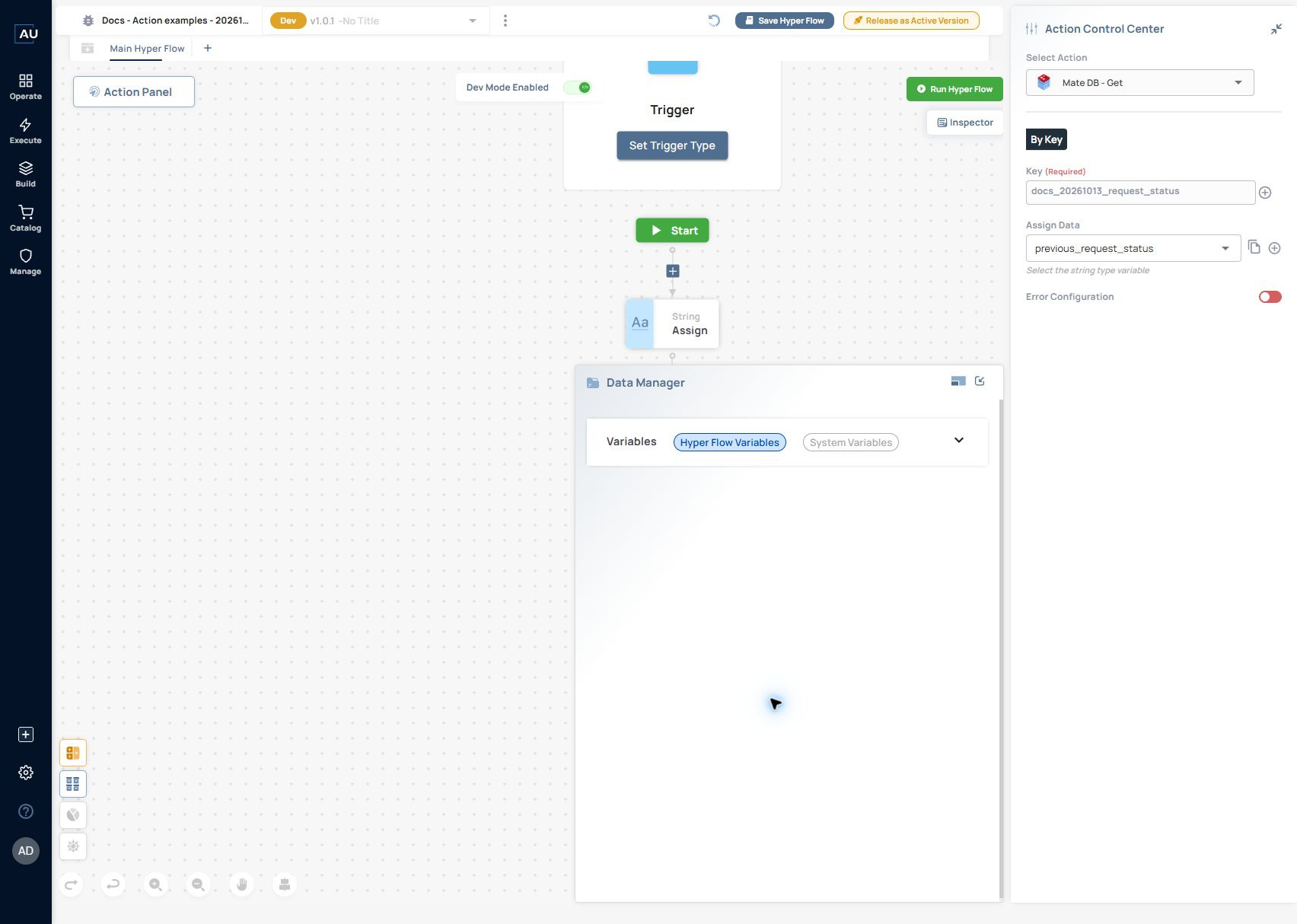
<figure><img src="https://3857940684-files.gitbook.io/~/files/v0/b/gitbook-x-prod.appspot.com/o/spaces%2FJcSHU5jP5GABQrGmWvW2%2Fuploads%2FtbAjP9AfelV7A3emrTkO%2Fmatedb-get.jpg?alt=media" alt="Current Mate DB Get configuration for the synthetic request-status key. The output assignment receives the stored value; the two-run exercise below shows the separately observed result."><figcaption><p>Current Mate DB Get configuration for the synthetic request-status key. The output assignment receives the stored value; the two-run exercise below shows the separately observed result.</p></figcaption></figure>

**Description**: The action fetches the value of the key provided.

**Usage**:

* Put the name of the key to the "Key" input field.
* Assign a string type of variable to "Assign Data" field.

**Action Result:** The value of the key provided will be assigned to the string variable.

### Set

<figure><img src="https://3857940684-files.gitbook.io/~/files/v0/b/gitbook-x-prod.appspot.com/o/spaces%2FJcSHU5jP5GABQrGmWvW2%2Fuploads%2FoIjI1mKU7PCPykf3ogx5%2Fmatedb-set.jpg?alt=media" alt="Current Mate DB Set configuration using a synthetic key and the value received. The form notes the Hyperflow-specific scope of the stored data."><figcaption><p>Current Mate DB Set configuration using a synthetic key and the value received. The form notes the Hyperflow-specific scope of the stored data.</p></figcaption></figure>

**Description**: The action adds a key - value to the Mate DB.

**Usage**:

* Put the name of the key to the "Key" input field.
* Put the value of the key to the "Value" input field.
* If there is a need of adding more keys and values, press on the "+" button to add more to the Mate DB.

**Action Result:** The key and value will be added to the Mate DB.

***

## Additional Tips

### [**Use Cases**](#use-cases)

### [FAQ](/userguide/operate-and-troubleshoot/common-tasks-and-questions.md)

### Follow the two-run persistence exercise

Use the practical Mate DB guide for the captured two-run exercise: Set in the first execution, then disable Set and Get the stored value in a later execution of the same Hyperflow.

1\. Use a unique test key. The captured example uses docs\_20261013\_request\_status and the value received in Docs - Action examples - 20261013.

2\. Run Set once, then disable that action. The captured write completed at 11:04:15 on 13 October 2026, Türkiye browser time.

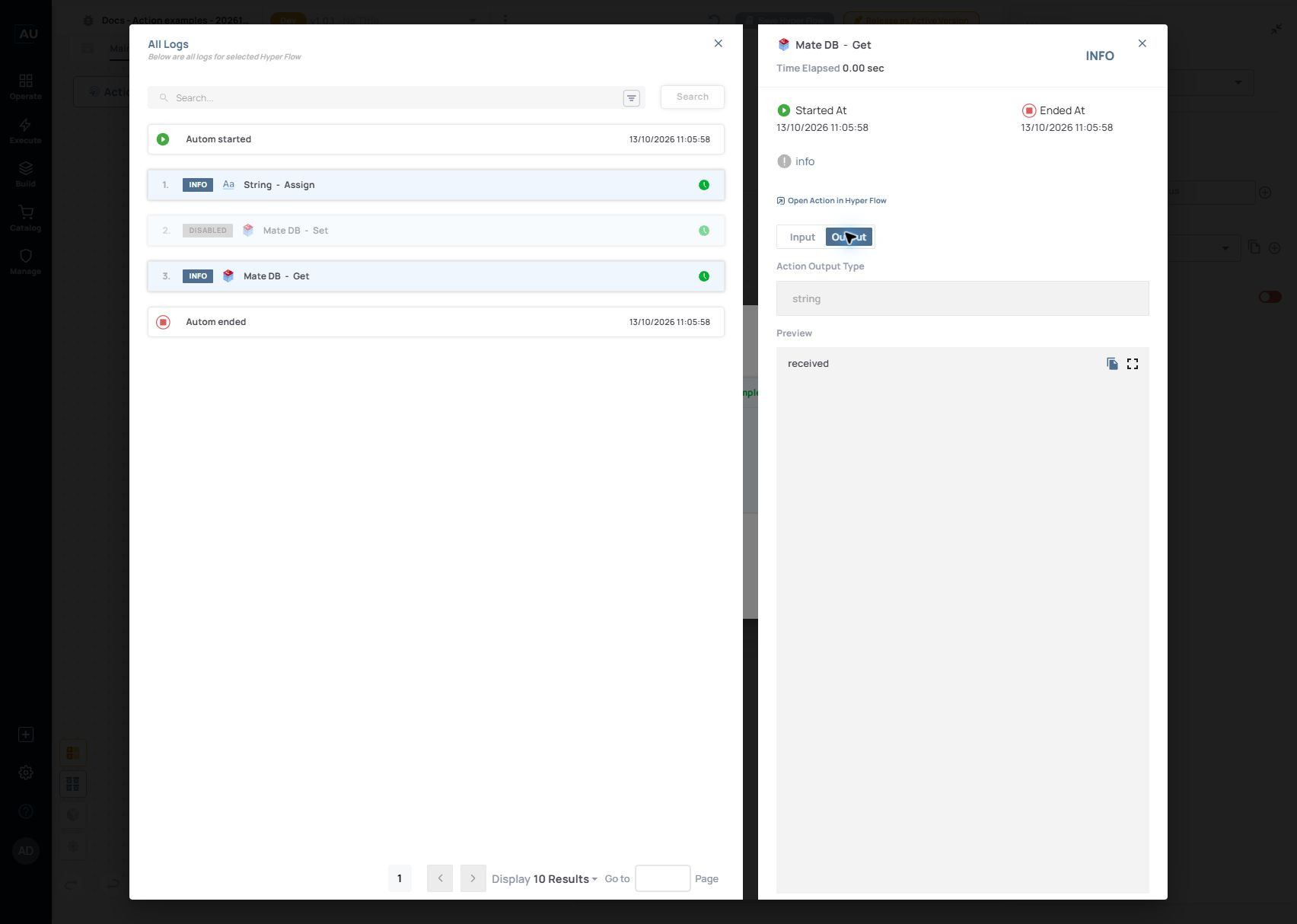
3\. In the same Hyperflow, use Get → By Key with that exact key and assign a String output. The 11:05:58 execution shows Set DISABLED and Get returning received. This checks persistence across separate runs of the same Hyperflow.

<figure><img src="https://3857940684-files.gitbook.io/~/files/v0/b/gitbook-x-prod.appspot.com/o/spaces%2FJcSHU5jP5GABQrGmWvW2%2Fuploads%2F097ym5gSIMhSgTqbdkKr%2Fmatedb-get-output.jpg?alt=media" alt="The separate read run returns received while Set remains DISABLED. The practical guide contains the complete setup."><figcaption><p>The separate read run returns received while Set remains DISABLED. The practical guide contains the complete setup.</p></figcaption></figure>

4\. When testing Delete, select only the exact synthetic key and inspect Exists/Get afterwards. Record the actual missing-key representation instead of assuming it is a Boolean or an empty string.

[Store values between runs with Mate DB](/userguide/build-automations/store-values-between-runs-with-mate-db.md)