> For the complete documentation index, see [llms.txt](https://docs.autommate.com/userguide/llms.txt). Markdown versions of documentation pages are available by appending `.md` to page URLs; this page is available as [Markdown](https://docs.autommate.com/userguide/integrations-and-api/libraries/transform/number.md).

# Number

## Introduction

The Number library in Automate provides actions that facilitate operations related to numerical data within the automation process.

The purpose of the Number library is to offer functionalities to assign, convert, and generate random numbers efficiently.

## What is Number?

The Number component allows users to manipulate numerical data seamlessly. It includes actions such as assigning values, converting numbers to strings, and generating random numbers within specified ranges.

#### Key Features

* <mark style="color:orange;">**Assign**</mark><mark style="color:orange;">:</mark>
  * <mark style="color:orange;">Assign a numerical value to a number type variable.</mark>
* <mark style="color:orange;">**Convert (to string)**</mark><mark style="color:orange;">:</mark>
  * <mark style="color:orange;">Transform a number into a string with specified decimal precision.</mark>
* <mark style="color:orange;">**Random Action**</mark><mark style="color:orange;">:</mark>
  * <mark style="color:orange;">Generate random numbers within defined ranges.</mark>

## Usage of the Component

### Assign

<figure><img src="https://3857940684-files.gitbook.io/~/files/v0/b/gitbook-x-prod.appspot.com/o/spaces%2FJcSHU5jP5GABQrGmWvW2%2Fuploads%2FzyPzj86Do3lvLjKtmFSX%2FHpA30Aq4oW0lI6UgLzfs-image.png?alt=media" alt="Earlier UI reference: Number Assign. Check field labels against the installed library version."><figcaption><p>Earlier UI reference: Number Assign. Check field labels against the installed library version.</p></figcaption></figure>

**Description:** The **Assign** action sets a numerical value to a number type variable.

**Usage:**

1. **Value to Assign**:
   * <mark style="color:green;">Enter the numerical value to assign.</mark>
   * This field accepts direct keyboard input or variable selection.
2. **Source to be Assigned**:
   * <mark style="color:green;">Choose the variable where the assigned value will be stored.</mark>
   * <mark style="color:green;">Select from existing number type variables or create a new one.</mark>

{% hint style="danger" %}
Assignment Error: The 'number assign' action cannot exceed the maximum permitted length of 19 characters.
{% endhint %}

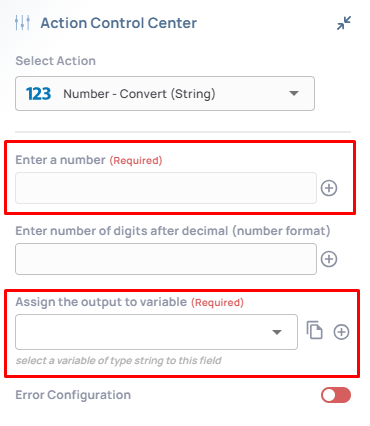
### Convert to string

<figure><img src="https://3857940684-files.gitbook.io/~/files/v0/b/gitbook-x-prod.appspot.com/o/spaces%2FJcSHU5jP5GABQrGmWvW2%2Fuploads%2FZ0HC6DiBtMXTW9Bkdqfj%2FIbbJ5BWcmL9CegHTTeTd-image.png?alt=media" alt="Earlier UI reference: Number Convert to string. Check field labels against the installed library version."><figcaption><p>Earlier UI reference: Number Convert to string. Check field labels against the installed library version.</p></figcaption></figure>

**Description:** The **Convert (to string)** action changes a number to a string format with specified decimal precision.

**Usage:**

1. **Enter a Number**:
   * <mark style="color:green;">Input the number to convert to a string.</mark>
   * Enter directly or select from existing variables.
2. **Enter Number of Digits after Decimal**:
   * <mark style="color:green;">Define the number of decimal places for the output.</mark>
3. **Assign the Output to Variable**:
   * <mark style="color:green;">Choose the string variable to store the converted number.</mark>

### Random

<figure><img src="https://3857940684-files.gitbook.io/~/files/v0/b/gitbook-x-prod.appspot.com/o/spaces%2FJcSHU5jP5GABQrGmWvW2%2Fuploads%2FP5VeHx4s7ASzt9YIr4Hc%2FPdql2rDVBOQQKbu1o4vY-image.png?alt=media" alt="Earlier UI reference: Number Random. Check field labels against the installed library version."><figcaption><p>Earlier UI reference: Number Random. Check field labels against the installed library version.</p></figcaption></figure>

**Description:** The **Random Action** generates a random number within a specified range.

**Usage:**

1. **Beginning of Range**:
   * <mark style="color:green;">Enter the starting value of the range.</mark>
   * **Must be a numeric value.**
2. **End of Range**:
   * <mark style="color:green;">Input the ending value of the range.</mark>
   * **Must be a numeric value.**
3. **Assign the Output to the Variable**:
   * <mark style="color:green;">Select the variable to store the generated random number.</mark>

***

## Additional Tips

### [**Use Cases**](/userguide/start-here/use-cases.md)

### [FAQ](/userguide/operate-and-troubleshoot/common-tasks-and-questions.md)

### Worked example: keep a number separate from its display text

Use Number → Assign and Convert to string to distinguish numeric data from formatted output.

1\. Create a Number variable named effort\_hours. In Number → Assign, enter 12.5 in Value to Assign and select effort\_hours as Source to be Assigned.

2\. Add Number → Convert to string. Select effort\_hours in Enter a Number, enter 2 in Number of Digits after Decimal and assign the output to a String variable named effort\_label.

3\. Run once and inspect both types and values. Expect effort\_hours to remain the number 12.5; effort\_label is text representing that number with the configured precision.

4\. Check the actual decimal separator and trailing-zero behavior returned by your installation before using the display text in an external contract. Do not feed localized display text back into arithmetic without conversion.