> For the complete documentation index, see [llms.txt](https://docs.autommate.com/userguide/llms.txt). Markdown versions of documentation pages are available by appending `.md` to page URLs; this page is available as [Markdown](https://docs.autommate.com/userguide/integrations-and-api/libraries/transform/csv.md).

# CSV

## Introduction

The CSV library within the Automate platform offers powerful actions for handling CSV files, providing users with the ability to read and export data efficiently.

The purpose of the CSV library is to streamline data processing workflows by enabling users to manipulate CSV files directly within Automate. This component facilitates tasks such as reading CSV data for automation and exporting CSV files to Excel for further analysis.

## What is CSV?

The CSV library in Automate allows users to interact with CSV files, a common format for tabular data storage. Users can perform actions such as reading CSV files to extract data and exporting CSV data to Excel files for reporting and analysis.

#### Key Features

* <mark style="color:orange;">**Export to Excel:**</mark> <mark style="color:orange;"></mark><mark style="color:orange;">Export CSV data to an Excel file effortlessly.</mark>
* <mark style="color:orange;">**Read CSV Data:**</mark> <mark style="color:orange;"></mark><mark style="color:orange;">Read CSV files to utilize data within automation workflows.</mark>
* <mark style="color:orange;">**Customizable Options:**</mark> <mark style="color:orange;"></mark><mark style="color:orange;">Configure CSV actions with various parameters for flexible usage.</mark>

## How To Use Action

{% embed url="<https://drive.google.com/file/d/1gbnj6l3pN68MUbbBoufrHSHJqhXOw30K/view?usp=sharing>" %}

### Export to Excel

**Description:** The Export to Excel action allows users to export CSV data to an Excel file.

**Usage:**

1. **CSV Source:**
   * Select the variable containing the CSV source data.
2. **Excel Path:**
   * Specify the path where the Excel file will be exported.
3. **Assign Excel File Path:**
   * Choose a string variable to assign the full path of the exported Excel file.

### Read

**Description:** The Read CSV Data action is used to read a CSV file and retrieve its contents for use in workflows.

**Usage:**

File Path accepts Select File or Custom String. The current Read form offers comma(,) and semicolon(;) delimiters, Read Only or Read Write, Exclude header from data and Read file as UTF-8. Map Assign data to variable (csv Source) to a Data Table variable; optional Assign file path to variable takes a String variable. Verify the returned data before relying on a header option.

For large CSV files, check the accepted file size, available resources and any error returned by your installed action. Use a small fixture to validate delimiter, encoding and returned rows before increasing the input size.

The earlier CSV reference listed a 250 MB limit. That historical value has not been confirmed as the limit for the current Dublin release; confirm your installed version’s limit before relying on it.

***

### Worked example: read a versioned CSV and check its row count

Create docs-departments.csv as UTF-8 text with three lines: request\_id,department; REQ-DEMO-001,finance; REQ-DEMO-002,hr. Each semicolon here separates a line, not a CSV field. The actual file uses commas and is 59 bytes. It contains a header plus two business-data records.

1\. In the Dev version of the test Hyperflow, open Mate Drive. Use Add New to create docsexamples20261013, then Upload File to upload docs-departments.csv. The example uses Docs - Action examples - 20261013, Dev v1.0.1.

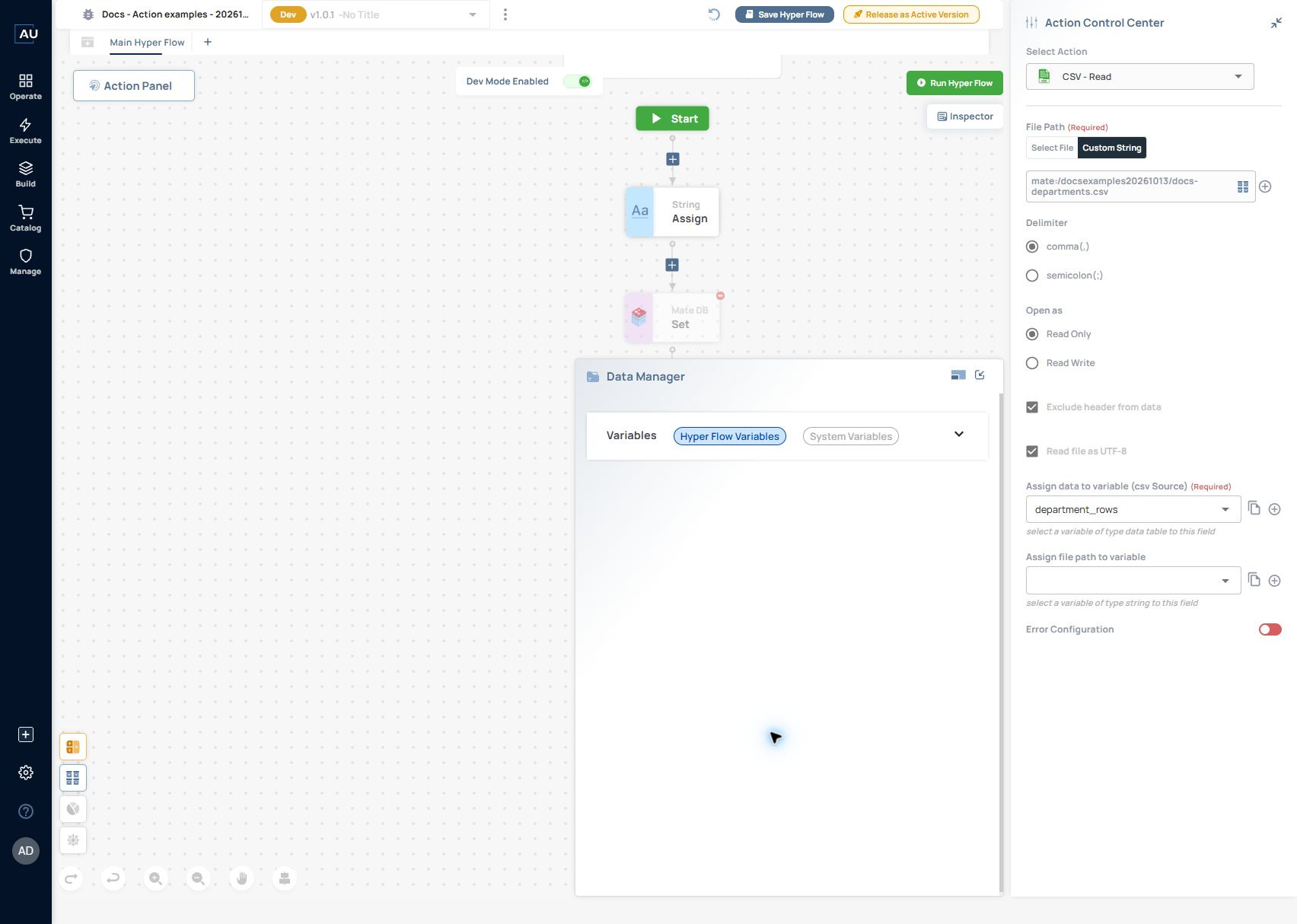
2\. Add CSV → Read. Under File Path choose Custom String and enter mate:/docsexamples20261013/docs-departments.csv. For your own exercise, copy the actual folder path and append the uploaded filename.

3\. Choose comma(,) under Delimiter and Read Only under Open as. Enable Exclude header from data and Read file as UTF-8. Under Assign data to variable (csv Source), choose the Data Table variable department\_rows. Assign file path to variable is optional and takes a String variable.

<figure><img src="https://3857940684-files.gitbook.io/~/files/v0/b/gitbook-x-prod.appspot.com/o/spaces%2FJcSHU5jP5GABQrGmWvW2%2Fuploads%2FogRHR3UegtK67hENMkce%2Fcsv-read-config.jpg?alt=media" alt="CSV Read uses the complete mate:/ path, comma delimiter, Read Only, UTF-8 and a Data Table output assignment."><figcaption><p>CSV Read uses the complete mate:/ path, comma delimiter, Read Only, UTF-8 and a Data Table output assignment.</p></figcaption></figure>

4\. Save Hyper Flow and run the test. The 13 October 11:10:03 run completed CSV Read with INFO. Its action Output preview returned a generated file-path string, so that preview alone did not show the contents of department\_rows. Inspect the assigned Data Table separately.

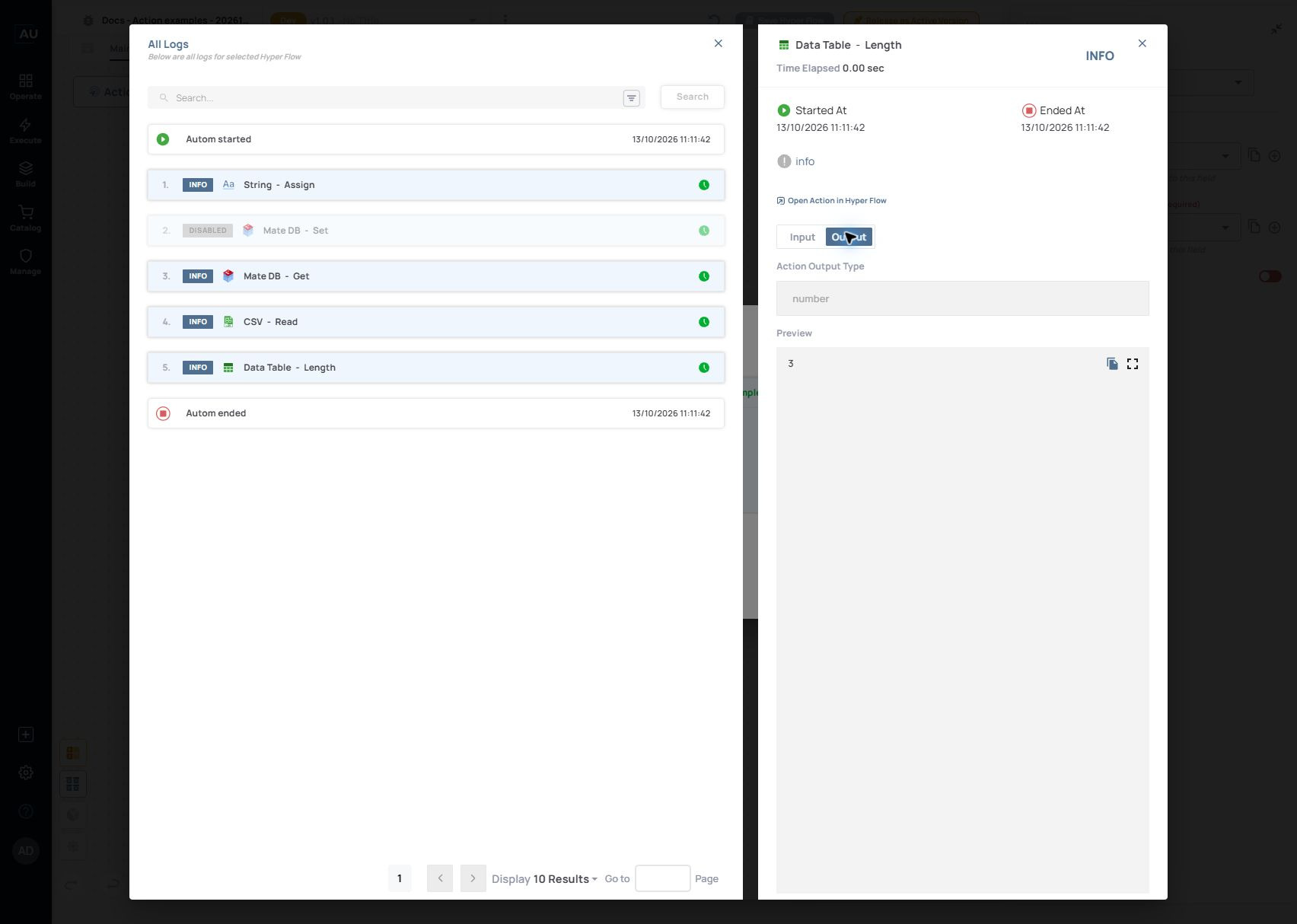
5\. Add Data Table → Length, select department\_rows and assign the result to a Number variable. Run again and inspect the Length action Output. In the captured 11:11:42 run, the result was 3. A separate run at 11:13:11 with Exclude header from data turned off also returned 3.

<figure><img src="https://3857940684-files.gitbook.io/~/files/v0/b/gitbook-x-prod.appspot.com/o/spaces%2FJcSHU5jP5GABQrGmWvW2%2Fuploads%2FTabm5fewdWAPg0FzZIgS%2Fcsv-length-output.jpg?alt=media" alt="The follow-up Data Table Length action returned number 3. Inspect the first row before treating every row as a business record."><figcaption><p>The follow-up Data Table Length action returned number 3. Inspect the first row before treating every row as a business record.</p></figcaption></figure>

Observed issue in the checked release — 13 October 2026: Data Table Length returned 3 for the three-line sample with Exclude header from data both selected and cleared. Engineering is tracking this behavior. Inspect the first row and column mapping before processing business records; do not rely on the checkbox alone to remove the header.

Use the actual mate:/ path and the selected Hyperflow version when troubleshooting a missing file. If columns are combined, compare Delimiter with the file. Keep this first exercise read-only until the returned rows and types match the input you intend to process.