> For the complete documentation index, see [llms.txt](https://docs.autommate.com/userguide/llms.txt). Markdown versions of documentation pages are available by appending `.md` to page URLs; this page is available as [Markdown](https://docs.autommate.com/userguide/integrations-and-api/libraries/transform/condition.md).

# Condition

## Introduction

This document provides a comprehensive guide to understanding and using the Condition component within the Automate platform. Conditions are essential programming commands used to process decisions based on boolean evaluations. The Condition component allows users to create logic branches and execute actions based on the results of these conditions.

The purpose of the Condition component is to facilitate the execution of different computations or actions depending on whether a programmer-defined boolean condition evaluates to true or false. It enhances the control and flow of actions within workflows by enabling users to create conditional logic.

## What is the Condition Component?

The Condition component in Automate allows users to create, configure, and execute various types of conditions. These conditions include IF, ELSE IF, and ELSE, each serving a specific purpose in decision-making processes.

#### Key Features

* <mark style="color:orange;">**IF Condition:**</mark> <mark style="color:orange;"></mark><mark style="color:orange;">Perform actions based on whether a condition evaluates to true.</mark>
* <mark style="color:orange;">**ELSE IF Condition:**</mark> <mark style="color:orange;"></mark><mark style="color:orange;">Additional conditions for sequential evaluation.</mark>
* <mark style="color:orange;">**ELSE Condition:**</mark> <mark style="color:orange;"></mark><mark style="color:orange;">Actions executed when no prior conditions are met.</mark>
* <mark style="color:orange;">**Configurable Parameters:**</mark> <mark style="color:orange;"></mark><mark style="color:orange;">Customize conditions based on boolean, string, number, date, data table, dictionary, length, or ping evaluations.</mark>
* <mark style="color:orange;">**Nested IF Clauses:**</mark> <mark style="color:orange;"></mark><mark style="color:orange;">Insert IF clauses within other IF clauses for complex logic.</mark>

## How To Use Action

### If

**Description:** The IF Condition allows users to create a decision branch based on a specified condition.

**Usage:**

1. **Create an IF Condition:**
   * Click on the "Add Condition" button in the configuration form.
   * Select the condition type from the drop-down menu.
   * Fill in the condition modal with the appropriate values:
     * **Boolean:** <mark style="color:green;">Compare true or false values.</mark>
     * **String:** <mark style="color:green;">Compare source and target values with operators like "is equal," "is not equal," "contains," "is empty," or "is not empty."</mark>
     * **Number:** <mark style="color:green;">Compare two numerical values or variables.</mark>
     * **Date:** <mark style="color:green;">Compare two date values or variables.</mark>
     * **Data Table:** <mark style="color:green;">Compare a data table variable for row or column count.</mark>
     * **Dictionary:** <mark style="color:green;">Compare two dictionary variables.</mark>
     * **Length:** <mark style="color:green;">Compare the length of two arrays or variables.</mark>
     * **Ping:** <mark style="color:green;">Check the availability of a selected IP address or machine.</mark>
   * Change the relation between conditions using "And" or "Or" from the configuration form.
   * Delete or edit the condition by clicking on the three dots on the right side of the condition.

**Sample String Condition:**

When the condition is met, drag and drop actions from the left activities menu into the IF action.

{% embed url="<https://drive.google.com/file/d/19NqKaAY9Pi9Dn2n3sD9fm0mZd7Vy7AUO/view?usp=sharing>" %}

### Else If

**Description:** The ELSE IF Condition allows users to add additional conditions for sequential evaluation.

**Usage:**

* <mark style="color:green;">Users cannot add ELSE IF conditions without preceding IF or ELSE IF conditions.</mark>

### Else

**Description:** The ELSE Condition defines actions to be executed when none of the prior conditions are met.

**Usage:**

* <mark style="color:red;">No "Add Condition" part is required for the ELSE Condition.</mark>

{% embed url="<https://drive.google.com/file/d/1612dbnHwLxckPD_EzopxW0zeAlmh6UzT/view?usp=sharing>" %}

***

## Additional Tips

### [**Use Cases**](/userguide/start-here/use-cases.md)

### [FAQ](/userguide/operate-and-troubleshoot/common-tasks-and-questions.md)

### Worked example: choose one request route

Use a local String variable named department and a String output named route. The example only selects a text label; it does not send a request to another application.

#### Map the example to the current condition form

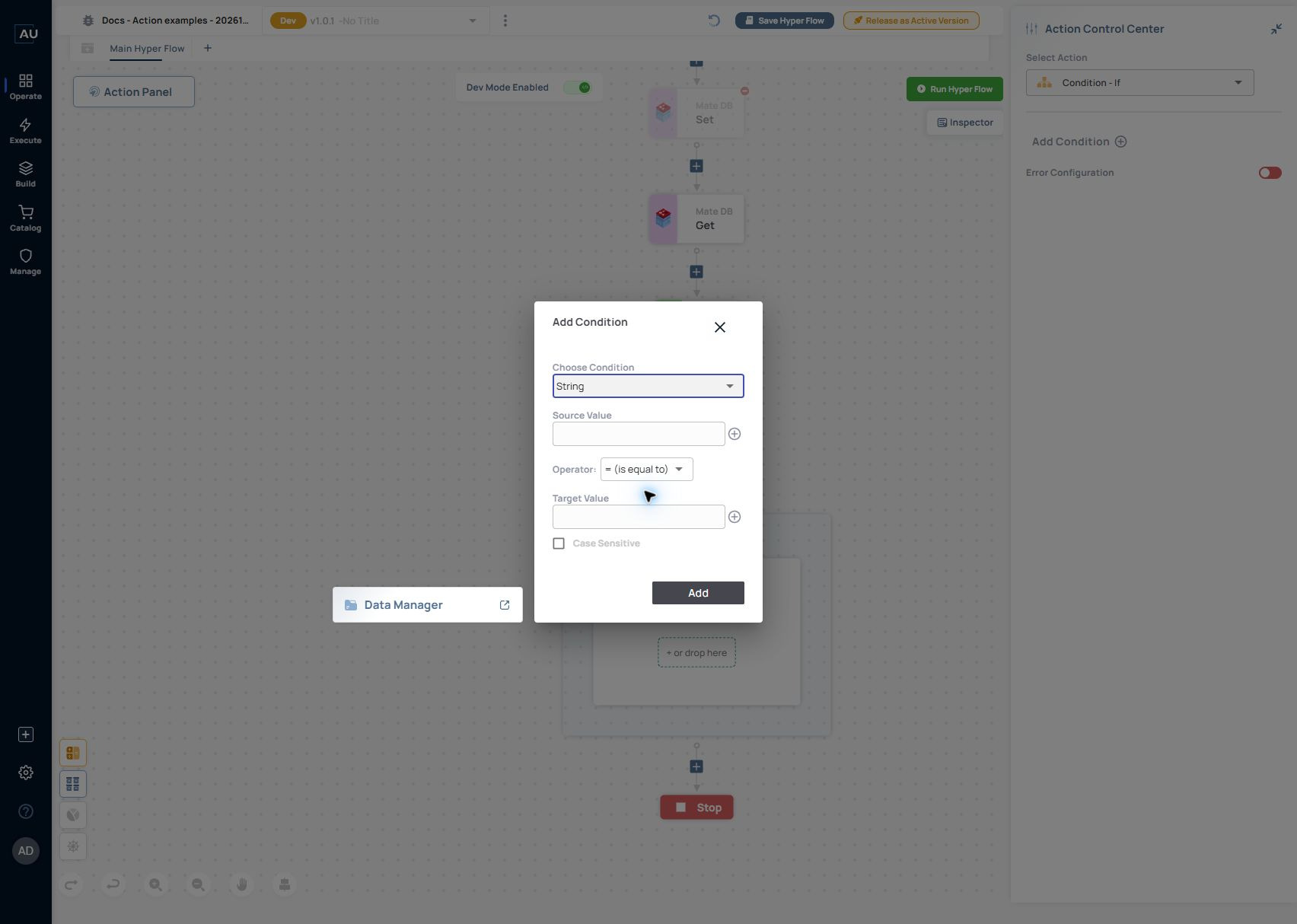
In Add Condition, choose String. Set Source Value to the department variable, select = (is equal to), and enter finance as Target Value. Use the plus control beside a value to insert a variable rather than typing its name as literal text. Set Case Sensitive deliberately for the values your request supplies.

<figure><img src="https://3857940684-files.gitbook.io/~/files/v0/b/gitbook-x-prod.appspot.com/o/spaces%2FJcSHU5jP5GABQrGmWvW2%2Fuploads%2FS2mT6bZb5doElsPGZlf4%2Fcondition-string-form.jpg?alt=media" alt="Current Add Condition form with String selected. Source Value and Target Value are still empty; the screenshot shows where to configure the finance comparison, not a saved condition or a completed branch test."><figcaption><p>Current Add Condition form with String selected. Source Value and Target Value are still empty; the screenshot shows where to configure the finance comparison, not a saved condition or a completed branch test.</p></figcaption></figure>

After completing the comparison, select Add and continue with the branch assignments below. Test both finance and hr in your own test copy; a visible form does not establish which branch ran.

1\. Set department to finance with String → Assign. Add Condition → If and select Add Condition.

2\. Choose String. In Source Value select department, use = (is equal to), and enter finance in Target Value. Select the intended Case Sensitive setting, then select Add.

3\. Inside the If branch, add String → Assign and set route to finance-review. Add Else after that If and assign route to general-review inside Else.

4\. Run with department=finance. Inspect the executed branch and route; expect finance-review.

5\. Change only the test input to hr and run again. Expect general-review and confirm that the finance branch did not execute in this run.

6\. Keep one output assignment in each branch so the receiving action does not reuse an unintended earlier value.
