> For the complete documentation index, see [llms.txt](https://docs.autommate.com/userguide/llms.txt). Markdown versions of documentation pages are available by appending `.md` to page URLs; this page is available as [Markdown](https://docs.autommate.com/userguide/integrations-and-api/libraries/transform/base64.md).

# Base64

## Introduction

This document serves as a guide to understanding Base64 encoding and decoding within the Autom Mate platform.

The Base64 component provides essential functionalities for encoding and decoding data using the Base64 standard. It enables users to convert binary or text data into a format that is easily transmittable through text-based protocols.

## What is Base64?

The Base64 component allows users to perform Base64 encoding and decoding operations on data. It simplifies the process of converting binary data into a text format and vice versa.

#### Key Features

* <mark style="color:orange;">**Encoding Data:**</mark> <mark style="color:orange;"></mark><mark style="color:orange;">Convert binary or text data into Base64 format.</mark>
* <mark style="color:orange;">**Decoding Data:**</mark> <mark style="color:orange;"></mark><mark style="color:orange;">Retrieve original data from Base64-encoded format.</mark>
* <mark style="color:orange;">**Text-Based Communication:**</mark> <mark style="color:orange;"></mark><mark style="color:orange;">Facilitates data transmission through text-based protocols.</mark>
* <mark style="color:orange;">**Compatibility:**</mark> <mark style="color:orange;"></mark><mark style="color:orange;">Works with various data types, including images, files, and text.</mark>

## How To Use Action

### Encode

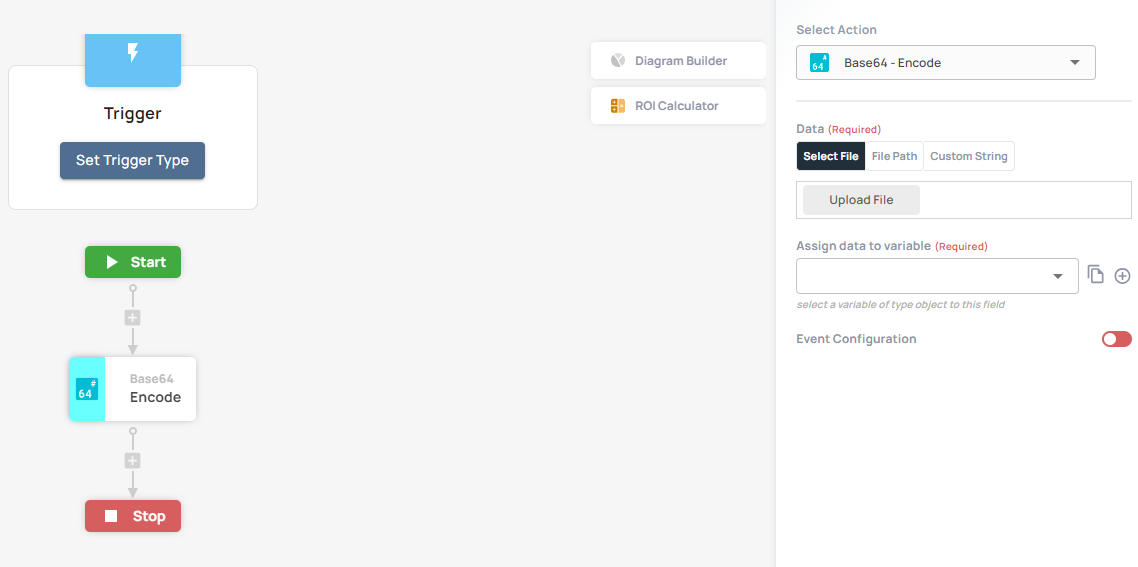
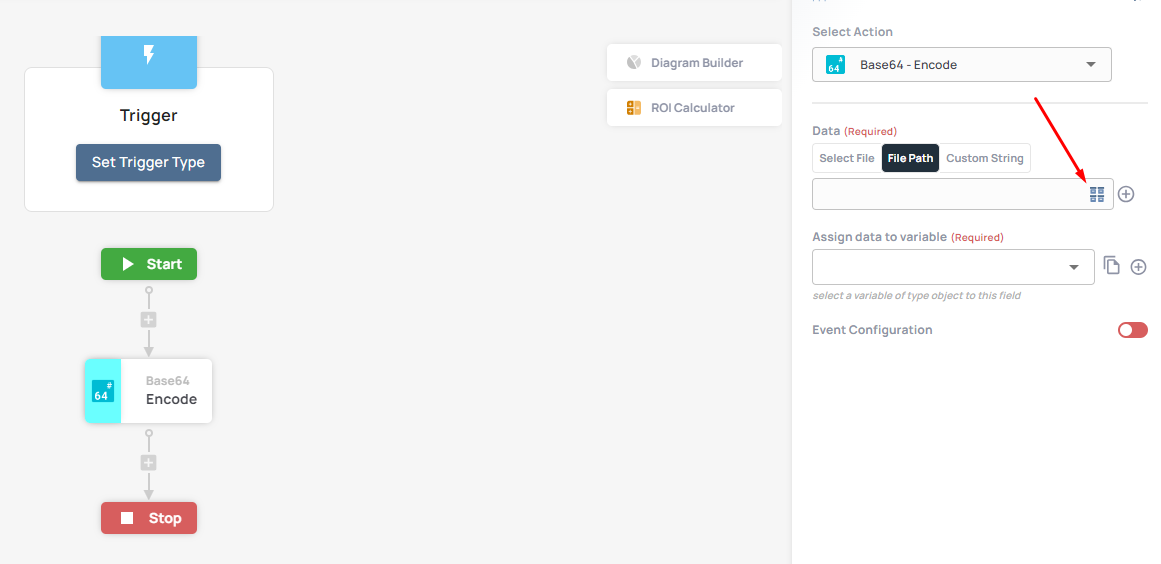
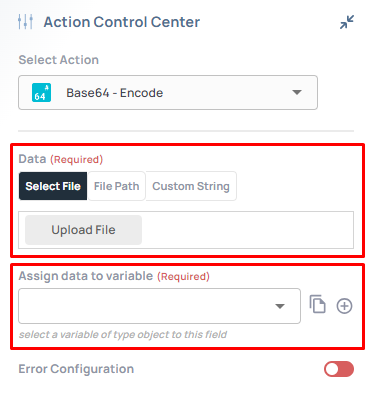
**Description:** The Encode action converts data into Base64 format.

**Usage:**

1. **Input Data:**
   * <mark style="color:green;">Specify the data to be encoded into Base64.</mark>
2. **Output Format:**
   * Retrieve the encoded data in Base64 format.

**Example:**

{% code collapsedlinecount="10" %}

```plaintext
Input Data: "Hello, World!"
Output Format: "SGVsbG8sIFdvcmxkIQ=="
```

{% endcode %}

<figure><img src="https://3857940684-files.gitbook.io/~/files/v0/b/gitbook-x-prod.appspot.com/o/spaces%2FJcSHU5jP5GABQrGmWvW2%2Fuploads%2FlsdP7ZLfksUmhcRY99eS%2Fp2DrpkSLb4gUxPEeHhLo-image.png?alt=media" alt="Earlier UI reference: Base64 Encode. Check field labels against the installed library version."><figcaption><p>Earlier UI reference: Base64 Encode. Check field labels against the installed library version.</p></figcaption></figure>

<figure><img src="https://3857940684-files.gitbook.io/~/files/v0/b/gitbook-x-prod.appspot.com/o/spaces%2FJcSHU5jP5GABQrGmWvW2%2Fuploads%2FJWEa63bR2tBIupu6dl55%2FtYFMxUaRVVkNfBQS2trJ-1.png?alt=media" alt="Earlier UI reference: Base64 Encode (view 2). Check field labels against the installed library version."><figcaption><p>Earlier UI reference: Base64 Encode (view 2). Check field labels against the installed library version.</p></figcaption></figure>

<figure><img src="https://3857940684-files.gitbook.io/~/files/v0/b/gitbook-x-prod.appspot.com/o/spaces%2FJcSHU5jP5GABQrGmWvW2%2Fuploads%2FzjfDjbKFxftqq6EtU63y%2FLjsKMyvUKpPB63gDirwG-2.png?alt=media" alt="Earlier UI reference: Base64 Encode (view 3). Check field labels against the installed library version."><figcaption><p>Earlier UI reference: Base64 Encode (view 3). Check field labels against the installed library version.</p></figcaption></figure>

<figure><img src="https://3857940684-files.gitbook.io/~/files/v0/b/gitbook-x-prod.appspot.com/o/spaces%2FJcSHU5jP5GABQrGmWvW2%2Fuploads%2FxN4649ElgMTErnBYzQkN%2Fst2UGKMFdJoudLrr7T36-3.png?alt=media" alt="Earlier UI reference: Base64 Encode (view 4). Check field labels against the installed library version."><figcaption><p>Earlier UI reference: Base64 Encode (view 4). Check field labels against the installed library version.</p></figcaption></figure>

### Decode

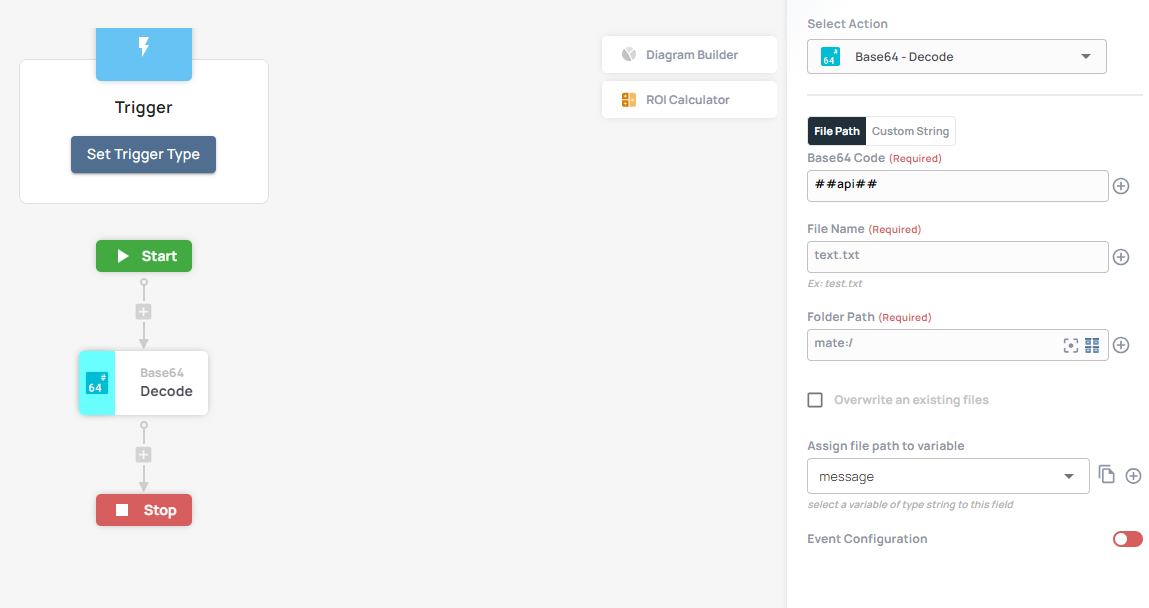
**Description:** The Decode action retrieves the original data from Base64 format.

**Usage:**

1. **Input Data:**
   * <mark style="color:green;">Provide the Base64-encoded data to be decoded.</mark>
2. **Output Format:**
   * Obtain the original data after decoding.

**Example:**

{% code collapsedlinecount="10" %}

```plaintext
Input Data: "SGVsbG8sIFdvcmxkIQ=="
Output Format: "Hello, World!"
```

{% endcode %}

<figure><img src="https://3857940684-files.gitbook.io/~/files/v0/b/gitbook-x-prod.appspot.com/o/spaces%2FJcSHU5jP5GABQrGmWvW2%2Fuploads%2FtyQPzt7gghMPJnTpTkbl%2FYL62shakNc6D94ITQE8y-image.png?alt=media" alt="Earlier UI reference: Base64 Decode. Check field labels against the installed library version."><figcaption><p>Earlier UI reference: Base64 Decode. Check field labels against the installed library version.</p></figcaption></figure>

<figure><img src="https://3857940684-files.gitbook.io/~/files/v0/b/gitbook-x-prod.appspot.com/o/spaces%2FJcSHU5jP5GABQrGmWvW2%2Fuploads%2FDbLe5mK4kndHYRugj5Nr%2FQXYU2tyhP0qwWIwuEPJc-4.png?alt=media" alt="Earlier UI reference: Base64 Decode (view 2). Check field labels against the installed library version."><figcaption><p>Earlier UI reference: Base64 Decode (view 2). Check field labels against the installed library version.</p></figcaption></figure>

<figure><img src="https://3857940684-files.gitbook.io/~/files/v0/b/gitbook-x-prod.appspot.com/o/spaces%2FJcSHU5jP5GABQrGmWvW2%2Fuploads%2F7uecG8nteZcVN9pjLH6R%2Fp20B7EplaWXdIArbDWY9-5.png?alt=media" alt="Earlier UI reference: Base64 Decode (view 3). Check field labels against the installed library version."><figcaption><p>Earlier UI reference: Base64 Decode (view 3). Check field labels against the installed library version.</p></figcaption></figure>

***

## Additional Tips

### [**Use Cases**](/userguide/start-here/use-cases.md)

### [FAQ](/userguide/operate-and-troubleshoot/common-tasks-and-questions.md)

### Worked example: encode and decode the same string

Base64 changes a representation; it does not encrypt a secret. Use the lowercase ASCII text hello for a transparent round-trip check.

1\. Add Base64 → Encode and choose Custom String. Enter hello without adding a trailing newline. Assign the returned encoded value through the action output control.

2\. Run or inspect this step and compare its encoded text with aGVsbG8=. If a wrapper is returned, select the actual encoded field rather than copying the whole response into Decode.

3\. Add Base64 → Decode and use its Custom String option. Map the encoded value from Encode into the Base64 input.

4\. Assign or inspect the Decode result and run the complete path. Expect the decoded content to be hello.

5\. If the encoded value differs, check for newline/space characters and whether the input is text or a file. Keep file-output options for a separate exercise.