> For the complete documentation index, see [llms.txt](https://docs.autommate.com/userguide/llms.txt). Markdown versions of documentation pages are available by appending `.md` to page URLs; this page is available as [Markdown](https://docs.autommate.com/userguide/integrations-and-api/libraries/integration/word.md).

# Word

## Introduction

This document provides a comprehensive guide to using AutomMate's Word library actions, designed to streamline and automate various tasks within Word documents.

AutomMate's Word library offers a range of actions that empower users to manipulate Word files efficiently. From adding headers to inserting images and paragraphs, these actions simplify document editing processes.

## What is Word?

Microsoft Word documents store formatted text and images. The library actions below read, modify and save Word files.

Microsoft Word is a popular word processing software known for its versatile features and user-friendly interface.

#### Key Features:

* <mark style="color:orange;">Rich formatting options</mark>
* <mark style="color:orange;">Easy document editing and collaboration</mark>
* <mark style="color:orange;">Extensive template library</mark>
* <mark style="color:orange;">Integration with other Microsoft Office applications</mark>

## Automate Integration with Word

Use the Word actions to add document content, inspect an existing file and save the result.

Automate's integration with Word enables users to automate repetitive tasks, saving time and effort in document creation and editing.

#### Examples of Automated Tasks:

* Adding standardized headers and footers
* Inserting images or logos into documents
* Creating templated paragraphs for common content

## Using the Integration

### Credentials

No need to use credentials.

## How To Use Actions

### Add Header

**Description:** Add a header to the Word file.

**Purpose:** Effortlessly include headers to organize and structure Word documents.

**Usage:**

1. Select the assigned Word file variable.
2. Enter or select the header text.
3. Choose the heading type (Heading 1, Heading 2, etc.).

**Inputs:**

* Word File: <mark style="color:green;">Variable containing the Word file.</mark>
* Header Text: <mark style="color:green;">Desired header content.</mark>
* Heading Type: <mark style="color:green;">Select from predefined options.</mark>

**Outputs:**

* Updated Word file with added header.

<figure><img src="https://3857940684-files.gitbook.io/~/files/v0/b/gitbook-x-prod.appspot.com/o/spaces%2FJcSHU5jP5GABQrGmWvW2%2Fuploads%2FkNtTsCCcBkCysnQQXurH%2FUKxdDFujQv6BfbOHT2xK-image.png?alt=media" alt="Earlier UI reference: Word Add Header. Check field labels against the installed library version."><figcaption><p>Earlier UI reference: Word Add Header. Check field labels against the installed library version.</p></figcaption></figure>

### Add Image

**Description:** Insert an image into the Word file.

**Purpose:** Enhance documents by including visuals such as logos or illustrations.

**Usage:**

1. Select the assigned Word file variable.
2. Specify or define the image file path.
3. Enter the desired image width in inches.

**Inputs:**

* Word File: <mark style="color:green;">Variable containing the Word file.</mark>
* Image Path: <mark style="color:green;">Path to the image file.</mark>
* Image Width: <mark style="color:green;">Size of the image in inches.</mark>

**Outputs:**

* Word file with the inserted image.

<figure><img src="https://3857940684-files.gitbook.io/~/files/v0/b/gitbook-x-prod.appspot.com/o/spaces%2FJcSHU5jP5GABQrGmWvW2%2Fuploads%2FqF4pkJ081CGrNa26GxII%2FBvfcK7gnhg7RSGaOsqWg-image.png?alt=media" alt="Earlier UI reference: Word Add Image. Check field labels against the installed library version."><figcaption><p>Earlier UI reference: Word Add Image. Check field labels against the installed library version.</p></figcaption></figure>

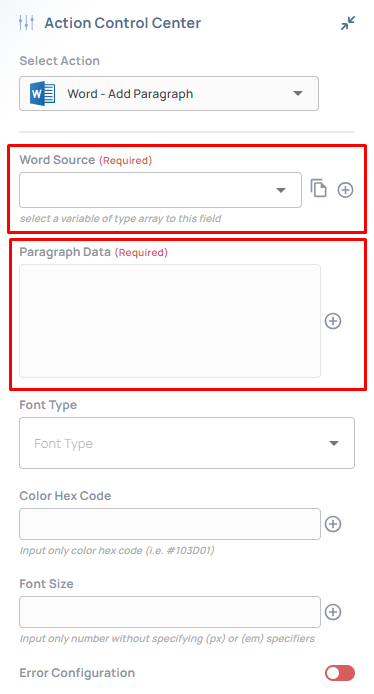
### Add Paragraph

**Description:** Create a new paragraph in the Word file.

**Purpose:** Add content to documents with structured paragraphs.

**Usage:**

1. Select the assigned Word file variable.
2. Enter or select the paragraph content.
3. Choose font styles and formatting options.

**Inputs:**

* Word File: <mark style="color:green;">Variable containing the Word file.</mark>
* Paragraph Data: <mark style="color:green;">Content for the new paragraph.</mark>
* Font Styles: <mark style="color:green;">Bold, Italic, Underline.</mark>
* Font Color: <mark style="color:green;">Hex code or variable.</mark>
* Font Size: <mark style="color:green;">Size of the text.</mark>

**Outputs:**

* Updated Word file with the new paragraph.

<figure><img src="https://3857940684-files.gitbook.io/~/files/v0/b/gitbook-x-prod.appspot.com/o/spaces%2FJcSHU5jP5GABQrGmWvW2%2Fuploads%2F2452Ar1nblxzNZPVUCBv%2FF6QMzkq8C5B8C3yBR2Em-image.png?alt=media" alt="Earlier UI reference: Word Add Paragraph. Check field labels against the installed library version."><figcaption><p>Earlier UI reference: Word Add Paragraph. Check field labels against the installed library version.</p></figcaption></figure>

### Read Document

**Description:** Retrieve content from an existing Word file.

**Purpose:** Access and manipulate data from Word documents for further processing.

**Usage:**

1. Specify the file path or select the Word file.
2. Assign the retrieved data to a variable for use in subsequent actions.

**Inputs:**

* File Path: <mark style="color:green;">Path to the Word file.</mark>
* Word File: <mark style="color:green;">Variable containing the Word file data.</mark>

**Outputs:**

* Retrieved content from the Word file.

{% hint style="info" %}

### **Hint**

For Word documents exceeding 250 MB, consider breaking them into smaller files or using alternative processing methods to ensure compatibility with Autom Mate workflows.
{% endhint %}

{% hint style="danger" %}

### **Warning**

* **Limitation**: Word documents larger than 250 MB will not be processed by the **Word ReadDocument** action.
* Users attempting to process oversized files may encounter action errors or failures.
  {% endhint %}

***

<figure><img src="https://3857940684-files.gitbook.io/~/files/v0/b/gitbook-x-prod.appspot.com/o/spaces%2FJcSHU5jP5GABQrGmWvW2%2Fuploads%2FroVPBwqdQBzUk5piMAQk%2FQoNO8aYBTBHbAdSErdfr-image.png?alt=media" alt="Earlier UI reference: Word Read Document. Check field labels against the installed library version."><figcaption><p>Earlier UI reference: Word Read Document. Check field labels against the installed library version.</p></figcaption></figure>

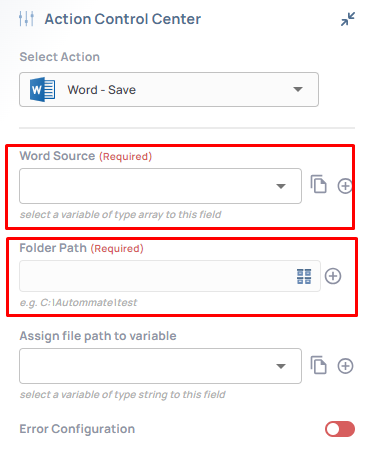
### Save

**Description:** Save changes made to the Word file.

**Purpose:** Ensure all modifications are preserved in the Word document.

**Usage:**

1. Select the assigned Word file variable.
2. Enter the folder path to save the updated Word file.

**Inputs:**

* Word File: <mark style="color:green;">Variable containing the Word file.</mark>
* Folder Path: <mark style="color:green;">Destination to save the updated file.</mark>

**Outputs:**

* Confirmation of the saved Word file.

<figure><img src="https://3857940684-files.gitbook.io/~/files/v0/b/gitbook-x-prod.appspot.com/o/spaces%2FJcSHU5jP5GABQrGmWvW2%2Fuploads%2FIXhohhUOtyoVfcenWrT9%2FaOvhuThoV6oiW8LZ6FDn-image.png?alt=media" alt="Earlier UI reference: Word Save. Check field labels against the installed library version."><figcaption><p>Earlier UI reference: Word Save. Check field labels against the installed library version.</p></figcaption></figure>

***

## Additional Tips

### [**Use Cases**](/userguide/start-here/use-cases.md)

### [FAQ](/userguide/operate-and-troubleshoot/common-tasks-and-questions.md)

### Worked example: add a paragraph to a disposable Word file

Prepare a small test Word document with a single heading, Demo request. Work in a dedicated test folder so saving the result cannot replace a business document.

1\. Add Word → Read Document. Select the demo file and assign its document data to the Word File variable.

2\. Add Word → Add Paragraph and select that same Word File variable. Set Paragraph Data to Request REQ-DEMO-001 received for Finance. Choose the desired font options explicitly.

3\. Add Word → Save. Select the updated Word File variable and a dedicated output folder offered by the action.

4\. Run the test. Inspect the Save result to obtain the actual saved file name/path; do not assume that Save exposes a rename field.

5\. Open the saved file and confirm the original heading and the added paragraph. Keep the input and output files separate until you have checked how the installed Save action names its output.