> For the complete documentation index, see [llms.txt](https://docs.autommate.com/userguide/llms.txt). Markdown versions of documentation pages are available by appending `.md` to page URLs; this page is available as [Markdown](https://docs.autommate.com/userguide/integrations-and-api/libraries/integration/whatsapp-meta.md).

# WhatsApp-Meta

Use the WhatsApp-Meta library to add messaging actions to a Hyperflow connected through Meta's WhatsApp Business Platform. Start with one text reply, verify its route and result, then add buttons, lists or media.

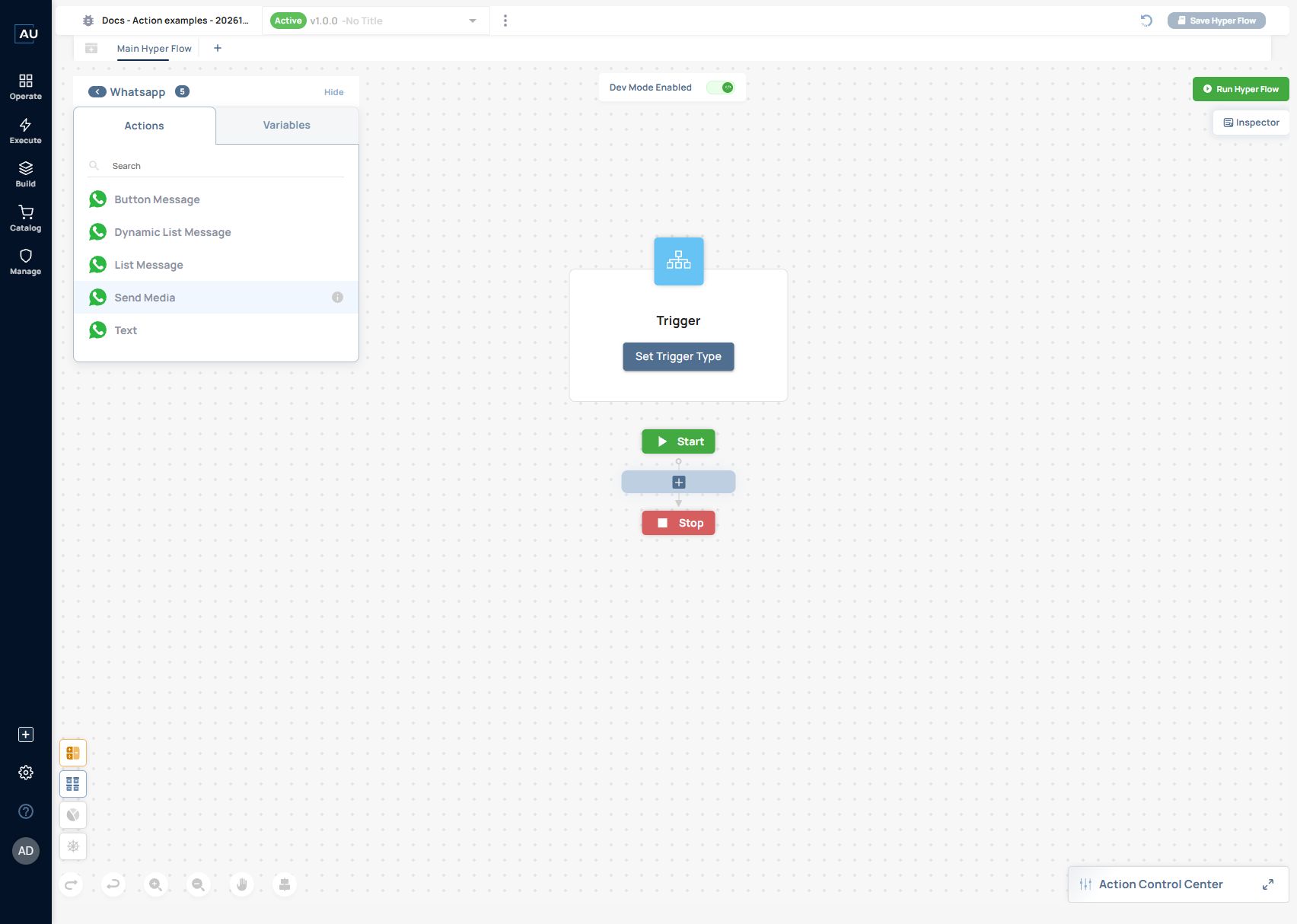
In the current action panel, the installed library is labelled **Whatsapp** and offers **Text**, **Button Message**, **Dynamic List Message**, **List Message** and **Send Media**. This is the Meta library; its actions differ from the 360Dialog library's Button Scope and List Scope actions.

<figure><img src="https://3857940684-files.gitbook.io/~/files/v0/b/gitbook-x-prod.appspot.com/o/spaces%2FJcSHU5jP5GABQrGmWvW2%2Fuploads%2FLbL8S6GFSFJ54TS2Cc3m%2Fwhatsapp-meta-actions.jpg?alt=media" alt="The current Meta library offers five messaging actions."><figcaption><p>The current Meta library offers five messaging actions.</p></figcaption></figure>

For an AI Agent Composer conversation, follow [Connect an AI agent to WhatsApp](/userguide/ai-agent-composer/choose-and-connect-an-agent-channel/connect-an-ai-agent-to-whatsapp.md). The agent channel and these Hyperflow actions are separate configuration paths. A 360Dialog API key belongs to the [WhatsApp 360Dialog integration](/userguide/integrations-and-api/libraries/integration/whatsapp-360dialog.md), not a direct Meta credential.

### Prepare the connection

You need an authorized Meta business messaging setup, its intended sending number, a valid access token with access to those assets, and the corresponding Autom Mate credential. Select the saved credential in each action that requires it. Use a team-controlled recipient for the first test.

| Value                | Meaning                                                                 | Do not confuse it with                              |
| -------------------- | ----------------------------------------------------------------------- | --------------------------------------------------- |
| Display phone number | The business number users contact.                                      | The API's Phone Number ID.                          |
| Phone Number ID      | Meta's identifier for a specific business sending number.               | WABA ID or the recipient's phone number.            |
| WABA ID              | Identifier of the WhatsApp Business Account that owns messaging assets. | A specific sending number's ID.                     |
| Access token         | Authenticates authorized API requests.                                  | A callback verification value or 360Dialog API key. |
| Recipient            | The person receiving this message.                                      | Your own business sending number.                   |
| Callback URL         | Destination of incoming events.                                         | The API endpoint used to send a message.            |

Meta's [official Cloud API collection](https://www.postman.com/meta/whatsapp-business-platform/documentation/wlk6lh4/whatsapp-cloud-api?entity=request-13382743-eb9a6721-1056-4db2-b00a-2290e04b5b5d) documents these business assets and their identifiers. Complete provider onboarding and number setup before testing Autom Mate actions.

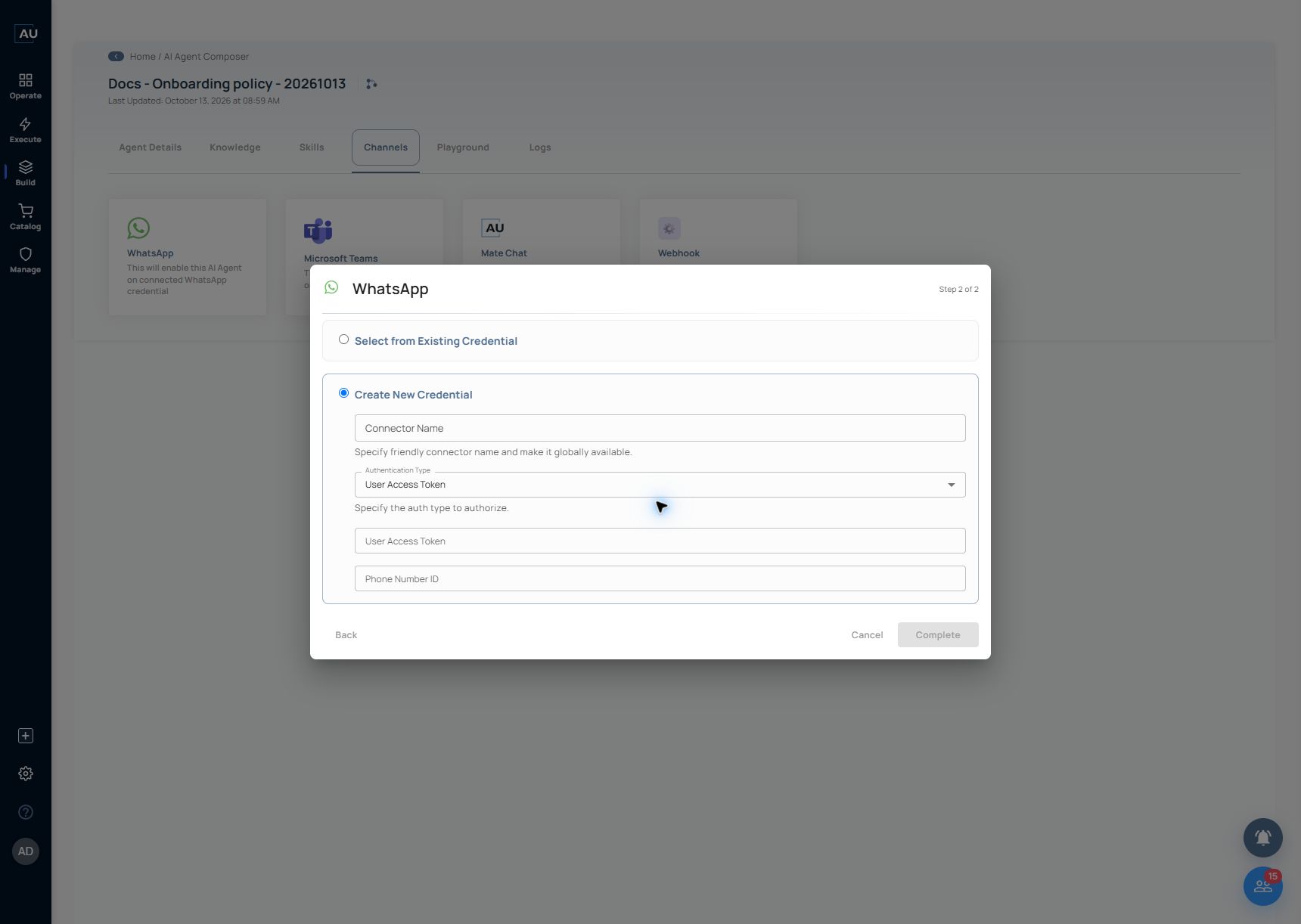
<figure><img src="https://3857940684-files.gitbook.io/~/files/v0/b/gitbook-x-prod.appspot.com/o/spaces%2FJcSHU5jP5GABQrGmWvW2%2Fuploads%2FNs5U58ttMs7owyCgRx4z%2Fwhatsapp-credential-form.jpg?alt=media" alt="The same Meta credential fields are shown here in the agent wizard: Connector Name, Authentication Type, User Access Token and Phone Number ID."><figcaption><p>The same Meta credential fields are shown here in the agent wizard: Connector Name, Authentication Type, User Access Token and Phone Number ID.</p></figcaption></figure>

Use a valid credential lifecycle for your environment. Saving a credential does not prove the token can send from the intended number or that incoming callbacks reach the right conversation.

### First exercise: one text reply

Use this small request: the user asks which equipment a demo employee receives; the flow replies, `A demo employee receives one laptop and one headset.` No provisioning is performed.

1. Open the Hyperflow that handles the authorized test conversation.
2. Add **Whatsapp → Text** from the Meta library and select its messaging credential.
3. Set a descriptive **Label**, such as `Reply with demo equipment`.
4. Enter the reply in **Message**; the current editor shows a 4,096-character limit.
5. Leave **Is Question?** off for this one-way reply.
6. Save and start the intended conversation from the test handset so the run has the required recipient/session context.
7. Inspect the action log and confirm the reply on the same handset.

<figure><img src="https://3857940684-files.gitbook.io/~/files/v0/b/gitbook-x-prod.appspot.com/o/spaces%2FJcSHU5jP5GABQrGmWvW2%2Fuploads%2FvHYZ25qIRQF4IwGTZCSP%2Fwhatsapp-meta-text.jpg?alt=media" alt="The current Text panel shows Credential, Label, Message and Is Question; the message has not been populated here."><figcaption><p>The current Text panel shows Credential, Label, Message and Is Question; the message has not been populated here.</p></figcaption></figure>

**Expected check:** the intended flow receives the test message, its Text action runs, and the correct person receives the reply. These are test criteria; this reference does not claim a live handset exchange was completed.

The inspected Text panel has no **To** or **Recipient** field. Configure and test the intended inbound conversation route so the flow has the correct recipient/session context; do not assume a manual run can choose a recipient from this panel.

When an action returns a message identifier, use it to correlate subsequent status events. Do not treat an accepted request or an arbitrary Response value as proof of delivery or reading. Inspect what the selected action actually returns in your run.

### Text

| Field                 | How to use it                                                               |
| --------------------- | --------------------------------------------------------------------------- |
| Credential (Required) | Select the authorized direct Meta connection.                               |
| Label                 | Name the step for builders and log readers.                                 |
| Message               | Write the text the recipient should see; the editor shows 4,096 characters. |
| Is Question?          | Enable when the conversation should collect a reply for subsequent steps.   |

For a question test, ask `Which equipment do you need?`, enable **Is Question?**, and inspect the returned response after replying from the handset. Verify the waiting, response binding and next step in that same conversation before adding a business-changing action. Do not assume that sending a question means the user already replied.

### Button Message

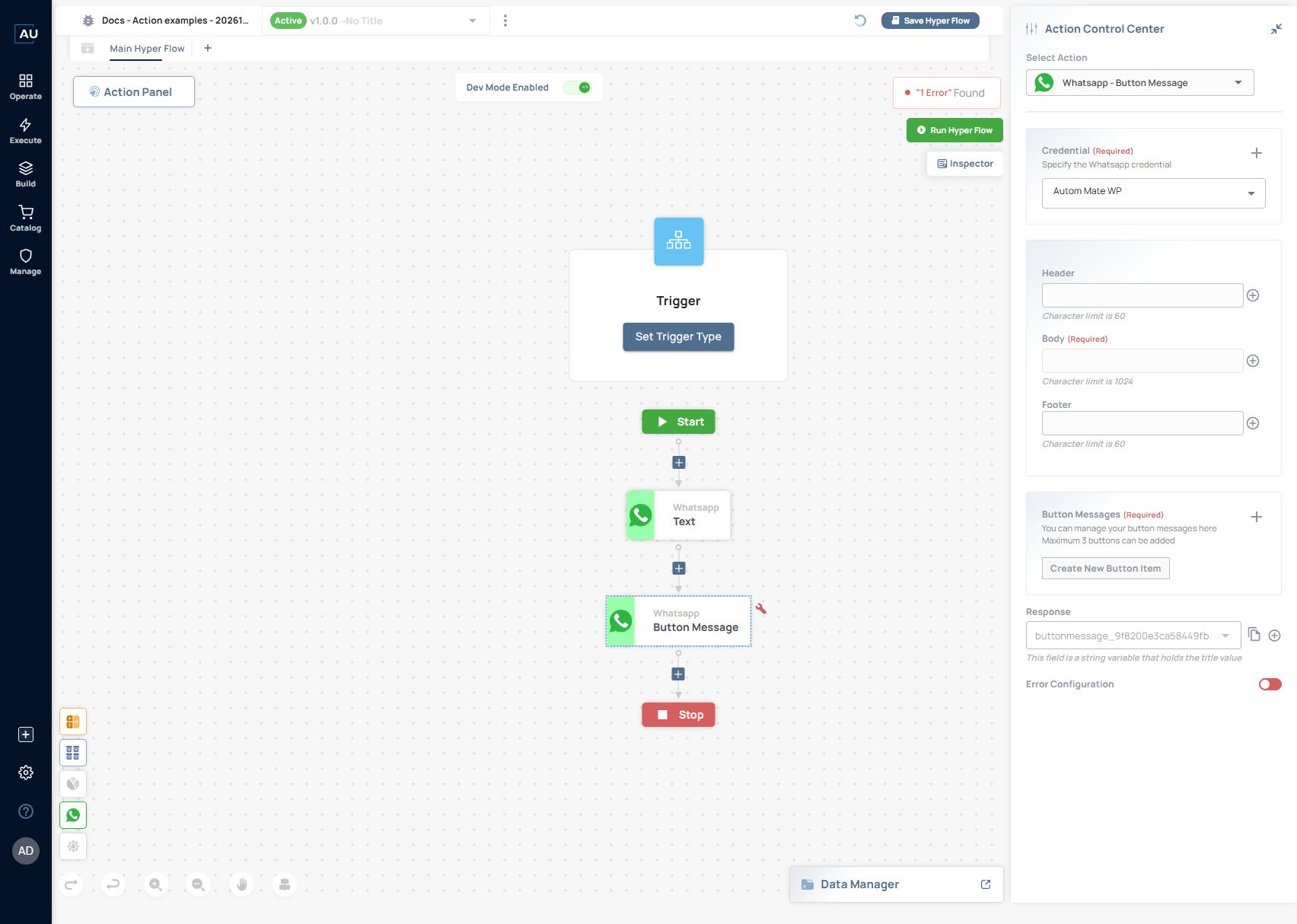
Use **Credential**, optional **Header**, **Body**, optional **Footer**, and **Button Messages** to present a small choice. For example, body `What would you like help with?` with buttons `Equipment`, `Access` and `Other`.

1. Select **Credential (Required)**.
2. Enter **Body (Required)**. The editor shows 1,024 characters for Body and 60 each for Header and Footer.
3. Under **Button Messages (Required)**, select **Create New Button Item**.
4. Enter a short, distinct **Title (Required)** and select **Add**. Repeat for the other choices; this editor allows a maximum of three buttons.
5. Note the automatically created **Response** String variable. The editor describes it as holding the title value.
6. Run the authorized test conversation and select one button.
7. Inspect the actual Response before binding it to a branch. Confirm that only the intended business path executes.

<figure><img src="https://3857940684-files.gitbook.io/~/files/v0/b/gitbook-x-prod.appspot.com/o/spaces%2FJcSHU5jP5GABQrGmWvW2%2Fuploads%2FqxoKcFHX5VBnquvbAGGy%2Fwhatsapp-meta-button.jpg?alt=media" alt="Use distinct button labels and verify the selected response before branching."><figcaption><p>Use distinct button labels and verify the selected response before branching.</p></figcaption></figure>

<figure><img src="https://3857940684-files.gitbook.io/~/files/v0/b/gitbook-x-prod.appspot.com/o/spaces%2FJcSHU5jP5GABQrGmWvW2%2Fuploads%2FFQSJP9w2WIDaEiz0i9Va%2Fwhatsapp-button-item.jpg?alt=media" alt="Create New Button Item asks for a required Title; the current editor displays a 24-character limit."><figcaption><p>Create New Button Item asks for a required Title; the current editor displays a 24-character limit.</p></figcaption></figure>

The 24-character value is what this Autom Mate form displays; it is not a guarantee that every provider message type accepts a title of that length. The example labels are deliberately short. Likewise, the Response description is an editor contract to verify in a real conversation, not evidence that a button callback has already been tested.

Ordinary interactive reply buttons allow up to three choices; lists allow up to ten. They are different from approved message templates and are subject to the active customer-service window. Check the provider's current restrictions for the chosen message type; [interactive-message guidance](https://docs.360dialog.com/docs/messaging/message-types/interactive) explains the distinction. Keep labels short and follow the current form validation; do not assume a list-item title limit also applies to a reply-button label.

### List Message

Use a static list when choices are known at design time. Select **Credential**, set **Header**, **Body**, optional **Footer**, and **Button Text**. Under **List Messages**, use **Create List Item** to define each **Title** and optional **Description**.

For a service menu, start with `Equipment request`, `Account access` and `Other question`. Test each selection and inspect the output returned to the flow. A menu selection is user input; it is not evidence of an approved or completed service request.

### Dynamic List Message

Use a dynamic list when an API supplies the choices. There are two separate connections: the WhatsApp messaging credential and the authentication used to read the list data.

| Field group                       | Purpose                                               |
| --------------------------------- | ----------------------------------------------------- |
| Credential                        | Authenticates the outgoing WhatsApp message.          |
| Header, Body, Footer, Button Text | Describes the menu to the user.                       |
| Request URI and Method            | Identifies the list-data API and GET or POST request. |
| Authentication                    | Uses the data API's Basic or OAuth2 connection.       |
| Request headers and Query Params  | Supplies parameters required by that API.             |
| Response Title Path               | Locates each item's title in the returned data.       |
| Response Description Path         | Locates an optional description.                      |

First verify a small sanitized response from the data API. Map its fields to titles and descriptions, then test the actual WhatsApp selection. If no choices are returned, provide a clear fallback; do not present a successful empty response as a usable service menu. The path fields describe where data is located, not the character length of the path expression.

### Send Media

Select **Credential**, set an optional **Label**, choose **Media Type**, provide **Link**, and add an optional **Caption**. The documented action choices are Image and Video; use a format and size accepted by the current provider.

Start with a small non-sensitive training image at an accessible HTTPS URL. Confirm both the provider response and what appears on the recipient's handset. An inaccessible URL or an unsupported file may fail even when the messaging credential works. The action's Response must not be described as a delivery receipt unless the inspected output actually contains that status.

### Diagnose the first failed boundary

| Symptom                                    | Check next                                                                   |
| ------------------------------------------ | ---------------------------------------------------------------------------- |
| Authentication or asset-access error       | Token validity and access to the selected Phone Number ID.                   |
| The action cannot identify a conversation  | The inbound route and recipient/session context used to start the Hyperflow. |
| Text works, list or buttons fail           | Message type, choices, form validation and current messaging window.         |
| Dynamic list is empty                      | Data API response and the response field paths.                              |
| A request is accepted but no reply arrives | Correlate the message ID with delivery/status events.                        |
| Repeated business actions                  | Compare inbound message IDs and callback attempts before retrying.           |

For callback setup and a complete AI-agent conversation test, use [Connect an AI agent to WhatsApp](/userguide/ai-agent-composer/choose-and-connect-an-agent-channel/connect-an-ai-agent-to-whatsapp.md). For action failures, use [Handle errors and debug a flow](/userguide/operate-and-troubleshoot/handle-errors-and-debug-a-flow.md).