> For the complete documentation index, see [llms.txt](https://docs.autommate.com/userguide/llms.txt). Markdown versions of documentation pages are available by appending `.md` to page URLs; this page is available as [Markdown](https://docs.autommate.com/userguide/integrations-and-api/libraries/integration/whatsapp-360dialog.md).
# Whatsapp 360Dialog
Use this library for WhatsApp Business Platform messaging routed through 360Dialog. You need a provider-configured business number and its connection; the WhatsApp Business mobile app alone is not the API integration.
This page covers a Hyperflow conversation. To connect an AI Agent Composer agent, use [Connect an AI agent to WhatsApp](/userguide/ai-agent-composer/choose-and-connect-an-agent-channel/connect-an-ai-agent-to-whatsapp.md). For a direct Meta connection, use [WhatsApp-Meta](/userguide/integrations-and-api/libraries/integration/whatsapp-meta.md). Provider credentials are not interchangeable.
### Before you start
* Complete the applicable 360Dialog onboarding or migration for the intended business number.
* Obtain an authorized 360Dialog messaging credential and select it through Autom Mate's credential configuration.
* Use a team-controlled test recipient and a training Hyperflow.
* Confirm who owns the callback route before changing it; an existing number may already serve another integration.
The current [360Dialog messaging API](https://docs.360dialog.com/docs/messaging-api/api-reference/messages) authenticates requests with the `D360-API-KEY` header. Keep this secret in the credential store. It is different from a direct Meta access token and from an Autom Mate API credential that may protect an inbound endpoint.
### Keep the identifiers separate
| Item | Meaning |
| ----------------------- | ------------------------------------------------------ |
| Display phone number | Business number the user contacts from WhatsApp. |
| Phone Number ID | API identifier for a particular sending number. |
| WABA ID | Identifier of the WhatsApp Business Account. |
| 360Dialog API key | Provider credential for authorized messaging calls. |
| Autom Mate callback URL | Destination for incoming events for the intended flow. |
| Message ID | Correlation identifier for one message and its status. |
Copy identifiers from the intended provider account rather than deriving one from another. A WABA can contain multiple numbers; confirm which number the callback and credential serve.
### 1. Build a small conversation
For the first exercise, offer three service categories and acknowledge the selected category. This proves routing before a later step creates or changes an external record.
1. Create a training Hyperflow with the trigger required by the supported 360Dialog conversation route.
2. Add a **Text** action with `What do you need help with?`.
3. Add a **Button Scope**, then **Button Item** choices for `Equipment`, `Access` and `Other`.
4. Give each choice a distinct acknowledgement, such as `You selected Equipment.`
5. Select the intended provider credential wherever the action requires it, then save.
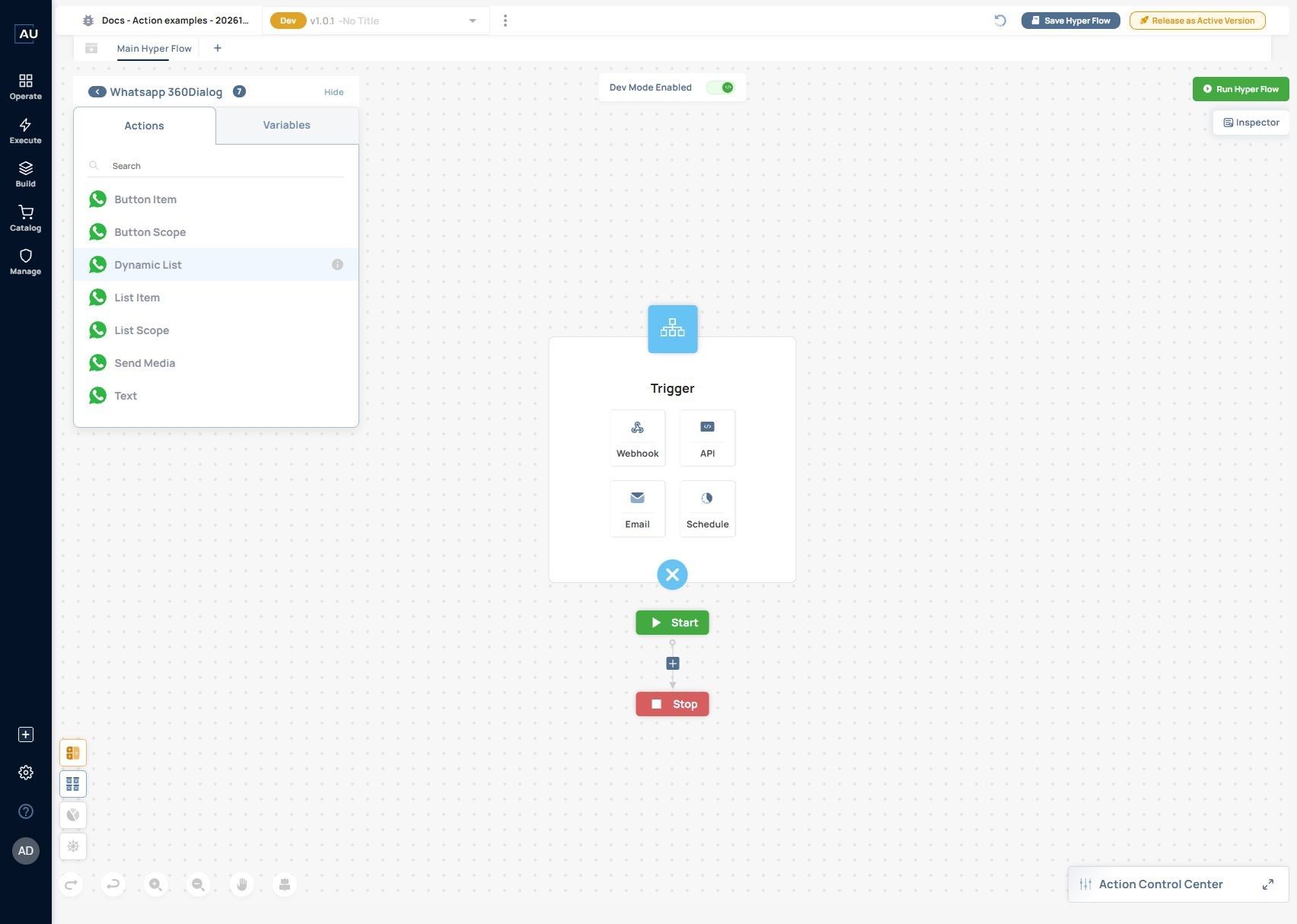
The current 360Dialog action library and conversation-building actions.
The installed library was inspected with seven actions: Text, Button Scope, Button Item, List Scope, Dynamic List, List Item and Send Media. Configure the surrounding conversation route before treating the actions as standalone manual-trigger messages.
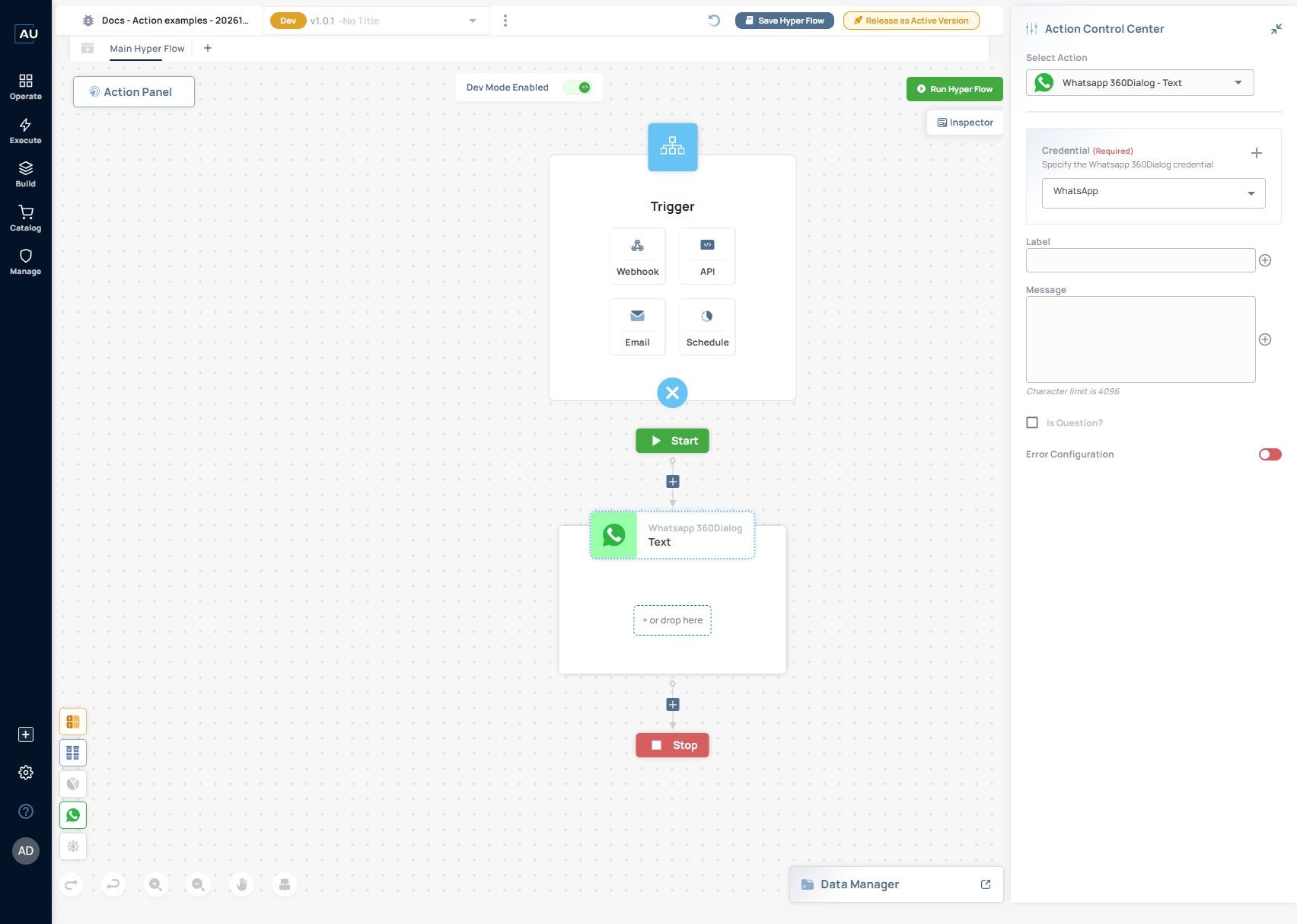
For a simpler first check, configure **Text** alone: select **Credential (Required)**, add a **Label**, and enter a **Message**. The current editor shows a 4,096-character message limit. Enable **Is Question?** only when the conversation should collect a response. There is no recipient field in the inspected panel, so the incoming conversation route must supply the intended recipient/session context.
### 2. Configure and verify the callback
Copy the generated destination from the intended Autom Mate flow or channel. Do not rebuild a callback from an old screenshot. If it contains a credential, keep the complete URL out of public examples.
In the applicable 360Dialog setup, configure the number's webhook destination. The current provider API documents `POST /v1/configs/webhook` on `https://waba-v2.360dialog.io`, with a `D360-API-KEY` header and a JSON `url` value. The documented success response is **201**. Read the configuration back with GET to confirm the saved destination. Use the endpoint appropriate to your account's integration version; see the [current webhook reference](https://docs.360dialog.com/docs/messaging-api/api-reference/webhooks).
{% code collapsedlinecount="10" %}
```json
{
"url": ""
}
```
{% endcode %}
This is a provider configuration shape with a placeholder, not a ready-to-send request. Confirm the existing routing before replacing a production destination. A successful configuration response proves the destination was stored; the message test proves event delivery.
### 3. Separate messages from delivery updates
An inbound customer message and an outbound message's sent, delivered or read status are different events. Route conversation messages to the dialogue and handle status events without treating each as a fresh customer request. Provider callbacks can be redelivered, so correlate by message/event ID before creating business records. See the [provider webhook event reference](https://docs.360dialog.com/docs/messaging/webhook/webhook-reference).
Do not copy a top-level `contacts` existence rule without inspecting the received payload. The envelope and field location depend on the integration path. Use a sanitized real inbound event and a status-only event to test the configured filter. An expected number of failed runs is not a reliable callback design.
If your deployment uses a Webhook API rule, confirm the current rule syntax and the payload path in that editor. A rule must preserve legitimate incoming messages while preventing status-only events from starting another conversation.
### 4. Test from WhatsApp and inspect the result
1. Send `Hello` from the approved test handset to the configured business number.
2. Record the time and inspect the corresponding run in Autom Mate.
3. Confirm that the service category buttons appear on the same handset.
4. Select `Equipment` and check the matching acknowledgement and branch log.
5. Start fresh test conversations for the other choices. Confirm that each follows only its intended path.
6. Check that later delivery-status events do not start duplicate business actions.
**Expected result:** the incoming message starts the intended dialogue, the selected branch executes, and the acknowledgement reaches the handset. These are acceptance checks; provider registration and a live handset exchange were not performed for this documentation example.
A manual Run button does not reproduce an inbound WhatsApp conversation's recipient/session context. Test the intended trigger path. If using a session-reset control during troubleshooting, check its scope first so another active conversation is not interrupted.
### Action reference
| Action | Configure | Verify |
| ------------ | -------------------------------------------------------------------------------------------------------- | -------------------------------------------------------------------- |
| Text | Credential (Required), Label, Message (editor limit 4,096); enable Is Question? when collecting a reply. | The displayed text and actual reply variable after the user answers. |
| Button Scope | Header, Body, optional Footer and its Button Items. | The choice appears and routes to the correct item. |
| Button Item | Short Title and its response/branch. | The chosen value and only the intended downstream path. |
| List Scope | Menu context and the List Items or Dynamic List inside it. | The visible choices and selected value. |
| List Item | Title and optional Description. | The selected item is bound correctly. |
| Dynamic List | Data source and mappings required by the action. | Real source data produces a small, useful menu. |
| Send Media | Media Type, accessible Link and optional Caption. | The actual media on the handset, not just a successful request. |
Current Text action configuration for the 360Dialog conversation.
The action list and Text configuration above were inspected in Presales. The remaining action descriptions explain the library's documented roles; validate their form fields and outputs in your installed version before expanding the example. No live message was sent during this inspection.
Ordinary reply-button messages support up to three choices and list messages up to ten. Use short labels that satisfy current form and provider validation. Interactive free-form messages require the active customer-service window; use the provider's approved template path when appropriate outside it. See [interactive message requirements](https://docs.360dialog.com/docs/messaging/message-types/interactive).
### Troubleshoot by boundary
| Symptom | Next check |
| ------------------------------------- | --------------------------------------------------------------------------- |
| No incoming run | Number, saved callback destination, event delivery and trigger filter. |
| Provider authentication error | Correct 360Dialog API key and connection; a Meta token is not a substitute. |
| Message arrives, wrong flow runs | Which number and destination own the conversation route. |
| Reply accepted, no handset message | Message ID and later provider status, recipient and messaging window. |
| Each status update starts another run | Event-type routing using the actual received payload. |
| Selection resumes the wrong work | Conversation correlation and selected button/list output. |
For support, provide the flow/version, provider, time and time zone, message ID and sanitized error. Do not include live credentials or key-bearing callback URLs. Continue with [Handle errors and debug a flow](/userguide/operate-and-troubleshoot/handle-errors-and-debug-a-flow.md).