> For the complete documentation index, see [llms.txt](https://docs.autommate.com/userguide/llms.txt). Markdown versions of documentation pages are available by appending `.md` to page URLs; this page is available as [Markdown](https://docs.autommate.com/userguide/integrations-and-api/libraries/integration/python.md).

# Python

## Introduction

This document provides an overview of the integration between Automate and Python, explaining how Python codes can be executed to automate processes using Python library actions.

The integration enables users to execute Python scripts within Automate, facilitating automation of various tasks.

## What is Python?

Use Python when a local script is the appropriate way to transform or prepare data. The selected Mate Agent must provide the required interpreter and dependencies.

**Overview of Python:** Python is a high-level programming language known for its simplicity and readability. It is widely used for various purposes including web development, data analysis, artificial intelligence, and automation.

**Key Features:**

* <mark style="color:orange;">Script Execution:</mark> Execute Python scripts to perform tasks.
* <mark style="color:orange;">Variable Assignment:</mark> Assign output of scripts to variables for further processing.
* <mark style="color:orange;">Flexibility:</mark> Supports both script file execution and direct entry of Python code.

## Automate Integration with Python

**Overview of Integration:** Automate integrates with Python to execute scripts and automate various tasks within workflows.

**Examples of Automated Tasks:**

* Running Python scripts to process data.
* Automating repetitive tasks using Python code.
* Integrating Python scripts into complex automation workflows.

## Using the Integration

Python Open prepares a script from File Path or Manual Input in the code editor and assigns it to a variable. In the current Run form, Choose Script consumes that prepared variable and Assign value to variable receives the result. Direct file/code entry belongs to Open; it is not shown in the inspected Run form.

## How To Use Actions

### Open

**Description:** Prepare Python script for execution.

**Purpose:** Define or select Python script to be executed.

**Usage:**

1. Define or select the file path of the Python script.
2. Alternatively, write Python script using the built-in code editor.
3. Assign the Python script data to a variable for input in the Run Python action.

**Inputs:**

* <mark style="color:green;">File Path or Python Script</mark>

**Outputs:**

* Python Script Data Variable

<figure><img src="https://3857940684-files.gitbook.io/~/files/v0/b/gitbook-x-prod.appspot.com/o/spaces%2FJcSHU5jP5GABQrGmWvW2%2Fuploads%2F2D4L4TkuPIyc3Zel4Qfw%2Fpython-open-form.jpg?alt=media" alt="Current Python Open form: File Path or Manual Input, followed by the required script-variable assignment. The shown draft has not completed that assignment."><figcaption><p>Current Python Open form: File Path or Manual Input, followed by the required script-variable assignment. The shown draft has not completed that assignment.</p></figcaption></figure>

<figure><img src="https://3857940684-files.gitbook.io/~/files/v0/b/gitbook-x-prod.appspot.com/o/spaces%2FJcSHU5jP5GABQrGmWvW2%2Fuploads%2FRhj2jndJq2AatQZmrSV2%2Fpython-code-editor.jpg?alt=media" alt="Current Python code editor showing an illustrative main function returning DOCS_PYTHON_OK. Code entry only; no execution result was recorded."><figcaption><p>Current Python code editor showing an illustrative main function returning DOCS_PYTHON_OK. Code entry only; no execution result was recorded.</p></figcaption></figure>

### Run

**Description:** Execute Python script.

**Purpose:** Execute Python script and capture output.

**Usage:**

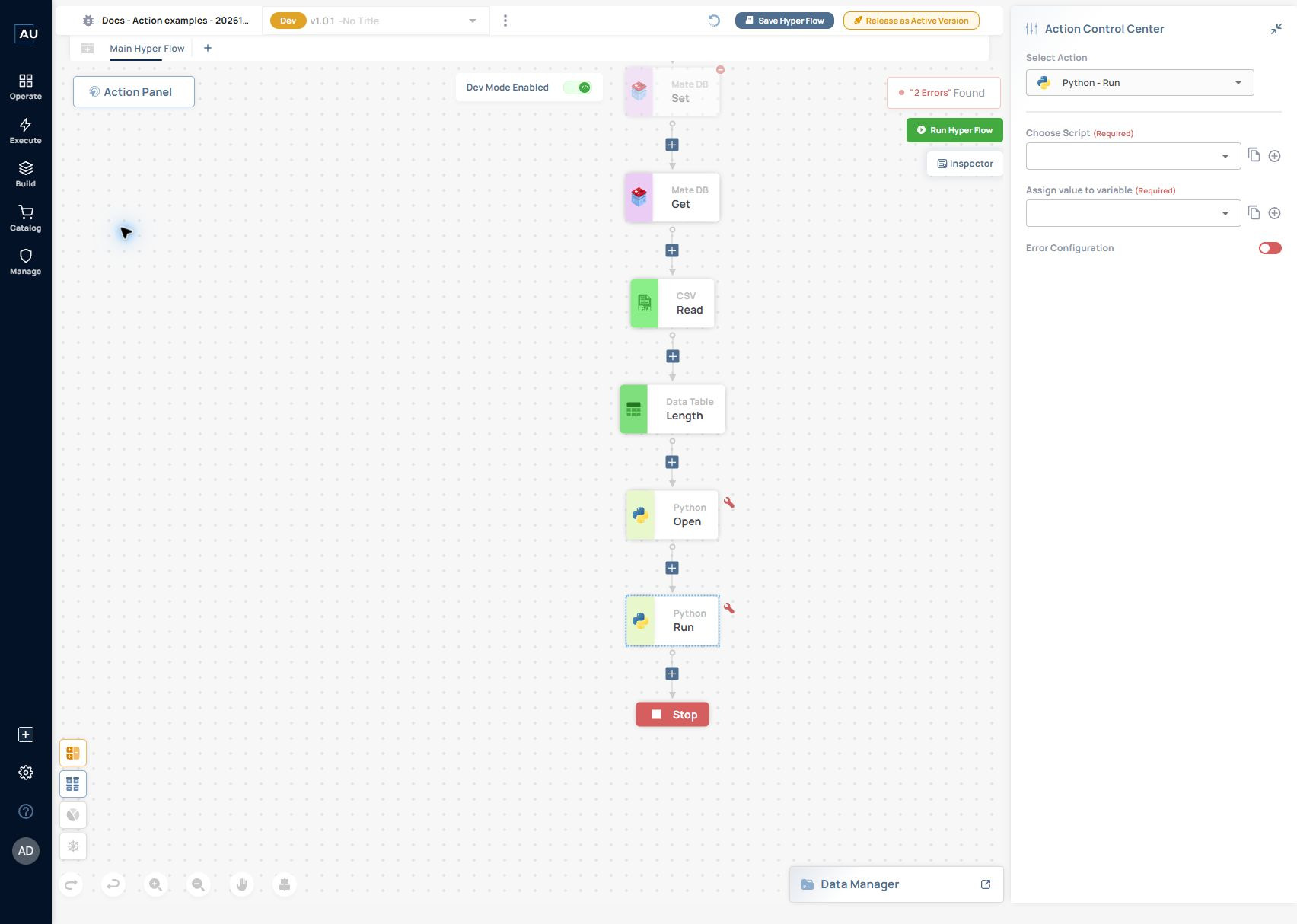
Select the script variable produced by Python Open in Choose Script. Select an output variable in Assign value to variable, then test the completed flow on the intended Mate Agent.

**Inputs:**

* <mark style="color:green;">Script Variable</mark>

**Outputs:**

* Output of the Python Script

<figure><img src="https://3857940684-files.gitbook.io/~/files/v0/b/gitbook-x-prod.appspot.com/o/spaces%2FJcSHU5jP5GABQrGmWvW2%2Fuploads%2Fk4FyBbABHguW3h0LsCwk%2Fpython-run-form.jpg?alt=media" alt="Current Python Run form: Choose Script and Assign value to variable. Blank mandatory mappings explain the visible draft validation errors."><figcaption><p>Current Python Run form: Choose Script and Assign value to variable. Blank mandatory mappings explain the visible draft validation errors.</p></figcaption></figure>

***

## Additional Tips

### [**Use Cases**](/userguide/start-here/use-cases.md)

### [FAQ](/userguide/operate-and-troubleshoot/common-tasks-and-questions.md)

### Worked example: Open and Run a fixed Python response

Use the fixed response shown in the current editor to exercise the Open → Run mapping after confirming the installed action’s entry-point requirements. The screenshots were taken from an unsaved draft; they do not verify the interpreter or a successful Python execution.

1\. In an isolated Hyperflow, add Python → Open. Choose manual code entry and open the code editor.

2\. Enter the illustrative main function below. In Open → Assign value to variable, select the script-data variable offered by the installed action.

{% code collapsedlinecount="10" %}

```python
def main():
    return "DOCS_PYTHON_OK"
```

{% endcode %}

3\. Add Python → Run. In Choose Script, select the variable returned by Open. Assign the Run result to a String variable named python\_result.

4\. Run the test once on the intended Mate Agent. Open the Run action values and inspect python\_result.

5\. Inspect whether the returned value contains DOCS\_PYTHON\_OK. Record the actual type and any response wrapper before mapping it downstream; do not infer success or its result shape from the editor screenshot.

6\. If Run fails before producing text, record the selected Agent, action version and interpreter/dependency error. A script that works on your own computer does not confirm that runtime configuration.