> For the complete documentation index, see [llms.txt](https://docs.autommate.com/userguide/llms.txt). Markdown versions of documentation pages are available by appending `.md` to page URLs; this page is available as [Markdown](https://docs.autommate.com/userguide/integrations-and-api/libraries/integration/powershell.md).

# PowerShell

## Introduction

This document provides a brief overview of the integration between Automate and PowerShell, explaining how PowerShell scripts can be executed to automate processes using PowerShell library actions.

The integration enables users to execute PowerShell scripts within Automate, facilitating automation of various tasks.

## What is PowerShell?

**Overview of PowerShell:** PowerShell is a task automation and configuration management framework from Microsoft, consisting of a command-line shell and associated scripting language. It is designed to automate system administration tasks and streamline management processes.

**Key Features:**

* <mark style="color:orange;">Script Execution:</mark> Execute PowerShell scripts to perform tasks.
* <mark style="color:orange;">Variable Assignment:</mark> Assign output of scripts to variables for further processing.
* <mark style="color:orange;">Flexible Script Handling:</mark> Supports selection of script files or direct entry of PowerShell commands.

## Automate Integration with PowerShell

**Overview of Integration:** Automate integrates with PowerShell to execute scripts and automate various tasks within workflows.

**Examples of Automated Tasks:**

* Running PowerShell scripts to perform system administration tasks.
* Automating configuration changes using PowerShell commands.
* Integrating PowerShell scripts into complex automation workflows.

## Using the Integration

#### Credentials

**How to Create Credentials:** No specific credentials are required for executing PowerShell scripts within Automate.

#### Data Management

**Purpose:** N/A

**Content:** No data management steps are required for executing PowerShell scripts within Automate.

## How To Use Actions

### Run

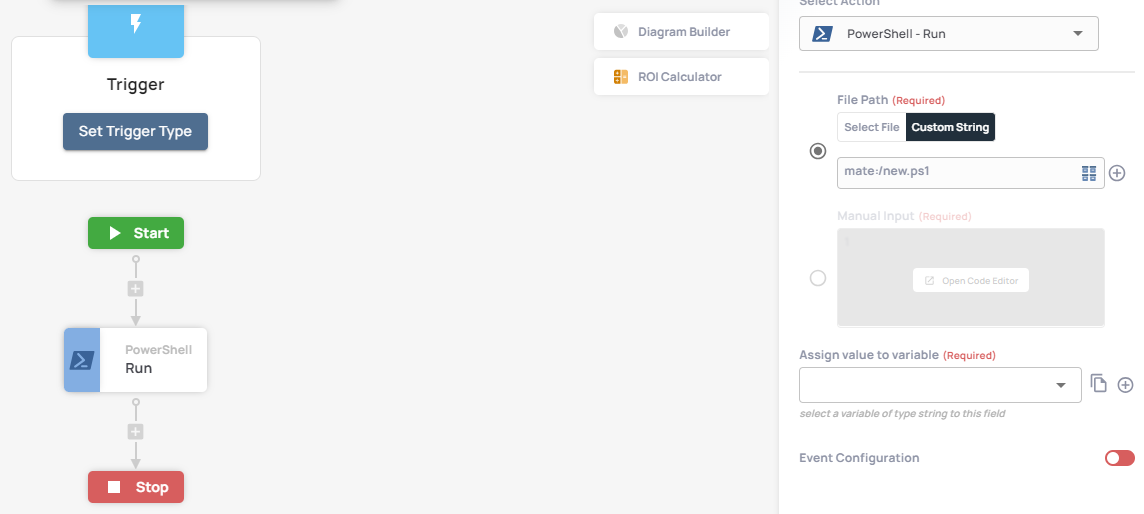
**Description:** Execute a PowerShell script.

**Purpose:** Execute PowerShell scripts to perform automation tasks.

**Usage:**

1. Select the Script variable defined in the PowerShell Open action configuration.
2. Choose a PowerShell script file or enter PowerShell commands in the PowerShell Opened field.
3. Assign the output of the PowerShell script to a variable for further processing.

**Inputs:**

* <mark style="color:green;">Script Variable</mark>
* <mark style="color:green;">PowerShell Script or Commands</mark>

**Outputs:**

* Output of the PowerShell Script

<figure><img src="https://3857940684-files.gitbook.io/~/files/v0/b/gitbook-x-prod.appspot.com/o/spaces%2FJcSHU5jP5GABQrGmWvW2%2Fuploads%2FAjT6O1jfGy0TJPvTN3eG%2F1Ugyh03xnlWduD24HfjE-1.png?alt=media" alt="Earlier UI reference: PowerShell Run. Check field labels against the installed library version."><figcaption><p>Earlier UI reference: PowerShell Run. Check field labels against the installed library version.</p></figcaption></figure>

<figure><img src="https://3857940684-files.gitbook.io/~/files/v0/b/gitbook-x-prod.appspot.com/o/spaces%2FJcSHU5jP5GABQrGmWvW2%2Fuploads%2F7NCZ807DxpiWAWj0RLcZ%2Fks4YpscnVSVz0SZ2w9rp-2.png?alt=media" alt="Earlier UI reference: PowerShell Run (view 2). Check field labels against the installed library version."><figcaption><p>Earlier UI reference: PowerShell Run (view 2). Check field labels against the installed library version.</p></figcaption></figure>

<figure><img src="https://3857940684-files.gitbook.io/~/files/v0/b/gitbook-x-prod.appspot.com/o/spaces%2FJcSHU5jP5GABQrGmWvW2%2Fuploads%2F0AZOPJRX1lVf1loM5n5L%2FFODQdHABEgDseb9LKSIG-3.png?alt=media" alt="Earlier UI reference: PowerShell Run (view 3). Check field labels against the installed library version."><figcaption><p>Earlier UI reference: PowerShell Run (view 3). Check field labels against the installed library version.</p></figcaption></figure>

<figure><img src="https://3857940684-files.gitbook.io/~/files/v0/b/gitbook-x-prod.appspot.com/o/spaces%2FJcSHU5jP5GABQrGmWvW2%2Fuploads%2FHgju8EEIL1j4Bt3z2KIf%2FI6KYv0WFvdC789fxdZQA-4.png?alt=media" alt="Earlier UI reference: PowerShell Run (view 4). Check field labels against the installed library version."><figcaption><p>Earlier UI reference: PowerShell Run (view 4). Check field labels against the installed library version.</p></figcaption></figure>

***

## Additional Tips

### [**Use Cases**](/userguide/start-here/use-cases.md)

### [FAQ](/userguide/operate-and-troubleshoot/common-tasks-and-questions.md)

### Worked example: return one fixed PowerShell line

Begin with a command that reads no files, contacts no network service and changes no configuration. This recipe tests the documented code-input and output mapping on the selected runtime.

1\. Add the installed PowerShell action path to a test Hyperflow. Choose Manual Input and Open Code Editor where those controls are offered.

2\. Enter one PowerShell string expression: "REQ-DEMO-001 | finance". Keep the command free of environment variables or credential references.

3\. Where the action requires a prepared Script Variable, select that variable in Run. Assign the result to a String variable named powershell\_result.

4\. Run once and inspect the action output. Expect the returned text to contain REQ-DEMO-001 | finance; preserve the actual returned type or wrapper when mapping it.

5\. If the action cannot start, inspect the Agent host/interpreter and execution identity. The lack of an app credential field does not remove operating-system permissions.