> For the complete documentation index, see [llms.txt](https://docs.autommate.com/userguide/llms.txt). Markdown versions of documentation pages are available by appending `.md` to page URLs; this page is available as [Markdown](https://docs.autommate.com/userguide/integrations-and-api/libraries/integration/pdf.md).
# PDF
## Introduction
This document provides an overview of the integration between Automate and PDF, detailing how Automate interacts with PDF to automate tasks and streamline processes.
The integration enables users to automate various actions within PDF files, enhancing efficiency and productivity.
## What is PDF?
Use the PDF library to extract page images from a selected PDF file.
PDF (Portable Document Format) is a cross-platform file format used to create portable and printable documents. It is widely used for its compatibility and versatility.
**Key Features:**
* Image Extraction: Export images from PDF files.
* Flexible File Handling: Allows selection of PDF files or custom file paths.
* Password Protection: Supports encryption with user and owner passwords.
* Image Conversion: Convert extracted images to different formats such as TIFF, JPEG, BMP, GIF, and PNG.
## Automate Integration with PDF
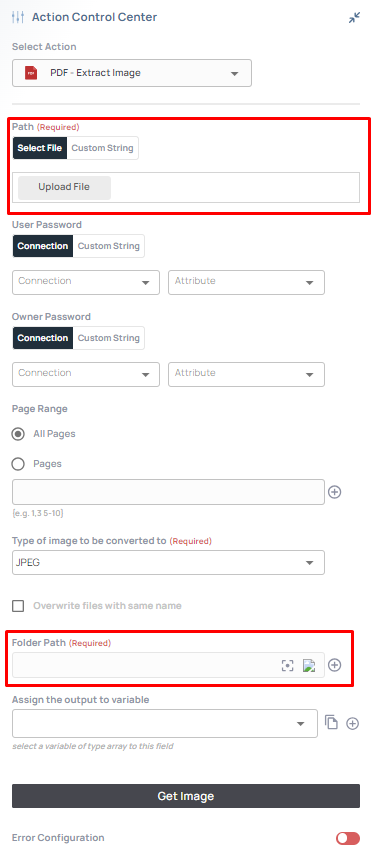
Configure the Extract Image action with the PDF file, page range, image format and resolution.
Automate interacts with PDF to automate various tasks, including image extraction and conversion.
**Examples of Automated Tasks:**
* Extracting images from PDF files.
* Converting images to different formats.
* Setting resolution and page range for image extraction.
## How To Use Actions
### Extract Image
{% embed url="" %}
Export images from PDF files.
**Usage:**
1. Select PDF File or Define File Path.
2. Optionally enter User Password and Owner Password.
3. Specify the page range for image extraction.
4. Choose the type of image to convert.
5. Set resolution settings.
6. Assign extracted images to a string variable.
**Inputs:**
* PDF File or File Path
* User Password (optional)
* Owner Password (optional)
* Page Range
* Image Type
* Resolution Settings
**Outputs:**
* Extracted Images
Earlier UI reference: PDF Extract Image. Check field labels against the installed library version.
***
## Additional Tips
### [**Use Cases**](/userguide/start-here/use-cases.md)
### [FAQ](/userguide/operate-and-troubleshoot/common-tasks-and-questions.md)
### Worked example: extract the first page of a demo PDF
Use a one-page, unencrypted test PDF whose page reads INVOICE DEMO 001. This exercise checks page-image extraction; it does not extract invoice fields or perform OCR.
1\. Add PDF → Extract Image to a test Hyperflow. Select the actual demo PDF or its runtime-accessible File Path.
2\. Leave User Password and Owner Password empty for this unencrypted file. Select a page range containing only page 1 using the installed field format.
3\. Choose PNG from the image types and set an explicit supported resolution. Record that resolution with the test.
4\. Assign the action result to the documented output variable. Run once and inspect the actual returned path or image reference.
5\. Open the generated image through the supported result/file path and confirm that it shows the demo PDF page. Do not assume that a nonempty path proves the image exists or contains the intended page.