> For the complete documentation index, see [llms.txt](https://docs.autommate.com/userguide/llms.txt). Markdown versions of documentation pages are available by appending `.md` to page URLs; this page is available as [Markdown](https://docs.autommate.com/userguide/integrations-and-api/libraries/integration/ocr.md).

# OCR

## **Introduction**

This document serves as a detailed guide to understanding and effectively utilizing the Optical Character Recognition (OCR) integration within the Autom Mate platform.

It provides comprehensive information on how OCR technology seamlessly integrates with Autom Mate, empowering users to extract text from images and scanned documents for various business applications.

## **What is OCR?**

This section provides an in-depth explanation of OCR technology and its significance in business processes.

* **Overview of OCR:** OCR, or Optical Character Recognition, is a powerful library integrated into Autom Mate, designed to automatically recognize and extract text from images and scanned documents.
* **Key Features:** OCR utilizes sophisticated algorithms to convert images or PDF files into editable text format, facilitating document digitization, data extraction, and workflow optimization.

## **Autom Mate Integration with OCR**

Use the OCR actions below to extract text from an image and assign the returned text to a variable.

* **Overview of Integration:** Autom Mate's integration with OCR empowers users with two key actions: Capture Text From Image and Image to Text, enabling efficient text extraction from various sources.
* **Benefits:** OCR integration in Autom Mate streamlines document digitization, automates data extraction processes, and enhances workflow efficiency.

## **How To Use Actions**

### **Capture Text From Image**

<figure><img src="https://3857940684-files.gitbook.io/~/files/v0/b/gitbook-x-prod.appspot.com/o/spaces%2FJcSHU5jP5GABQrGmWvW2%2Fuploads%2FEkf05HREIA6BX5nZapnv%2F5vG8yVmUNuKv0S4P4DEr-image.png?alt=media" alt="Earlier UI reference: OCR Capture Text From Image. Check field labels against the installed library version."><figcaption><p>Earlier UI reference: OCR Capture Text From Image. Check field labels against the installed library version.</p></figcaption></figure>

**Description:** Automatically extract text from an image file.

**Purpose:** To extract text from scanned or digitally found documents.

**Usage:**

* <mark style="color:green;">**Image Path (Required):**</mark> <mark style="color:green;"></mark><mark style="color:green;">Specify the path to the image file.</mark>
* <mark style="color:green;">**Crop / Grid Crop:**</mark> <mark style="color:green;"></mark><mark style="color:green;">Define the capture area or use a grid to select specific regions.</mark>
* <mark style="color:green;">**Assign crop value to variable (data table):**</mark> <mark style="color:green;"></mark><mark style="color:green;">Link the crop value to a variable.</mark>
* <mark style="color:green;">**Path:**</mark> <mark style="color:green;"></mark><mark style="color:green;">Specify the path for the captured text.</mark>
* <mark style="color:green;">**Trim the captured text:**</mark> <mark style="color:green;"></mark><mark style="color:green;">Remove any unnecessary whitespace from the extracted text.</mark>
* <mark style="color:green;">**Select locale:**</mark> <mark style="color:green;"></mark><mark style="color:green;">Choose the language locale for text recognition.</mark>
* <mark style="color:green;">**Assign value to variable:**</mark> <mark style="color:green;"></mark><mark style="color:green;">Store the extracted text in a variable for further processing.</mark>

**Outputs:** Extracted text from the image within the defined parameters.

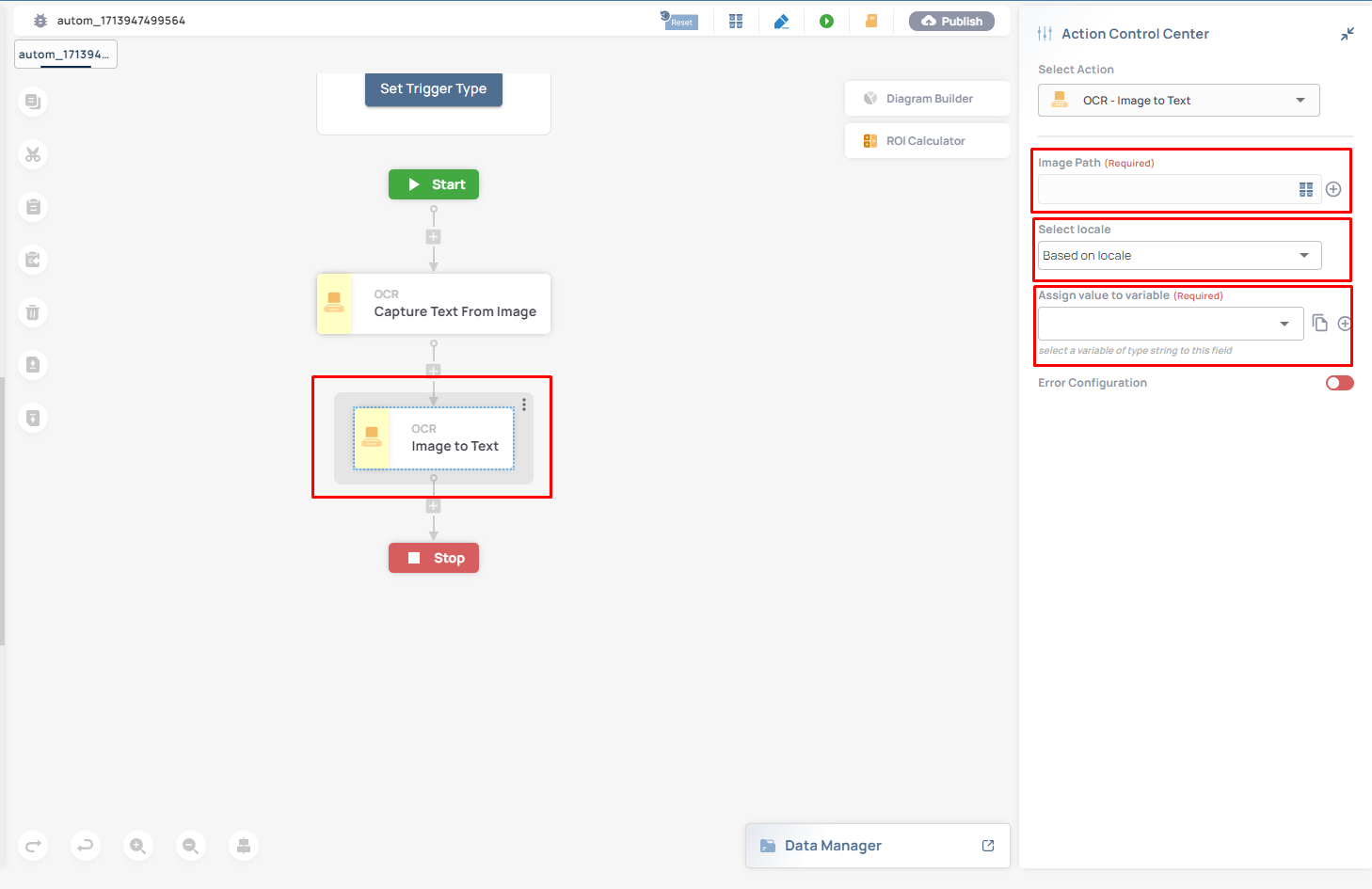
### **Image to Text**

<figure><img src="https://3857940684-files.gitbook.io/~/files/v0/b/gitbook-x-prod.appspot.com/o/spaces%2FJcSHU5jP5GABQrGmWvW2%2Fuploads%2F6ZzpMYi7JkmCg39xyiyQ%2Fya45AXOV9SfJNmHPeMMA-image.png?alt=media" alt="Earlier UI reference: OCR Image to Text. Check field labels against the installed library version."><figcaption><p>Earlier UI reference: OCR Image to Text. Check field labels against the installed library version.</p></figcaption></figure>

**Description:** Convert image characters into editable text format.

**Purpose:** To facilitate the conversion of images containing text into editable text data.

**Usage:**

* <mark style="color:green;">**Image Path (Required):**</mark> <mark style="color:green;"></mark><mark style="color:green;">Specify the path to the image file.</mark>
* <mark style="color:green;">**Trim the captured text:**</mark> <mark style="color:green;"></mark><mark style="color:green;">Remove any unnecessary whitespace from the extracted text.</mark>
* <mark style="color:green;">**Select locale:**</mark> <mark style="color:green;"></mark><mark style="color:green;">Choose the language locale for text recognition.</mark>
* <mark style="color:green;">**Assign value to variable:**</mark> <mark style="color:green;"></mark><mark style="color:green;">Store the converted text in a variable for further processing.</mark>

**Outputs:** Converted text stored in the specified variable.

***

## Additional Tips

### [**Use Cases**](/userguide/start-here/use-cases.md)

### [FAQ](/userguide/operate-and-troubleshoot/common-tasks-and-questions.md)

### Worked example: read a synthetic document label

Prepare a small clear image containing the text INVOICE DEMO 001. Use a test resource path reachable by the selected Mate Agent; do not use a customer invoice for this first exercise.

1\. Add OCR → Image to Text to an isolated Hyperflow. Set Image Path to the actual test image.

2\. Select the installed recognition locale appropriate for the English sample. Enable Trim the captured text if whitespace trimming is intended.

3\. Assign the extracted value to a String variable named invoice\_label.

4\. Run once and inspect the returned text. Compare the recognized words and digits with INVOICE DEMO 001; allow only the whitespace differences your next step is designed to accept.

5\. If characters are missing or incorrect, inspect the source image, locale and crop/quality before treating the result as an invoice identifier. A completed OCR action does not establish correct recognition.