> For the complete documentation index, see [llms.txt](https://docs.autommate.com/userguide/llms.txt). Markdown versions of documentation pages are available by appending `.md` to page URLs; this page is available as [Markdown](https://docs.autommate.com/userguide/integrations-and-api/libraries/integration/microsoft-teams.md).
# Microsoft Teams
## Introduction
Use Microsoft Teams actions in a Hyperflow to send messages and cards to the intended Teams conversation.
Configure the Teams bot connection first, then select that credential in the action and map the message or card content.
## What is Microsoft Teams?
Microsoft Teams provides workplace messaging, meetings and collaboration. The actions below connect supported Teams operations to an Autom Mate Hyperflow.
Teams provides chat, meetings and shared workspaces. This library covers the message and card actions listed below.
**Key Features:**
* Instant Messaging
* Video Conferencing
* File Sharing
* Collaboration Tools
## Autom Mate Integration with Microsoft Teams
Add a Teams action when a Hyperflow needs to notify a user or continue a conversation.
Select the destination conversation and message content required by the action. Test with an approved Teams user before enabling operational notifications.
**Examples of Automated Tasks:**
* Sending meeting notifications
* Reminding team members of tasks
* Sharing project updates
## Using the Integration
### Credentials
The Microsoft Teams credential uses the bot identity: Tenant ID, Microsoft App ID and Client Secret value. Use the same application identity for the Azure Bot, Teams app Bot ID and Autom Mate credential.
**How to Create Credentials:**
1. Navigate to Autom Mate's [Vault ](/userguide/integrations-and-api/manage-app-and-custom-credentials.md)under Manage.
2. Create a Microsoft Teams credential profile.
3. Enter the bot’s Tenant ID, Microsoft App ID and Client Secret value, then save. Use the secret value, not its identifier. Select this saved profile in the Teams action.
For Azure Bot registration, messaging endpoint, Teams app package and credential setup, follow [Set up a Microsoft Teams bot for Autom Mate](/userguide/administration-and-runtimes/teams-bot-setup.md). Use the permissions and scopes required by that design and your organisation’s approval process.
## How To Use Actions
Select the Teams action for the message or card you want to send.
### Send Card
{% embed url="" %}
**Description:** Create and send a card to Microsoft Teams for displaying organized information.
**Purpose:** To notify team members of meetings, tasks, or project updates in a visually enriched format.
**Usage:**
1. Select "Send Card" action in Autom Mate.
2. Specify the card type (e.g., "Meeting," "Task Reminder").
3. Provide card details including text, images, and relevant content.
4. Optionally assign any response to a variable for further processing.
**Inputs:**
* Card Type
* Card Details
* Assign Response to variable (optional)
**Outputs:**
* Confirmation of card sent
* Assigned response (if applicable)
***
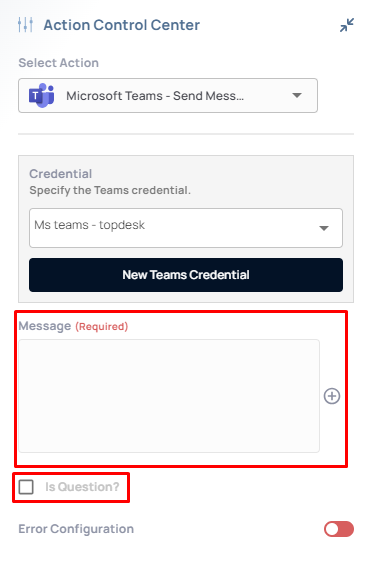
### Send Message
Enter the message, set Is Question as needed, and choose where to store the response.
**Description:** Send a specific text or message to Microsoft Teams for instant communication.
**Purpose:** To facilitate quick updates, announcements, or queries within the team.
**Usage:**
1. Choose "Send Message" action in Autom Mate.
2. Enter the message to be sent to Teams.
3. Specify if the message contains a question (Yes/No).
4. Optionally assign any response to a variable for further processing.
**Inputs:**
* Message
* Is Question (Yes/No)
* Assign Response to variable (optional)
**Outputs:**
* Confirmation of message sent
* Assigned response (if applicable)
***
## Additional Tips
### Prerequisites
Prepare the Azure Bot identity, Teams app and saved Microsoft Teams credential. Configure the Autom Mate-generated messaging endpoint for your selected Hyperflow or AI Agent route, then test a reply in the intended conversation.
### [**Use Cases**](/userguide/start-here/use-cases.md)
### [FAQ](/userguide/operate-and-troubleshoot/common-tasks-and-questions.md)