Variables and input/output contracts
Variables hold values used during an automation. A clear input/output contract makes a flow easier to reuse and easier for an AI client or another automation to call correctly.
Choose a type
The Work Item variable editor offers application credential, array, boolean, data table, date, number, object, and string. Choose the type according to the data being handled rather than how it happens to appear on screen.
A request ID or email address
String
A true/false decision
Boolean
A quantity used in arithmetic
Number
A list of results
Array
Rows and columns
Data Table
A structured record
Object, according to the action contract
A date value
Date
An identifier containing digits may still need to be a String, particularly when leading zeros matter.
Standalone Hyperflow example: define an output String
The standalone Hyperflow editor and Service Work Item editor expose different variable controls. This example uses a standalone Hyperflow from Build → Hyper Flows. Its Add New Variable dialog has Default Value and Set As → Input / Output. A Service Work Item's Use as Work Item Input checkbox is a separate interface and contract.
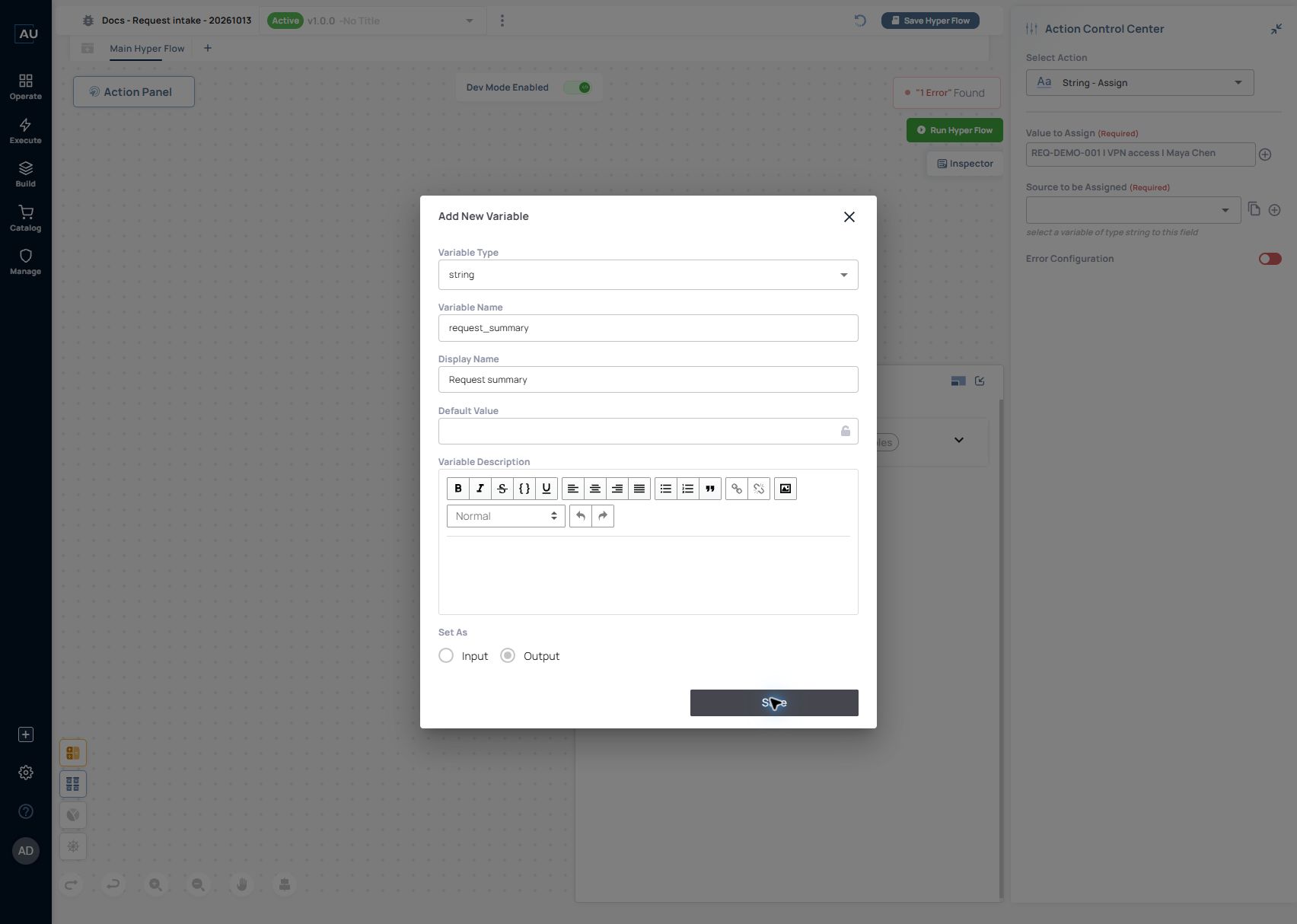
In the request-intake tutorial, open Add New Variable using the + next to String Assign's Source to be Assigned selector. Enter:
Variable Type
string
The request summary is text
Variable Name
request_summary
Stable name for the flow's value
Display Name
Request summary
Recognizable label for selectors
Default Value
Empty
String Assign supplies the value
Set As
Output
Identifies the variable's output role

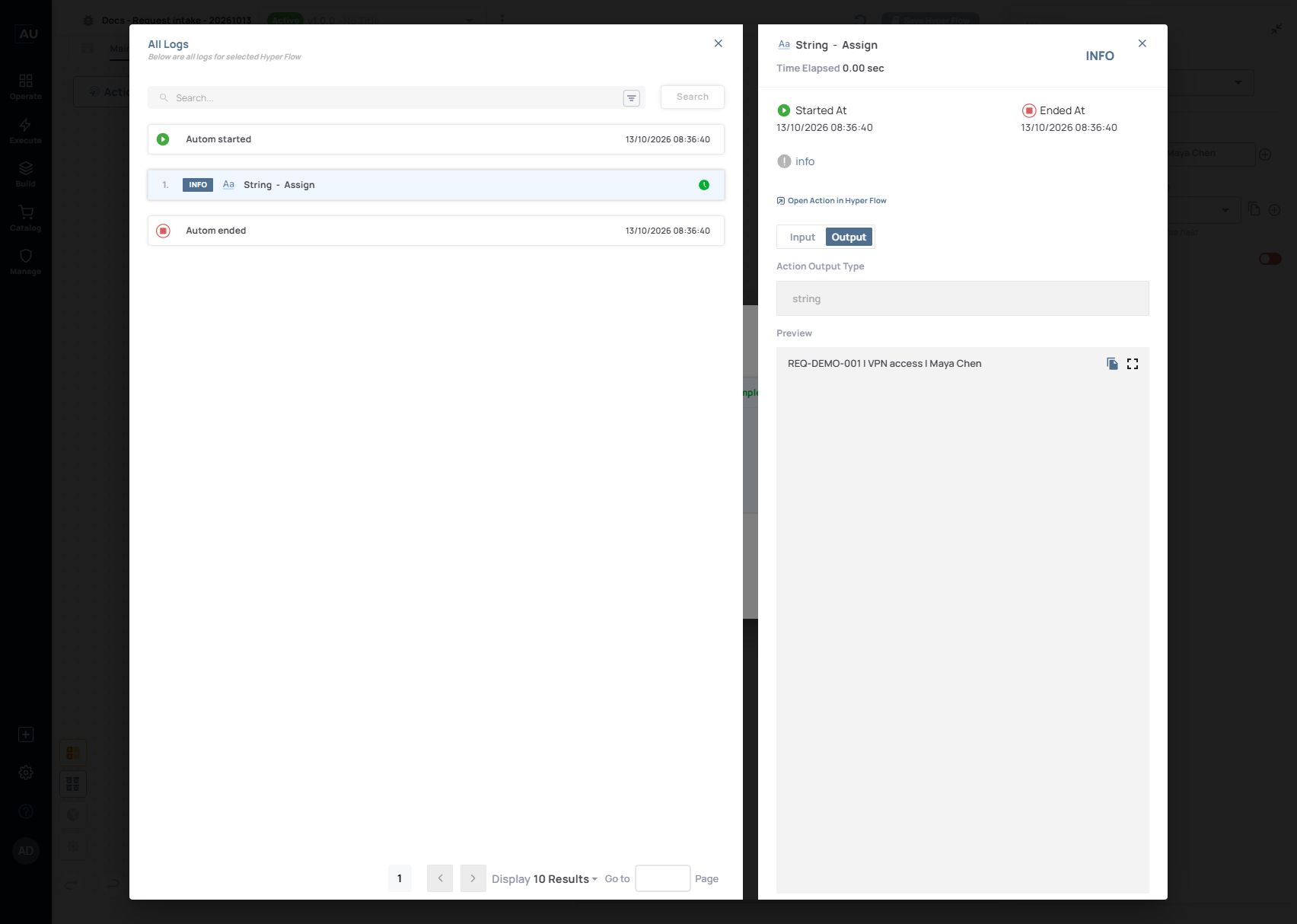
Select string explicitly; the type field must be filled. After saving, select the variable in the action and assign REQ-DEMO-001 | VPN access | Maya Chen.
For a repeatable test, record this small contract:
This JSON describes the tutorial's test contract; it is not a product API response schema. The manual-run action log confirmed the expected type and value under Output → Preview. Verify a caller response separately before documenting how an API or webhook returns this variable.

Define the variable

In the Work Item editor, open Action Panel → Variables → Add New. The Add New Variable dialog contains Variable Type, Variable Name, Display Name, and Variable Description.
The dialog also has Use as Work Item Input, with an Input variable checkbox. When enabled, the released Service Work Item expects this variable as an input. Leave it disabled for an internal Hyperflow variable. This control belongs to the Work Item input contract; standalone Hyperflows use their own variable controls.
Document required values and defaults explicitly. Declaring an input does not, by itself, validate its business meaning. Define and verify the output contract with the actions and caller that consume the result.
The documented substitution syntax encloses the variable name in double hash symbols:
For structured values, use the field selection provided by the action or Data Manager. Confirm the actual structure before writing an indexed reference.
Write a small contract
For a request lookup, a useful design contract is:
Input
request_id
Identifier of the request to retrieve
Output
request_record
Retrieved record needed by the next step
Output
lookup_result
A result that distinguishes a match, no match, and failure
These are suggested names for your design, not built-in Autom Mate fields. Choose the exact representation in the flow and keep it consistent for callers.
Verify the contract
Test a valid ID, an empty input, and an ID with no matching record. Check that consumers can distinguish these outcomes. Preserve types across action boundaries; a number, a string containing a number, and an empty string are different inputs.
Keep credentials in the appropriate credential mechanism rather than ordinary demonstration variables. Capture a redacted example of the input and output with the automation so that a human or an AI client can understand how to call it.
Last updated
Was this helpful?