Manage files in Mate Drive
Use Mate Drive to manage files used by a Hyperflow. Keep the selected Hyperflow version and the file's path together so that a flow uses the intended resource.
Before you start
Open the intended Hyperflow and select its Dev version for file changes.
Prepare a small sample file and confirm the storage/file-size allowance shown by your environment.
Identify any action that references the file.
Keep a copy of a file before replacing or deleting it.
Upload a file
Open Mate Drive for the selected Hyperflow version.
Navigate to the intended folder using the folder tree or breadcrumb.
Upload the sample file.
Confirm the filename and path in the file list.
Select or map the file in the action that will use it.
Run a controlled test and inspect that action's output.
If the upload adds a suffix to a duplicate filename, use the resulting filename rather than assuming the original path was replaced.
Organize and reuse files
Select the Dev version and locate the file.
Use the available folder and file controls to organize it.
If copying a file from another version into Dev, verify both the source and destination.
Recheck any action path after moving or renaming a file.
Before releasing the Hyperflow, confirm that the required file is available to the version you intend to run.
The Active version is intended for released resources. Make file changes through the appropriate editable version instead of treating the production file list as a shared scratch folder.
Remove an unused file
Check for actions that reference the file.
Keep any required recovery copy.
Select the file in the editable version and use the available delete control.
Confirm the filename and version before accepting deletion.
Test any affected flow path.
Historical-version file permissions can differ. Use only the operations offered by the selected version; do not work around a disabled control.
Expected result
The action reads the intended file from the intended version, and unrelated versions retain their expected resources.
Troubleshoot
Upload rejected: check file size, available storage, permissions, and the selected version.
File not found: compare the actual path and filename after upload, copy, or move.
Works in Dev but not after release: check the file/resource referenced by the released version.
Duplicate file: inspect the generated suffix and update the consuming action if needed.
Related reference
Try it: upload a CSV and use its versioned path
Use the three-line synthetic docs-departments.csv from the CSV example. The captured file is 59 bytes and contains request_id,department followed by REQ-DEMO-001,finance and REQ-DEMO-002,hr on separate lines.
1. Open Docs - Action examples - 20261013 in Dev v1.0.1 and select the Mate Drive control. Check the version displayed inside the Mate Drive dialog.
2. Use Add New to create the test folder docsexamples20261013. Open it and choose Upload File. After uploading, the list shows docs-departments.csv, 59 Bytes and the last-modified time.

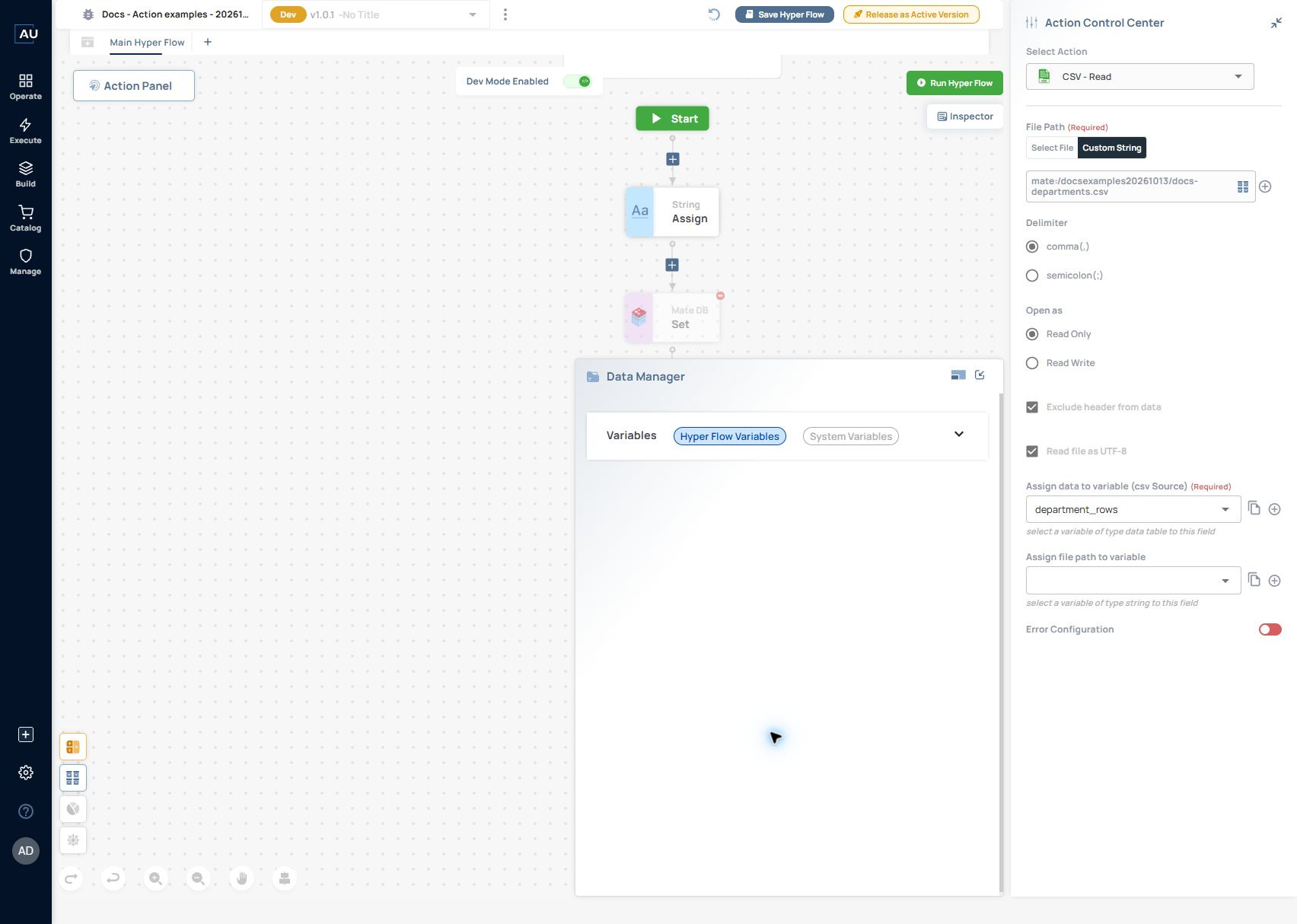
3. Use Copy Path for the folder. In this example it returns mate:/docsexamples20261013. The consuming action uses the complete path mate:/docsexamples20261013/docs-departments.csv. Copy the actual filename if your upload receives a duplicate-name suffix.
4. Add CSV → Read in the same Dev Hyperflow. Choose Custom String for File Path, enter the complete mate:/ path, select comma(,), Read Only, Exclude header from data and Read file as UTF-8. Map csv Source to the Data Table variable department_rows.

5. Save and run the Hyperflow. CSV Read completed with INFO at 11:10:03 on 13 October 2026 and returned a generated file-path string in its action preview. This checks that the resource path can be read, rather than previewing every table row. The follow-on Data Table Length returned 3 for the header plus two business-data records with Exclude header from data both selected and cleared. Engineering is tracking this behavior in the checked release. Follow the CSV guide and inspect the first row before using the records.
6. Before releasing, confirm which resource the intended version uses. A file uploaded to Dev does not by itself verify availability in an existing Active version. Keep the synthetic file until its consuming action and data mapping have been checked.
Was this helpful?