> For the complete documentation index, see [llms.txt](https://docs.autommate.com/userguide/llms.txt). Markdown versions of documentation pages are available by appending `.md` to page URLs; this page is available as [Markdown](https://docs.autommate.com/userguide/build-automations/extend-a-flow-with-custom-actions-and-scripts.md).

# Extend a flow with custom actions and scripts

Start with the available action for the operation you need. Use a REST request or script when a supported action does not cover the required behavior. Keep the extension small enough to test independently.

### Choose the extension method

| Method              | Use for                                            | Contract to record                                         |
| ------------------- | -------------------------------------------------- | ---------------------------------------------------------- |
| Existing app action | An operation already represented in the app        | App version, credential, required fields, output           |
| RESTful Web Service | Calling an HTTP API                                | Method, URL, authentication, headers, body, response       |
| Python              | Scripted processing or a specific integration task | Script input, dependencies, output, failure behavior       |
| PowerShell          | Scripted processing or administration              | Execution identity, modules, targets, output               |
| Custom app/library  | Reusing a maintained set of actions                | Owner, package version, dependencies, supported operations |

### REST requests

The documented RESTful Web Service actions include **GET**, **POST**, **PUT**, **PATCH**, and **DELETE**. Their configuration includes a **Request URL**, authentication, headers, content type, and relevant query or body parameters. The response can be assigned to a variable.

Use the target API's contract to choose the method and payload. Do not infer field names or update semantics from the HTTP method alone. Start with a read operation and inspect the response before adding a write.

### Python and PowerShell

The documented Python **Open** action prepares a script from a file or editor and assigns script data to a variable. **Run** executes the script and captures its output. PowerShell documentation describes a **Run** action accepting a script variable or commands and an output assignment.

Before running a script, establish which machine executes it, which identity it uses, and which packages or modules it needs. A file available on your laptop may not exist on the execution host. Use explicit inputs and return a small, structured result that the next action can validate.

### Make the extension maintainable

Give each custom action or script an owner and a version. Document the target API version, required permissions, input types, output shape, timeout expectations, and whether retrying can duplicate an operation.

For a shared app/library, maintain the package and its action contracts together. Test upgrades against the Hyperflows that consume it before changing operational dependencies.

### Acceptance checks

Test valid input, missing input, a dependency failure, and a downstream error. Verify that errors are distinguishable from empty but successful results. Check the target system after a write. Keep secrets out of script source and diagnostic output.

The completion criterion is a repeatable input/result contract, not merely a script that runs once on a developer’s workstation.

### Start with a script that has no external dependency

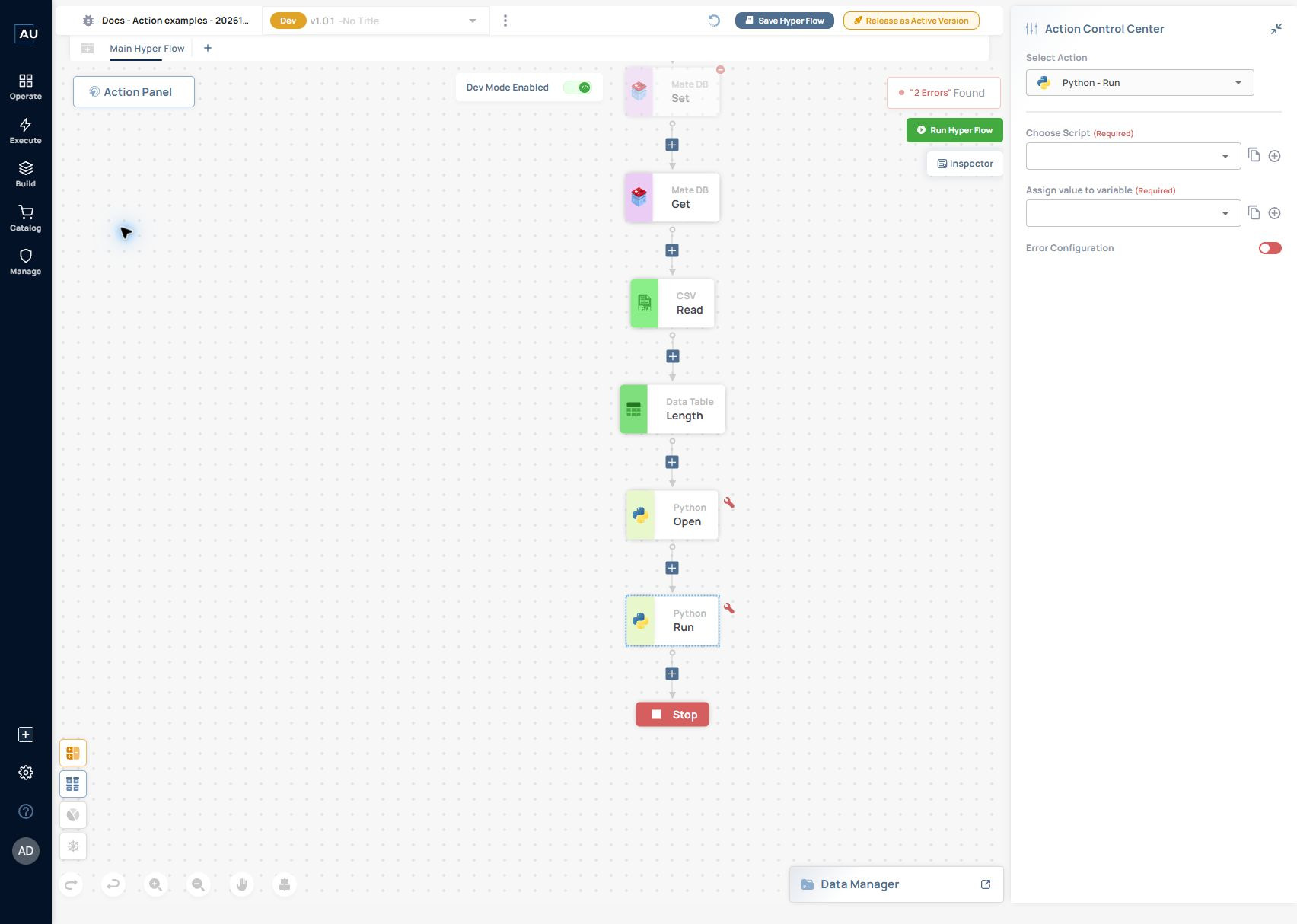
Start with a fixed local response before adding API calls, packages or administrative commands. The Python screens below illustrate Open → Run configuration; the code was entered into an unsaved test draft and was not executed.

1\. Confirm the selected Mate Agent has the intended interpreter and execution identity. This must be checked on the runtime, not inferred from the browser machine.

2\. For Python, select Manual Input in Open, open the code editor and enter the fixed-response example shown below. Use Assign value to variable to store the prepared script, then select that variable in Run → Choose Script. Assign the Run output separately. For PowerShell, use its documented code entry and output assignment.

<figure><img src="https://3857940684-files.gitbook.io/~/files/v0/b/gitbook-x-prod.appspot.com/o/spaces%2FJcSHU5jP5GABQrGmWvW2%2Fuploads%2F2D4L4TkuPIyc3Zel4Qfw%2Fpython-open-form.jpg?alt=media" alt="Python Open can use File Path or Manual Input. The illustrated code has been entered, but Assign value to variable is blank, so this draft is incomplete."><figcaption><p>Python Open can use File Path or Manual Input. The illustrated code has been entered, but Assign value to variable is blank, so this draft is incomplete.</p></figcaption></figure>

<figure><img src="https://3857940684-files.gitbook.io/~/files/v0/b/gitbook-x-prod.appspot.com/o/spaces%2FJcSHU5jP5GABQrGmWvW2%2Fuploads%2FRhj2jndJq2AatQZmrSV2%2Fpython-code-editor.jpg?alt=media" alt="The current Python code editor with a fixed DOCS_PYTHON_OK response. This is a code-entry illustration; it was not saved or run."><figcaption><p>The current Python code editor with a fixed DOCS_PYTHON_OK response. This is a code-entry illustration; it was not saved or run.</p></figcaption></figure>

<figure><img src="https://3857940684-files.gitbook.io/~/files/v0/b/gitbook-x-prod.appspot.com/o/spaces%2FJcSHU5jP5GABQrGmWvW2%2Fuploads%2Fk4FyBbABHguW3h0LsCwk%2Fpython-run-form.jpg?alt=media" alt="Python Run requires Choose Script and Assign value to variable. Both are empty in this screenshot, explaining the draft validation errors; it is not an execution failure."><figcaption><p>Python Run requires Choose Script and Assign value to variable. Both are empty in this screenshot, explaining the draft validation errors; it is not an execution failure.</p></figcaption></figure>

Open and Run are separate actions. Prepare and assign the script in Open; Run consumes that script variable and assigns the returned result. Complete the mandatory mappings before testing, and use the action log to verify the actual return shape.

3\. Run only the completed test copy after checking the required entry point and interpreter for the installed action. Open the Run action log and inspect its returned value. For the illustrated Python response, compare the result with DOCS\_PYTHON\_OK; this remains an acceptance check, not a result from the captured draft.

4\. If the interpreter or a dependency is unavailable, stop at that error and resolve the runtime requirement before adding application integration logic.

5\. Keep one input/result contract as you expand the script. Add one external dependency at a time so its failure can be distinguished from a local script failure.