> For the complete documentation index, see [llms.txt](https://docs.autommate.com/userguide/llms.txt). Markdown versions of documentation pages are available by appending `.md` to page URLs; this page is available as [Markdown](https://docs.autommate.com/userguide/build-automations/choose-a-trigger-and-schedule.md).

# Choose a trigger and schedule

A trigger starts an automation. Choose it according to where the request originates and how quickly it needs to be handled.

| Trigger   | Use when                                  | Prepare                                                     |
| --------- | ----------------------------------------- | ----------------------------------------------------------- |
| Webhook   | Another application sends an event        | Sender configuration, payload, endpoint, authentication     |
| API       | A caller explicitly requests an operation | Method, endpoint, inputs, authentication, response contract |
| Email     | Work arrives in a mailbox                 | Mail connection, polling interval, filters, output variable |
| Scheduled | Work should run at planned times          | Timing Type, dates, interval, time zone                     |

### Worked example: start one manual run and find its evidence

Use a manual run to verify a small flow before adding an external event or schedule. This example uses the local String Assign flow from [Build a Hyperflow](/userguide/build-automations/build-a-hyperflow.md). It prepares a request summary without calling a business application.

1. Open `Docs - Request intake - 20261013` and check the displayed version. The captured example is `v1.0.0`.
2. Select **Run Hyper Flow**. The run opens in the **Manual Trigger** dialog.
3. Wait for the result, then use the dialog's log icon to open **Logs Summary**.
4. Match the flow name, version and start time to the run you just requested. Keep the timestamp's time zone with your test record.
5. Select **View All Logs**, open the **String Assign** action details, choose **Fetch Input/Output Values**, and inspect **Output**.

<figure><img src="https://3857940684-files.gitbook.io/~/files/v0/b/gitbook-x-prod.appspot.com/o/spaces%2FJcSHU5jP5GABQrGmWvW2%2Fuploads%2FTpS65WSSjPerdbwO69XD%2F05-run-summary.jpg?alt=media" alt="Logs Summary for the manual request-intake run, showing version 1.0.0 and one transaction."><figcaption></figcaption></figure>

The presales run on 13 October 2026 at 08:36:40, browser Türkiye time, completed successfully with one transaction. Its String Assign output was exactly:

{% code collapsedlinecount="10" %}

```
REQ-DEMO-001 | VPN access | Maya Chen
```

{% endcode %}

Use this known input/output pair when checking another trigger. Match an actual schedule, email or webhook event to its own execution rather than reusing the earlier manual-run result. The scheduled example below checks that path separately.

### Webhook and API triggers

Copy the endpoint displayed for the intended automation and version. Do not construct the URL from a different environment. Treat any endpoint containing an API key as a credential.

For incoming requests, the documented system values include **triggerParam** and **triggerHeader**. They are provided by the trigger and are read-only. Map the fields required by your automation into the next actions.

Use [webhooks, API rules, and responses](/userguide/integrations-and-api/webhooks-api-rules-and-responses.md) to define which request should be accepted and what the caller should receive.

### Email triggers

Email triggers periodically check a configured mailbox. The documented connection fields include **Host Address**, **Connection Method**, **Port**, and **Interval Type**. Filters include **From Address**, **CC**, **Email Subject**, and **Email Description**.

The retrieved messages can be assigned to an Array variable. The documented message data includes Id, Subject, Body, From, CC, Date, and Attachments. Match the authentication method to the mailbox provider and the connector configuration.

Start with a dedicated test message that should match and another that should not. Confirm the result before monitoring a busy mailbox.

### Scheduled triggers

Open Configure Trigger for Schedule, then inspect the selected Mate Agent and Agent Time Zone. In the current one-time example, Schedule Type is Only once and Date / Time selects the due date and time. Other timing types expose their applicable interval/day settings.

Record the intended time zone alongside the schedule. Browser time, runtime settings, and host log timestamps may differ, so compare timestamps with their zones when checking a run. Do not assume that a schedule configured from one computer uses that computer's local time for every stage.

### Verify before leaving a trigger active

Confirm which automation version the trigger addresses. Run one controlled test, find its execution record, and compare its start time and payload with the source event. Check that nonmatching data does not reach the business operation.

After saving a schedule, check execution history at its first due time. For an external trigger, agree how duplicate events and retries will be handled before enabling writes to operational systems.

### Worked example: start the request-intake flow on a one-time schedule

Use a harmless local flow before scheduling business-system actions. This example uses Docs - Request intake - 20261013, Dev v1.0.1, which returns the fixed request-summary text. The earlier manual run on this page used Active v1.0.0; keep the two executions distinct.

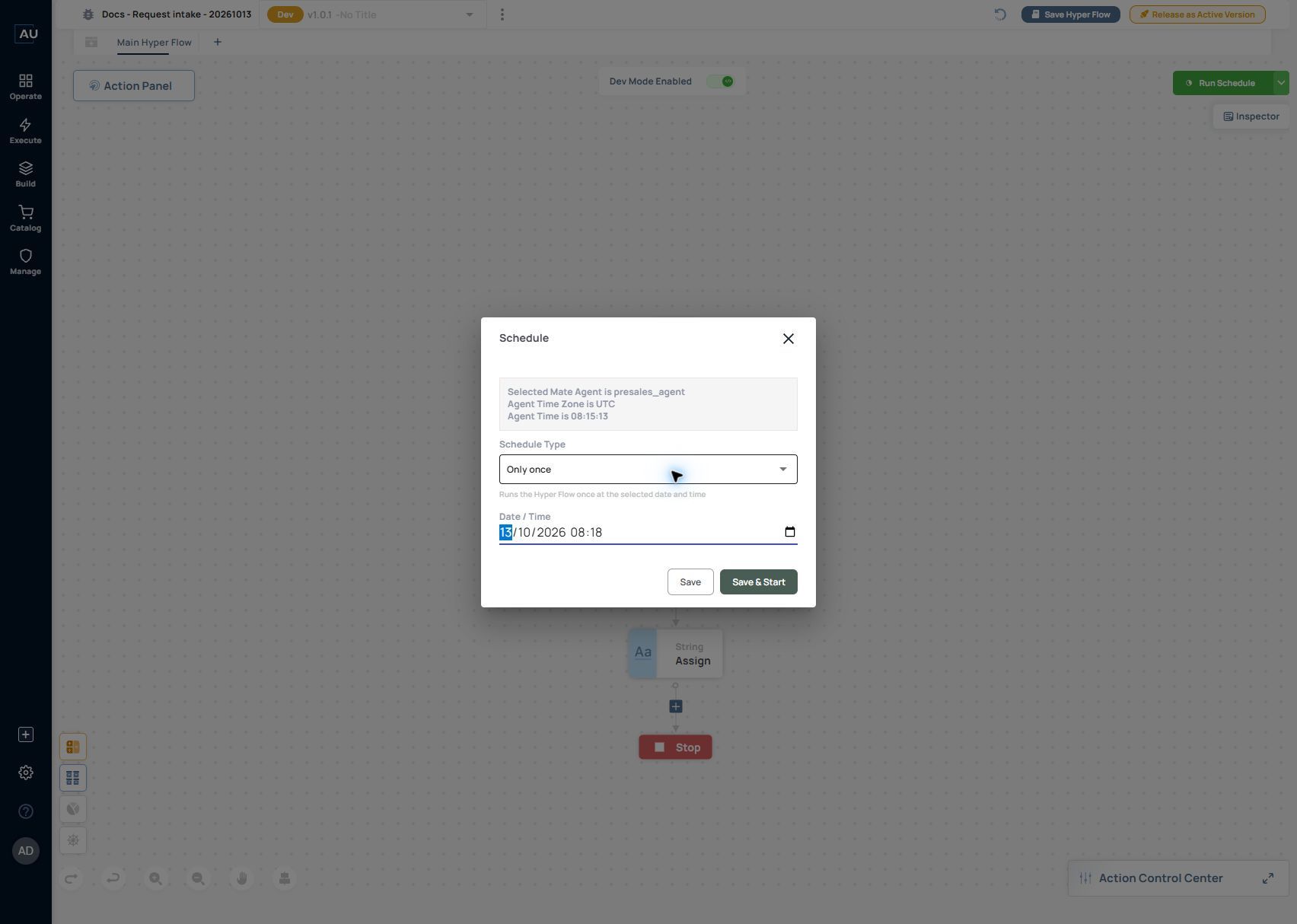
1\. Open the test Hyperflow and confirm the version and selected Mate Agent. Configure its trigger as Schedule and open the schedule configuration. In this example, the selected Agent is presales\_agent and Agent Time Zone is UTC.

2\. Select Only once under Schedule Type. Choose a future Date / Time using the displayed Agent time zone. The captured example selected 13 October 2026 at 08:18 UTC, equivalent to 11:18 in Türkiye (UTC+3). Use a new future time when reproducing it.

<figure><img src="https://3857940684-files.gitbook.io/~/files/v0/b/gitbook-x-prod.appspot.com/o/spaces%2FJcSHU5jP5GABQrGmWvW2%2Fuploads%2FrQIhROkD78ORaMQTTNtn%2Fschedule-once-config.jpg?alt=media" alt="Only once is configured for 08:18 in the selected Agent’s UTC time zone."><figcaption><p>Only once is configured for 08:18 in the selected Agent’s UTC time zone.</p></figcaption></figure>

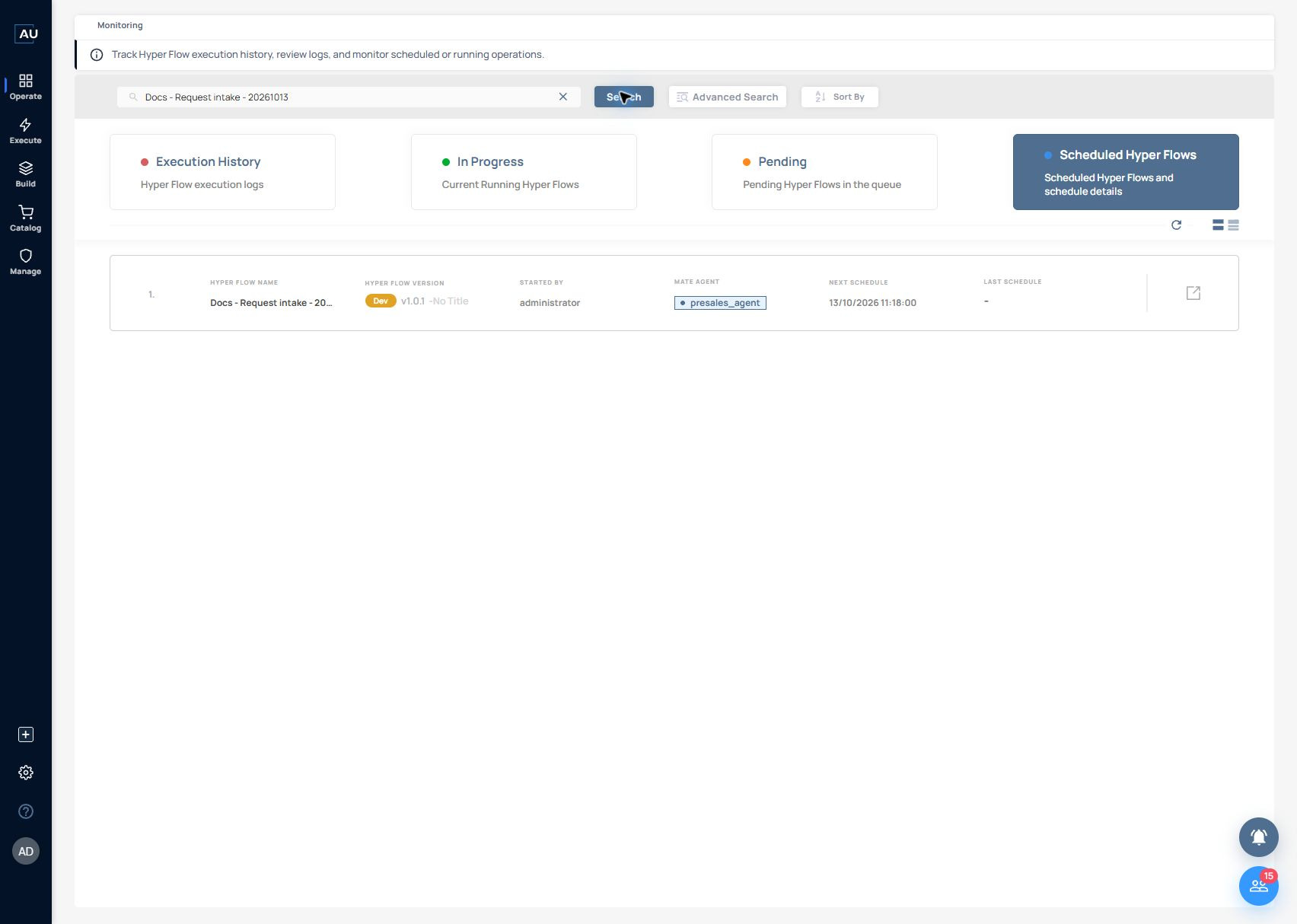
3\. Select Save & Start. Open Operate → Monitoring → Scheduled Hyper Flows and search for the exact test name. The saved schedule showed Dev v1.0.1 on presales\_agent with Next Schedule 13/10/2026 11:18:00 in the Türkiye browser display.

<figure><img src="https://3857940684-files.gitbook.io/~/files/v0/b/gitbook-x-prod.appspot.com/o/spaces%2FJcSHU5jP5GABQrGmWvW2%2Fuploads%2Fmo4E1xa1MjVk12VWZuXD%2Fschedule-once-saved.jpg?alt=media" alt="Scheduled Hyper Flows displays the same due time as 11:18 in the Türkiye browser."><figcaption><p>Scheduled Hyper Flows displays the same due time as 11:18 in the Türkiye browser.</p></figcaption></figure>

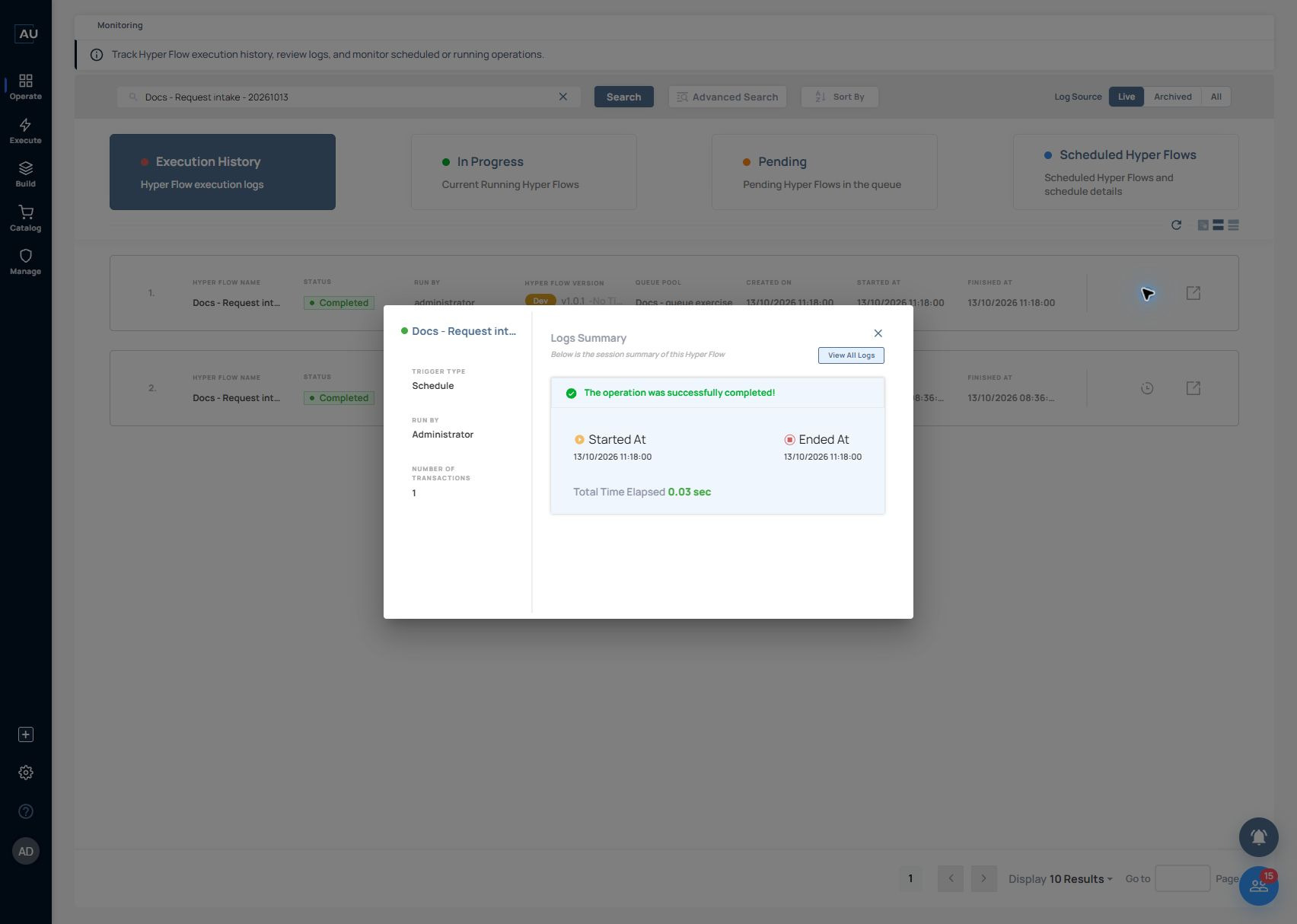
4\. After the due time, open Execution History and search for the same name. The matching Dev v1.0.1 record was Completed, with Created On, Started At and Finished At all 13/10/2026 11:18:00. Its displayed Queue Pool was Docs - queue exercise. Open its log details: Logs Summary shows Trigger type Schedule, one transaction and successful completion in 0.03 seconds.

<figure><img src="https://3857940684-files.gitbook.io/~/files/v0/b/gitbook-x-prod.appspot.com/o/spaces%2FJcSHU5jP5GABQrGmWvW2%2Fuploads%2FUuAnGnkYkIFlf1NxdIYi%2Fschedule-once-trigger-success.jpg?alt=media" alt="Logs Summary identifies this as a Schedule trigger and confirms successful completion at 11:18:00."><figcaption><p>Logs Summary identifies this as a Schedule trigger and confirms successful completion at 11:18:00.</p></figcaption></figure>

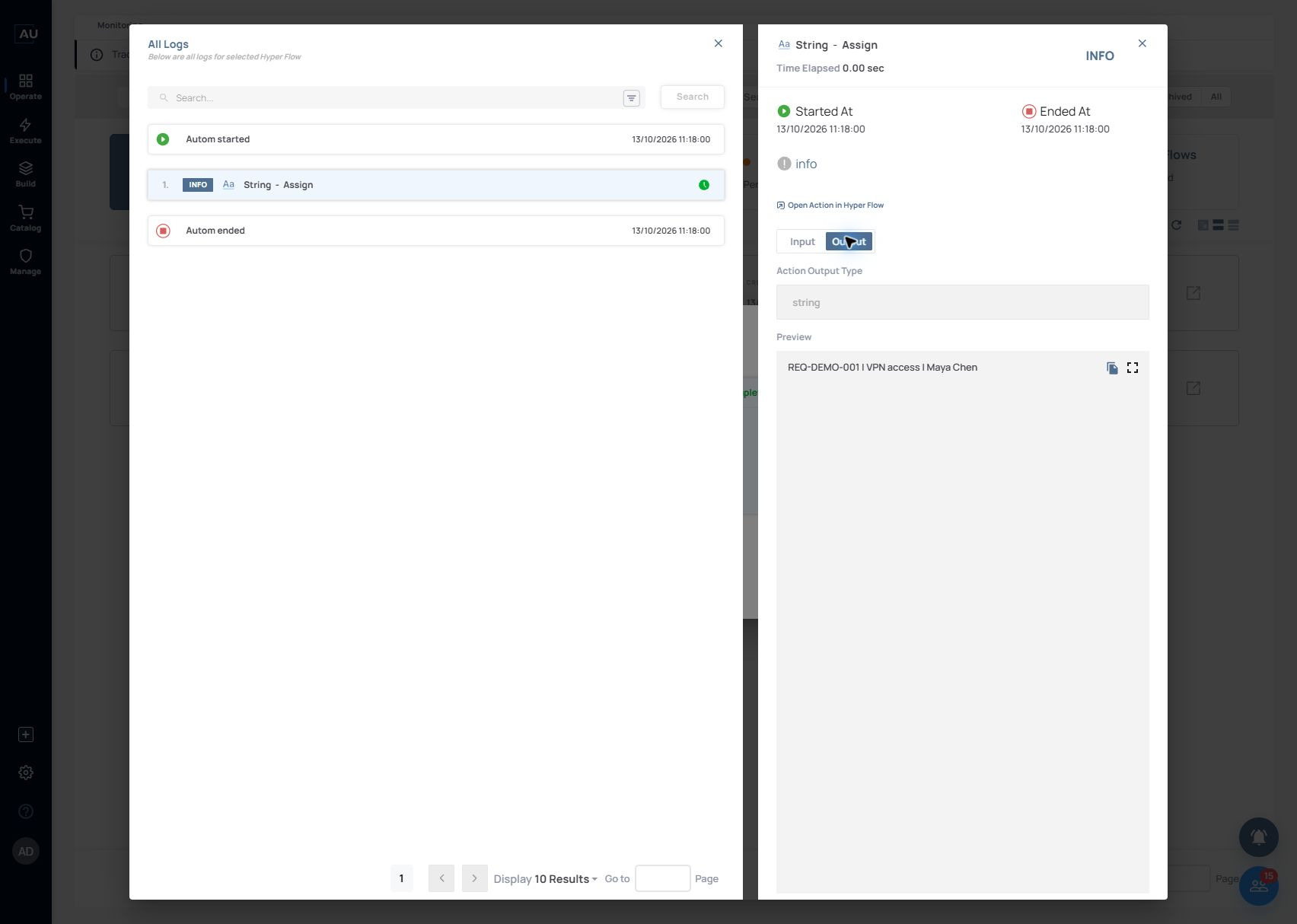
5\. In that execution, select View All Logs → String - Assign → Fetch Input/Output Values → Output. The scheduled 11:18:00 run returned type string and Preview REQ-DEMO-001 | VPN access | Maya Chen. Match the due time, trigger type and output together when checking your own test.

<figure><img src="https://3857940684-files.gitbook.io/~/files/v0/b/gitbook-x-prod.appspot.com/o/spaces%2FJcSHU5jP5GABQrGmWvW2%2Fuploads%2FQpAUx5TCUPfNR0IlEhpH%2Fschedule-once-output.jpg?alt=media" alt="The scheduled run returns the expected request-summary string; this is the 11:18 execution, not the earlier manual test."><figcaption><p>The scheduled run returns the expected request-summary string; this is the 11:18 execution, not the earlier manual test.</p></figcaption></figure>

6\. Reload Monitoring → Scheduled Hyper Flows and search for the same name. After the one-time execution, the captured check showed No Operations Found. Keep the completed history record as the result; an empty future-schedule list is expected for this finished one-time test.

If no matching execution appears, recheck the saved state, Agent time zone, selected version and Pending/In Progress before starting a manual retry. A manual run is a separate event and can hide a schedule problem. For a one-time test, review the schedule afterwards for any unintended future recurrence.