> For the complete documentation index, see [llms.txt](https://docs.autommate.com/userguide/llms.txt). Markdown versions of documentation pages are available by appending `.md` to page URLs; this page is available as [Markdown](https://docs.autommate.com/userguide/build-automations/build-a-hyperflow.md).

# Build a Hyperflow

Build a small Hyperflow that prepares a readable summary of a fictional VPN access request. This walkthrough shows the complete first path: create the flow, add String Assign, define its output variable, save it, and inspect a manual run.

The example prepares request data. It does not create a VPN account, open a ticket, send a message or contact an external system.

**Example environment:** presales, 13 October 2026. Select the Mate Agent for your own environment; `presales_agent` is the name used in this example.

### What you will build

{% code collapsedlinecount="10" %}

```mermaid
flowchart LR
    A[Start] --> B["String · Assign<br/>Prepare the request summary"]
    B --> C[Stop]
    B -. output .-> D["request_summary<br/>REQ-DEMO-001 | VPN access | Maya Chen"]
```

{% endcode %}

The solid line is the canvas path. The dotted line shows the value produced by the action; the output variable is not a separate canvas action.

| Sample detail       | Value                                     |
| ------------------- | ----------------------------------------- |
| Request identifier  | `REQ-DEMO-001`                            |
| Requested service   | `VPN access`                              |
| Fictional requester | `Maya Chen`                               |
| Output variable     | `request_summary`                         |
| Expected text       | `REQ-DEMO-001 \| VPN access \| Maya Chen` |

### 1. Create the Hyperflow

1. Open **Build → Hyper Flows**.
2. Select **Create New Hyper Flow**.
3. Complete the dialog using the values below.
4. Select **Create**.

| Field            | Value used in the example                                                                                                           |
| ---------------- | ----------------------------------------------------------------------------------------------------------------------------------- |
| Hyper Flow Name  | `Docs - Request intake - 20261013`                                                                                                  |
| Hyper Flow Type  | Hyper Flow                                                                                                                          |
| Description      | `Documentation example: prepare and inspect a synthetic service request using local text actions. No external application changes.` |
| Hyper Flow Group | Demo                                                                                                                                |
| Mate             | presales\_agent                                                                                                                     |

Choose an existing group and an appropriate Mate Agent in your own environment. The example uses no execution queue.

<figure><img src="https://3857940684-files.gitbook.io/~/files/v0/b/gitbook-x-prod.appspot.com/o/spaces%2FJcSHU5jP5GABQrGmWvW2%2Fuploads%2FzIEv6596ozLZCf7NuERW%2F01-create-hyperflow.jpg?alt=media" alt="Create New Hyper Flow filled with the request-intake example, Hyper Flow type, Demo group and presales_agent."><figcaption><p>Enter the example name, choose the Hyperflow type, and select the group and Mate Agent for your environment.</p></figcaption></figure>

*The group organizes the flow. Mate selects its execution environment.*

### 2. Add the String Assign action

1. On the canvas, use the **+** after **Start** to open the Action Panel.
2. Search for `assign`.
3. Choose **String → Assign**. The search also returns actions for other data types; use String for this text value.
4. In **Action Control Center**, enter the following in **Value to Assign**:

{% code collapsedlinecount="10" %}

```
REQ-DEMO-001 | VPN access | Maya Chen
```

{% endcode %}

5. Beside **Source to be Assigned**, select **+** to create the String variable that will receive the value.

Despite its label, **Source to be Assigned** selects the variable receiving this assignment. **Value to Assign** contains the text being written into it.

### 3. Define the output variable

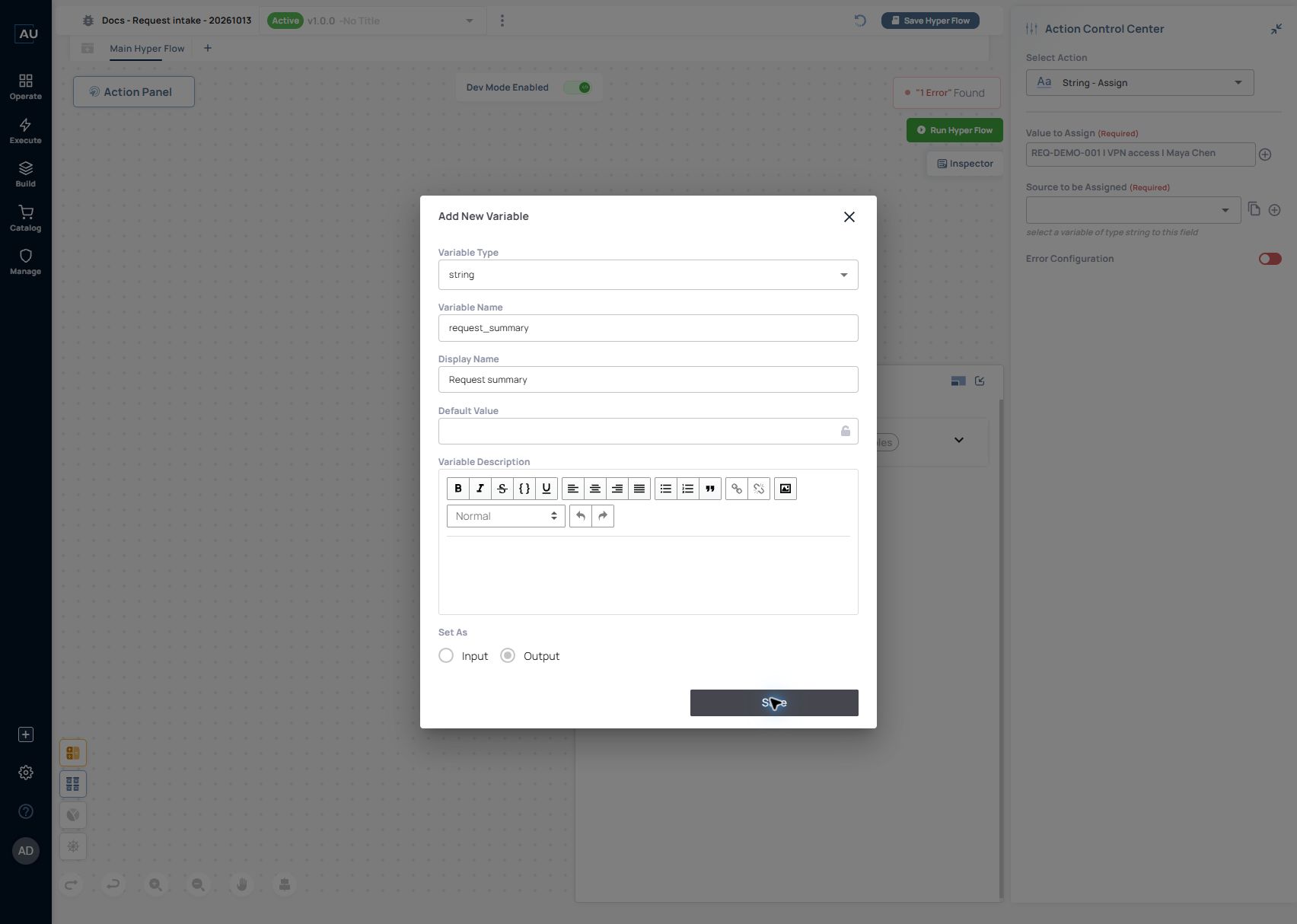
Complete **Add New Variable** as follows:

| Field         | Value             |
| ------------- | ----------------- |
| Variable Type | string            |
| Variable Name | `request_summary` |
| Display Name  | `Request summary` |
| Default Value | Leave empty       |
| Set As        | Output            |

Select **Save**. Return to the action and select **Request summary** in **Source to be Assigned** if it is not already selected.

<figure><img src="https://3857940684-files.gitbook.io/~/files/v0/b/gitbook-x-prod.appspot.com/o/spaces%2FJcSHU5jP5GABQrGmWvW2%2Fuploads%2F4RGi2IC9iRljHQgxDS1h%2F02-output-variable.jpg?alt=media" alt="The new String variable is named request_summary, displays Request summary and is marked Output."><figcaption><p>Create the request_summary String variable and select Output so you can inspect its run value.</p></figcaption></figure>

*Choose `string` explicitly. The type field is required. Set As Output identifies the variable's output role; it does not execute the flow.*

The friendly **Display Name** appears in selectors. The **Variable Name** identifies the variable in expressions and contracts. Keep the two recognizable, especially when a flow has several values of the same type.

### 4. Review the filled action

Check both required fields before saving:

| Action field          | Expected selection                        |
| --------------------- | ----------------------------------------- |
| Value to Assign       | `REQ-DEMO-001 \| VPN access \| Maya Chen` |
| Source to be Assigned | Request summary (`request_summary`)       |

<figure><img src="https://3857940684-files.gitbook.io/~/files/v0/b/gitbook-x-prod.appspot.com/o/spaces%2FJcSHU5jP5GABQrGmWvW2%2Fuploads%2FWaPla7SnIV6xo2BVhtnG%2F03-string-assign.jpg?alt=media" alt="String Assign contains the sample request text and selects Request summary as the receiving variable."><figcaption><p>Put the sample text in Value to Assign and choose the receiving String variable.</p></figcaption></figure>

*The literal and receiving variable are configured in the same action. No application credential is required for this local assignment.*

Close or move the configuration panels as needed and inspect the canvas. It should have one String Assign action connected between Start and Stop.

### 5. Save and run

1. Select **Save Hyper Flow**.
2. Confirm the resource name and version in the header.
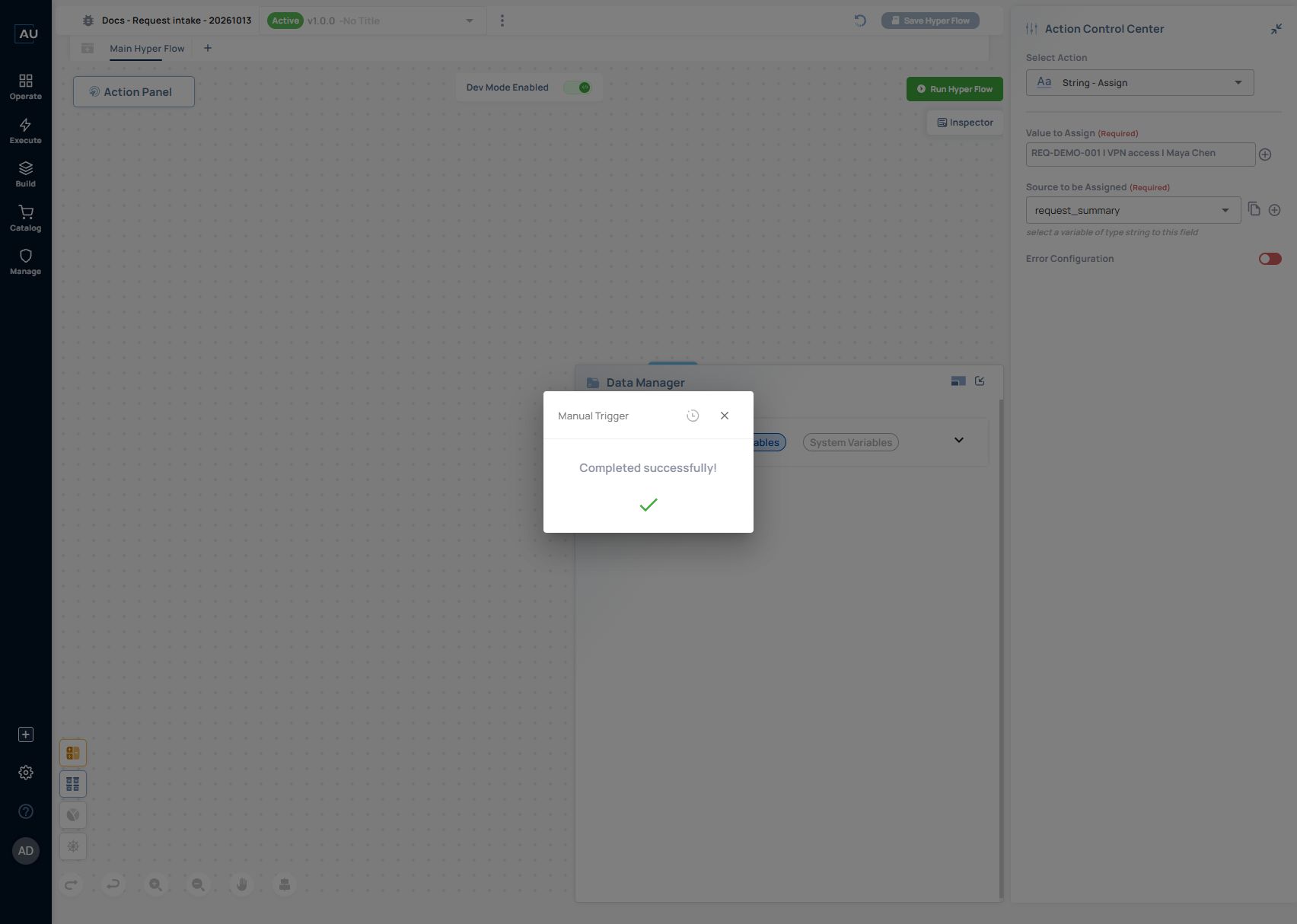
3. Select **Run Hyper Flow** once.
4. When **Manual Trigger** reports completion, select its log/history icon to open **Logs Summary**.
5. Check that the summary belongs to this example, then select **View All Logs**.

Saving and running are separate operations. The **Dev Mode Enabled** canvas indicator is also distinct from the version label in the header. Record both when reviewing a run rather than assuming one label describes every aspect of its state.

<figure><img src="https://3857940684-files.gitbook.io/~/files/v0/b/gitbook-x-prod.appspot.com/o/spaces%2FJcSHU5jP5GABQrGmWvW2%2Fuploads%2FPPHHD4AmsnwhtIT1axbW%2F04-manual-run-success.jpg?alt=media" alt="The example&#x27;s Manual Trigger reports Completed successfully."><figcaption><p>Run the Hyperflow manually, then open the run history to inspect the result.</p></figcaption></figure>

*This confirms execution completed. Open the logs to check the work and its value.*

<figure><img src="https://3857940684-files.gitbook.io/~/files/v0/b/gitbook-x-prod.appspot.com/o/spaces%2FJcSHU5jP5GABQrGmWvW2%2Fuploads%2FTpS65WSSjPerdbwO69XD%2F05-run-summary.jpg?alt=media" alt="Logs Summary shows the manual trigger, successful completion and execution time for the request-intake flow."><figcaption><p>Match the resource and execution time, then open View All Logs.</p></figcaption></figure>

The recorded run used v1.0.0 on 13 October 2026 at 08:36:40 in the browser's Türkiye time zone. Logs Summary displayed **1** transaction and **0.03 sec**. These are the fields for this small example, not a billing measure or a throughput benchmark.

### 6. Verify the result

Check the flow's execution and value separately:

| Check            | Expected result                                                   |
| ---------------- | ----------------------------------------------------------------- |
| Executed flow    | `Docs - Request intake - 20261013`, with the version you selected |
| Action path      | Start → String Assign → Stop                                      |
| Output name      | `request_summary`                                                 |
| Output value     | `REQ-DEMO-001 \| VPN access \| Maya Chen`                         |
| External effects | None configured by this exercise                                  |

After a successful run, open the action output and compare it with the text you entered. Setting a variable as Output makes it available as an output; the run log shows the value it received.

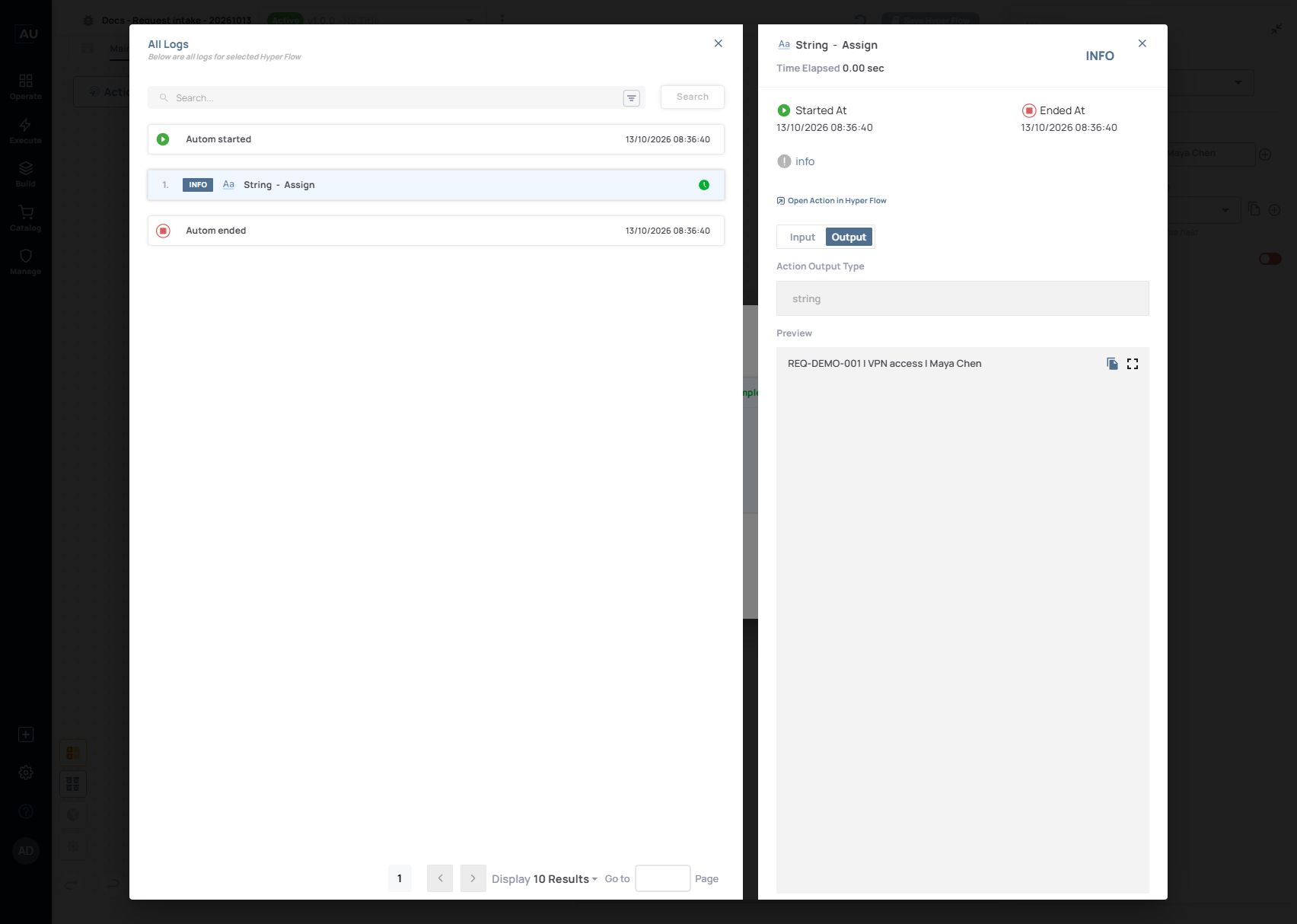
1. In **All Logs**, find **String - Assign** between **Autom started** and **Autom ended**.
2. Open its action details using the quick-info icon.
3. Select **Fetch Input/Output Values**, then **Output**.
4. Confirm **Action Output Type** is **string** and **Preview** contains the exact sample text.

<figure><img src="https://3857940684-files.gitbook.io/~/files/v0/b/gitbook-x-prod.appspot.com/o/spaces%2FJcSHU5jP5GABQrGmWvW2%2Fuploads%2FQqPLWj73EXqETRb2mhof%2F06-verified-output.jpg?alt=media" alt="String Assign action details show output type string and the verified request summary in Preview."><figcaption><p>Open Output and compare Preview with the exact request-summary text.</p></figcaption></figure>

*Result: `REQ-DEMO-001 | VPN access | Maya Chen`.*

The manual run completed with the expected request summary. This exercise prepares local text. To create a request or provision access, add the relevant connector action and check the destination result. If you later expose the Hyperflow through an API or webhook, test its caller response separately.

### Troubleshoot the first run

| Symptom                                         | First check                                                                                                                                                   |
| ----------------------------------------------- | ------------------------------------------------------------------------------------------------------------------------------------------------------------- |
| Variable cannot be saved                        | Select **string** in Variable Type and provide a Variable Name                                                                                                |
| The action still reports a required-field error | Confirm both Value to Assign and Source to be Assigned are filled                                                                                             |
| Request summary is not selectable               | Check that the variable was saved in this Hyperflow with type string                                                                                          |
| A different value appears                       | Compare the literal, receiving variable and version actually executed                                                                                         |
| String Assign is absent from the run            | Check the connected path and saved definition, then confirm you opened the matching run                                                                       |
| A service picker does not show this flow        | Service Work Items have their own creation and released-version selection workflow; do not assume a standalone Hyperflow is automatically a service Work Item |

### Turn the exercise into a reusable pattern

This lesson starts with fixed sample data so that the assignment is easy to inspect. The next step is to accept a request identifier and service choice as inputs, map them into a summary, and verify the result for a second request.

Use **Configure actions and map data** for the next local mapping step. Use **Variables and input/output contracts** to distinguish caller inputs, intermediate values and returned outputs. Once the data contract works, you can add a read-only connector lookup or build a service Work Item with a released version.

Keep this first example intact as a reference. Add ticket creation or account provisioning only after deciding how to validate the request and confirm the external result.