> For the complete documentation index, see [llms.txt](https://docs.autommate.com/userguide/llms.txt). Markdown versions of documentation pages are available by appending `.md` to page URLs; this page is available as [Markdown](https://docs.autommate.com/userguide/ai-agent-composer/choose-and-connect-an-agent-channel/embed-an-ai-agent-with-mate-chat.md).

# Embed an AI agent with Mate Chat

Use Mate Chat to add a web chat interface to a website, portal, or internal application. The widget connects visitors to the agent selected in its setup.

## Before you start

* Configure an AI agent and test its knowledge and skills in Playground.
* Have permission to edit the target website.
* Decide who may use the chat and which information or actions that audience may access.
* Prepare a test page before changing a public website.

Embedding a chat widget does not, by itself, establish a visitor's identity or permission to access business records. Resolve that access design before exposing sensitive skills.

## Configure the channel

1. Open the intended agent in **AI Agent Composer**.
2. Open **Channels > Mate Chat**.
3. Review the setup fields available for the widget.
4. Set the agent name, welcome message, and start-conversation text.
5. Choose the theme, position, primary color, and logo URL.
6. Set the available usage controls, including **Max Concurrent Sessions** and **Max Requests Per Minute**, to values appropriate for the environment.
7. Save the configuration.

Use a reachable logo URL and check the image on the actual page. Example rate-limit values in old documentation are not a recommended capacity for every installation.

## Add the widget to a test page

1. Copy the embed snippet generated by the Mate Chat setup panel.
2. Paste it into the target page before the closing body tag, or through the site's approved script-injection mechanism.
3. Save the test page and load it in a browser.
4. Confirm that the widget loads once and displays the intended branding.
5. Start a conversation with a non-sensitive question.
6. Verify the response and matching agent log before publishing the page.

Use the generated snippet rather than reconstructing an agent key or instance URL. Keep app credentials out of the page source.

### Walk through the current Mate Chat Setup

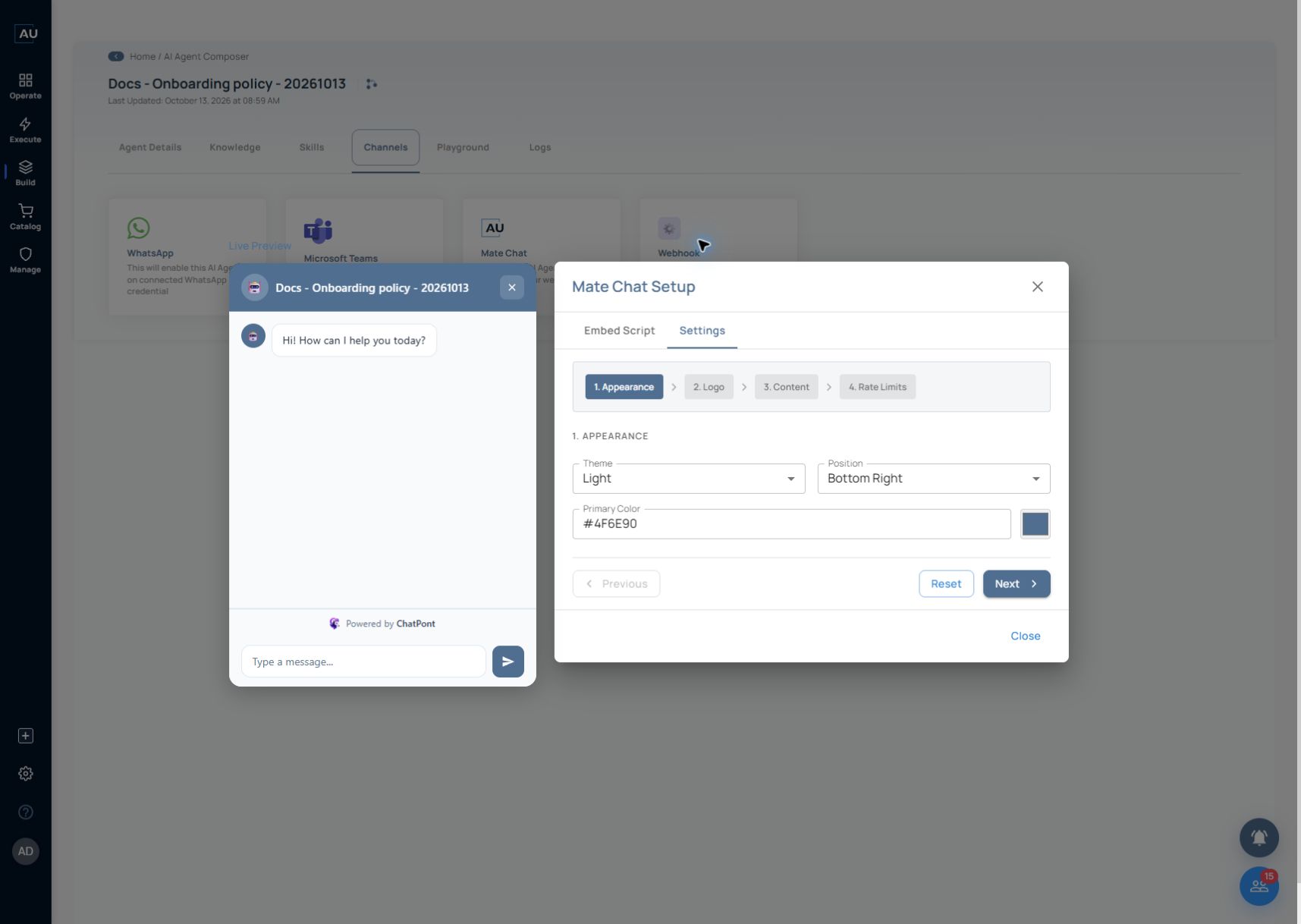
In the saved onboarding-policy agent, open Channels and the Mate Chat setup control. Mate Chat Setup separates Embed Script from Settings; the preview lets you inspect presentation before placing the widget on a website.

1\. Open Settings → Appearance. Choose Theme, Position and Primary Color. The 13 October presales example displayed Light, Bottom Right and #4F6E90. These are the example’s current appearance values, not required settings for another site.

<figure><img src="https://3857940684-files.gitbook.io/~/files/v0/b/gitbook-x-prod.appspot.com/o/spaces%2FJcSHU5jP5GABQrGmWvW2%2Fuploads%2FGVbRK7aWDV6dsZeaHOb2%2Fmate-chat-appearance.jpg?alt=media" alt="Choose the theme, position and primary color in Appearance; review the resulting preview."><figcaption><p>Choose the theme, position and primary color in Appearance; review the resulting preview.</p></figcaption></figure>

2\. Review Logo and Content as separate steps. Use the preview to check the selected branding and conversation text for the intended audience. Move between steps with Previous and Next.

3\. Open Rate Limits. Review Max Concurrent Sessions and Max Requests/Min. The inspected presales configuration showed 15 and 1000 respectively; these are instance settings, not plan entitlements, guaranteed capacity or recommended production limits.

<figure><img src="https://3857940684-files.gitbook.io/~/files/v0/b/gitbook-x-prod.appspot.com/o/spaces%2FJcSHU5jP5GABQrGmWvW2%2Fuploads%2FfN6ZLwd0Pcis97lxouTl%2Fmate-chat-rate-limits.jpg?alt=media" alt="Review the two usage controls. Values shown belong to the example instance and are not plan limits."><figcaption><p>Review the two usage controls. Values shown belong to the example instance and are not plan limits.</p></figcaption></figure>

4\. Use Save Changes only when you intend to save reviewed settings. For a read-only inspection, use Close. Reset is a configuration action, not a way to leave the dialog.

5\. Open Embed Script when you are ready to prepare an approved test page. Use the generated snippet and review Enable Embed Widget. The inspected example remained unchecked; no external widget was enabled or published during this setup review.

The generated script uses the instance widget resource and an agent-specific data-agent-key. Do not paste a real key into public documentation or a support screenshot. Copy the snippet directly into the approved target configuration and review that page’s intended audience and access design.

6\. After the widget is deliberately enabled and installed on the test page, send one non-sensitive policy question and match its reply to the agent’s Logs. The settings preview and generated script confirm configuration availability; the website-to-agent conversation is a separate end-to-end test.

## Expected result

The chat widget appears on the intended page, starts a conversation with the selected agent, and returns the expected response.

## Troubleshoot

* No widget: inspect whether the snippet loaded and whether the site's script/security policy blocks the widget resource.
* Wrong agent or environment: recopy the snippet from the intended setup.
* Duplicate widget: check that the script was added only once.
* Branding missing: check the configured image URL and the site's resource policy.
* Requests rejected: inspect the configured usage controls and response/error information.
* Sensitive action available to the wrong visitor: remove that exposure and correct the authentication and authorization design before continuing.

When changing an existing widget, retest the page and the conversation behavior after deployment.
