> For the complete documentation index, see [llms.txt](https://docs.autommate.com/userguide/llms.txt). Markdown versions of documentation pages are available by appending `.md` to page URLs; this page is available as [Markdown](https://docs.autommate.com/userguide/ai-agent-composer/choose-and-connect-an-agent-channel/connect-an-ai-agent-to-whatsapp.md).

# Connect an AI agent to WhatsApp

Connect an AI agent to your organization’s WhatsApp Business number. You will prepare the messaging connection, select its credential in Autom Mate, configure the callback, and test a complete conversation.

The current agent wizard shown here uses a direct Meta connection with **User Access Token** and **Phone Number ID**. For individual messages from a Hyperflow, use the separate WhatsApp-Meta or WhatsApp 360Dialog action library. A 360Dialog Hyperflow library does not establish that its API key works in this agent wizard.

### Before you start

* An AI agent that already answers correctly in Playground.
* Access to the organization’s WhatsApp Business messaging account, intended number and provider configuration.
* A valid credential for that provider and number.
* A test recipient controlled by your team, with any provider-required recipient verification completed.
* Permission to save the agent channel and configure its callback/subscription.

Use the demo onboarding policy agent for a first connection. Keep its skills limited to answering questions until messaging works.

### 1. Prepare the provider connection

Open the organization’s Meta developer application and its WhatsApp setup. Select the intended business and number, complete the onboarding steps shown for that account, and obtain the Phone Number ID and a suitable access token.

| Item                       | Purpose                                        | Check                                                                                      |
| -------------------------- | ---------------------------------------------- | ------------------------------------------------------------------------------------------ |
| Display phone number       | The business number the user messages          | Use it on the test handset; it is not the API identifier.                                  |
| Phone Number ID            | Meta's identifier for the sending number       | Use the identifier required by the connector, not the WABA ID or a typed telephone number. |
| WABA ID                    | Identifies the WhatsApp Business Account       | Keep it separate from the identifier of an individual phone number.                        |
| Recipient                  | The person receiving a reply                   | For this exercise, use the team's approved test handset.                                   |
| Meta access token          | Authenticates messaging requests               | Use the authorized token for the intended Meta account and assets.                         |
| Callback or webhook URL    | Where inbound message events are delivered     | Copy the URL generated for the intended Autom Mate agent.                                  |
| Webhook verification value | Used by a provider when verifying the callback | Match the value expected by the connector; it is separate from the messaging token.        |

Provider registration, verification and billing requirements depend on the selected account and setup. A temporary development token can expire; use the credential lifecycle appropriate for your environment. If a number is already in use, review the provider’s migration or coexistence options before changing its registration.

See [Meta's official Cloud API collection](https://www.postman.com/meta/whatsapp-business-platform/documentation/wlk6lh4/whatsapp-cloud-api?entity=request-13382743-eb9a6721-1056-4db2-b00a-2290e04b5b5d) for business assets and identifier examples, and [Meta Cloud API setup](https://developers.facebook.com/docs/whatsapp/cloud-api/get-started) for the current onboarding instructions.

### 2. Open the agent’s WhatsApp channel

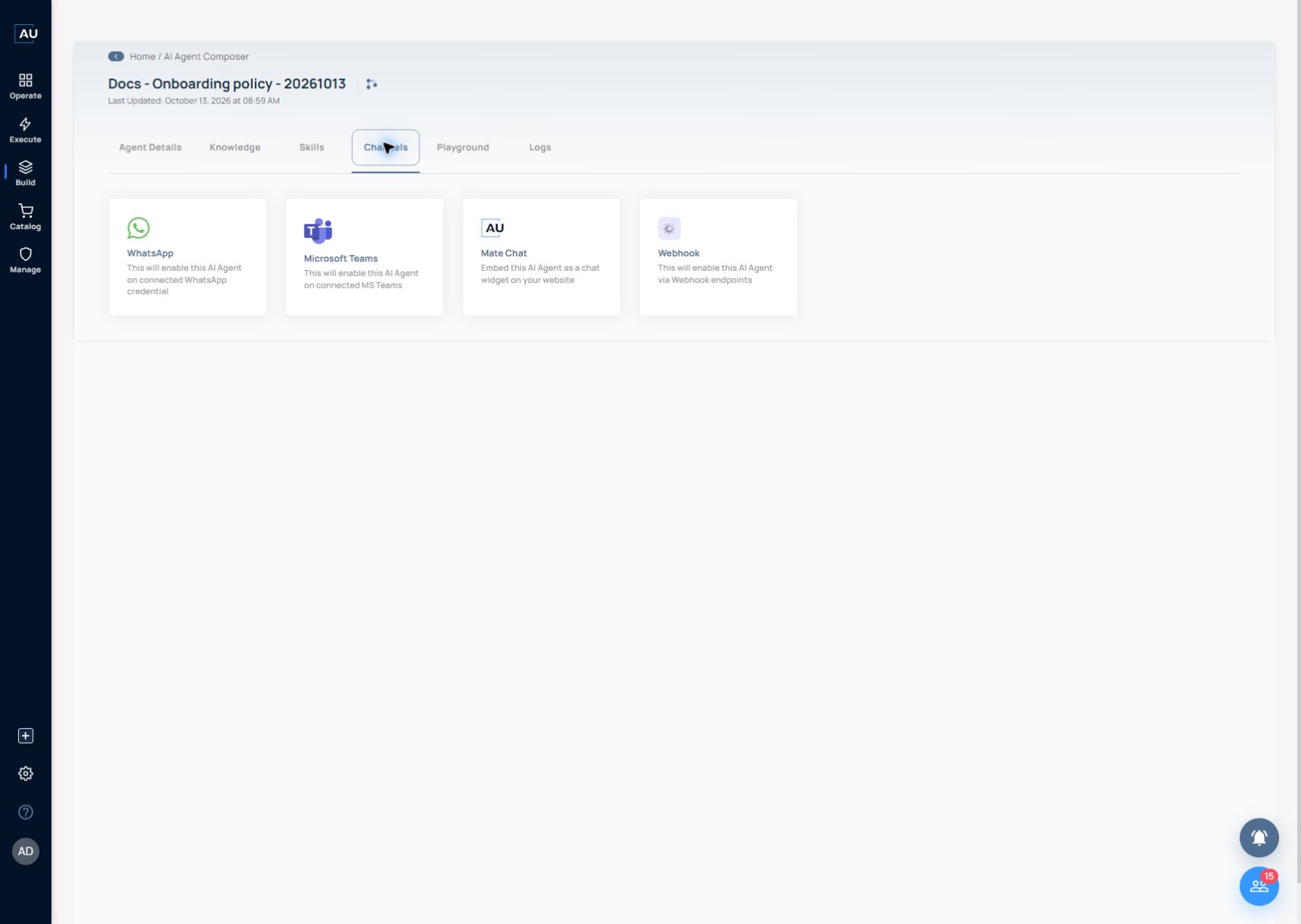
1. Open **AI Agent Composer** and select your test agent.
2. Open **Channels**.
3. Select **WhatsApp**.
4. Check the agent name before changing its connection.

<figure><img src="https://3857940684-files.gitbook.io/~/files/v0/b/gitbook-x-prod.appspot.com/o/spaces%2FJcSHU5jP5GABQrGmWvW2%2Fuploads%2FN6Du5ve4tg3C3kvOScct%2Fwhatsapp-channel-card.jpg?alt=media" alt="Open WhatsApp from the intended agent’s Channels tab."><figcaption><p>Open WhatsApp from the intended agent’s Channels tab.</p></figcaption></figure>

The channel setup should show the connection options for that agent. Opening a channel configuration does not by itself prove that inbound messages can reach it.

### 3. Complete wizard step 1: provider installation and callback

The first wizard step provides an installation link and the generated **Webhook URL**. Use the [Meta WhatsApp integration guide linked by the wizard](https://community.autommate.com/t/meta-whatsapp-business-api-autom-mate-integration-directory/59) as supporting setup material; follow Meta's current account-specific requirements when its screens differ. Do not delete or migrate an existing business number solely to reproduce a training example.

1. Copy the webhook URL shown for this agent’s WhatsApp channel.
2. Open Meta's webhook/callback configuration for the same account and number.
3. Enter the generated URL exactly. If callback verification requires a verification value, use the value expected by the Autom Mate connector.
4. Complete verification and the required inbound-message subscription in the provider configuration.
5. Continue to **Step 2 of 2** in the Autom Mate wizard.

The generated URL is not pictured because this environment's URL includes a private credential. Copy the value from your own agent, not from another user's example.

Do not construct an endpoint from an old screenshot. If the generated URL contains an access credential, treat the full URL as a secret when sharing screenshots.

**Check:** Meta accepts callback verification and the saved destination matches the selected agent. See [Meta webhooks](https://developers.facebook.com/docs/whatsapp/cloud-api/webhooks) for the provider setup.

### 4. Complete wizard step 2: select the credential

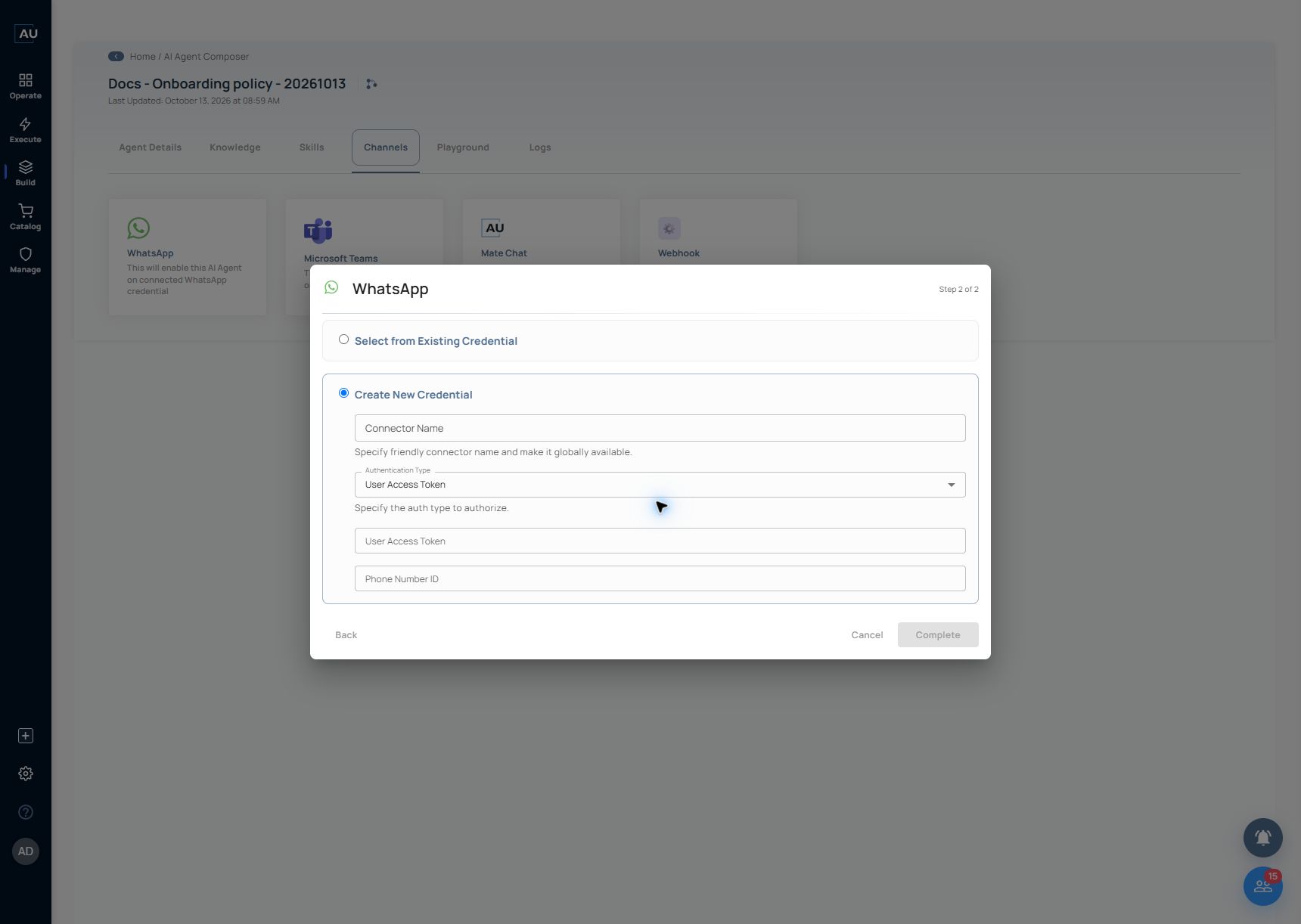
Use **Select from Existing Credential** when an authorized connection already exists for this number. Choose it from the selector. Check which business number and existing use that credential represents before completing the setup.

<figure><img src="https://3857940684-files.gitbook.io/~/files/v0/b/gitbook-x-prod.appspot.com/o/spaces%2FJcSHU5jP5GABQrGmWvW2%2Fuploads%2FWVXhdkGCbyL0EyNkYyKe%2Fwhatsapp-settings.jpg?alt=media" alt="Step 2 of 2 offers an existing credential or a new credential; no connection has been completed in this screenshot."><figcaption><p>Step 2 of 2 offers an existing credential or a new credential; no connection has been completed in this screenshot.</p></figcaption></figure>

Choose **Create New Credential** when you need a separate connection. The current form contains these fields:

| Field               | Enter or select                                                                     |
| ------------------- | ----------------------------------------------------------------------------------- |
| Connector Name      | A recognizable name, such as `WhatsApp — Training number`.                          |
| Authentication Type | `User Access Token`, as shown in the current form.                                  |
| User Access Token   | The authorized Meta token for the intended messaging assets.                        |
| Phone Number ID     | Meta's ID for the business sending number, not its display phone number or WABA ID. |

<figure><img src="https://3857940684-files.gitbook.io/~/files/v0/b/gitbook-x-prod.appspot.com/o/spaces%2FJcSHU5jP5GABQrGmWvW2%2Fuploads%2FNs5U58ttMs7owyCgRx4z%2Fwhatsapp-credential-form.jpg?alt=media" alt="The current Create New Credential fields, shown empty so no token is exposed."><figcaption><p>The current Create New Credential fields, shown empty so no token is exposed.</p></figcaption></figure>

After checking the selected agent, number and credential, use **Complete**. The screenshots show configuration controls only: no existing business credential was attached to the documentation agent, and no live WhatsApp message was sent during this documentation check.

**Check:** reopen the channel setup and confirm the intended connection. Completing the wizard records the configuration; the conversation test below checks whether messages and replies travel through it.

### 5. Test a complete conversation

From the team’s approved test handset, send a message to the configured business number. Record the test time, then open the same agent’s **Logs** in Autom Mate.

| Send                                         | Expected behavior                                | Confirm                                                                                                |
| -------------------------------------------- | ------------------------------------------------ | ------------------------------------------------------------------------------------------------------ |
| What equipment does a demo employee receive? | The demo policy says one laptop and one headset. | The WhatsApp answer matches the policy and the same exchange appears in this agent’s Logs.             |
| What laptop model?                           | The policy does not specify a model.             | The agent asks for clarification or states the missing detail instead of inventing one.                |
| Order my laptop now.                         | This example has no ordering skill.              | The agent explains the boundary and refers the user to the demo IT service owner; no order is claimed. |

Check the complete path: message on the handset → inbound provider event → selected agent’s Logs → answer received on the handset. If the provider returns a message ID, use that ID to follow its later status. An accepted send request is not the same as delivered or read.

The [360Dialog webhook reference](https://docs.360dialog.com/docs/messaging/webhook/webhook-reference) separates inbound message notifications from sent, delivered and read status notifications. Use the corresponding status information for your chosen provider.

The expected answers above are test criteria. A successful Playground test alone does not confirm that the WhatsApp channel is connected.

### 6. Prepare ongoing use

* Assign an owner for the messaging number and credential renewal.
* Follow your provider’s current messaging-window and template requirements. For example, [360Dialog’s interactive-message guidance](https://docs.360dialog.com/docs/messaging/message-types/interactive) requires the customer-service window for free-form lists and reply buttons; a template is needed outside that window.
* Add business-changing skills only after the basic conversation works, with the approvals and access required for those actions.
* Keep logs useful for support while excluding tokens and unnecessary personal message content from shared examples.

### Troubleshoot the first missing step

| Symptom                                         | Next check                                                                                                     |
| ----------------------------------------------- | -------------------------------------------------------------------------------------------------------------- |
| Callback verification fails                     | Compare the exact generated URL and expected verification value, then check provider routing and reachability. |
| No message in Agent Logs                        | Confirm the business number, provider callback/subscription, and inbound-delivery information.                 |
| Agent Logs show a request, but no reply arrives | Check connector errors, token validity and asset access, provider messaging restrictions, and outbound status. |
| Send accepted, no handset delivery              | Trace the returned message ID through provider status events before trying another send.                       |
| The wrong agent answers                         | Check which agent supplied the saved callback URL and which credential/number it uses.                         |
| Repeated incoming messages                      | Compare message IDs and callback attempts; provider redelivery should not produce duplicate business actions.  |

When contacting <support@autommate.com>, include the agent name, messaging provider, test time and time zone, message/request IDs, and sanitized error text. State whether the message reached Agent Logs and whether a reply reached the handset.