> For the complete documentation index, see [llms.txt](https://docs.autommate.com/userguide/llms.txt). Markdown versions of documentation pages are available by appending `.md` to page URLs; this page is available as [Markdown](https://docs.autommate.com/userguide/ai-agent-composer/choose-and-connect-an-agent-channel.md).
# Choose and connect an agent channel
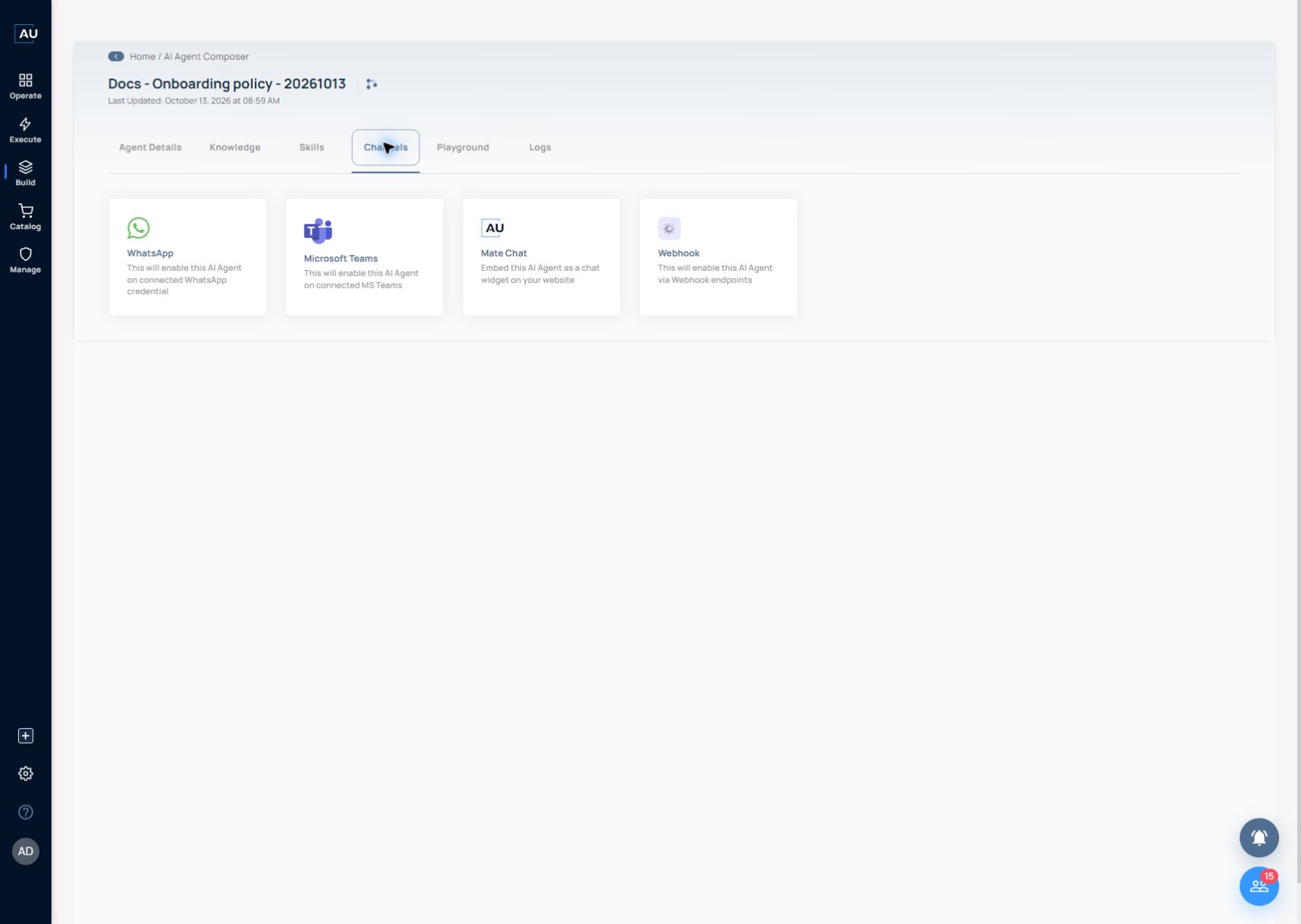
Use **Channels** to choose where people or applications interact with an agent. Configure the agent's purpose, knowledge, and skills first, then test the conversation before exposing it to users.
### Available channel choices
| Channel | Description shown in the interface | Suitable starting use |
| ------------------- | ---------------------------------------------------- | ---------------------------------------------------------------- |
| **WhatsApp** | Enable the agent on a connected WhatsApp credential. | A conversation through an approved business WhatsApp connection. |
| **Microsoft Teams** | Enable the agent on connected MS Teams. | An employee-facing assistant in the intended Teams environment. |
| **Mate Chat** | Embed the agent as a chat widget on a website. | An assistant on an approved website. |
| **Webhook** | Enable the agent through webhook endpoints. | An application-driven interaction using the configured endpoint. |
Select a card to configure that channel. Complete its connection and test message delivery before inviting users.
### Prepare the destination
Before connecting a channel, identify:
* The audience and the account, team, website, or application that will receive the agent.
* Who owns the required connection and can approve its use.
* What the agent may answer and which actions it may perform for that audience.
* How users should reach a human when the agent cannot complete a request.
* A controlled test user and a small set of expected interactions.
Choose one channel for the first release. This makes it easier to distinguish a conversation issue from a channel-connection issue.
### Connect and verify
1. Open the intended agent and select **Channels**.
2. Select the required channel card.
3. Follow the channel-specific setup presented by the current interface and use the intended authorized connection.
4. Complete the configuration only when the destination and audience are correct.
5. Send an approved test interaction from the actual channel.
6. Verify that it reaches the intended agent, that the reply is delivered, and that the relevant conversation evidence is visible in **Logs**.
Credentials, consent, authentication and activation fields depend on the selected channel. Follow its setup dialog using your organization’s approved account and destination.
### Illustrative Microsoft Teams rollout
For an employee knowledge assistant, start with a small internal test audience:
1. Ask a question covered by the approved knowledge source.
2. Ask an ambiguous question and check that the agent requests clarification.
3. Ask for an action the agent does not have a skill for; it should state the limitation.
4. If a skill is configured, test one authorized operation and verify its actual result.
Passing these checks in **Playground** is useful preparation. Delivery through Microsoft Teams still needs its own test because the channel adds a separate connection and user context.
#### Prepare for production
Replace demo instructions, review the intended audience and verify the connected knowledge and skills. Confirm a human escalation route before enabling the channel for a wider audience.
Continue with [Playground and Logs](/userguide/ai-agent-composer/test-in-playground-and-review-logs.md) to review the conversation and investigate failures.
### More guides
[Connect an AI Agent to Microsoft Teams](/userguide/ai-agent-composer/choose-and-connect-an-agent-channel/teams-ai-agent-channel.md)
[Connect an AI agent to WhatsApp](/userguide/ai-agent-composer/choose-and-connect-an-agent-channel/connect-an-ai-agent-to-whatsapp.md)
[Embed an AI agent with Mate Chat](/userguide/ai-agent-composer/choose-and-connect-an-agent-channel/embed-an-ai-agent-with-mate-chat.md)
[Call an AI agent through its Webhook channel](/userguide/ai-agent-composer/choose-and-connect-an-agent-channel/call-an-ai-agent-through-its-webhook-channel.md)
### Choose one channel after the Playground check
Open Channels for the intended agent and choose the channel to configure. These cards show available setup routes, not completed connections.
Use the working onboarding-policy agent as the first channel candidate. Keep it read-only while checking the incoming message and reply path.
1\. Open the saved test agent and review its Channels tab. Select the destination actually available in your environment.
2\. Use the WhatsApp guide for the agent’s Meta connection, the Teams guide for an Azure Bot/Teams application, the Mate Chat guide for an embedded widget, or the Webhook guide for an application caller. These are separate setup paths, not interchangeable credentials.
3\. Copy the endpoint or generated configuration from this agent. Select the corresponding credential and complete that channel’s provider steps.
4\. Send one approved test message through the selected destination. Find the same conversation in Logs and compare the answer with the policy’s expected response.
5\. If an enablement switch is on but no message arrives, inspect provider verification/subscription and delivery records. Channel configuration alone does not prove a working conversation.
[Connect an AI agent to WhatsApp](/userguide/ai-agent-composer/choose-and-connect-an-agent-channel/connect-an-ai-agent-to-whatsapp.md)
[Connect an AI Agent to Microsoft Teams](/userguide/ai-agent-composer/choose-and-connect-an-agent-channel/teams-ai-agent-channel.md)
[Embed an AI agent with Mate Chat](/userguide/ai-agent-composer/choose-and-connect-an-agent-channel/embed-an-ai-agent-with-mate-chat.md)
[Call an AI agent through its Webhook channel](/userguide/ai-agent-composer/choose-and-connect-an-agent-channel/call-an-ai-agent-through-its-webhook-channel.md)