> For the complete documentation index, see [llms.txt](https://docs.autommate.com/userguide/llms.txt). Markdown versions of documentation pages are available by appending `.md` to page URLs; this page is available as [Markdown](https://docs.autommate.com/userguide/administration-and-runtimes/time-zones.md).

# Time zones, schedules and log correlation

Use the time zone together with the timestamp when comparing a request, execution and Service Case. The browser display, a Mate Agent's configuration and an external system's log can represent the same instant differently.

## Know which clock you are reading

| Time source                        | How to use it                                                                      |
| ---------------------------------- | ---------------------------------------------------------------------------------- |
| Browser display                    | Dublin 6.0.0 operational screens display timestamps in the browser's time zone     |
| Mate Agent **Time Zone**           | The runtime's configured time-zone value; review it under **Manage → Mate Agents** |
| Schedule                           | The configured execution time and the time zone associated with that schedule      |
| External application or script log | The format and zone reported by that system or process                             |

An Agent labelled **UTC** can appear beside browser-local timestamps. Use the display zone when interpreting those timestamps; changing the Agent setting is not a fix for a display offset.

## Correlate a request and its result

1. Record the request time with an explicit offset or UTC suffix.
2. Find the matching execution or Service Case using its identifier, service and a suitable time range.
3. Record the browser's time zone alongside the displayed time.
4. Convert the times to the same zone, preferably UTC, before comparing them.
5. Check any upstream or script logs with their own time-zone information.

For example, **11:56 UTC** and **14:56 at UTC+03:00** are the same instant. This difference alone is not an execution delay.

Use identifiers as well as timestamps. Several requests can start within the same minute, and a Service Case identifier is different from a Hyperflow run identifier.

## Check a schedule before enabling it

Define the intended local time and zone first: for example, “09:00 in the customer's business time zone.” Review the schedule configuration and the selected runtime. Where a named zone is available, distinguish it from a fixed UTC offset, particularly where daylight-saving changes apply.

Create the first schedule against an isolated task and verify its first intended execution. Record the scheduled time, actual start time, configured zone and browser display. Check upcoming daylight-saving transitions where relevant; a fixed offset and a regional time zone can behave differently.

When moving work to another Agent or changing a time-zone setting, review affected schedules and repeat a controlled check. Keep the intended business time in the operational record so the next administrator can understand the configuration.

## Troubleshooting

| Symptom                                    | Check first                                                                      |
| ------------------------------------------ | -------------------------------------------------------------------------------- |
| Times differ by a whole-hour offset        | Browser zone and source-log offset                                               |
| Schedule fires at an unexpected local time | Schedule zone, runtime assignment and daylight-saving assumptions                |
| Execution cannot be found                  | Identifier, time-range filter and the zone used by that filter                   |
| Script log differs from platform display   | Script/host timestamp format and clock                                           |
| Apparent delay remains after conversion    | Clock synchronization and the separate request, queue/start and completion times |

For a support case, include both the original displayed values and their zones. Avoid sending a timestamp such as “14:56” without a date and time-zone context.

## Worked example: separate a time-zone offset from execution delay

The following times are synthetic and describe one request. They illustrate comparison, not measured performance:

Caller request: 2026-10-13T14:56:00+03:00. Execution started: 2026-10-13T11:56:02Z. Execution finished: 2026-10-13T11:56:03.500Z.

Convert the caller time to UTC: 14:56:00 at UTC+03:00 equals 11:56:00Z. The execution starts two seconds after that timestamp and takes 1.5 seconds. The elapsed time from the caller timestamp to the recorded finish is 3.5 seconds, not three hours.

Before treating those differences as latency, confirm that the entries describe the same operation and that the systems’ clocks are sufficiently aligned. A caller timestamp records the caller’s event; it is not automatically the exact moment the platform received the request.

In Monitoring or Service Cases, find the matching identifier and record the browser time zone. If the UI shows only whole seconds, use the available duration field or underlying timestamp precision instead of inferring milliseconds from the display.

For a schedule check, record the configured local time, schedule zone, next scheduled time, actual run start and execution ID in one row. Compare the first actual run with that record. When a region changes daylight-saving offset, validate the named-zone behavior separately; a fixed offset is not a substitute for a region’s time-zone rules.

### Correlate clocks without changing them

Use one known execution and record every timestamp with the time zone displayed by its source. Keep this as an observation exercise; changing the Agent or system clock would alter the conditions you are trying to compare.

1\. In History, select the intended operation and record its start time, execution identifier and displayed time zone.

2\. Open Manage → Mate Agents for the execution component used by that flow. Read its Time Zone and, if you inspect metrics, the snapshot’s Recorded at value.

3\. Normalize the two operation timestamps to the same zone before calculating a delay. A metric snapshot time is not automatically the operation start time.

4\. For the documented request-intake example, the browser record is 13 October 2026 at 08:36:40 Türkiye time. Use that as a lookup aid only when it identifies the same run in your environment.

5\. If the exact runtime timestamp is unavailable, leave it unknown. Do not infer execution latency from a screenshot timestamp or a three-hour display offset.

[Plan execution and runtime setup](/userguide/administration-and-runtimes/plan-execution-and-runtime-setup.md)

[Monitor executions and retain useful evidence](/userguide/operate-and-troubleshoot/monitor-executions-and-retain-useful-evidence.md)

### Observed example: one schedule, two displayed times

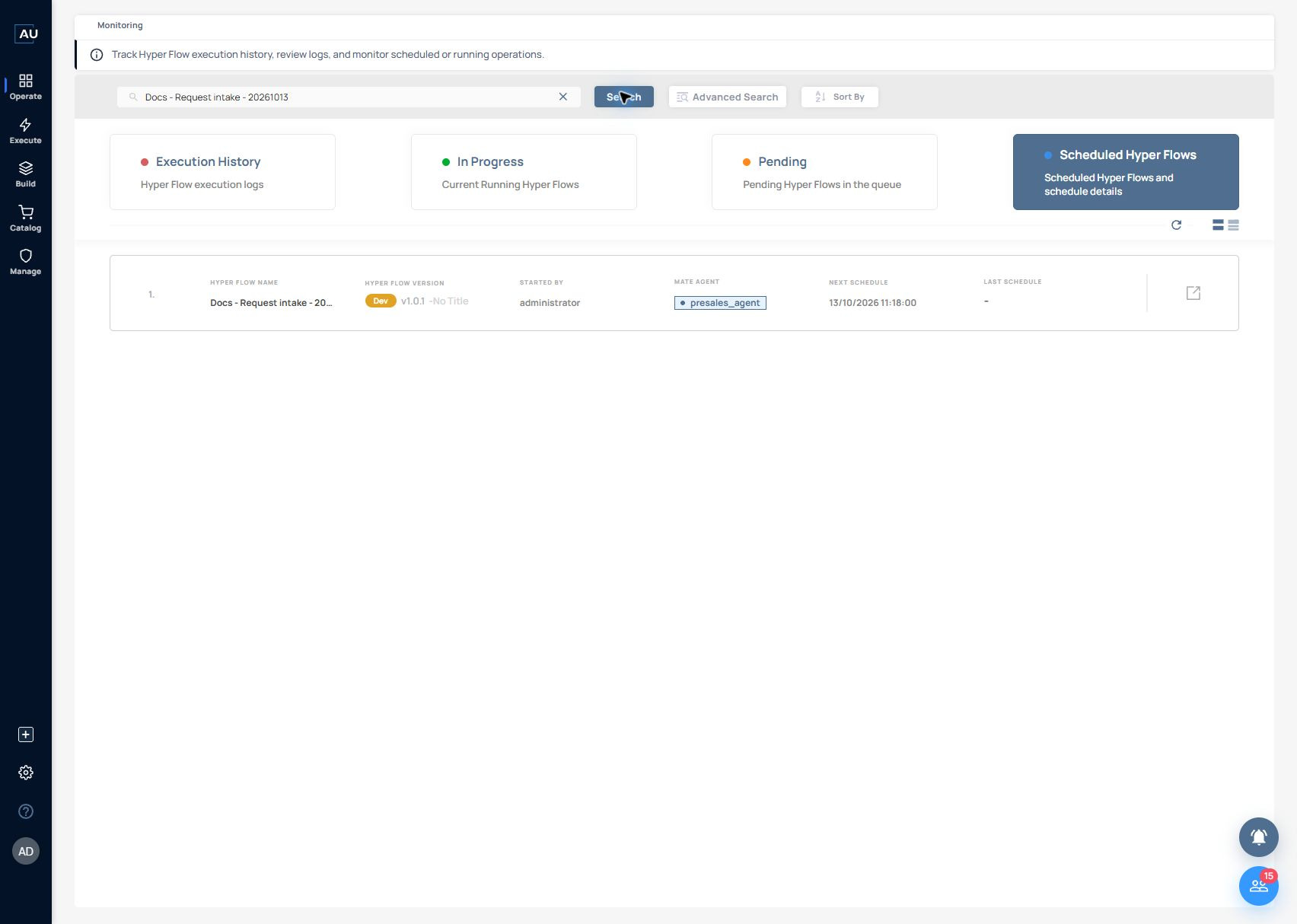
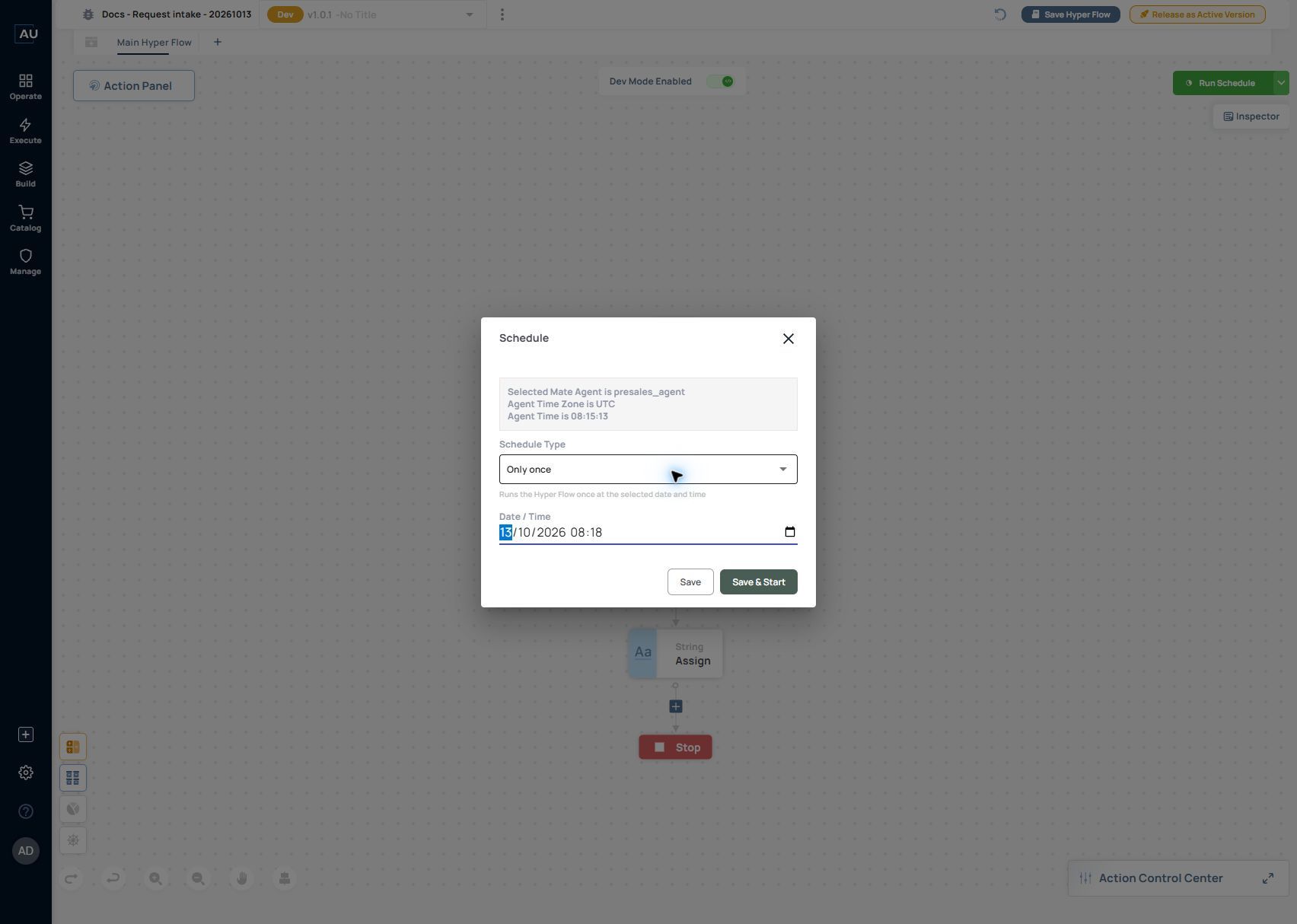
In the inspected standalone Dev Hyperflow, the one-time schedule was configured for 13 October 2026 at 08:18 UTC. The saved schedule displayed 11:18 in Türkiye time (UTC+03:00). These values describe the same scheduled instant.

<figure><img src="https://3857940684-files.gitbook.io/~/files/v0/b/gitbook-x-prod.appspot.com/o/spaces%2FJcSHU5jP5GABQrGmWvW2%2Fuploads%2FrQIhROkD78ORaMQTTNtn%2Fschedule-once-config.jpg?alt=media" alt="One-time test schedule configured at 08:18 UTC on 13 October 2026."><figcaption><p>One-time test schedule configured at 08:18 UTC on 13 October 2026.</p></figcaption></figure>

<figure><img src="https://3857940684-files.gitbook.io/~/files/v0/b/gitbook-x-prod.appspot.com/o/spaces%2FJcSHU5jP5GABQrGmWvW2%2Fuploads%2Fmo4E1xa1MjVk12VWZuXD%2Fschedule-once-saved.jpg?alt=media" alt="The same saved schedule displayed as 11:18 in Türkiye time. Normalize the zone before treating a difference as delay."><figcaption><p>The same saved schedule displayed as 11:18 in Türkiye time. Normalize the zone before treating a difference as delay.</p></figcaption></figure>

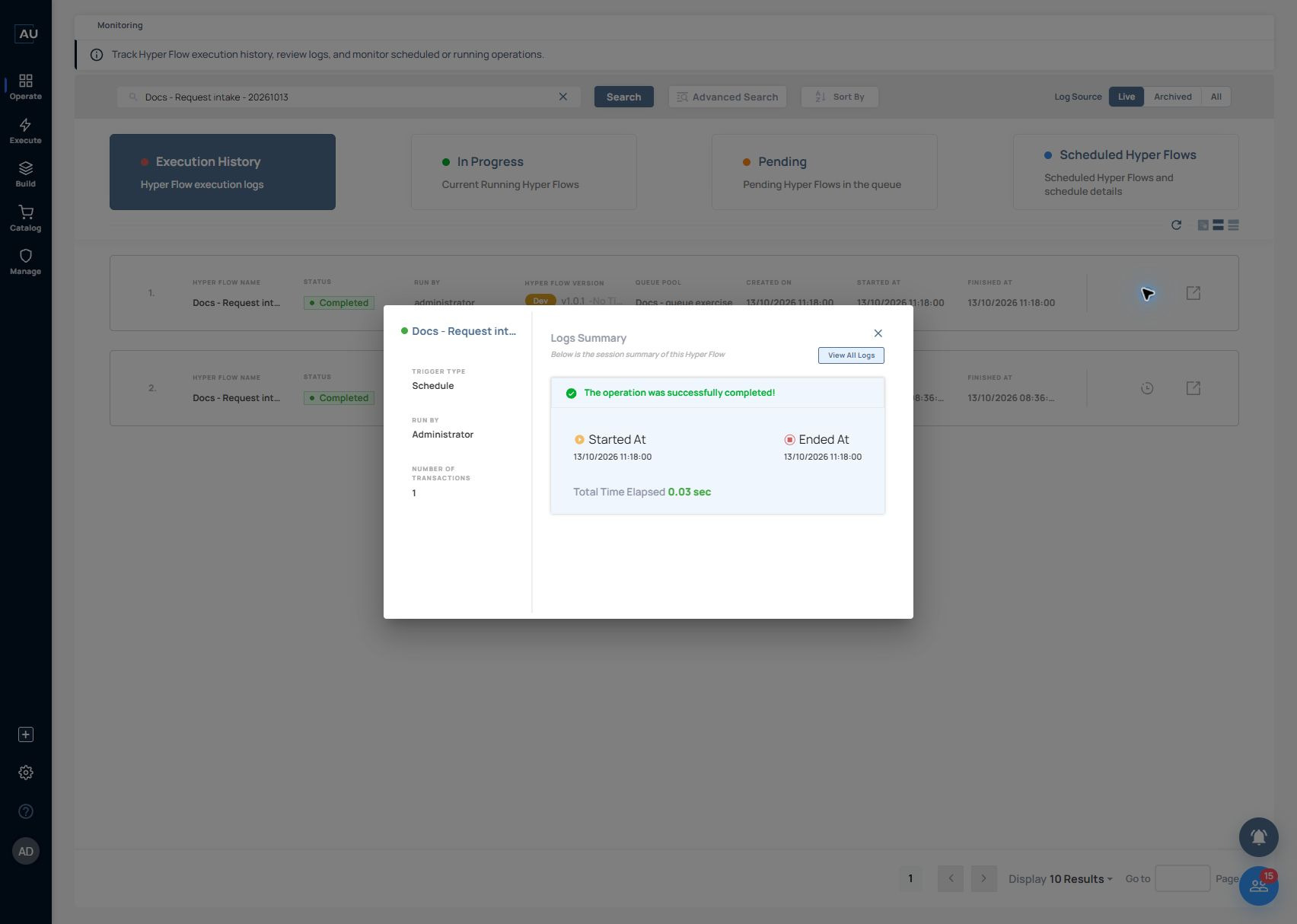
<figure><img src="https://3857940684-files.gitbook.io/~/files/v0/b/gitbook-x-prod.appspot.com/o/spaces%2FJcSHU5jP5GABQrGmWvW2%2Fuploads%2FUuAnGnkYkIFlf1NxdIYi%2Fschedule-once-trigger-success.jpg?alt=media" alt="The corresponding standalone Hyperflow log records Trigger Type Schedule and a completed execution. This is not a Service deployment schedule test."><figcaption><p>The corresponding standalone Hyperflow log records Trigger Type Schedule and a completed execution. This is not a Service deployment schedule test.</p></figcaption></figure>

The test log reported one transaction and a duration of 0.03 seconds. Its String action returned the demo request value. Those observations confirm this one scheduled Hyperflow run; they do not establish a general latency guarantee, daylight-saving behavior, or the schedule behavior of a Service deployment.