Manage users and access
Give users the access required for their work and verify it with the intended account. Keep platform administration, automation development, operational monitoring, and application credentials distinct when planning access.
Find the administration areas
The Manage menu provides Users, Roles, Application Credentials, Custom Credentials, Webhook & API, Alert Management, and Mate Agents. Use Manage → Users for user records and Manage → Roles for role configuration.
Start with responsibilities
Describe what the person needs to do before choosing a role. For example, an operator may need to inspect executions without changing a workflow, while a developer may need to edit a test flow without managing all credentials.
These are examples of responsibilities, not predefined role guarantees. Match them to the controls available in your environment.
User records
User records include First Name, Email and Password, with an optional Admin assignment and controls for editing, activation and deactivation.
Use the person's intended account details and the organization's account-provisioning process. Avoid sharing administrator accounts for routine work. Review account ownership when someone changes role or leaves the team.
Before deactivating or deleting an account, identify any credentials, automations, scheduled work, or support responsibilities associated with that person. Plan ownership transfer where needed rather than treating removal as a purely cosmetic change.
Role configuration
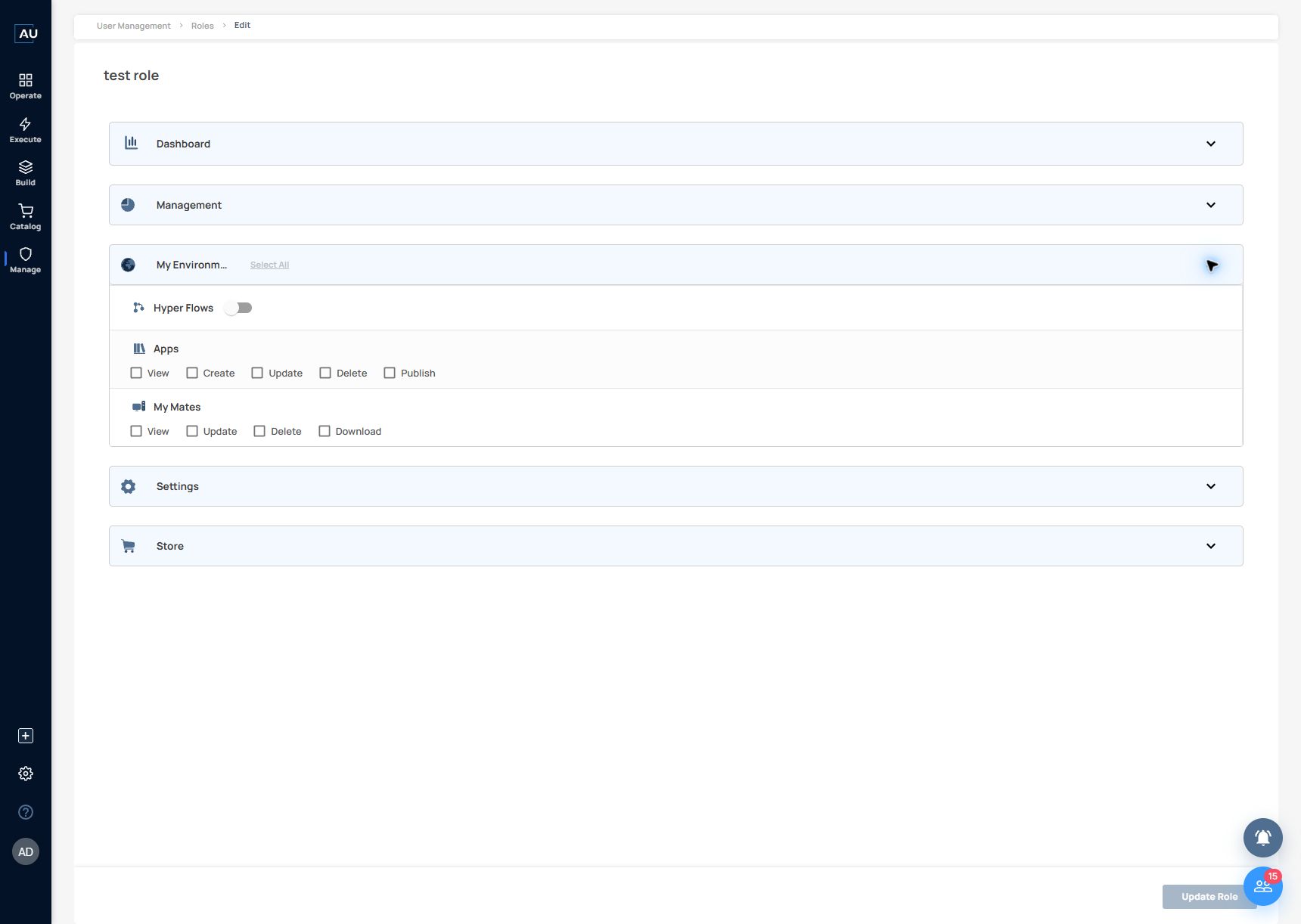
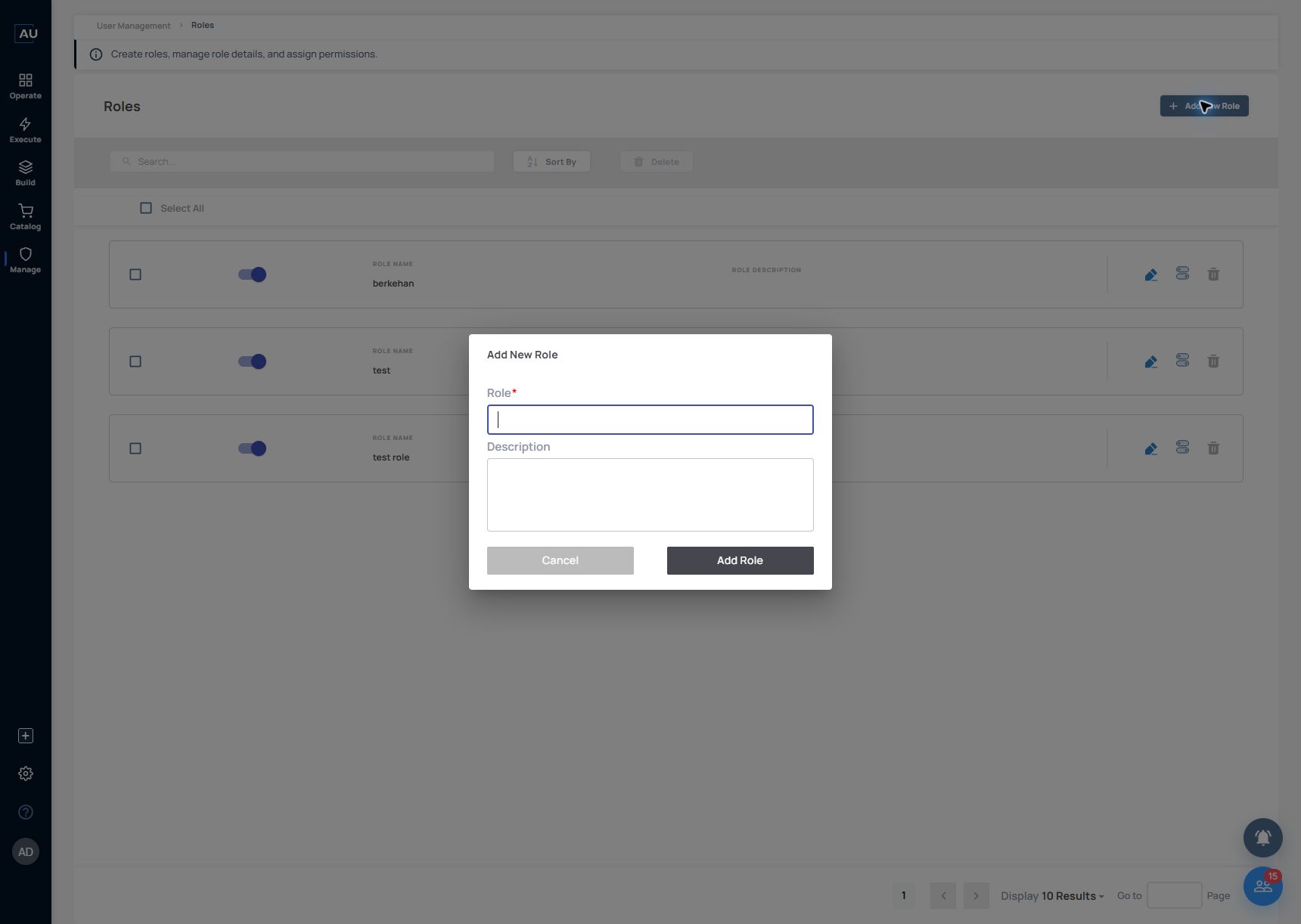
Create a role with Role Name and Description, then select Configure Role. Settings are grouped under Dashboard, Management, My Environment, Settings and Store. Configure the required activities explicitly; a role name such as Viewer does not assign permissions by itself.
Record the intended permissions for each activity:
Build
Can the user view, create, or change the intended flows?
Release
Can the user publish or activate changes?
Operate
Can the user inspect executions or stop work?
Connect
Which credentials and applications can the user use or manage?
Administer
Can the user change other users, roles, or settings?
Verify with the actual account
Test a permitted activity and a corresponding activity that should be unavailable. Check the intended tenant or environment as part of the test. A menu item being hidden is not sufficient evidence that access to the underlying resource is denied.
For MSP environments, include tenant assignment and cross-tenant restrictions in the access review. An Enterprise administrator's screen does not establish what an MSP technician or tenant user can access.
Keep an access record
Maintain the account owner, assigned role, intended scope, approval, and last verification date. Review access after changing roles or adding a new feature. Capture observed behavior and any gap that needs administrator or support review; do not rely on a role label alone.
Prepare a role for a monitoring operator
Use an explicit responsibility before selecting permissions: inspect test executions without editing automations or administering users. Operator here is a role design, not a built-in permission guarantee.
1. Open Manage → Users/Roles and review the existing roles. Use a distinct name and description if a new role is actually required.

2. Open the role’s permission editor. Expand a group using its arrow; clicking only the group label may not expand it. The inspected My Environment group exposes Hyper Flows, Apps and My Mates with their available activity controls.

3. Review the exact View, Create, Update, Delete, Publish or Download controls presented for the relevant activity. Do not assume every group exposes the same operations.
4. Select only the approved activities and use Update Role for an intentional saved change. Merely inspecting the groups requires no checkbox change.
5. With a separate intended test account, verify one allowed task and one prohibited task through the actual resource path. An administrator’s view and a hidden menu do not demonstrate authorization enforcement.
Was this helpful?