> For the complete documentation index, see [llms.txt](https://docs.autommate.com/userguide/llms.txt). Markdown versions of documentation pages are available by appending `.md` to page URLs; this page is available as [Markdown](https://docs.autommate.com/userguide/administration-and-runtimes/configure-platform-settings.md).

# Configure platform settings

Use Settings to configure display preferences, platform connectivity, licensing, and log retention. Separate personal display choices from changes that affect the whole environment.

### Before you start

* Use an account permitted to manage the selected setting.
* Record the current value and the intended result.
* Arrange a maintenance window for changes that can affect connectivity.
* Confirm backup, retention, and recovery requirements before changing storage behavior.

### Change display preferences

1. Open **Personalization**.
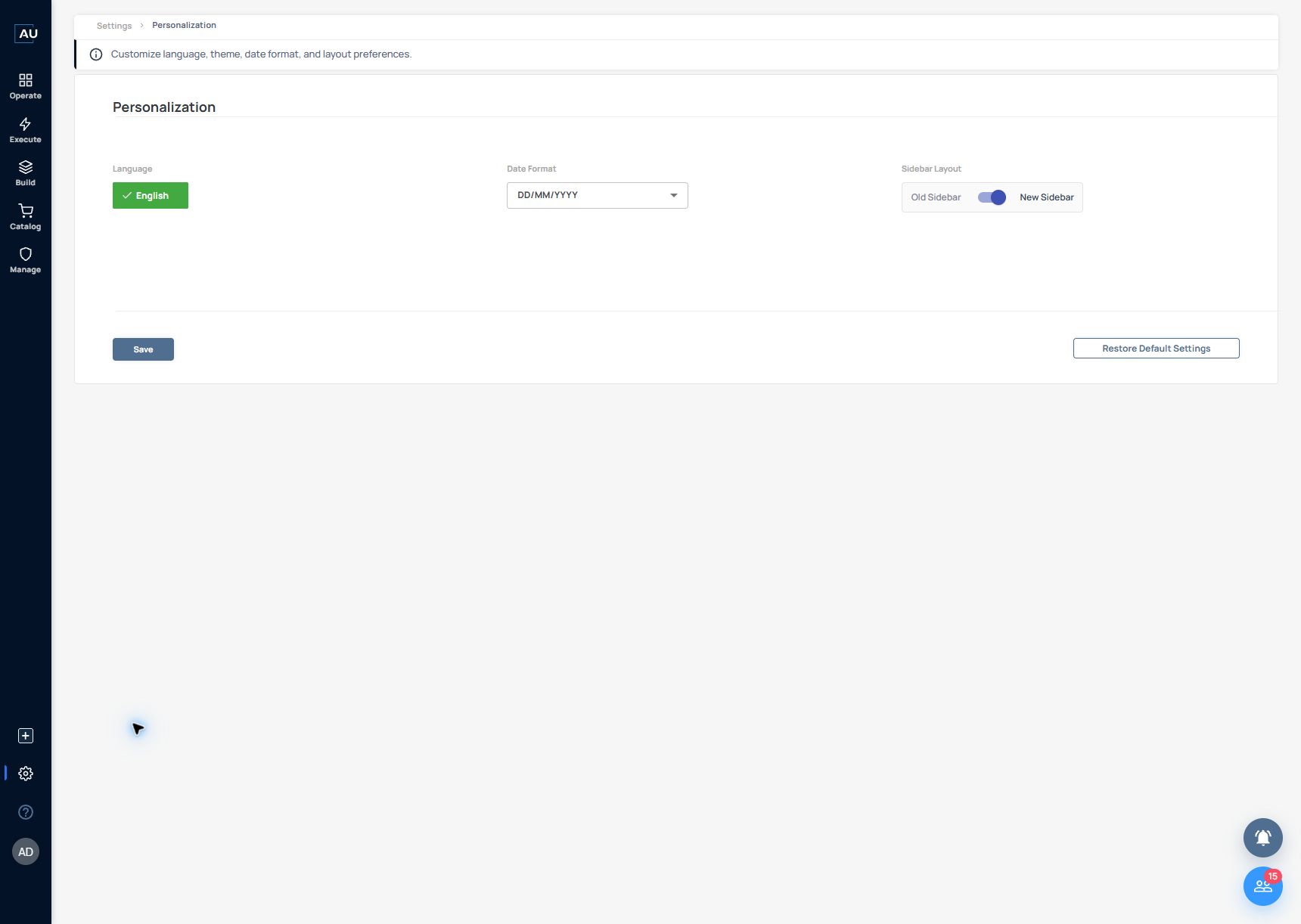
2. Select the interface language and date format.
3. Select **Save**.
4. Reopen a page that displays dates and confirm the format.

**Restore Default Settings** resets the configuration governed by that page. Review its scope before using it.

### Configure ports and TLS certificates

1. Open **Port & SSL** in an environment where these controls are available.
2. Review the existing web server, agent, and service port values.
3. For an approved certificate update, enable the relevant SSL controls.
4. Use **Choose File** to select the certificate file and provide its password.
5. Select **Validate**.
6. Follow the environment's change procedure to apply the configuration, then verify access from the intended clients.

A successful certificate validation is not a substitute for checking the hostname, certificate chain, expiry, and client connectivity. Do not change hosted infrastructure settings that are managed by your provider.

### Review or update the license

1. Open **License** and review the organization, license identifier, type, and expiry fields available in your installation.
2. For an approved update, select **Add a License File**.
3. Select the supplied license file and use **Validate**.
4. Follow the displayed result and verify the resulting license details.

Use the current license and agreement for entitlements. Older UI labels that count flows do not define the commercial limits of a newer edition.

### Configure log retention

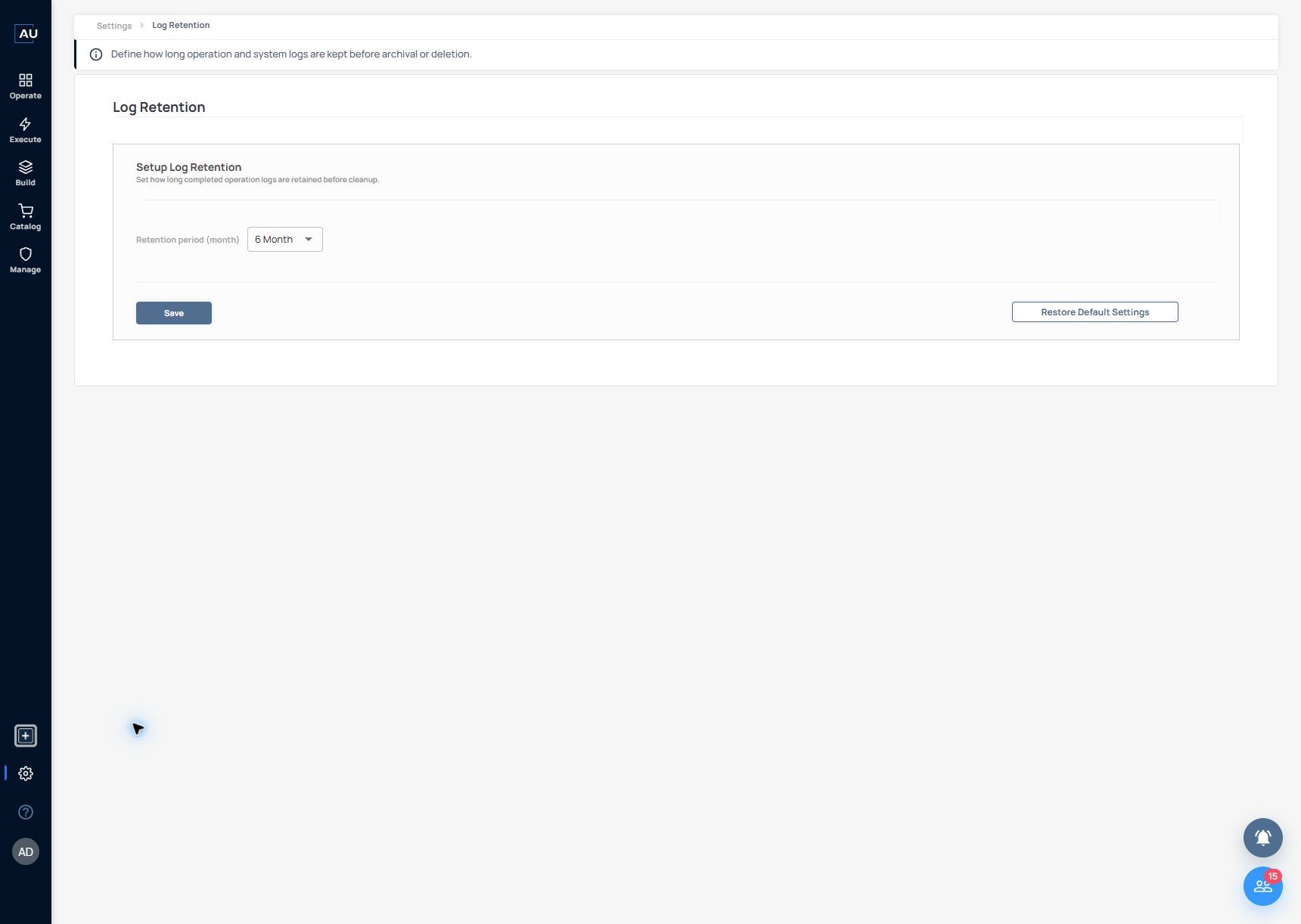
<figure><img src="https://3857940684-files.gitbook.io/~/files/v0/b/gitbook-x-prod.appspot.com/o/spaces%2FJcSHU5jP5GABQrGmWvW2%2Fuploads%2Fg3cTSbE6fVsZ6ZhZa0Vo%2Fsettings-log-retention.jpg?alt=media" alt="The current retention field is measured in months. Six months is the example instance value."><figcaption><p>The current retention field is measured in months. Six months is the example instance value.</p></figcaption></figure>

Open Settings → Log Retention. The current Dublin screen has Retention period (month), Save and Restore Default Settings. It describes retention of completed operation logs before cleanup.

Choose the period required by your organization’s policy. The presales screen on 13 October showed 6 Month; this is the inspected instance value, not a recommendation or a platform-wide default.

This screen does not show archive-folder or notification-email fields. Use the deployment’s administration procedure to locate archived data and determine whether cleanup archives, deletes or both.

Save only an approved change, then verify the resulting log behavior through operational records. Preserve required evidence before shortening retention.

### Expected result

The saved settings match the intended configuration, the environment remains accessible, and the license/log behavior is verified through the relevant UI or operational records.

### Troubleshoot

* Setting unavailable: check account permissions and whether the deployment is provider-managed.
* Certificate rejected: check file format, password, chain, hostname, and validity period.
* License rejected: confirm that the file is intended for this installation and contact support with the validation message.
* Archive fails: check destination access, available storage, and the recorded error.

### Related reference

* [Monitor executions and retain useful evidence](/userguide/operate-and-troubleshoot/monitor-executions-and-retain-useful-evidence.md)

### Review settings without changing production behavior

1\. Open Personalization. Review Language, Date Format and Sidebar Layout. The inspected screen offers Old Sidebar and New Sidebar; it does not show a separate Theme selector. Use Save only for an intended preference change.

<figure><img src="https://3857940684-files.gitbook.io/~/files/v0/b/gitbook-x-prod.appspot.com/o/spaces%2FJcSHU5jP5GABQrGmWvW2%2Fuploads%2FZAKN1qSoL4txCXHh7cah%2Fsettings-personalization.jpg?alt=media" alt="Review Language, Date Format and Sidebar Layout in the current Personalization screen."><figcaption><p>Review Language, Date Format and Sidebar Layout in the current Personalization screen.</p></figcaption></figure>

2\. Open License and compare organization, license type and expiry with the current agreement. Mask identifiers in shared screenshots. Add a License File is an update action, not a viewing step.

3\. Open Log Retention. Read Retention period (month) and record the current value before proposing a change. Do not infer an archive destination or email control from older screenshots.

4\. For Port & SSL, inspect current fields and deployment ownership. Leave provider-managed hosted infrastructure unchanged.

5\. Keep the setting, prior value, intended change and verification result together. Reopening a form checks the saved value; retention/archive execution requires its own verification.